Recover photos, messages, WhatsApp, and more — no backup
needed.
Recover photos, messages, WhatsApp, and more — no backup
needed.

 100% Security Verified | No Subscription Required | No Malware

 :
: 
 ChatGPT
 Perplexity
 Gemini
 Claude
 Grok
Grok
Deleting a WhatsApp chat on iPhone 18 removes its messages and attachments from the app, so recovery depends on whether another copy is still available. That copy could exist in WhatsApp’s iCloud Chat Backup, an iCloud device backup, a computer backup, or on the previous iPhone. Some deleted WhatsApp data may also remain accessible on the iPhone, although direct recovery is not guaranteed.
This guide explains how to recover deleted WhatsApp messages on iPhone 18 using the available recovery sources. It covers WhatsApp's built-in backup and chat transfer options, along with Dr.Fone - Data Recovery (iOS) for selectively checking supported devices and backup data.
In this article
- Part 1. Which Recovery Source May Still Contain Your Deleted WhatsApp Chats?
- Part 2. Restore Deleted WhatsApp Chats from WhatsApp’s iCloud Chat Backup
- Part 3. Recover Deleted WhatsApp Messages Directly from iPhone 18 with Dr.Fone
- Part 4. Recover WhatsApp Data from iCloud Using Dr.Fone Without Reinstalling WhatsApp
- Part 5. Recover WhatsApp Chats from Finder, Apple Devices, or iTunes Backup
- Part 6. Transfer WhatsApp Chats from an Old iPhone to iPhone 18
- Part 7. Why a WhatsApp Backup May Not Contain the Deleted Messages
- Conclusion
- Frequently Asked Questions
Part 1. Which Recovery Source May Still Contain Your Deleted WhatsApp Chats?
Before choosing how to recover deleted WhatsApp messages on iPhone 18, first determine which recovery source still contains the missing chats. The table below matches each possible source with the appropriate recovery method:
| WhatsApp Data Loss Scenario | Exact Recovery Source | Recommended Method |
|---|---|---|
| Deleted Chats Exist in WhatsApp Backup | WhatsApp iCloud Chat Backup | Use WhatsApp's Restore Chat History during app setup after reinstalling WhatsApp. |
| Chats Exist in an iCloud Device Backup | Earlier iCloud device backup | Use Dr.Fone's Recover Data from iCloud Backup to inspect available WhatsApp data. |
| No Suitable Backup Contains the Missing Chats | Locally accessible data on iPhone 18 | Use Dr.Fone's Standard Recovery to scan the device and preview detected WhatsApp data. |
| Chats Exist in an Earlier Computer Backup | Finder, Apple Devices, or iTunes backup | Use Dr.Fone's Recover Data from iTunes & Other Backup to inspect supported data. |
| Chats Still Exist on the Previous iPhone | Existing WhatsApp history on the old iPhone | Use WhatsApp's built-in chat transfer to move existing conversations. |

Part 2. Restore Deleted WhatsApp Chats from WhatsApp’s iCloud Chat Backup
WhatsApp’s iCloud backup is the first place to check when trying to recover deleted WhatsApp messages on iPhone 18 after a chat is deleted. The available backup must predate the deletion to contain the missing chats. During restoration, WhatsApp requires the same phone number and Apple Account used to create the backup. End-to-end encrypted backups also require the password, passkey, or 64-digit encryption key used to protect them.
WhatsApp restores iCloud backups during app setup, which requires reinstalling the app. Before uninstalling, verify the backup date, Apple Account, and phone number. Save any newer chats or media, as older backups exclude recent messages. Avoid creating another backup that could overwrite the pre-deletion copy. Once you have confirmed these details, follow the steps below to restore your WhatsApp chats:
-
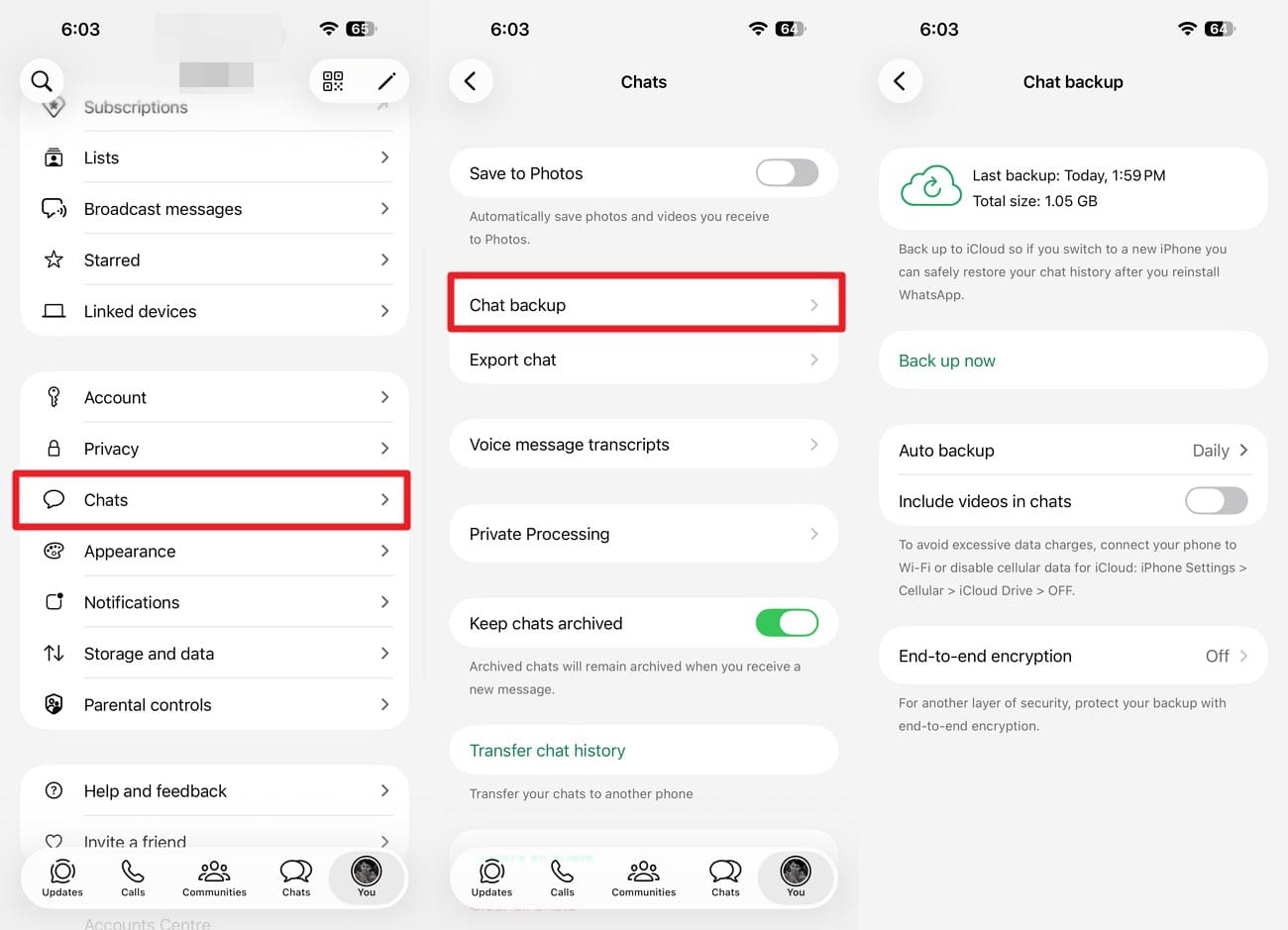
Step 1 Check the latest backup's date and size
Open “WhatsApp > Settings > Chats > Chat Backup.” Check the latest backup's date and size to confirm whether it predates the deletion. Make sure you are using the Apple Account and phone number associated with that backup.
-
Step 2 Uninstall and reinstall WhatsApp
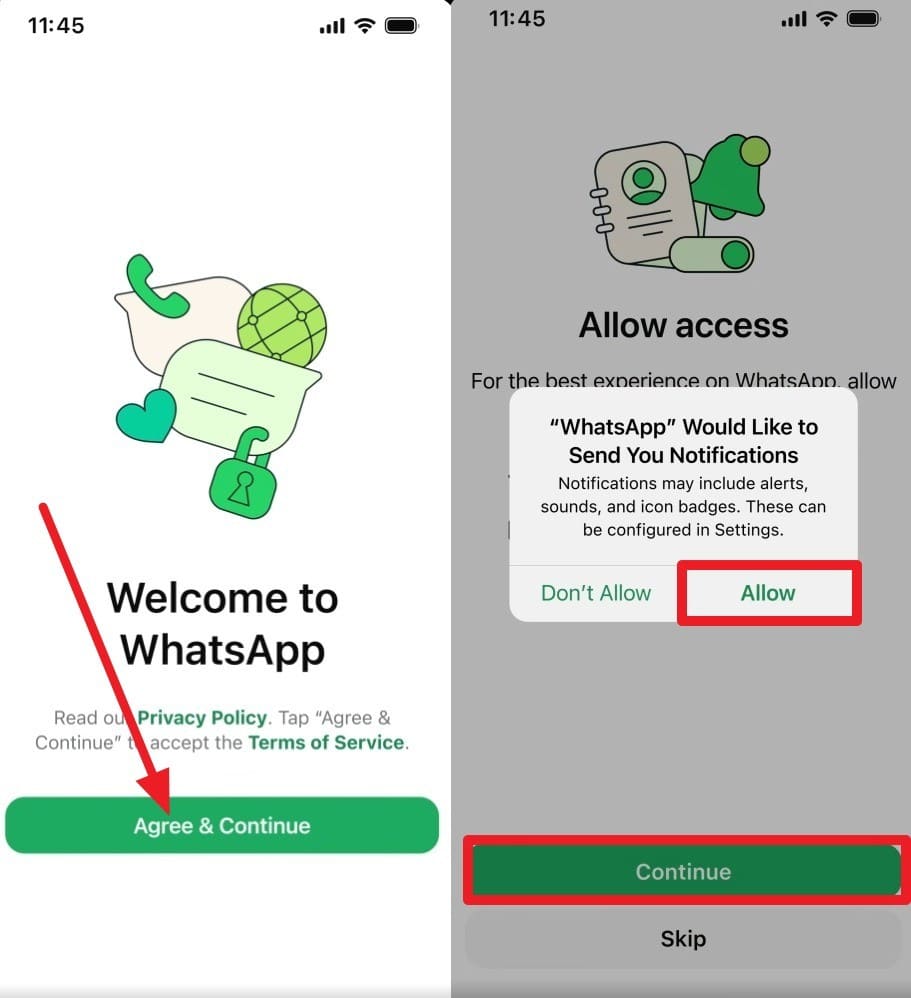
Uninstall WhatsApp from your iPhone 18, then reinstall it from the App Store. Tap “Agree & Continue” and enter the same phone number associated with the backup. Tap “Next,” enter the verification code, then select “Continue” and “Allow” when prompted.
-
Step 3 Restore from Backup
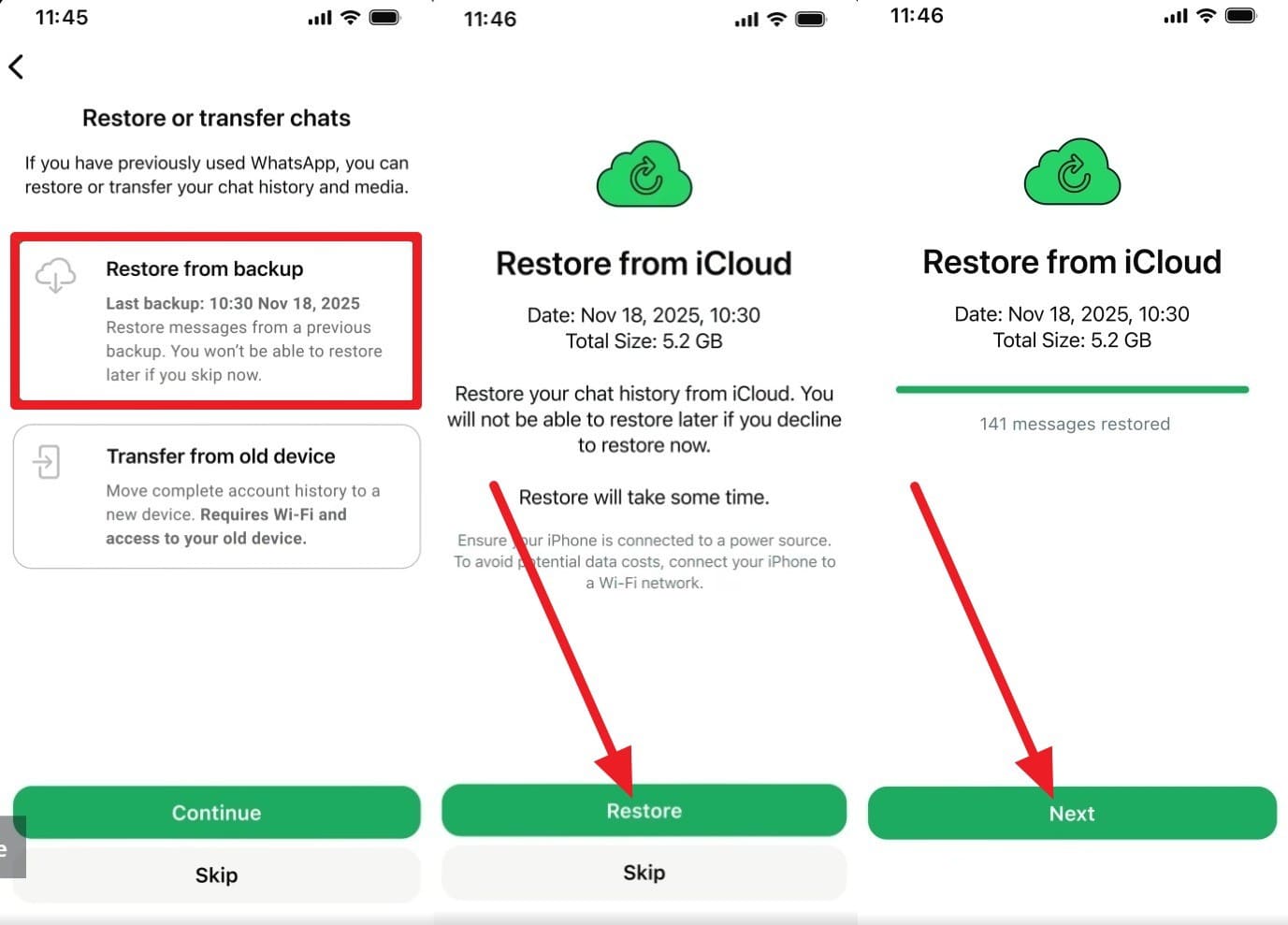
Once WhatsApp detects the backup, select “Restore from Backup > Continue > Restore > Next.” Wait for the restoration to be completed before accessing the recovered chats.
Part 3. Recover Deleted WhatsApp Messages Directly from iPhone 18 with Dr.Fone
If an available backup does not contain the missing chats, you can check the iPhone 18 itself. Dr.Fone - Data Recovery (iOS) uses Standard Recovery to scan the device for WhatsApp data that may still be accessible. It can check supported individual and group chats, attachments, and WhatsApp Business data without overwriting existing iPhone data.
Scanning and previewing detected data are available for free, allowing you to review the results before recovery. You can then recover supported data to a computer or restore it to the iPhone where available. However, the ability to recover deleted WhatsApp messages on iPhone 18 depends on what WhatsApp data remains accessible on the device when the scan is performed.
 Recovers data after deletion, crashes, or device damage.
- Supports photos, messages, contacts, WhatsApp, and more.
- Supports all major iPhone, iPad, and iPod models.
- Preview and recover only what you need.

Guide to Scan iPhone 18 for Recoverable WhatsApp Data
Before scanning, limit unnecessary use of the iPhone 18 to reduce further changes to potentially recoverable data. Once the device is ready, follow these steps to scan for and recover deleted WhatsApp messages on iPhone 18:
-
Step 1 Set Up Standard Recovery for the iPhone 18
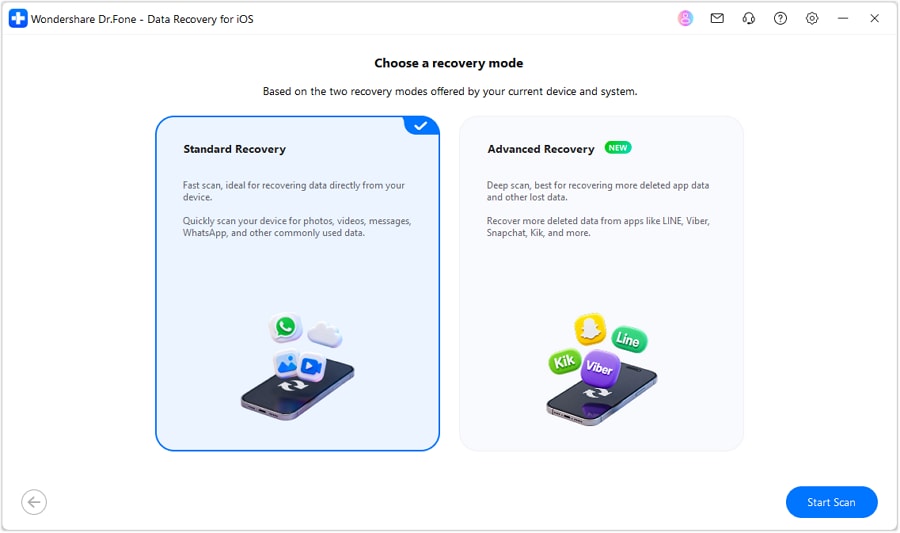
Launch Dr.Fone and open the “Data Recovery” tool for “iOS.” Choose “Recover Data from iOS Device,” then connect the iPhone 18 to your computer using a USB-C cable. After Dr.Fone detects the device, choose “Standard Recovery” to proceed.
-
Step 2 Scan the WhatsApp Data on iPhone 18
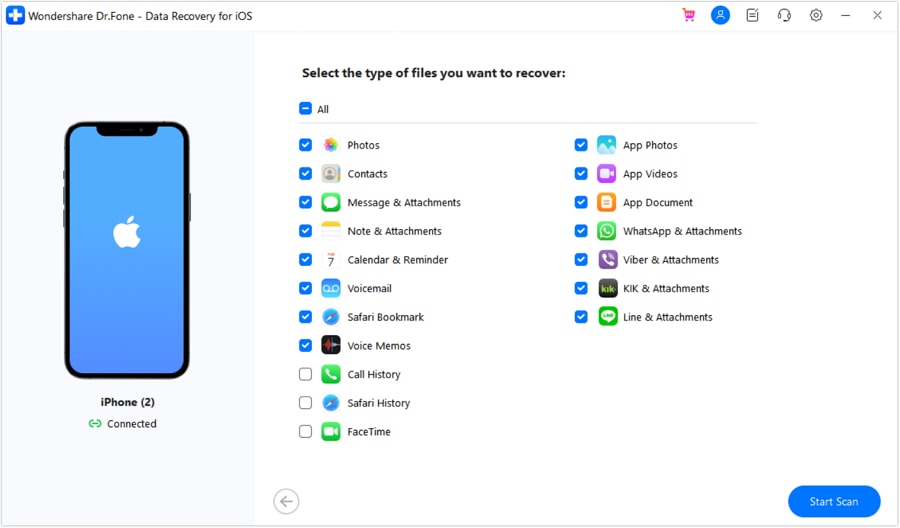
Choose “WhatsApp & Attachments” from the available data types, then click “Start Scan.” Dr.Fone will scan iPhone 18 for accessible WhatsApp chats and attachments.
-
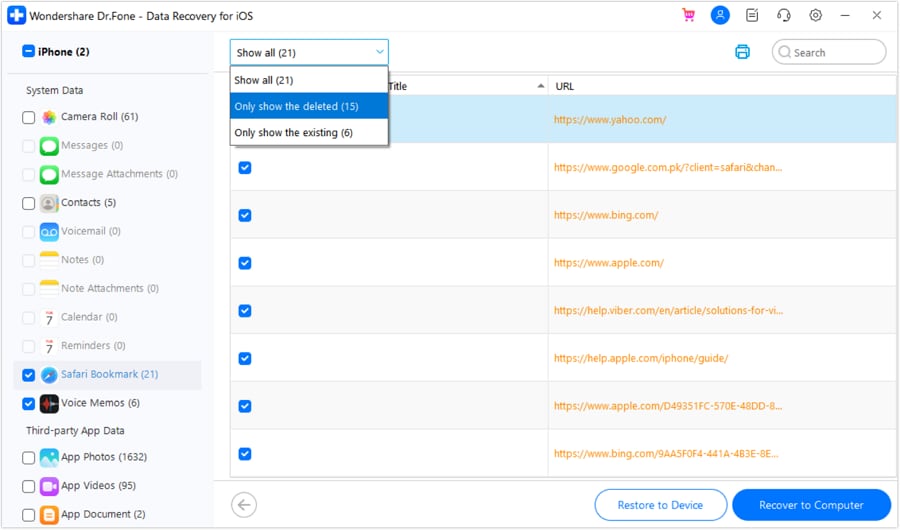
Step 3 Preview and Recover the Deleted WhatsApp Data
Filter the results to show deleted data, then preview the detected WhatsApp chats and attachments. Select the required items and click “Recover to Computer” to save them locally. For supported data, choose “Restore to Device” to return items to the iPhone. Disable Find My if prompted.
Part 4. Recover WhatsApp Data from iCloud Using Dr.Fone Without Reinstalling WhatsApp
If an iCloud source contains the missing chats, Dr.Fone - Data Recovery (iOS) provides two ways to recover deleted WhatsApp messages on iPhone 18 without immediately restoring the entire device. You can check supported WhatsApp data through Recover Messaging App Data or scan an available iCloud device backup.
These methods check different iCloud data sources. Recover Messaging App Data focuses on supported messaging app data available through iCloud, while Recover Data from iCloud Backup examines an available iCloud device backup for the required WhatsApp data.
Recover WhatsApp Data from iCloud Using Dr.Fone
Dr.Fone’s Recover Messaging App Data feature accesses supported messaging app data available through iCloud. It lets you review available WhatsApp data on a computer before selecting what to recover. Your iPhone 18 does not need to remain connected during the iCloud recovery process. Follow the guide below to recover deleted WhatsApp messages on iPhone 18 using this method:
-
Step 1 Access the Messaging App Data Feature
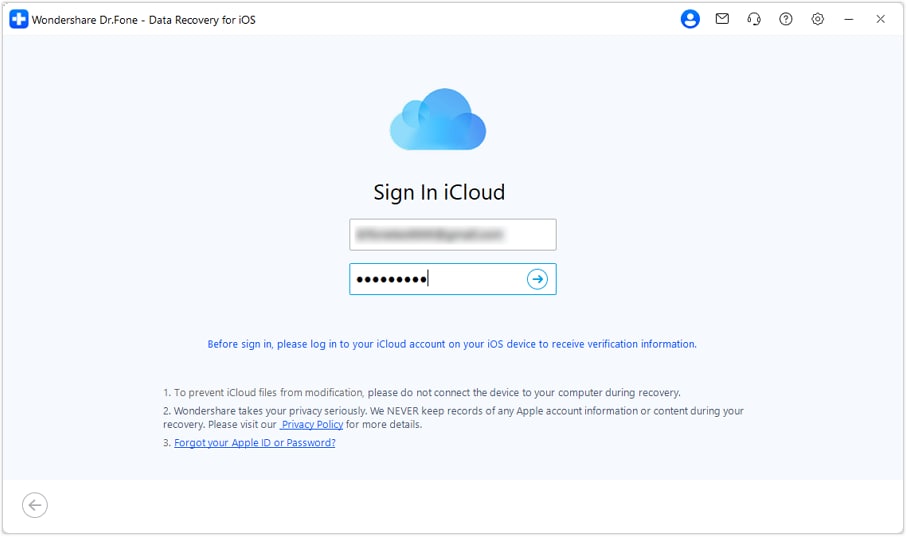
In the “Data Recovery” tool for iOS, select “Recover Messaging App Data.” Dr.Fone will first ask you to provide access through your Apple Account. Sign in with the associated Apple Account, then enter the two-factor authentication code to verify the sign-in and access the available iCloud data.
-
Step 2 Select the WhatsApp Backup
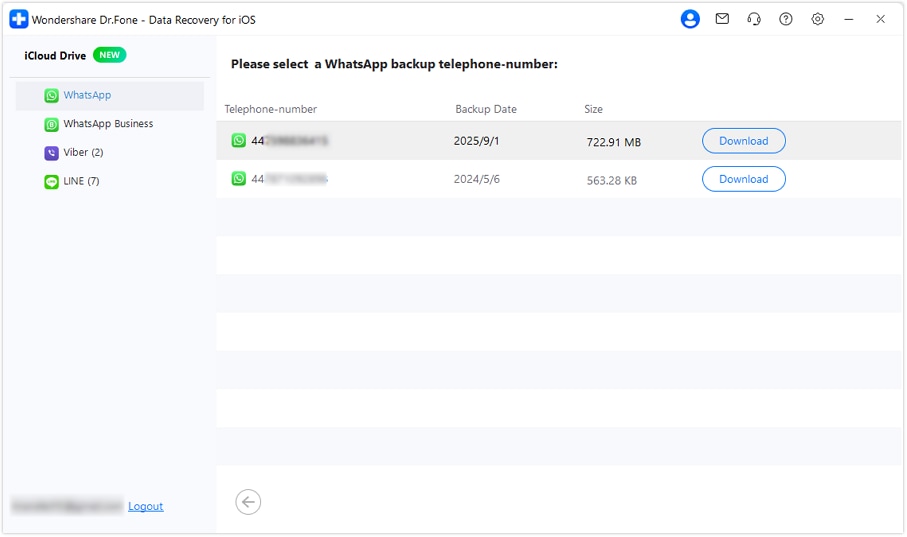
Select “WhatsApp” from the available file types and click “Next.” Wait while Dr.Fone downloads and processes the available iCloud files. Choose the backup associated with your WhatsApp phone number, then click “Download” to continue.
-
Step 3 Verify the WhatsApp Number and Recover the Data
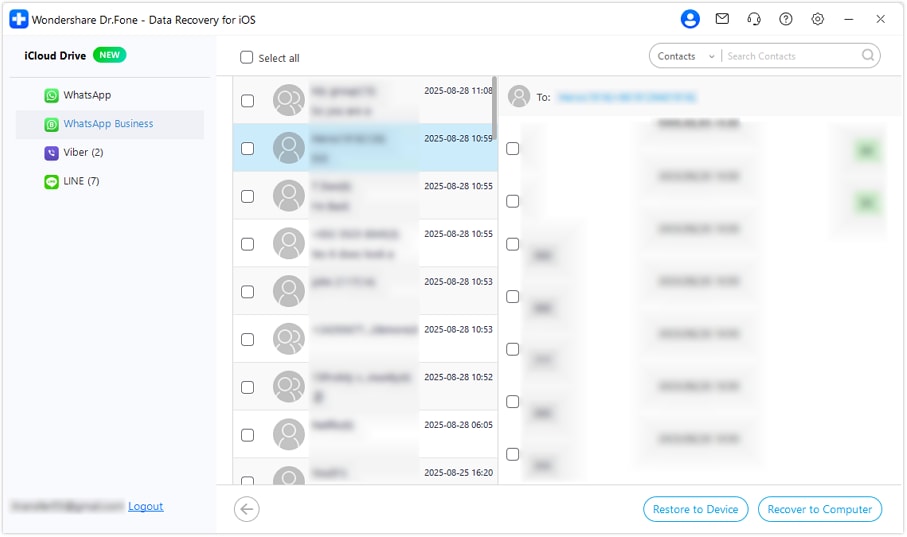
Enter your country code and WhatsApp phone number, then click “Verify.” Enter the verification code sent to the registered number. Preview the detected chats and select the required items. Choose “Recover to Computer” or “Restore to Device,” depending on the available recovery option.
Recover from iCloud Backup for an iCloud Device Backup
You can also recover deleted WhatsApp messages on iPhone 18 by checking an earlier iCloud device backup containing the required WhatsApp data. Unlike Apple's full device restoration, Dr.Fone lets you inspect supported backup contents on your computer. Select a backup created before deletion, preview detected WhatsApp chats, and recover available data without resetting iPhone 18. Follow the steps below to complete the recovery process.
-
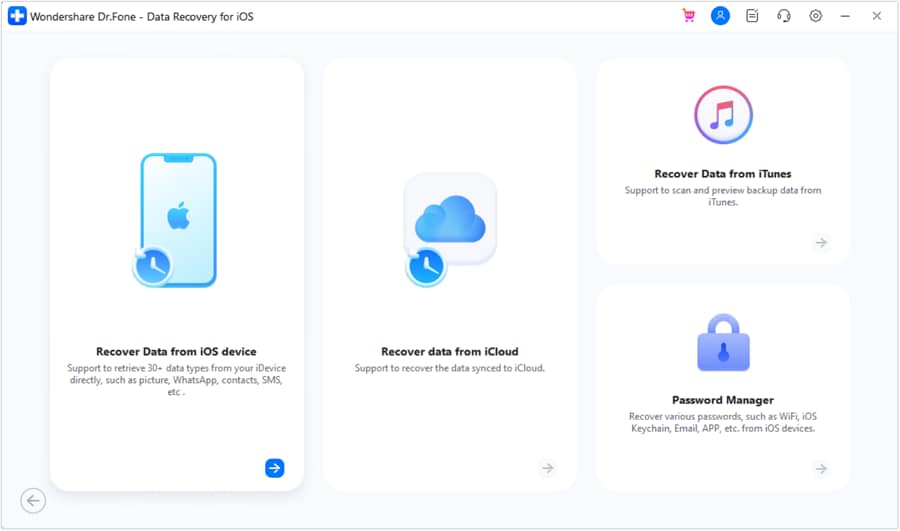
Step 1 Access Your iCloud Backup Files
Select “Recover Data from iCloud Backup,” then sign in with the Apple Account linked to the required iCloud device backup. Complete the two-factor authentication prompt to verify your identity and access the available backups.
-
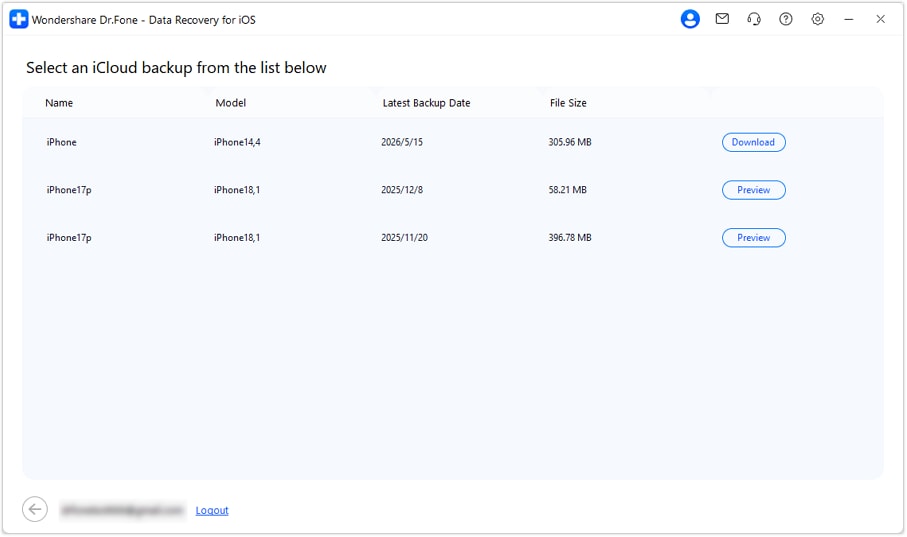
Step 2 Select the Relevant iCloud Device Backup
Review the available backups by device name and backup date. If a backup from before the WhatsApp chats were deleted is available, select it and click “Download” to continue.
-
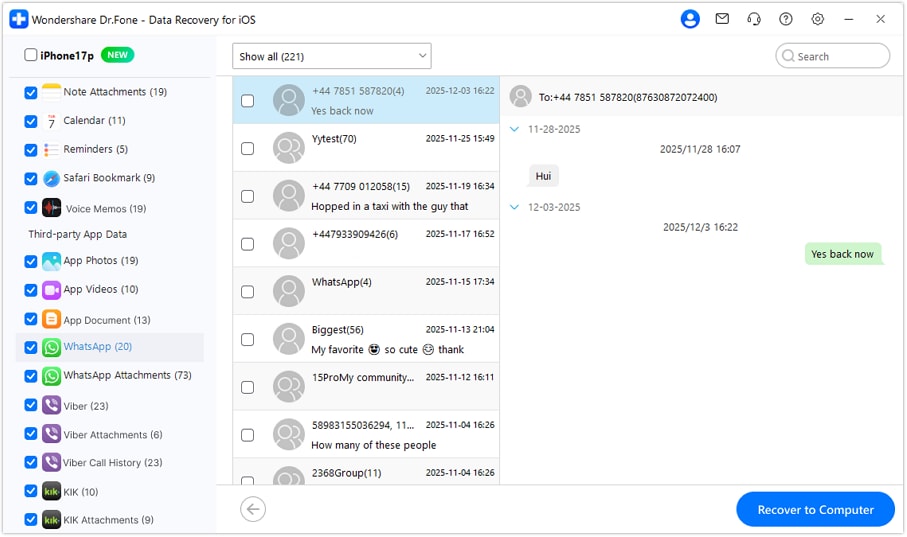
Step 3 Preview and Recover the WhatsApp Data
Open the WhatsApp category to preview the available chats and attachments from the selected backup. Choose the data you need, then click “Recover to Computer” to save it without changing the iPhone 18’s current data or setup.




Part 5. Recover WhatsApp Chats from Finder, Apple Devices, or iTunes Backup
A computer backup from your iPhone 18 or a previous iPhone may contain the WhatsApp data needed to recover deleted WhatsApp messages on iPhone 18. Finder, Apple Devices, and iTunes can create local backups containing supported iPhone data. The backup must contain the required WhatsApp chats to be useful.
Dr.Fone’s Recover Data from iTunes & Other Backup mode lets you scan available computer backups and preview supported WhatsApp data. You can recover selected items without affecting existing iPhone 18 data. Encrypted backups require the correct password for access. Follow the steps below to scan a suitable backup and recover the available WhatsApp chats:
-
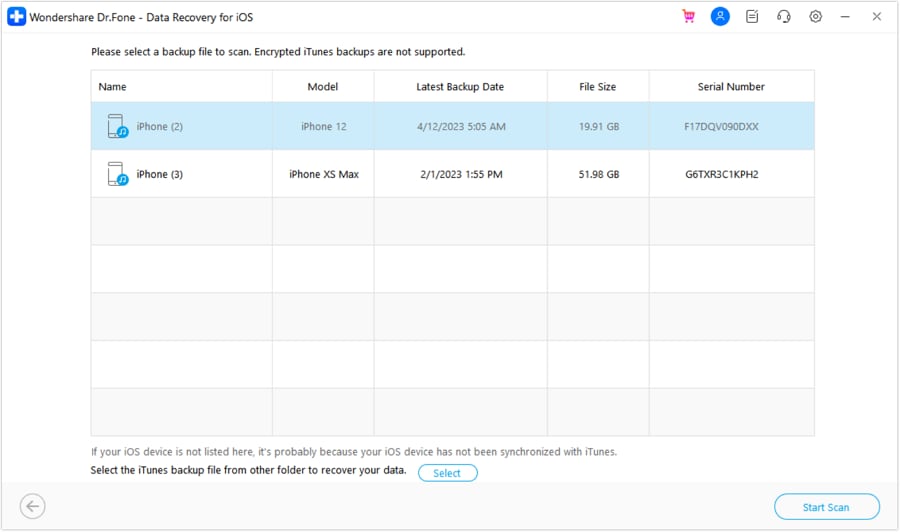
Step 1 Recover Data from iTunes and the Backup
Open the "Data Recovery" toolkit and choose "iOS." Select "Recover Data from iTunes & Other Backup," then choose the backup matching the required device name and date. Click "Start Scan" to load its available data.
-
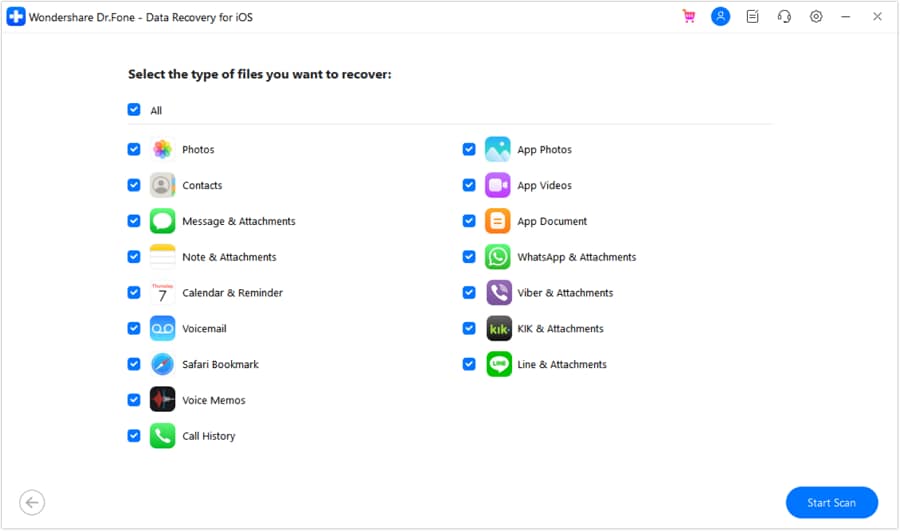
Step 2 Select WhatsApp for Scanning
Select “WhatsApp & Attachments” from the available data types, then click “Start Scan” to scan the selected computer backup for supported WhatsApp data.
-
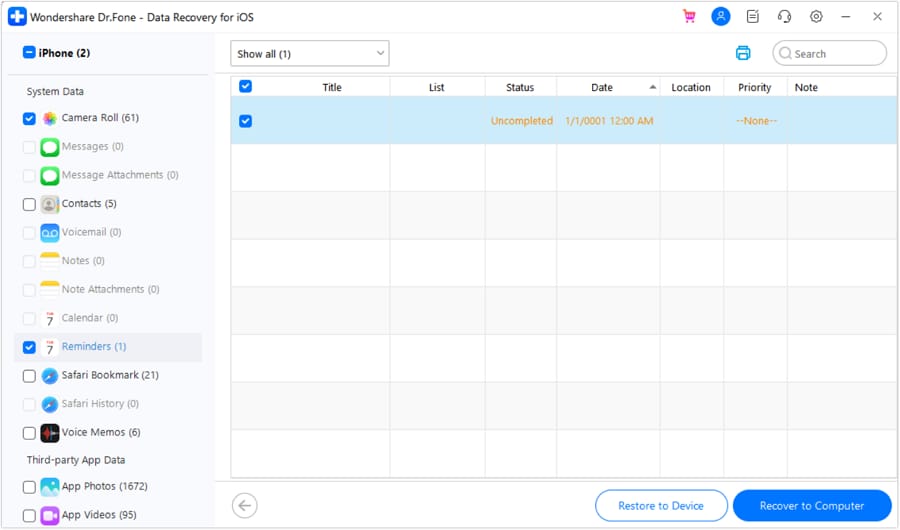
Step 3 Preview and Recover the WhatsApp Data
Review the detected WhatsApp chats and attachments, then select the data you need. Click “Recover To Computer” to save it locally or “Restore to Device” to recover supported data directly to your iPhone 18.
Part 6. Transfer WhatsApp Chats from an Old iPhone to iPhone 18
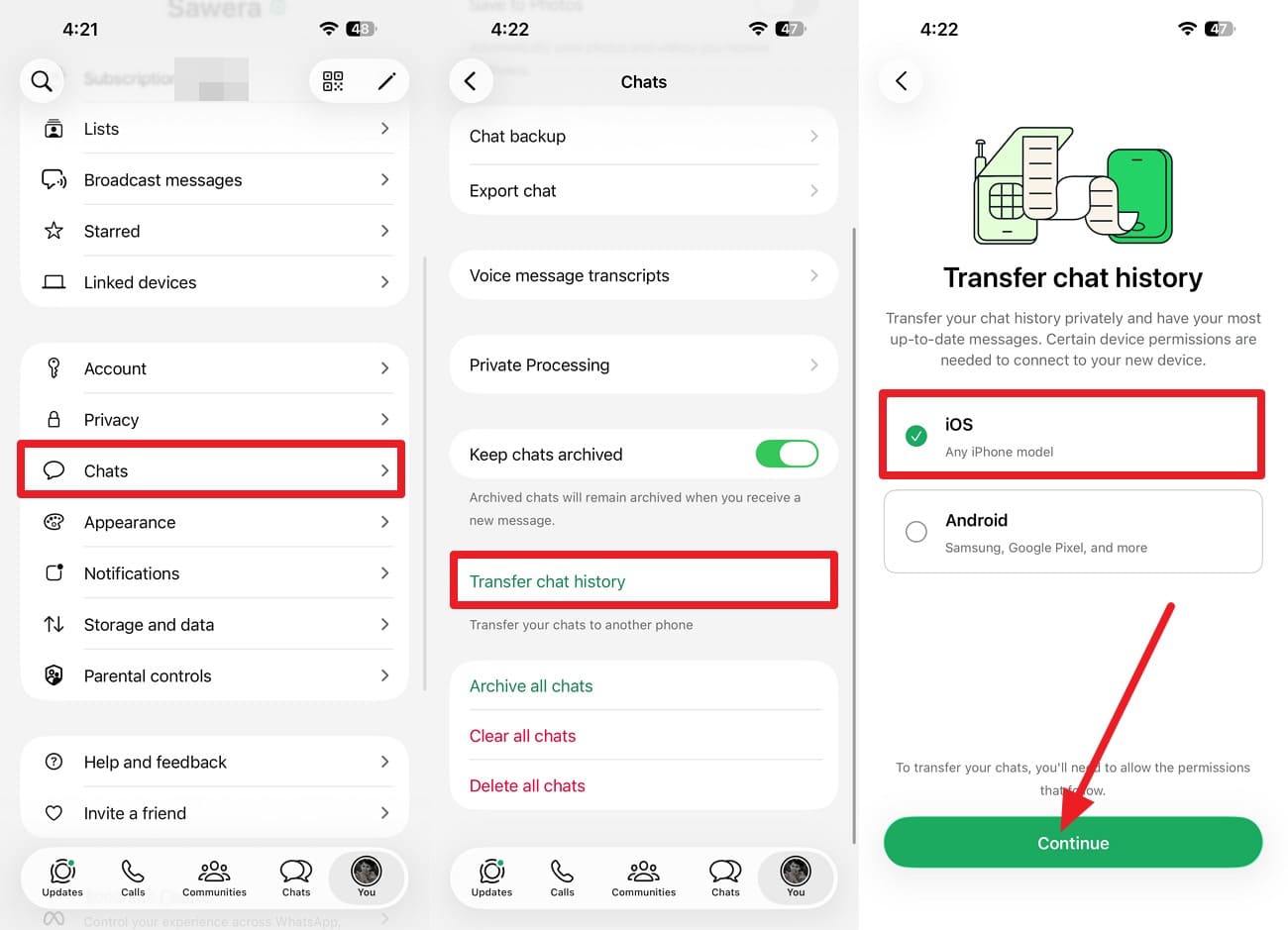
If the missing WhatsApp chats still exist on your previous iPhone, you can transfer them directly to iPhone 18. WhatsApp's built-in chat transfer moves existing conversations without requiring an iCloud backup. However, it does not recover messages already deleted from the source device.
Keep both iPhones nearby, connect them to Wi-Fi, and use the same WhatsApp phone number. On the old iPhone, open “WhatsApp > Settings > Chats > Transfer Chats to iPhone” and start the transfer. Follow the setup prompts on iPhone 18 and scan the displayed QR code using the old iPhone. Keep both devices connected until the transfer finishes.
Part 7. Why a WhatsApp Backup May Not Contain the Deleted Messages
A WhatsApp backup may not always contain the chats you expect to restore. This is important to check before trying to recover deleted WhatsApp messages on iPhone 18. The following points explain why the required messages may be missing from a WhatsApp iCloud backup:
| Reason | Why the Required WhatsApp Data May Not Be Available |
|---|---|
| Backup Was Created After the Deletion | The chats were already deleted before the backup was created, so that backup does not contain them. |
| Messages Were Received After the Backup | Messages sent or received after the backup date are not included in that backup. |
| Wrong Phone Number or Apple Account | WhatsApp requires the phone number and Apple Account associated with the backup to locate and restore it. |
| Include Videos Was Disabled | Videos are excluded when Include Videos was turned off for the WhatsApp backup. |
| Older Backup Was Replaced | Creating a newer WhatsApp iCloud backup can overwrite the earlier copy containing the deleted chats. |
Conclusion
The best way to recover deleted WhatsApp messages on iPhone 18 depends on where the required chats are still available. You can restore an existing WhatsApp iCloud Chat Backup, check an earlier iCloud or computer backup, or transfer chats that remain on your previous iPhone.
For supported devices and backup data, Dr.Fone - Data Recovery (iOS) provides additional selective recovery options. By checking the available sources first, you can choose the most suitable method without unnecessarily restoring the entire iPhone.
Frequently Asked Questions
-
1. Can I recover deleted WhatsApp messages on iPhone 18 without any backup?
Recovery without a backup is not guaranteed. Dr.Fone - Data Recovery (iOS) can use Standard Recovery to scan the iPhone 18 for accessible WhatsApp data. Avoid unnecessary device use before scanning to improve recovery chances. -
2. What is the difference between a WhatsApp iCloud Chat Backup and an iCloud device backup?
WhatsApp iCloud Chat Backup stores supported chats and media for restoration within WhatsApp. An iCloud device backup covers broader iPhone data and is primarily used to restore the device from an available backup. -
3. Can I recover WhatsApp View Once content on iPhone 18?
WhatsApp does not normally let you reopen a View Once item after viewing it. Dr.Fone - Data Recovery (iOS) can attempt to recover supported View Once photos, videos, and audio through its dedicated Recover WhatsApp View Once Data workflow, even after they disappear from the chat. Preview the detected items before exporting, as results depend on what the recovery session can retrieve.
 Add Wondershare Dr.Fone as a preferred source on Google