 Recover photos, messages, WhatsApp, and more — no backup
needed.
Recover photos, messages, WhatsApp, and more — no backup
needed.

 100% Security Verified | No Subscription Required | No Malware

 :
: 
 ChatGPT
 Perplexity
 Gemini
 Claude
 Grok
Grok
Notes can disappear from an iPhone 18 after accidental deletion, device setup, or changes to account syncing. Before trying to recover deleted notes on iPhone 18, confirm whether they were deleted or are simply missing. Search across your Notes accounts, then check Recently Deleted, iCloud, and connected services such as Gmail or Yahoo.
Permanently deleted notes require other recovery options once they are no longer available through Recently Deleted. Check synced accounts and available recovery folders first. This guide covers these methods and explains how Dr.Fone - Data Recovery (iOS) can scan iPhone 18 data when native recovery options cannot find the missing notes.
In this article
- Part 1. Find Where the Missing iPhone 18 Notes May Still Exist
- Part 2. How to Restore Recently Deleted Notes on iPhone 18
- Part 3. Recover Notes Missing After Setting Up or Syncing iPhone 18
- Part 4. How to Recover Permanently Deleted Notes Directly from iPhone 18
- Part 5. Why Some Deleted iPhone 18 Notes May Not Be Available for Recovery
Part 1. Find Where the Missing iPhone 18 Notes May Still Exist
Before trying a recovery method, identify where the missing note was originally stored. The best way to recover deleted notes on iPhone 18 depends on its account and deletion status. Check these possible locations first:
| Note Situation | Possible Location | Best Recovery Route |
|---|---|---|
| Deleted Within the Last 30 Days | Recently Deleted folder | Recover or move it back to a regular Notes folder |
| Missing After iPhone 18 Setup | iCloud or another synced account | Check iCloud.com, then re-enable Notes sync |
| Missing From Gmail, Yahoo, or Exchange | Linked account or provider’s Trash | Re-enable Notes sync or check the provider’s Trash, Bin, or deleted-item location |
| Permanently Deleted Local Note | Potentially recoverable device data | Scan with Dr.Fone - Data Recovery (iOS) |
| Available Only in an Earlier Backup | iCloud or computer backup | Restore the backup or extract supported data with Dr.Fone |
Part 2. How to Restore Recently Deleted Notes on iPhone 18
To restore deleted notes on iPhone 18, first check the account where the note was stored. iCloud, On My iPhone, and third-party accounts can handle deleted notes differently. Apple keeps deleted notes in Recently Deleted for 30 days before permanently removing them. iCloud and On My iPhone appear as separate account locations in Notes, so check Recently Deleted under the relevant location.
Third-party accounts such as Gmail and Yahoo work differently. Notes deleted through them usually go to the provider’s Trash or Bin instead of Apple’s Recently Deleted folder. For iCloud notes, deletion syncs across devices signed in to the same Apple Account. Recovering an iCloud note from Recently Deleted makes it available again on your connected devices.
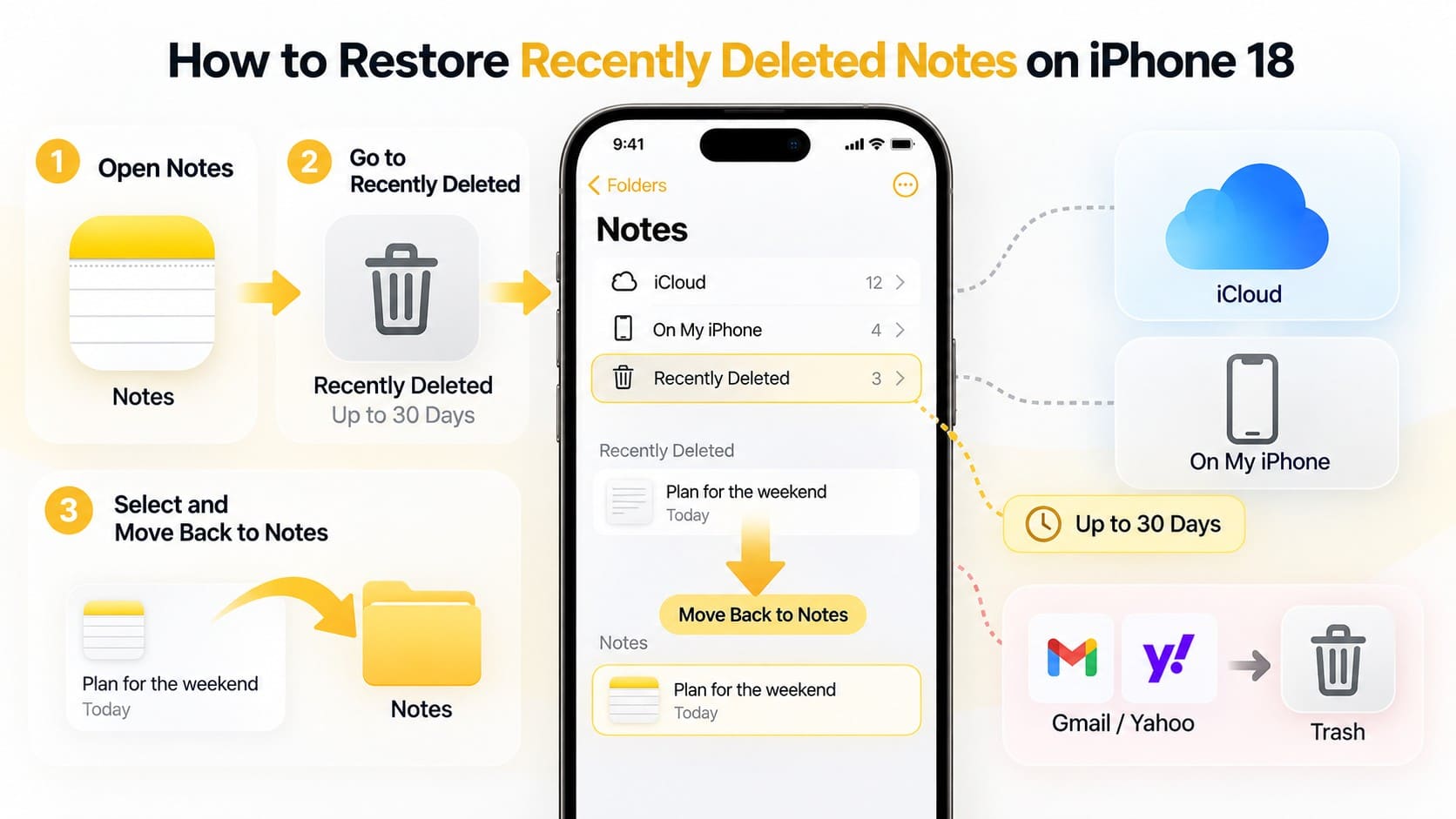
Guide to Restore Notes from Recently Deleted
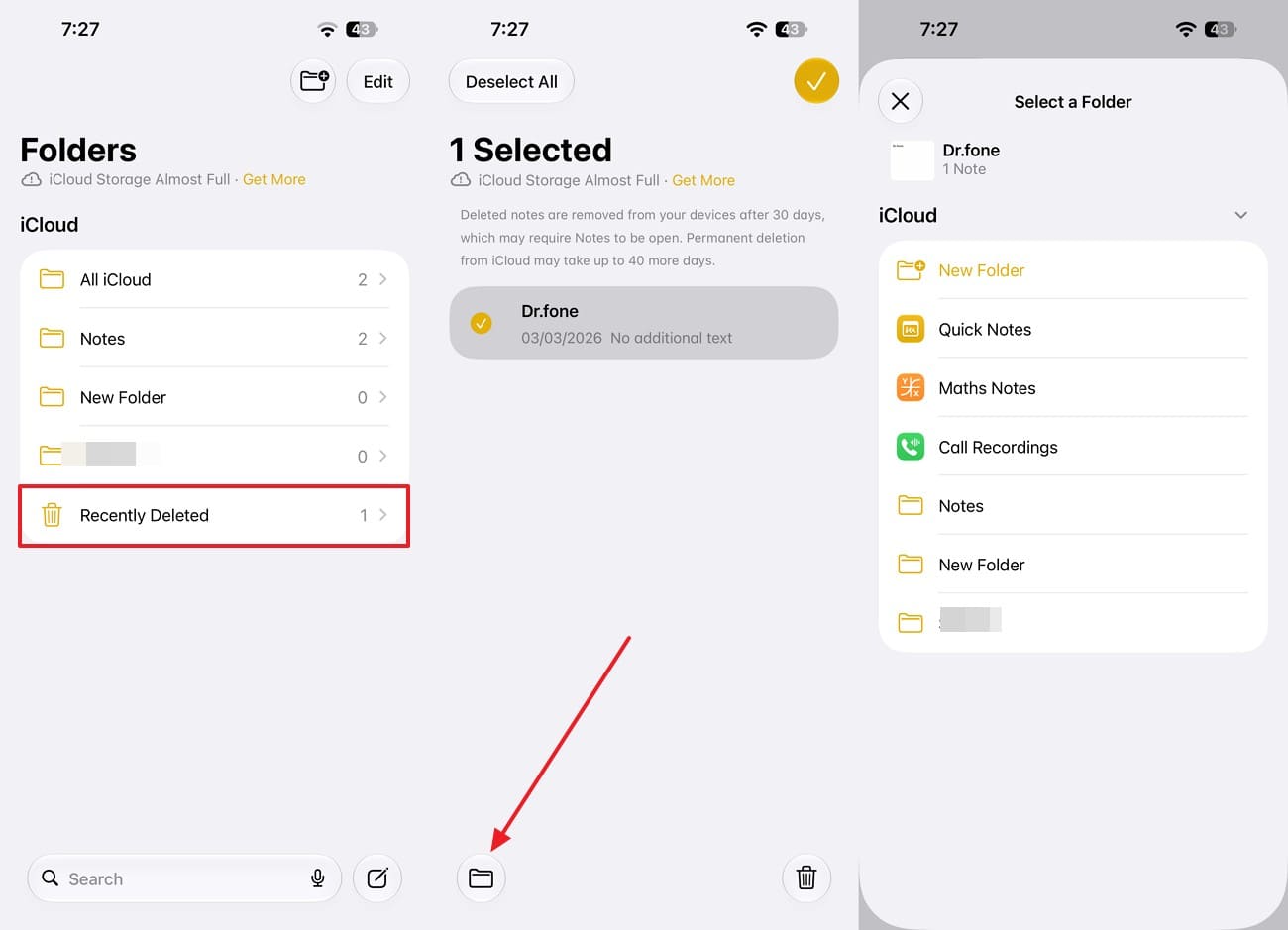
Once you locate the missing note, you can recover deleted notes on iPhone 18 with a few taps in the Notes app. Here is how to move it back to a regular folder:
Instructions. Open Notes and return to the Folders screen, then select “Recently Deleted.” Tap “Edit,” select the note you want to recover, and tap “Move.” Choose a destination folder, such as Notes under iCloud, to restore the note.

Part 3. Recover Notes Missing After Setting Up or Syncing iPhone 18
If notes are missing after setting up a new iPhone 18, they may not have been deleted at all. Before trying to recover deleted notes on iPhone 18, check whether the original account has synced correctly. Notes can remain stored in iCloud or another linked account but fail to appear on the new device.
Resync Notes Stored in iCloud
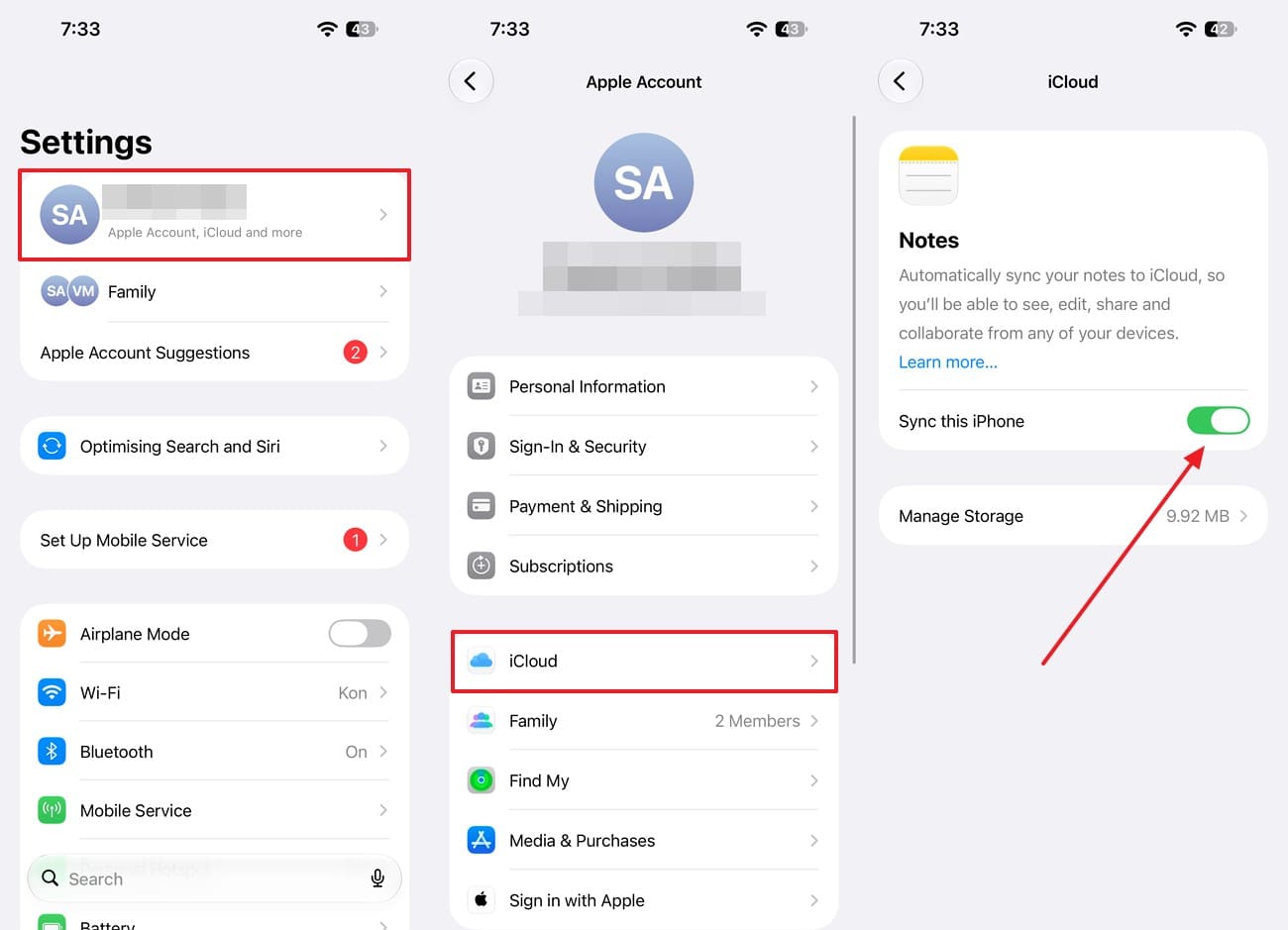
iCloud Notes are stored in iCloud and appear on your iPhone 18 when you use the same Apple Account with Notes syncing enabled. First, check iCloud.com/notes to confirm whether the missing notes are still available online. If they appear there but not on your iPhone 18, re-enable Notes syncing using these steps:
Instructions. Go to “Settings,” tap your name to access the “iCloud” settings, and select “Notes.” Turn on “Sync this iPhone” and keep the device connected to Wi-Fi while your notes download. Wait a few minutes. If the notes still do not appear, restart your iPhone 18 and check the Notes sync setting again.
Restore Notes from Gmail, Yahoo, or Exchange
Notes saved through Gmail, Yahoo, or Exchange sync with their respective accounts rather than iCloud. Before trying to restore deleted notes on iPhone 18, confirm that the original account is still connected and Notes sync is enabled. Removing the account or turning off Notes can hide its notes from the Notes app without deleting them.
If the notes still exist in the linked account, reconnecting it or enabling Notes sync will restore them to the Notes app. Follow these steps to check the account and re-enable Notes syncing:
-
Step 1
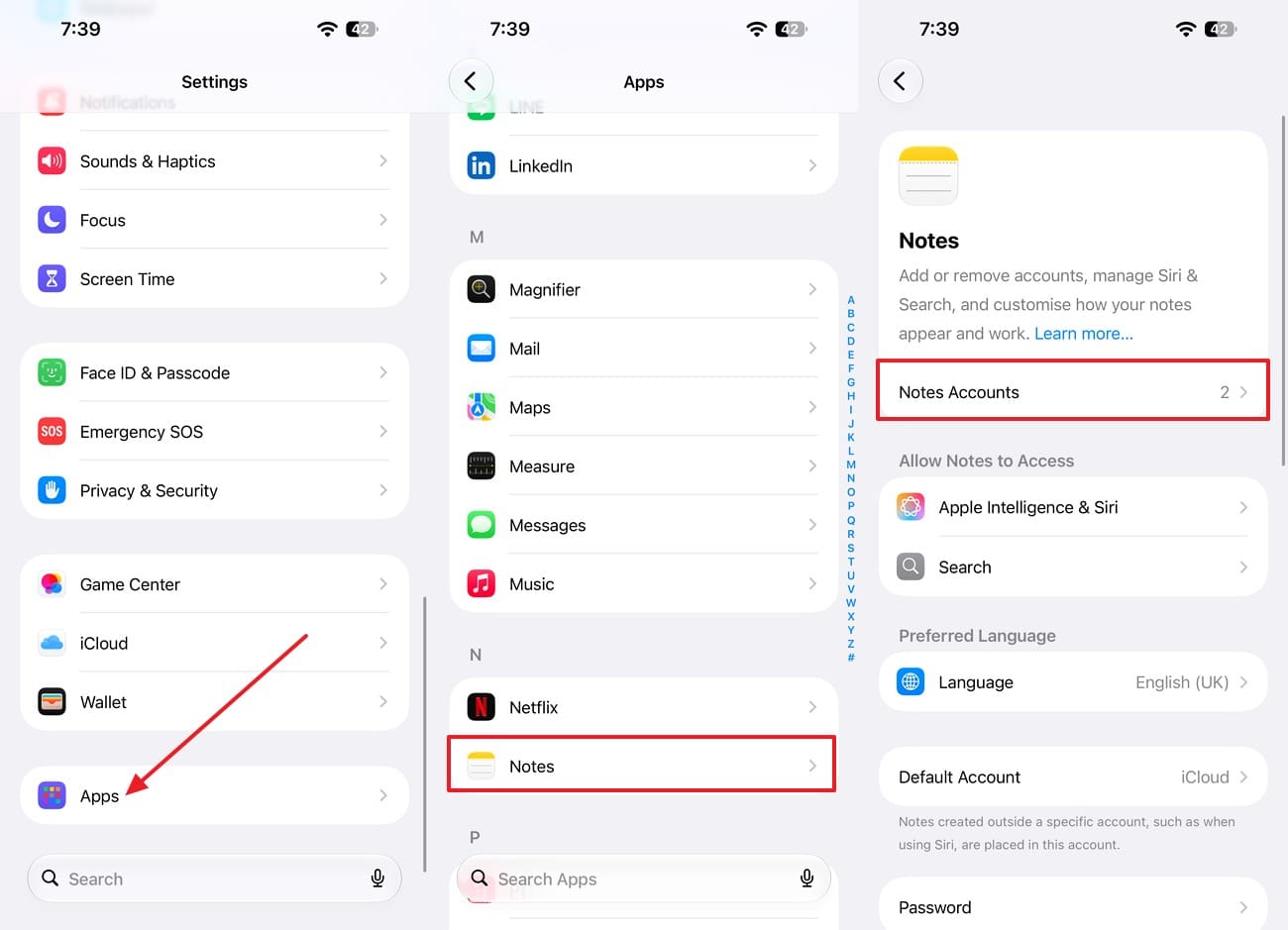
In the “Apps” settings, select “Notes” and choose the “Notes Accounts” option.
-
Step 2
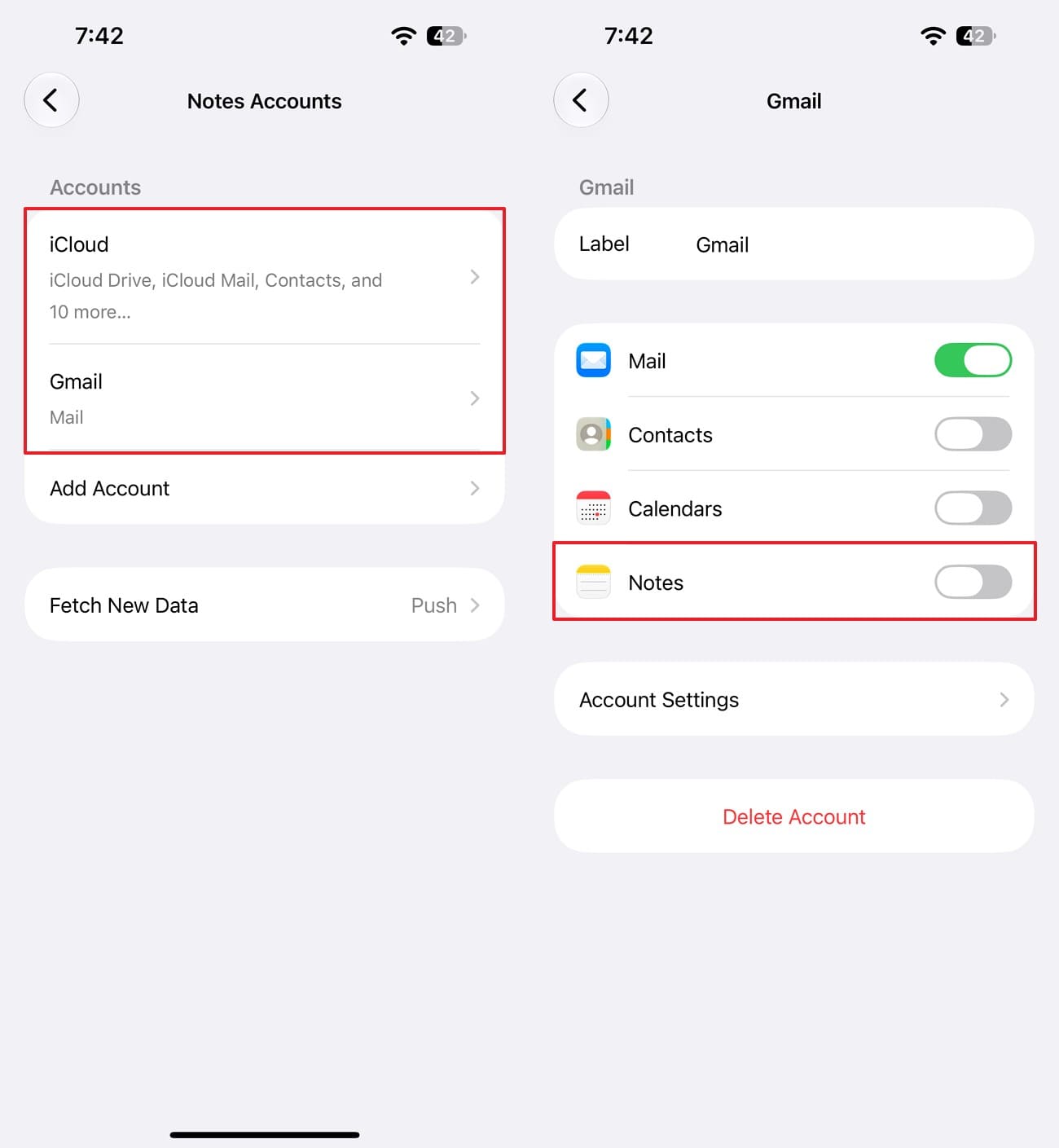
Select the account that originally stored the notes and turn on “Notes” for that account. Open the Notes app and wait for the account folders to appear under the folder list.
| Mail Provider | Where Deleted Notes Go | How Long They Stay |
|---|---|---|
| Gmail | Gmail Trash | Up to 30 days, per Google |
| Yahoo | Yahoo Mail Trash | 7 days under Yahoo Mail’s current Trash policy |
| Exchange | Deleted Items, then Recoverable Items after permanent deletion | Retention depends on organization settings; Exchange Online commonly defaults to 14 days for recoverable items. |
Part 4. How to Recover Permanently Deleted Notes Directly from iPhone 18
Once a note is permanently removed from Recently Deleted, Apple’s built-in recovery options can no longer restore it. If no synced copy remains, another recovery method is needed to recover permanently deleted notes on iPhone 18. An older backup could still contain the note, while direct device recovery depends on whether the missing data remains detectable.
Dr.Fone - Data Recovery (iOS) provides another recovery route by scanning a connected iPhone 18 from a Windows PC or Mac. Its Standard Recovery mode supports categories such as Notes & Attachments and can scan the device without an existing backup. The process is read-only, so scanning does not modify existing iPhone data. You can also preview detected notes and attachments before selecting the content you want to recover.
 Recovers data after deletion, crashes, or device damage.
- Supports photos, messages, contacts, WhatsApp, and more.
- Supports all major iPhone, iPad, and iPod models.
- Preview and recover only what you need.

Guide to Scan iPhone 18 for Recovering Deleted Notes and Attachments
To recover deleted notes on iPhone 18 through a direct device scan, limit unnecessary phone use before starting the recovery process. This helps preserve the current device state while you search for missing content. Follow these steps to scan for detectable notes and attachments:
-
Step 1 Connect the iPhone 18 for Data Recovery
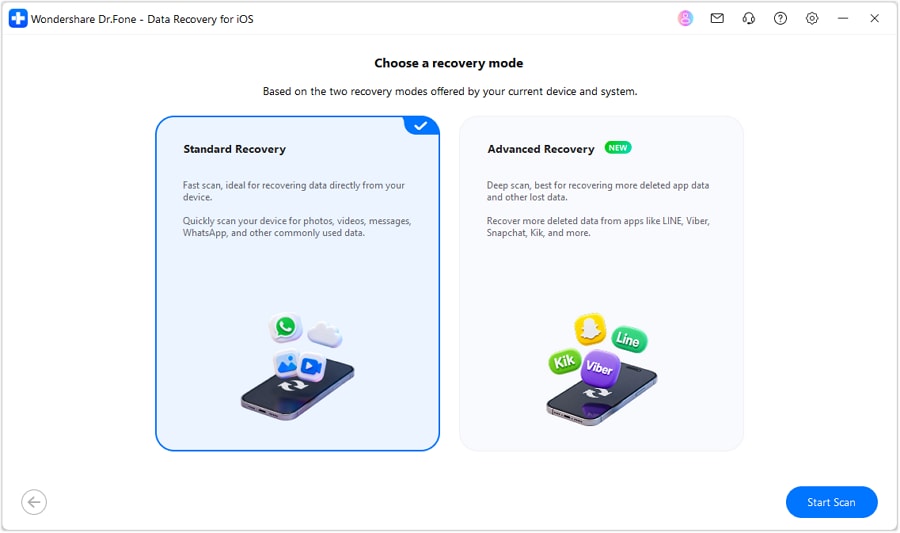
Open the “Data Recovery” tool, choose “iOS,” and select “Recover Data from iOS Device.” Next, plug in your iPhone 18 and tap “Trust” if prompted. Once Dr.Fone detects the device, select “Standard Recovery” and click “Start Scan.”
-
Step 2 Tick Notes & Attachments and Start the Scan
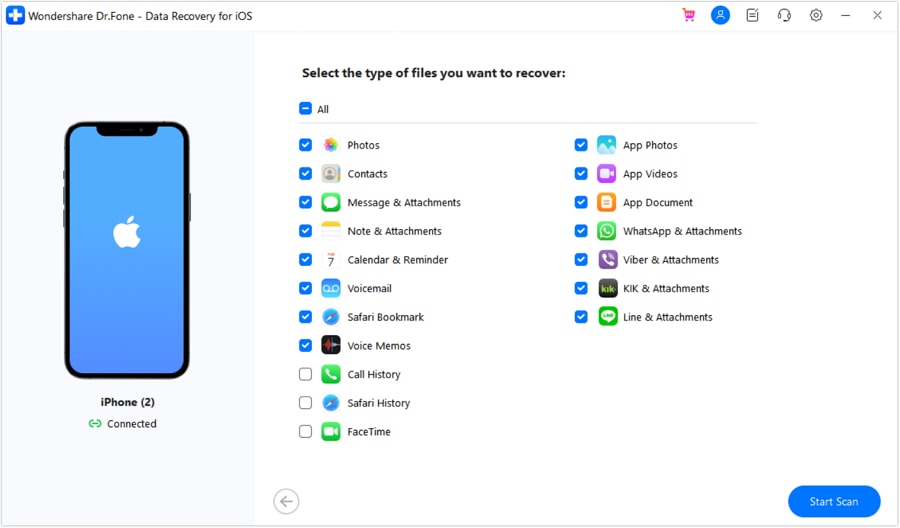
Select “Notes & Attachments” from the data-type list, then click “Start Scan.” Leave the other categories unchecked to keep the scan focused on notes and their attachments.
-
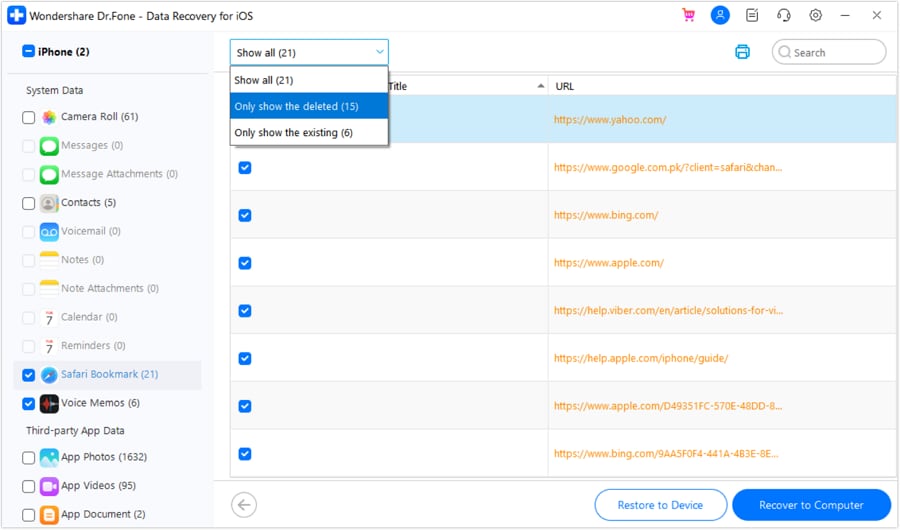
Step 3 Filter for Deleted Notes and Save Them
Once the scan finishes, switch the filter to deleted data and open Notes to review the detected notes and attachments. Select the notes you want to keep, choose the appropriate recovery option, and complete the recovery process.




Part 5. Why Some Deleted iPhone 18 Notes May Not Be Available for Recovery
Some notes can become permanently unavailable even after you try to recover deleted notes on iPhone 18. Recoverability depends on where the note was stored, how it was deleted, and whether another copy remains. Here are the main reasons recovery can fail:
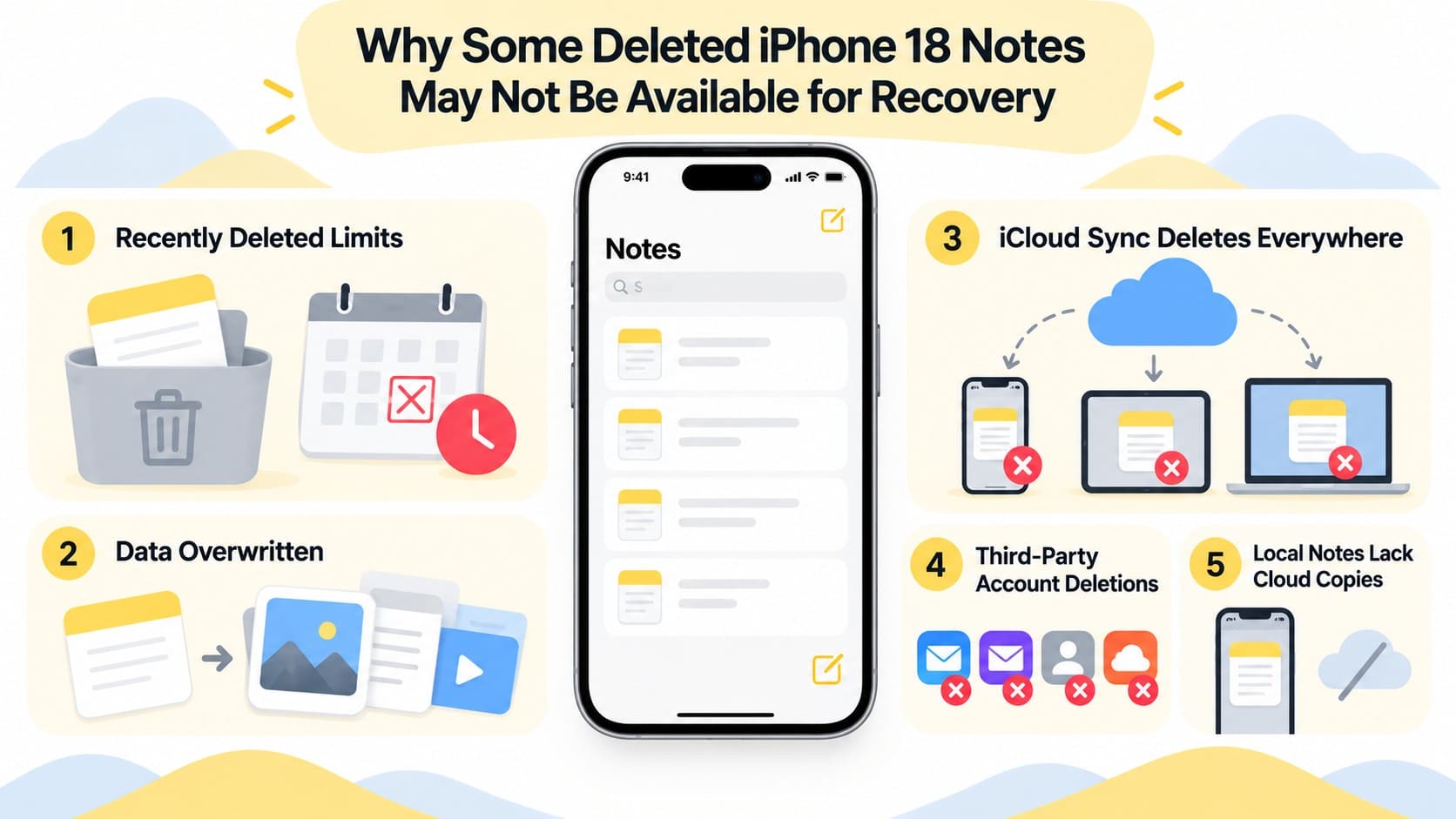
- Recently Deleted Recovery Expired: Notes remain recoverable through Recently Deleted only for a limited period. Once permanently removed from that folder, Apple’s built-in Notes recovery can no longer restore them.
- Deleted Data Can Become Unrecoverable: Permanently deleted data is not guaranteed to remain recoverable from iPhone storage. Continued device use and storage changes can further reduce the possibility of successful recovery.
- iCloud Deletions Sync Across Devices: Deleting an iCloud note syncs that change across devices using the same Apple Account. Once deletion finishes syncing, another connected device generally cannot provide an unaffected copy.
- Third-Party Accounts Follow Their Own Rules: Gmail, Yahoo, and Exchange manage their notes through their respective accounts. Deleted notes follow the provider’s Trash, Deleted Items, and applicable retention policies.
- Local Notes Lack iCloud Sync: Notes stored under On My iPhone do not sync through iCloud Notes. Without another copy or backup, there is no cloud-synced version available for restoration.
Conclusion
Recently Deleted should be your first stop when you need to recover deleted notes on iPhone 18, but the right method depends on where the notes were stored. Check iCloud and linked accounts before moving to other recovery options. For permanently deleted notes, Dr.Fone - Data Recovery (iOS) can scan iPhone 18 data and available backups for content that may still be recoverable.
Recovery becomes more difficult once no synced or stored copy remains. Limiting unnecessary device use can also help preserve the best chance of finding recoverable data. By following the appropriate method for each storage location, you can avoid unnecessary recovery steps and focus on where the missing notes are most likely to exist.
FAQ
-
1. Can I recover permanently deleted notes on iPhone 18 after 30 days?
Apple’s built-in Notes recovery cannot restore notes once they are permanently removed from Recently Deleted. To recover deleted notes on iPhone 18 after 30 days, first check whether another synced copy or backup exists. If neither is available, Dr.Fone - Data Recovery (iOS) can scan supported iPhone data for recoverable notes. Recovery results depend on whether usable data can still be detected. -
2. Can I recover deleted iPhone 18 notes from an iCloud backup?
Yes, if the missing notes were stored locally when the iCloud backup was created. On My iPhone notes can be included in iCloud Backup, while iCloud Notes sync separately through your Apple Account. Apple requires erasing the iPhone before restoring a full iCloud backup. Alternatively, Dr.Fone can extract supported data from an available backup without restoring the entire device. -
3. Can I recover deleted notes from a Finder, Apple Devices, or iTunes backup?
Recovery is possible if the notes were stored locally on the iPhone and existed when the computer backup was created. Notes syncing through iCloud are not included in the computer backup. Apple’s standard method restores the complete backup to the iPhone. Alternatively, Dr.Fone can extract supported notes from an available backup without performing a full-device restore.
 Add Wondershare Dr.Fone as a preferred source on Google




