Recover photos, messages, WhatsApp, and more — no backup
needed.
Recover photos, messages, WhatsApp, and more — no backup
needed.

 100% Security Verified | No Subscription Required | No Malware

 :
: 
 ChatGPT
 Perplexity
 Gemini
 Claude
 Grok
Grok
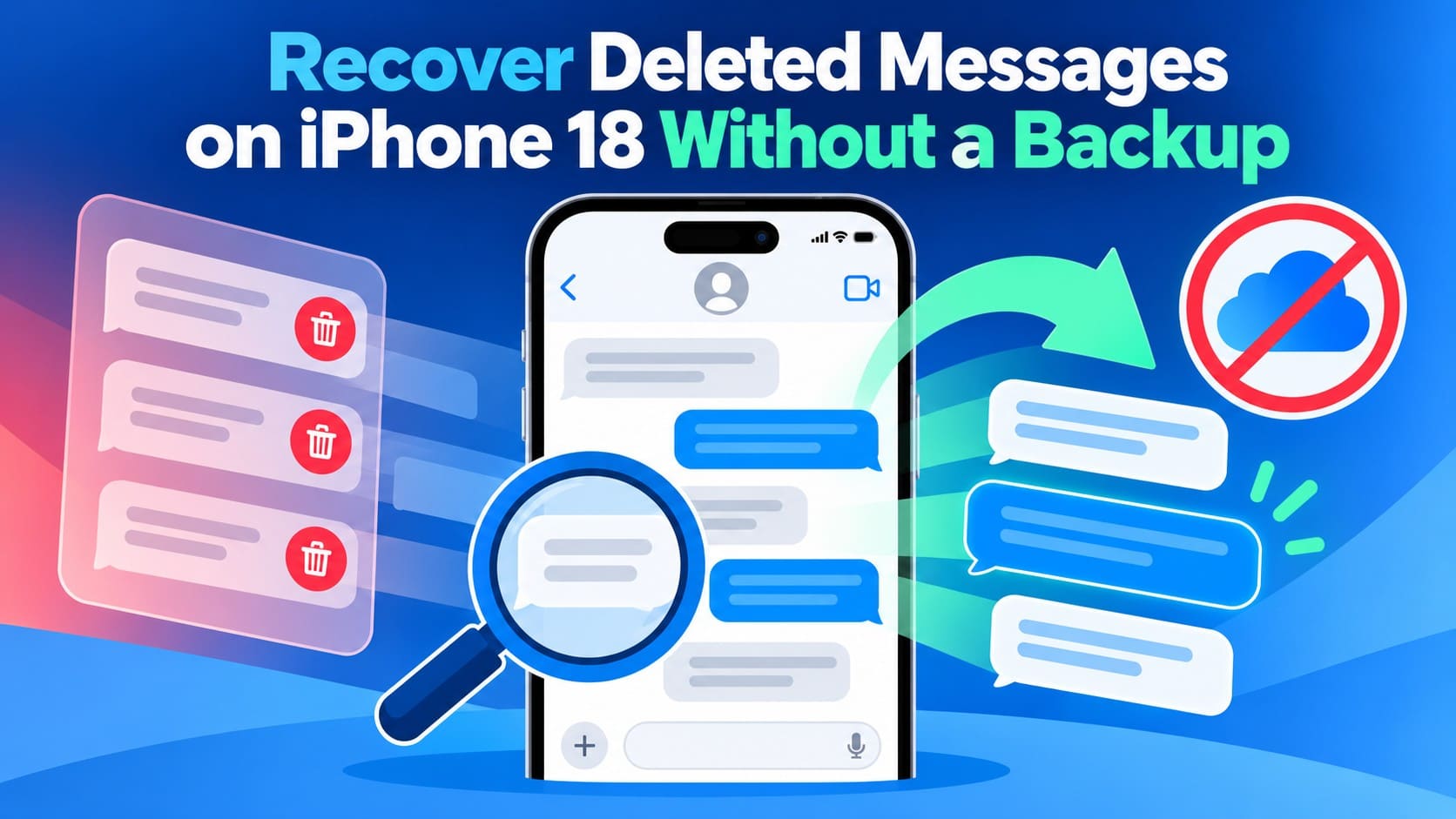
Deleted an SMS or iMessage thread on your iPhone 18 and found no usable iCloud or computer backup to restore from? Your first option is the Recently Deleted folder in the Messages app. This keeps eligible messages and conversations for up to 30 days.
If the thread is not listed there, Apple has no built-in way to restore it without a backup. However, some message data may remain accessible on the device, and a data recovery tool can scan the iPhone for recoverable records. Review this guide and learn how Dr.Fone - Data Recovery (iOS) performs such a scan to recover deleted messages on iPhone 18.
In this article
- Part 1. Recover Deleted Messages on iPhone 18 from Recently Deleted
- Part 2. How to Recover Permanently Deleted Messages on iPhone 18 Without a Backup
- Part 3. Other Ways to Retrieve Deleted iPhone 18 Message Content Without a Backup
- Part 4. iPhone 18 Message Recovery Limits for Special Deletion Cases
Part 1. Recover Deleted Messages on iPhone 18 from Recently Deleted
You can restore deleted text messages for up to 30 days, as long as they have not been permanently removed. This is the easiest way to recover deleted messages on iPhone 18 because it restores them directly in the Messages app.
If you use Messages in iCloud, a recovered message or conversation also returns on your other Apple devices where Messages in iCloud is turned on. So, if the deleted conversation is still available in Recently Deleted, you can restore it directly from the Messages app using the following steps:
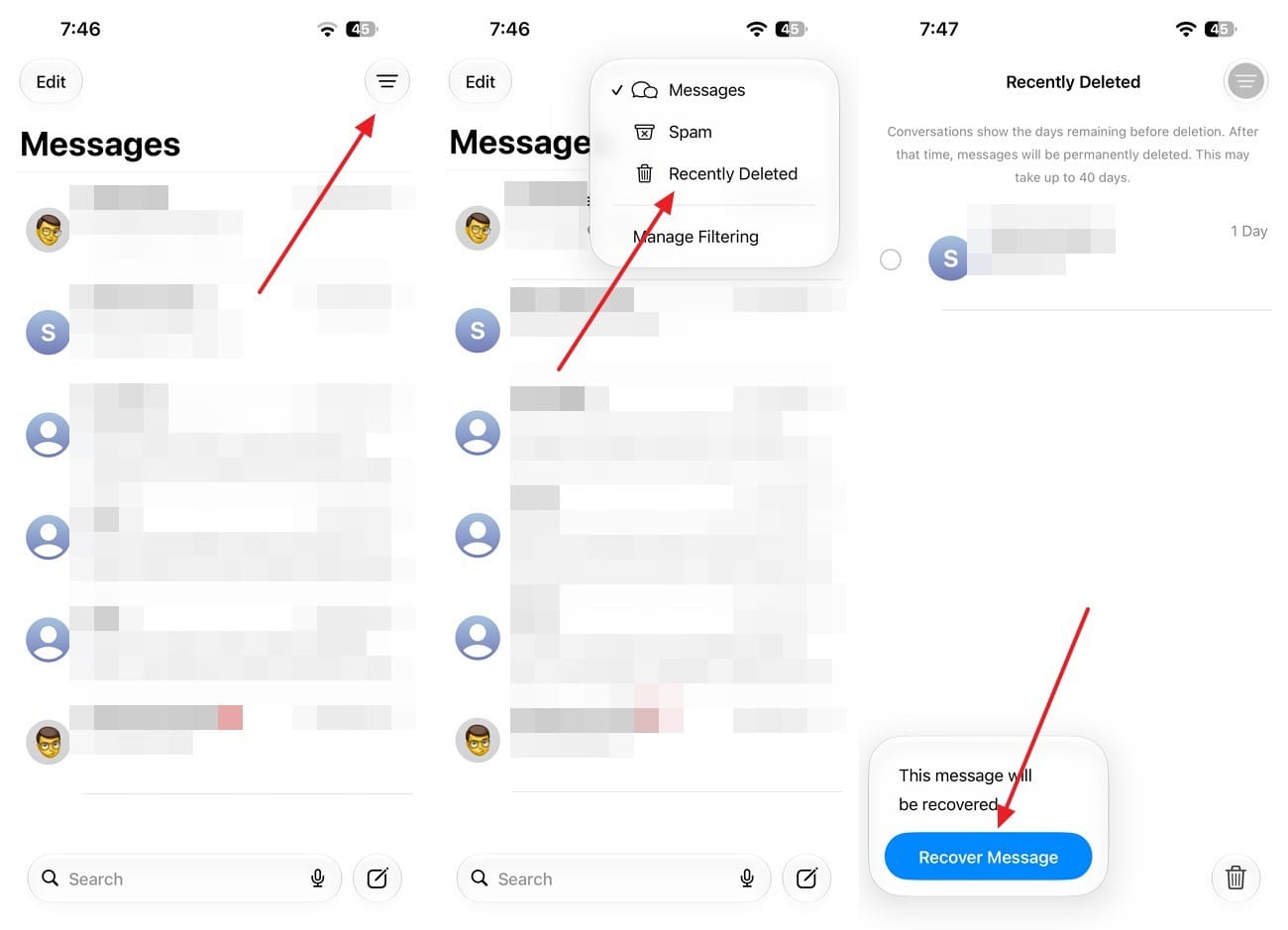
Instructions. Open the Messages app on your iPhone 18 and go to the conversation list. Select "Filters" at the top of the screen, then choose "Recently Deleted." Select one or multiple conversations and then choose "Recover > Recover Messages" to confirm. The restored conversation will return to your normal Messages list.
Part 2. How to Recover Permanently Deleted Messages on iPhone 18 Without a Backup
Once a conversation is gone from Recently Deleted and no backup contains it, Apple does not provide another built-in restore option. However, a data recovery tool may help check whether any message data remains accessible on the device. Dr.Fone - Data Recovery (iOS) offers a "Recover Data from iOS Device" mode that scans the connected device to recover deleted messages on iPhone 18 without using a backup.
With Standard Recovery, you can scan Messages & Attachments for available SMS, iMessage content, and related files. The scan and preview are free and do not overwrite existing iPhone data. Still, permanently deleted messages may not appear because recovery depends on what remains accessible on the device at the time of scanning.
 Recovers data after deletion, crashes, or device damage.
- Supports photos, messages, contacts, WhatsApp, and more.
- Supports all major iPhone, iPad, and iPod models.
- Preview and recover only what you need.

Guide to Scan iPhone 18 for Recoverable Messages and Attachments
Before using a recovery tool to recover deleted messages on iPhone 18, avoid erasing or restoring the device and limit unnecessary new activity before scanning. Go through these steps to scan for messages with Standard Recovery:
-
Step 1 Enable Standard Recovery Mode
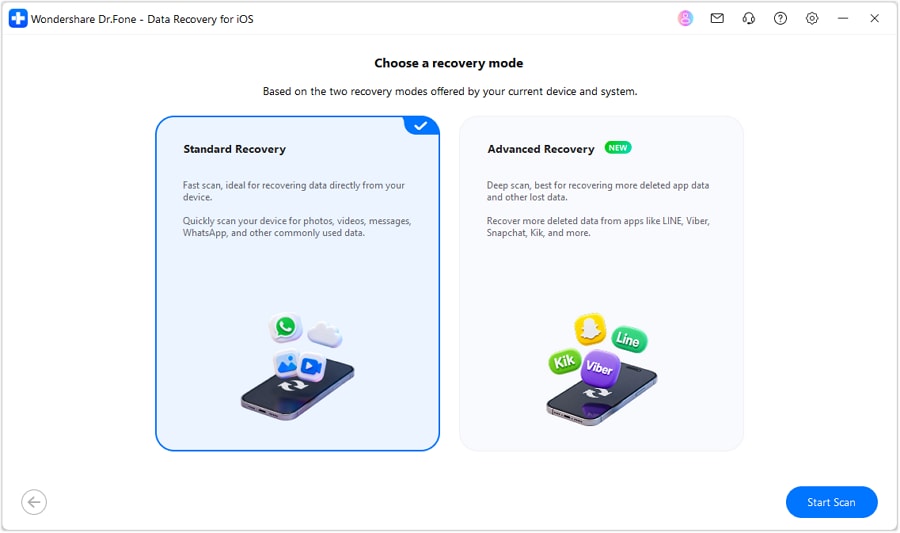
Open "Data Recovery" and select "iOS" as the platform. Choose "Recover Data from iOS Device," connect your iPhone 18, and tap "Trust" when prompted. Once the device is recognized, select "Standard Recovery" to proceed to the available data types.
-
Step 2 Scan for Messages & Attachments
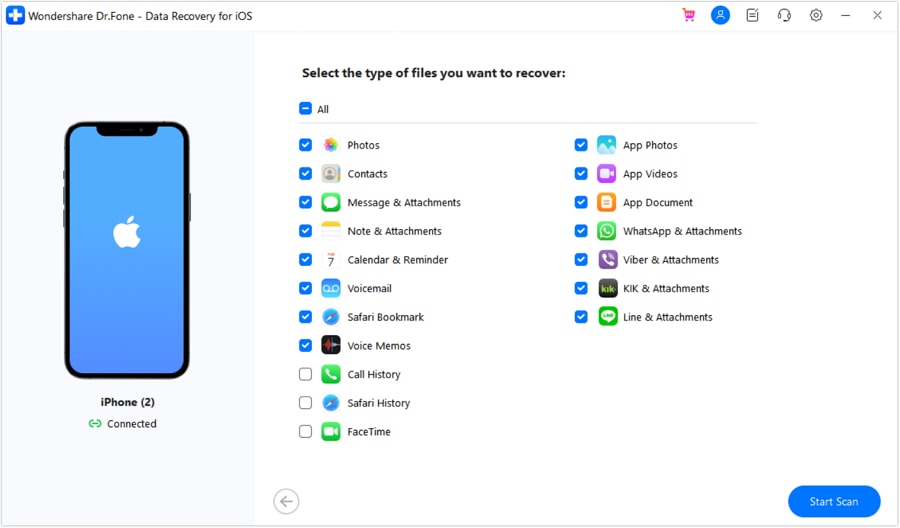
Select "Messages & Attachments" and deselect any data types you do not need. Click "Start Scan" and keep your iPhone 18 connected while Dr.Fone scans for available message data.
-
Step 3 Save the Deleted Threads You Need
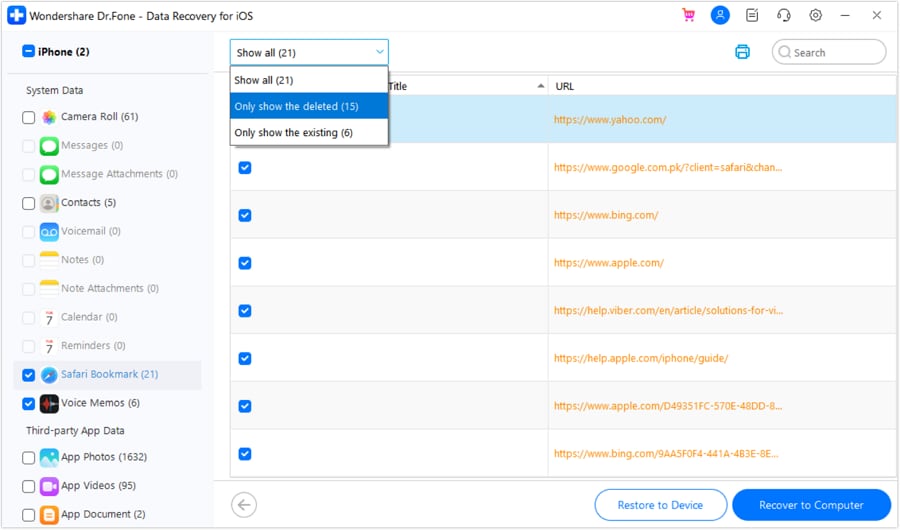
Filter the scan results by "Deleted Data," then review the available messages and attachments. Select the items you want to keep and click "Recover to Computer" to save them locally. For supported data, you can choose "Restore to Device" instead, which may require you to disable Find My when prompted.




Part 3. Other Ways to Retrieve Deleted iPhone 18 Message Content Without a Backup
If Recently Deleted and a device scan do not bring the conversation back, other sources may still contain useful message content. The following options can help you recover deleted messages on an iPhone 18 without relying on a backup.
Get the Deleted Message Content from the Other Person
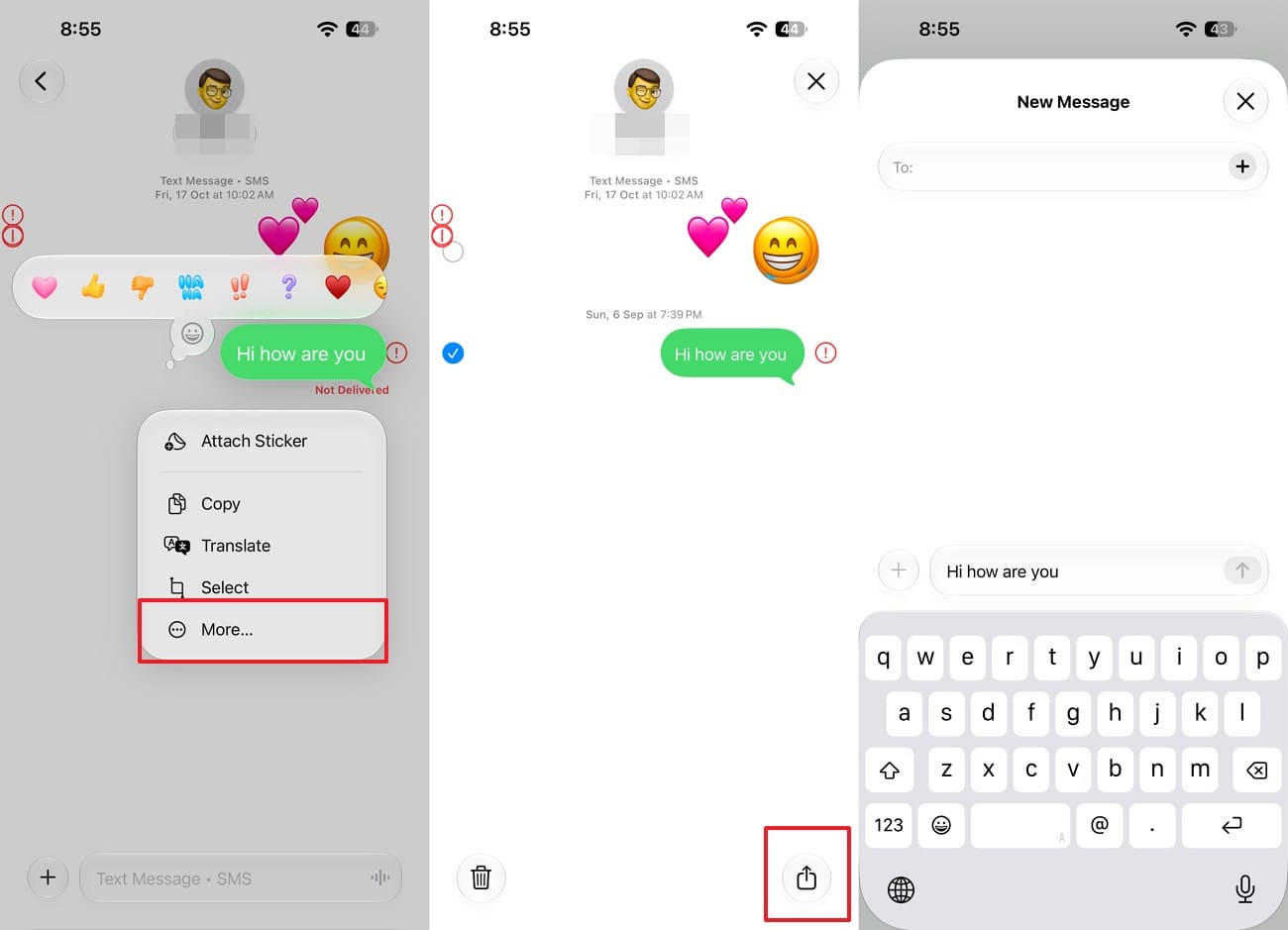
Deleting a regular message or conversation from your iPhone does not remove it from the recipient's device. Apple confirms that message deletion affects your iPhone and other devices signed in with your Apple Account, but not the recipient's copy. If the other person still has the conversation, ask them to forward the messages or send screenshots. Here is what they need to do:
Instructions. Ask the other person to open the conversation and find the messages you need. Have them long-press a message bubble, tap "More," then select the other messages they want to send. Select the "Share" icon and enter your phone number or Apple Account contact, and send the selected messages.
Find Message Photos, Videos, and Files Saved Outside Messages
Attachments you saved from a conversation become separate copies. Check Photos and Files before trying another recovery method. These saved items can provide the attachment itself, although they will not restore the surrounding text or original conversation. Check the following locations for saved content when trying to recover deleted messages on an iPhone 18:
1. Recover Saved Photos and Videos
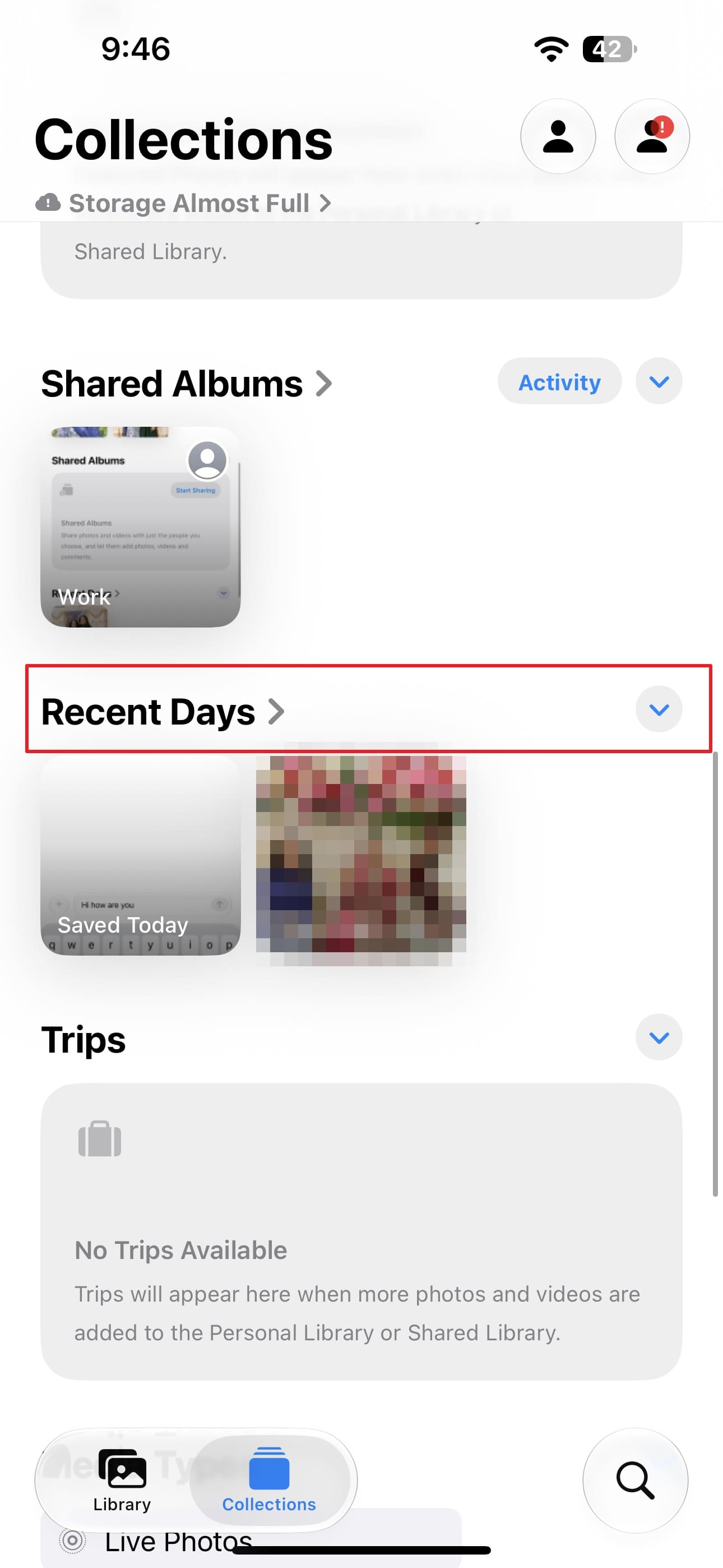
Step 1. In the Photos app, tap "Collections > Recently Saved" or select "Recent Days" to look for photos or videos saved from Messages.
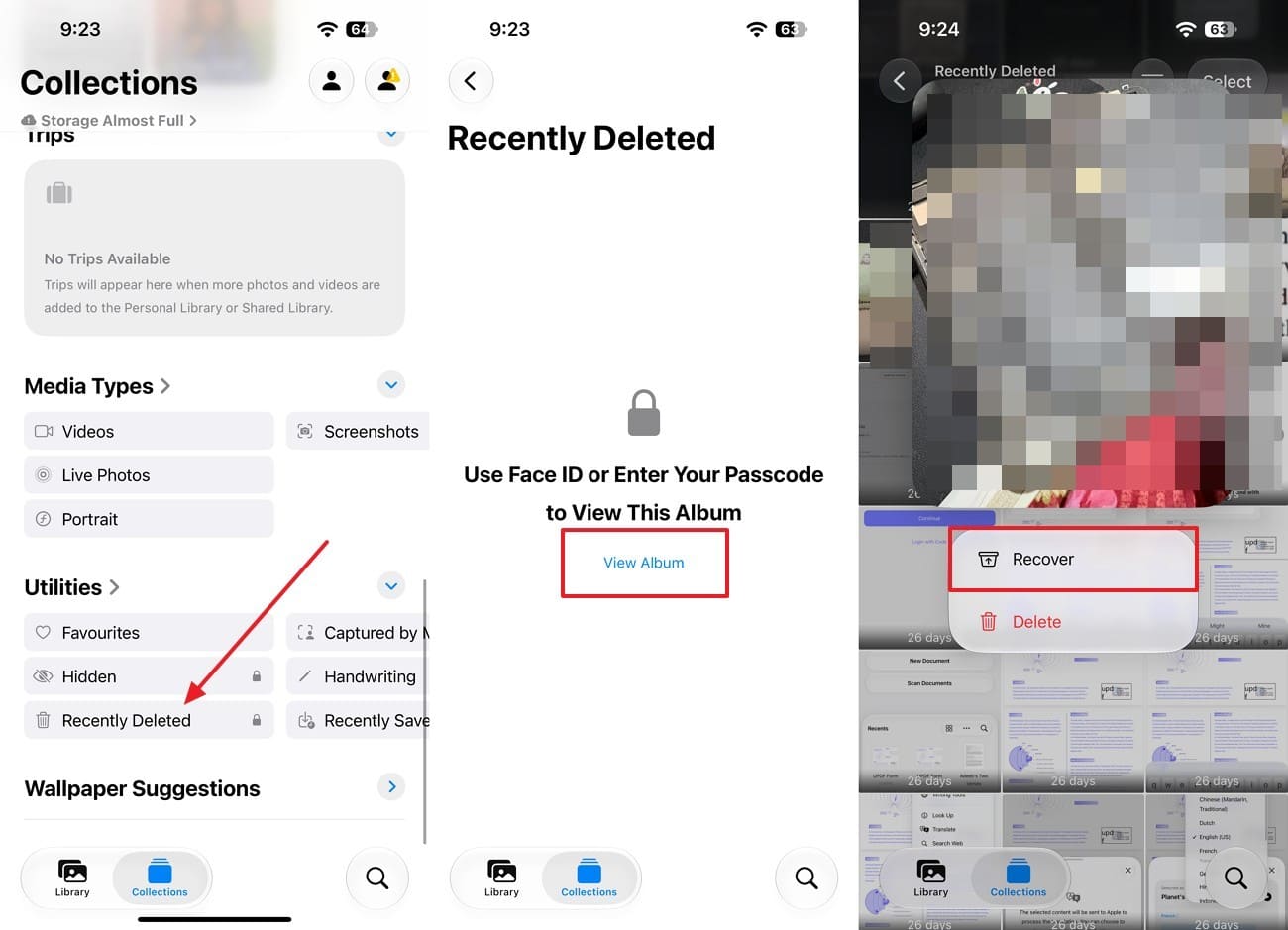
Step 2. If you later deleted the saved photo or video, go to "Photos > Collections > Recently Deleted" under "Utilities." Choose "View Album," unlock the album, select the photo or video, and tap "Recover." Apple keeps deleted photos and videos in Recently Deleted for 30 days.
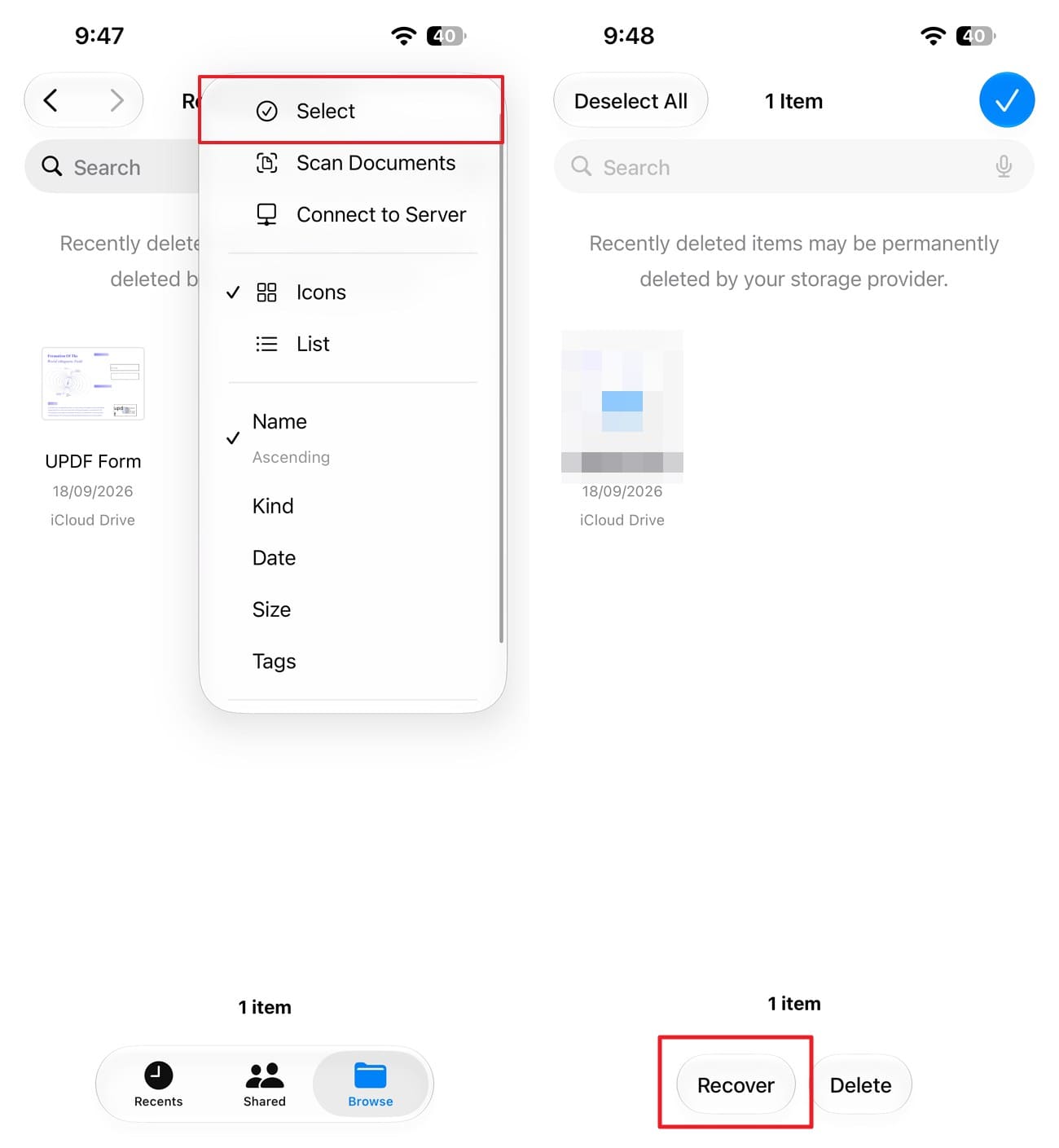
2. Recover Saved Documents and Other Files
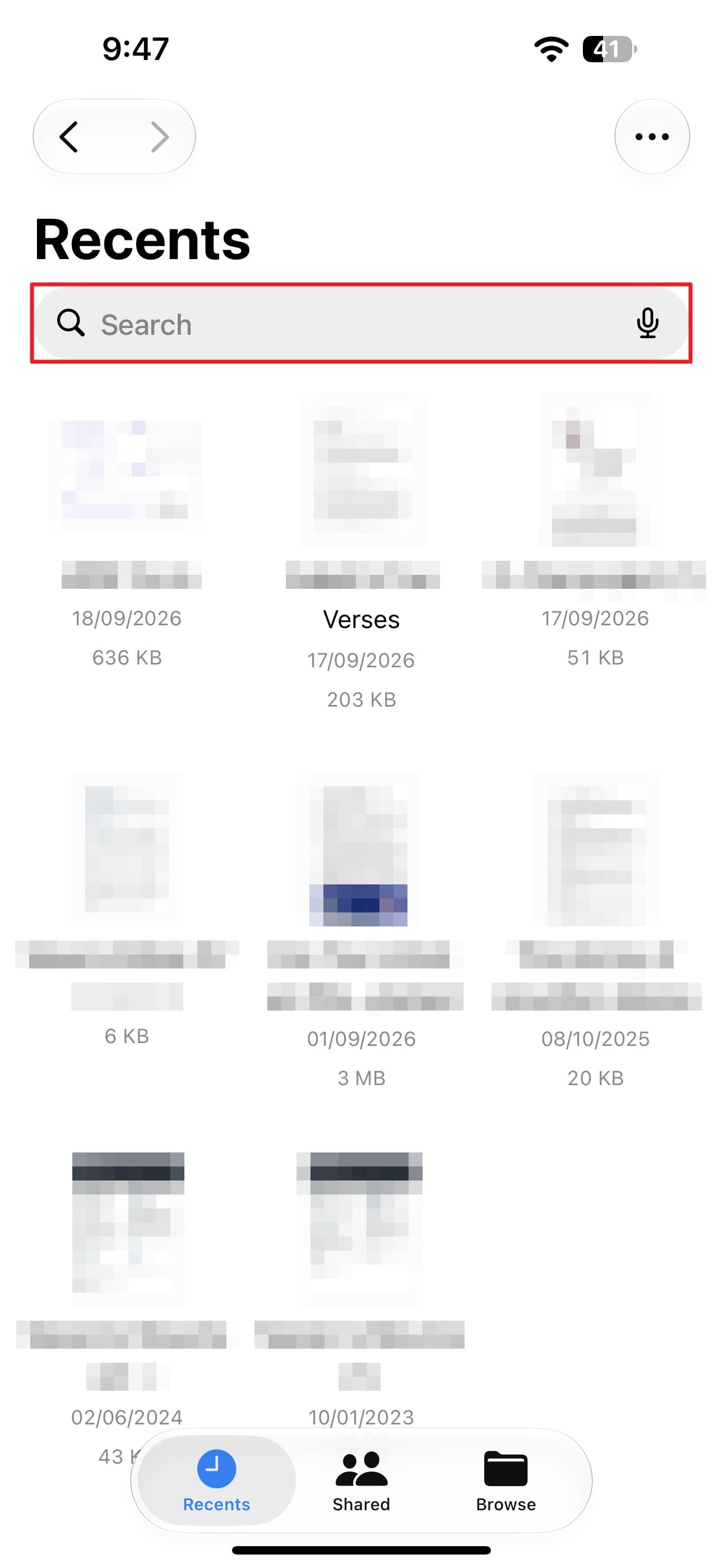
Step 1. Open the Files app and use "Search" to look for the attachment by its filename or file type. You can also check "Recents" if you opened the file recently.
Step 2. If the file was later deleted, tap "Browse > Recently Deleted > More > Select." Choose the file you want back, and tap "Recover."
Part 4. iPhone 18 Message Recovery Limits for Special Deletion Cases
Not every missing message follows the same recovery path. The way a message disappeared can affect whether it remains available through Recently Deleted or another source. The table below compares common deletion cases and available options to recover deleted messages on an iPhone 18.
| How the Message Disappeared | Can Recently Deleted Help? | What You Can Still Try |
|---|---|---|
| Undo Send | No. An iMessage removed with Undo Send does not move to Recently Deleted. | Check whether the recipient still has the original message on an older Apple software version. |
| Expired Audio Message | No. An automatically expired audio message does not move to Recently Deleted. | Ask the other participant whether they kept the audio message or still have another copy. |
| Keep Messages Auto Removal | Apple does not clearly state that automatically removed messages are available through Recently Deleted. | Check whether another participant still has the conversation. Set "Keep Messages" to "Forever" for future messages. |
Messages Removed with Undo Send
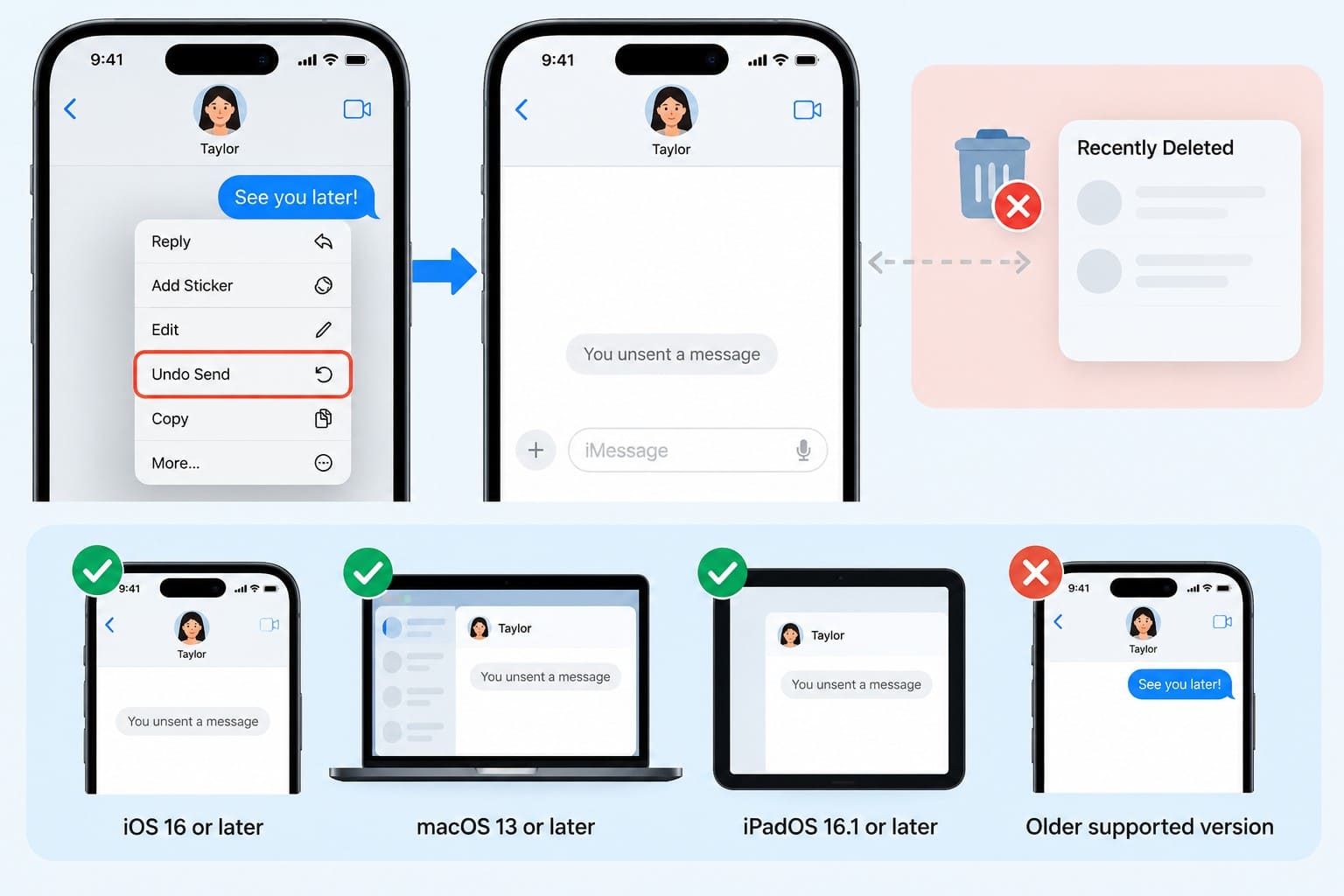
Apple lets you unsend an iMessage for up to 2 minutes after sending it. Once you choose "Undo Send," the message disappears, and a "You unsent a message" notice appears in the conversation. If you try to recover deleted messages on iPhone 18 users removed with Undo Send, Recently Deleted will not help.
Undo Send also depends on the software everyone in the conversation uses. Apple requires iMessage with iOS 16, iPadOS 16.1, macOS 13 Ventura, visionOS 1, or later. If the recipient is using an older supported system version, the original message may remain visible on their device.
Audio Messages That Expired
Audio messages have their own expiry setting, so they do not behave like regular deleted texts. By default, an audio message is removed from your conversation 2 minutes after you send it or listen to it unless you tap "Keep." Apple also lets you change this under "Settings > Apps > Messages > Expire > Never."
Messages Removed by the Keep Messages Setting
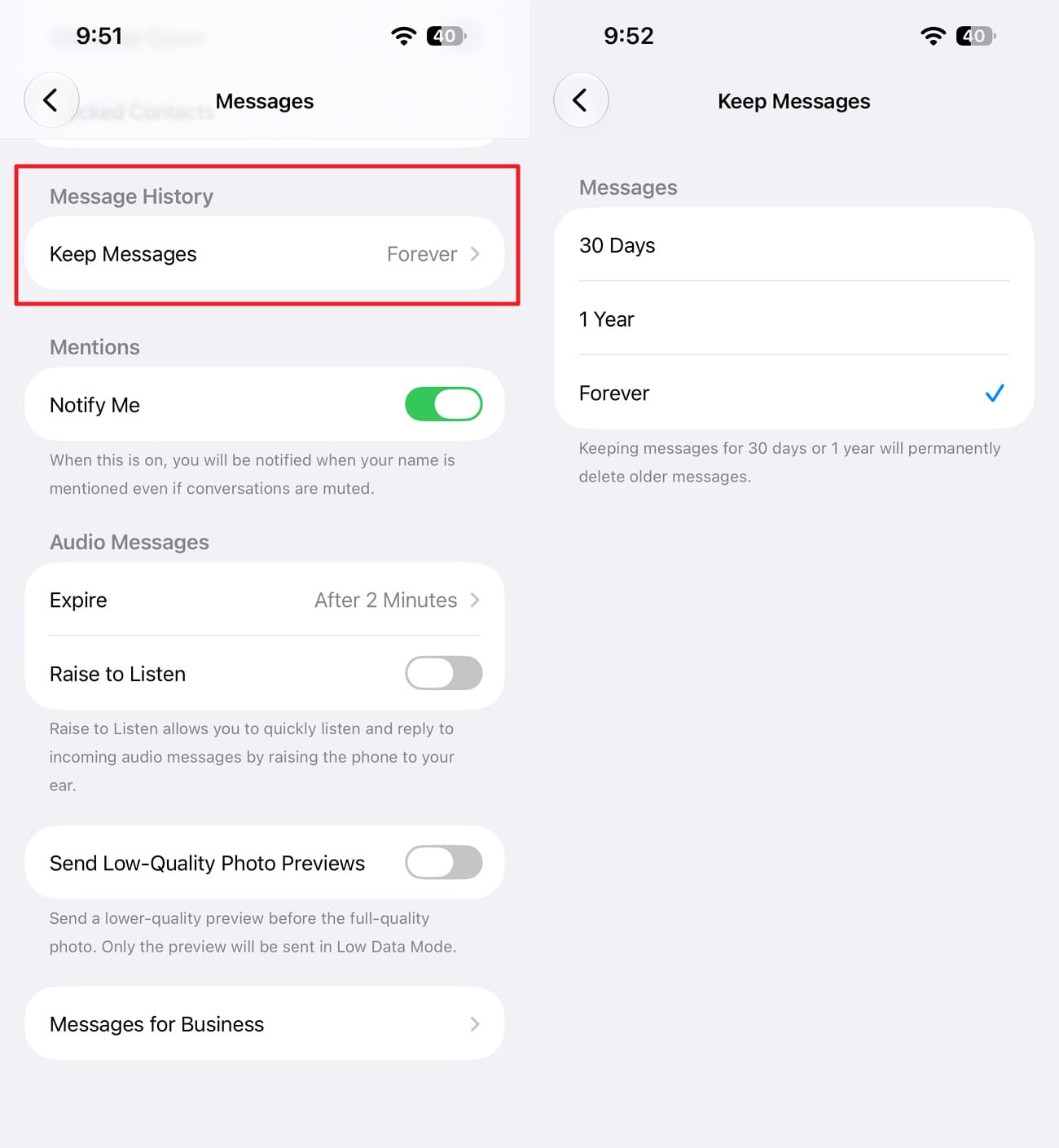
The Keep Messages setting controls how long the iPhone keeps conversations and their attachments. Go to "Settings > Apps > Messages > Keep Messages," then choose "30 Days," "1 Year," or "Forever." Apple says messages and attachments older than the selected period are automatically removed. These older messages may no longer be available through normal recovery options, so choose "Forever" to prevent automatic removal in the future.
Conclusion
Losing an important conversation does not always mean its content is immediately out of reach. To recover deleted messages on iPhone 18, the right option depends on how the messages disappeared and whether another accessible copy remains.
Built-in recovery options should come first, while Dr.Fone - Data Recovery (iOS) provides another way to scan supported sources for potentially recoverable messages and attachments. Since permanently deleted data is not guaranteed to remain accessible, check the available preview results before choosing to recover or export any content.
FAQ
-
1. Backup Alternative: Can I recover deleted iPhone 18 messages from an iCloud backup?
Yes. If the iCloud backup was created before the messages were deleted and Messages in iCloud was off, the backup may contain them. Apple requires you to restore the entire backup during iPhone setup. Alternatively, Dr.Fone can scan a supported iCloud backup, allowing you to preview available messages before recovery. -
2. Backup Alternative: Can I recover deleted messages from a Finder, Apple Devices, or iTunes backup?
Yes, if the backup was created before deletion and contains the missing messages. Apple notes that messages synced through Messages in iCloud are not included in a computer backup. If a suitable local backup exists, Dr.Fone can scan it and let you preview and export available messages. -
3. Can I recover only message attachments if the original conversation is gone?
Yes, in some cases. First, check Photos and Files for attachments you previously saved from Messages. If no saved copy exists, Dr.Fone - Data Recovery (iOS) can scan supported sources for available message attachments and display them in the preview. Recovery depends on whether the attachment remains accessible from the selected source.
 Add Wondershare Dr.Fone as a preferred source on Google