Recover photos, messages, WhatsApp, and more — no backup
needed.
Recover photos, messages, WhatsApp, and more — no backup
needed.

 100% Security Verified | No Subscription Required | No Malware

 :
: 
 ChatGPT
 Perplexity
 Gemini
 Claude
 Grok
Grok
An email missing from the Gmail app on your Android often hasn’t left your Google Account. Archiving, filters, or sync failures can hide mail that Google still stores. Deleted emails remain in Trash for up to 30 days, while permanently deleted messages have much tighter recovery limits. Gmail data recovery depends on where a usable copy still exists: your Google Account, attachments saved on the phone, or recoverable data.
This guide explains how to search for missing mail, restore messages from Trash, and request help from Google when Trash no longer contains them. It also shows how Dr.Fone - Data Recovery (Android) uses Advanced Recovery to scan compatible phones for recoverable Gmail records and attachments. You can preview available results and save them to a computer, but direct restoration to your Gmail inbox isn't supported.
In this article
- Part 1. How to Find Gmail Messages Missing from Android
- Part 2. How to Recover Deleted Gmail Emails from Trash on Android
- Part 3. How to Scan Android for Gmail Data with Dr.Fone – Data Recovery (Android)
- Part 4. What to Do When Deleted Gmail Emails Are No Longer in Trash
- Part 5. Dr.Fone Gmail Advanced Recovery: Supported Features and Limitations
Part 1. How to Find Gmail Messages Missing from Android
Missing Gmail messages may still exist in your Google Account, appear outside your inbox, or remain hidden due to sync issues. To locate missing messages before attempting to recover deleted Gmail emails, follow these 3 checks and fixes:
Search Archived Emails, Spam, and Other Gmail Locations
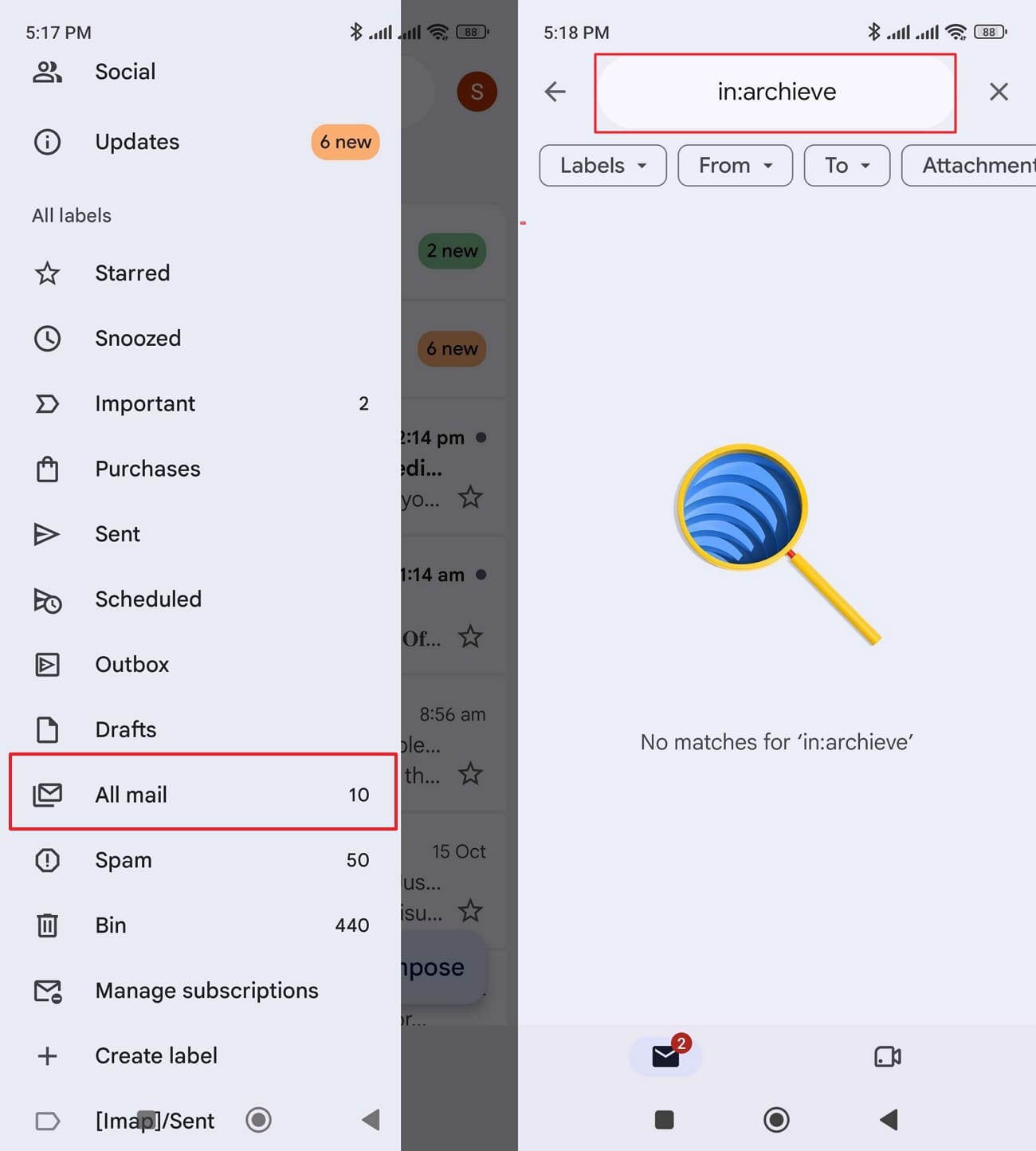
Archiving removes a message from the inbox without deleting it, and Google confirms that archived emails remain in All Mail. Gmail’s in:anywhere search operator also includes Spam and Trash. Before using a Gmail recovery tool, check these locations to find messages that still exist in your account by following these steps:
-
Step 1
Open Gmail, tap your profile picture, and select the account where you received the missing email. Tap “Menu > All Mail,” then search for the sender, subject, or a distinctive phrase.
-
Step 2
You can also enter “in:archive” to search archived messages or “in:anywhere” to include Spam and Trash. Open each folder from the Gmail menu and look for the missing message.
Fix Gmail Messages Missing Because of Sync Problems
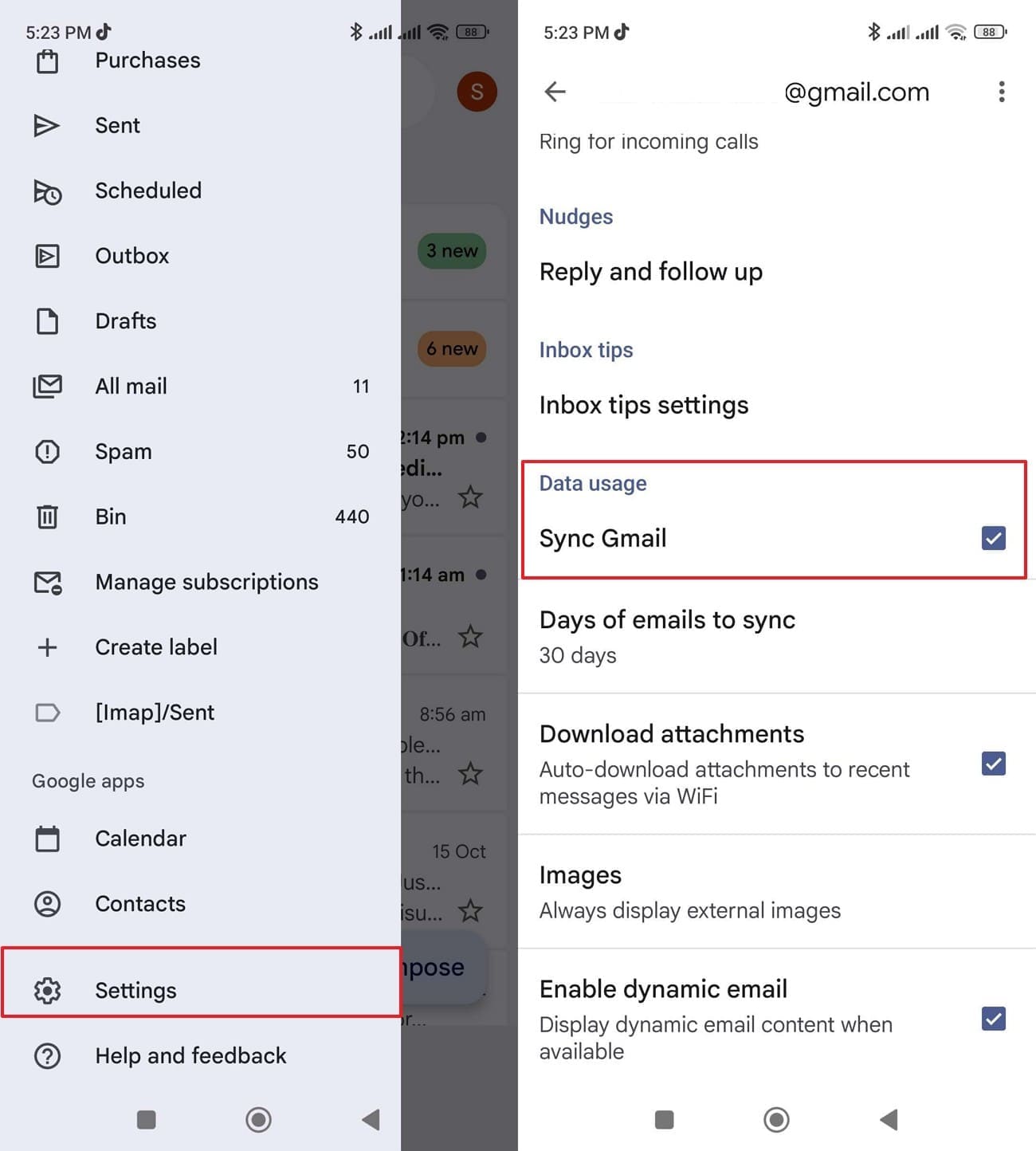
When a message appears on Gmail.com but not in the Android app, the problem may be syncing rather than deletion. Google identifies disabled sync, poor connectivity, and insufficient storage as common causes. To troubleshoot Gmail messages missing from your phone, follow these steps before clearing app data:
-
Step 1
Open Gmail.com in a browser, sign in to the same Google Account, and look for the message.
-
Step 2
In the Gmail app, tap “Menu > Settings,” select your account, and make sure “Sync Gmail” is checked under “Data Usage.” Return to the inbox and swipe down to trigger a manual sync. Allow up to 15 minutes for messages to appear.

Check Gmail Filters and Forwarding Rules
Gmail filters can automatically archive or delete incoming messages, while forwarding and POP settings can move mail elsewhere or remove Gmail’s copy. Google recommends checking these settings on a computer using its missing Gmail messages guide. To identify why Gmail messages are missing from your inbox before attempting recovery, check these settings in order:
-
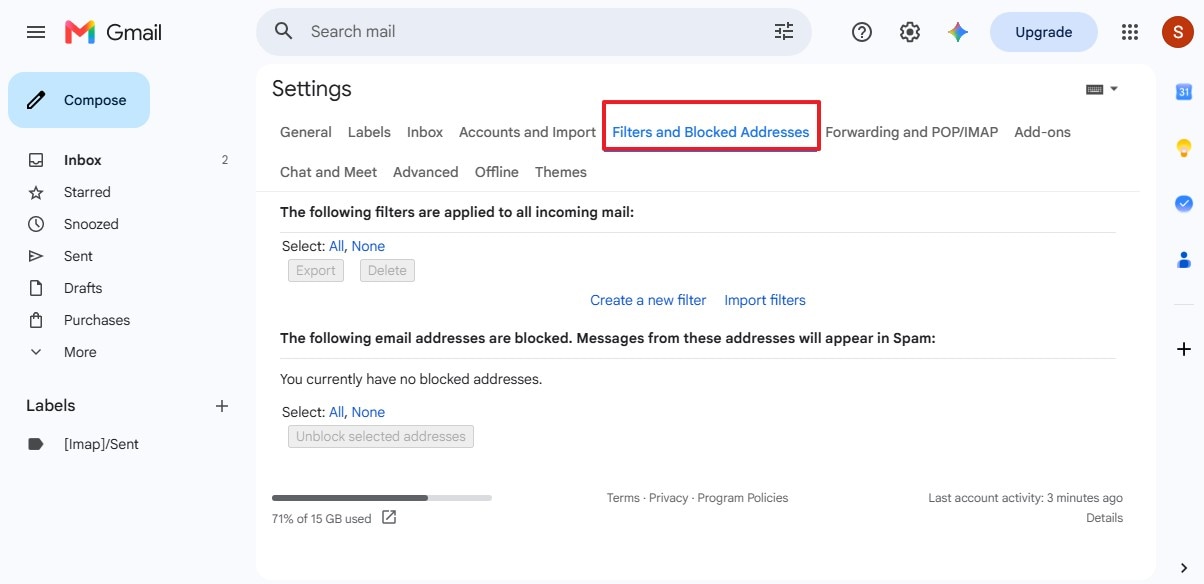
1 Review Gmail Filters
Open Gmail on a computer, click “Settings > See all settings > Filters and Blocked Addresses.” Look for filters with “Delete it” or “Skip the Inbox” enabled, then edit or delete any that explain the missing messages.
-
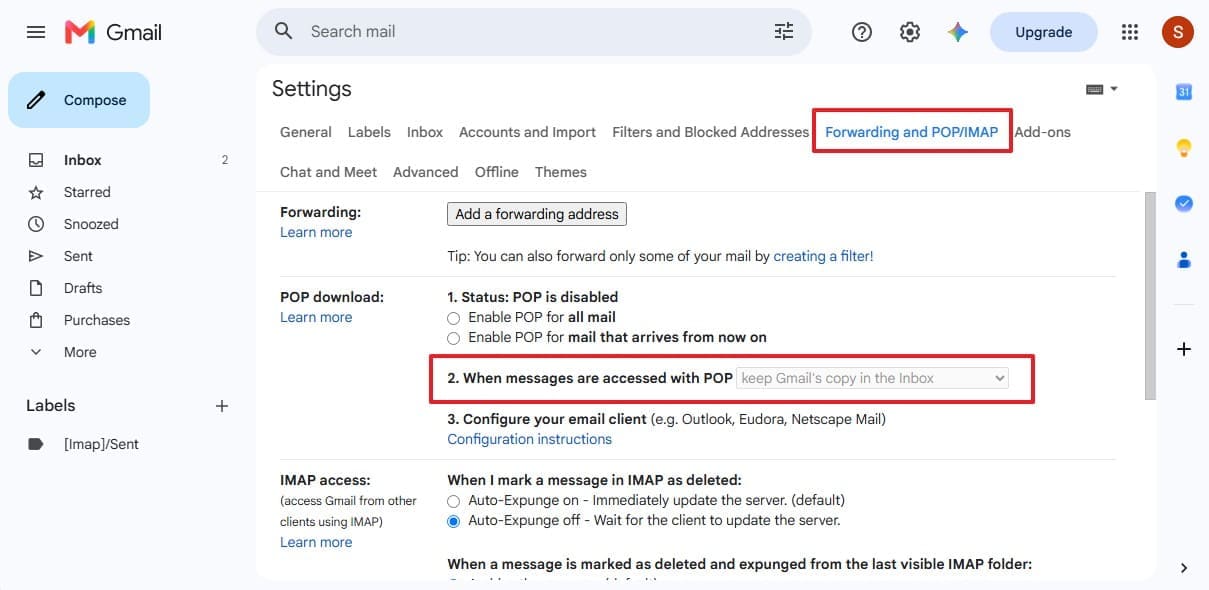
2 Check Forwarding Settings
Access the “Forwarding and POP/IMAP” tab. If forwarding is enabled to an address you don't recognize, select “Disable forwarding.” To retain messages in Gmail, choose “Keep Gmail's Copy in the Inbox” under the forwarding settings. For POP access, select “Keep Gmail's Copy in the Inbox” from the “When messages are accessed with POP” menu.
-
3 Remove Unrecognized App Access
Open your Google Account's third-party connections and remove any unfamiliar or unused apps that have access to your Gmail data. Correcting a filter or mail-client setting can prevent future messages from disappearing, but it won't automatically restore emails that were permanently deleted.
Part 2. How to Recover Deleted Gmail Emails from Trash on Android
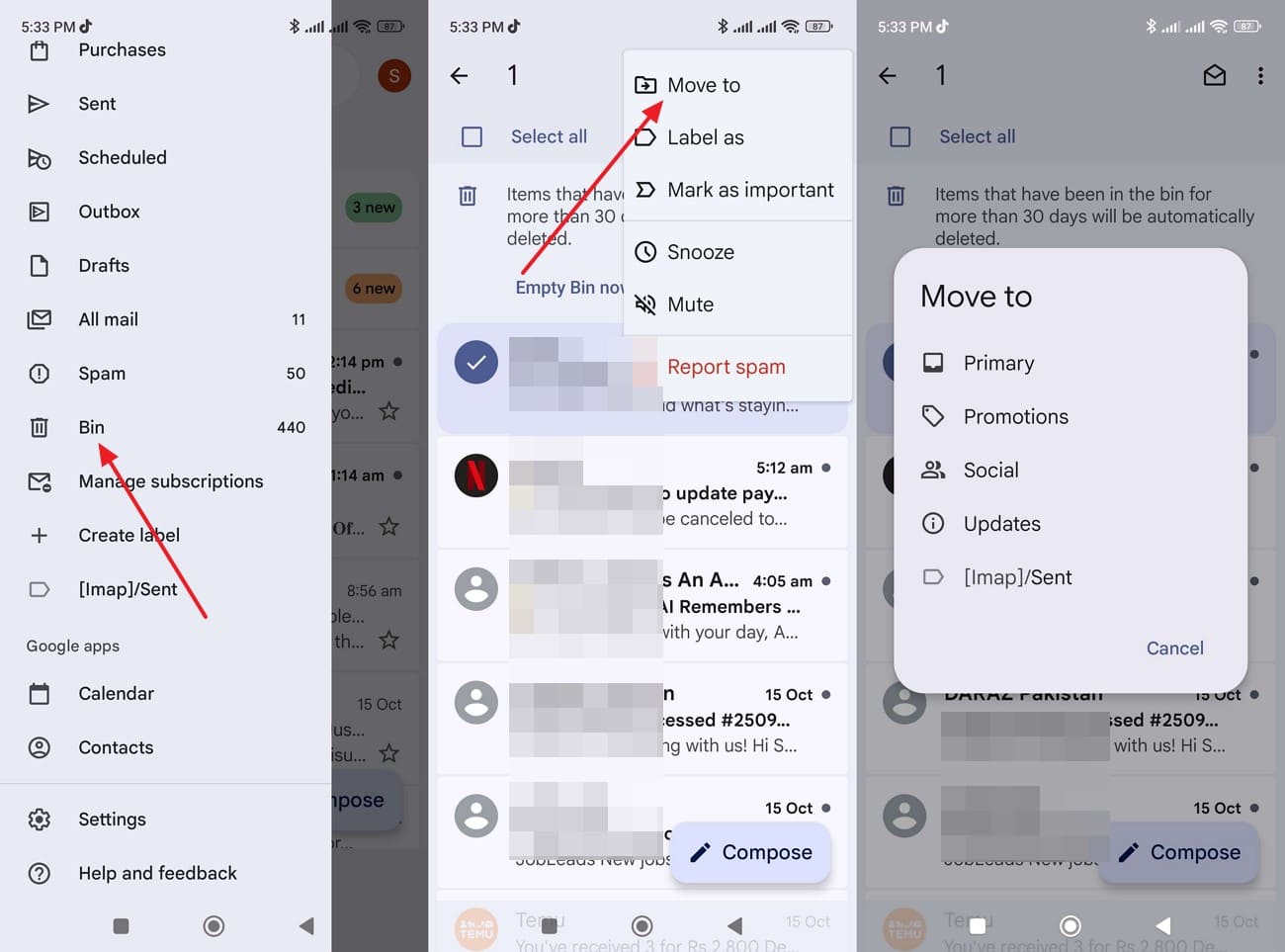
Gmail keeps deleted messages in Trash for up to 30 days before permanently deleting them, according to Google's recovery guide. Messages emptied from Trash or deleted forever cannot be restored from there. To recover deleted Gmail emails before they expire, follow these steps:
Instructions. Open Gmail, tap “Menu,” and select “Bin” or “Trash.” Touch and hold the email until a check mark appears, then select any other messages you want to restore. Tap “Three Dots > Move to” and choose the folder where you want to restore the emails.
Part 3. How to Scan Android for Gmail Data with Dr.Fone – Data Recovery (Android)
If Google’s recovery options haven’t brought back the missing emails, Dr.Fone - Data Recovery (Android) offers another way to retrieve data from compatible Android phones. This Gmail recovery tool uses Advanced Recovery to scan selected app data for recoverable Gmail records and attachments. You can preview the available results, select the items you need, and save them to a computer instead of restoring them directly to Gmail.
Before starting, check whether your device meets the compatibility requirements. Advanced Recovery is available through Dr.Fone for Windows and supports Android 9–13, excluding Huawei devices running Android 12 or 13. You'll also need a USB cable to connect your phone during scanning. The results depend on the recoverable Gmail data remaining in device storage, not emails stored on Google's servers.
 Scan Android phones and tablets directly.
- Preview and recover only what you want.
- Supports WhatsApp, photos, videos, contacts, and more.
- Works with 6000+ Android devices.

Guide to Scan Android for Recoverable Gmail Data Using Dr.Fone
To check whether Dr.Fone can recover deleted Gmail emails from your Android phone, follow these steps using Advanced Recovery:
-
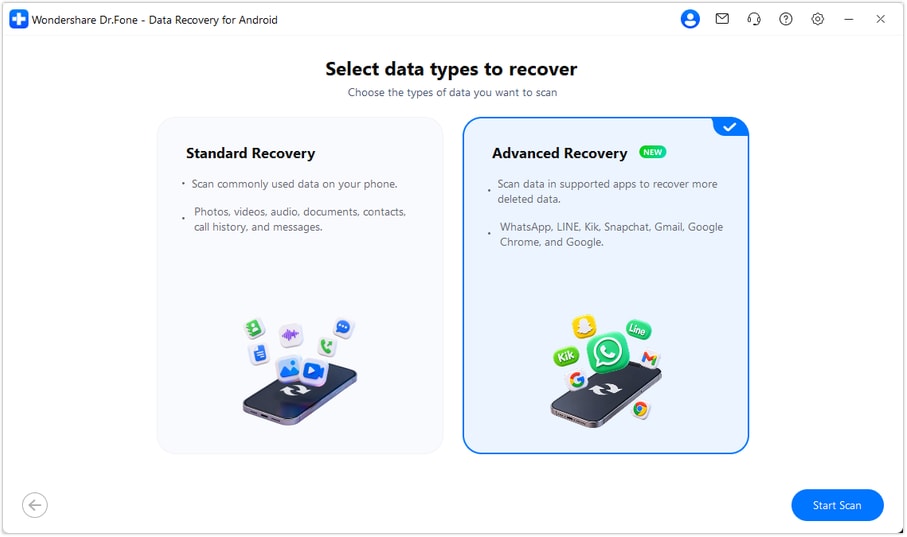
Step 1 Choose the Advanced Recovery Mode
Go to “Toolbox > Data Recovery > Android” and choose “Recover Android Data.” Select “Advanced Recovery,” click “Start Scan,” and connect your Android phone to the computer using a USB cable when prompted.
-
Step 2 Select Gmail Data and Start the Scan
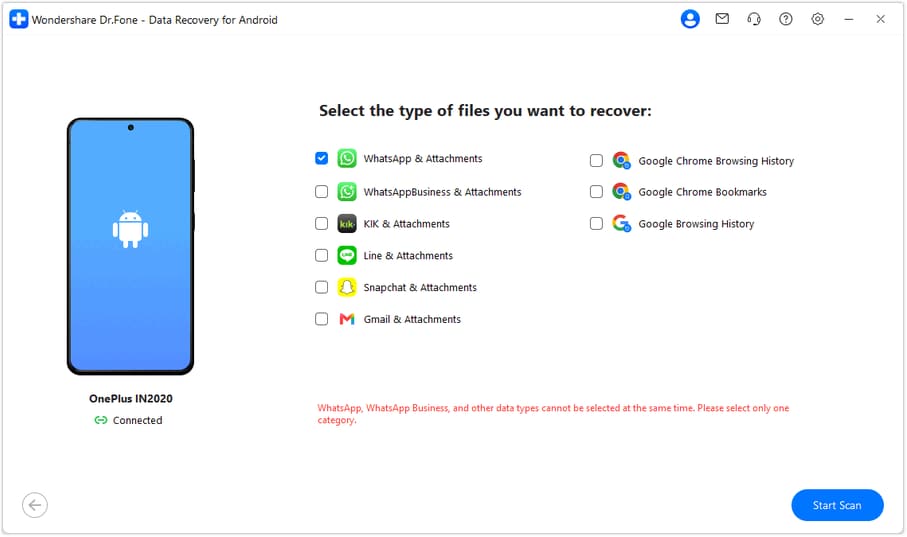
From the available data categories, select “Gmail & Attachments” alongside any other compatible data types you want to recover. Click “Start Scan” and keep your phone connected throughout the process.
-
Step 3 Preview and Recover the Gmail Data
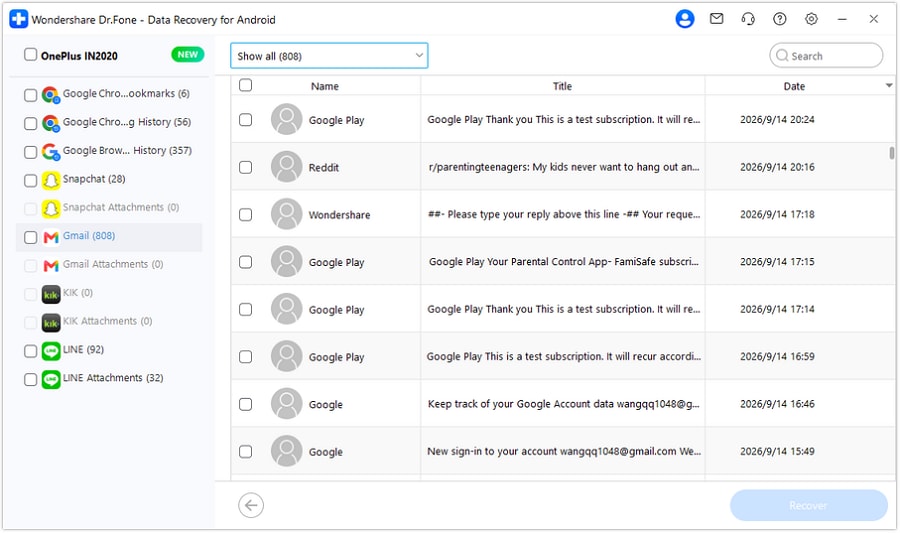
Once the scan finishes, review the Gmail records and attachments displayed in the results. Select the items you want to recover, click “Recover,” and choose a folder on your computer to save the Gmail files.
Explore Dr.Fone - Data Recovery (Android) to check device compatibility and scan for recoverable Gmail data and attachments.




Part 4. What to Do When Deleted Gmail Emails Are No Longer in Trash
In some cases, emails no longer in Trash can still be recovered through Google's recovery options or Workspace administrators. Previously saved attachments may also remain available. For Gmail data recovery beyond Trash, check these 3 options:
Request Gmail Recovery After Unauthorized Account Access
Google’s Gmail Message Recovery Tool helps recover emails that may have been deleted because someone accessed your account without permission. This tool addresses suspected unauthorized access rather than routine accidental deletion, and recovery depends on Google's findings. If you suspect unauthorized access caused your Gmail messages to go missing, follow these steps:
-
Step 1
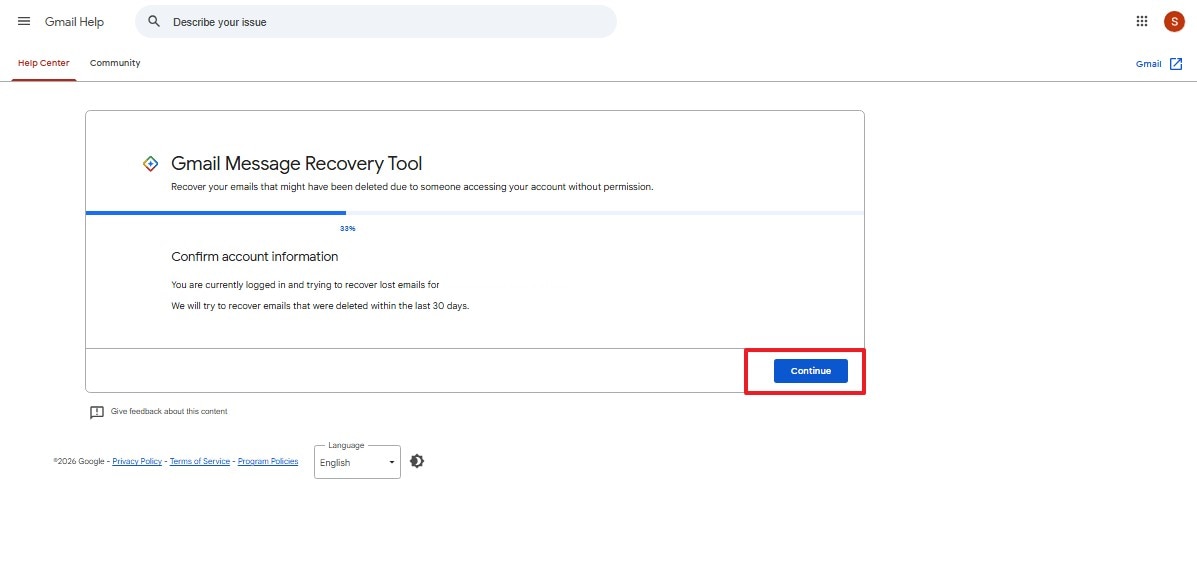
Open the Gmail Message Recovery Tool and press the “Continue” button.
-
Step 2
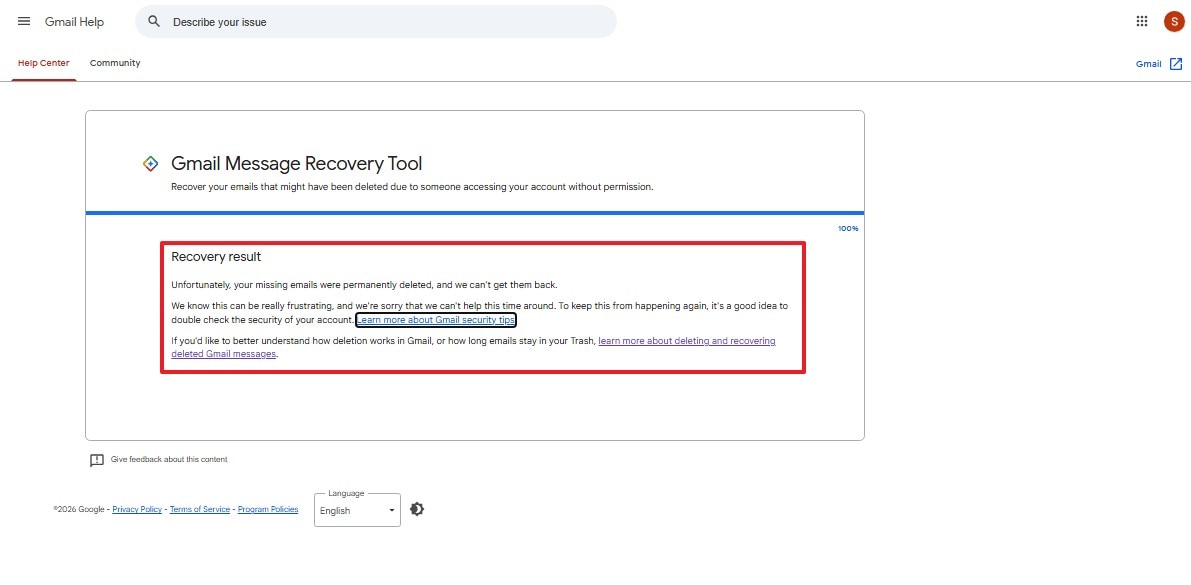
Follow Google's on-screen instructions and review the recovery results. Afterward, check your Gmail inbox and All Mail for the missing emails.
Contact a Google Workspace Administrator
Google Workspace administrators can restore permanently deleted emails for up to 25 days after permanent deletion using the Google Admin console. Organizations using Google Vault can also retrieve older messages if retention rules or holds have preserved them. If you need to recover deleted Gmail emails from a work or school account, ask your administrator to check these options:
Through Admin Console Restore
-
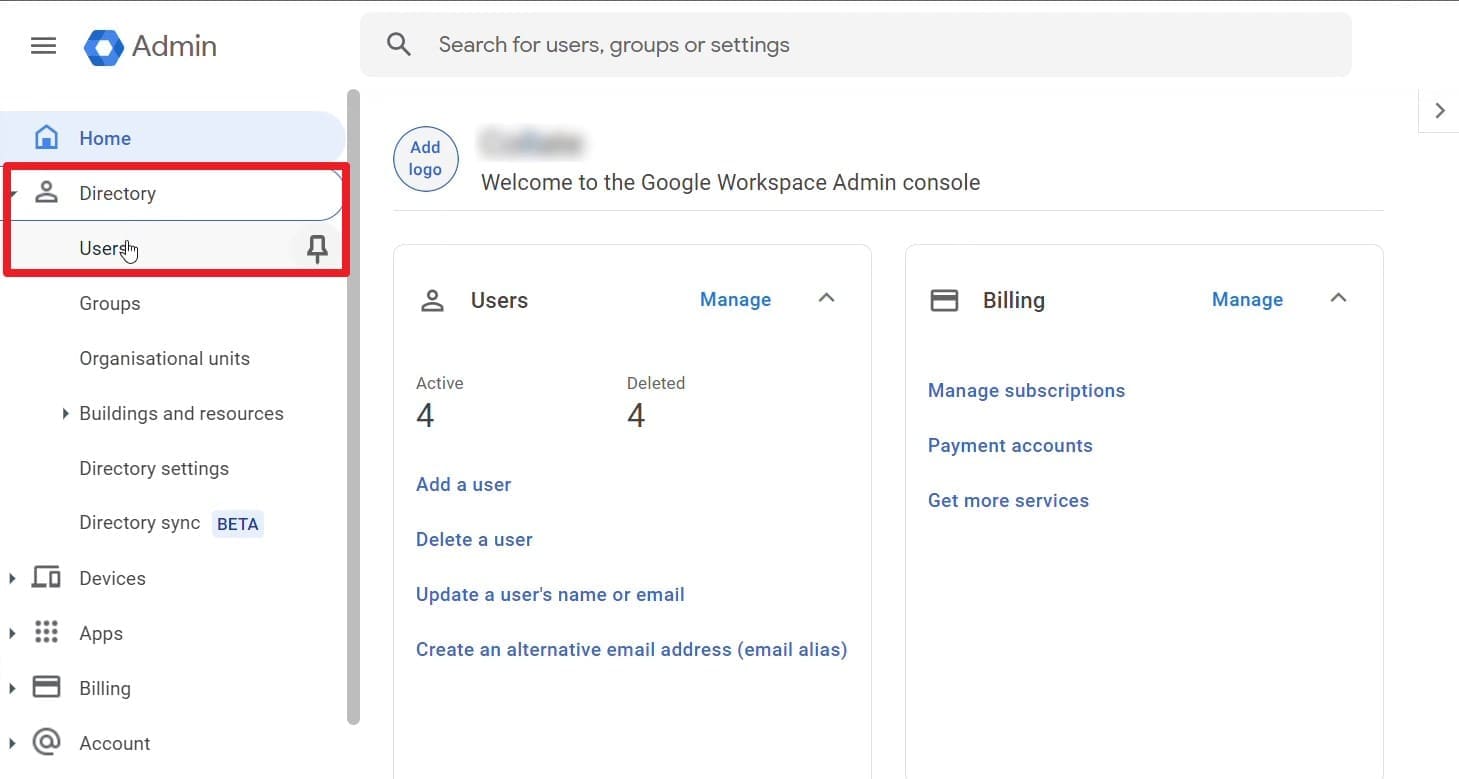
Step 1
Ask your administrator to sign in to the Google Admin console and open the “Users” list under “Directory.”
-
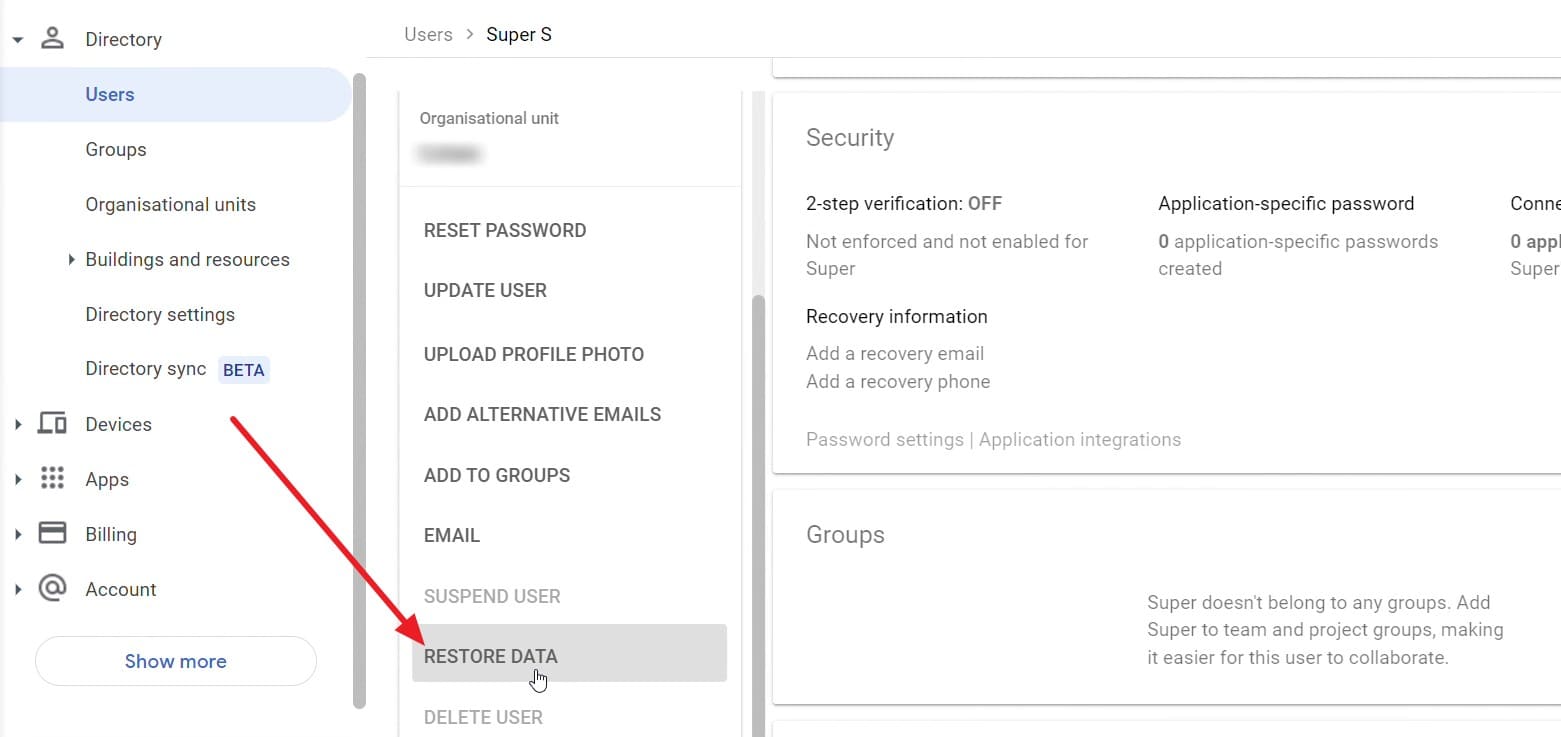
Step 2
Have them select your account from the list and locate the “Restore Data” option.
-
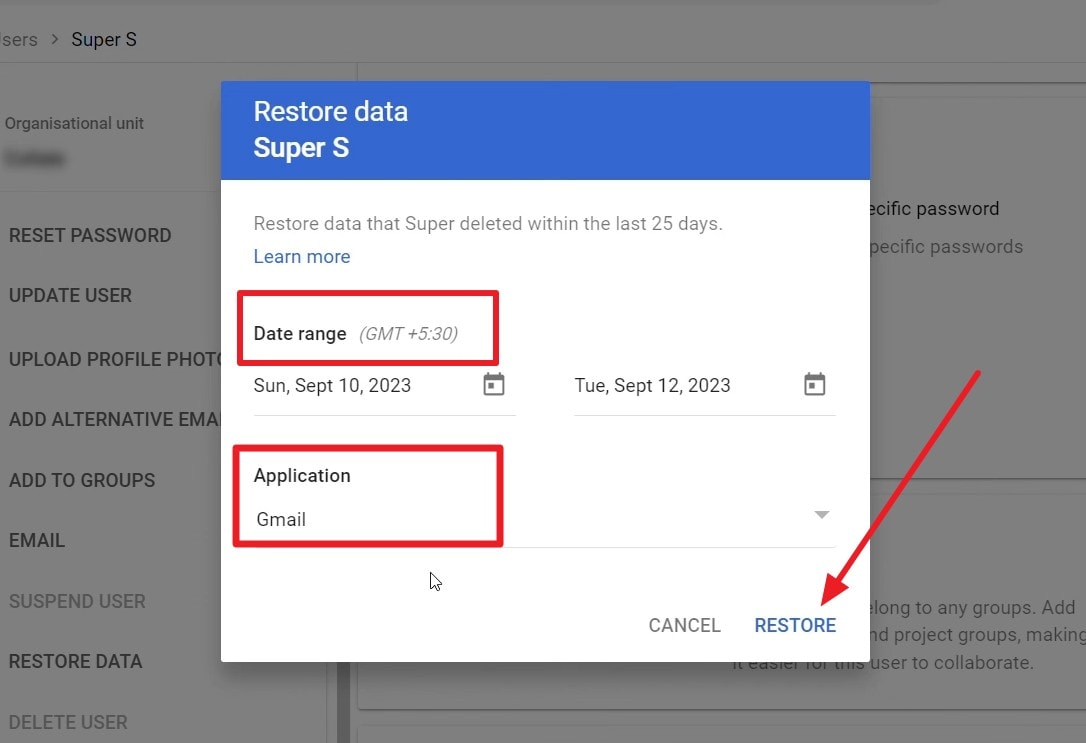
Step 3
Request that they enter the period when the emails were deleted, select “Gmail” as the application, and click “Restore.”
Through Google Vault
-
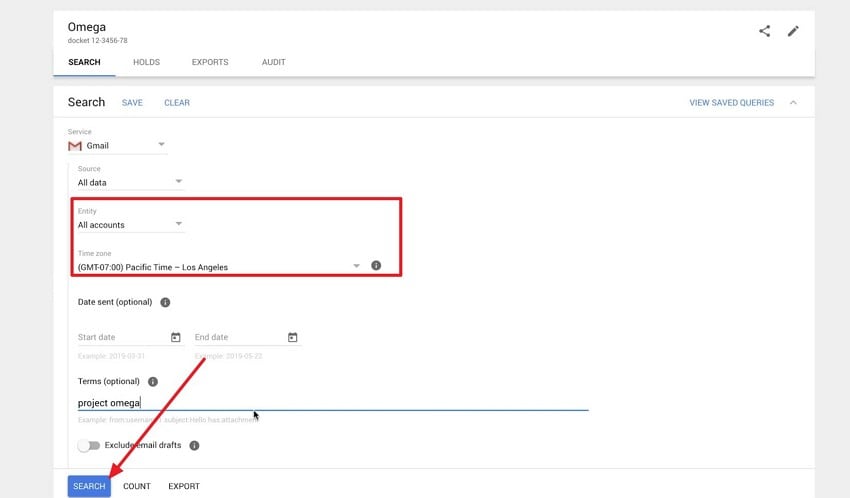
Step 1
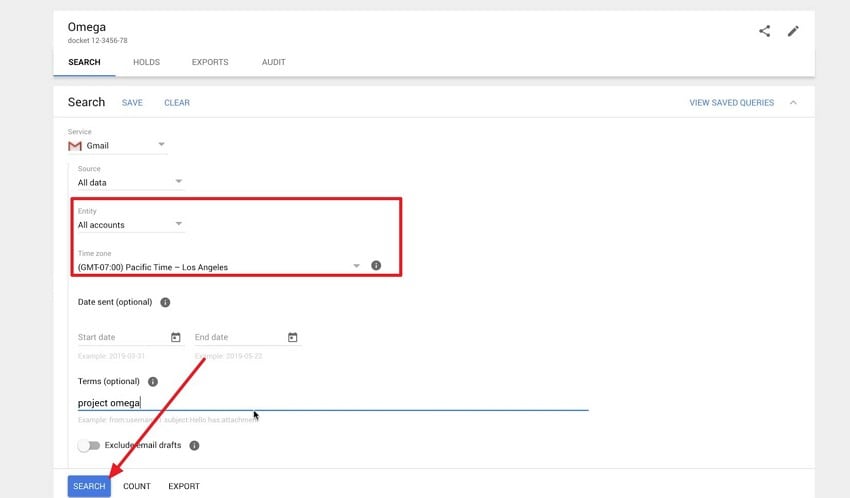
Ask your administrator to access Google Vault, open the relevant "Matter," and select "Gmail" under "Search."
-
Step 2
Next, they should specify your account, set the appropriate time zone and date range for the missing emails, and click “Search.”
-
Step 3
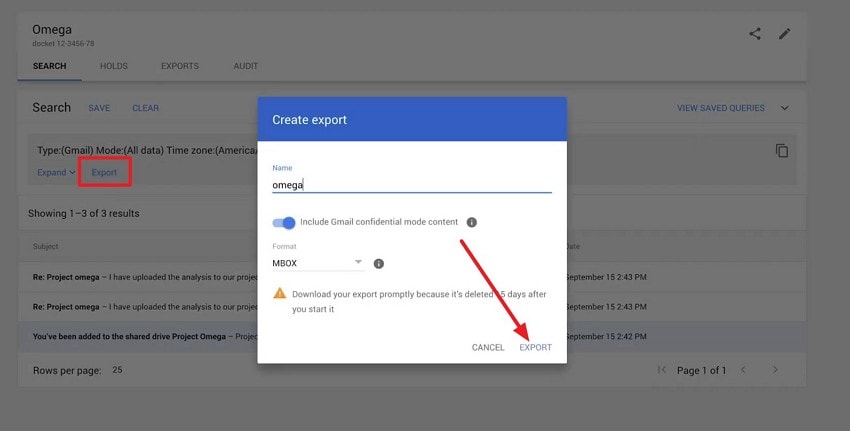
Once the results appear, have your administrator review the available messages, navigate to the “Export” tab, enter an export name, and click “Export.”
Find Existing Copies of Deleted Gmail Attachments
Deleting a Gmail message doesn't remove attachments you've already downloaded or saved elsewhere. Older Google Takeout archives may also contain the original email and its attachments. Before trying another Gmail data recovery method, check these locations for existing copies:
- Check Your Android Files: Open Files by Google or your phone's file manager. Search Downloads, Documents, and other folders using the attachment's name or file type.
- Search Cloud Storage and Computers: Check Google Drive, other cloud storage accounts, and any computer where you previously saved the attachment.
- Review Earlier Google Takeout Exports: Locate an archive created before the email was permanently deleted. Extract it on a computer and open the Gmail export (usually an MBOX file) in a compatible email application to find the message and its attachment.
Part 5. Dr.Fone Gmail Advanced Recovery: Supported Features and Limitations
Dr.Fone Advanced Recovery scans compatible Android devices for recoverable app data, including Gmail data and attachments. Introduced in Dr.Fone V13.9.9 for Windows, this feature allows you to preview available results and save selected items to your computer. Before using this Gmail recovery tool, review its supported features and limitations in the table below:
| Feature | Support and Limitations |
|---|---|
| Gmail Data Recovery | Scans compatible Android devices for recoverable Gmail records and attachments. Preview the detected items and export selected results to your computer. |
| Android Compatibility | Works with Android 9–13, except Huawei devices running Android 12 or 13. |
| Scan Selection | Users can select Gmail alongside other supported data categories. WhatsApp and WhatsApp Business must be scanned separately. |
| Recovery Destination | Recovered data can be saved to a Windows PC, but direct restoration to the phone or Gmail inbox isn't supported. |
| Google Server Access | Retrieves available data from the Android device rather than accessing permanently deleted emails on Google's servers. |
Conclusion
Gmail data recovery on Android begins with checking All Mail, Trash, and sync settings. If emails have been permanently deleted, Google's recovery options can help in certain situations. You can also use Dr.Fone - Data Recovery (Android) to scan Android phones for recoverable Gmail data and attachments through Advanced Recovery. Depending on the available scan results, you can save recovered items to a computer, although direct restoration to Gmail isn't supported.
Frequently Asked Questions
-
1. What Gmail data can I preview before recovery?
Dr.Fone lets you preview recoverable Gmail records by name, title, and date after scanning. Check “Gmail Attachments” for available files, then select the items you need and click “Recover” to save them to your computer. -
2. Does uninstalling Gmail or clearing its cache delete emails from my Google Account?
No, uninstalling Gmail or clearing its cache doesn't delete emails stored in your Google Account. However, clearing the app's storage can remove locally saved drafts, signatures, and settings. -
3. Can I recover Gmail emails if I can no longer sign into my Google Account?
Use Google Account Recovery to regain access. Alternatively, Dr.Fone - Data Recovery (Android) can scan compatible phones for recoverable Gmail data, but it cannot retrieve emails directly from Google's servers.
 Add Wondershare Dr.Fone as a preferred source on Google