 Recover photos, messages, WhatsApp, and more — no backup
needed.
Recover photos, messages, WhatsApp, and more — no backup
needed.

 100% Security Verified | No Subscription Required | No Malware

 :
: 
 ChatGPT
 Perplexity
 Gemini
 Claude
 Grok
Grok
Missing photos on a configured iPhone 18 can cause concern, especially when restoring an iCloud backup through Apple requires erasing the device first. However, other recovery paths can avoid that requirement. You can check your active cloud library, browse Recently Deleted, or extract photos from a backup. The right option depends on whether iCloud Photos was enabled, since iCloud Photos and iCloud Backup store photos differently.
iCloud Photos stores pictures separately in iCloud, while iCloud Backup can include photos stored on the iPhone when iCloud Photos is turned off. In that case, explore this guide to learn how Dr.Fone - Data Recovery (iOS) can selectively recover photos from iCloud on iPhone 18.
In this article
- Part 1. Choose the Right iCloud Photo Recovery Source for iPhone 18
- Part 2. How to Recover Photos Already Stored in iCloud Photos on iPhone 18
- Part 3. How to Recover Deleted Photos from iCloud Recently Deleted
- Part 4. Recover Photos from an iCloud Backup Without Resetting iPhone 18
- Part 5. Why iCloud Photos May Not Appear on iPhone 18
Part 1. Choose the Right iCloud Photo Recovery Source for iPhone 18
Photos synced with iCloud Photos, recently deleted items, and photos saved in an older iCloud device backup follow different recovery paths. When you try to recover photos from iCloud on iPhone 18, check where the missing pictures were stored when they disappeared. The table below helps you identify the right source without unnecessarily resetting the iPhone 18:
| Photo Situation | iCloud Source | Reset Required | Best Recovery Route |
|---|---|---|---|
| Photos Still Exist in iCloud Photos | Current iCloud Photos library under your Apple Account | No | Sync or download them to iPhone 18 |
| Photos Deleted Within the Last 30 Days | Recently Deleted, which keeps items for 30 days | No | Restore through Photos or iCloud.com |
| Photos Exist Only in an Earlier iCloud Backup | iCloud Backup made while iCloud Photos was off | Dr.Fone: No; Apple Restore: Yes | Extract the required photos |
| Photos Appear Missing After Moving to iPhone 18 | Current iCloud Photos library, not yet showing on the phone | No | Check Apple Account and iCloud Photos sync |
Part 2. How to Recover Photos Already Stored in iCloud Photos on iPhone 18
This is the simplest way to recover photos from iCloud on iPhone 18 when the originals are still stored in your iCloud Photos library. Apple confirms that photos stored in iCloud Photos can be accessed across devices signed in to the same Apple account.
Before changing any settings, check your library at iCloud.com/photos. If the missing pictures appear there, they are still stored in iCloud Photos. Here are the steps for this method:
-
Step 1
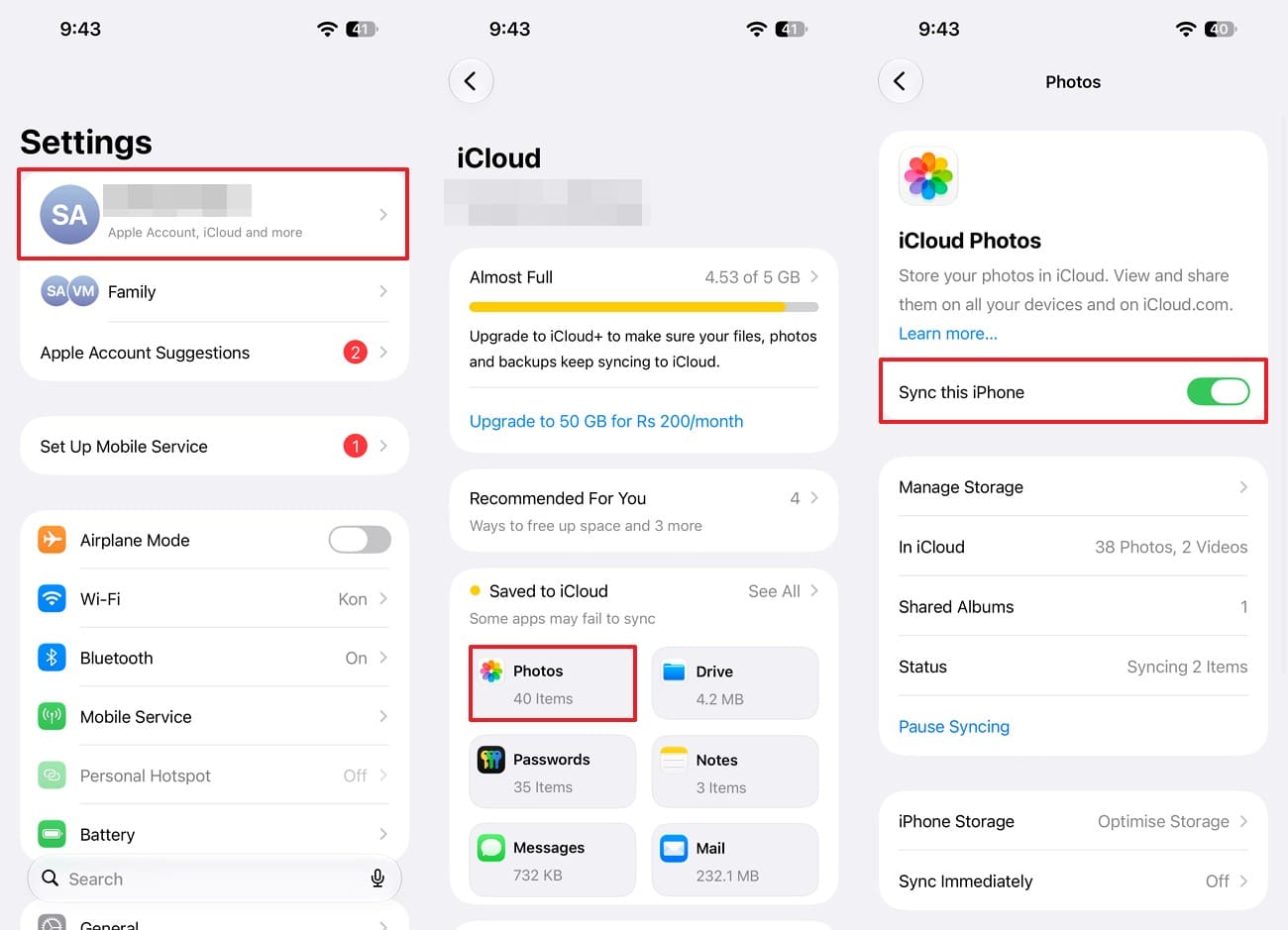
Open Settings and check the name and Apple Account shown at the top. It should be the same account that holds your iCloud Photos library. Tap your name and go to “iCloud” and choose “Photos” to toggle on “Sync this iPhone.”
 Pro Tip: To prioritize new photos added on the iPhone, choose “Sync Immediately” and select “For Today.” This setting does not force an older iCloud Photos library to download.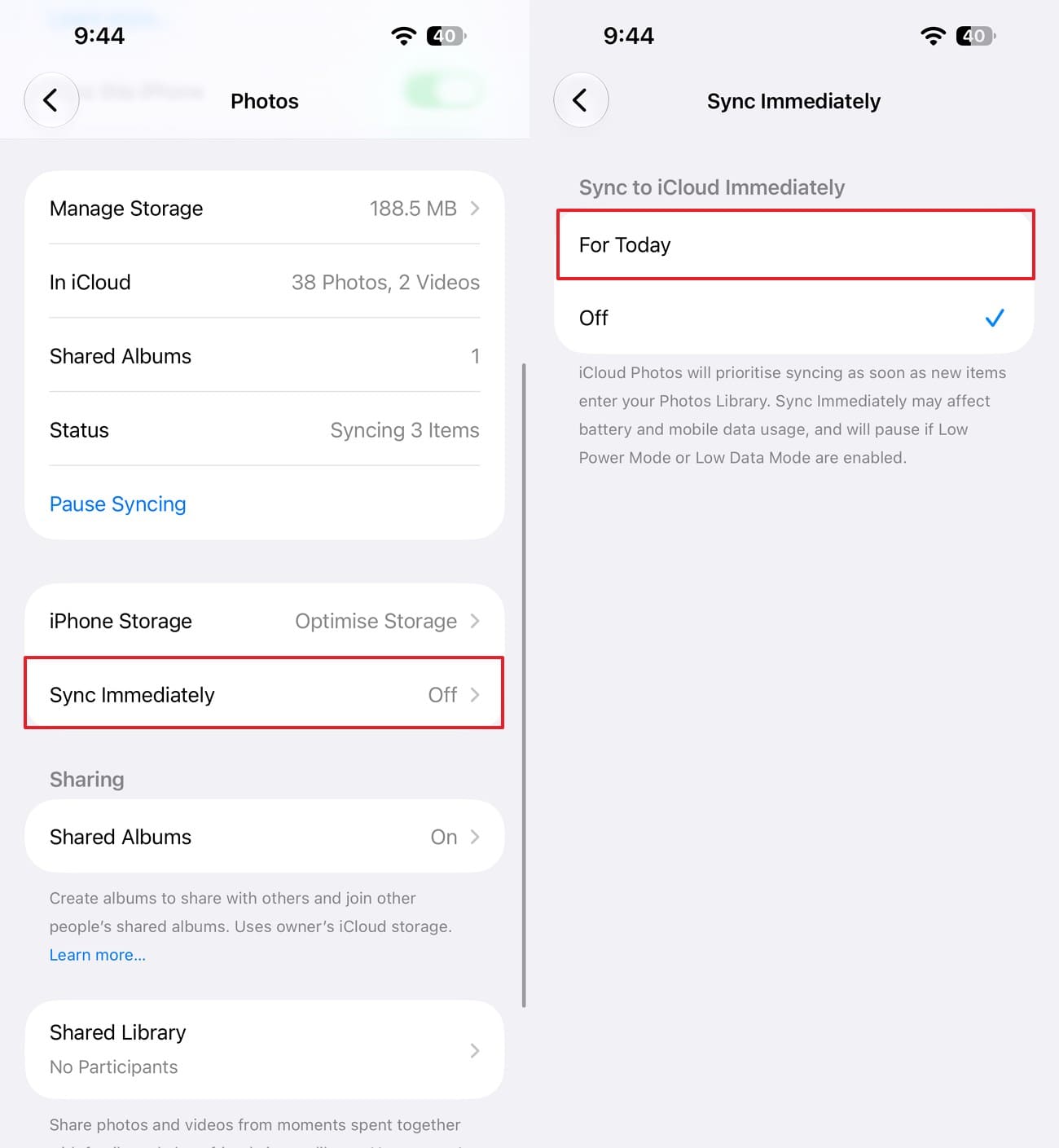
-
Step 2
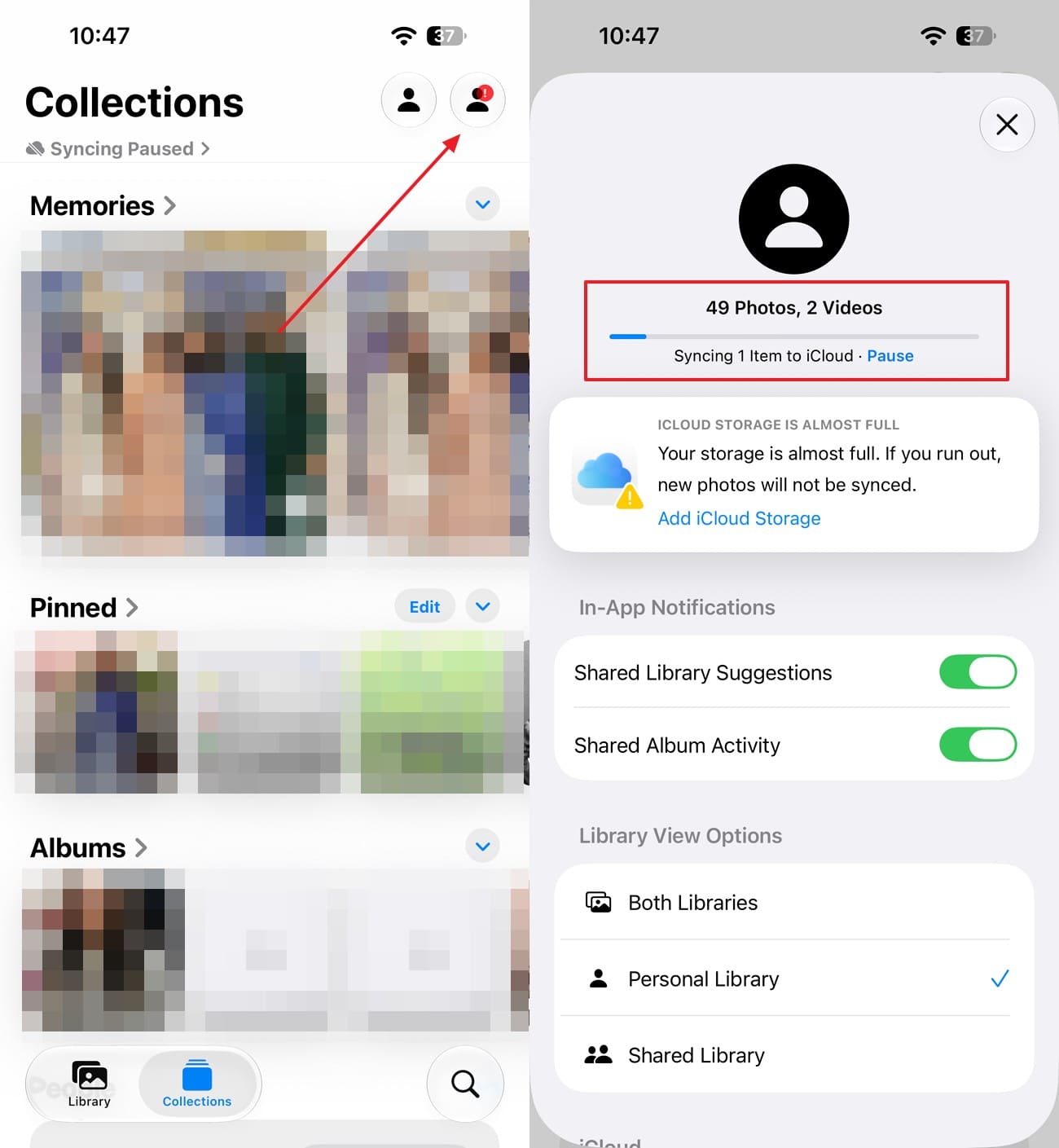
Open the Photos app and go to “Collections.” Tap the “Profile” icon in the upper corner, then check the library sync status below your name and photo count.
Download Full-Resolution iCloud Photos to iPhone 18
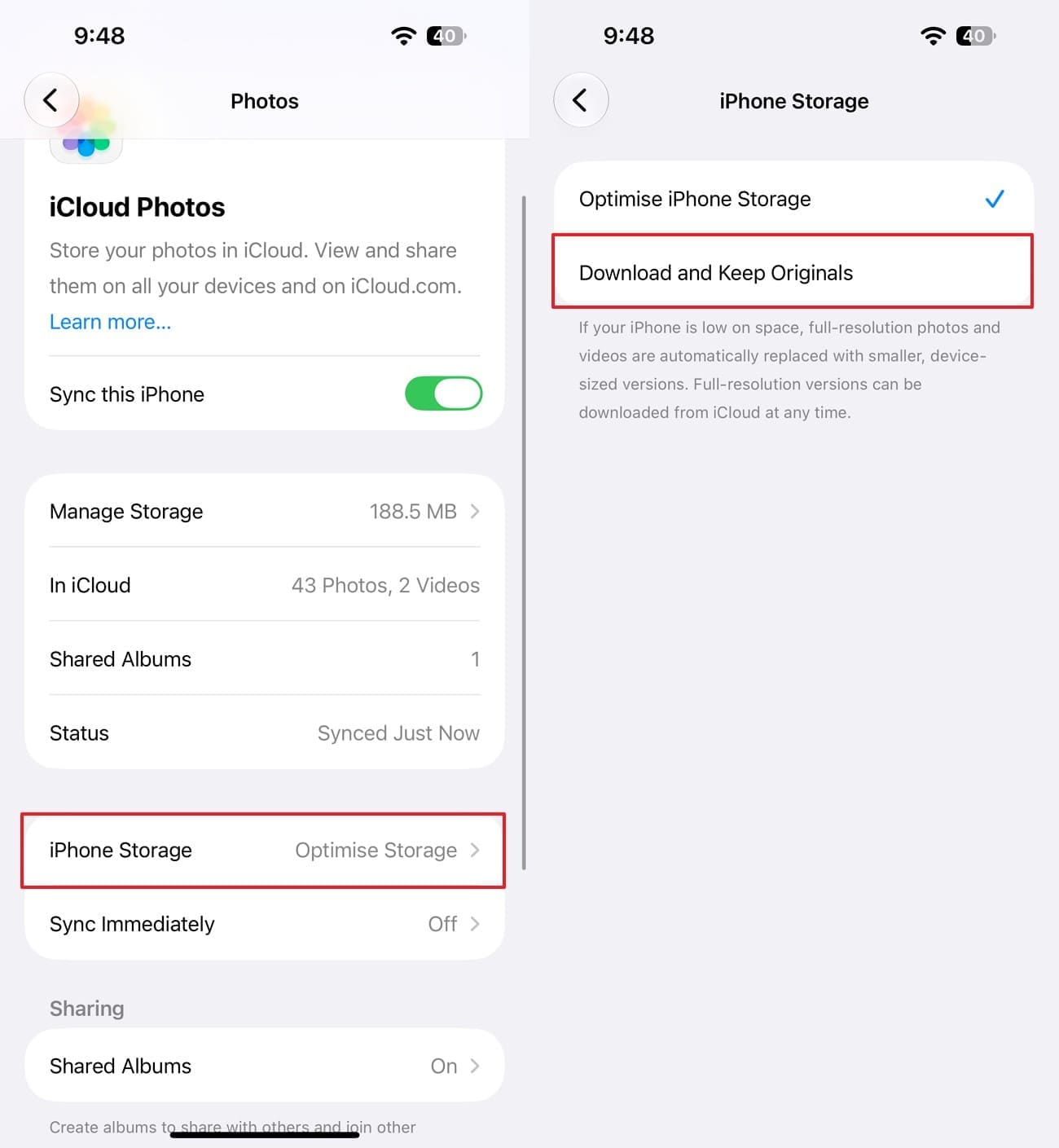
If you can see your pictures but the full-resolution versions are still stored in iCloud, you can download the originals to the iPhone 18. With Optimize iPhone Storage enabled, Apple keeps the original, high-resolution photos in iCloud while the iPhone can use smaller, space-saving versions. To recover photos from iCloud in their original resolution and keep them available directly on your iPhone 18, download the originals by following these steps:
-
Step 1
In “iCloud > Photos,” tap “iPhone Storage,” then select “Download and Keep Originals.”
-
Step 2
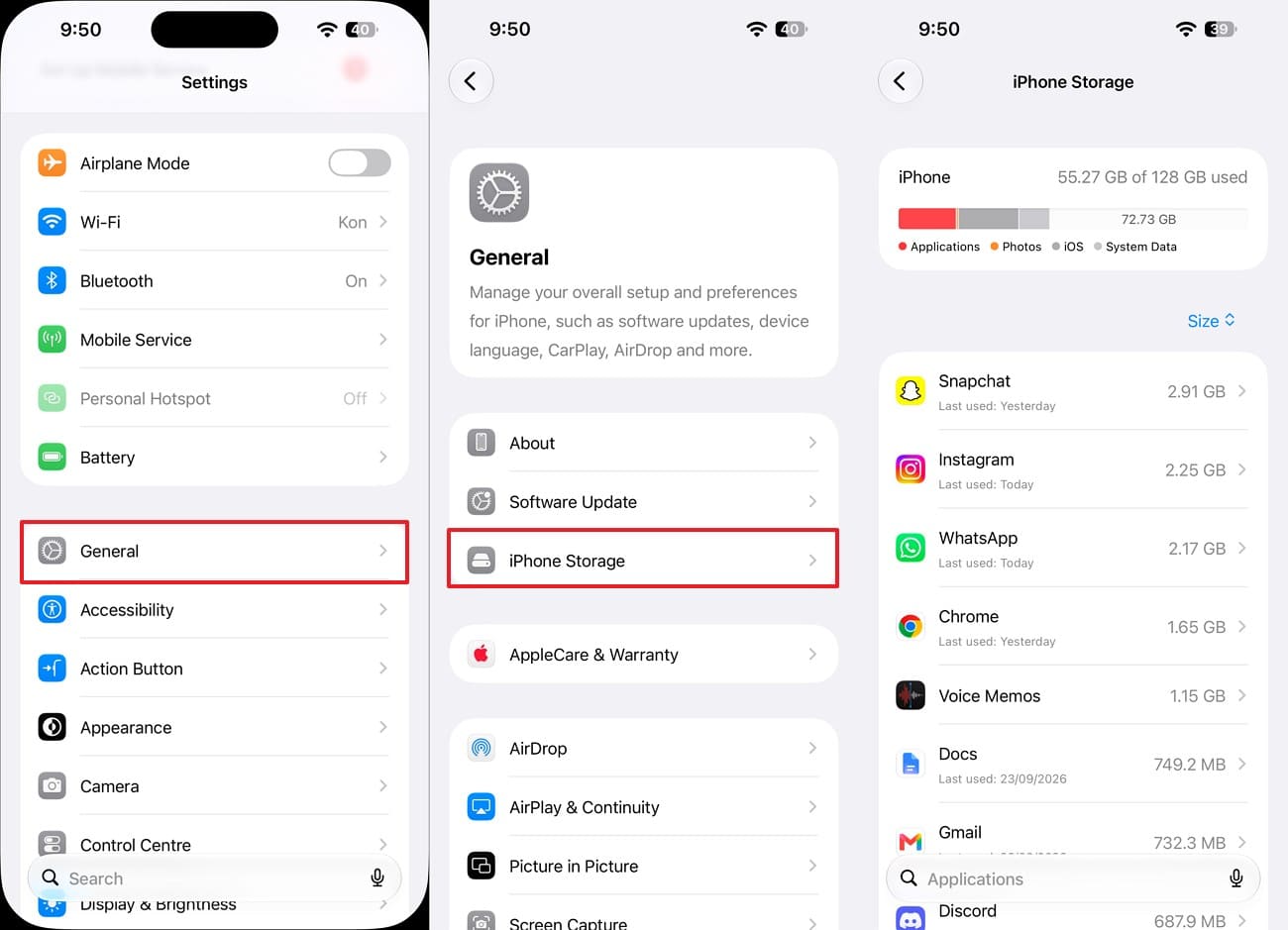
Before you download a large library, go to “Settings > General > iPhone Storage” and check how much device storage is available. Keep the iPhone 18 connected to a reliable network while the originals download.
Part 3. How to Recover Deleted Photos from iCloud Recently Deleted
For the photos that were deleted recently, check Recently Deleted before you look for an older backup. Apple keeps deleted photos and videos there for 30 days. This gives you a chance to recover photos from iCloud on iPhone 18 without a restore. You can recover them from either the iPhone 18 or iCloud.com. For both options, the detailed guidelines are given below:
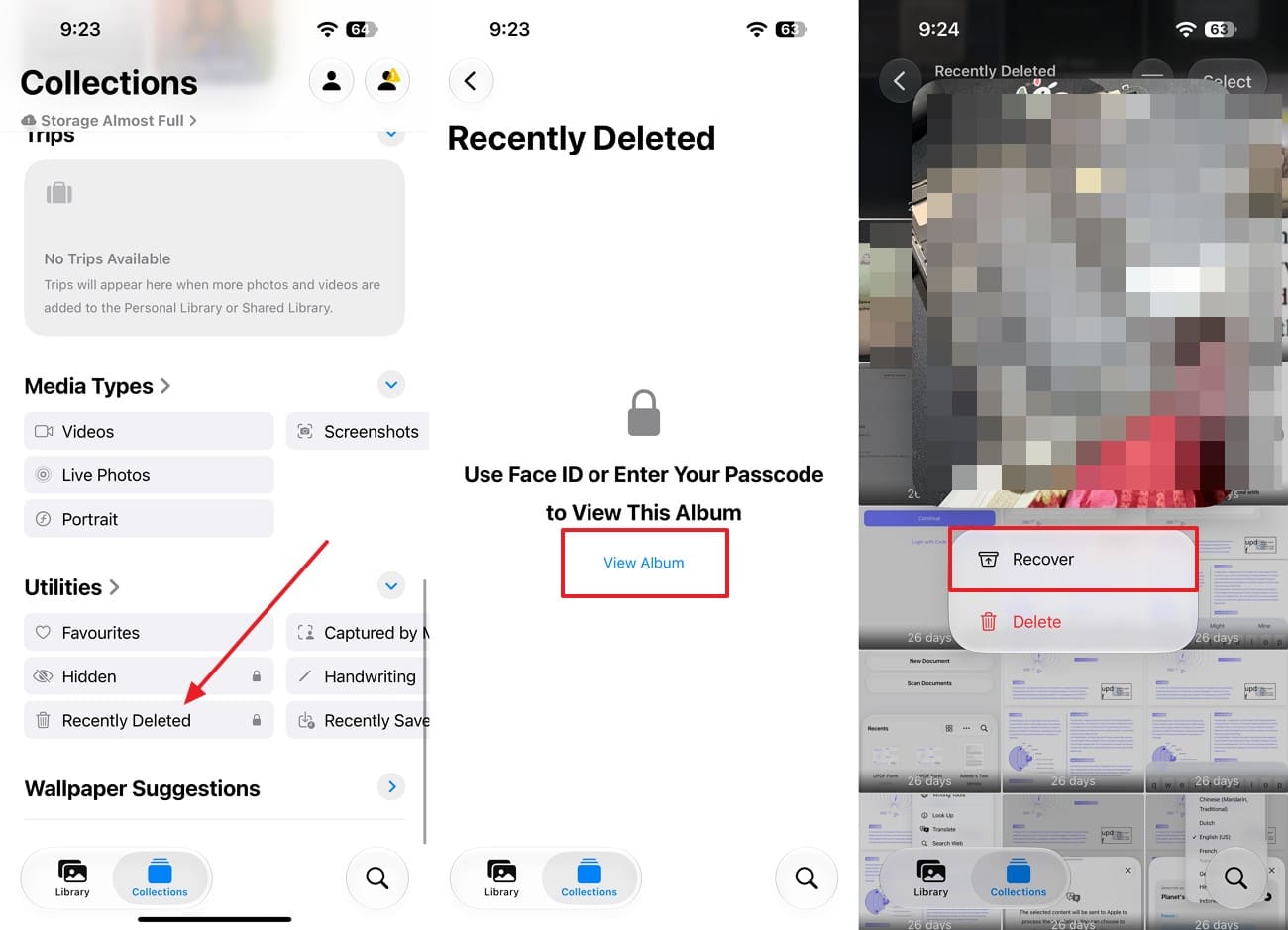
Method 1. Recover Deleted iCloud Photos on iPhone 18
Instructions. Open the Photos app on your iPhone 18 and tap “Collections > Utilities > Recently Deleted.” Select “View Album” and unlock it with Face ID, Touch ID, or your passcode. Choose “Select” or long-press the image and tap on the “Recover” option.
Method 2. Recover Deleted Photos from iCloud.com
-
Step 1
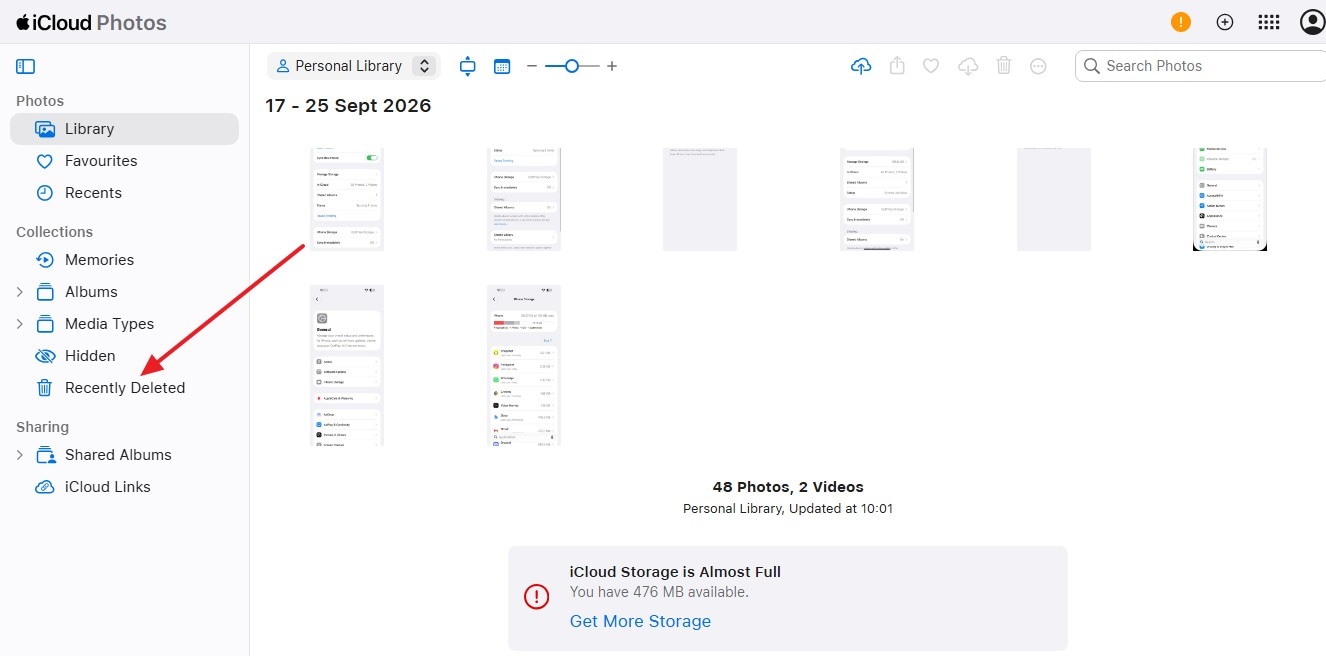
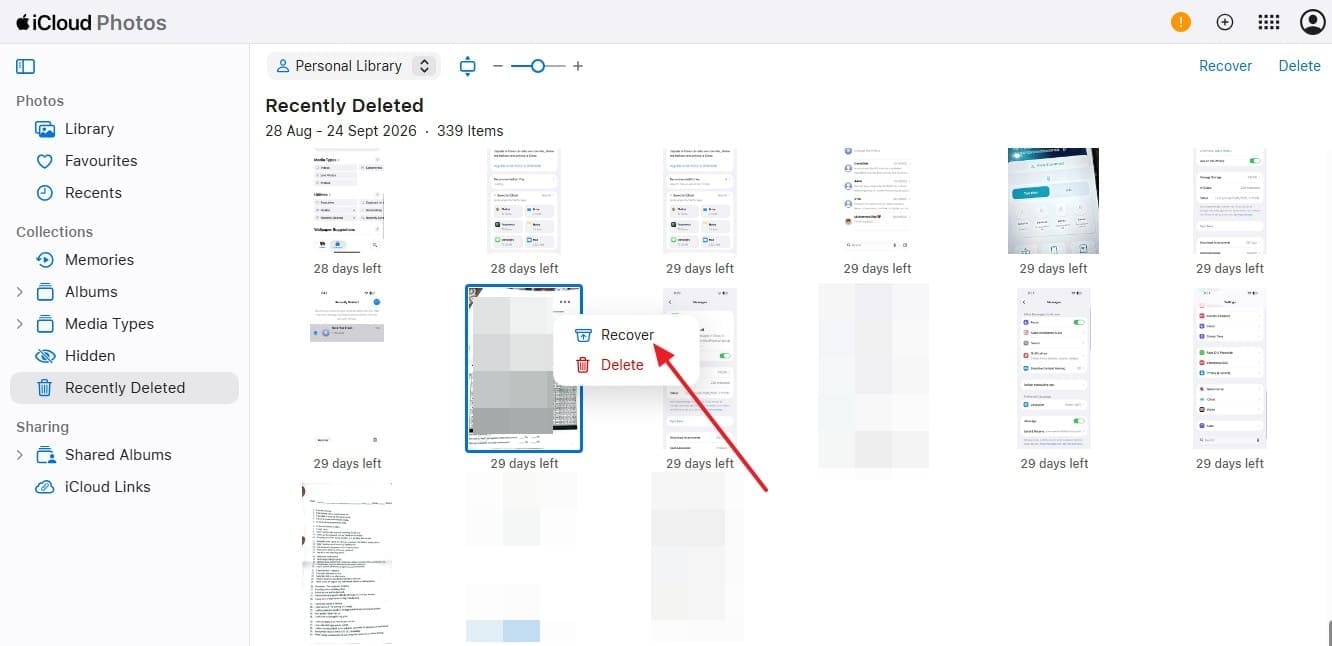
In a browser, open iCloud.com and sign in with the Apple account linked to your iCloud Photos library. Tap on “Photos” and locate “Recently Deleted” in the sidebar.
-
Step 2
Find the photo you want to restore, tap “Three Dots > Recover,” and the item returns to your iCloud Photos library and can sync back to the iPhone 18.
Part 4. Recover Photos from an iCloud Backup Without Resetting iPhone 18
Suppose the missing pictures are no longer available in iCloud Photos or Recently Deleted. In that case, an older iCloud backup is the next source to check. You can recover photos from iCloud if the older backup contains them, which requires those photos to have been stored on the iPhone instead of syncing through iCloud Photos.
To check an iCloud backup for specific photos without replacing the current data on your iPhone 18, use Dr.Fone - Data Recovery (iOS). Its Recover Data from iCloud Backup option lets you verify your Apple Account and select an available backup by device information and date. You can preview supported photos and save selected files to your computer without restoring the entire backup.
 Recovers data after deletion, crashes, or device damage.
- Supports photos, messages, contacts, WhatsApp, and more.
- Supports all major iPhone, iPad, and iPod models.
- Preview and recover only what you need.

Guide to Extract Photos from an iCloud Backup with Dr.Fone
Before using Dr.Fone to recover photos from iCloud, review the available backup dates and choose one created while the missing photos were still on your iPhone 18. Dr.Fone displays the backup details before recovery, so follow these steps to extract the required photos without resetting your iPhone 18:
-
Step 1 Access the iCloud Backup Recovery Feature
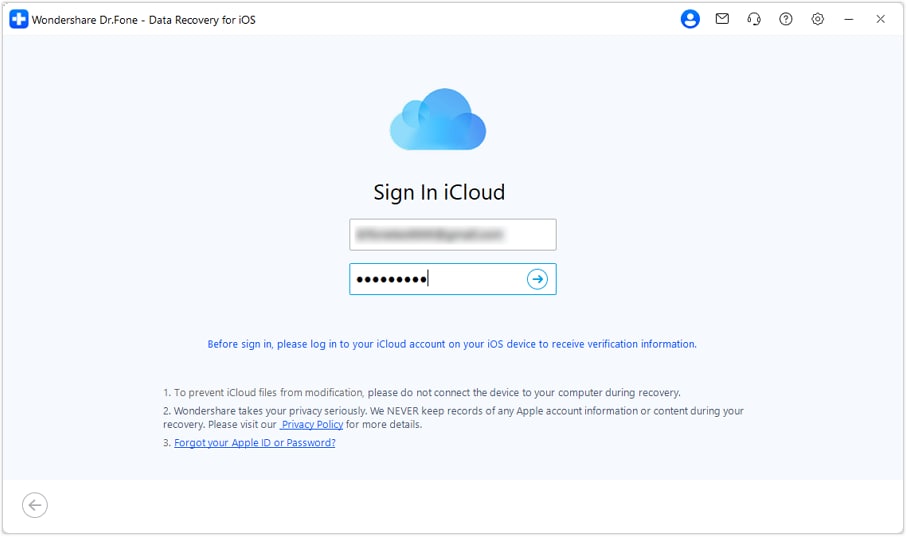
Open the “Data Recovery” tool and select “iOS” as your platform. Pick “Recover Data from iCloud Backup,” log in with the backup’s Apple Account, and type the verification code shown on your trusted device.
-
Step 2 Match the Backup and Download
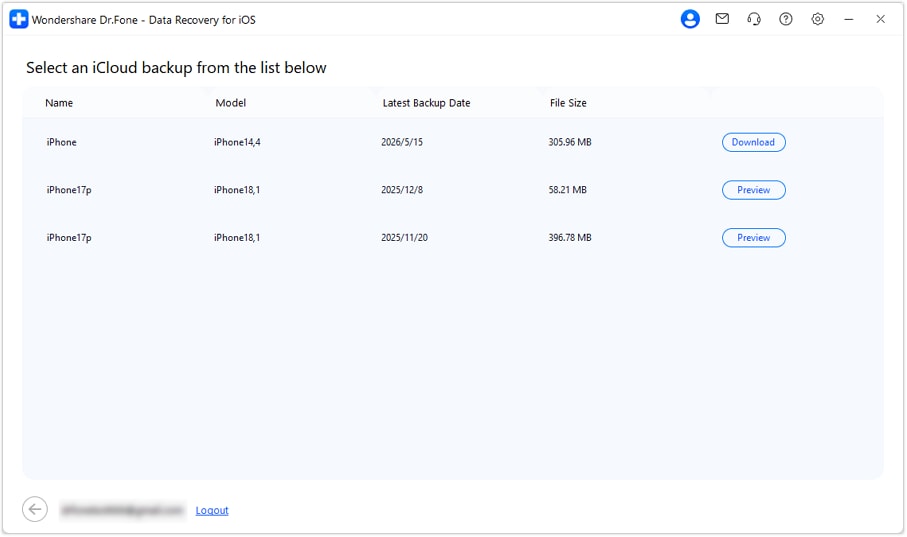
When the backup list appears, compare each entry’s device name and backup date. Choose a backup created while the missing photos were still on the iPhone, then click “Download” and wait for the process to finish.
-
Step 3 Browse Camera Roll and Recover Photos
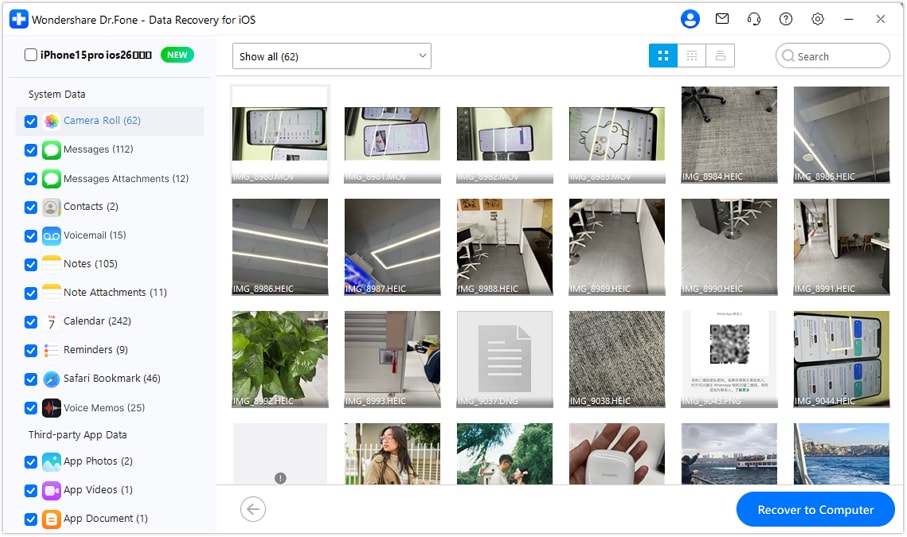
Open “Camera Roll” from the category list to preview available photos, and check “App Photos” for additional images. Select the photos you want, then click “Recover to Computer” to save them locally and transfer them to iPhone 18 later.
 Note: An empty Camera Roll does not confirm that iCloud Photos was enabled. The selected backup may simply lack those photos, so check its date and other available backups.




Part 5. Why iCloud Photos May Not Appear on iPhone 18
If your photos still exist in iCloud but seem missing on the iPhone 18, you may not need to recover photos from iCloud again. The issue may simply be how the Photos app displays synced items. Hidden photos, active filters, sorting options, or library views can make pictures harder to find. Check these 5 possibilities before trying another recovery method:
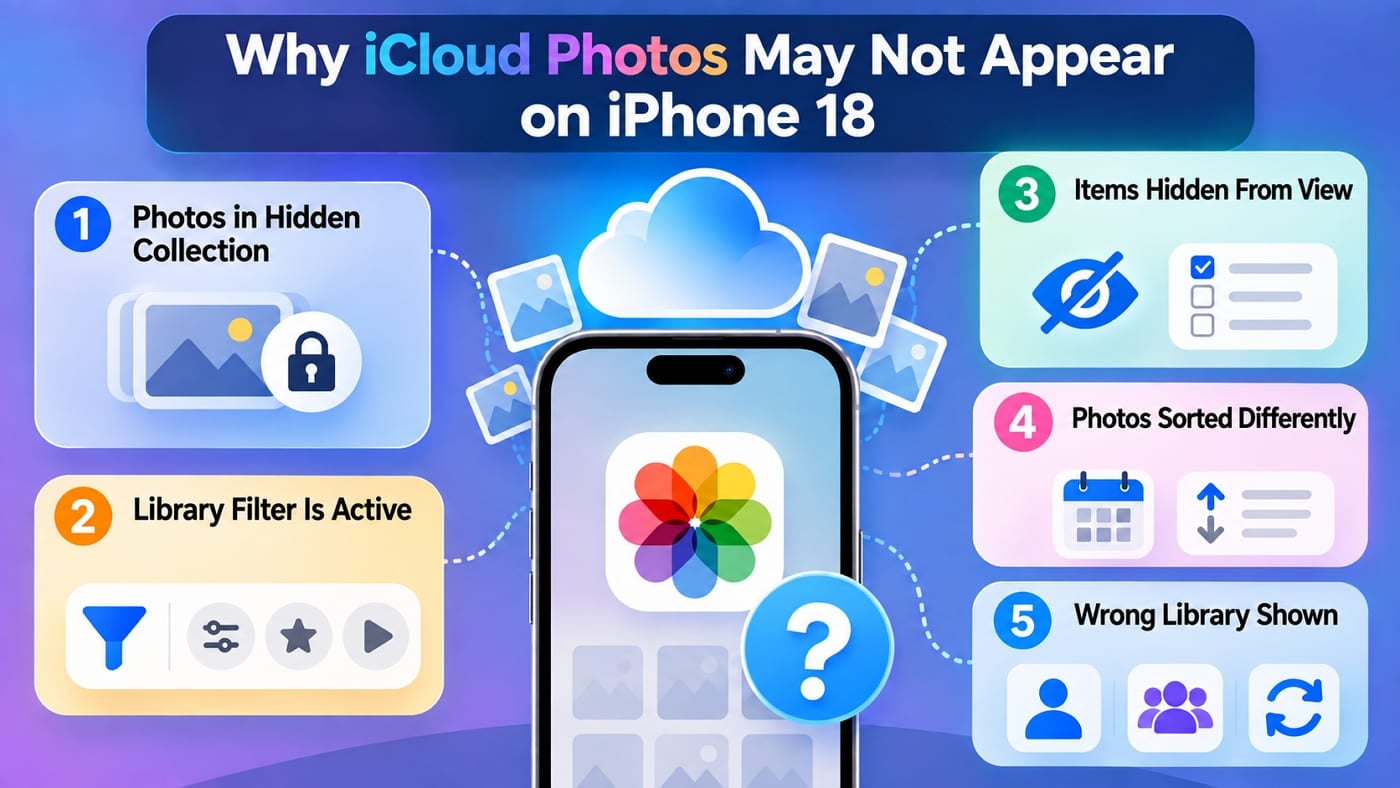
- Photos are in the Hidden Collection: Photos hidden on another device remain hidden when iCloud Photos syncs them. Check “Collections > Utilities > Hidden” and unlock the collection to see whether the missing pictures are there.
- A Library Filter is Active: iOS 27 lets you filter the photo library by categories such as Edited, Rating, or Media Types. An active filter can temporarily hide other synced pictures from view. Remove the filters to display the complete library again.
- Certain Library Items are Hidden from View: Under “View Options,” Photos can hide screenshots, content synced from a Mac, or items shared through Messages. Check these display options if only certain types of pictures appear to be missing.
- Photos are Sorted Differently Than Expected: iOS 27 can sort the photo library by when items were added or when they were captured. Older pictures may appear in an unexpected position, making them seem missing even though they remain in the library.
- The Wrong Library is Shown in Collections: If you use iCloud Shared Photo Library, Photos collections can display Personal Library, Shared Library, or Both Libraries. Choosing the wrong view can make some pictures appear missing.
Conclusion
The right way to recover photos from iCloud depends on whether they remain in iCloud Photos, Recently Deleted, or an earlier iCloud backup. Checking these sources in order can help you find missing pictures without unnecessarily erasing your iPhone 18.
For photos stored only in an older backup, Dr.Fone - Data Recovery (iOS) provides another recovery path. It can check supported iCloud backups, preview available photos, and save selected images to your computer without replacing the data currently stored on your iPhone.
FAQ
-
1. Can I recover iCloud photos to a computer instead of saving them on my iPhone 18?
You can recover photos from iCloud to a computer by downloading them from iCloud.com. For photos stored in an older iCloud backup, Dr.Fone - Data Recovery (iOS) can preview supported photos and save selected items to your computer. -
2. Can I access my iCloud Photos on iPhone 18 if my old iPhone is unavailable?
If your photos are stored in iCloud Photos, sign in to the iPhone 18 with the same Apple Account and enable “Sync this iPhone.” Your old iPhone is not required. Dr.Fone - Data Recovery (iOS) can also access supported photos through iCloud Sync or available iCloud backups. -
3. Can I recover photos from an iCloud Shared Photo Library on iPhone 18?
Yes. Deleted photos from an iCloud Shared Photo Library remain in “Recently Deleted” for up to 30 days. During this period, any Shared Library participant can recover the photos and restore them to the shared library without requiring the original contributor.
 Add Wondershare Dr.Fone as a preferred source on Google




