Recover photos, messages, WhatsApp, and more — no backup
needed.
Recover photos, messages, WhatsApp, and more — no backup
needed.

 100% Security Verified | No Subscription Required | No Malware

 :
: 
 ChatGPT
 Perplexity
 Gemini
 Claude
 Grok
Grok
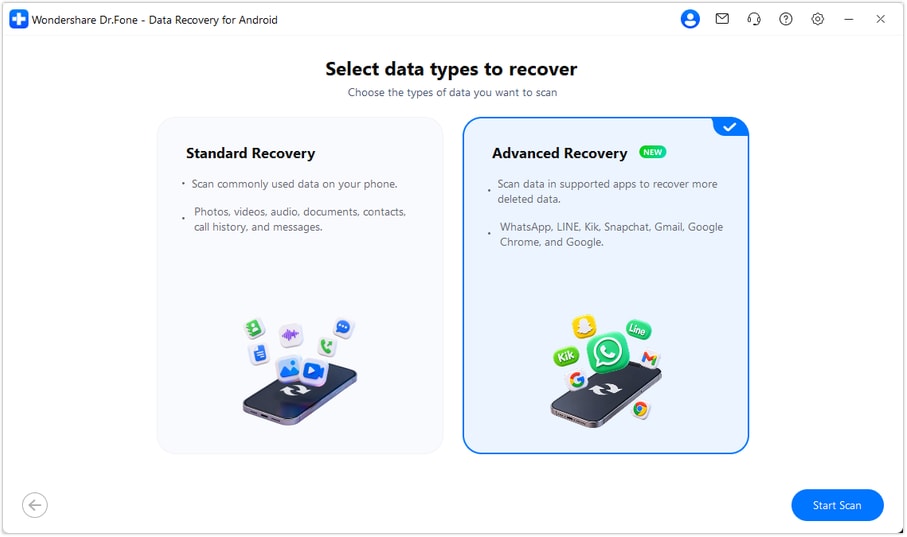
Standard or Advanced Recovery? Start with the data you need, not the mode name. Standard Recovery covers common Android file and phone-data categories. Advanced Recovery in Dr.Fone - Data Recovery (Android) adds selected messaging-app, Gmail, and browser-data categories on compatible devices, with narrower platform and Android-version requirements.
This decision guide compares the modes, explains when Advanced Recovery is a relevant option, and shows how to assess the results. It does not rank the modes by recovery success rate or promise that every deleted item can be recovered.
In this article
- Part 1. Which Recovery Mode Fits Your Situation?
- Part 2. Standard vs. Advanced Recovery: Compare the Scope
- Part 3. Which App Records Does Advanced Recovery Support?
- Part 4. Compatibility and Preparation Checklist
- Part 5. What the Advanced Recovery Workflow Looks Like
- Part 6. Understand the Results and Recovery Limits
- Conclusion
- Frequently Asked Questions
Part 1. Which Recovery Mode Fits Your Situation?
Use these questions to narrow the choice before starting a scan:
- Is a usable copy already available? Check an existing authorized backup or account view first. If the item is still accessible there, a device scan may not be necessary.
- Is the item a common file or phone-data category? For photos, videos, documents, contacts, or messages, check the applicable Standard Recovery workflow and its requirements.
- Is it a specifically listed app or browser record? Advanced Recovery may be relevant for supported Gmail, messaging-app, or browsing-data categories.
- Does your setup meet the mode's requirements? If you do not have Windows or your phone is outside the documented compatibility range, do not choose Advanced Recovery on the assumption it will work anyway.
- Do you need a PC copy or an in-app restore? Advanced Recovery exports to a PC. If your requirement is to put the data directly back into the original app, its documented output does not meet that requirement.
Example: A Gmail record and a deleted camera photo are different recovery tasks. The Gmail category is explicitly listed for Advanced Recovery; common image recovery belongs to an appropriate photo workflow. Neither category listing establishes that the item you want is still recoverable.
Part 2. Standard vs. Advanced Recovery: Compare the Scope
Do not select Advanced Recovery just because its name sounds more powerful. Standard and Advanced have different documented scopes, and some categories overlap.
| Decision point | Standard Recovery | Advanced Recovery |
|---|---|---|
| Main documented scope | Common Android data such as photos, videos, audio, documents, contacts, call history, messages, and supported WhatsApp data. | Selected app records and attachments from supported messaging apps and Gmail, plus supported Google and Chrome browser records. |
| When to consider it | You are looking for a supported file or common phone-data category. | You need one of the specifically listed app or browsing-data categories. |
| Compatibility | Check the requirements for the device, data type, and workflow you select. | Windows; Android 9-13; Huawei on Android 12-13 is excluded. |
| Important distinction | Product-wide device support does not establish support for every recovery feature. | It is not a universal extension of all Standard features to all Android versions. |
| How to judge usefulness | Whether the chosen workflow finds the files or records you need. | Whether the supported app-data scan finds relevant records you can preview and export. |
If both modes list a related category, do not assume Advanced has a higher success rate; no comparative success rate is established here. For browser-specific account checks, use our Android Chrome history recovery guide rather than repeating those steps here.
Part 3. Which App Records Does Advanced Recovery Support?
Wondershare's official Android recovery guide documents the following categories. A listed category means the software can scan for supported records; it does not mean every device, app version, or deleted item will yield a result.
| Category | What you can review if found | Selection or output note |
|---|---|---|
| Selected conversations and supported attachments, such as available photos, videos, and audio. | Run WhatsApp as a separate scan rather than combining it with WhatsApp Business or other categories. | |
| WhatsApp Business | Selected business conversations and available media categories. | Run it separately from WhatsApp and other categories. |
| LINE, Kik, and Snapchat | Selected conversations and attachments where supported records are found. | Review conversation and attachment categories separately when they appear in the results. |
| Gmail | Available Gmail entries and supported attachments. | The Gmail and Gmail Attachments results may appear as separate categories. |
| Google Browsing History | Available entries with information such as names, URLs, and dates. | This is not direct access to permanently deleted Google Account server data. |
| Google Chrome Browsing History and Bookmarks | Selected browser records and saved-link records. | Export does not restore the data directly into Chrome on the phone. |
The value of the mode is the ability to inspect several supported app-data categories within one desktop workflow and select the records worth saving. Its usefulness still depends on what is accessible on your particular device.
Part 4. Compatibility and Preparation Checklist
Before starting a scan, confirm the following requirements:
- Check your Android version and device brand. Open your phone's Settings and look under About phone or the equivalent software-information screen. Advanced Recovery's documented range is Android 9-13, with the Huawei Android 12-13 exception.
- Use the Windows desktop workflow. The Mac edition and the Android mobile app should not be treated as substitutes for this Windows-specific mode.
- Confirm that your installed software includes the mode. Look for Advanced Recovery under Recover Android Data. If it is absent, check the current Windows download and the official product instructions rather than selecting an unrelated workflow.
- Prepare a working USB connection. Use a suitable cable and follow the device-detection and permission prompts shown in the software. Do not assume setup requirements from a different recovery feature apply here.
- Choose a private destination folder on the PC. App records can contain sensitive conversations, email content, or browsing activity. Scan only a device you own or are authorized to access.
- Check the current license terms. A download or preview is not a promise of unlimited free export. Confirm any purchase requirements before relying on the software for recovery.
 Scan Android phones and tablets directly.
- Preview and recover only what you want.
- Supports WhatsApp, photos, videos, contacts, and more.
- Works with 6000+ Android devices.

Part 5. What the Advanced Recovery Workflow Looks Like
Use this walkthrough to understand what choosing Advanced Recovery involves. For the maintained product manual and additional category-specific screenshots, refer to the official Android data recovery instructions. Screen labels and available categories can vary with the installed version and connected device.
-
Step 1 Open Advanced Recovery and Connect the Phone
Launch Dr.Fone on Windows and open Toolbox > Data Recovery. Select Android > Recover Android Data, choose Advanced Recovery, and click Start Scan. Connect the Android phone by USB when prompted, then follow the on-screen instructions until the software detects it.
-
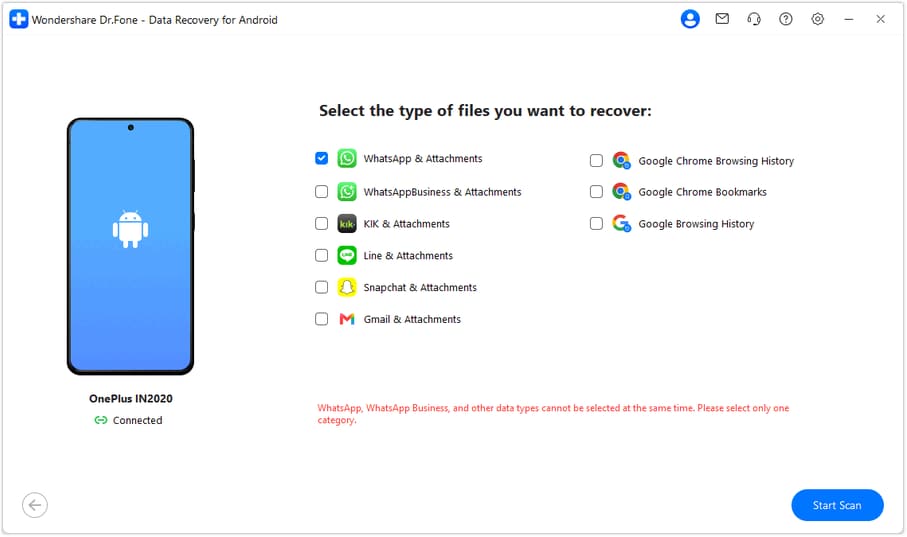
Step 2 Select the Relevant App-Data Categories
Select the supported categories that match the information you need. For example, choose Gmail-related data for an email record or the appropriate browser-data category for saved website information. Click Start Scan after making your selection.
WhatsApp selection rule: Scan WhatsApp or WhatsApp Business separately. The official instructions say WhatsApp, WhatsApp Business, and other data types cannot be selected together. Do not treat the category list as permission to run every app in one combined scan.
-
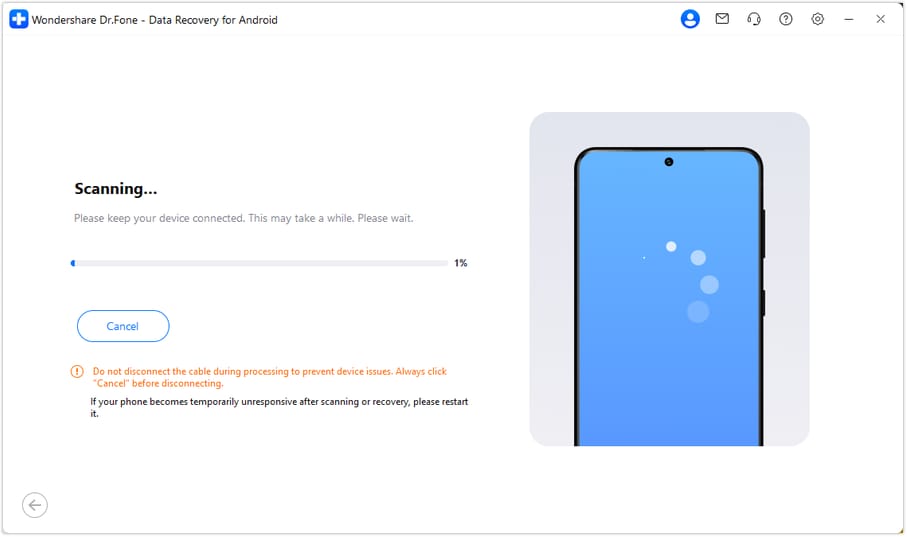
Step 3 Keep the Device Connected During Scanning
Leave the phone connected while the scan runs. If you need to stop, use Cancel in the software before disconnecting the cable. There is no fixed scan-time or recovery-success promise in this guide. If the phone becomes temporarily unresponsive after scanning or recovery, follow the on-screen restart instructions.
-
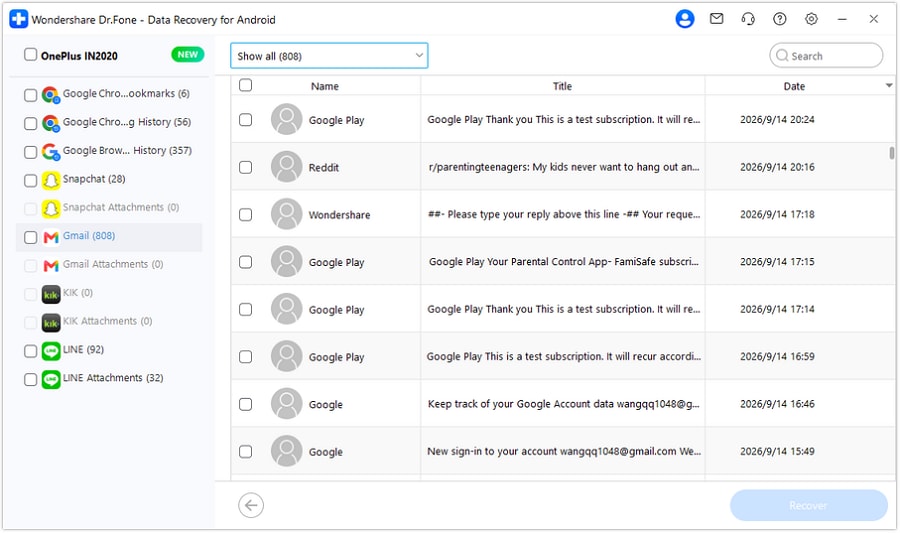
Step 4 Preview the Available Records and Attachments
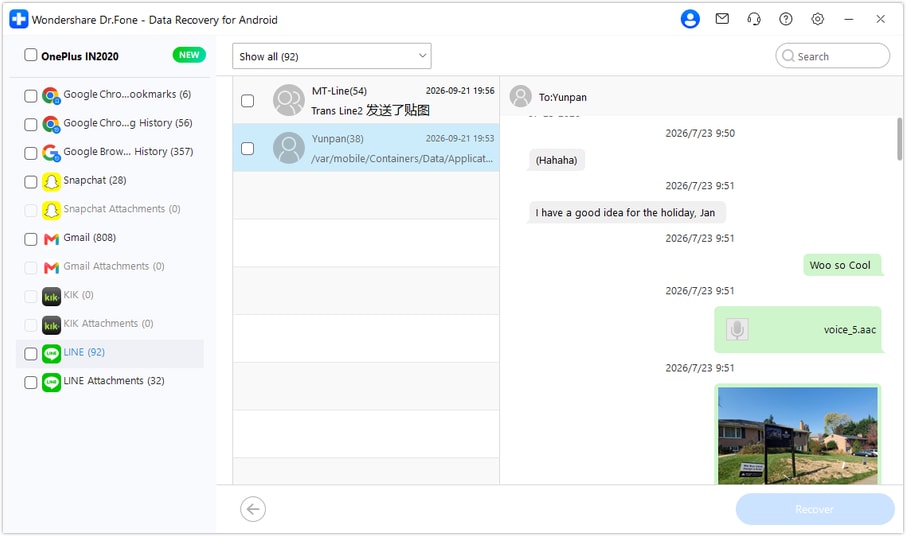
Choose a category in the results sidebar and inspect its contents. Use search or filters when available, then select only the records you want to save. The preview is a way to assess the scan results; it is not evidence that every deleted item has been found.
For Gmail: Review the available entries and check Gmail Attachments separately if that category contains results. Do not assume that every recovered entry includes its original attachments.
For supported messaging apps: Open the relevant conversations and attachment categories. For example, LINE conversations and LINE Attachments can be reviewed separately. WhatsApp and WhatsApp Business have their own results views.
For browser data: Check the relevant Google or Chrome category. These results are records you can save for reference, not a one-click reconstruction of the browser's original history or bookmarks.
-
Step 5 Save the Selected Results to the PC
Click Recover, choose the destination folder when prompted, and follow the software's export instructions. Open the saved output on your PC and check that it contains the records you intended to keep.
Do not assume that a format available in a different Dr.Fone feature applies to every Advanced Recovery category. In particular, the official instructions do not establish that browser-bookmark results are exported as an importable Chrome bookmarks HTML file.




Part 6. Understand the Results and Recovery Limits
Judge a scan by the relevant records it actually finds, not by the number of categories the interface lists.
| What you see | What it means | What to do next |
|---|---|---|
| A relevant record appears in the preview | The scan found a record that may meet your need. | Inspect its contents, select it, and verify the saved output after export. |
| A conversation appears without a needed attachment | The conversation result does not establish that its attachment is recoverable. | Check the corresponding attachment category if available. |
| The category is empty or the wanted item is absent | This scan did not find the item you need. | Recheck compatibility and the selected category, then consider an existing authorized backup or another available copy. Do not assume repeated scans will recreate missing data. |
| Records were saved to the computer | You have a PC export of the selected results. | Keep the output secure. It is not the same as restoring conversations, emails, or browser records directly into their original apps. |
Advanced Recovery is not documented here as a way to recover all Incognito activity, access permanently deleted cloud-account records, or support every Android version. It also should not be confused with a factory-reset recovery guarantee. Avoid resetting or clearing the phone just to prepare for this scan.
Conclusion
Dr.Fone Advanced Recovery provides a Windows workflow for selected messaging-app, Gmail, and browser records on compatible Android 9-13 devices. Check compatibility first, choose the correct categories, review the scan results, and save only the items you need. Its practical benefit is selective access to supported records found during scanning; it does not guarantee complete recovery or direct restoration to the phone.
Review Dr.Fone - Data Recovery (Android) to check the current product information before choosing a recovery workflow.
Frequently Asked Questions
-
Does Advanced Recovery support Android 14, 15, or later?
The official guide documents Android 9-13 and excludes Huawei devices on Android 12-13. Later Android versions are outside that documented range. Check the current product instructions for any future compatibility changes rather than assuming support. -
Can I use Advanced Recovery on a Mac or directly on Android?
This mode is documented as a Windows feature. Do not assume that the Mac edition or Dr.Fone mobile app offers the same Advanced Recovery workflow. -
Can I scan WhatsApp, WhatsApp Business, and Gmail together?
No. The official instructions require WhatsApp and WhatsApp Business to be scanned separately from each other and from other categories. Choose an appropriate separate scan for the WhatsApp category you need. -
Will recovered data return to the original app on my phone?
No. The documented Advanced Recovery workflow saves selected data to a PC. A saved result is not a direct restore into WhatsApp, Gmail, Chrome, or another app on the phone. -
Is Advanced Recovery always better than Standard Recovery?
No universal success-rate comparison is established here. Choose a mode by the supported category, device requirements, and recovery source. Advanced Recovery is useful for its listed app-data categories, not because its name guarantees a better result. -
Does downloading the software mean recovery is free?
No. Downloading software is not the same as having a license for every recovery or export function. Review the current product terms and any purchase prompts before proceeding.
 Add Wondershare Dr.Fone as a preferred source on Google