Recover photos, messages, WhatsApp, and more — no backup
needed.
Recover photos, messages, WhatsApp, and more — no backup
needed.

 100% Security Verified | No Subscription Required | No Malware

 :
: 
 ChatGPT
 Perplexity
 Gemini
 Claude
 Grok
Grok
Snapchat automatically deletes most Snaps and chats based on viewing activity and conversation settings. Snaps typically disappear after all recipients view them, while chats follow their configured deletion schedule. Unopened Snaps also expire after a set period. However, saved messages, Memories, and exported media follow different rules, leaving some content accessible.
Snapchat data recovery on Android starts with checking for existing copies of missing content. This guide covers saved chats, Memories, and My Data exports. You'll also learn how Dr.Fone - Data Recovery (Android) uses Advanced Recovery to scan compatible Android phones for deleted Snapchat messages and attachments.
In this article
- Part 1. What Snapchat Data Can Be Recovered on Android?
- Part 2. How to Retrieve Snapchat Messages and Photos Without Recovery Software
- Part 3. How to Recover Deleted Snapchat Data on Android with Dr.Fone – Data Recovery (Android)
- Part 4. Snapchat Recovery Limits and Dr.Fone Compatibility Requirements
Part 1. What Snapchat Data Can Be Recovered on Android?
Saved chats, Memories, account records, and exported photos can provide access to missing Snapchat content. However, deleted messages require a different recovery approach. Before attempting to recover deleted Snapchat messages, review the table below to understand which data may still be available and how to retrieve it:
| Snapchat Data Type or Status | Possible Recovery Source | Recovery Option |
|---|---|---|
| Saved Chat Messages | Existing Snapchat conversations | Open the conversation and check messages that remain saved. |
| Photos and Videos Saved to Memories | Snapchat Memories | View saved photos and videos or export them to your phone. |
| Saved Account Records | Snapchat My Data | Download available Saved Chat History and other retained account records. |
| Previously Exported Snapchat Photos/Videos | Android Gallery or Google Photos | Find existing copies stored outside Snapchat. |
| Deleted Snapchat Messages and Attachments | Recoverable data on compatible Android devices | Use Dr.Fone Advanced Recovery to scan for detectable conversations and attachments. |
| Deleted or Expired Snaps | Previously saved copies or remaining device data | Check existing backups, saved media, or detectable device data. |
Part 2. How to Retrieve Snapchat Messages and Photos Without Recovery Software
Before trying a Snapchat recovery tool, check whether your missing messages or photos remain accessible through saved chats, Memories, or account records. The following 3 methods help you locate existing Snapchat data without installing additional recovery software:
Check Saved Snapchat Chats and Media
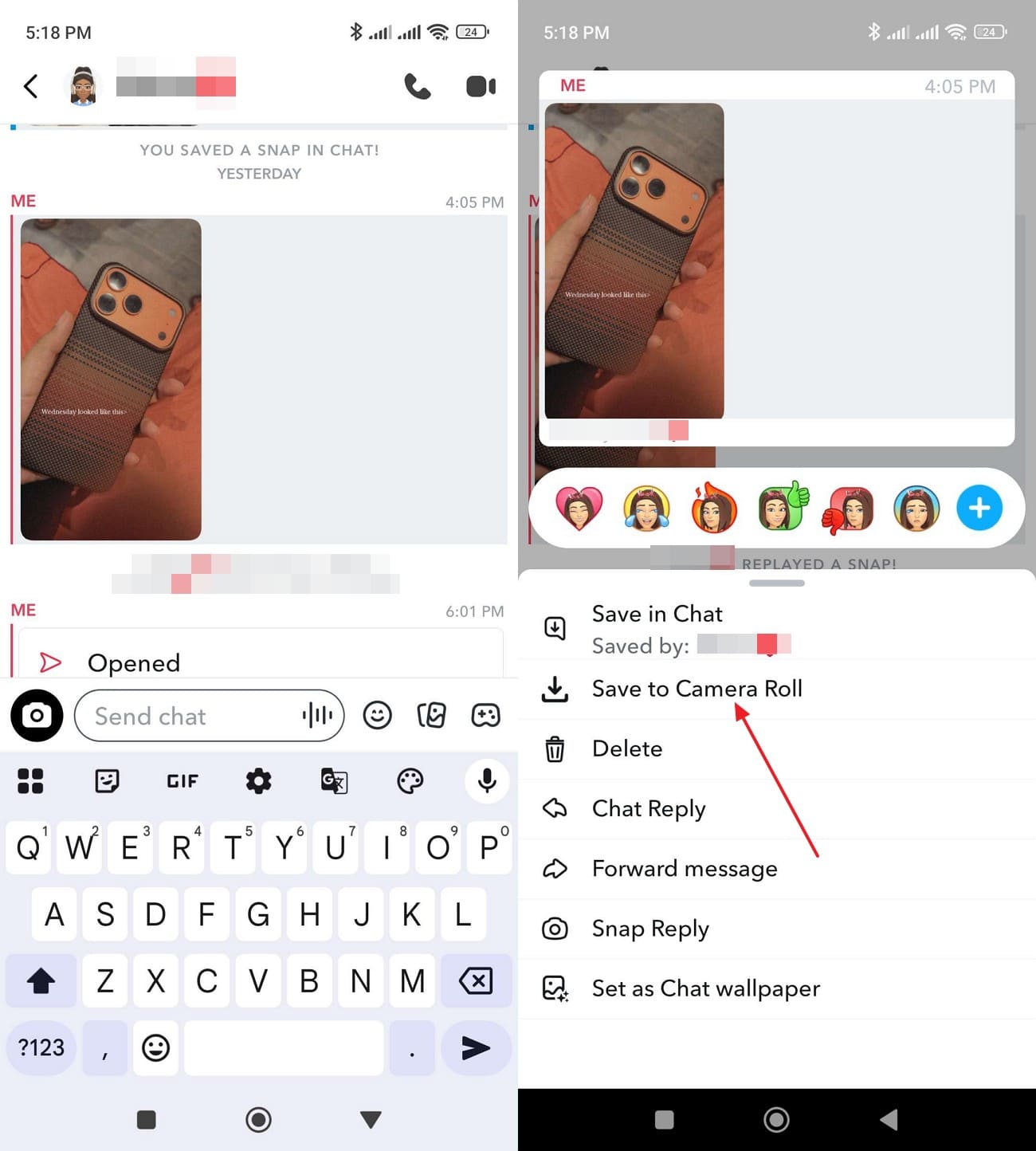
Snapchat highlights saved messages with a gray background, making them easier to identify in conversations. You can also save eligible photo and video Snaps within chats. These saved Snaps remain on Snapchat's servers rather than automatically appearing in your phone's gallery. Follow the steps below to locate saved content, as explained in Snapchat's official guide:
Instructions. Open Snapchat’s “Chat” interface and select the conversation containing the missing messages or media. Scroll through the chat to find saved messages highlighted in gray. For eligible photo or video Snaps, long-press the media and select “Save to Camera Roll” to save a copy.
Find Missing Photos and Videos in Snapchat Memories
Before attempting to recover deleted Snapchat photos, check whether the missing images or videos are still available in Memories. Some missing Snaps can reappear after troubleshooting backup or loading issues. However, Snapchat confirms that Support cannot restore deleted or lost Memories. Follow these instructions to check Snapchat Memories for missing photos and videos and save any available copies to your phone:
-
Step 1
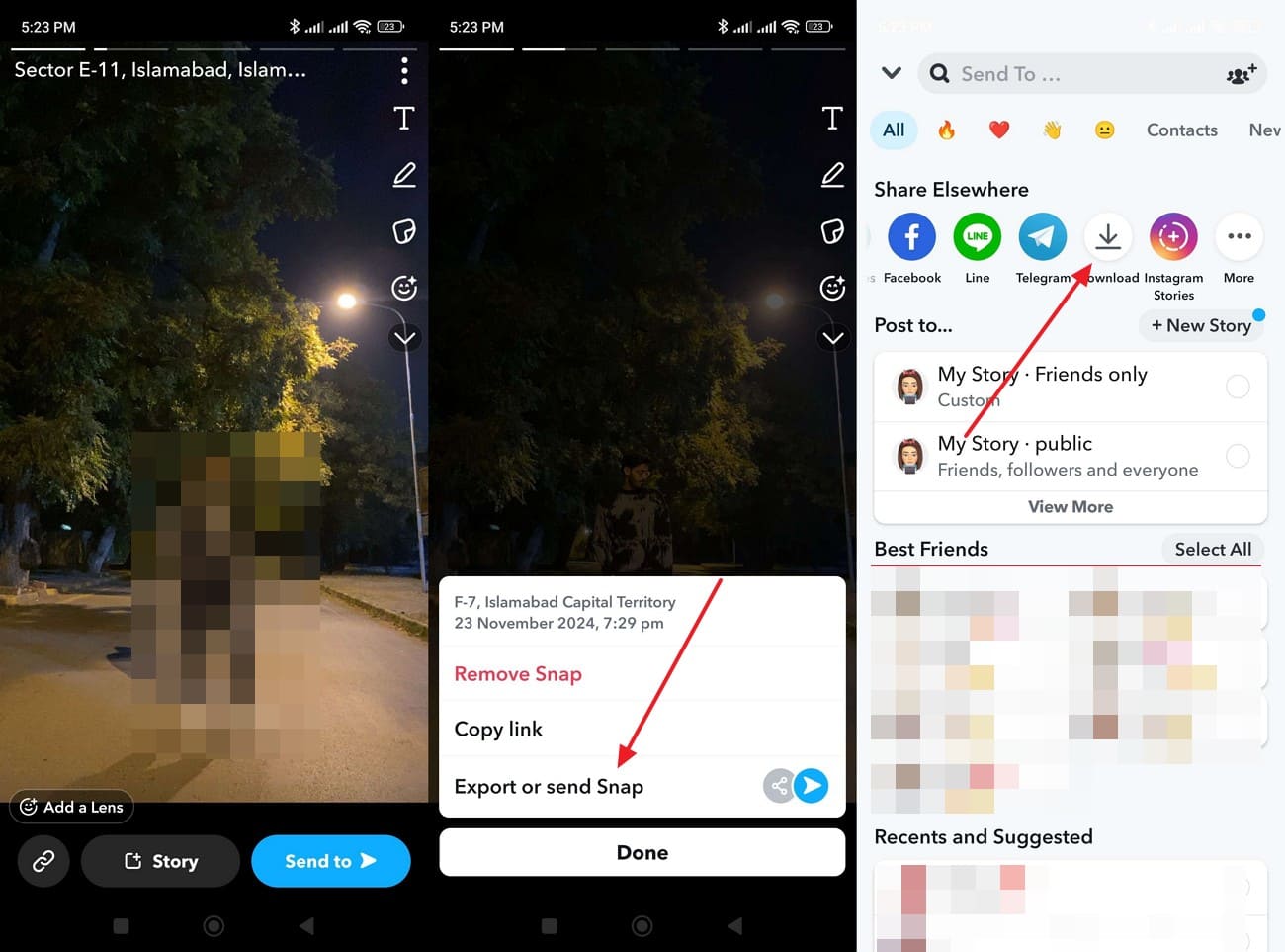
Open Snapchat and swipe up from the “Camera” screen to view “Memories.” Browse the grid for the missing photo or video.
-
Step 2
Press and hold any Snap you find, tap “Export or Send Snap,” and select the “Download” icon to export.

Download Available Snapchat Information Through My Data
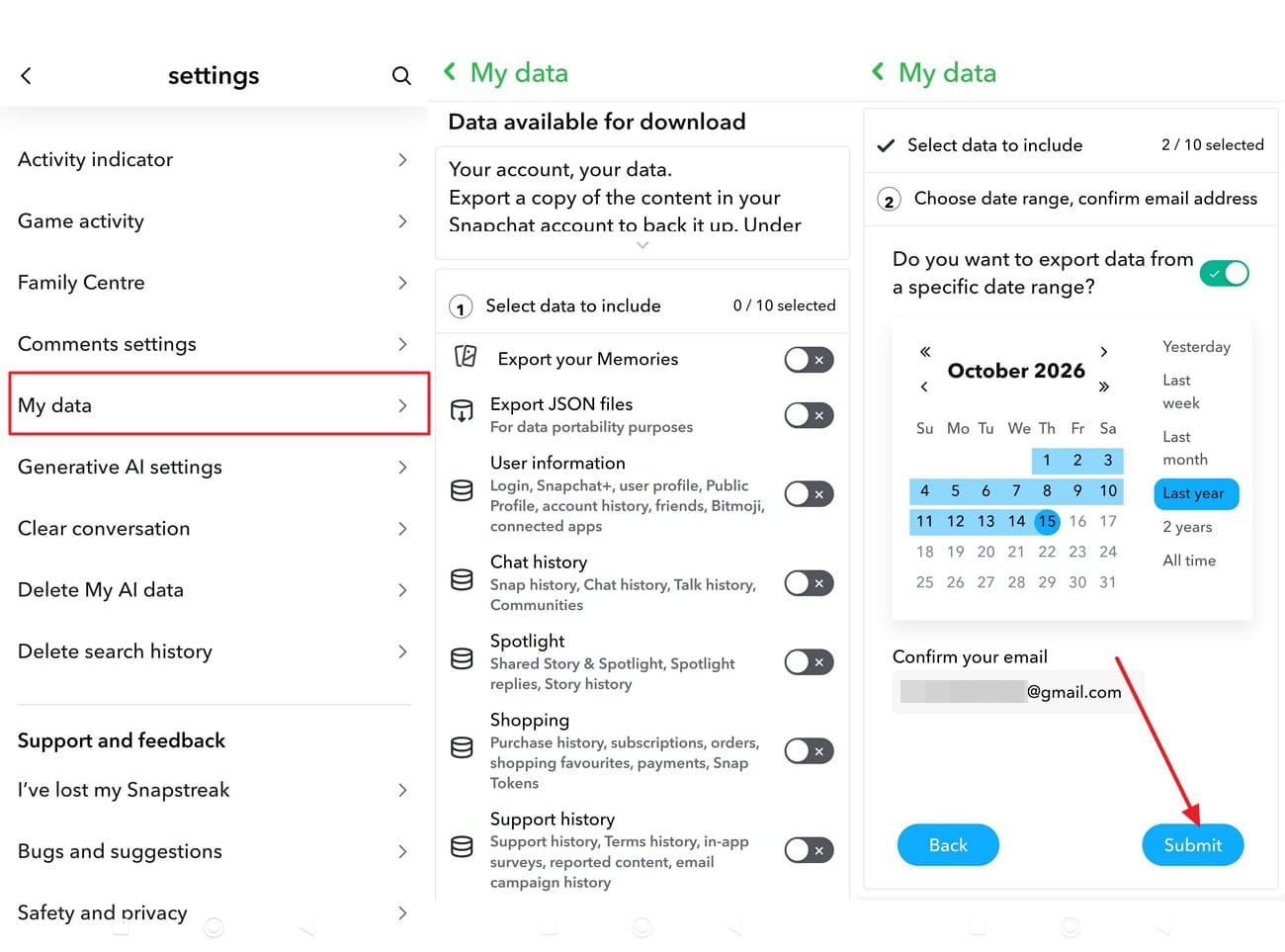
Snapchat’s My Data export lets you download account information and saved chat records that Snapchat still retains, including available chat and Snap History records. However, it cannot restore expired or permanently deleted conversations or original photos and videos that Snapchat no longer stores. Follow these steps to request your available account data:
Instructions. Open Snapchat settings and select “My Data.” Choose the data categories you want to download and tap “Next.” Select the export date range, confirm your email address, and tap “Submit.” Snapchat will notify you when your export is ready, which can take up to 7 days or longer.
Part 3. How to Recover Deleted Snapchat Data on Android with Dr.Fone – Data Recovery (Android)
Deleted Snapchat conversations are not always completely erased from an Android phone. While Snapchat removes content according to its retention policies, some messages and attachments can remain recoverable in device storage. Dr.Fone - Data Recovery (Android) V13.9.9 provides Advanced Recovery to search for this data on compatible phones. This gives users another way to recover deleted Snapchat messages when saved chats and account records cannot help.
The feature works on Windows with Android 9–13 devices, except Huawei phones running Android 12 or 13. After connecting your phone, select Snapchat as a recovery category and run a scan. Dr.Fone displays detected conversations and attachments for preview, allowing you to choose what to save. Selected files are exported to your PC, and recovery depends on the data remaining on the device.
 Scan Android phones and tablets directly.
- Preview and recover only what you want.
- Supports WhatsApp, photos, videos, contacts, and more.
- Works with 6000+ Android devices.

Guide to Scan Android for Snapchat Data Using Dr.Fone
Dr.Fone's Windows desktop tool uses Advanced Recovery to scan compatible Android phones for recoverable Snapchat conversations and attachments. Follow these instructions to select the appropriate recovery category, preview detected results, and save available data to your computer:
-
Step 1 Launch the Advanced Recovery Feature
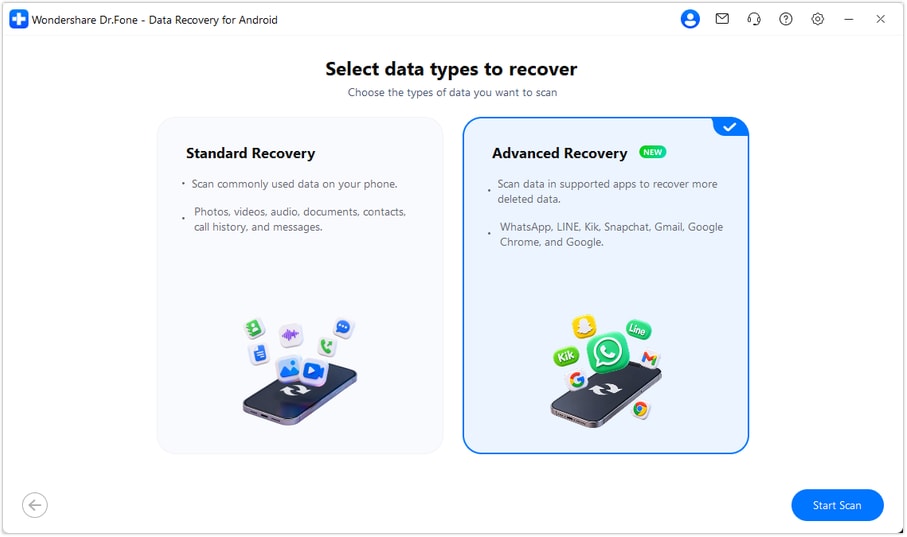
Open Dr.Fone Toolbox and select “Data Recovery > Android > Recover Android Data.” Choose “Advanced Recovery,” click “Start Scan,” connect your compatible Android phone using a data-capable USB cable, and follow the detection prompts.
-
Step 2 Scan for Snapchat Messages and Media
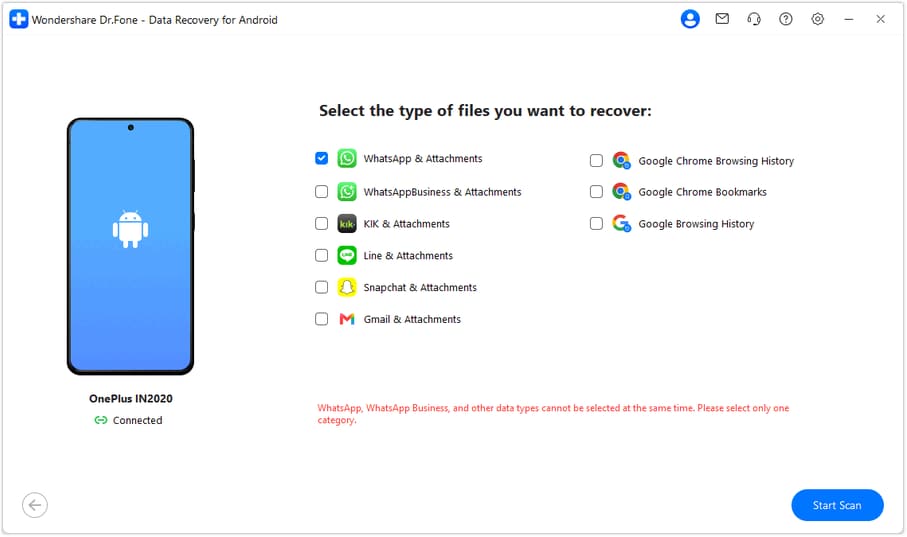
Find “Snapchat & Attachments” in the list of supported data types and mark its checkbox. Once you have selected the category, hit “Start Scan” to let Dr.Fone search for available Snapchat data.
-
Step 3 Examine Results and Save Selected Files
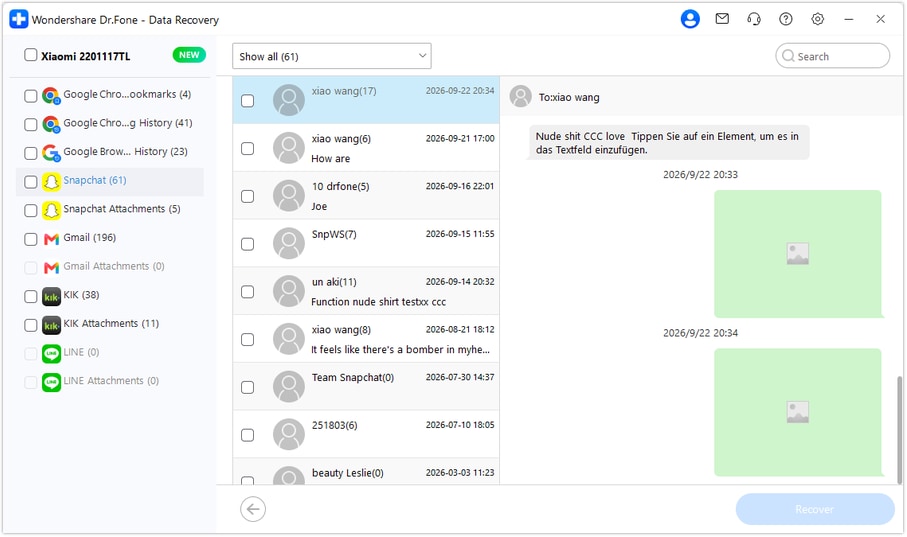
After the scan, browse the “Snapchat” results to find conversations. Look under “Snapchat Attachments” for available media files. Mark the content you need and click “Recover” to export it to your computer.
Want to check what Snapchat data remains recoverable? Try Dr.Fone - Data Recovery (Android) to scan a compatible phone for deleted messages and attachments. Recovery depends on the available device data, and selected files are saved to your computer.




Part 4. Snapchat Recovery Limits and Dr.Fone Compatibility Requirements
Snapchat’s data retention policies and Dr.Fone’s device compatibility determine which recovery options are available. Before attempting Snapchat data recovery, review the content Snapchat retains, its deletion limits, and the Android requirements for using Dr.Fone’s Advanced Recovery.
Why Some Deleted Snapchat Messages and Snaps Cannot Be Restored
Snapchat automatically deletes Snaps and chats based on their viewing status and selected conversation settings. Once Snapchat removes content from its servers, a Snapchat recovery tool can only retrieve data that remains recoverable on the device. The table below outlines Snapchat’s deletion timelines and the options for preserving different types of content:
| Content | When Snapchat Deletes It | What Can Keep It Longer |
|---|---|---|
| Regular Chats | By default, 24 hours after everyone views them, or 31 days after sending, whichever comes first. | Save messages, reply, react, or select “7 Days After Viewing” or “Never” in chat settings. |
| Memories | Snapchat begins deleting Memories from its servers after you delete them. | Export copies before deletion. Memories that were never fully backed up can also be lost. |
| My Eyes Only | Resetting a forgotten passcode deletes the Snaps protected by the previous passcode. | Use the original passcode to access existing Snaps. Snapchat Support cannot restore content deleted by a passcode reset. |
Dr.Fone Advanced Recovery Support and Restrictions
Dr.Fone Advanced Recovery runs on Windows and supports compatible Android phones. Before scanning for Snapchat data, review these 5 requirements and limitations to understand device compatibility and available recovery options:
| Feature or Limit | Details |
|---|---|
| Android Compatibility | Supports Android 9–13, excluding Huawei devices running Android 12 or 13. |
| Windows Availability | Advanced Recovery is documented for Windows. Mac support is not available right now. |
| App Selection | Snapchat supports scanning with other apps, while WhatsApp and WhatsApp Business need individual recovery sessions. |
| Recovery Destination | Recovered messages and attachments are saved to your computer, not restored directly to Snapchat. |
| Snapchat Recovery Scope | Scans for recoverable conversations and attachments. Available results depend on the data detected during scanning. |
Conclusion
Snapchat data recovery on Android starts with checking saved chats, Memories, and My Data for available copies. Permanently deleted messages and expired Snaps cannot be retrieved from Snapchat once removed from its servers.
For additional recovery options, Dr.Fone - Data Recovery (Android) can scan compatible phones for deleted Snapchat conversations and attachments. Recovery depends on the data still available on the device, and recovered files are saved to your PC.
FAQ
-
1. Can I recover Snapchat messages after someone blocks me?
Blocking can restrict access to previous conversations. Check Snapchat My Data for retained records or use Dr.Fone - Data Recovery (Android) to scan for recoverable messages on compatible Android devices. -
2. Does clearing Snapchat’s cache delete saved Memories or Chats?
No, clearing Snapchat’s cache does not delete saved Memories, Snaps, or Chats. According to Snapchat Support, this process removes temporary files without affecting your saved content. -
3. Can I recover photos from Snapchat My Eyes Only after resetting the passcode?
Resetting your My Eyes Only passcode deletes Snaps protected by the previous passcode. Snapchat Support cannot restore them, and Dr.Fone does not specifically support My Eyes Only recovery.
 Add Wondershare Dr.Fone as a preferred source on Google