 Recover photos, messages, WhatsApp, and more — no backup
needed.
Recover photos, messages, WhatsApp, and more — no backup
needed.

 100% Security Verified | No Subscription Required | No Malware

 :
: 
 ChatGPT
 Perplexity
 Gemini
 Claude
 Grok
Grok
Deleting a photo does not always mean it is immediately beyond recovery. Apple keeps deleted photos in Recently Deleted for 30 days, where you can restore them before permanent removal. Once a photo leaves that album, Apple’s built-in Photos recovery can no longer bring it back.
However, other copies or recoverable photo data may still provide options in some cases. This guide explains how to recover permanently deleted photos on iPhone 18 by checking Apple’s available locations first. You will also learn how Dr.Fone - Data Recovery (iOS) can scan the device for photo data that may still be accessible when no backup exists.
In this article
- Part 1. Can You Recover Permanently Deleted Photos on iPhone 18 Without a Backup?
- Part 2. Check These Photo Locations Before Attempting Deleted Photo Recovery
- Part 3. How to Recover Permanently Deleted Photos on iPhone 18 Without a Backup
- Part 4. What to Do Before Scanning iPhone 18 for Deleted Photos
- Part 5. Why Permanently Deleted iPhone 18 Photos May Not Be Available for Recovery
- Part 6. How to Avoid Permanent Photo Loss on iPhone 18
Part 1. Can You Recover Permanently Deleted Photos on iPhone 18 Without a Backup?
Before you try to recover permanently deleted photos on iPhone 18, first determine whether they are still in Apple’s Recently Deleted album. Photos remain there for 30 days unless removed manually. Once permanently deleted, Apple’s Photos app can no longer restore them. Further options depend on whether another copy or accessible photo data still exists. Here is how the available recovery path changes based on the photo’s current state:
| Photo State | Apple’s Built-In Recovery | What to Try Next |
|---|---|---|
| In Recently Deleted, Within 30 Days | Available | Restore directly through Photos |
| Manually Removed from Recently Deleted | Unavailable | Look for a separately saved copy |
| Past the 30-Day Period | Unavailable | Look for photos stored elsewhere |
| No Existing Copy Found | Unavailable | Try Dr.Fone - Data Recovery (iOS) to scan for photo data that may still be recoverable |
Part 2. Check These Photo Locations Before Attempting Deleted Photo Recovery
While looking for ways to recover permanently deleted photos on iPhone 18, first confirm that the missing images are actually deleted. A photo absent from the main library may still appear in Recently Deleted, Hidden, Recovered, or another library view. Apple recommends checking these locations when photos seem missing.
Recently Deleted
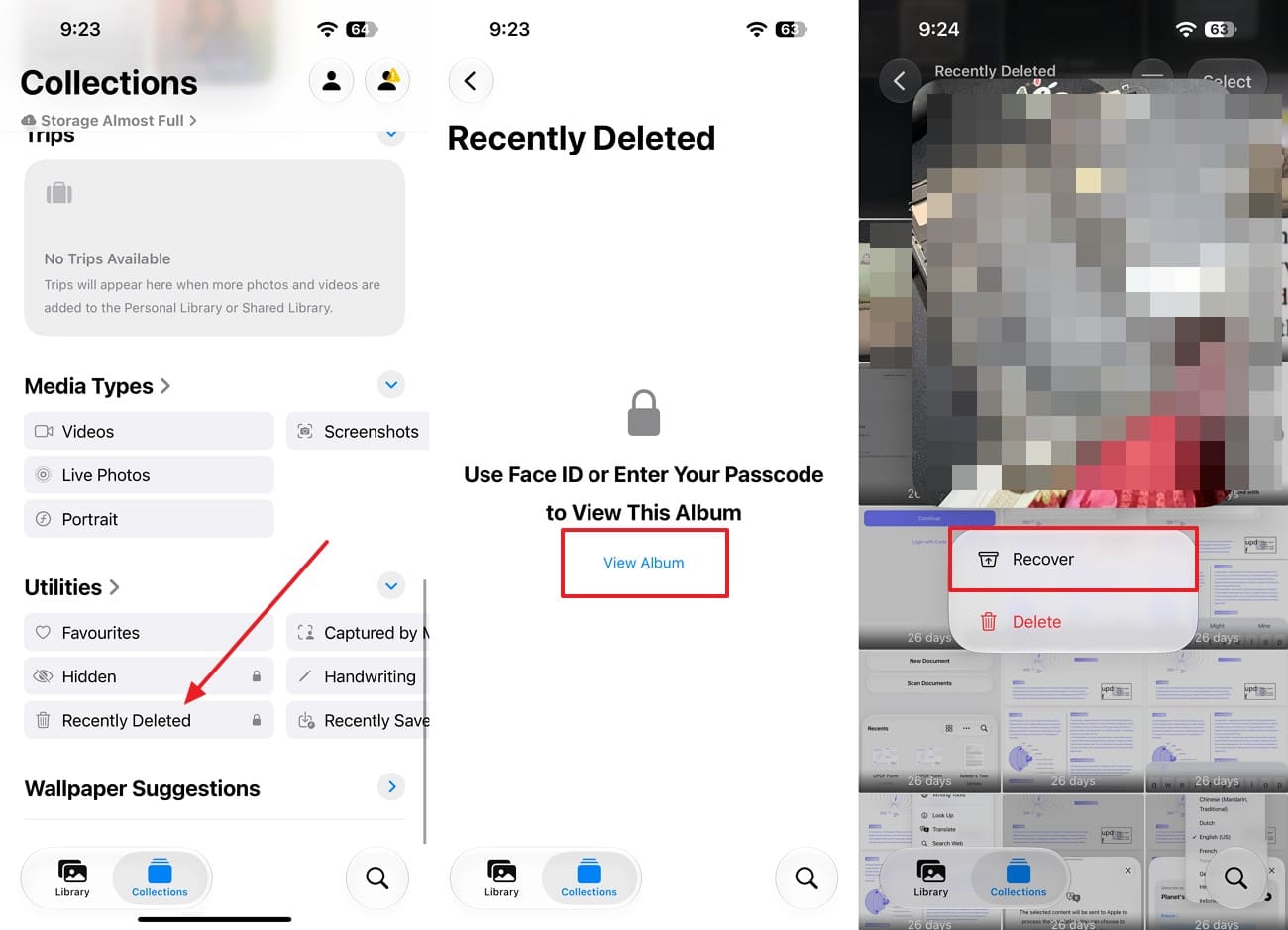
Apple keeps deleted photos and videos in Recently Deleted for 30 days, allowing you to recover them during that period. The album is locked by default and requires Face ID, Touch ID, or the device passcode to open. Follow these steps to access the album and restore a deleted photo:
Instructions. In the Photos app, go to “Collections > Utilities” and choose “Recently Deleted > View Album.” Unlock it with Face ID, Touch ID, or your passcode. Select the image you want to restore, long-press it, then tap “Recover.”

Hidden Album
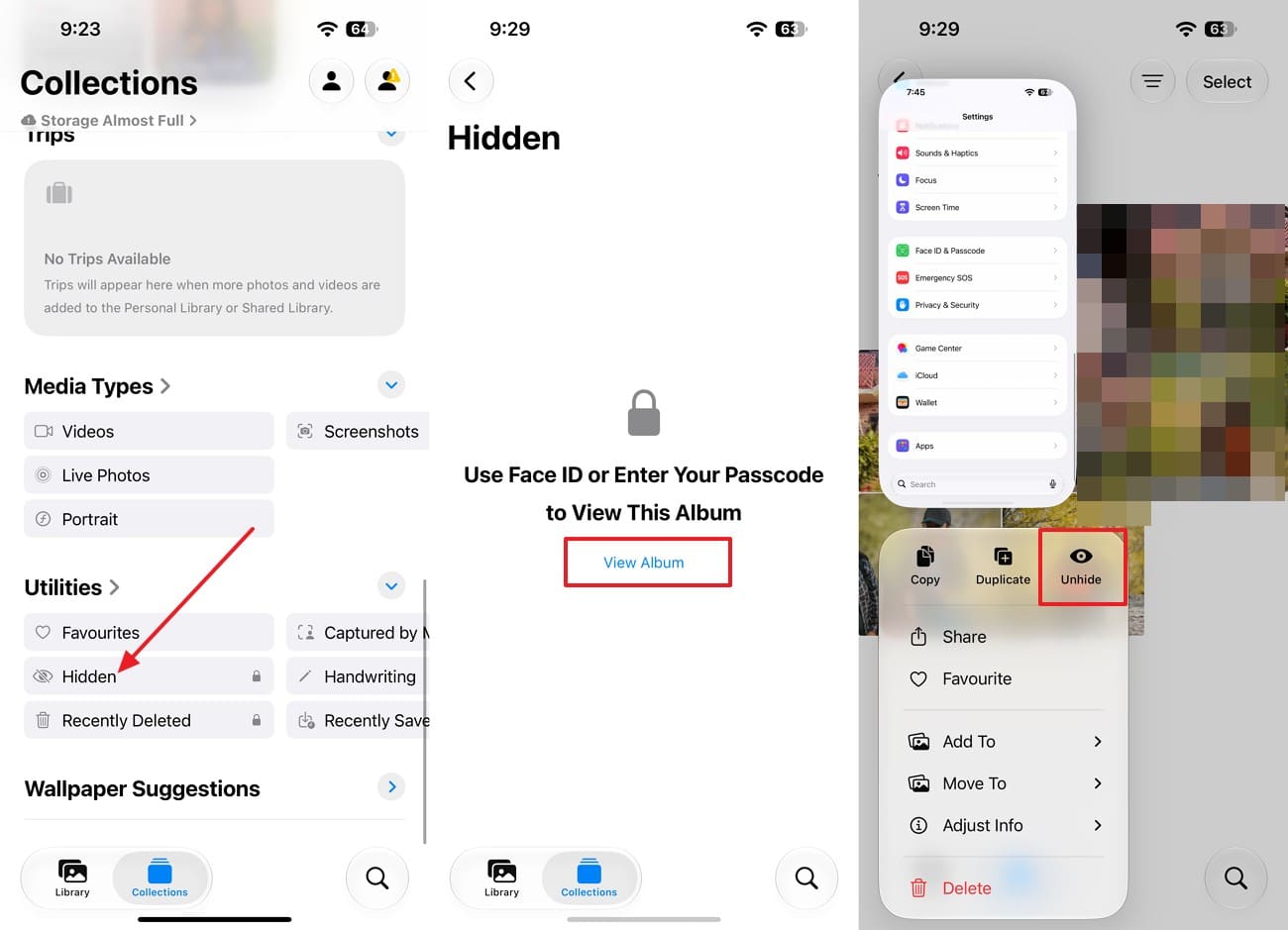
If you want to recover permanently deleted photos on iPhone 18, first rule out photos that are only hidden. The Hidden Album keeps these images in your library but removes them from normal Photos views. As a result, they may appear to be deleted even though they remain available. Follow these steps to check the Hidden album:
Instructions. In “Collections > Utilities,” tap “Hidden,” then select “View Album” and unlock it with Face ID or your passcode. Find the missing photo or video, tap and hold it, then choose “Unhide.”
Check the Recovered Album for Lost or Damaged Media
While finding ways to recover permanently deleted photos on iPhone 18 without a backup, check the Recovered album only for media that appears missing, lost, or damaged. Introduced with iOS 18, this album contains photos and videos found on the device that are not currently part of the Photos library.
According to Apple, such media can appear after issues like database corruption or when third-party apps save photos incorrectly. The Recovered album only appears under Utilities when the iPhone 18 detects eligible lost or damaged media. Unlike Recently Deleted, these items were not necessarily deleted by you. Follow these steps to check the Recovered album and restore any detected media to your library:
-
Step 1
Go to “Collections > Utilities” and choose “Recovered” if it appears, then unlock the album with Face ID or Touch ID.
-
Step 2
Open the photo or video you want back, or tap “Select” to choose several items. Select “Restore to Library” to add the selected media back to Photos.
Shared Library and Other Existing Copies
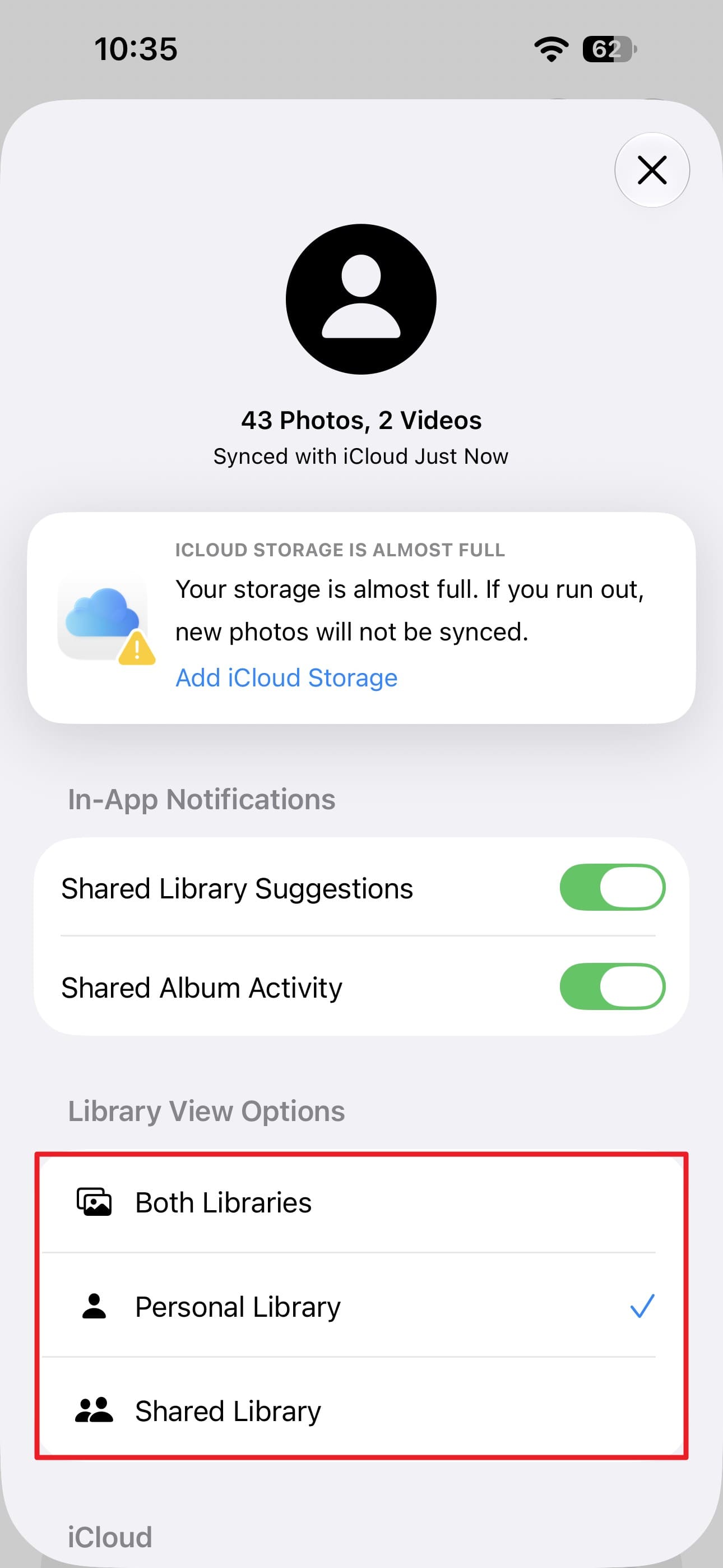
While trying to recover deleted photos on iPhone 18, confirm that the missing images are not simply stored in an iCloud Shared Photo Library. Photos moved to the Shared Library may not appear when you view only your Personal Library. As a result, they can seem missing even though they have not been deleted. Follow these steps to switch library views and look for the missing photos:
Instructions. In the Photos app, go to “Collections” and tap the “Profile” icon in the upper corner. Scroll to “Library View Options” and switch between “Personal Library, Shared Library, and Both Libraries.” There, check whether the missing photos appear in another view.
Part 3. How to Recover Permanently Deleted Photos on iPhone 18 Without a Backup
If no copy appears in Recently Deleted, Hidden, Recovered, iCloud, or another available location, a direct device scan is the next option. For users trying to recover permanently deleted photos on iPhone 18 without a backup, Dr.Fone - Data Recovery (iOS) can scan an iPhone 18 for photo data that may still be detectable. Recovery results depend on what Standard Recovery can access.
Dr.Fone provides free scanning and preview, while exporting or restoring recovered data may require a paid license. The scan itself is read-only and does not overwrite existing iPhone 18 data. After scanning, you can preview detected photos and filter the results to focus on deleted items. Beyond photos, Dr.Fone covers 35+ data types across its recovery features, with support depending on the device, iOS version, recovery mode, and data source.
 Recovers data after deletion, crashes, or device damage.
- Supports photos, messages, contacts, WhatsApp, and more.
- Supports all major iPhone, iPad, and iPod models.
- Preview and recover only what you need.

Guide to Scan iPhone 18 for Recoverable Photos Using Dr.Fone
To recover permanently deleted photos on iPhone 18, use Dr.Fone’s Standard Recovery mode to scan your iPhone 18. Follow these 3 steps to start the scan and review the results:
-
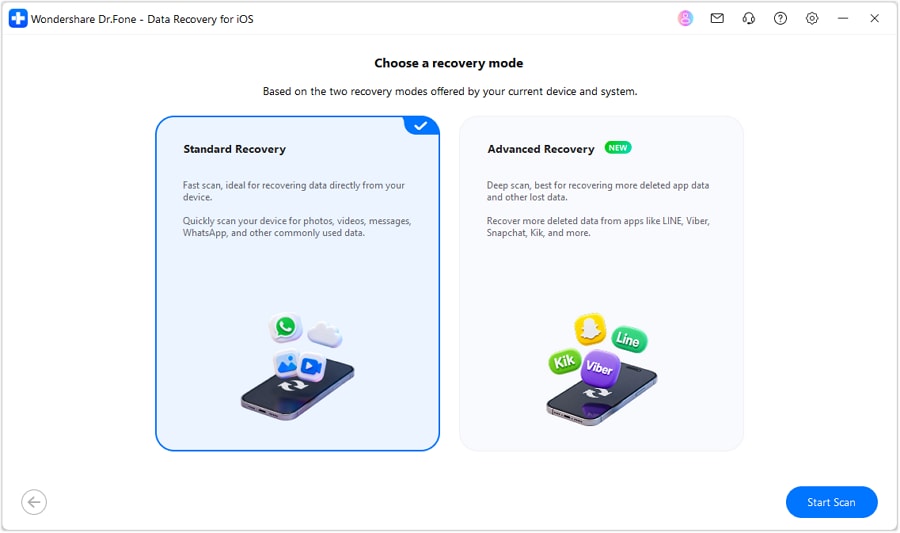
Step 1 Select Standard Recovery Mode on the Tool
Open “Toolbox > Data Recovery > iOS” and choose “Recover Data from iOS Device.” Connect your iPhone 18, select “Standard Recovery,” and click “Start Scan” to continue.
-
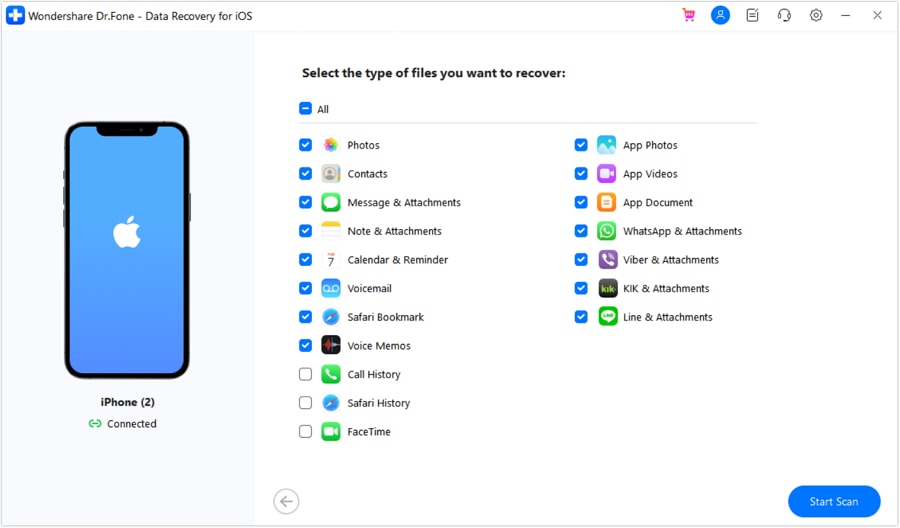
Step 2 Choose Photos and Start the Scan
Select “Photos” from the available data types, then click “Start Scan” in the bottom-right corner. Dr.Fone will begin scanning the iPhone 18 for available photo data.
-
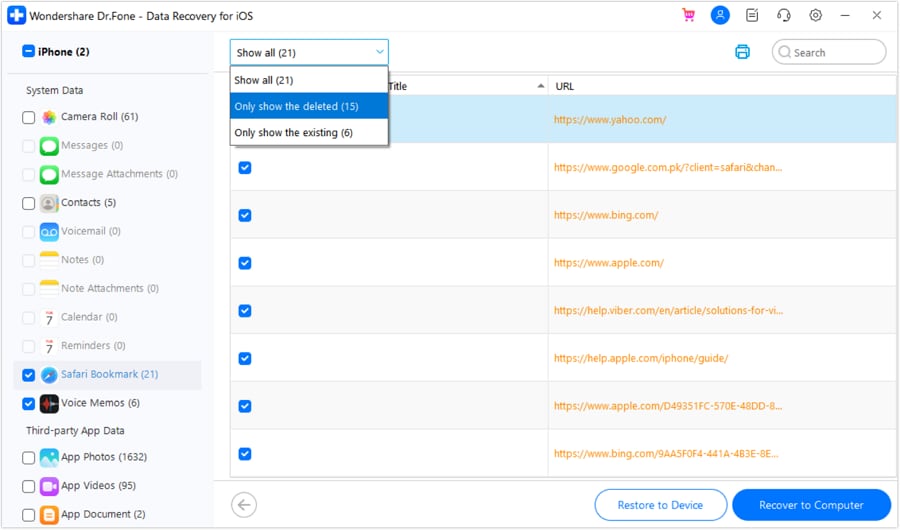
Step 3 Recover Images to Computer or Device
After the scan finishes, select “Deleted Items” from the filter and preview the detected images. Choose the photos you need, then select ‘Recover to Computer’ or ‘Restore to Device’ if available.




Part 4. What to Do Before Scanning iPhone 18 for Deleted Photos
When trying to recover permanently deleted photos on iPhone 18, keep new activity on the device to a minimum before running a direct scan. Dr.Fone recommends stopping normal phone use and starting recovery as soon as possible. New data created on the device may reduce what a recovery scan can find. Here is what you should do before starting the scan:
| What to Do | Why It Matters | Priority |
|---|---|---|
| Stop Taking Photos or Videos | New camera files add data to the iPhone, so avoid creating them before running the recovery scan. | High |
| Avoid App Installs and Large Downloads | Apps, offline files, and downloads create additional device data. Dr.Fone recommends limiting phone use before recovery. | High |
| Limit Other Heavy Phone Activity | Reduce streaming, large message attachments, and similar activity until you complete the scan. | Medium–High |
| Do Not Erase, Reset, or Restore the iPhone | These actions significantly change device data and can prevent you from attempting a direct scan in its current state. | Critical |
Part 5. Why Permanently Deleted iPhone 18 Photos May Not Be Available for Recovery
Even when you try to recover permanently deleted photos on iPhone 18, certain conditions can prevent a third-party recovery tool from finding or restoring them. Here are 3 common reasons recovery may not be possible:
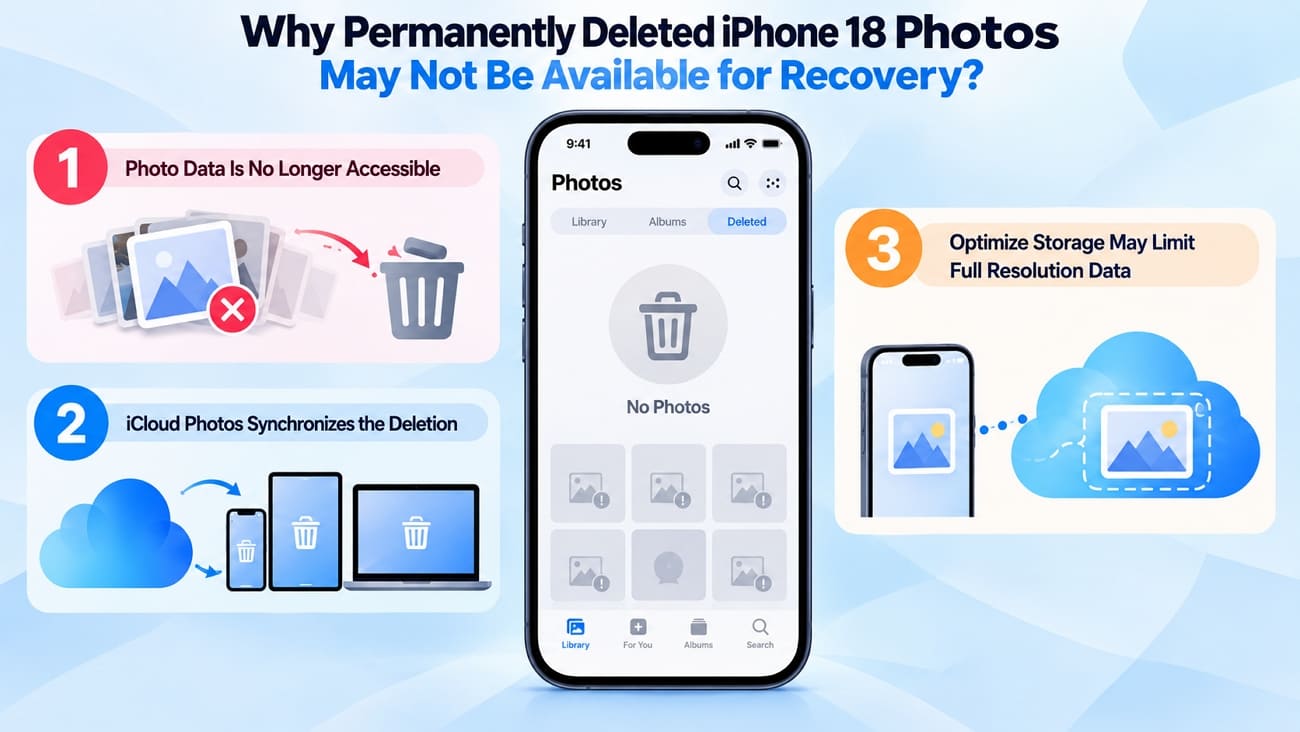
- Photo Data Is No Longer Accessible: Permanently deleted files are not guaranteed to remain available to recovery software. Dr.Fone can scan supported sources, but recovery may fail when no accessible photo data remains for detection.
- iCloud Photos Synchronizes the Deletion: With iCloud Photos enabled, deleting a photo on one device also removes it from other devices using the same Apple Account. Once synchronization completes, another Apple device may no longer retain an independent copy.
- Optimize Storage May Limit Full-Resolution Data: With Optimize iPhone Storage enabled, full-resolution originals remain in iCloud while space-saving versions may stay locally. As a result, the iPhone may not contain the complete original data a direct recovery scan would otherwise inspect.
Part 6. How to Avoid Permanent Photo Loss on iPhone 18
Knowing how to recover permanently deleted photos on iPhone 18 is useful, but prevention is more reliable than recovery. A few simple habits can keep another copy available and reduce the risk of losing important photos permanently:
| Habit | What It Protects Against |
|---|---|
| Use iCloud Photos for Continuous Syncing | Losing photos because one iPhone is damaged, lost, or replaced |
| Keep a Separate Backup of Important Photos | Losing photos after an accidental deletion syncs through iCloud Photos |
| Review Recently Deleted Before Emptying It | Permanently removing photos before Apple’s 30-day recovery period ends |
| Store Important Photos in Another Location | Losing the only available copy because of an account or storage issue |
| Confirm Another Copy Exists Before Deleting | Accidentally removing the last remaining version of an important photo |
Conclusion
To recover permanently deleted photos on iPhone, first confirm they are not still available in Recently Deleted, Hidden, Recovered, or Shared Library. If no usable copy remains, Dr.Fone - Data Recovery (iOS) can scan an iPhone 18 for accessible photo data. Recovery is not guaranteed, so minimize new device activity and start the scan quickly. Going forward, keep important photos in a separate location to reduce the risk of permanent loss.
FAQ
-
1. Can I recover permanently deleted photos on iPhone 18 after 30 days?
After 30 days, Apple permanently removes photos from Recently Deleted, so they cannot be restored through Photos. If no backup or other copy exists, Dr.Fone can scan the iPhone 18 for photo data that may still be detectable. Recovery is not guaranteed and depends on what the scan can access. -
2. Can I recover permanently deleted photos from an iCloud backup if direct recovery does not work?
Yes, if an older iCloud backup contains the deleted photos. This applies when iCloud Photos was turned off, and those photos were stored on the iPhone when the backup was created. Apple can restore the full backup during device setup. Dr.Fone can also access supported iCloud backups, preview available photos, and recover selected items without restoring the entire backup. -
3. Can I recover deleted iPhone 18 photos from a Finder, Apple Devices, or iTunes backup?
Yes, if the backup contains the missing photos. Apple restores the complete backup, while Dr.Fone - Data Recovery (iOS) can scan compatible local backups, preview available photos, and recover selected items without restoring everything.
 Add Wondershare Dr.Fone as a preferred source on Google




