Recover photos, messages, WhatsApp, and more — no backup
needed.
Recover photos, messages, WhatsApp, and more — no backup
needed.

 100% Security Verified | No Subscription Required | No Malware

 :
: 
 ChatGPT
 Perplexity
 Gemini
 Claude
 Grok
Grok
Missing messages on iPhone 18 do not always require a full iCloud restore. Depending on your settings and when the messages disappeared, conversations may still exist in Messages in iCloud, Recently Deleted, an older iCloud backup, or on the device itself. Messages in iCloud and iCloud Backup also store data differently, making it important to identify the right recovery source first.
This guide explains how to recover messages from iCloud on iPhone 18 without immediately wiping your current data. It covers built-in Apple options, selective iCloud backup recovery with Dr.Fone - Data Recovery (iOS), and direct device scanning when no usable iCloud copy is available.
In this article
- Part 1. Identify Where the Missing Messages Are Stored Before Recovery
- Part 2. How to Recover Messages from Messages in iCloud on iPhone 18?
- Part 3. How to Recover Messages from an iCloud Backup Without Restoring iPhone 18
- Part 4. Recover Deleted Messages Directly from iPhone 18 When No iCloud Copy Is Available
- Part 5. Why Messages May Be Missing from iCloud on iPhone 18
Part 1. Identify Where the Missing Messages Are Stored Before Recovery
Before you try to recover messages from iCloud, first check where those messages are actually stored. They may still be syncing in iCloud, remain in Recently Deleted, exist in an older iCloud backup, or only be available on the iPhone itself. The table below compares these possible message sources and the recovery option available for each one:
| Message Source | Where the Messages Are | Full Restore Required? | What You Can Do |
|---|---|---|---|
| Messages in iCloud | Current message history synced through iCloud across devices using the same Apple Account | No | Enable Messages in iCloud on iPhone 18 and allow available conversations to sync. |
| Recently Deleted | Messages and conversations deleted within Apple’s recovery window | No | Open Messages > Recently Deleted and recover available conversations within 30 days of deletion. |
| iCloud Backup | A device backup that may contain messages if Messages in iCloud was off when the backup was created | Yes, with Apple’s built-in restore | Use an available backup from before the messages disappeared. Apple requires an already configured iPhone to be erased before an iCloud backup restore. |
| iPhone Storage | Message data that may remain accessible locally on the device | No Apple iCloud restore involved | Scan iPhone 18 with Dr.Fone - Data Recovery (iOS). Recovery depends on what message data remains accessible. |
Part 2. How to Recover Messages from Messages in iCloud on iPhone 18?
If your conversations are still available through Messages in iCloud, you may be able to recover messages from iCloud without resetting your iPhone 18. The following methods cover syncing available conversations from iCloud and recovering recently deleted messages within Apple’s recovery window.
Sync Existing iCloud Messages to iPhone 18
When conversations still appear on your iPad or Mac but are missing from iPhone 18, they may not have finished syncing. Messages in iCloud keeps your message history updated across devices signed in to the same Apple Account. Apple requires two-factor authentication and iCloud Keychain to use Messages in iCloud. Follow these steps to sync the available messages to iPhone 18:
-
Step 1
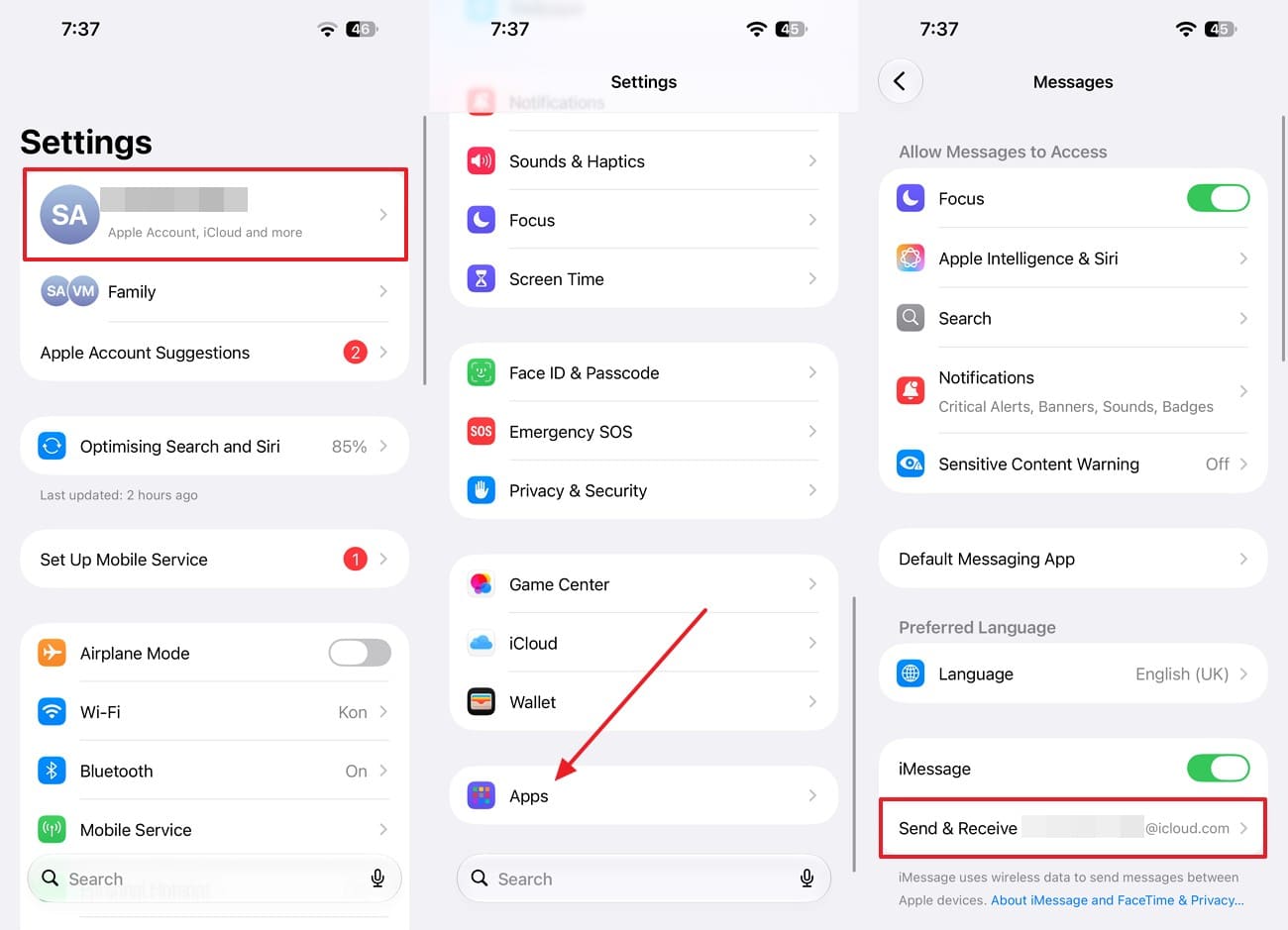
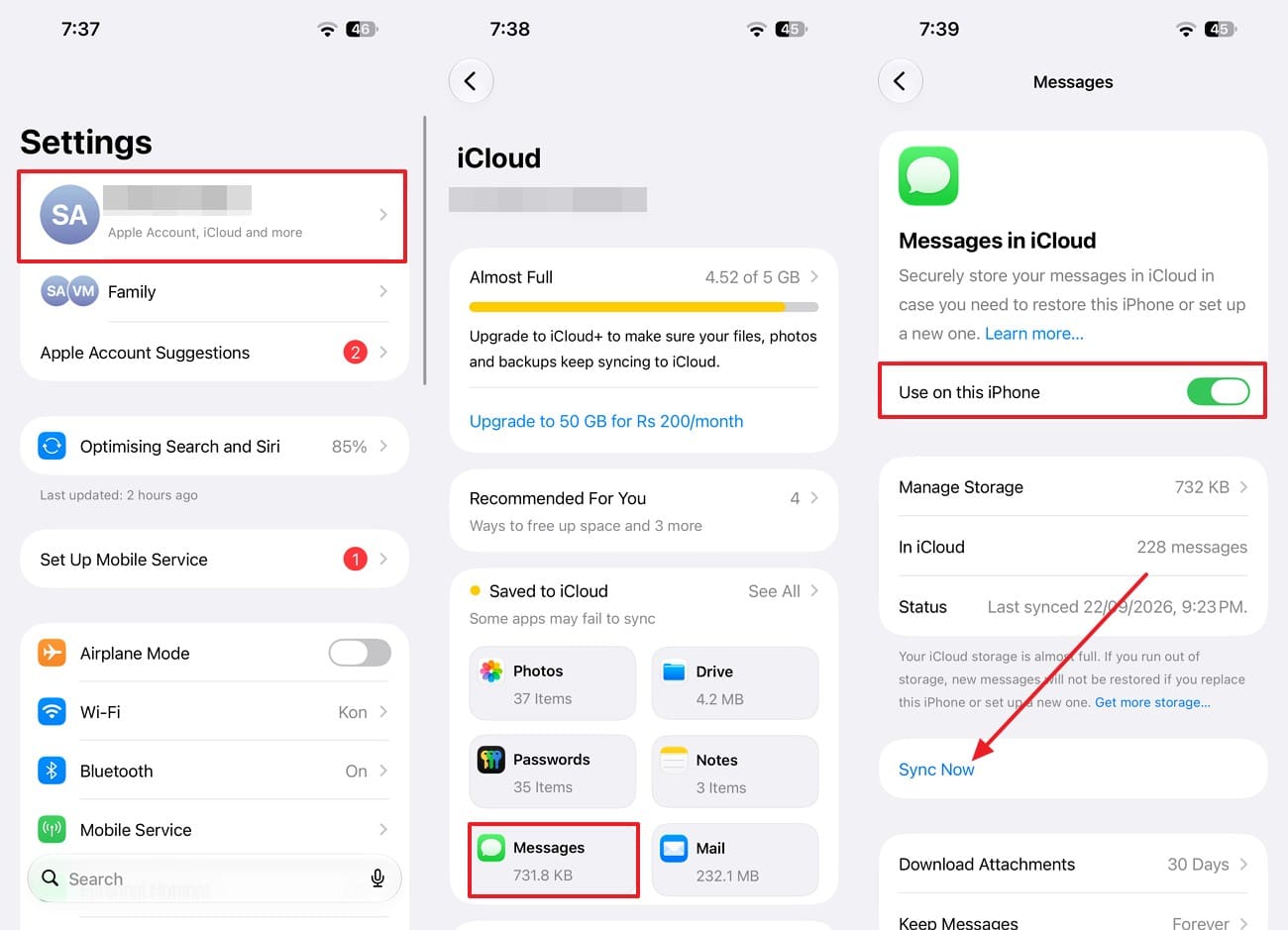
Open “Settings” and make sure the Apple Account shown at the top is the same one used on the device where the missing messages still appear. Scroll down and choose “Apps > Messages > Send & Receive” and confirm that iMessage is using the same Apple Account.
-
Step 2
Go to “Settings > [Your Name] > iCloud > Messages in iCloud” option. Toggle on the “Use On This iPhone” option and keep the iPhone connected to Wi-Fi while the message history syncs. If “Sync Now” appears in the Messages in iCloud settings, you can use it to prompt another sync. Check the Messages app again after the sync has had time to complete.
Recover Recently Deleted iCloud Messages
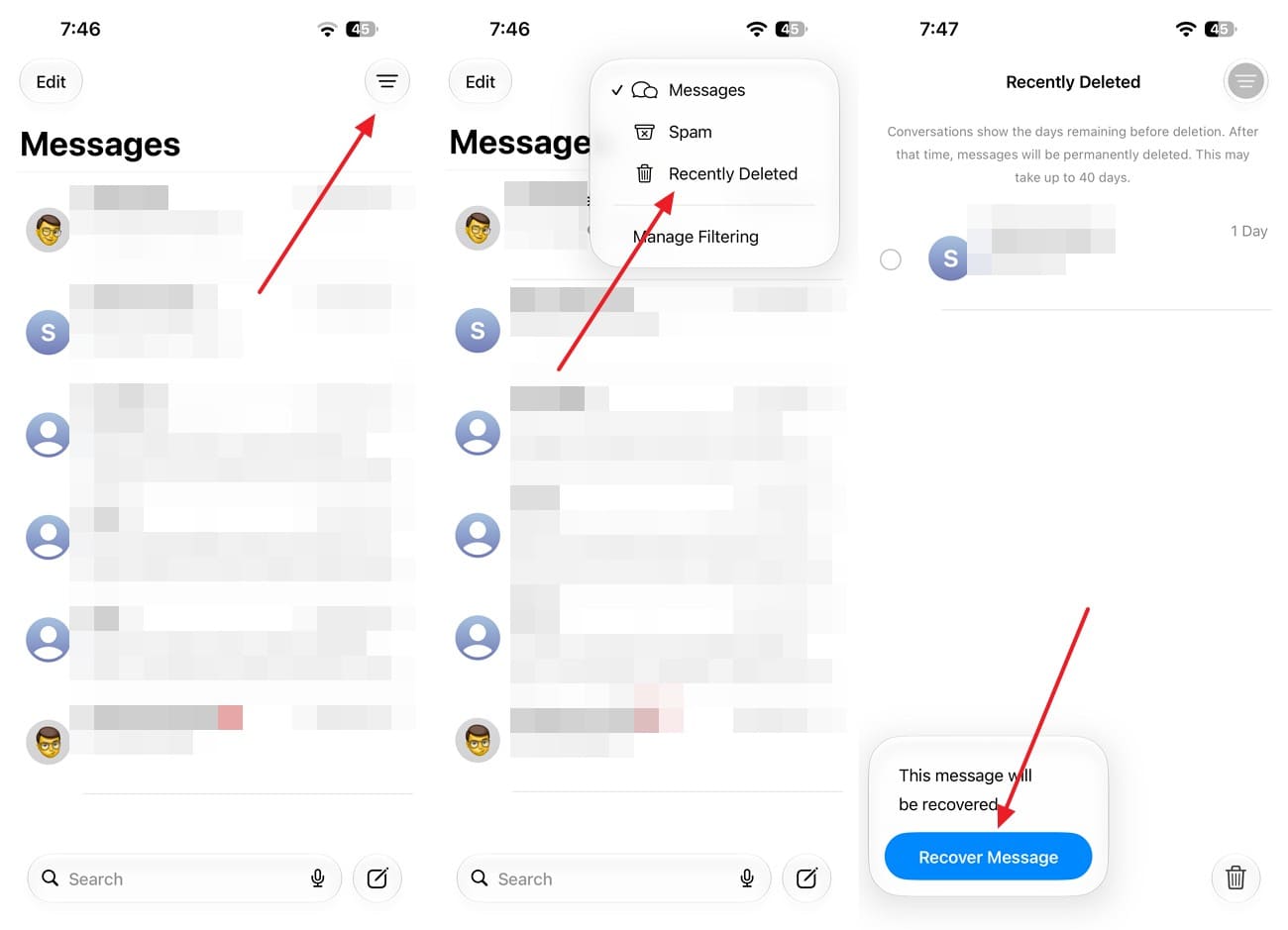
If you recently deleted a conversation, check Recently Deleted before trying another way to recover messages from iCloud. Apple lets you recover deleted messages and conversations for up to 30 days. Follow these steps to restore messages that remain available within this period:

Instructions. Open the Messages app and tap the “Filter” icon, then choose “Recently Deleted.” Choose the conversation containing the messages you want to restore. Select “Recover > Recover X Messages” to return the selected messages to your conversation list.
Part 3. How to Recover Messages from an iCloud Backup Without Restoring iPhone 18
When Messages in iCloud and Recently Deleted do not contain the missing texts, an available iCloud backup can still help you recover messages from iCloud. This applies when Messages in iCloud was turned off when the backup was created, since actively synced messages are stored separately from iCloud Backup. Apple’s built-in method, however, requires erasing an already configured iPhone 18 before restoring an iCloud backup.
To check an iCloud backup without wiping the phone, Dr.Fone - Data Recovery (iOS) provides a “Recover Data from iCloud Backup” option. After completing Apple’s two-factor authentication, you can view available backups and download a selected backup for scanning. Dr.Fone lets you scan and preview supported backup data for free, including detected messages and attachments. Exporting or restoring selected data requires a license.
 Recovers data after deletion, crashes, or device damage.
- Supports photos, messages, contacts, WhatsApp, and more.
- Supports all major iPhone, iPad, and iPod models.
- Preview and recover only what you need.

Guide to Extract Messages from an iCloud Backup with Dr.Fone
Before you recover messages from iCloud, check whether an older iCloud backup contains the missing conversations. On iPhone 18, go to Settings > [your name] > iCloud > Storage (or Manage Account Storage) > Backups. Select the iPhone that previously held the messages and check its backup date.
The useful backup must predate the deletion, and Messages in iCloud must have been off when it was created. You can also verify the device and backup date in Dr.Fone's available backup list before proceeding.
-
Step 1 Sign In to the Apple Account Behind the Backup
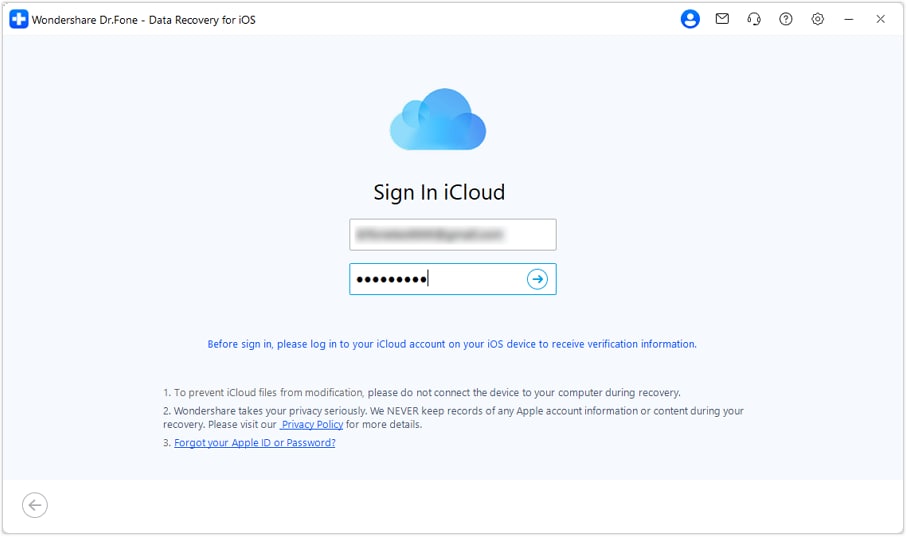
Open the “Toolbox” and select “Data Recovery,” then choose “iOS” as the device type. Select “Recover Data from iCloud Backup” and sign in with the Apple Account linked to the backup. Enter the two-factor authentication code sent by Apple to continue.
-
Step 2 Download the Backup from Before the Deletion
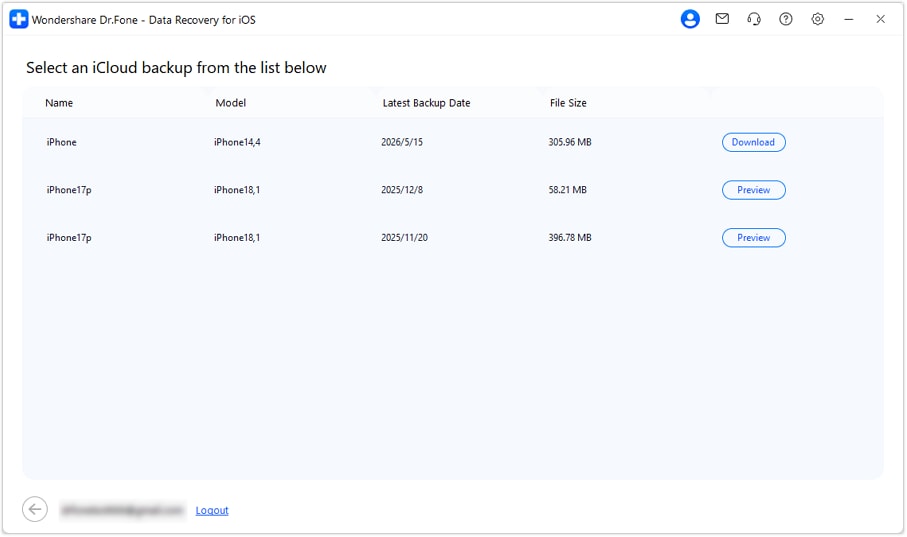
Once Dr.Fone displays the available backup list, select the backup from the device that contained the messages and confirm its date. Choose an available backup created before the messages disappeared, click “Download,” and wait for Dr.Fone to download the backup data.
-
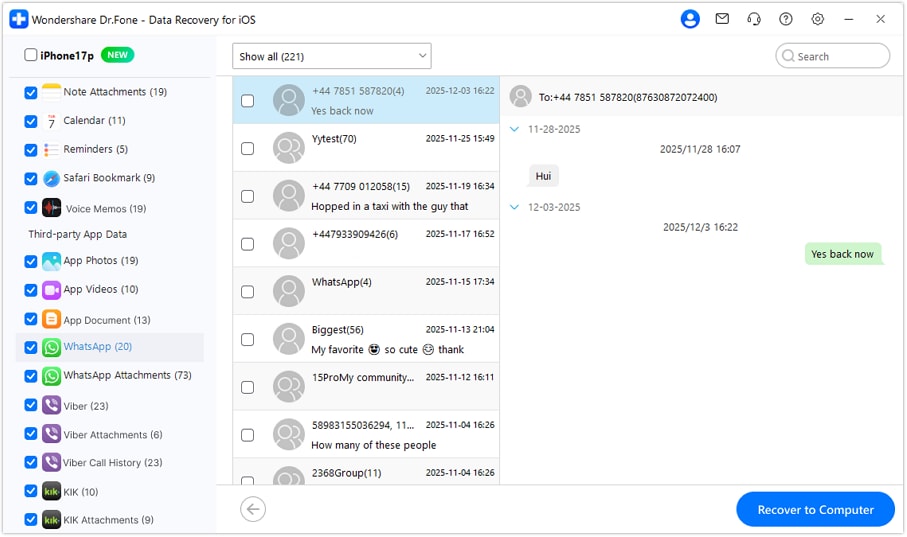
Step 3 Preview Messages & Attachments, Then Recover Them
Open “Messages & Attachments” from the left panel to preview the detected conversations and related attachments. Select the threads or individual items you need, then choose “Recover to Computer” to save them locally.




Part 4. Recover Deleted Messages Directly from iPhone 18 When No iCloud Copy Is Available
When you cannot recover messages from iCloud, Dr.Fone - Data Recovery (iOS) offers another option through Standard Recovery. This data recovery mode scans your iPhone 18 for locally accessible messages and attachments without using an iCloud backup.
Connect your iPhone 18 to a computer, select Standard Recovery, and scan the relevant message categories. You can preview detected conversations and save supported items to your computer. Results depend on what data remains accessible on the device. For detailed instructions, read our guide to recovering deleted messages on iPhone 18 without a backup.
Part 5. Why Messages May Be Missing from iCloud on iPhone 18
Before you try to recover messages from iCloud, several factors can explain why the missing conversations are not appearing as expected. The following points cover the most common causes related to your Apple Account, iCloud syncing, deletions, and backup timing:
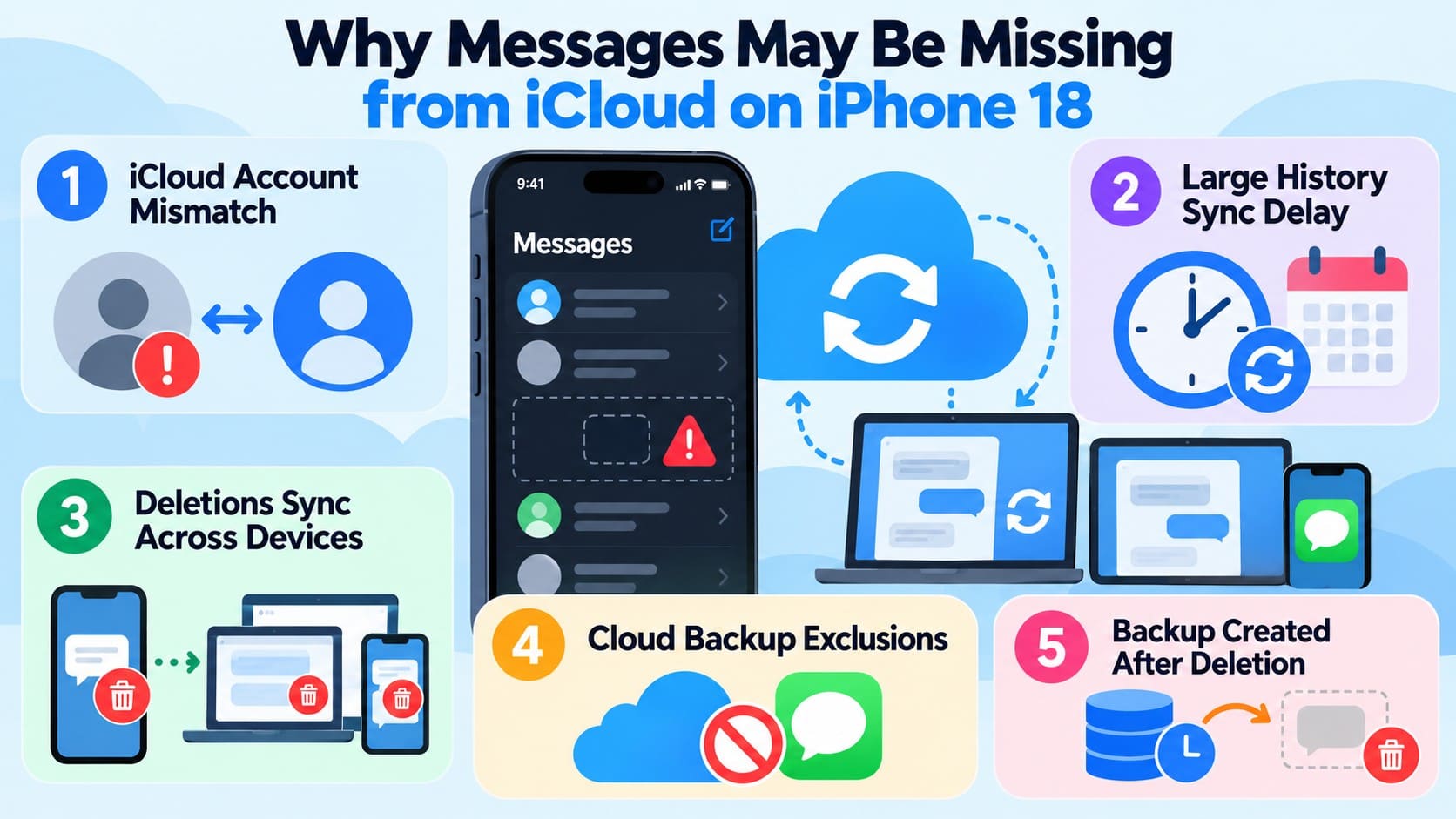
- iCloud Account Mismatch: Messages in iCloud syncs conversations across devices signed in to the same Apple Account. Using a different account on iPhone 18 can prevent the expected message history from appearing.
- Message History Still Syncing: A large message history and its attachments can take time to download after setting up iPhone 18. Keep the device connected to a stable network while Messages in iCloud completes synchronization.
- Deletions Synced Across Devices: With Messages in iCloud enabled, deleting a message or conversation on one device also deletes it from other devices using the feature. Check Recently Deleted if the deletion is still within Apple’s recovery window.
- Messages Excluded from iCloud Backup: Messages already syncing through Messages in iCloud are not included in the daily iCloud device backup. Messages are included in iCloud Backup when Messages in iCloud is turned off.
- Backup Created After Message Deletion: An iCloud device backup only captures eligible message data available when it was created. Check for an older backup made before deletion, with Messages in iCloud disabled, to find a usable copy.
Conclusion
Knowing where the missing conversations are stored makes it easier to recover messages from iCloud without unnecessarily resetting iPhone 18. Messages in iCloud and Recently Deleted provide the simplest options for available conversations. An older iCloud backup can also contain messages that were not syncing through iCloud when the backup was created.
Dr.Fone - Data Recovery (iOS) lets you preview and selectively recover supported backup data without performing a full restore. When no usable iCloud copy exists, a direct iPhone scan provides another way to check for recoverable message data.
FAQ
-
1. Can I recover messages from an older iPhone’s iCloud backup without having the old iPhone?
Yes. Dr.Fone - Data Recovery (iOS) lets you access an available older iPhone backup without having the original device. Choose a backup created before deletion, when Messages in iCloud was disabled. Preview the detected messages before recovering them to your computer. -
2. Does selective iCloud message recovery overwrite the current data on iPhone 18?
No. Dr.Fone - Data Recovery (iOS) lets you preview and recover selected messages to a computer without restoring the entire backup or overwriting current iPhone data. Apple’s built-in iCloud backup restore works differently because it requires erasing an already configured iPhone before restoring the backup. -
3. Can I recover only message attachments from an iCloud backup?
Yes. Dr.Fone - Data Recovery (iOS) lets you preview detected messages and attachments before recovery, so you can select the available photos, files, or other items you need. Apple’s built-in iCloud backup restore does not provide the same item-by-item selection.
 Add Wondershare Dr.Fone as a preferred source on Google