Recover photos, messages, WhatsApp, and more — no backup
needed.
Recover photos, messages, WhatsApp, and more — no backup
needed.

 100% Security Verified | No Subscription Required | No Malware

 :
: 
 ChatGPT
 Perplexity
 Gemini
 Claude
 Grok
Grok
WhatsApp Business chats often contain important customer orders, delivery details, and approved quotations. Losing these conversations or attachments can disrupt daily operations. Fortunately, WhatsApp Business data recovery on Android is possible through existing Google Account backups, saved media files, or specialized recovery tools.
Unlike regular WhatsApp, WhatsApp Business stores its chats, backups, and media separately. If no usable backup exists, Dr.Fone - Data Recovery (Android) offers Advanced Recovery to scan compatible Android devices for deleted Business chats and attachments. This guide explains the available recovery methods, practical steps, and important limitations.
In this article
- Part 1. 5 Essential Checks Before WhatsApp Business Data Recovery
- Part 2. How to Recover WhatsApp Business Chats Without Backup Using Dr.Fone
- Part 3. Restore Deleted WhatsApp Business Chats from a Google Account Backup
- Part 4. How to Retrieve Missing WhatsApp Business Photos and Documents
- Part 5. WhatsApp Business Advanced Recovery: Supported Features and Limitations
- Part 6. How to Protect Important WhatsApp Business Data from Future Loss
Part 1. 5 Essential Checks Before WhatsApp Business Data Recovery
Before starting WhatsApp Business recovery, check whether your missing customer chats are archived, backed up, or stored elsewhere on your device. These 5 essential checks can help you locate existing data and prevent further loss during recovery:
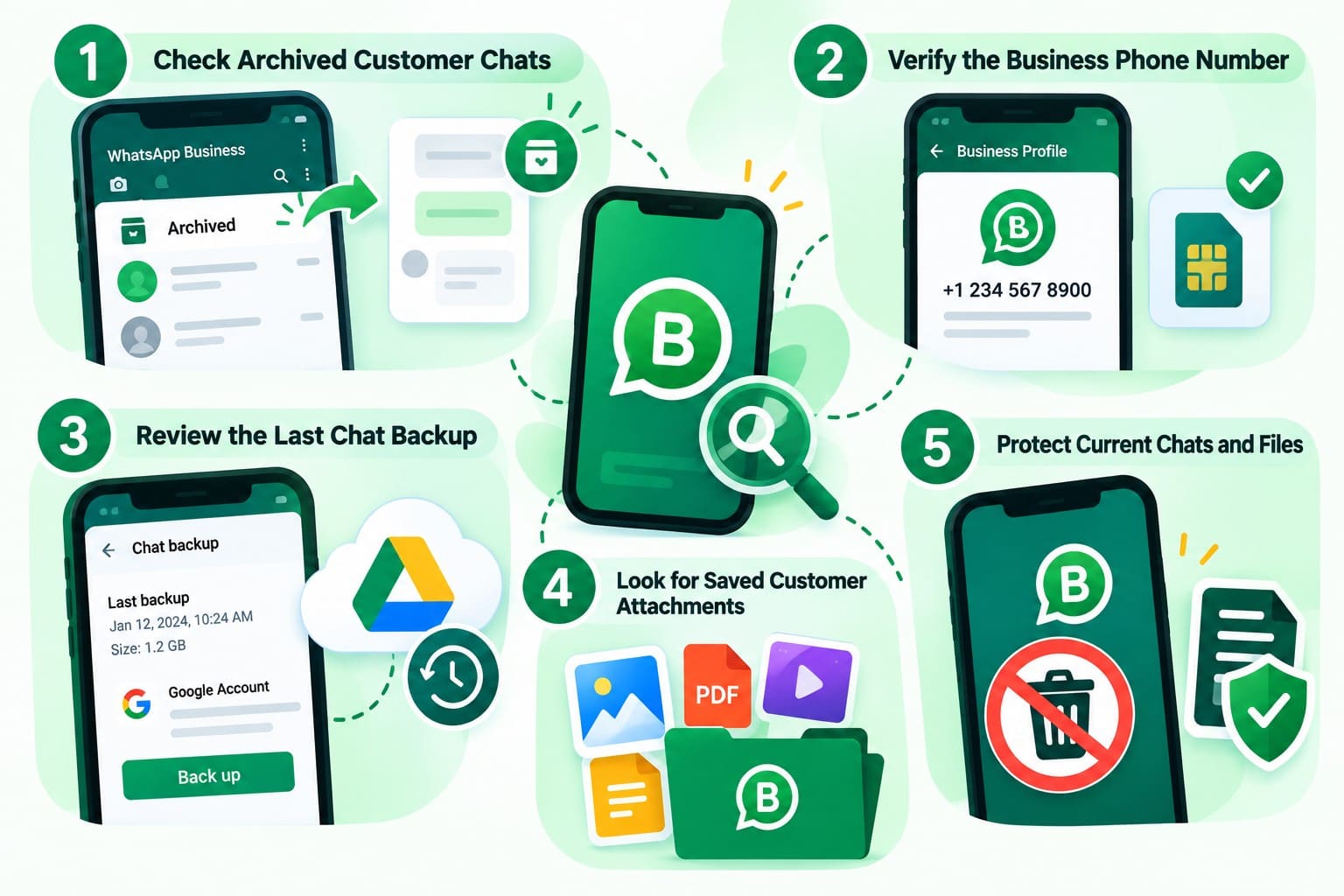
- Check Archived Customer Chats: Open the Archived section in WhatsApp Business or search for the customer's name or number. Archived chats are hidden from the main chat list, not deleted.
- Verify the Business Phone Number: Confirm that WhatsApp Business uses the correct phone number. Google Account backups are linked to the phone number and Google Account used to create them.
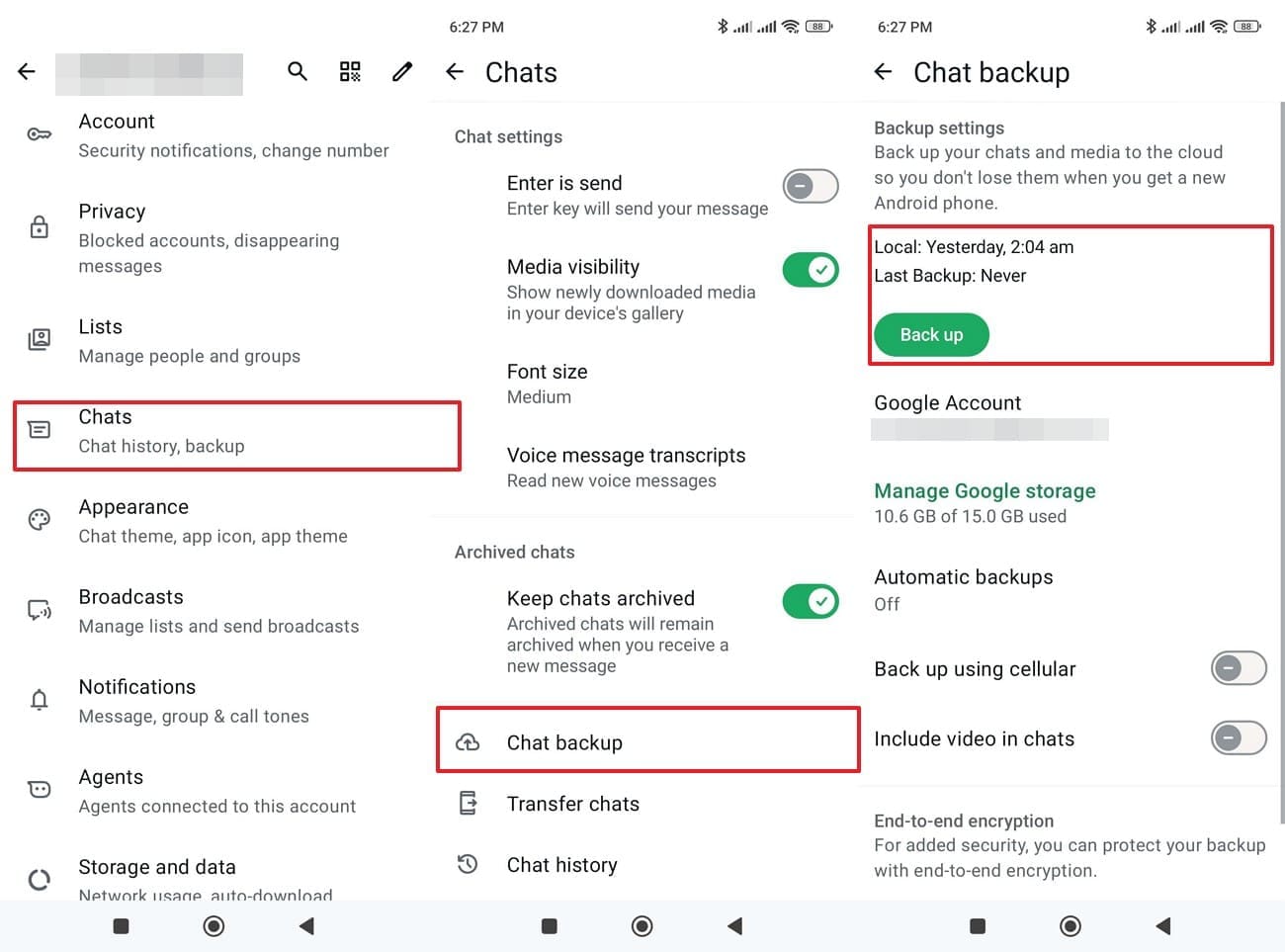
- Review the Last Chat Backup: Go to “WhatsApp Business > Three Dots > Settings > Chats > Chat Backup.” Check the backup date and linked Google Account. An older backup could contain deleted messages, while a newer backup might have overwritten them.
- Look for Saved Customer Attachments: Check Gallery, Downloads, Documents, and the WhatsApp Business media folder. Product photos, invoices, and videos can remain available even after their original conversations are deleted.
- Protect Current Chats and Files: Avoid uninstalling WhatsApp Business, clearing app storage, or creating another backup before checking existing data. These actions can remove local information or overwrite backups containing missing conversations.
Part 2. How to Recover WhatsApp Business Chats Without Backup Using Dr.Fone
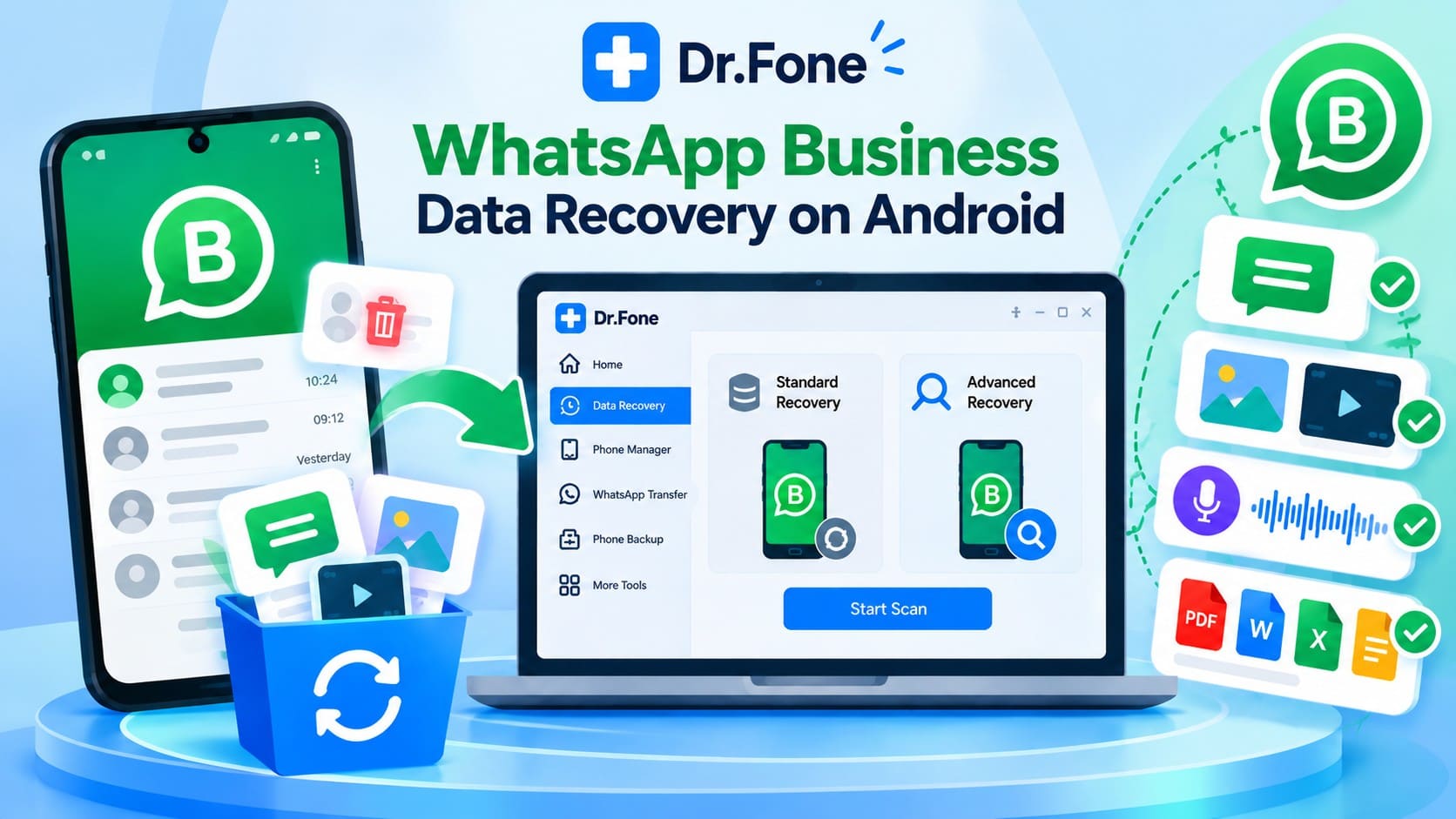
When no usable backup exists, WhatsApp Business data recovery may still be possible with Dr.Fone - Data Recovery (Android). Its Advanced Recovery feature, introduced in Windows version 13.9.9, scans compatible Android devices for recoverable deleted app data. It also provides a dedicated recovery option for WhatsApp Business, separate from regular WhatsApp Messenger.
Dr.Fone offers two recovery modes with different approaches. Standard Recovery creates a local WhatsApp Business backup during the process and involves restoring the app. However, this backup might exclude previously deleted messages. Advanced Recovery scans for deleted Business conversations and attachments without requiring a newly created WhatsApp backup.
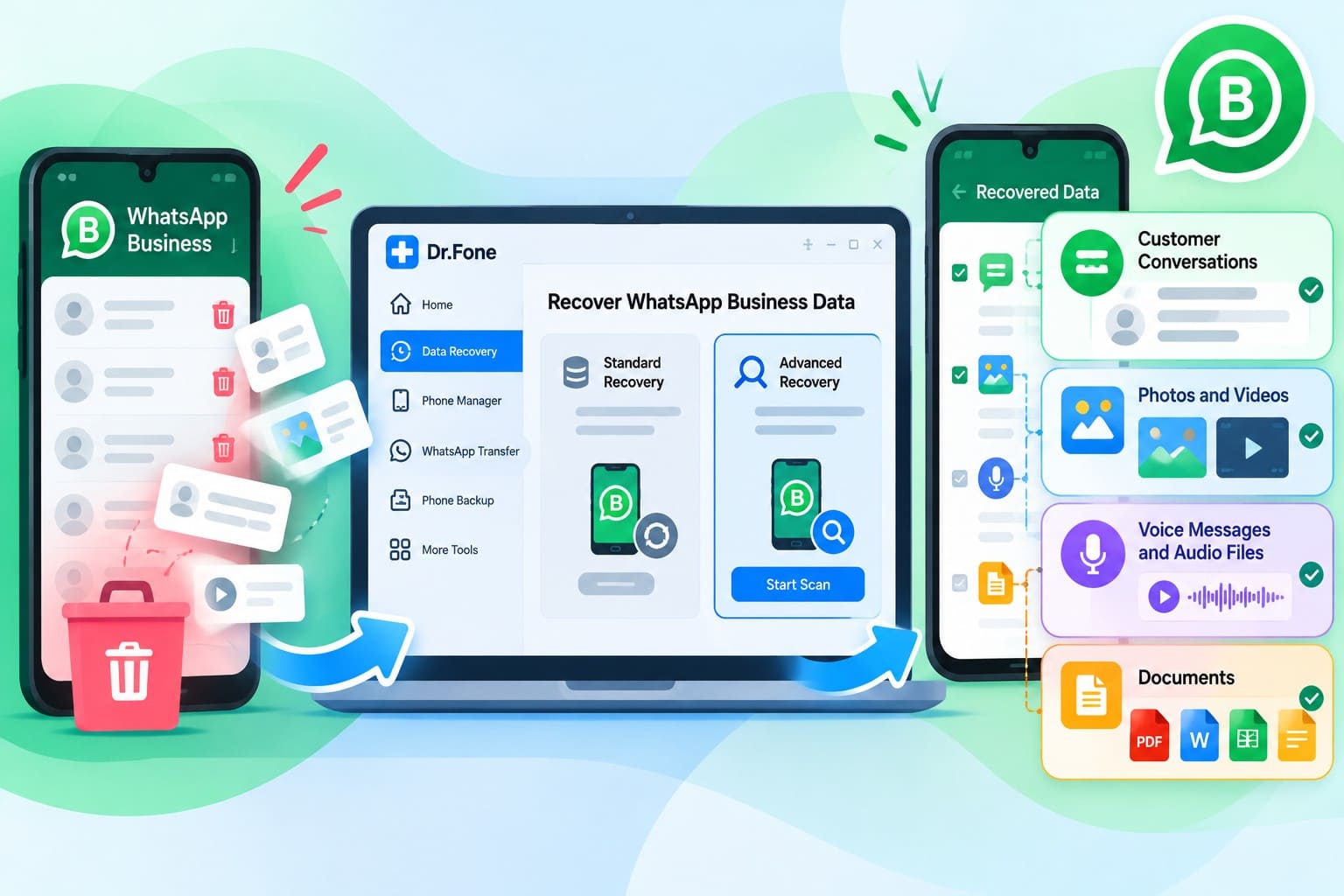
For WhatsApp Business chat recovery without backup, Advanced Recovery lets you preview these 4 types of recoverable data:
- Customer Conversations: Preview available customer chats in the WhatsApp Business results and select the conversations you need to recover.
- Photos and Videos: Find recoverable product images, delivery photos, and shared videos within the available media categories.
- Voice Messages and Audio Files: Check available voice notes and audio attachments containing customer instructions, order details, or other important information.
- Documents: Review recoverable invoices, quotations, and other documents shared through WhatsApp Business conversations.
 Scan Android phones and tablets directly.
- Preview and recover only what you want.
- Supports WhatsApp, photos, videos, contacts, and more.
- Works with 6000+ Android devices.

Guide to Scan WhatsApp Business Data Directly from Android with Dr.Fone
To perform WhatsApp Business chat recovery without backup, Dr.Fone Advanced Recovery provides a simple 3-step process. Follow the instructions below to scan your Android device and recover available data:
-
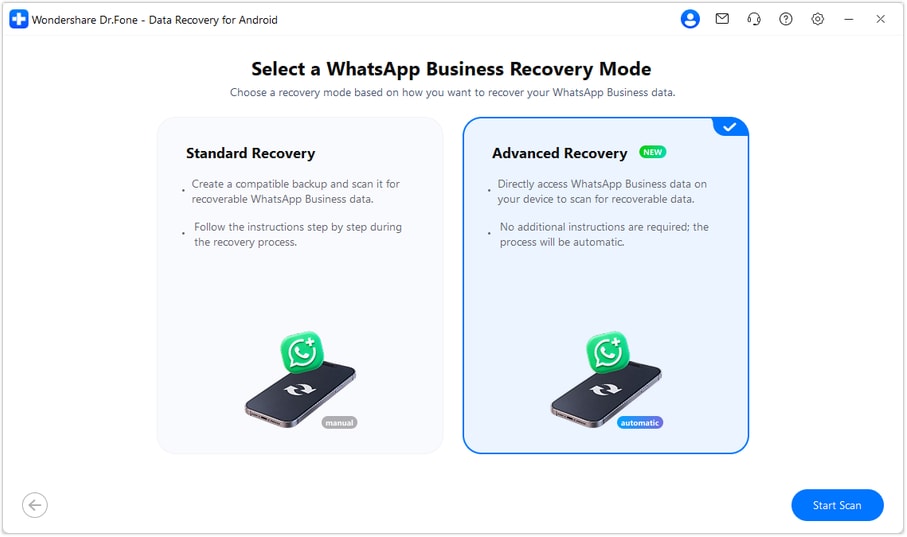
Step 1 Choose Advanced Recovery and Connect Android
Open Dr.Fone on your PC and select “Data Recovery,” followed by “Android” and “Recover WhatsApp Business Data.” Connect your Android device, choose “Advanced Recovery,” and click “Start Scan” to begin scanning.
-
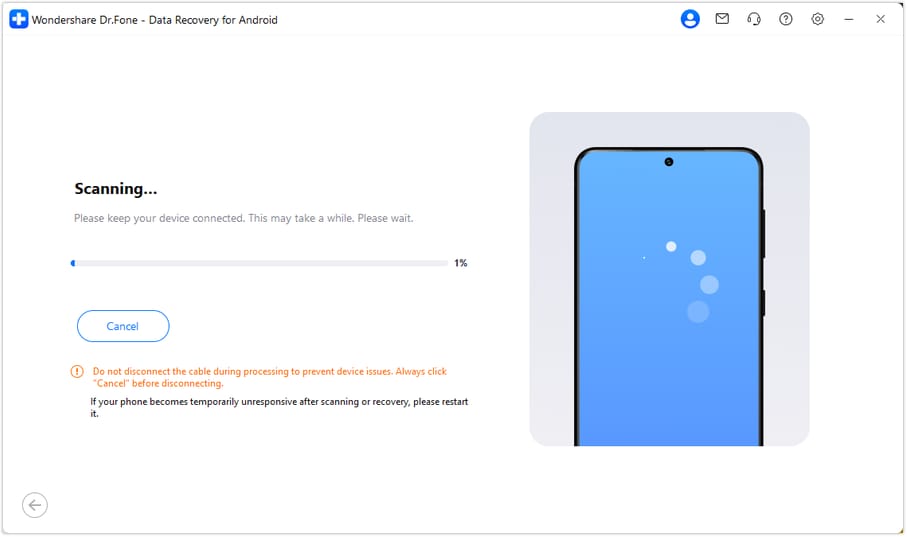
Step 2 Scan for Deleted WhatsApp Business Data
Keep your Android device connected while Dr.Fone scans for recoverable chats, photos, videos, voice messages, and other supported attachments. Once scanning finishes, review the available results.
-
Step 3 Recover Data to Your Computer
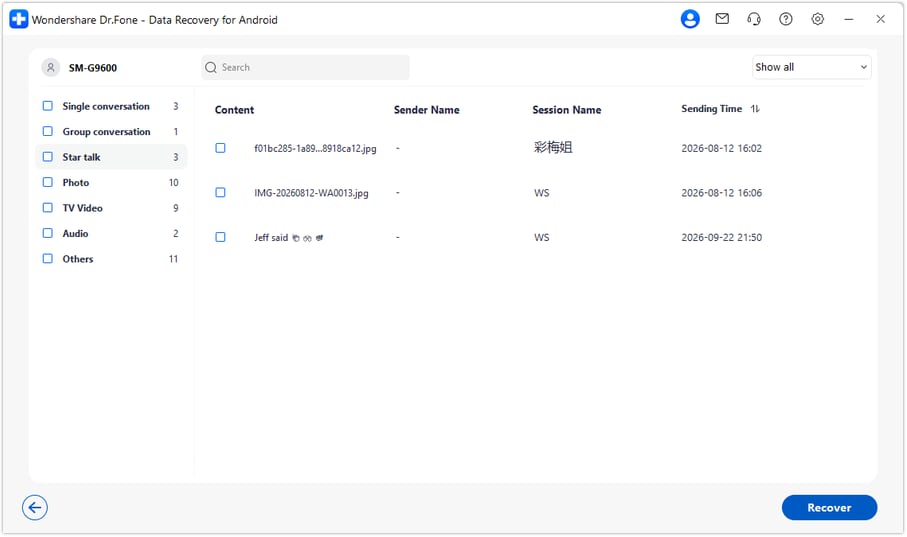
Preview the available WhatsApp Business chats and attachments in the scan results. Select the conversations and files you need, click “Recover,” and choose a folder on your computer to save them.




Part 3. Restore Deleted WhatsApp Business Chats from a Google Account Backup
If you backed up your customer conversations before deletion, WhatsApp Business data recovery is possible through an existing Google Account backup. However, WhatsApp explains that creating a new backup can overwrite the previous one, potentially removing access to deleted messages. Check whether the backup predates the missing conversations, then follow these 3 steps to restore it:
Prerequisites
- You must use the exact phone number that created the backup.
- You must be signed into the original Google Account.
- Your phone and cloud storage must have enough free space to complete the download.
- For encrypted backups, use your configured password, 64-digit key, or passkey to restore your data.
-
Step 1 Check Backup Date and Reinstall
Open WhatsApp Business and tap “Three Dots,” followed by “Settings,” “Chats,” and “Chat backup” to check the existing backup date. Avoid creating a new backup that could overwrite missing chats. Uninstall WhatsApp Business, then reinstall it from the Play Store.
-
Step 2 Verify Number and Account
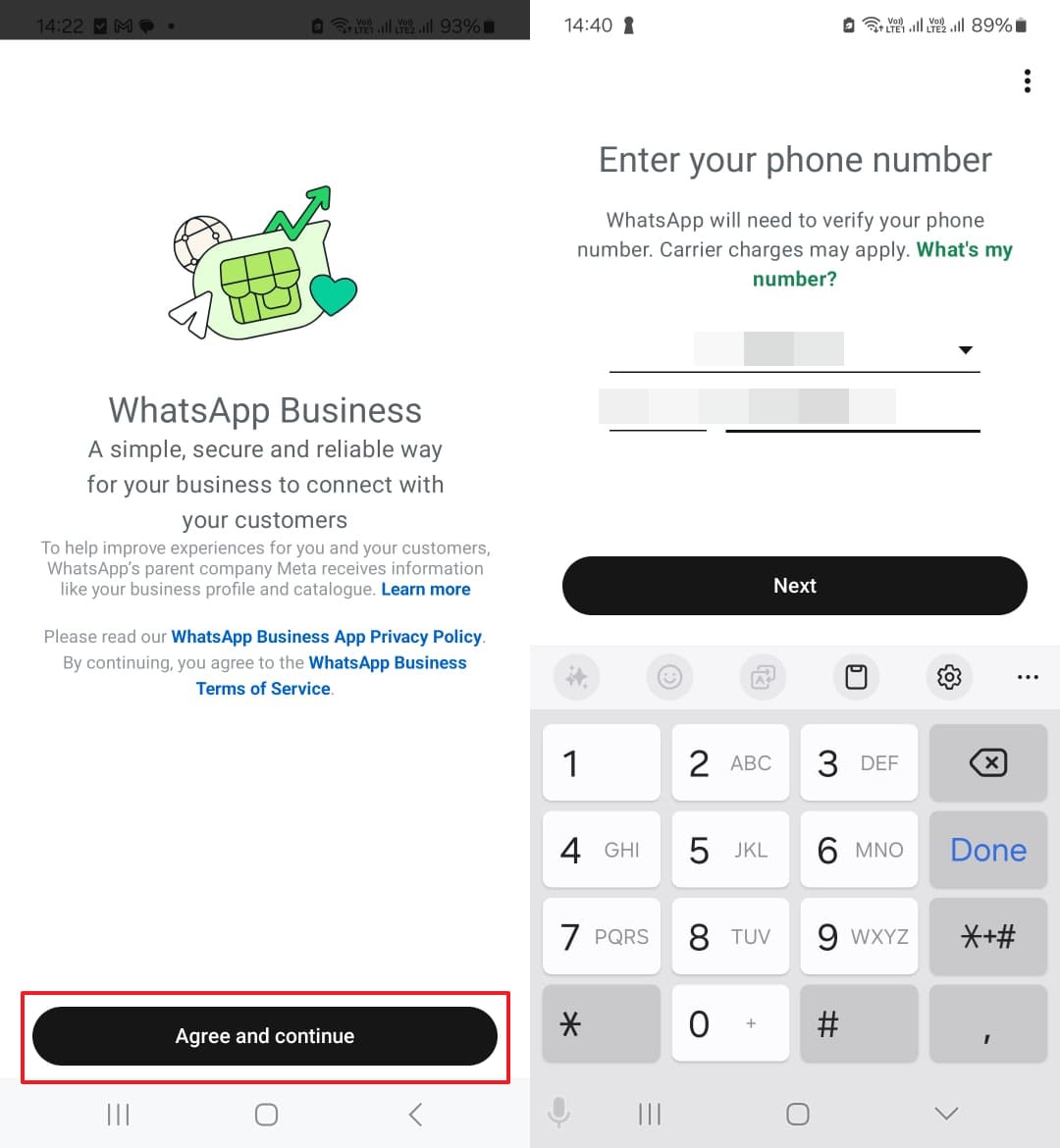
Open WhatsApp Business, tap “Agree & Continue” to accept terms, enter the original Business number, complete SMS or call verification, grant permissions, and await backup detection.
-
Step 3 Restore Chats and Media
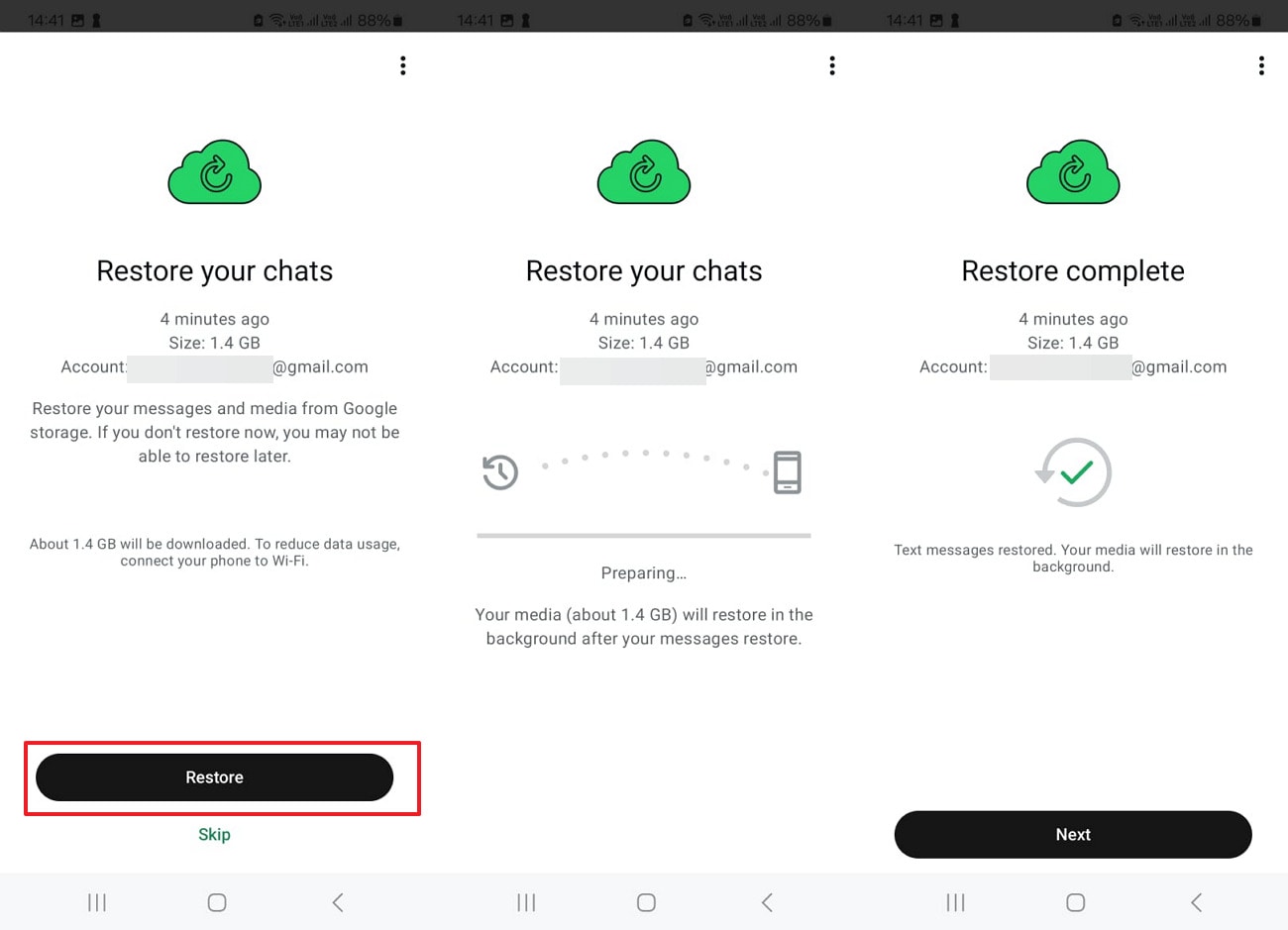
When prompted to restore your chats and media from Google Drive, choose “Restore.” Wait for the restoration to finish, then tap “Next” to view your business chats.
Part 4. How to Retrieve Missing WhatsApp Business Photos and Documents
Deleted WhatsApp Business conversations do not always mean their attachments are lost. Photos, videos, and documents might still exist in your phone's storage, gallery, or cloud account. Before attempting WhatsApp Business recovery, check the following locations for available files:
Check Existing WhatsApp Business Media Files
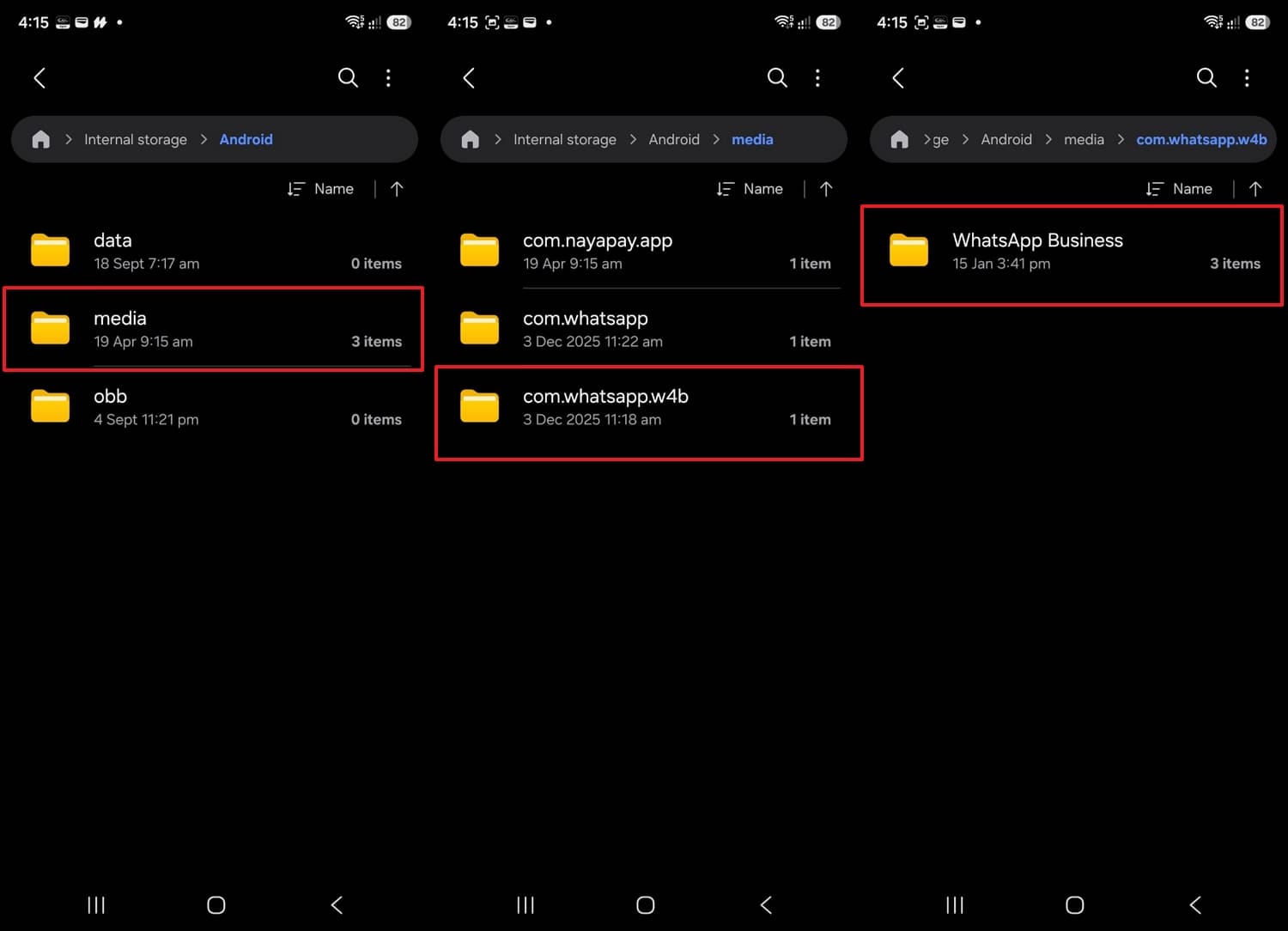
WhatsApp Business stores downloaded photos, videos, and documents in dedicated media folders on Android devices. Their locations can vary depending on the Android version. Some attachments may remain accessible even after their original conversations are deleted. Check these folders to locate and save important customer files.
-
Step 1 Access WhatsApp Business Media Folder
Open your phone's file manager and navigate to the "Android" folder. Open "media," select "com.whatsapp.w4b," and access the "WhatsApp Business" folder, followed by "Media."
-
Step 2 Browse and Save Customer Attachments
Browse the image, video, and document folders, including their “Sent” subfolders, to find customer attachments. Preview the files to confirm they open correctly, then copy important items to your computer or secure cloud storage.
Find Customer Attachments Saved Outside WhatsApp Business
For WhatsApp Business chat recovery without backup, files stored outside the app can help you retrieve missing customer attachments. Product photos, invoices, and signed agreements might still exist in your gallery, Downloads folder, email, or cloud storage. The following methods can help you locate and recover these files without relying on a WhatsApp Business backup.
Check Google Photos and Gallery Trash
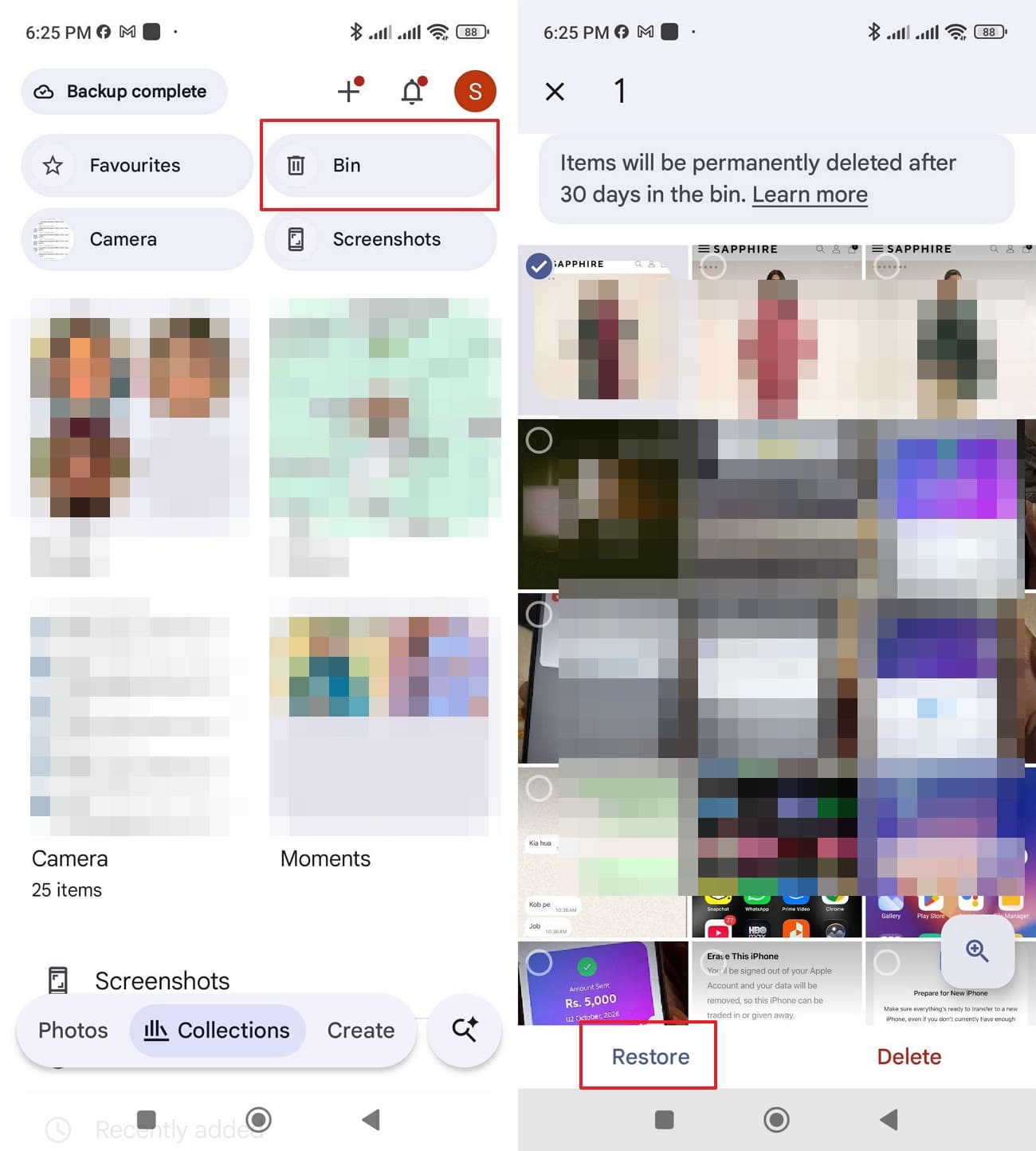
Instructions. Open Google Photos and search for saved WhatsApp Business media. To recover deleted media, go to “Collections” and select “Bin.” Locate the required photos or videos, long-press to select them, and tap “Restore.”
Review Email and Cloud Storage
Search your business email, Google Drive folders, and order management systems for previously saved invoices, quotations, product photos, or signed documents. Download any available copies for safekeeping.
Request Missing Files Again
If the attachments are unavailable in these locations, contact the customer and request the missing files again. Store the replacement copies in an approved business folder to keep them accessible.
Part 5. WhatsApp Business Advanced Recovery: Supported Features and Limitations
Before starting WhatsApp Business recovery, it's important to understand Dr.Fone's device compatibility, supported data types, and recovery limitations. Advanced Recovery can scan compatible Android devices for deleted chats and attachments, but successful recovery is not guaranteed. The table below highlights 5 important features and limitations:
| Area | What Applies to Advanced Recovery |
|---|---|
| Supported Android Versions | Supports Android 9–13. Compatibility with Android 14 and newer is not documented for this mode. |
| Device Restrictions | Huawei devices running Android 12 or 13 are unsupported. Advanced Recovery is documented for Dr.Fone on Windows. |
| Dedicated Recovery Mode | WhatsApp Business has a separate Advanced Recovery option and must be scanned independently of regular WhatsApp data. |
| Recoverable Content | Can scan for deleted customer conversations, photos, videos, voice messages, and documents. Recovery depends on available data. |
| Recovery Destination and Limits | Recovered chats and attachments can be exported to a computer but cannot be restored directly into WhatsApp Business. |
Part 6. How to Protect Important WhatsApp Business Data from Future Loss
Regular backups and secure copies of important business files can help prevent permanent data loss. To make WhatsApp Business recovery easier when chats or attachments go missing, follow these 5 precautions to protect your customer conversations and records:
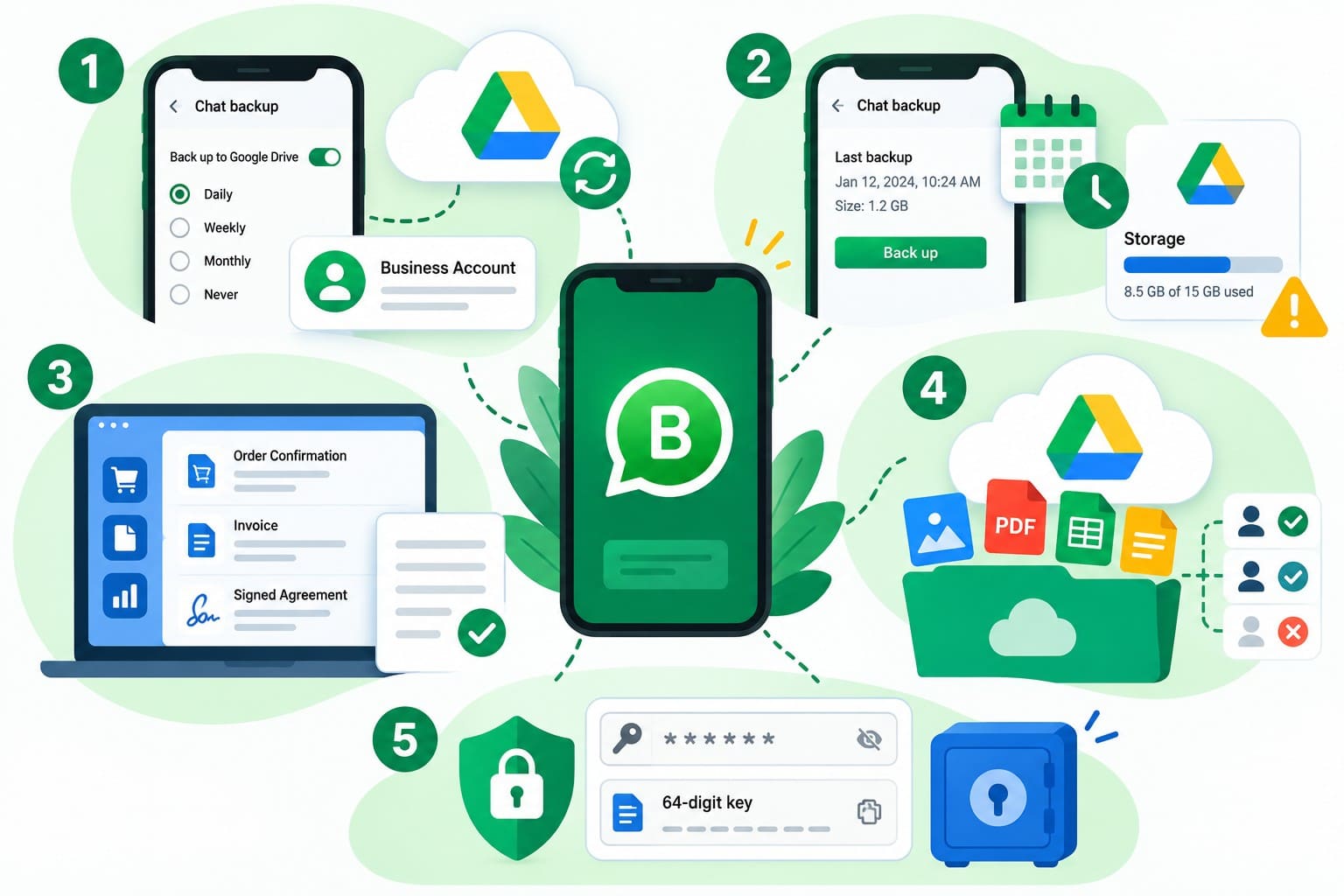
- Turn On Automatic Google Account Backups: Open WhatsApp Business, go to “Settings > Chats > Chat Backup,” and select a backup frequency. Use a business-managed Google Account instead of an employee's personal account to maintain access.
- Check Backup Dates Before Any Change: Before reinstalling WhatsApp Business or switching phones, check the latest backup date. Avoid creating a new backup if an older one might contain missing chats. Insufficient Google Account storage can also prevent backups from completing.
- Save Customer Orders and Invoices Separately: Store order confirmations, quotations, invoices, and signed agreements in your business's order management or accounting system. These additional records remain accessible if the original WhatsApp Business conversations are lost.
- Keep Important Files in Secure Cloud Storage: Save product photos, receipts, and customer documents in an approved business cloud account, such as Google Drive. Organize files by customer or order number and restrict access to authorized employees.
- Protect Your Encrypted Backup Credentials: Store your end-to-end encrypted backup password or 64-digit encryption key securely. If you enable passkey-protected backups, ensure the authorized account administrator can access the required device or credentials during restoration.
Conclusion
Successful WhatsApp Business data recovery depends on the availability of existing backups, saved attachments, or recoverable device data. Start by checking archived conversations and Google Account backups before exploring other options.
When no usable backup exists, Dr.Fone - Data Recovery (Android) offers Advanced Recovery to scan compatible devices for deleted chats and files. Although results vary, recovered data can be exported to your computer for safekeeping.
FAQ
-
1. Can I recover WhatsApp Business messages after clearing the app data?
Clearing app data removes locally stored chats. Check existing Google Account backups or scan your phone with Dr.Fone - Data Recovery (Android). Recovery depends on the data still available on your device. -
2. Can I use WhatsApp’s QR-code Chat Transfer feature with WhatsApp Business?
WhatsApp’s native QR-code Chat Transfer is currently unavailable for WhatsApp Business. QR-code device linking is separate and cannot recover deleted chats. Restore an eligible backup or use Dr.Fone Advanced Recovery on a compatible Android device to scan for recoverable deleted data. -
3. Can I restore a WhatsApp Business backup using a different phone number?
No, you need the original phone number and associated Google Account to restore an existing backup. If changing numbers, use WhatsApp Business's Change Number feature before creating a new backup.
 Add Wondershare Dr.Fone as a preferred source on Google