Recover photos, messages, WhatsApp, and more — no backup
needed.
Recover photos, messages, WhatsApp, and more — no backup
needed.

 100% Security Verified | No Subscription Required | No Malware

 :
: 
 ChatGPT
 Perplexity
 Gemini
 Claude
 Grok
Grok
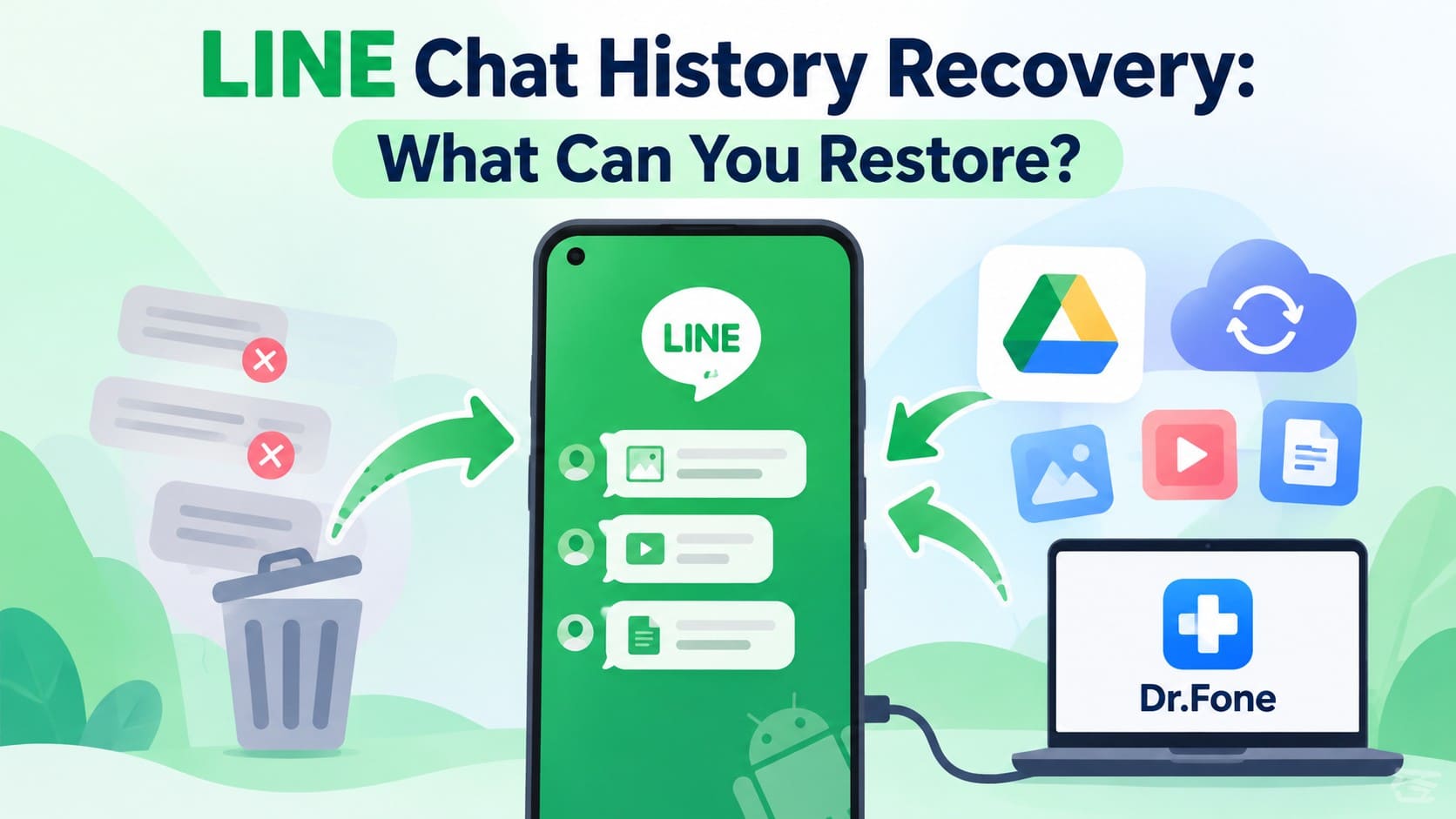
Deleted LINE chats, missing photos, or lost conversations after switching phones can be difficult to recover without a backup. According to LINE’s help center, chat history is stored locally on your device. LINE chat history recovery on Android depends on available backups or recoverable data remaining in the phone's storage.
LINE's Standard Backup saves text messages to Google Drive, while Premium Backup also supports media for eligible subscribers. Without a usable backup, Dr.Fone - Data Recovery (Android) offers Advanced Recovery to scan compatible devices for deleted LINE chats and attachments. Recovery results depend on the data still detectable.
In this article
- Part 1. What LINE Chat History Can Be Recovered on Android?
- Part 2. How to Restore LINE Chat History Using Its Built-In Backup Options
- Part 3. How to Recover Deleted LINE Messages on Android Without Backup Using Dr.Fone
- Part 4. Other Ways to Find Missing LINE Photos, Videos, and Files
- Part 5. Dr.Fone LINE Advanced Recovery: Compatibility and Limitations
Part 1. What LINE Chat History Can Be Recovered on Android?
LINE stores messages, attachments, and backups differently, so recovery depends on what was saved before the data disappeared. Before trying to recover deleted LINE messages, compare the available recovery methods and their limitations below:
| LINE Data Type or Scenario | Possible Recovery Source | Important Limitation |
|---|---|---|
| Deleted LINE Text Messages | A Google Drive Standard Backup made earlier | Works only when the backup predates deletion and still contains those messages. |
| Deleted Chats Without a Backup | The Android phone's own storage | Dr.Fone Advanced Recovery can scan for deleted LINE conversations that remain detectable. |
| Missing LINE Photos and Videos | Premium Backup, copies saved elsewhere, or Dr.Fone Advanced Recovery | Standard Backup excludes chat media, while device scans find only detectable data. |
| Missing LINE Files and Voice Messages | Premium Backup, files saved earlier, or Dr.Fone Advanced Recovery | Recovery depends on previously preserved content or data still detectable during scanning. |
| Chats Lost During Android Device Transfer | A LINE backup or the history supported by the transfer method | Without Standard or Premium Backup, QR code and backup PIN transfers retain only the last 14 days of chats. |

Part 2. How to Restore LINE Chat History Using Its Built-In Backup Options
LINE offers built-in backup options, but each supports different types of data. Standard Backup saves text messages to Google Drive, while Premium Backup also includes eligible media files. For LINE chat recovery, follow the relevant restoration method below based on your available backup:
Restore LINE Text Messages from Google Drive Standard Backup
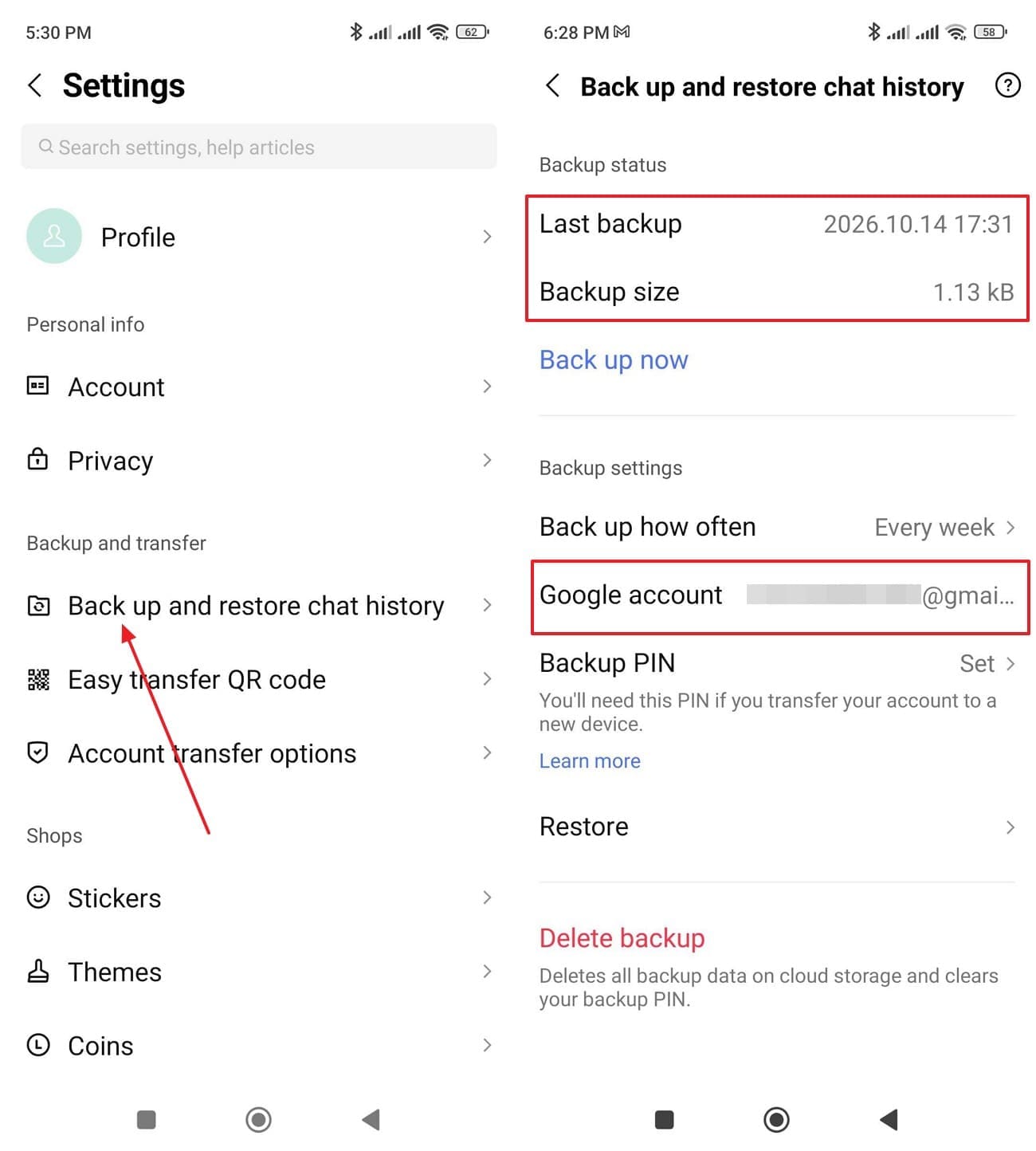
Standard Backup saves LINE text messages to Google Drive on Android but excludes photos, videos, files, and voice messages. To recover deleted LINE messages, you need a backup created before their deletion. Check the backup date before reinstalling LINE, then follow these steps:
-
Step 1
Go to “Settings > Backup and Restore Chat History” and check whatever backup details appear, such as the last backup time or linked Google account.
-
Step 2
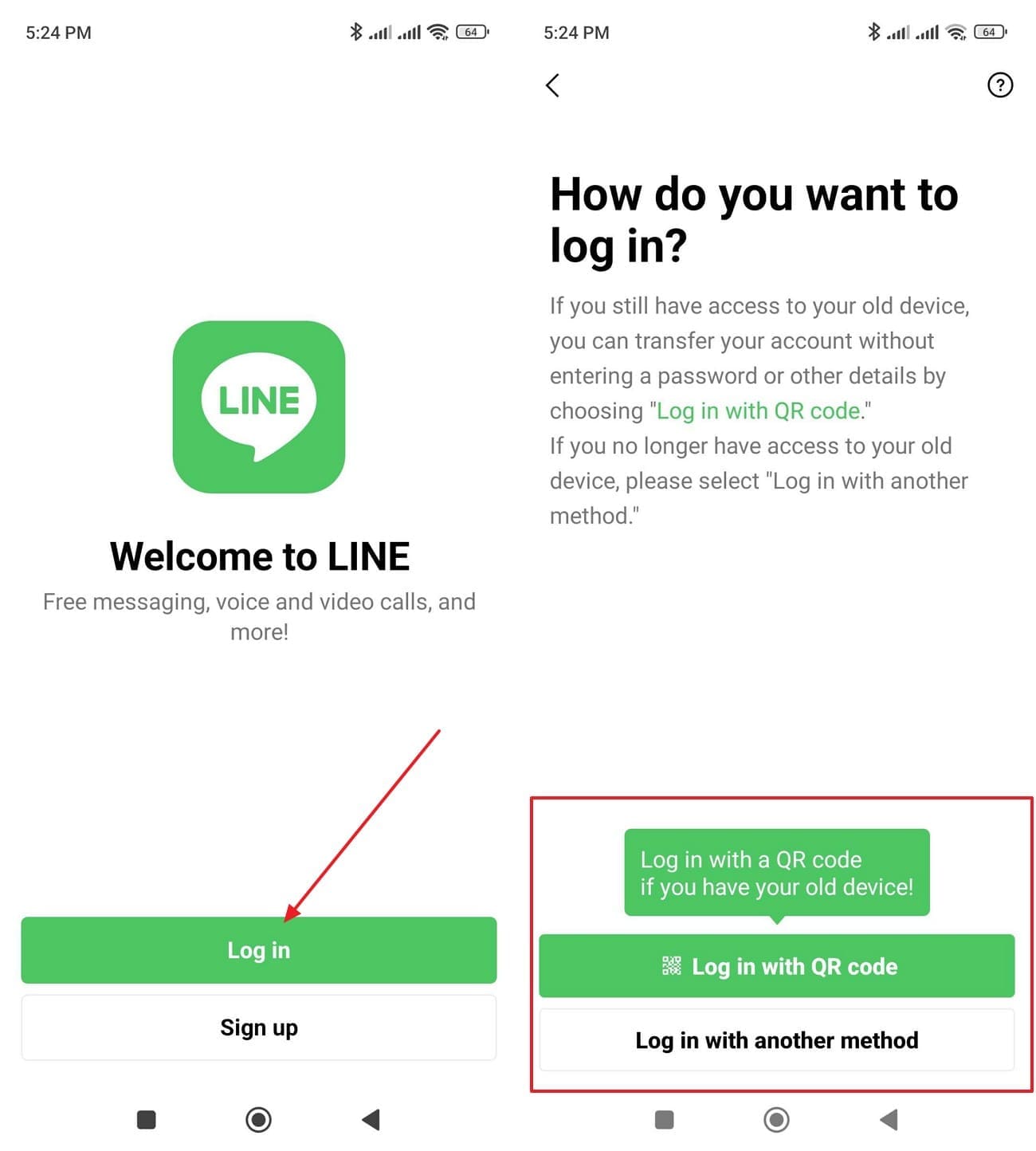
Install and open LINE on your current or new Android device. Choose “Login > Log in with QR Code” or “Login with Another Method,” then select “Login” to confirm based on your chosen method.
-
Step 3
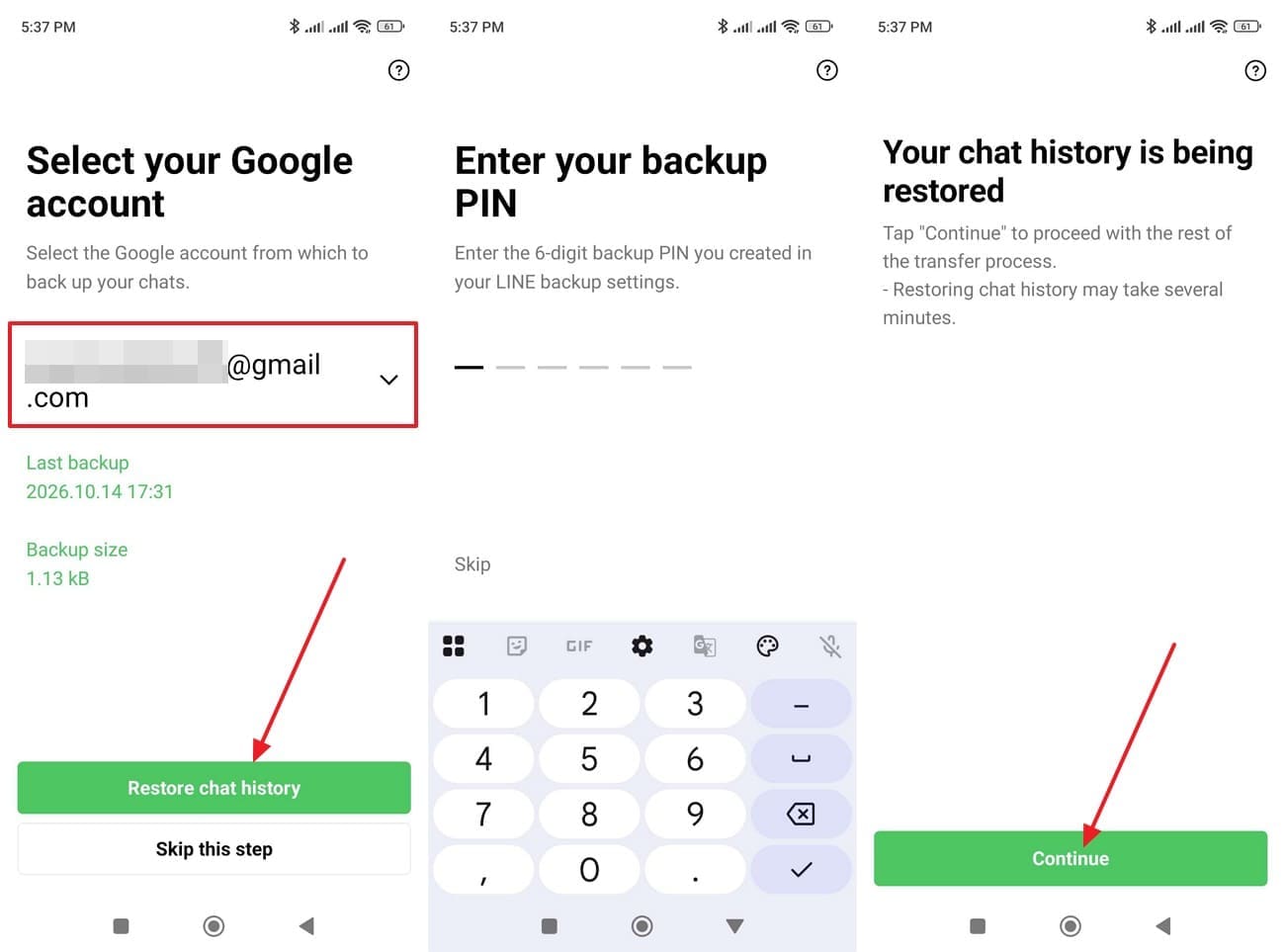
Expand the “Select Account” menu and choose the account you created the backup on. Tap “Restore Chat History” > Add Backup PIN (Optional) > Press “Continue” and wait for the process to complete.
Recover LINE Chats and Media with Premium Backup
Beyond text messages, Premium Backup saves photos, videos, files, and voice messages. It's available to eligible LYP Premium members in Japan and LINE Premium subscribers in Taiwan and Thailand. Expired or unavailable media cannot be restored. Premium Backup cannot restore deleted LINE conversations. Earlier Standard Backups can restore deleted messages only if they predate deletion and contain them. For LINE chat recovery, complete the backup before transferring your account:
-
Step 1
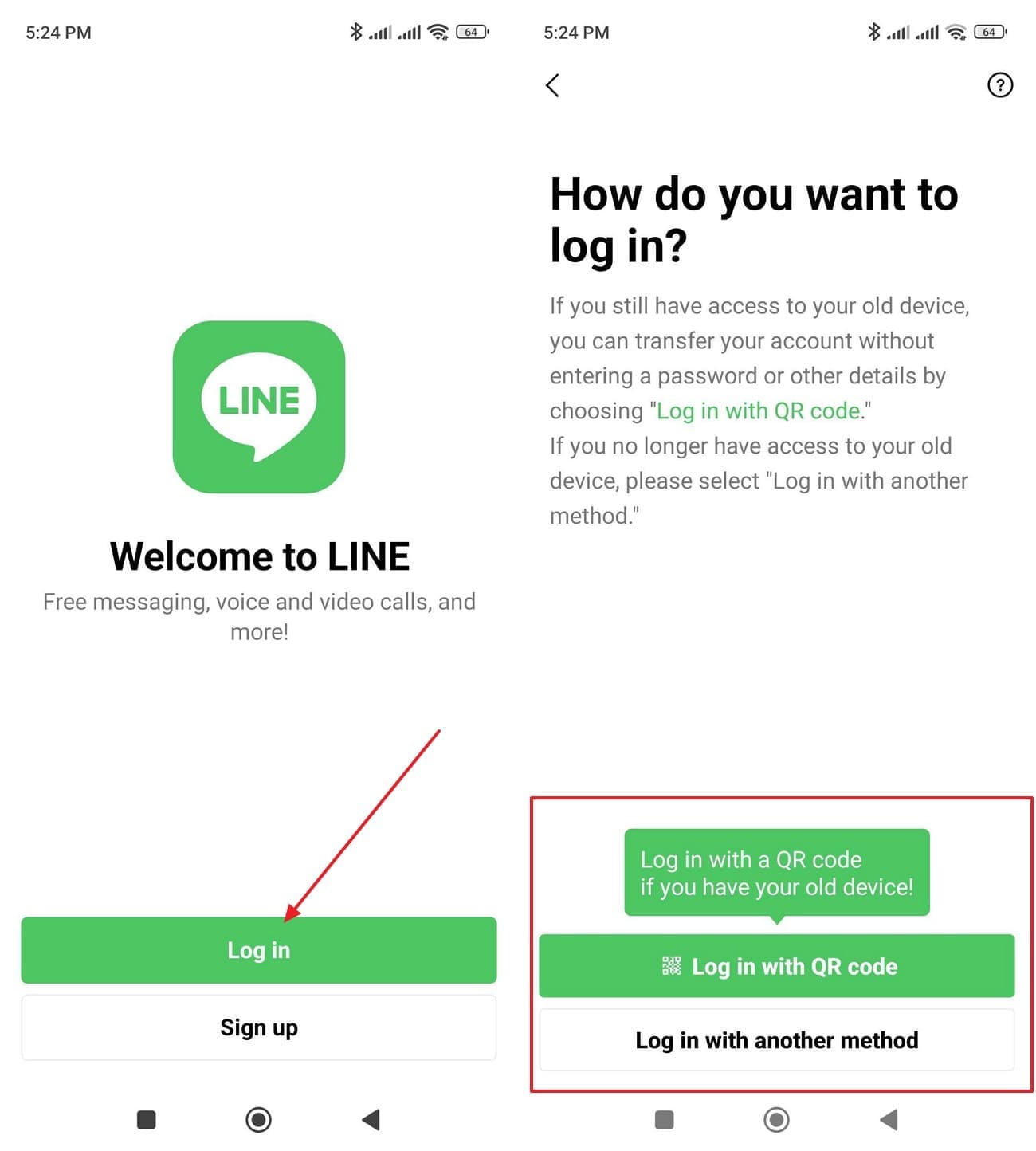
On the new device, tap “Log in.” Select “Log in with QR code” and scan the previous phone's QR code, or choose “Log in with Another Method.” Follow the identity verification prompts.
-
Step 2
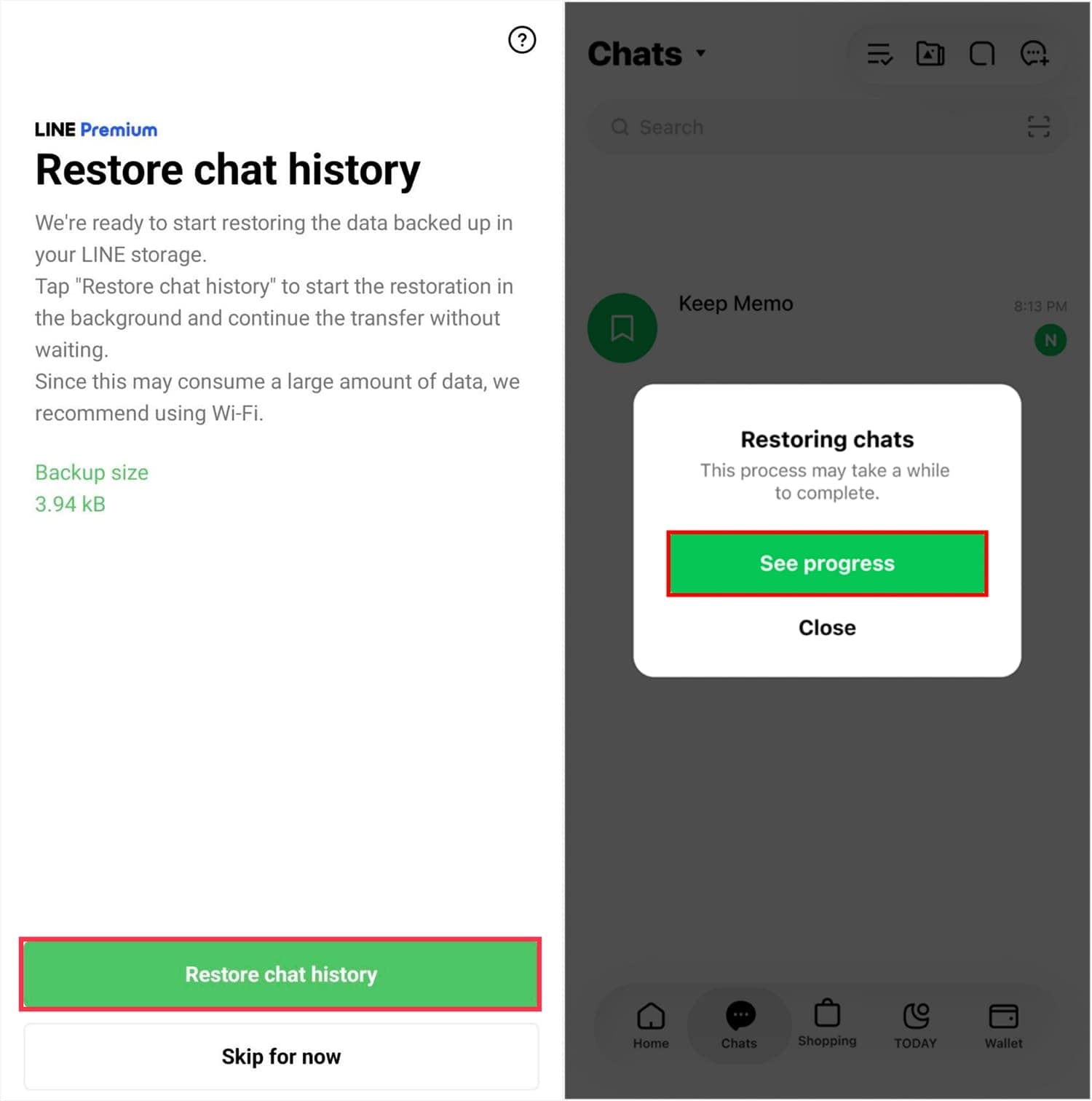
Complete identity verification for your selected transfer method, approving the QR-code request on your previous device when applicable. On the new device, tap “Restore Chat History” and “Continue.” If “Restoring Chats” appears, tap “See Progress” to track restoration.
Part 3. How to Recover Deleted LINE Messages on Android Without Backup Using Dr.Fone
If a deleted conversation isn't available in your Google Drive backup, Dr.Fone - Data Recovery (Android) provides another recovery option. Its Advanced Recovery mode scans compatible Android devices for recoverable third-party app data, including LINE conversations and attachments. This method of LINE chat recovery doesn't require an existing backup, but results depend on the data still available on the device.
Introduced in Dr.Fone for Windows V13.9.9, Advanced Recovery supports Android 9–13, excluding Huawei devices running Android 12 or 13. Available recovery categories include LINE, Kik, Snapchat, Gmail, and other supported app data. WhatsApp and WhatsApp Business require separate scans. You can preview detected items and save recoverable data to your computer, but the tool doesn't restore conversations directly to LINE.
 Scan Android phones and tablets directly.
- Preview and recover only what you want.
- Supports WhatsApp, photos, videos, contacts, and more.
- Works with 6000+ Android devices.

Guide to Scan Android for Recoverable LINE Chats with Dr.Fone
To recover deleted LINE messages, use Dr.Fone's Advanced Recovery mode to search for available chat history and attachments. Follow these steps to scan for missing data, preview the results, and save recoverable items to your computer:
-
Step 1 Choose Advanced Recovery and Connect Android
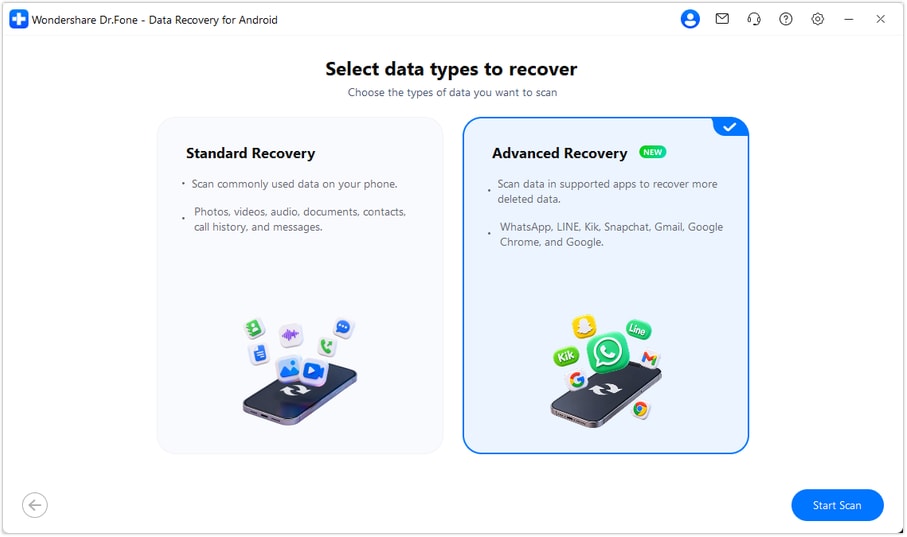
As you choose the “Data Recovery” tool for “Android,” select the “Recover Android Data” feature to choose “Advanced Recovery” mode. Click “Start Scan” and connect your compatible Android phone using a USB data cable when prompted.
-
Step 2 Select LINE and Start the Scan
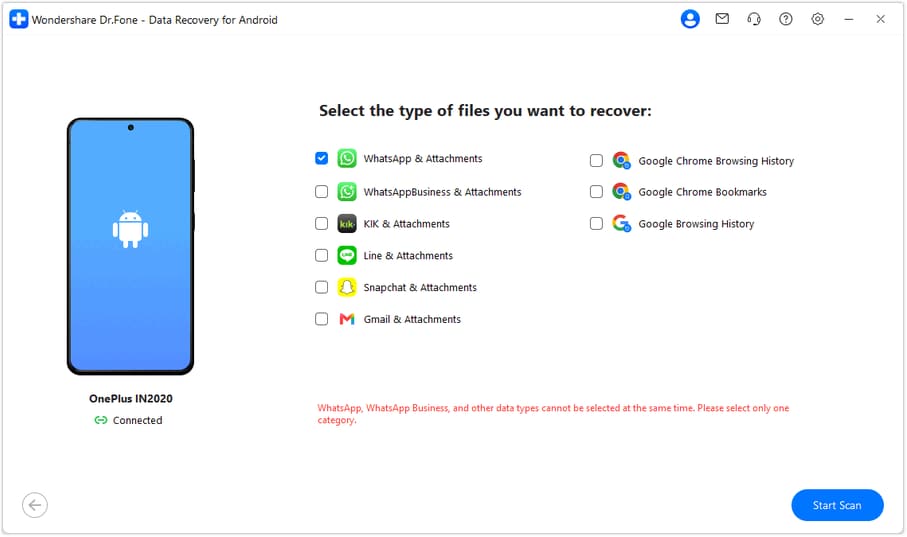
Choose “LINE & Attachments” from the available data categories and click “Start Scan.” Keep your phone connected throughout the scanning process.
-
Step 3 Preview LINE Chats and Recover
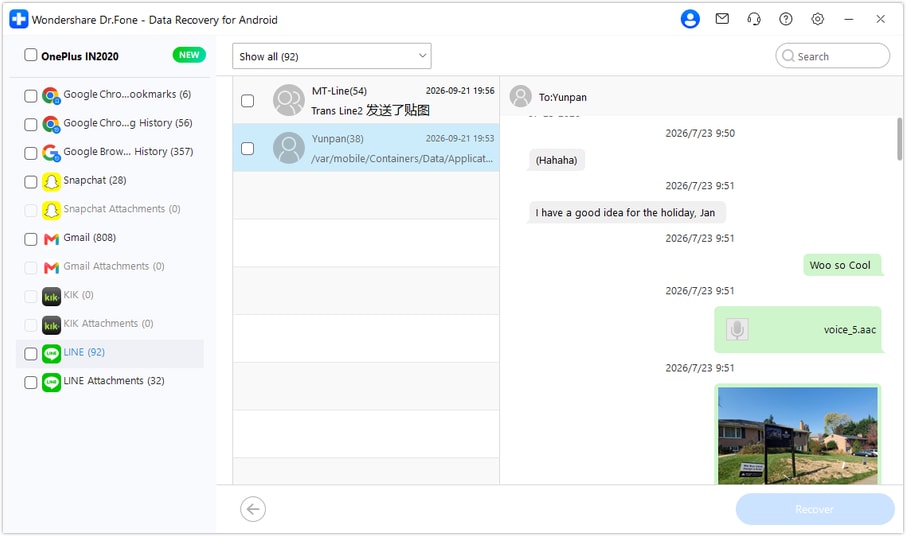
After scanning, open “LINE” to preview detected conversations and check “LINE Attachments” for available media and files. Select the items you need, click “Recover,” and choose a folder on your computer to save them.




Part 4. Other Ways to Find Missing LINE Photos, Videos, and Files
Photos, videos, and documents may still be available in LINE Albums, Notes, your phone's storage, or cloud backups if they were saved separately. Before trying another scan to recover deleted LINE messages, check these locations for copies of the missing files:
Check LINE Albums and Notes for Existing Content
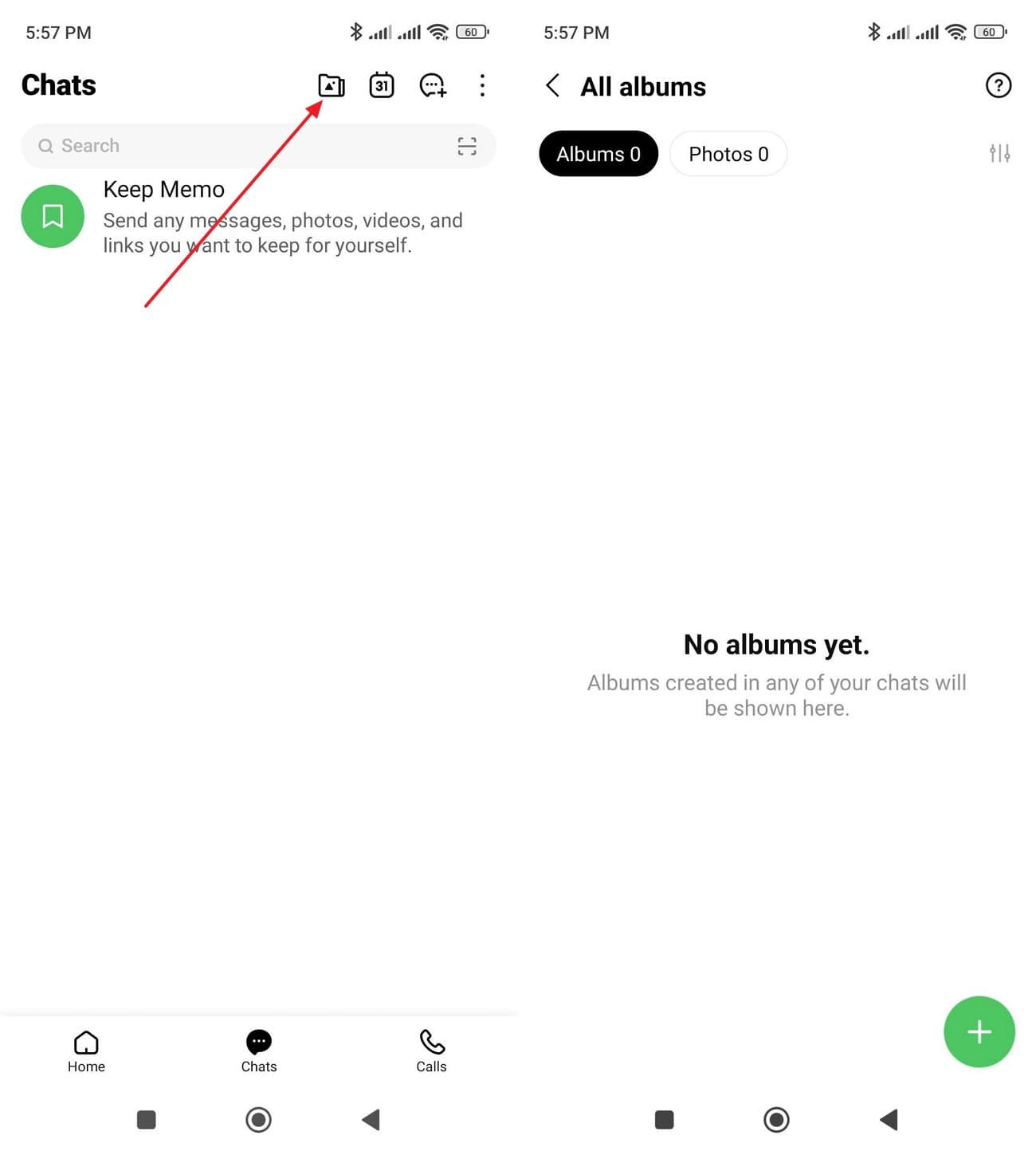
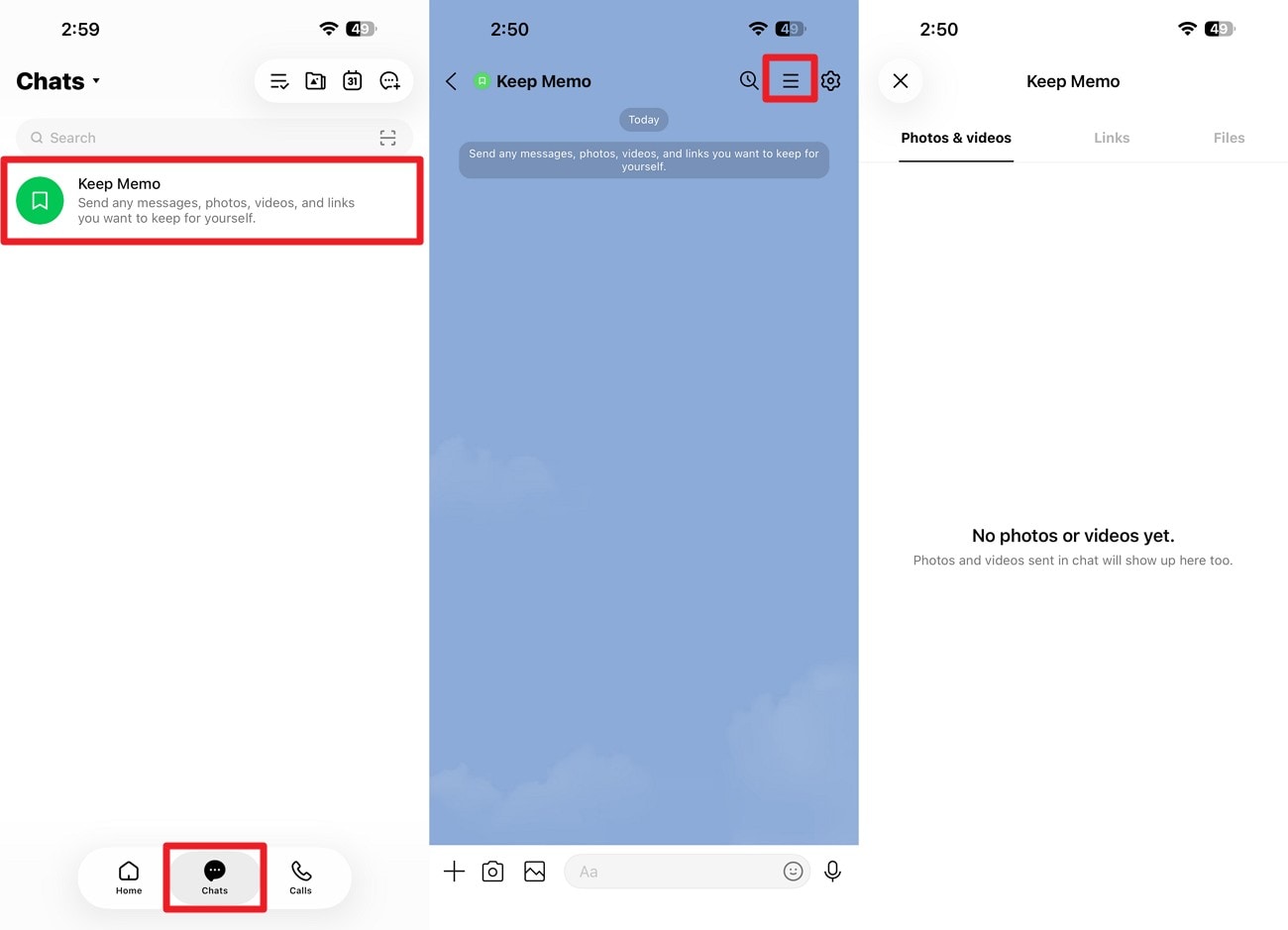
LINE Albums and Keep Memo store content separately from regular chat history. Each chat supports up to 100 albums with 1,000 photos each, while Keep Memo lets you save personal messages, photos, videos, and files. Albums remain accessible after account transfers, but Keep Memo content should be checked before switching devices. For LINE chat recovery, review both locations for previously saved content using these steps:
-
Step 1
Open the LINE chat, then access “Albums” from the chat menu to browse saved photos and eligible Premium videos.
-
Step 2
From the “Chats” tab, select “Keep Memo” and tap the “Hamburger” icon in the upper-right corner. Browse “Photos & videos,” “Links,” and “Files” to locate previously saved content. Open the desired item and download it if available.
Find LINE Media Previously Saved on Android
Photos, videos, and files saved outside LINE may remain available even after the original chat is deleted. Check Google Photos, your phone's gallery, local folders, and cloud storage for copies you downloaded or shared earlier. If you can't find them, the other person in the conversation may still have a copy. Before attempting another LINE chat recovery scan, check these locations for existing copies of the missing media:
Check Google Photos and Your Gallery
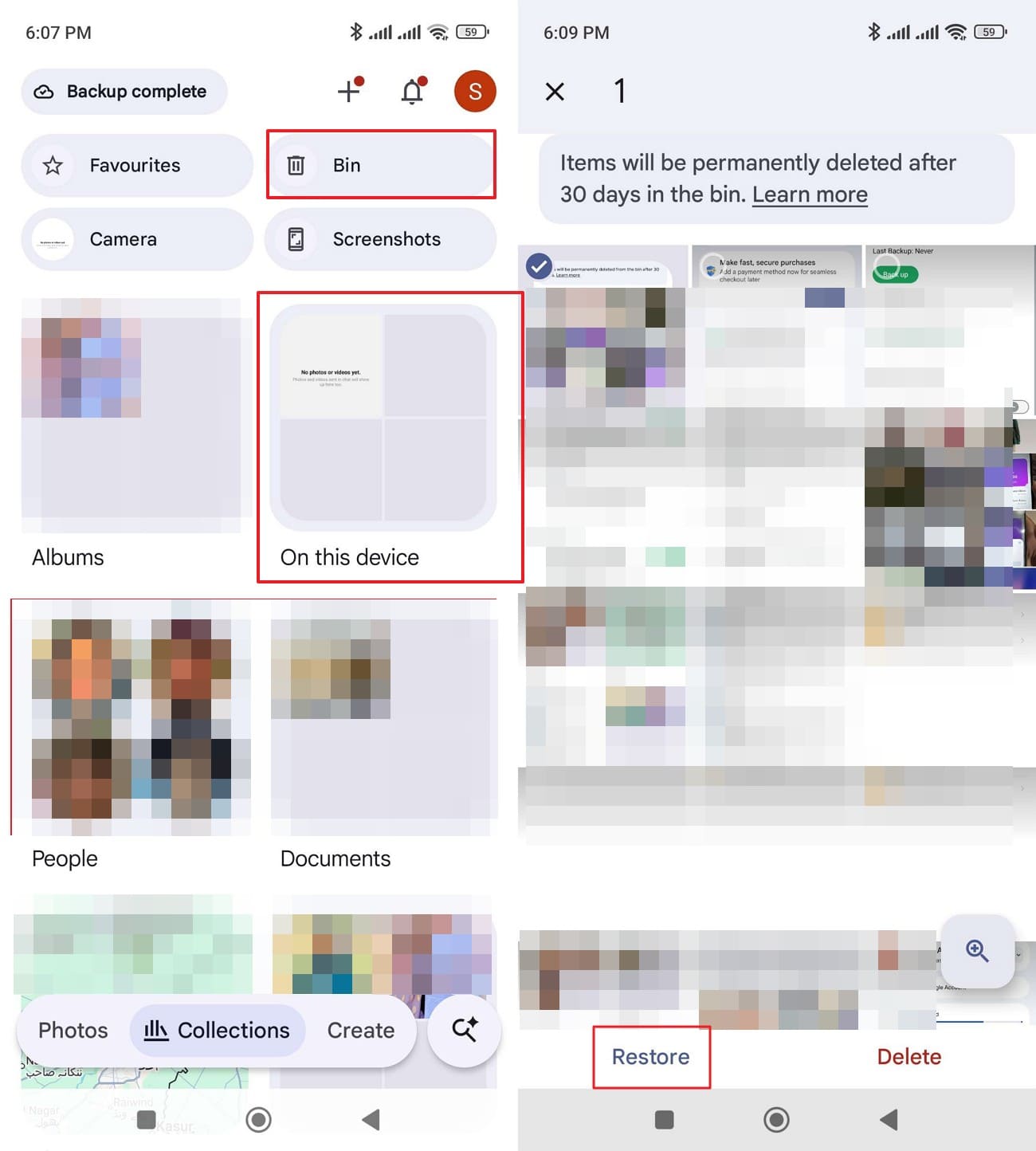
Google Photos: Open Google Photos and search for missing images or videos. Check “Collections > On This Device” for local folders, then “Collections > Bin.” Select the LINE media files and choose the “Restore” button.
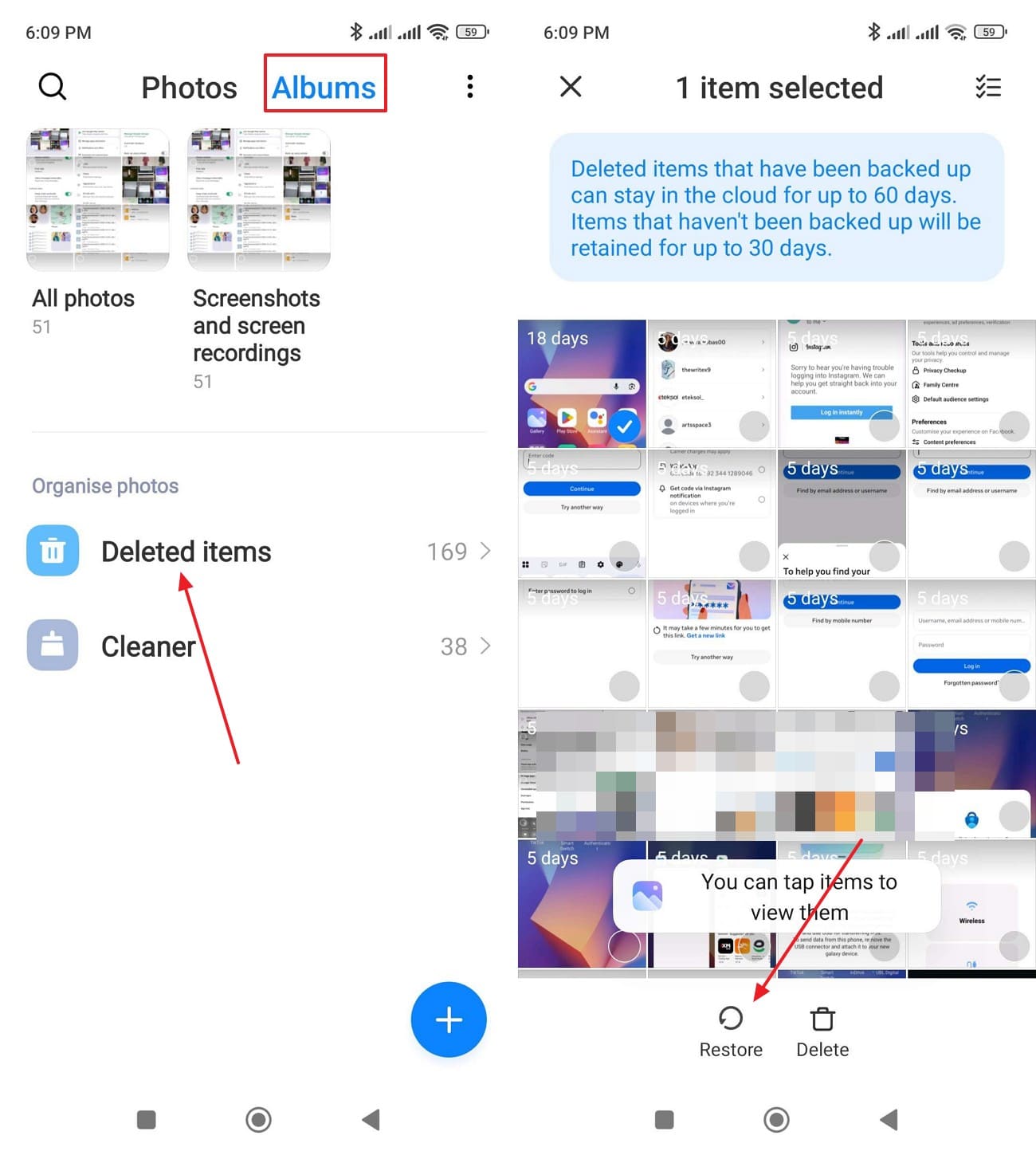
Check Gallery: Open your phone's gallery and select “Albums > Deleted items.” Choose the LINE photos or videos, then tap “Restore.” Other devices use labels such as Trash, Recycle Bin, or Recently Deleted.
Search Android Storage
Open Files by Google or another file manager. Check Recents, Downloads, Images, Videos, Audio, and Documents for previously saved LINE attachments.
Review Cloud Storage and Email
Search Google Drive, other cloud accounts, and your email for files you previously uploaded, attached, or shared outside LINE.
Part 5. Dr.Fone LINE Advanced Recovery: Compatibility and Limitations
Before using Dr.Fone to recover deleted LINE messages, verify that your Android device and Windows computer meet the compatibility requirements. The table below outlines supported versions, scanning limitations, and available recovery options:
| Compatibility and Recovery Details | What Dr.Fone Documents | Effect on a LINE Scan |
|---|---|---|
| Supported Android Versions | Advanced Recovery supports Android 9–13, excluding Huawei devices running Android 12 or 13. | Compatibility beyond Android 13 isn't documented. |
| Platform Availability | Dr.Fone for Windows V13.9.9 introduced the “Advanced Recovery” mode. | This recovery mode requires a Windows computer. |
| Recovery Categories | LINE can be selected alongside Kik, Snapchat, Gmail, or browser data. | WhatsApp and WhatsApp Business require separate scans from other categories. |
| Recoverable Content | Advanced Recovery scans for detectable deleted LINE chats and attachments. | Results can be incomplete, and recovered items save to your PC, not LINE. |
| Recovery Success | Advanced Recovery scans for LINE data that remains detectable on the Android device. | Recovery depends on the available data, and some deleted messages or attachments may be unrecoverable. |
Conclusion
LINE chat history recovery depends on available backups or saved copies. Standard Backup can restore deleted messages only when an earlier backup contains them. Premium Backup transfers backed-up chats and media but cannot restore conversations deleted from LINE.
Without a suitable backup, Dr.Fone - Data Recovery (Android) offers another option for scanning compatible Android devices on Windows. Recovery success depends on detectable data, and recovered files are saved to your computer rather than directly to LINE.
Frequently Asked Questions
-
1. Can I recover LINE messages that someone removed using Unsend?
Outside Japan, Taiwan, and Thailand, LINE's Unsend allows message removal within 24 hours. Removed messages cannot be restored through LINE, although device notifications might retain part of their content. -
2. Can I transfer LINE chat history from Android to iPhone?
Android-to-iPhone transfers using a QR code or backup PIN support the last 14 days of chats. Standard Backup doesn't transfer across operating systems, while eligible Premium Backup subscribers can transfer their full history. -
3. Can I recover LINE chat history after uninstalling LINE without a backup?
Uninstalling LINE can remove locally stored chats. For LINE chat history recovery, check available backups first. Without one, Dr.Fone – Data Recovery (Android) can scan compatible Android devices through Windows, but successful recovery depends on the available data.
 Add Wondershare Dr.Fone as a preferred source on Google