Recover photos, messages, WhatsApp, and more — no backup
needed.
Recover photos, messages, WhatsApp, and more — no backup
needed.

 100% Security Verified | No Subscription Required | No Malware

 :
: 
 ChatGPT
 Perplexity
 Gemini
 Claude
 Grok
Grok
A WhatsApp chat, photo, or attachment on Android can be deleted by mistake or go missing after a reinstall or storage cleanup. WhatsApp’s privacy policy states that delivered messages are removed from its servers, which leaves the company with nothing to return. Successful WhatsApp data recovery hinges on a copy surviving in a backup, another saved location, or the phone’s storage.
Chats missing from every backup are the focus of Advanced Recovery, a new mode within Dr.Fone - Data Recovery (Android). It looks for selected deleted third-party app data, WhatsApp included, on compatible Android 9 through 13 devices, except Huawei models on Android 12 or 13. Whatever Dr.Fone finds still rests on that compatibility and on deleted WhatsApp data remaining recoverable.
In this article
- Part 1. Which WhatsApp Data Recovery Method Should You Choose?
- Part 2. What’s New in Dr.Fone for WhatsApp Data Recovery on Android?
- Part 3. How to Recover Deleted WhatsApp Messages on Android Without a Backup
- Part 4. Other Ways to Recover WhatsApp Chats and Photos on Android
- Part 5. Dr.Fone WhatsApp Advanced Recovery: Compatibility and Limitations
Part 1. Which WhatsApp Data Recovery Method Should You Choose?
Each WhatsApp recovery method depends on where your missing chats or media may still exist. Archived conversations, saved photos, existing backups, and deleted data on the phone require different approaches. Compare the scenarios below to identify which method to check first without risking the data you still have:
| WhatsApp Data Loss Scenario | Possible Data Source | Recommended Method |
|---|---|---|
| Chats Missing But Not Deleted | WhatsApp’s Archived chats list | Tap “Archived” at the top of Chats, press and hold the conversation, and tap “Unarchive.” |
| WhatsApp Photos Missing from the Chat | Android media storage | Check photos and videos already saved in the gallery, Google Photos, or WhatsApp’s media folder. |
| Deleted Messages Included in an Earlier Backup | Google Account or local WhatsApp backup | Restore chat history from a backup that predates the deletion. |
| Deleted WhatsApp Messages Without a Usable Backup | Android device storage | Run a Dr.Fone Advanced Recovery scan on a compatible phone. |
| Chats Still Available on an Old Android Phone | The previous device | Use WhatsApp chat transfer, which moves existing chats but not previously deleted messages. |
Part 2. What’s New in Dr.Fone for WhatsApp Data Recovery on Android?
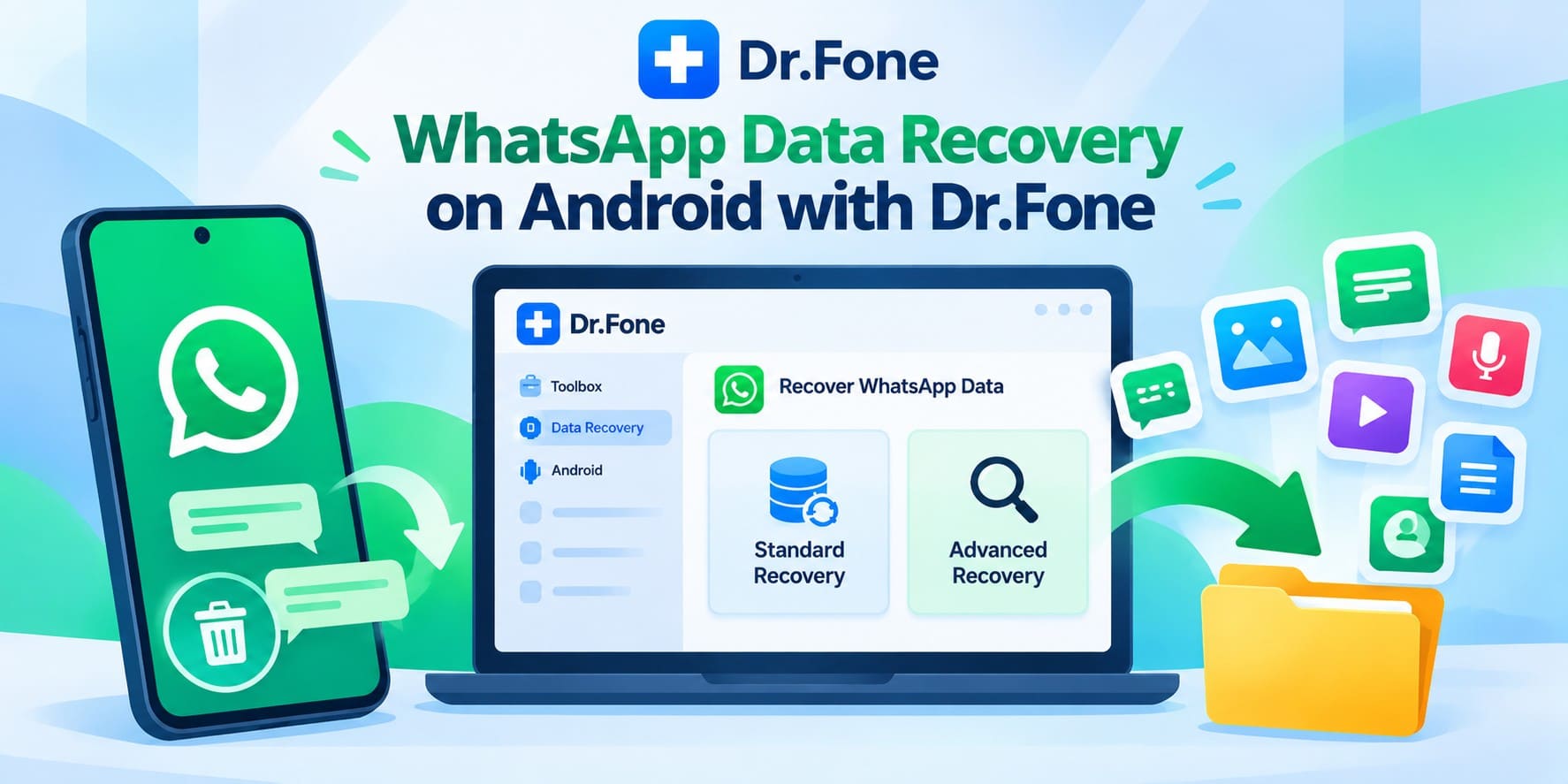
Dr.Fone for Windows V13.9.9 introduces Advanced Recovery to recover deleted WhatsApp messages and other supported Android app data. The feature covers WhatsApp, WhatsApp Business, LINE, Kik, Snapchat, Gmail, and selected Google and Chrome browsing data. For WhatsApp recovery, Dr.Fone - Data Recovery (Android) provides two options: Standard Recovery and Advanced Recovery.
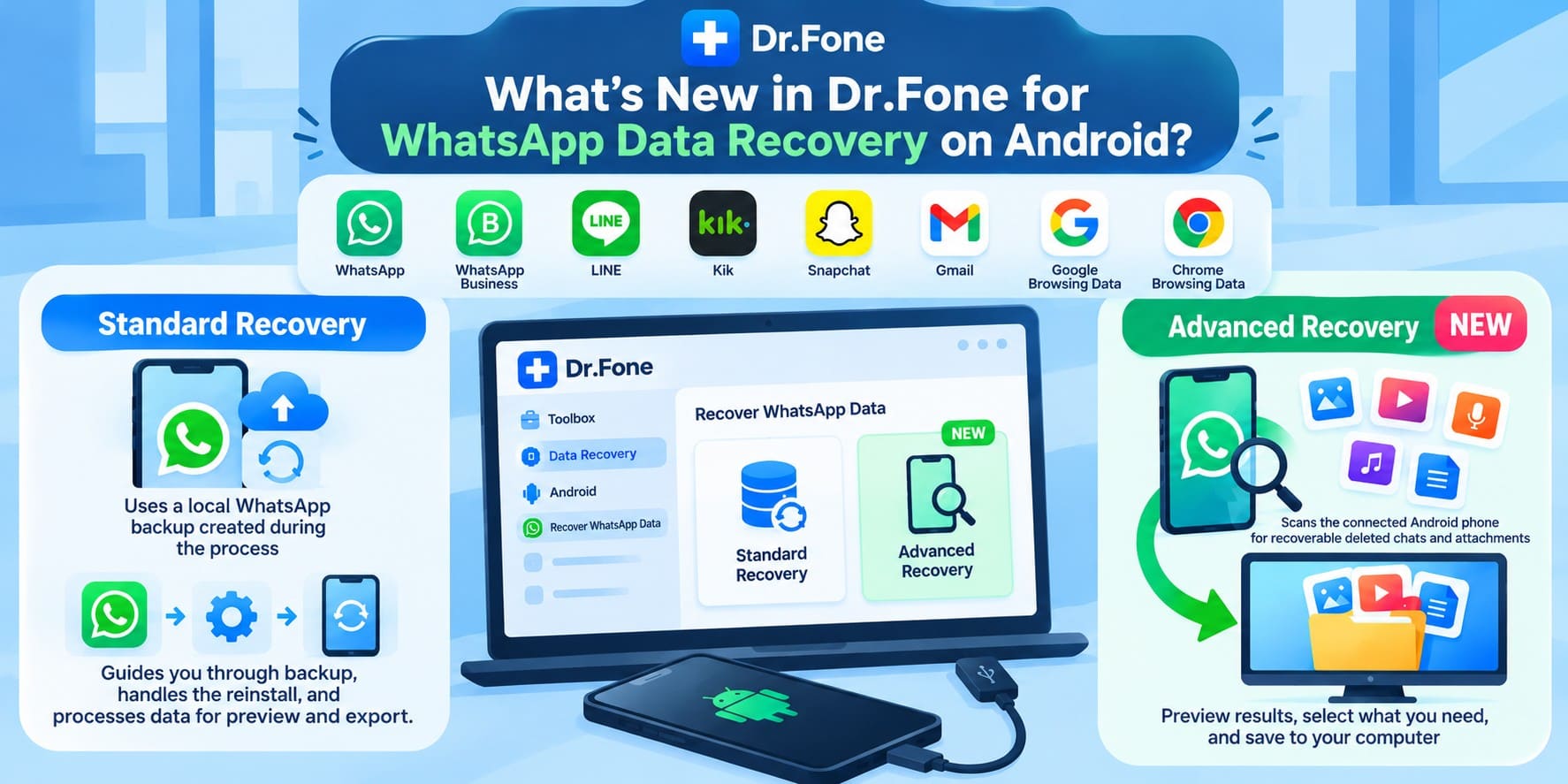
Standard Recovery uses a local WhatsApp backup created during the recovery process. Dr.Fone guides users through creating the backup, reinstalling WhatsApp, and processing the available data for preview and export. However, a new backup cannot restore messages deleted before its creation unless another recoverable copy exists.
Advanced Recovery scans the connected Android device for deleted WhatsApp chats and attachments without relying on an existing backup. It can identify accessible photos, videos, voice messages, audio files, and documents. Users can preview the detected items and save selected files to their computer. The feature supports Android 9 through 13, excluding Huawei devices running Android 12 or 13.
Standard Recovery vs Advanced Recovery: Key Differences
The right method to recover deleted WhatsApp messages on Android depends on whether the missing data exists in a backup or remains accessible on the device. The following table highlights the key differences between both recovery modes:
| Stage | Standard Recovery | Advanced Recovery |
|---|---|---|
| Data Source | Uses a local WhatsApp backup created during the process. | Scans the device directly for recoverable deleted WhatsApp data. |
| Earlier Backup | Not required, but newly created backups do not restore previously deleted messages. | No existing WhatsApp backup required. |
| WhatsApp Reinstall | Reinstallation is handled during the recovery process. | No WhatsApp reinstallation required. |
| Compatibility | Supports a broad range of Android devices. | Supports Android 9–13, excluding Huawei devices running Android 12 or 13. |
| Recovery Output | Allows users to preview and export available WhatsApp data to a computer. | Lets users preview deleted chats and attachments and save selected items to a computer. |
Advanced Recovery is better suited to situations where deleted WhatsApp messages are missing from available backups. Its effectiveness depends on device compatibility and whether the deleted data remains accessible.
Part 3. How to Recover Deleted WhatsApp Messages on Android Without a Backup
Once you've confirmed that no earlier backup contains the missing chats, you can proceed with Dr.Fone Advanced Recovery to recover deleted WhatsApp messages without a backup. The process starts scanning automatically after connecting a compatible Android device, without requiring category selection.
Before proceeding, ensure your device runs Android 9 through 13, excluding Huawei models on Android 12 or 13. Recovered data is saved to your computer rather than restored directly to WhatsApp. Follow the three steps below to recover deleted WhatsApp messages, as outlined in Dr.Fone's official recovery guide:
 Scan Android phones and tablets directly.
- Preview and recover only what you want.
- Supports WhatsApp, photos, videos, contacts, and more.
- Works with 6000+ Android devices.

-
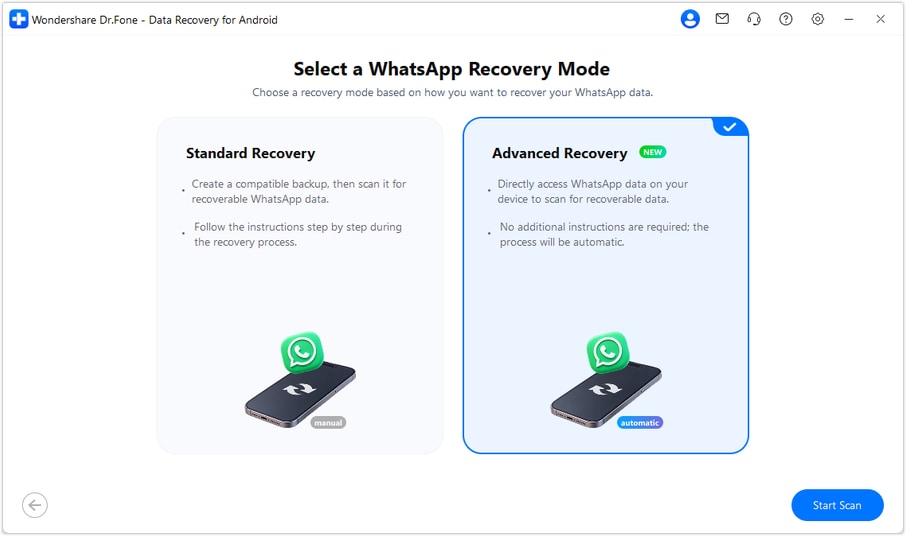
Step 1 Choose WhatsApp Advanced Recovery Mode
Choose the “Data Recovery” tool for “Android” and select the “Recover WhatsApp Data” option. Tap “Advanced Recovery” mode, click “Start Scan,” and connect your compatible Android phone via USB when prompted.
-
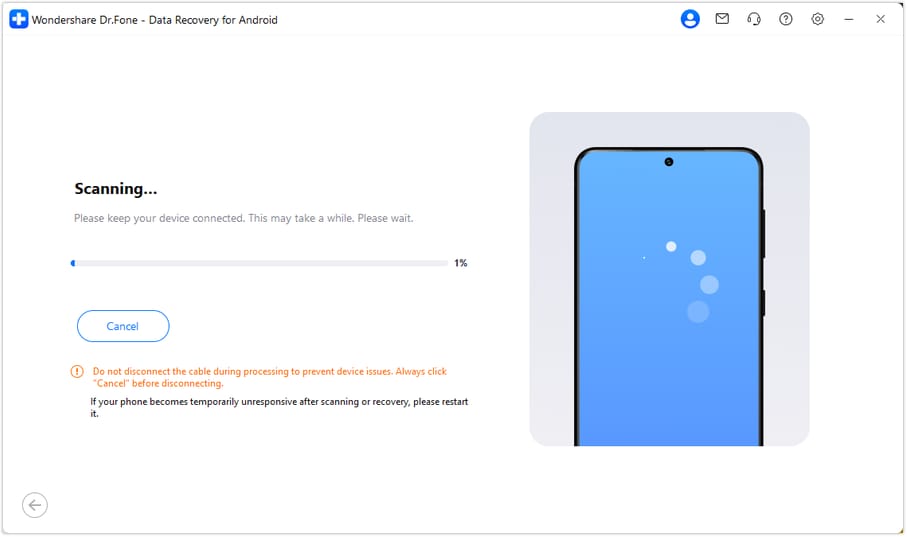
Step 2 Scan the Android Phone
Dr.Fone starts scanning for recoverable WhatsApp chats and attachments. Keep the USB connection stable until the scan finishes. If you need to stop, click “Cancel” before disconnecting the device.
-
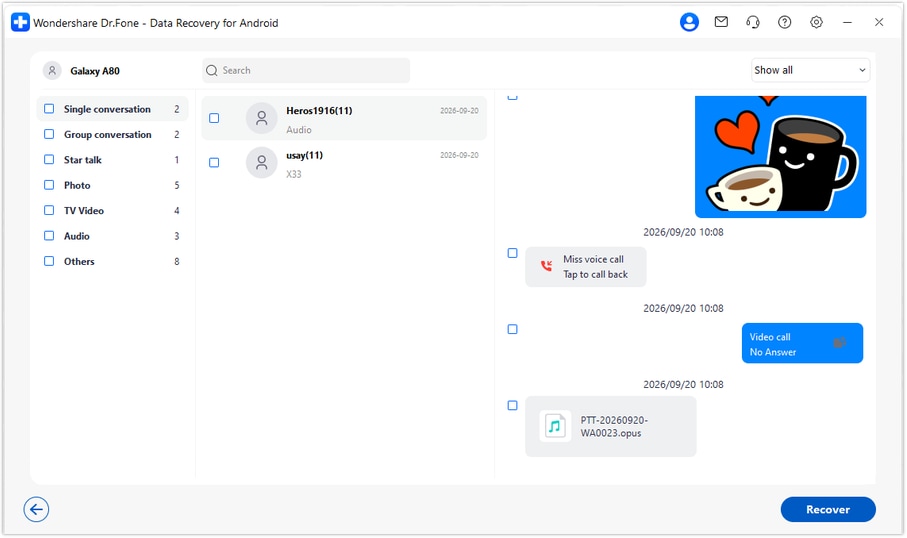
Step 3 Preview and Save Recovered WhatsApp Data
Review the detected items under “WhatsApp Conversations, Photos, Videos, and Audio and Voice Messages.” Select the chats or attachments you want, click “Recover,” and choose a folder on your computer to save them.

To recover deleted WhatsApp messages on Android, download Dr.Fone - Data Recovery (Android) for Windows and scan your compatible device before reinstalling WhatsApp.




Part 4. Other Ways to Recover WhatsApp Chats and Photos on Android
You can also recover deleted WhatsApp photos and chats by checking Google Account backups, local WhatsApp databases, and saved media copies. Before restoring a backup or reinstalling WhatsApp, protect your existing chats and files to avoid losing newer data. The following methods explain how to check these sources and recover available content.
Restore WhatsApp Chats from a Google Account Backup
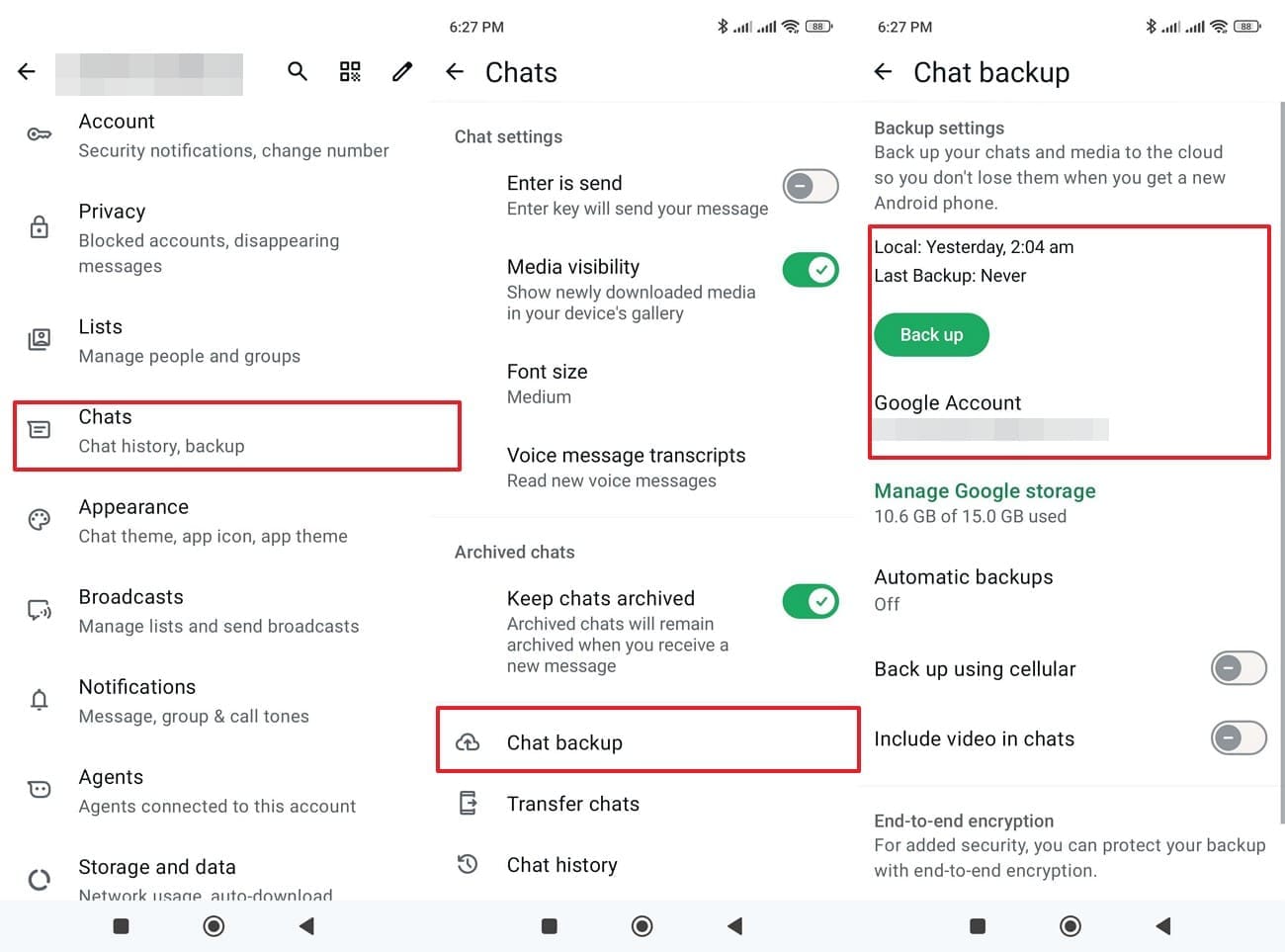
A Google Account backup can restore deleted WhatsApp chats if it was created before the messages disappeared. However, WhatsApp confirms that each new backup overwrites the previous one. Restoring an older backup also excludes messages received after its creation. For WhatsApp recovery, check the backup date carefully before proceeding. Follow these steps to restore your chat history:
-
Step 1
Tap “Three Dots > Settings > Chats > Chat backup” and check the last backup date and the connected Google Account. Make sure the backup was created before the messages disappeared.
-
Step 2
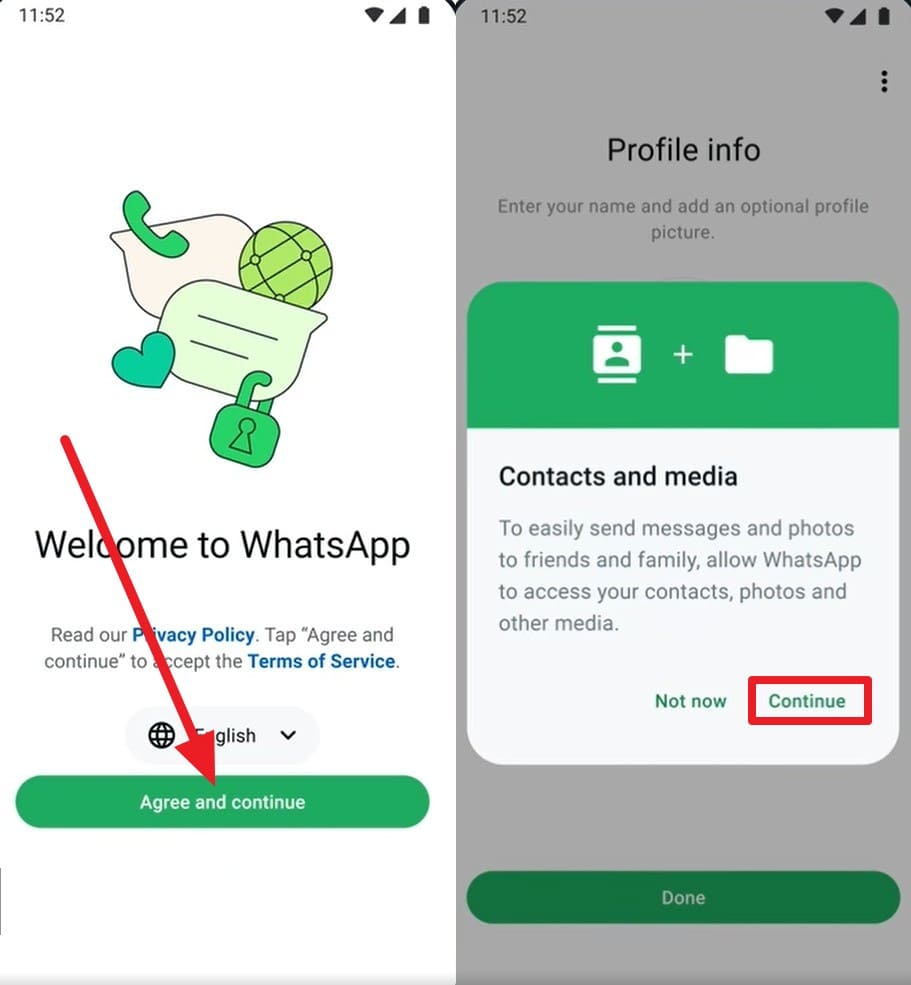
Uninstall WhatsApp and reinstall it from the Play Store. Open the app, tap “Agree and Continue,” enter the same phone number used for the backup, and complete verification using the code sent to your phone. Tap “Continue,” then tap “Allow” if WhatsApp requests the necessary permissions.
-
Step 3
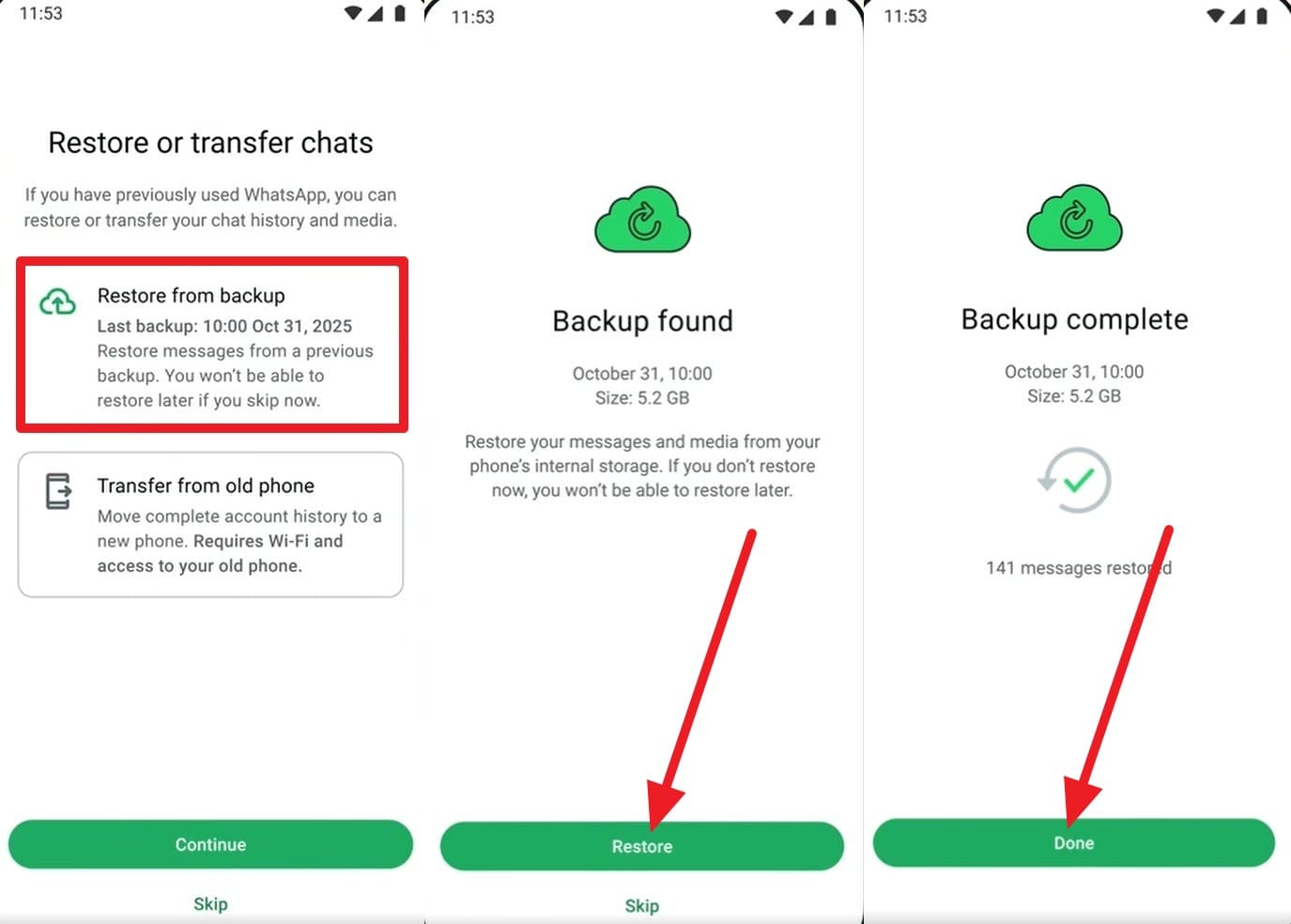
When WhatsApp finds your backup, tap “Restore from Backups > Restore.” If prompted, enter your encrypted backup password, 64-digit key, or passkey. Wait for chat restoration to finish, then tap “Done” to complete the process.
Check and Restore a Local WhatsApp Chat Backup
If your Google Account backup is too recent, an older local WhatsApp database may still contain the missing chats. These backups are commonly stored in Android's internal storage. To recover deleted WhatsApp messages on Android, you can restore an earlier local backup if its database is still available. Follow these steps to locate and restore your chat history:
-
Step 1
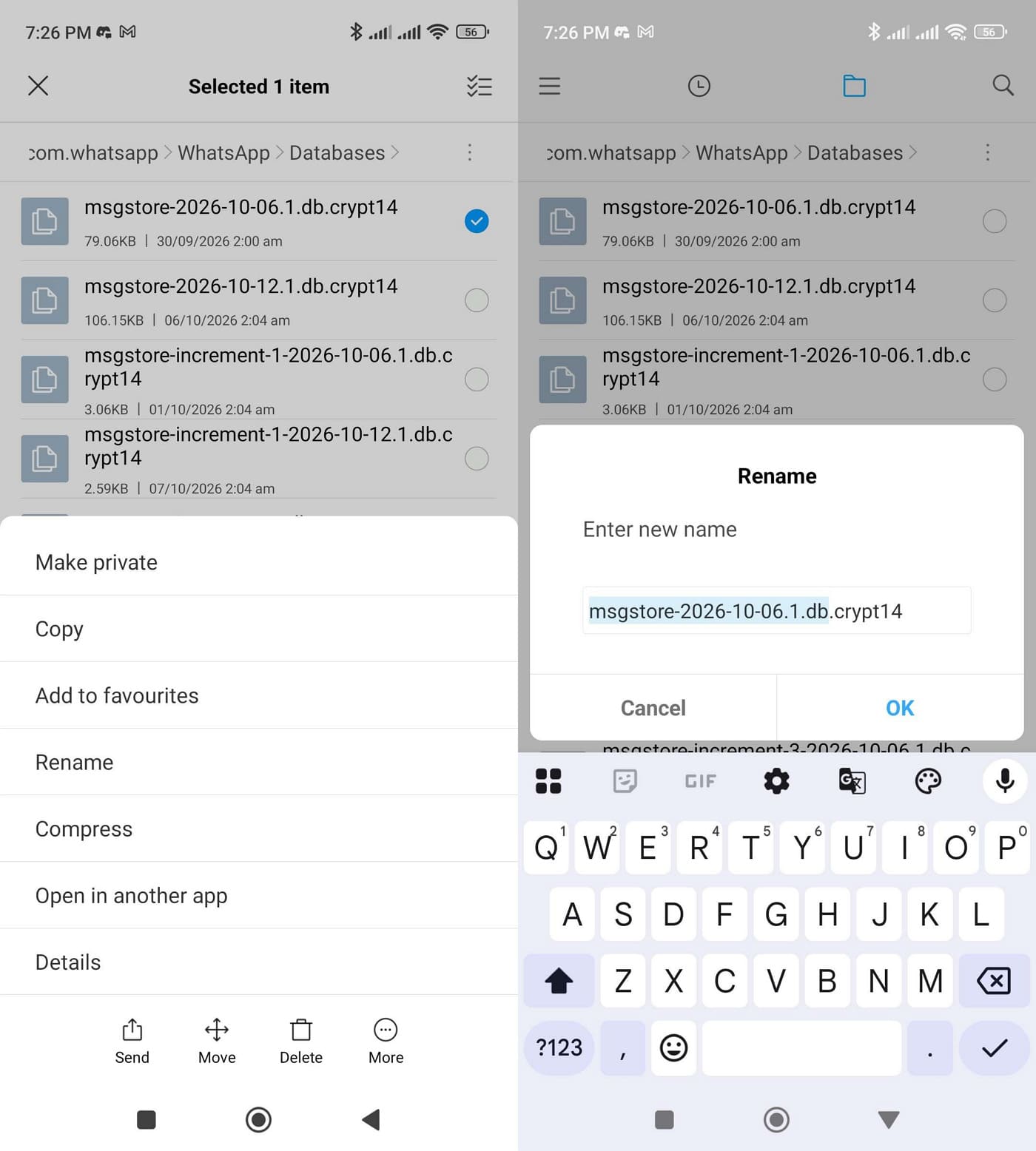
Open a file manager and navigate to “Internal Storage > Android > media > com.whatsapp > WhatsApp > Databases.” Find a dated msgstore-YYYY-MM-DD.1.db.crypt14 or msgstore-YYYY-MM-DD.1.db.crypt15 backup from before deletion. Keep the current backup and copy the Databases folder elsewhere.
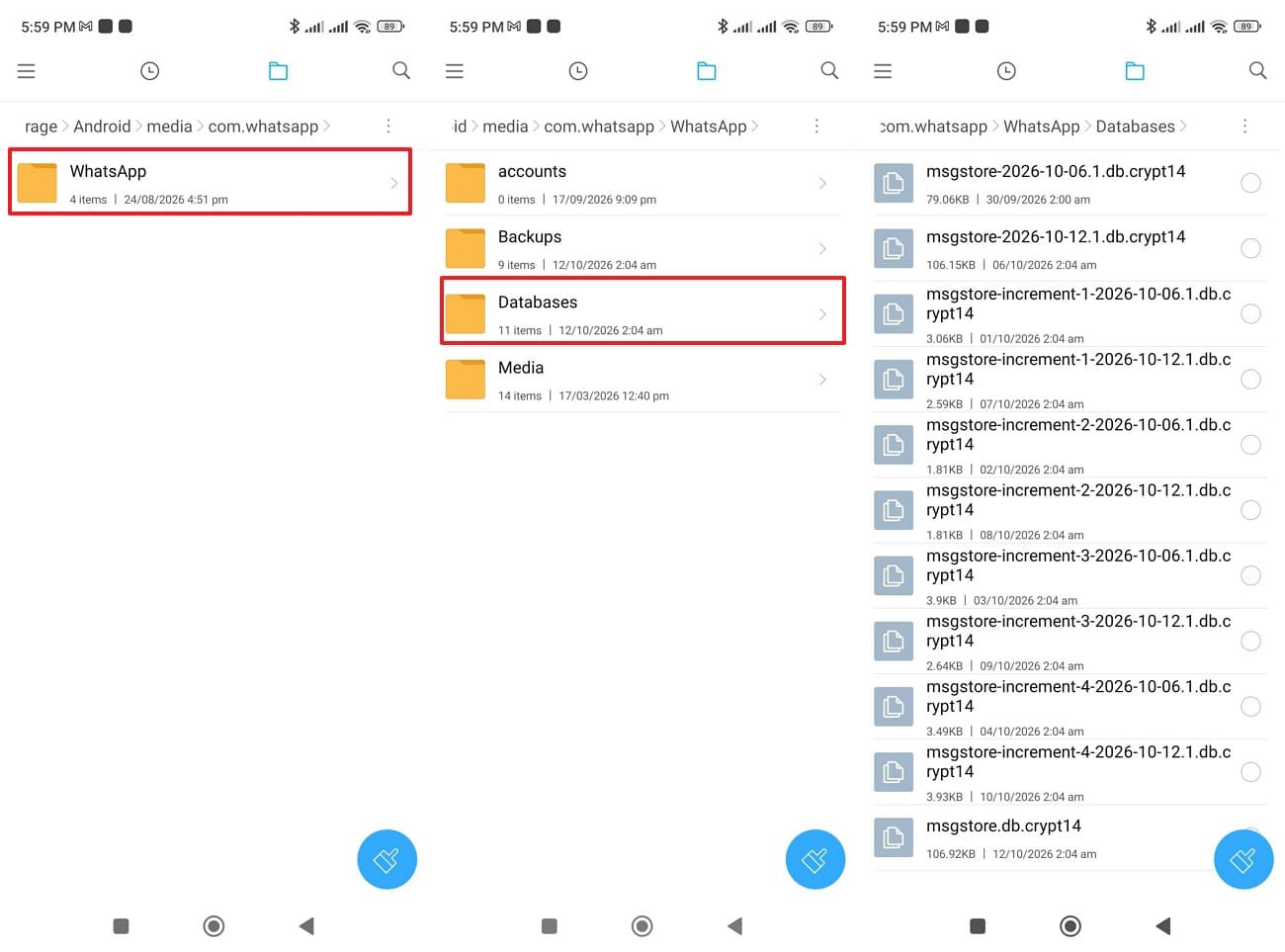 Note: The undated msgstore.db.crypt14 or equivalent file typically represents the latest local WhatsApp backup.
 -
Step 2
In the Databases folder, rename the current msgstore.db.crypt14 or msgstore.db.crypt15 to preserve it. Rename your selected dated backup to msgstore.db.crypt14 or msgstore.db.crypt15, matching its existing encryption extension. Never overwrite any existing files.
-
Step 3
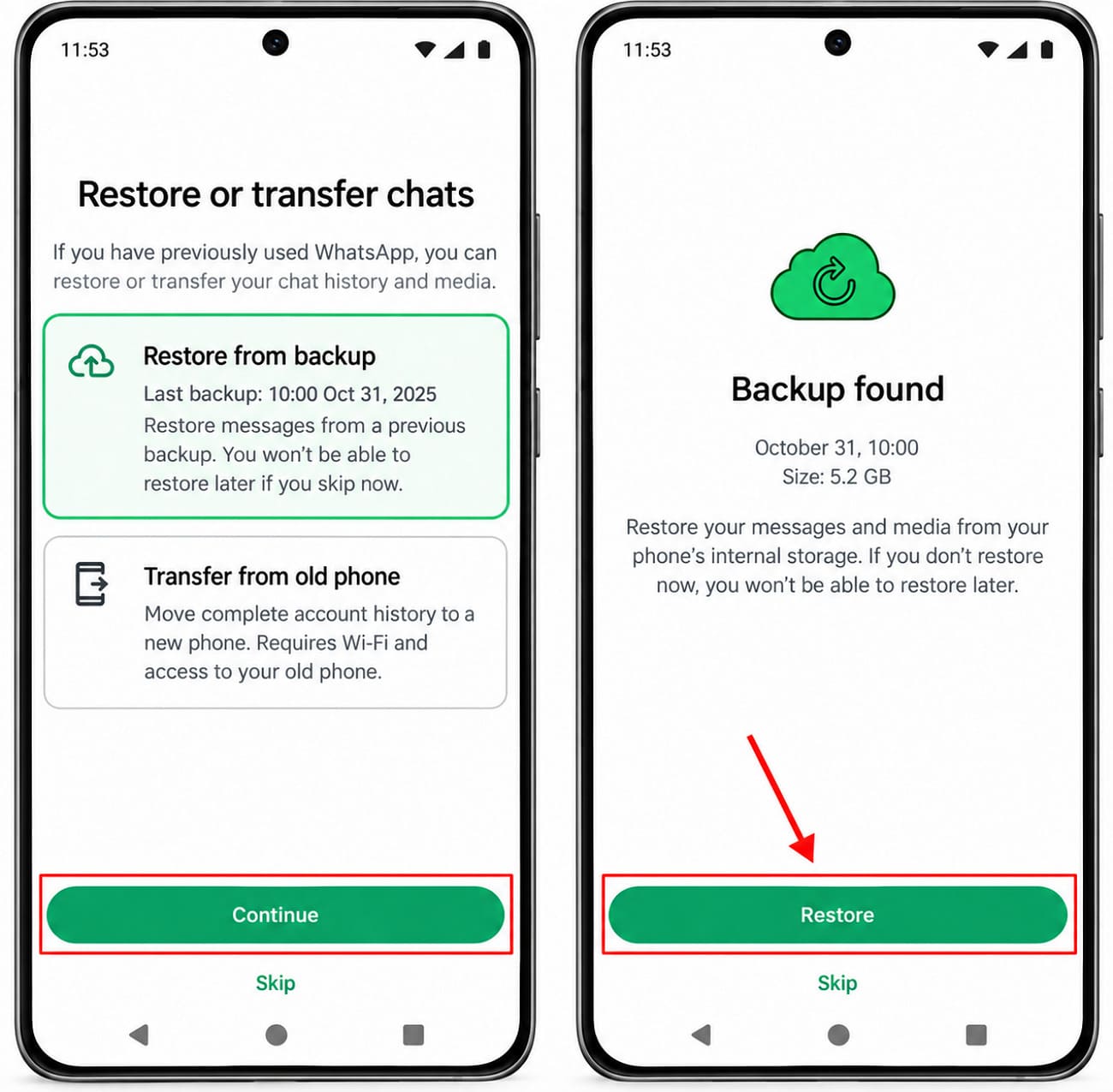
After reinstalling WhatsApp, verify your phone number and select “Restore from backup.” Tap “Continue,” then “Restore” when WhatsApp detects the local backup. Wait for the restoration to finish before accessing your chats.
Recover Deleted WhatsApp Photos from Existing Android Media Copies
WhatsApp photos may still exist in Google Photos, your phone's storage, or another app even after they disappear from a conversation. Before you run a device scan, check these locations for copies you can recover. For WhatsApp recovery involving missing photos and videos, follow these steps to find any files that remain accessible:
Check Google Photos and Gallery Trash
Instructions. Open Google Photos, go to “Collections > Bin,” hold the missing photo, and press the “Restore” button.
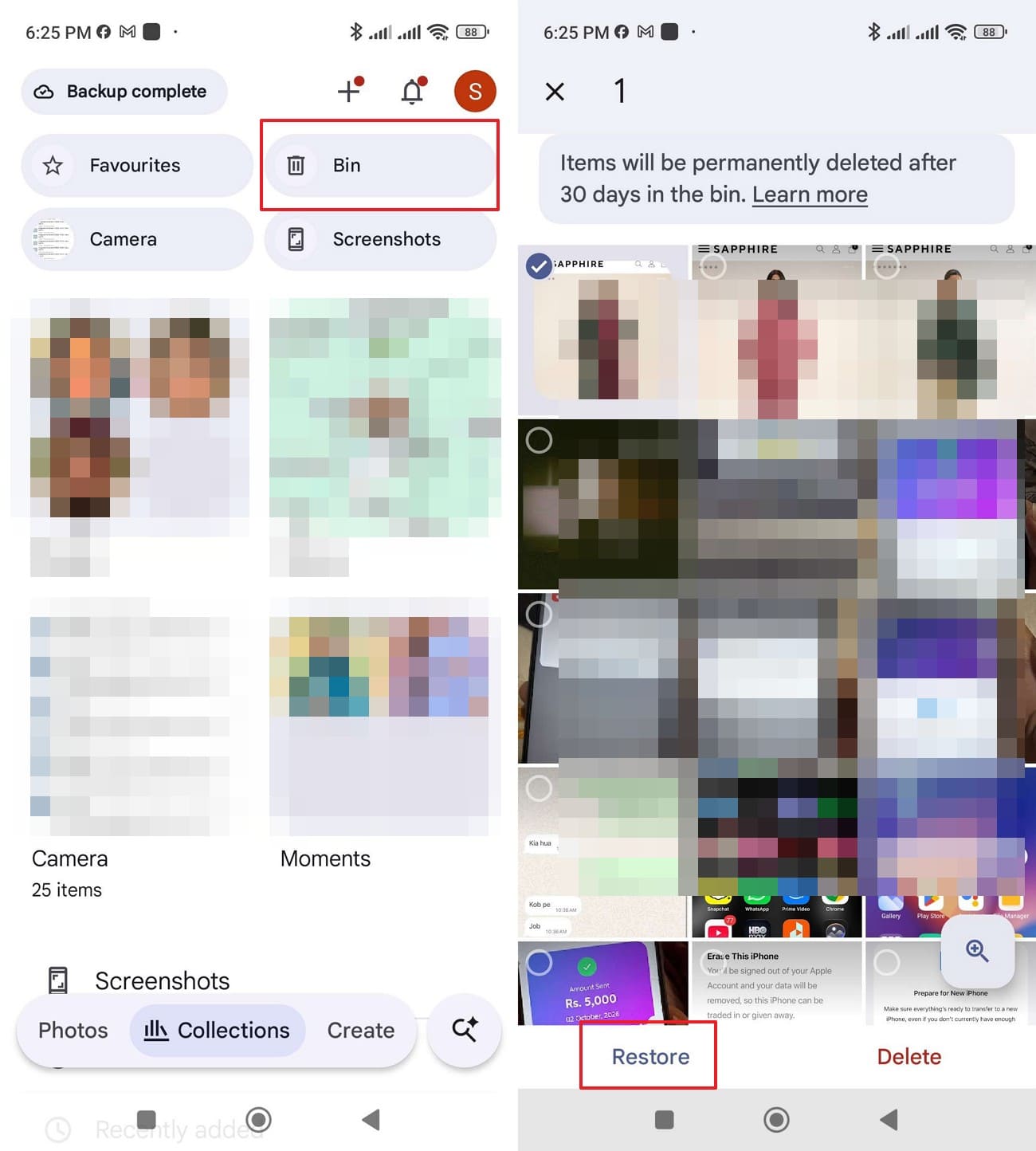
According to Google Photos, backed-up photos remain in Trash for 60 days, while photos without backups are retained for 30 days. You can also check your phone's Gallery app for a separate Recycle Bin or Recently Deleted folder.
Search Other Folders and Cloud Backups
Check the Downloads, Pictures, and WhatsApp Media folders for saved copies of missing photos. You can also look through cloud storage services, such as Google Drive or OneDrive, if you previously uploaded them. If no copy exists, ask the sender to resend the files. An earlier WhatsApp backup or a compatible Dr.Fone scan can also help recover deleted media.
Part 5. Dr.Fone WhatsApp Advanced Recovery: Compatibility and Limitations
Before using Dr.Fone Advanced Recovery to recover deleted WhatsApp messages on Android, it's important to understand its compatibility requirements and technical limitations. While the feature supports WhatsApp data recovery, its availability depends on your Android version and device model. Here are the key considerations:
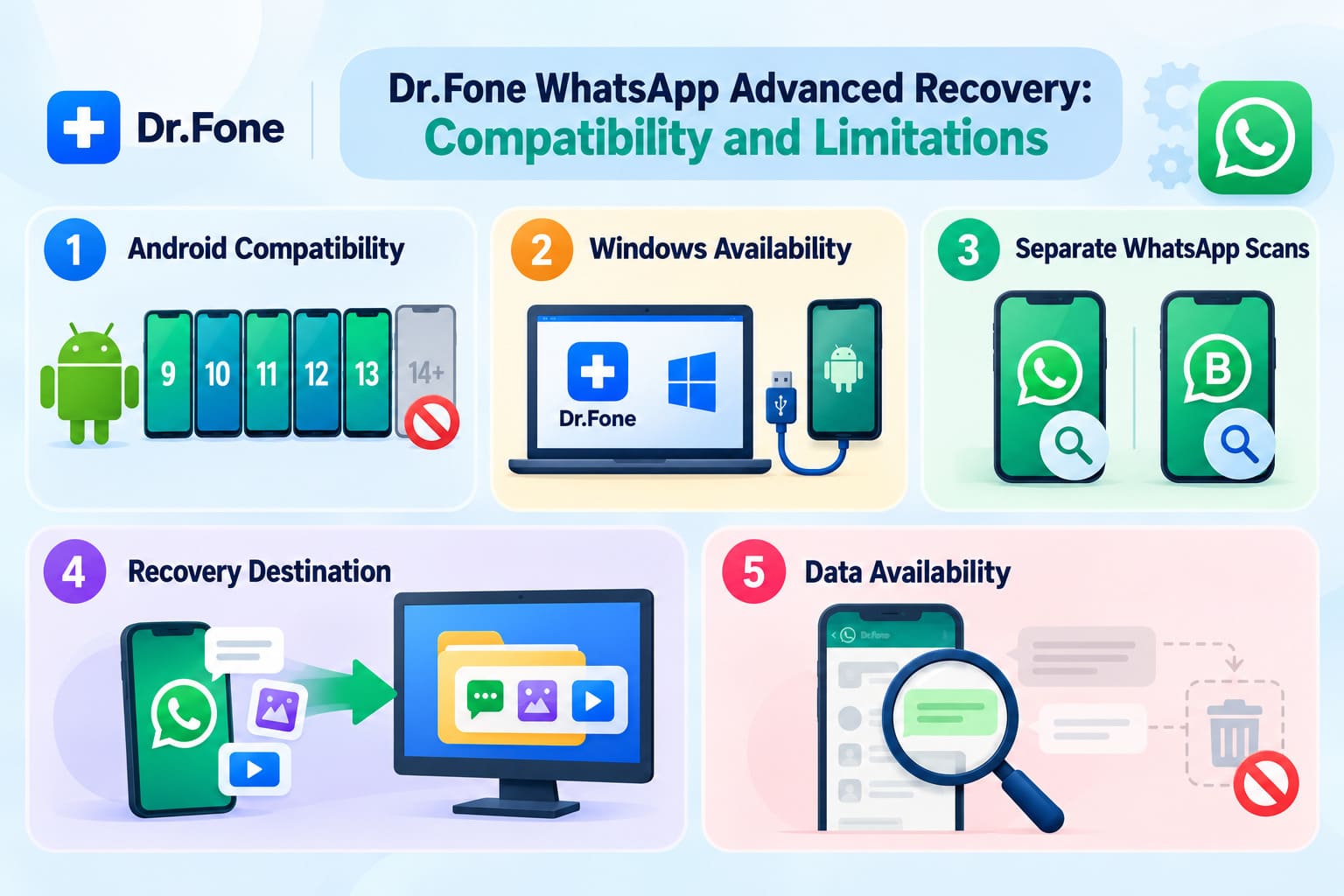
- Android Compatibility: Advanced Recovery supports Android 9 through 13, excluding Huawei devices running Android 12 or 13. Android 14 and newer versions are not supported.
- Windows Availability: The feature is available through Dr.Fone for Windows and requires a compatible Android device connected via USB.
- Separate WhatsApp Scans: WhatsApp and WhatsApp Business require separate scans through their respective Advanced Recovery options.
- Recovery Destination: Recovered chats and attachments are saved to a computer. The feature does not restore deleted conversations directly into WhatsApp.
- Data Availability: Recovery depends on whether deleted messages and attachments remain accessible in the device's storage. Overwritten data cannot be recovered through this method.
Conclusion
Existing backups, local databases, and saved media files are worth checking before attempting WhatsApp recovery. However, if no usable backup contains the missing chats, Dr.Fone - Data Recovery (Android) offers Advanced Recovery to recover deleted WhatsApp messages without backup. It scans compatible Android devices for accessible chats and attachments, allowing you to preview and save recovered data to your computer.
FAQ
-
1. Can I recover WhatsApp messages deleted for everyone on Android?
An earlier WhatsApp backup created before the deletion might contain those messages. Dr.Fone - Data Recovery (Android) also offers Advanced Recovery to scan compatible devices for accessible deleted chats. However, messages removed for everyone are not always recoverable. -
2. Can I recover WhatsApp chats after a factory reset if no backup exists?
A factory reset erases local data and typically destroys the encryption keys needed to access deleted WhatsApp messages. Without an earlier backup, recovery is generally not possible. Even Dr.Fone - Data Recovery (Android) cannot retrieve data that is no longer accessible after a reset. -
3. Can I transfer WhatsApp chats from an old Android phone without using Google Drive?
Yes, WhatsApp's built-in chat transfer feature lets you move existing conversations between Android phones without a Google Account backup. Both devices must meet the transfer requirements, and you must use the same phone number. However, this method only transfers available chats, not previously deleted messages.
 Add Wondershare Dr.Fone as a preferred source on Google