 Recover photos, messages, WhatsApp, and more — no backup
needed.
Recover photos, messages, WhatsApp, and more — no backup
needed.

 100% Security Verified | No Subscription Required | No Malware

 :
: 
 ChatGPT
 Perplexity
 Gemini
 Claude
 Grok
Grok
Without a traditional iCloud or computer backup, recovery depends on whether the missing data remains in Recently Deleted, a synced account, or a supported device scan. Photos, Messages, and Notes hold trash items for 30 days, while online accounts keep synced copies. If those sources do not contain the missing data, a supported device scan can check what remains accessible on the iPhone.
Retrieval straight from the device preserves current setups instead of rolling back the system. Native folders and accounts take priority before any scan. When those fail, this guide explains how Dr.Fone - Data Recovery (iOS) and its Standard Recovery scan help users recover data from iPhone 18 without a backup.
In this article
Part 1. Which iPhone 18 Data Can Be Recovered Without a Backup?
Different iPhone data types have different recovery options after deletion. To recover data from iPhone 18 without a backup, first check Apple’s built-in recovery locations. Photos, messages, notes, reminders, files, and voice memos may remain in Recently Deleted. Contacts and calendars may still exist in synced accounts. The table below shows where to check first for each data type on iPhone 18:
| Lost Data Type | First Place to Check |
|---|---|
| Photos and Videos | Start with Recently Deleted. If the item was not deleted, check Hidden and Recovered as well. |
| Messages and Attachments | Look for deleted conversations and attachments in Recently Deleted within Messages. |
| Contacts | Review contact lists and synced accounts, including iCloud, Google, or Exchange. |
| Notes and Attachments | Check Recently Deleted for the account storing the note. Also confirm that Notes sync is enabled. |
| Call History and Voice Memos | Look for deleted recordings in Voice Memos > Recently Deleted. Call history has no equivalent Recently Deleted folder. |
| Calendars and Reminders | Review the connected account for missing calendar data. For deleted reminders, check Recently Deleted as well. |
| App Photos, Videos, and Documents | Check the original app. For content saved in Files, also review Files > Recently Deleted. |
| Social App Data | Check the relevant social app, its supported cloud or synced source, and any available app backup. |
Start with the relevant Apple, account, or app recovery option above. If the missing data is unavailable there, scan the connected iPhone directly. Dr.Fone can scan supported device data, while social-app recovery availability depends on the app, device, iOS version, and recovery source.

Part 2. Recover iPhone 18 Data Using Apple’s Built-In Options First
Apple’s built-in options come first, since they’re free and return items to their original apps without touching anything else. These are the first places to check when you want to recover data from iPhone 18 without a backup:
Restore Photos and Videos from Recently Deleted
Start with Recently Deleted if you intentionally or accidentally removed a photo or video. Apple keeps deleted photos and videos there for 30 days before permanently removing them. If the picture was never deleted but has disappeared from the main library, check Hidden and Recovered separately. The following directions cover steps for each in detail:
1. For Recently Deleted
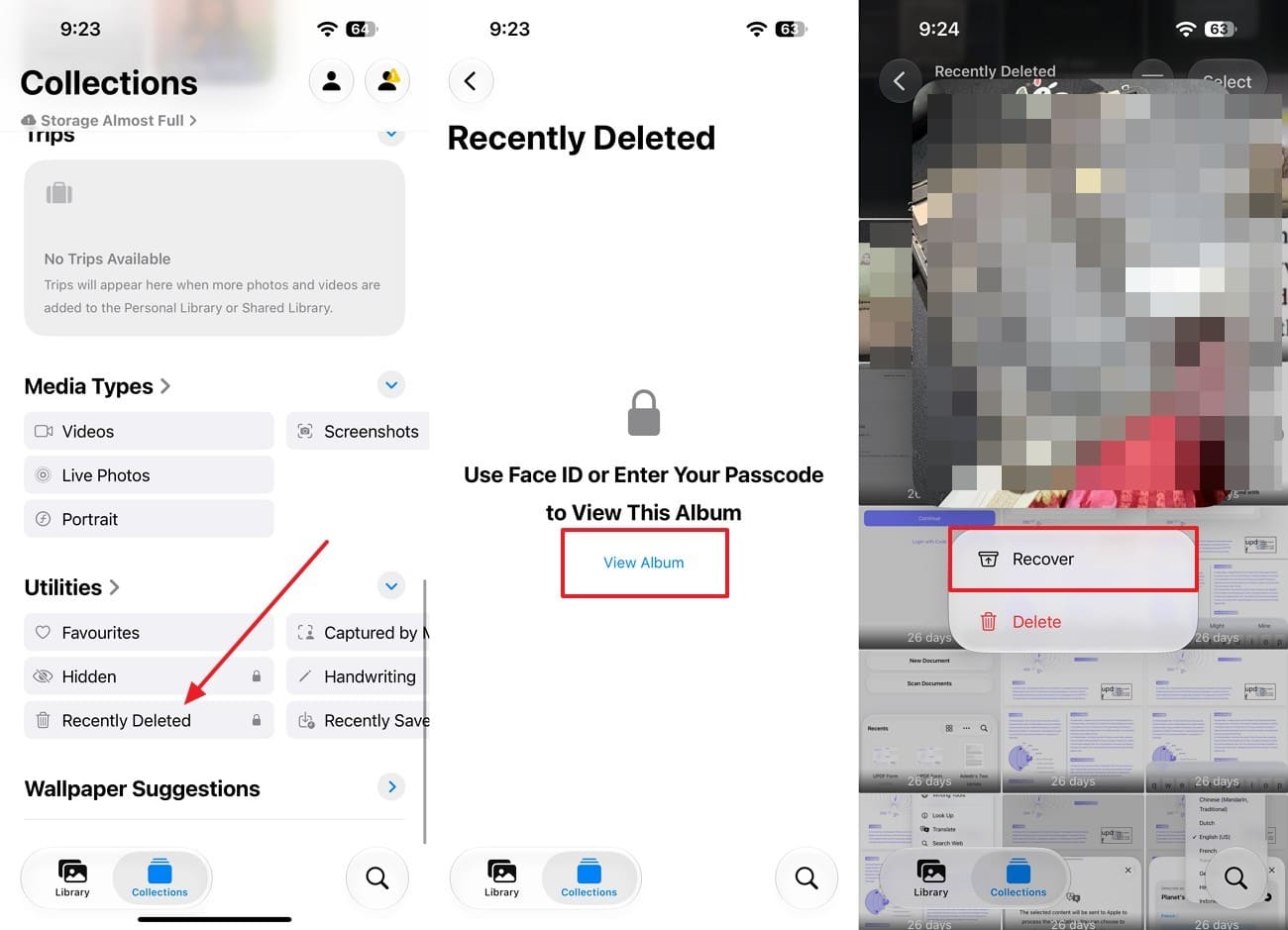
Instructions. Open Photos, tap “Collections,” then find “Recently Deleted” under “Utilities.” Tap “View Album,” then use Face ID, Touch ID, or your passcode to unlock it. Long-press the image you want back and select “Recover” to confirm.
2. Check Hidden If the Photo Wasn’t Deleted
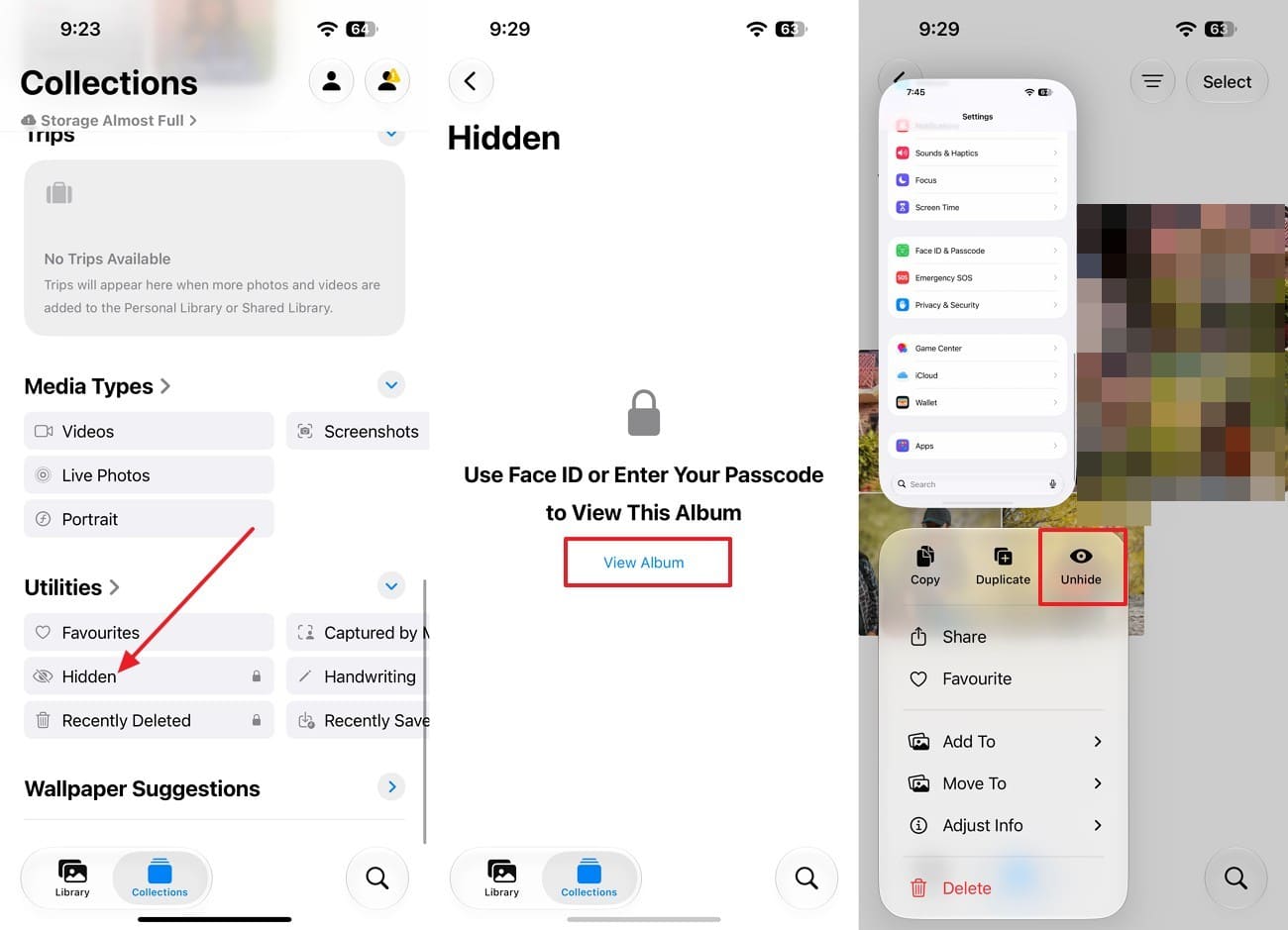
Instructions. Under “Utilities,” select “Hidden,” then unlock the album with Face ID or your passcode. Choose the image and select the “Unhide” option.
3. Check Recovered Album
Instructions. If the photo still does not appear, go to “Collections > Utilities > Recovered.” Unlock the album, select the missing item, and tap “Restore to Library.” The Recovered album appears only when iOS detects photos or videos on the device that are not currently part of the library.
Recover Deleted Messages from Recently Deleted
If deleted texts are still in Recently Deleted, Messages gives you another way to recover data from the iPhone 18 without a backup. Apple’s current iOS 27 guide says you can recover deleted messages for up to 30 days. If Messages in iCloud is enabled, recovering a message or conversation on the iPhone also restores it on your other devices. After understanding the details, follow these steps to recover messages on iPhone 18:
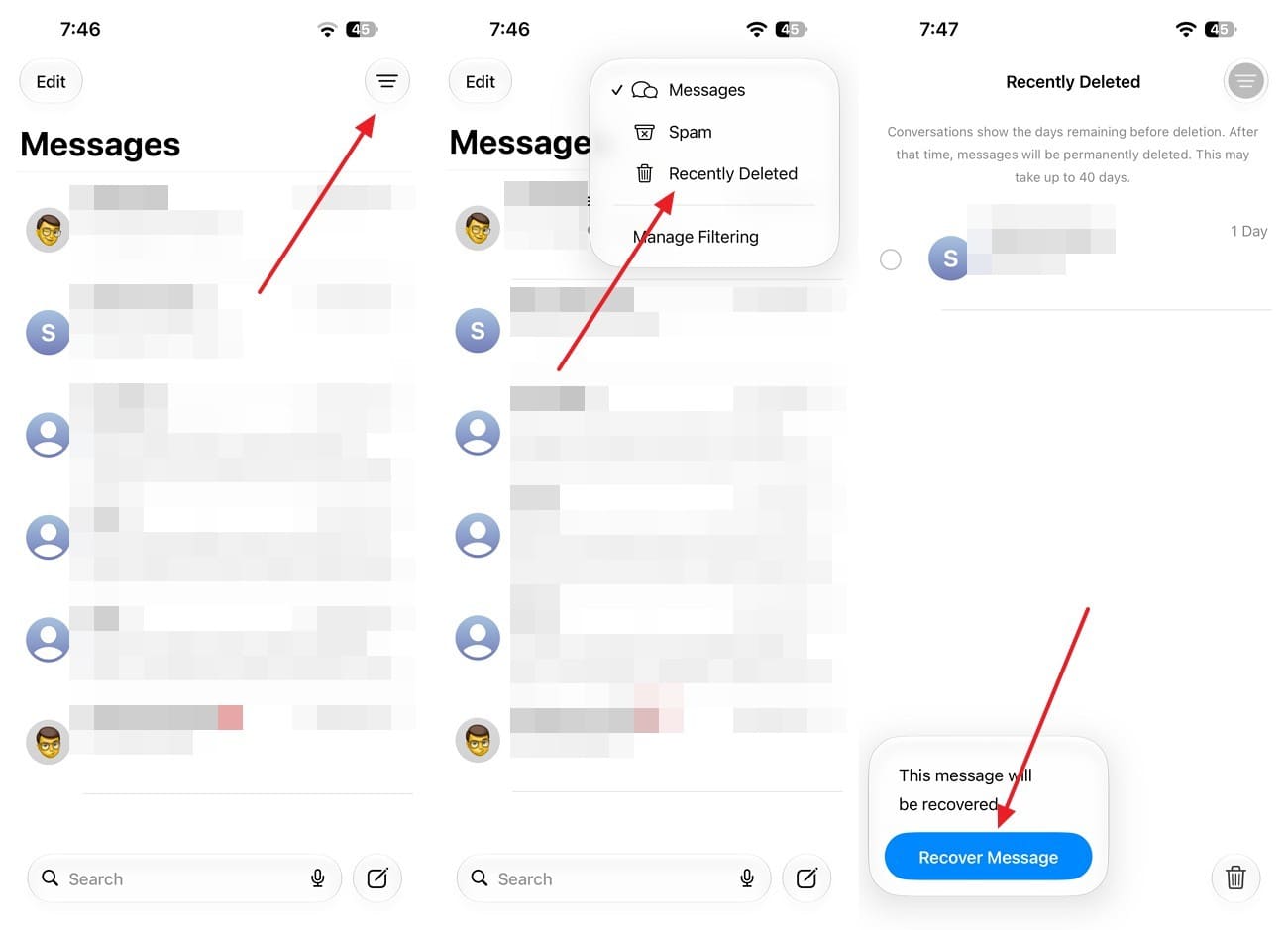
Instructions. Open Messages and, from the conversation list, pick “Filter > Recently Deleted.” Select the conversation containing the messages you want to restore, then choose “Recover > Recover Messages” to restore.
Restore Deleted Notes from Recently Deleted
Notes has its own Recently Deleted folder, which Apple will not display until you’ve removed something. It is another place to check when you need to recover data from iPhone 18 without a backup. Notes app keeps deleted iCloud or iPhone notes in Recently Deleted for 30 days.
If the note came from Gmail, Yahoo, or another third-party account, check that account’s Trash folder instead. So, here is how you can restore notes on iPhone 18:
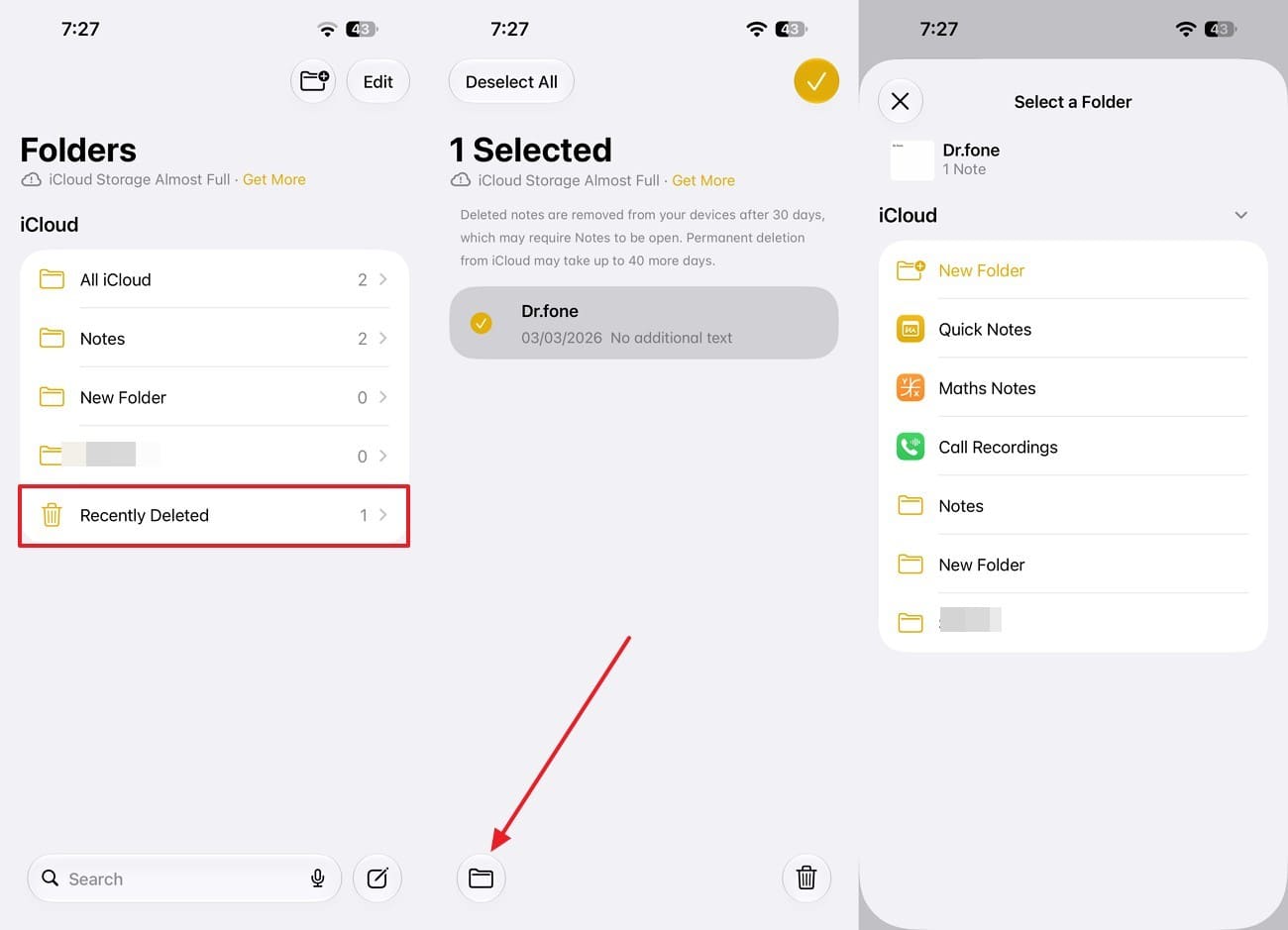
1. Check Recently Deleted
Instructions. Open Notes and tap the back button until you reach the “Folders” list. Choose “Recently Deleted” and look for the missing note. Press “Edit,” select the note, choose “Move,” and pick the folder where you want to restore it.
2. Check Third-Party Accounts
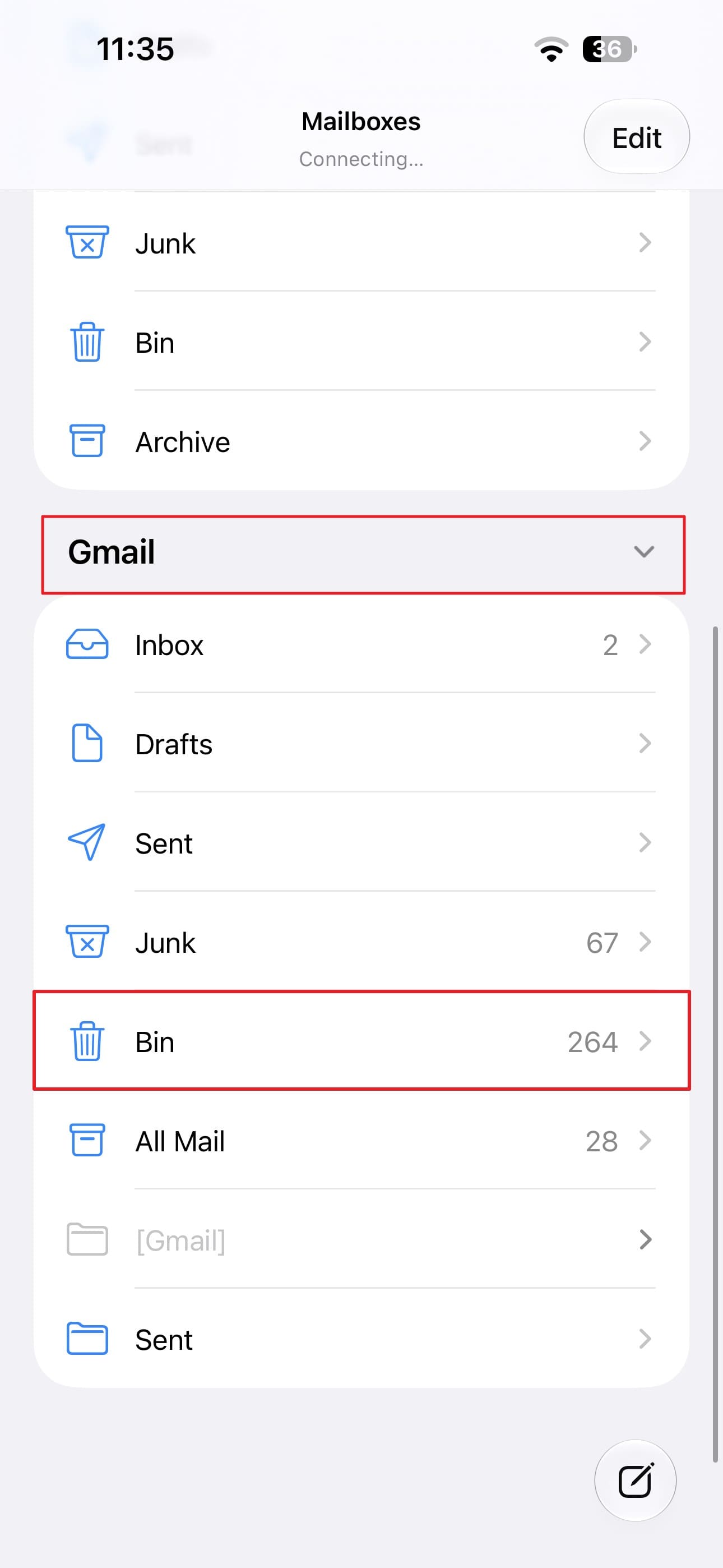
Instructions. If the note was stored with Gmail, check that account’s Trash in Mail. There, go to Mailboxes and select “Bin” under the “Gmail” section. Open the missing note, copy its contents, then open the “Notes” app and paste them into a new note.
3. Check Account Sync
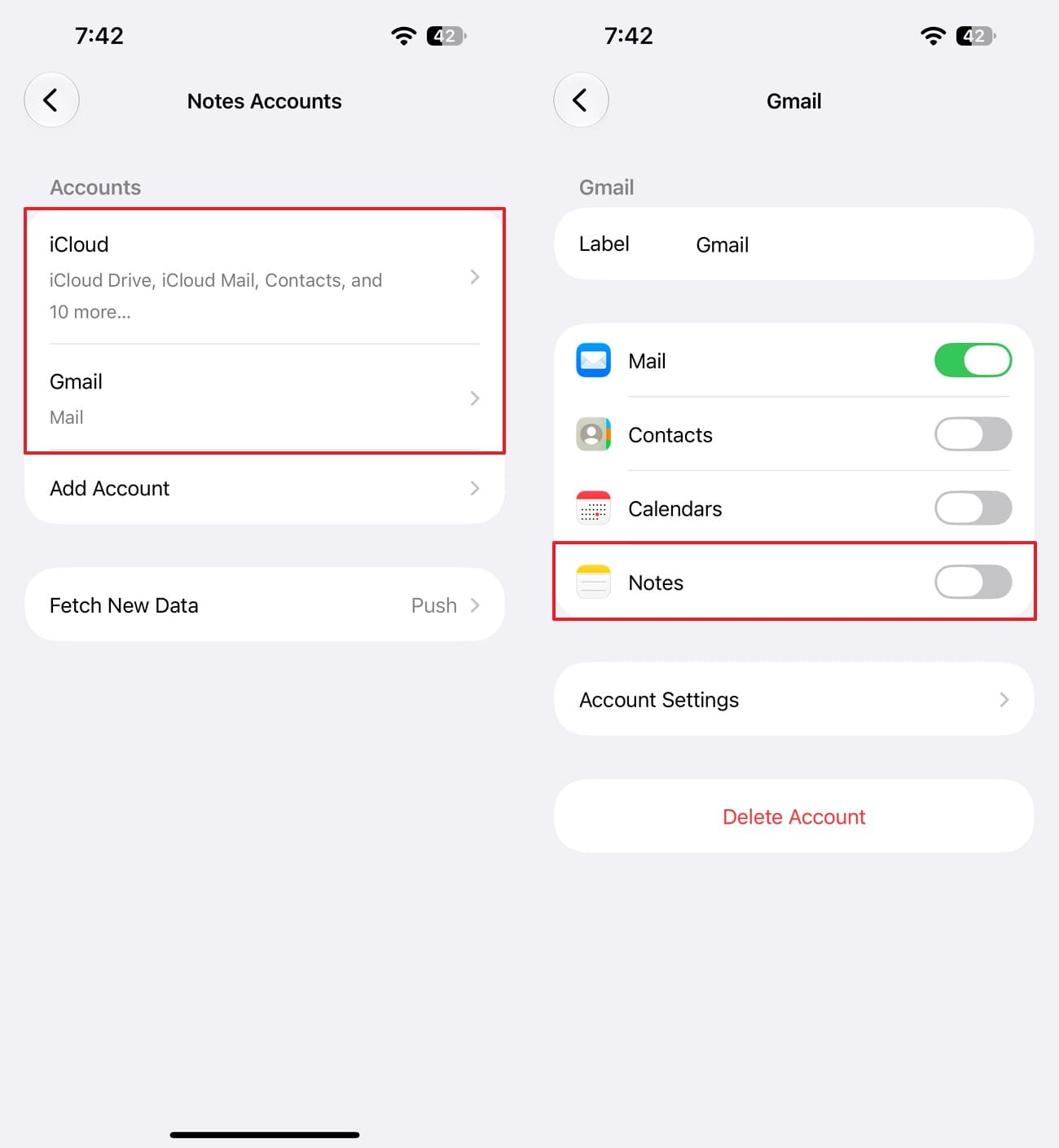
Instructions. If the note was not deleted, go to “Settings > Apps > Notes > Notes Accounts,” select the relevant account, and make sure “Notes” is turned on.
Resync Missing Contacts, Calendars, and Reminders
When contacts, calendar events, or reminders disappear, check the account that stores them before trying a device scan. They may still exist in iCloud, Google, Exchange, or another synced account even when they no longer appear on the iPhone 18. These account-level options can help you recover data from your iPhone 18 without a backup without replacing the rest of the phone. Here are the required instructions for each data type:
1. Resync or Restore Missing Contacts
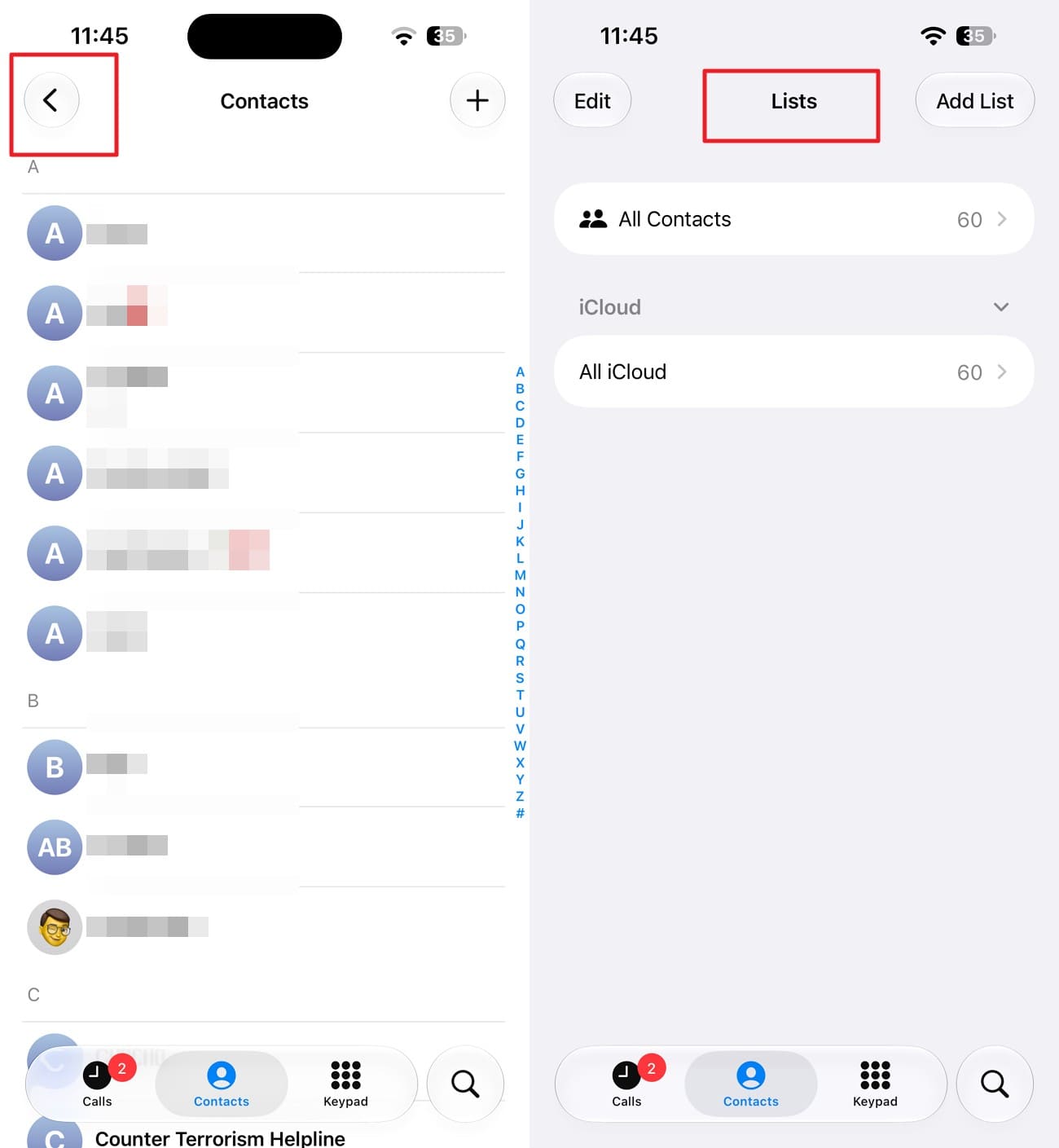
Step 1. Open “Contacts,” select the “<” icon, and access “Lists” to check the available account lists to identify where the missing contacts were stored.
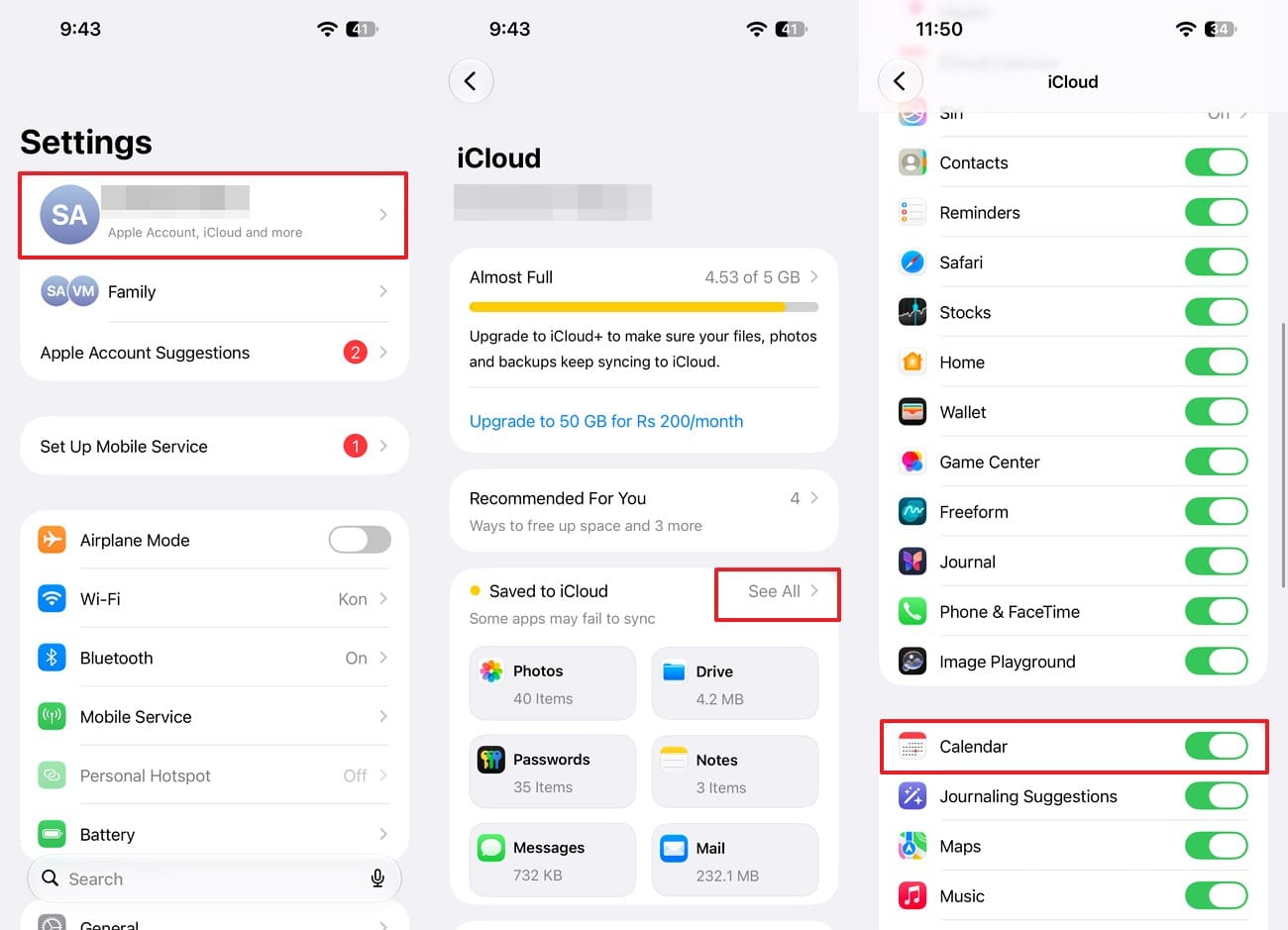
Step 2. Go to “Settings > [Your Name] > iCloud > See All,” then make sure “Contacts” is turned on for iCloud contacts.
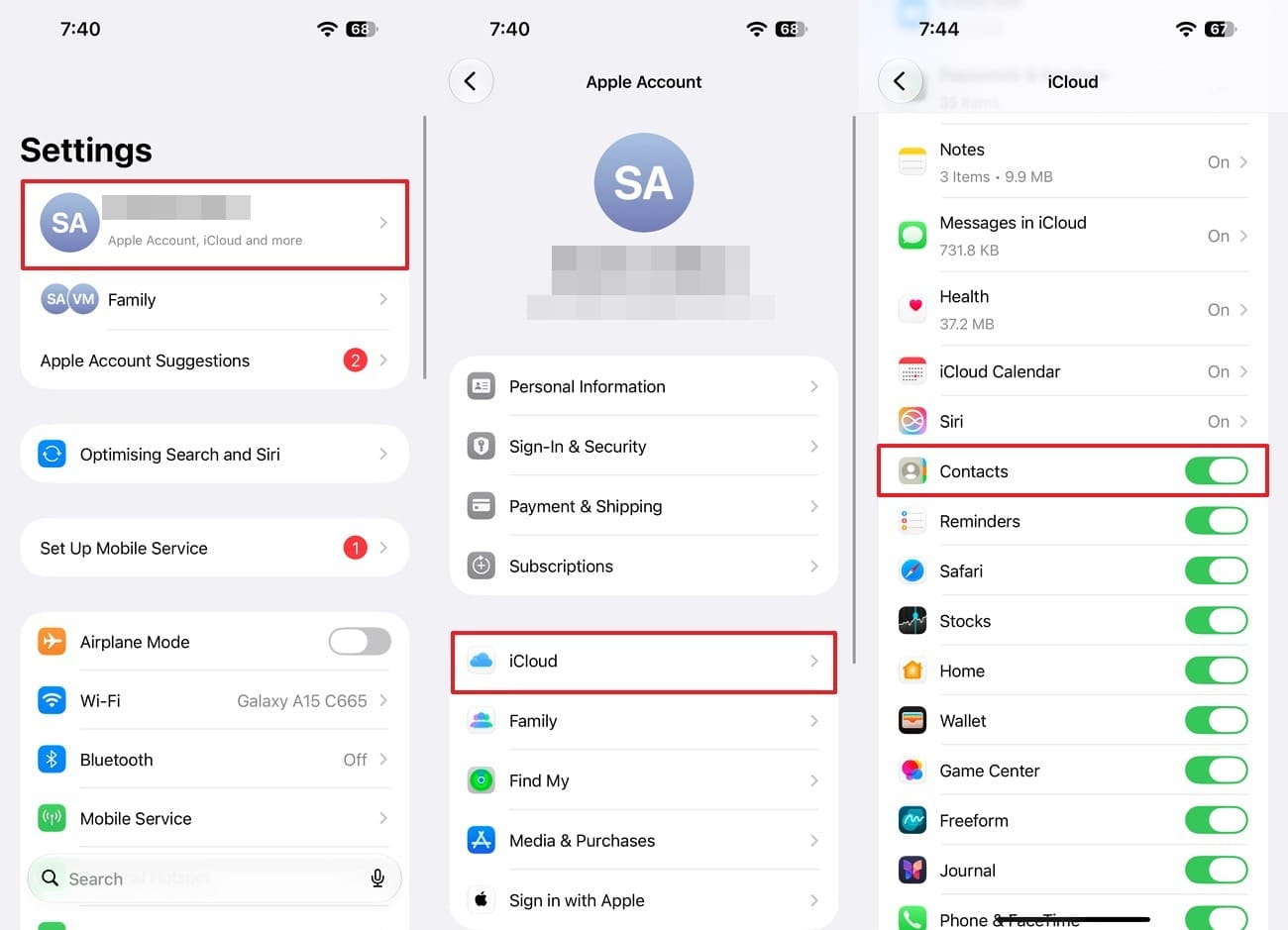
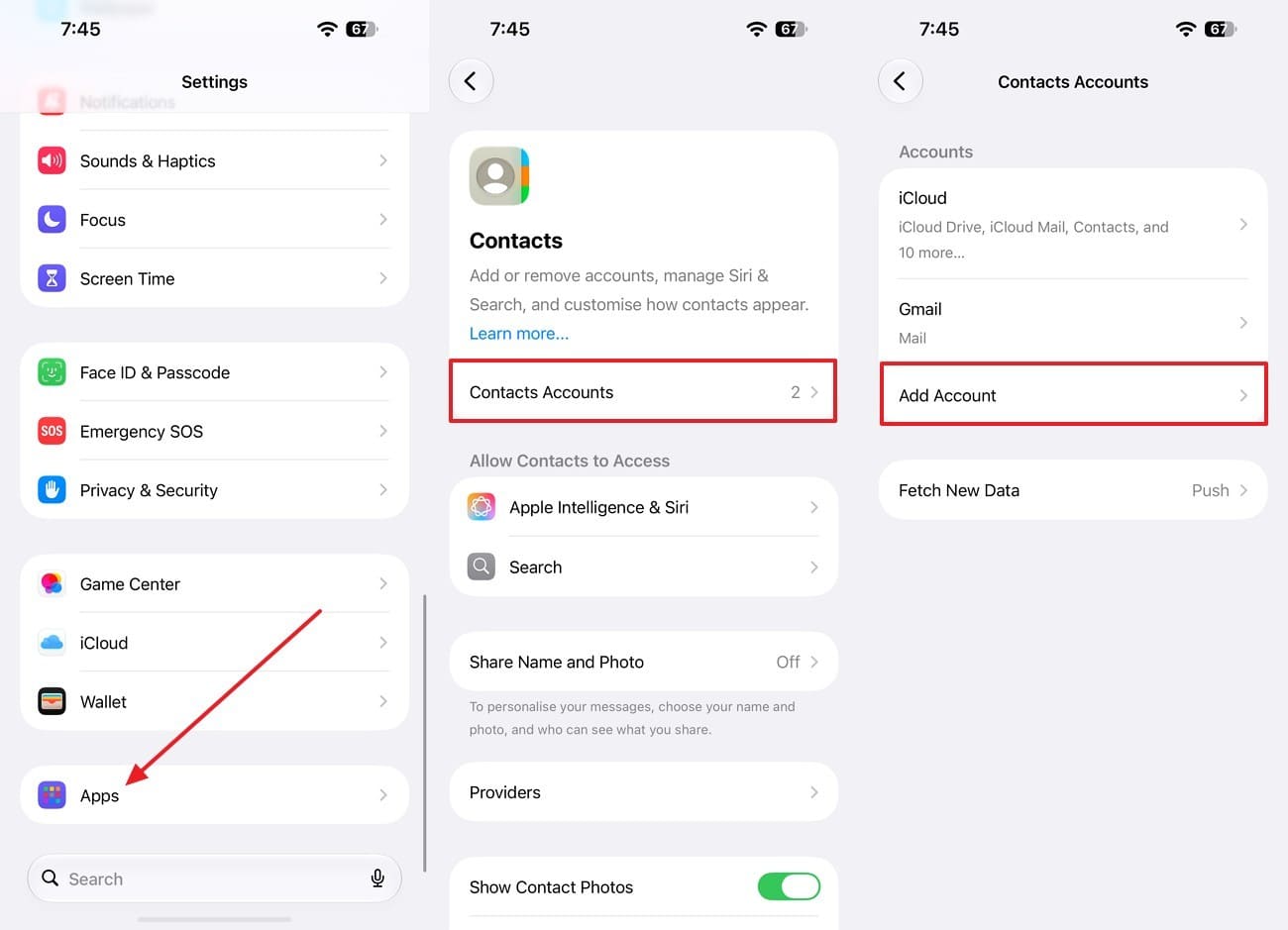
Step 3. For Google, Exchange, or another account, go to “Contacts > Contacts Accounts > Add Account.”
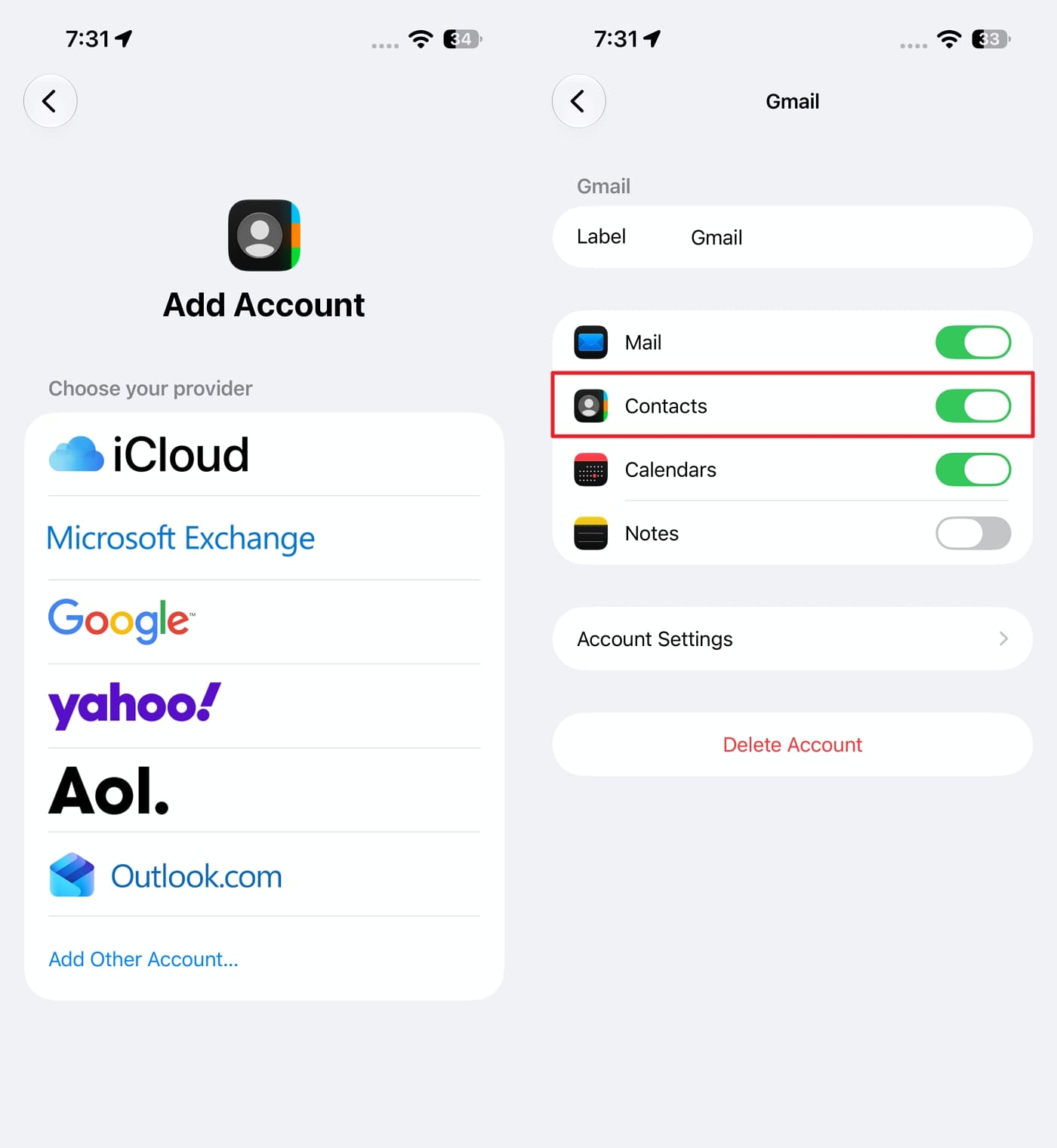
Step 4. Choose Google, Exchange, or iCloud, sign in to the relevant account, and enable “Contacts” to sync them.
2. Restore Deleted iCloud Contacts
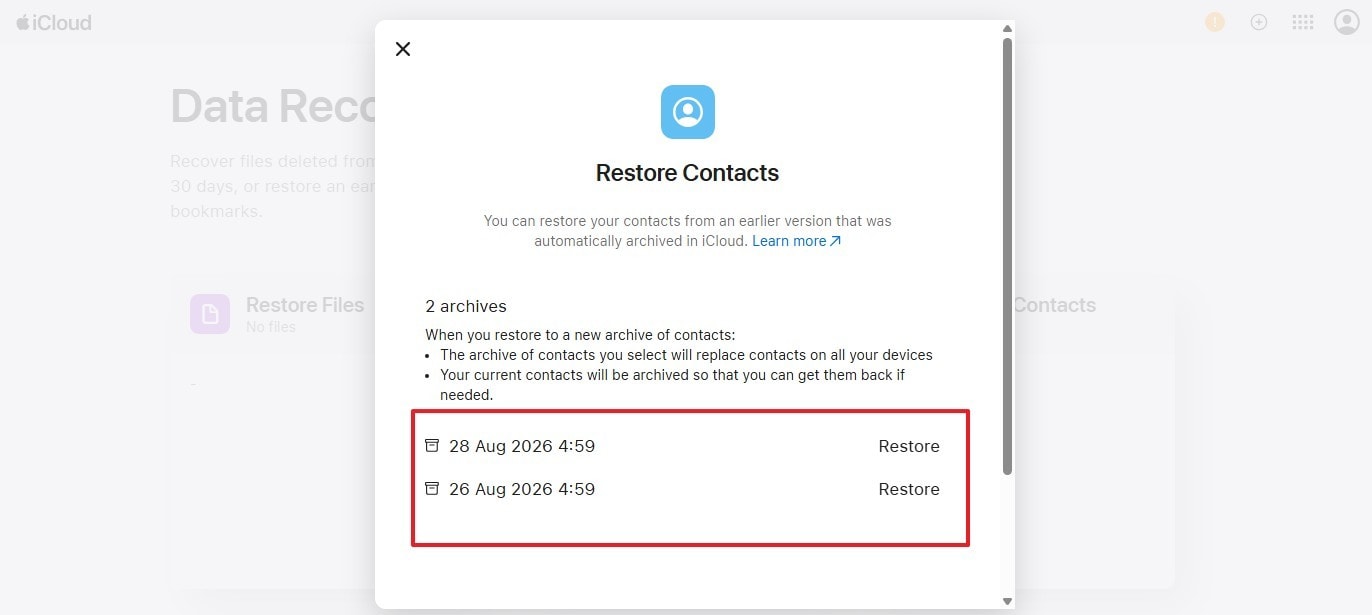
Step 1. If the contacts were deleted, sign in to iCloud.com on a tablet or computer and open “Data Recovery.”
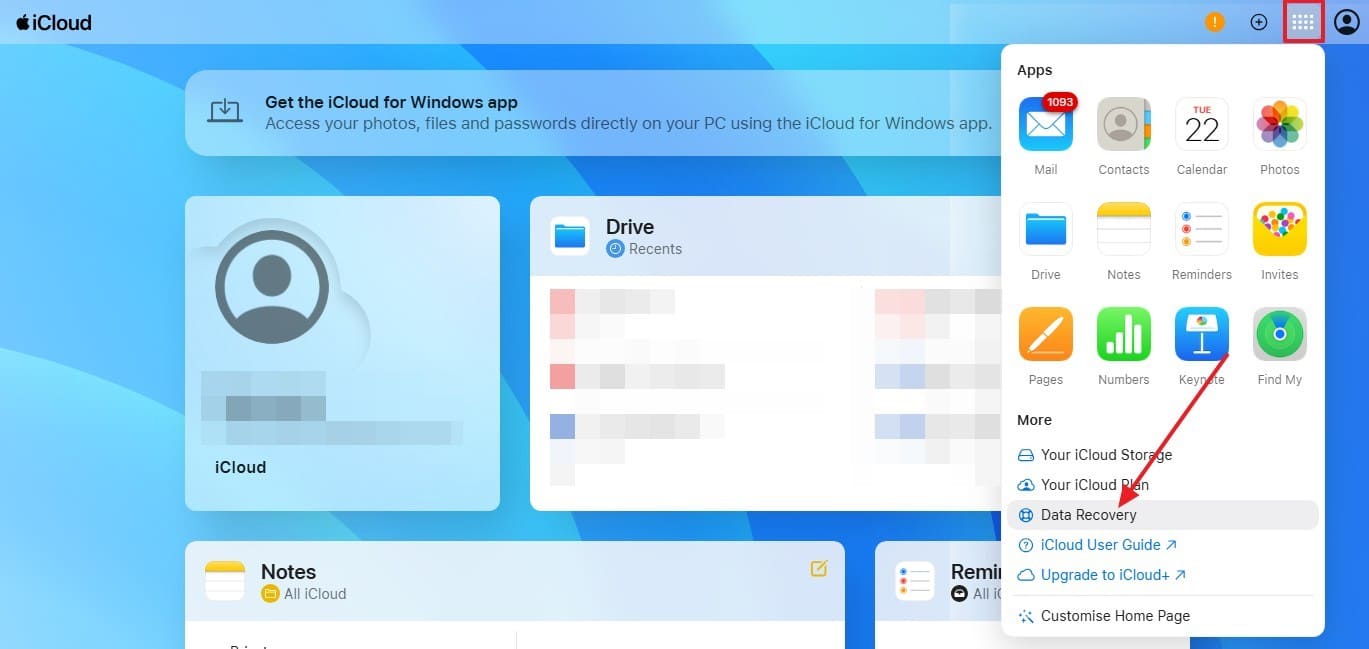
Step 2. Choose "Restore Contacts," select an archive from before the deletion, and click on "Restore."
3. Resync or Restore Missing Calendars
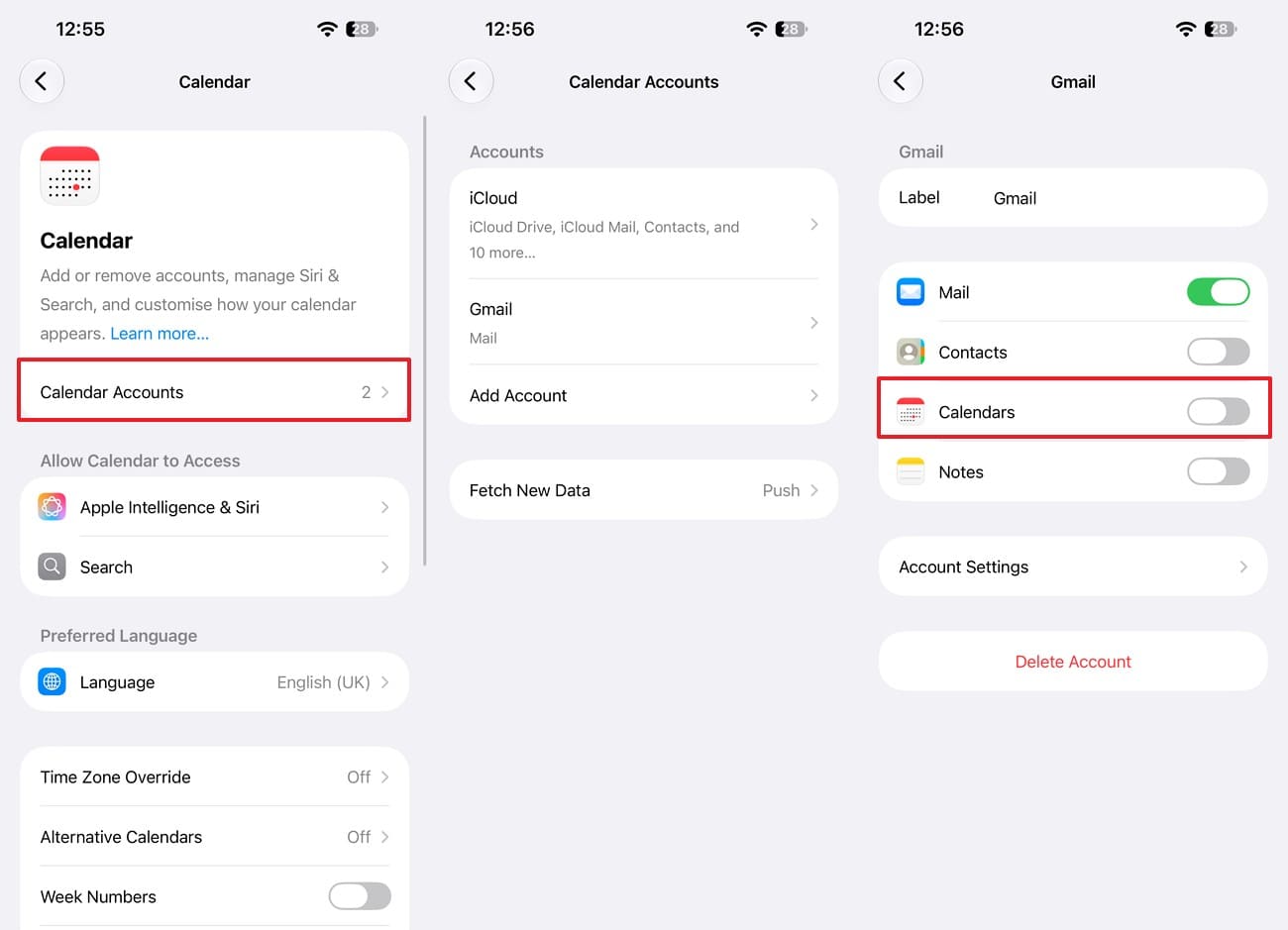
Step 1. Make sure the iCloud, Google, or Exchange account that stores the calendar is still connected. Choose “Apps > Calendar > Calendar Accounts” > Select the problematic account > Enable “Calendar.”
Step 2. To resync iCloud, choose “Settings > [Your Name] > iCloud > See All,” and toggle on “Calendar.”
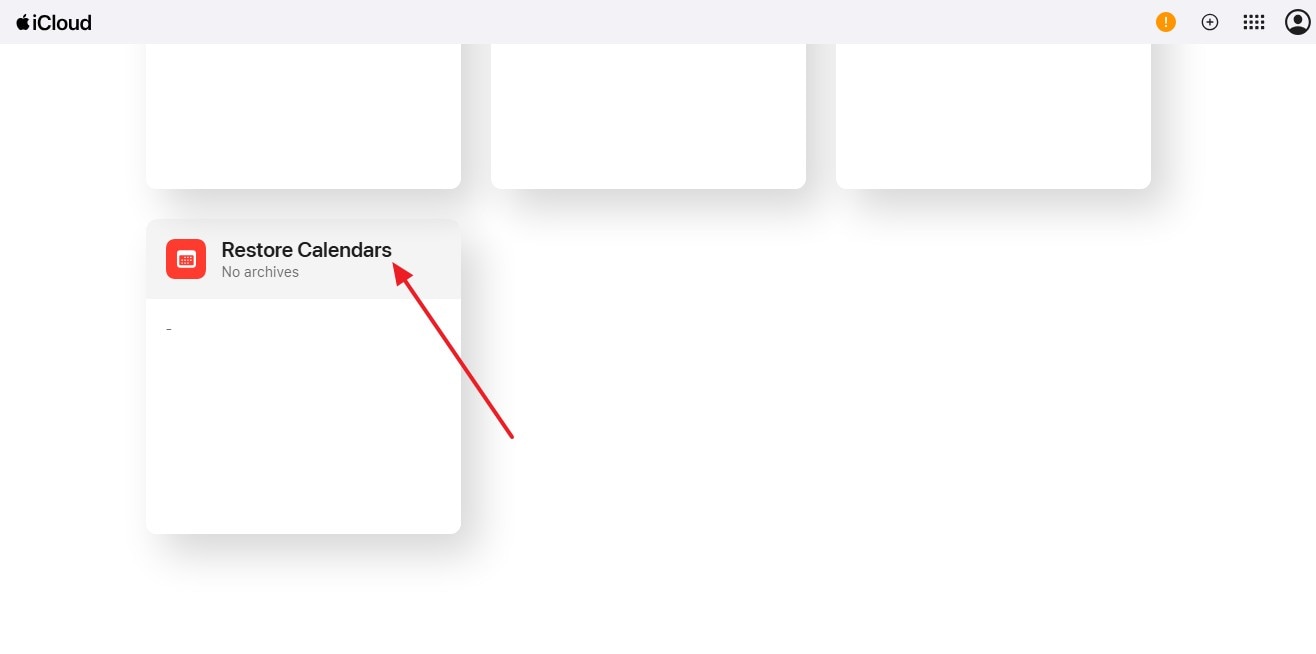
4. Restore a Deleted iCloud Calendar
Step 1. If an iCloud event was deleted, sign in to iCloud.com and choose “Data Recovery.”
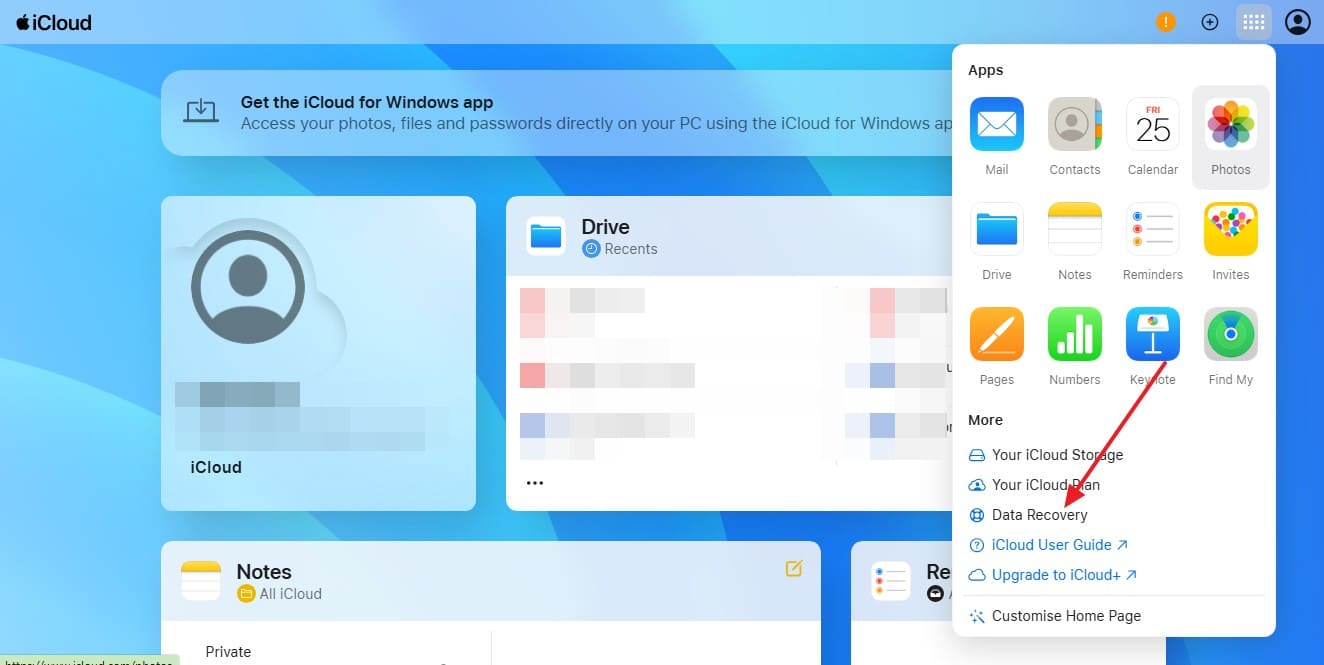
Step 2. Tap “Restore Calendars,” select an archived version from before the event disappeared, and choose “Restore.”
5. Recover Deleted Reminders
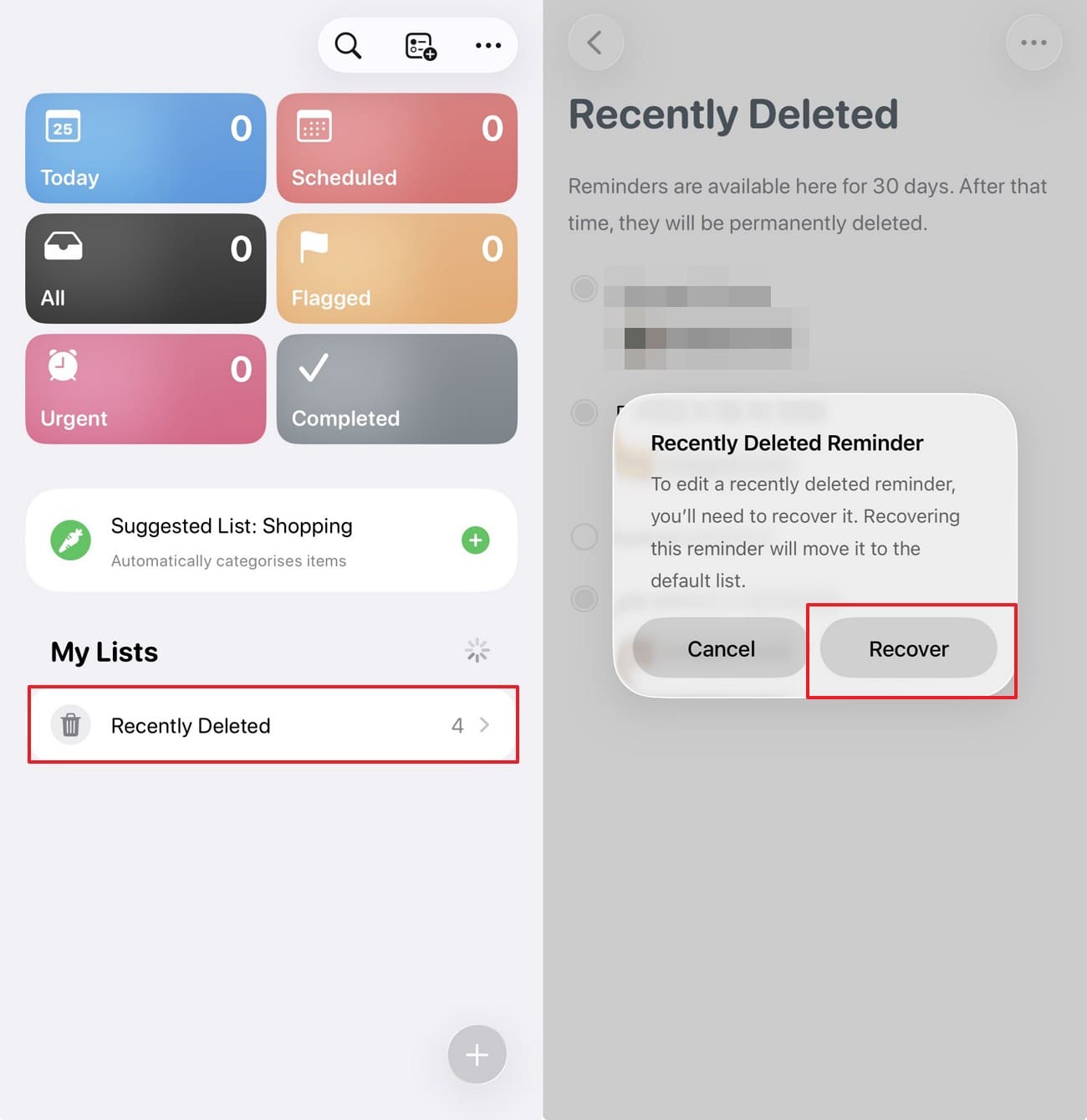
1. From Recently Deleted
Instructions. Open Reminders and access "Recently Deleted > Press "Select Reminders" > Pick the items you want back > Tap “Recover.”
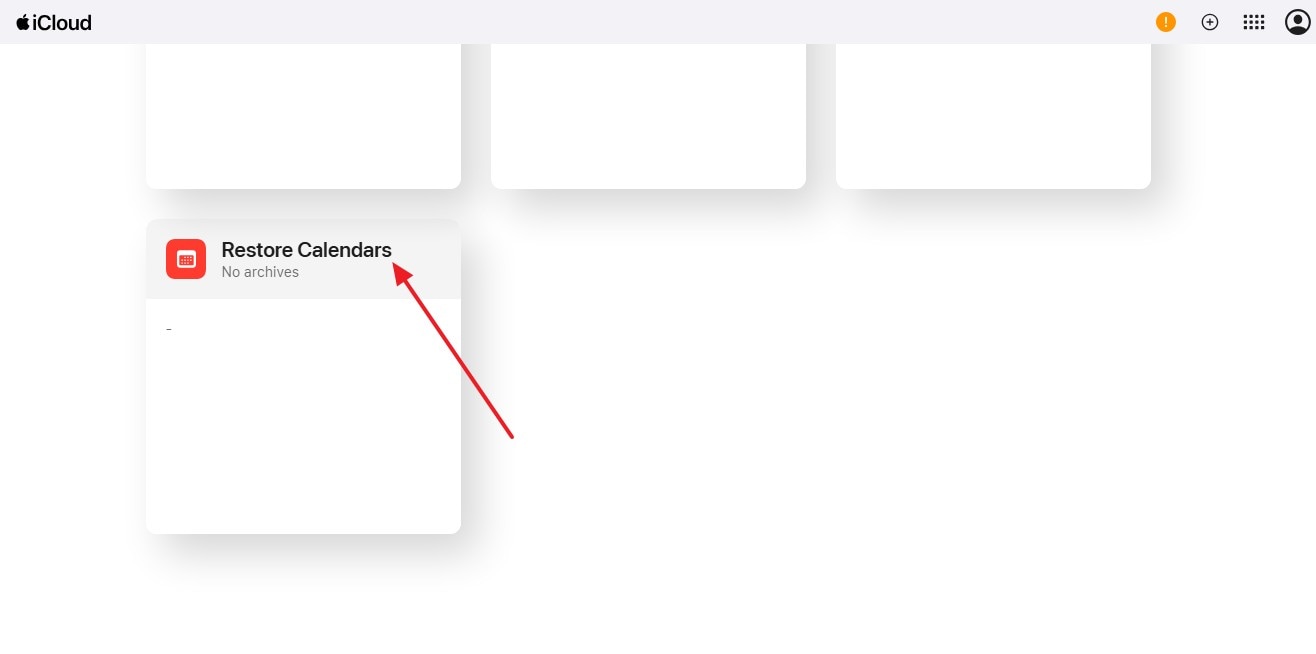
2. Restore Calendars and Reminders from iCloud Data Recovery
If the reminders are no longer in Recently Deleted, iCloud also lets you restore an earlier archived version through Data Recovery. Select the “Restore Calendars and Reminders” option, choose the archive, and select “Restore.”
Part 3. What Dr.Fone Can Scan Directly from iPhone 18 Without a Backup
If Recently Deleted and synced accounts don't contain the missing files, check the iPhone 18. Dr.Fone - Data Recovery (iOS) supports 35+ data types across its recovery features, while Standard Recovery scans compatible categories available for the connected iPhone.
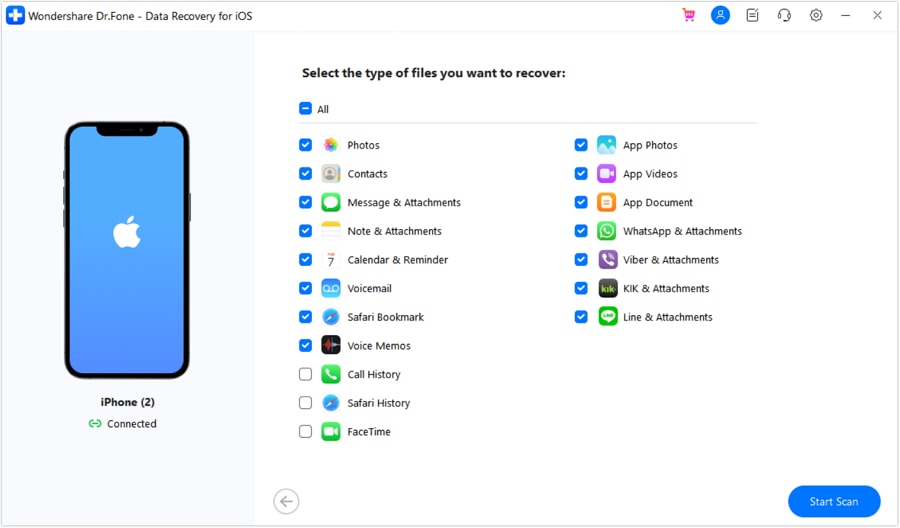
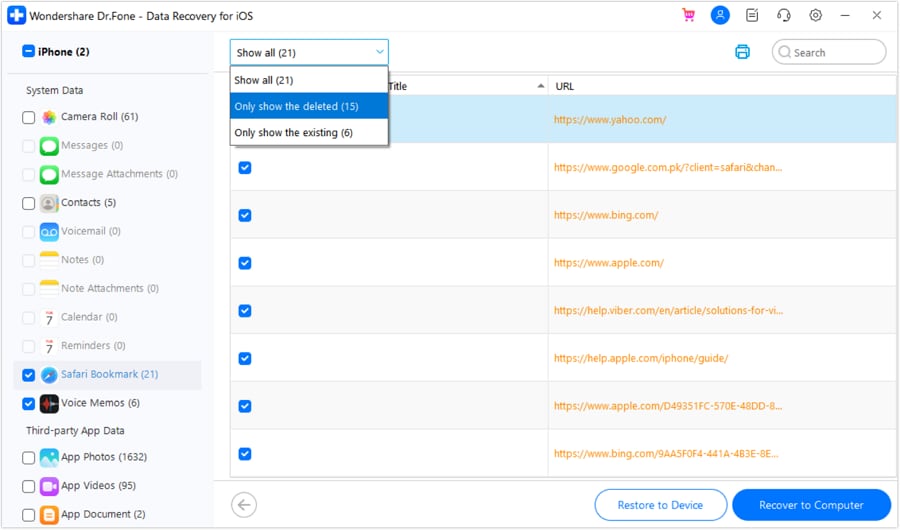
The read-only scan is free, and the tool lets you preview what it finds. This provides another way to recover data from iPhone 18 without a backup, without restoring an older copy. Dr.Fone describes Standard Recovery as the faster scan for commonly used iPhone data. You can select only the categories you want before starting the scan. It also lets you filter the results between All, Existing, or Deleted Data.
What appears in the results depends on the device, iOS, and selected recovery mode. Standard Recovery can scan compatible data categories on iPhone 18, depending on the device, iOS version, and available source, such as:
| Data Category | What the Recovery Scan Looks For |
|---|---|
| Photos and Videos | Available photos and videos found during the device scan. |
| Contacts | Contact information available on the connected iPhone. |
| Messages and Attachments | Messages and their supported attachments found during scanning. |
| Notes and Note Attachments | Notes and supported files or images attached to them. |
| Call History and Voice Memos | Available call history records and Voice Memos. |
| Calendar and Reminders | Calendar events and reminders available during the scan. |
| Safari Bookmarks and History | Available Safari bookmarks and browsing history. |
| FaceTime Data | Supported FaceTime data available during the device scan. |
| Alarms | Alarm data available from the connected device. |
| App Photos and Videos | Supported photos and videos stored by apps. |
| App Documents | Supported documents associated with apps on the device. |
 Recovers data after deletion, crashes, or device damage.
- Supports photos, messages, contacts, WhatsApp, and more.
- Supports all major iPhone, iPad, and iPod models.
- Preview and recover only what you need.

Part 4. How to Recover Data Directly from iPhone 18 with Dr.Fone – Data Recovery (iOS)
With Standard Recovery and its supported data categories covered, you can now recover data from an iPhone 18 without a backup. Here is how the recovery process works in practice:
-
Step 1 Connect iOS Device Scan in Data Recovery
On the “Data Recovery” tool for “iOS,” select the “Recover Data from iOS Device” mode, and connect the iPhone 18 by USB-C cable. Unlock it to approve the trust prompt, then select “Standard Recovery” and press “Start Scan.”
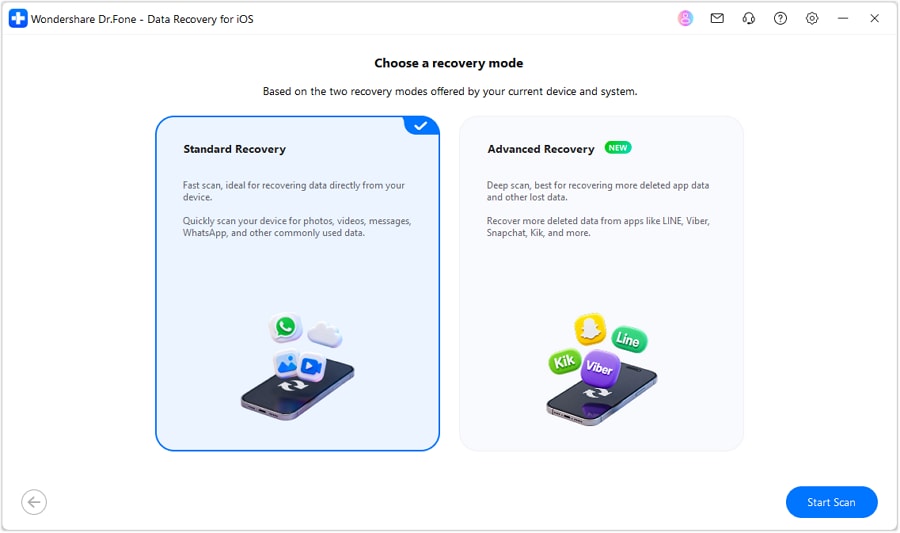
-
Step 2 Choose the Categories You Need
Once your iPhone 18 appears in Dr.Fone, tick the categories you want, then click “Start Scan.” Leave the cable in place until Dr.Fone finishes scanning, then open the results.
-
Step 3 Compare Results and Recover
After the scan, switch between “All,” “Existing,” and “Deleted Data” to locate the missing items. Select them, then choose “Restore to Device” if available or “Recover to Computer.” If prompted during device restoration, turn off “Find My” before continuing.




Conclusion
To recover data from an iPhone 18 without a backup, start by checking whether the missing content remains available through Apple’s built-in options. Review Recently Deleted folders, synced accounts, and relevant apps for recoverable copies.
If these options do not help, Dr.Fone - Data Recovery (iOS) provides another recovery route. Its Standard Recovery mode can scan the connected iPhone 18 for supported data. You can preview the available results and recover selected items without restoring an older backup or changing the iPhone’s current setup.
Frequently Asked Questions
-
1. Can I recover data from iPhone 18 after permanently deleting it?
Recovery may still be possible if the deleted data remains available for scanning. Once you remove an item from Recently Deleted, Apple’s built-in recovery option no longer applies. Dr.Fone - Data Recovery (iOS) can scan the iPhone 18 directly and show supported deleted data that is still available for recovery. -
2. Can I recover iPhone 18 data without iCloud or iTunes?
You can recover data from an iPhone without a backup by checking Recently Deleted folders and synced accounts first. If those options do not contain the missing files, use Dr.Fone - Data Recovery (iOS). It can scan supported data directly from the connected iPhone 18 without requiring an iCloud, Finder, or iTunes backup. -
3. What types of data can Dr.Fone recover directly from iPhone 18?
Standard Recovery can scan compatible iPhone 18 data, including photos, videos, contacts, messages, notes, call history, reminders, Safari data, and other supported categories available on the device.
 Add Wondershare Dr.Fone as a preferred source on Google




