 Recover photos, messages, WhatsApp, and more — no backup
needed.
Recover photos, messages, WhatsApp, and more — no backup
needed.

 100% Security Verified | No Subscription Required | No Malware

 :
: 
 ChatGPT
 Perplexity
 Gemini
 Claude
 Grok
Grok
Contacts vanish from an iPhone 18 for a couple of reasons. Sometimes entries get accidentally deleted from a synced list. Other times they just seem gone because an email account hasn't been turned on yet. Both issues look identical on your screen, especially after setting up a fresh device. The fix depends entirely on what caused the drop.
You can roll back contacts stored in iCloud to an earlier archived version. Those tied to a Google or Exchange account return the moment that account resyncs. A copy may also sit in an older iCloud or computer backup. If none contain the numbers, Dr.Fone - Data Recovery (iOS) can scan the handset for potentially recoverable data to recover deleted contacts on an iPhone 18.
In this article
- Part 1. Find Out Where the Missing iPhone 18 Contacts Were Stored
- Part 2. Recover Contacts Missing After Setting Up iPhone 18
- Part 3. How to Restore Deleted Contacts on iPhone 18 from iCloud
- Part 4. How to Recover Deleted Contacts Directly from iPhone 18 with Dr.Fone – Data Recovery (iOS)
- Part 5. Recover Deleted iPhone 18 Contacts from an Earlier Backup
- Conclusion
- Frequently Asked Questions
Part 1. Find Out Where the Missing iPhone 18 Contacts Were Stored
If you try to recover deleted contacts on an iPhone 18, start with the account-based options first. They are quick, and they do not require you to restore or scan the device. If the contacts are not in iCloud or another synced account, move on to device recovery or an older backup. The table below shows which recovery method fits each contact situation:
| Contact Situation | Likely Contact Source | Best Recovery Method |
|---|---|---|
| Contacts Missing After iPhone 18 Setup | iCloud or another contact account | Turn Contacts sync back on for the account |
| Contacts Deleted from iCloud | iCloud Contacts archive | Restore an earlier version of your contacts from iCloud.com |
| Contacts Deleted with No Cloud Copy | Potentially recoverable device data | Use Dr.Fone - Data Recovery (iOS) to scan the iPhone 18 for recoverable contacts |
| Contacts Available Only in an Older Backup | iCloud, Finder, Apple Devices, or iTunes backup | Restore the backup or selectively recover contacts from it |
Part 2. Recover Contacts Missing After Setting Up iPhone 18
When you recover deleted iPhone 18 contacts without a backup, first make sure they are actually deleted. After setting up a new iPhone 18, contacts can disappear simply because iCloud or another account has not finished syncing, or because Contacts is turned off for that account.
Sync Contacts from iCloud
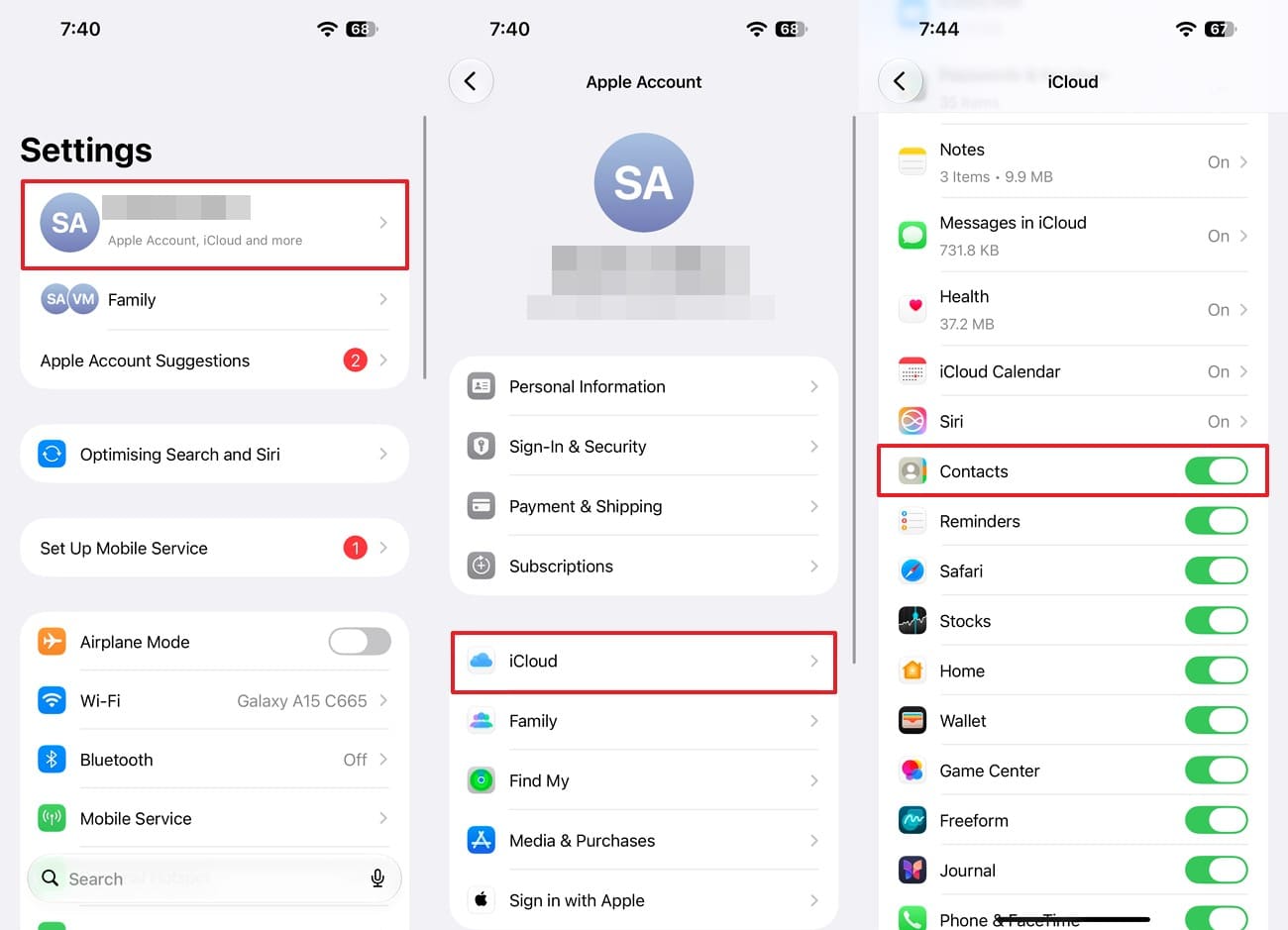
If your contacts are stored in iCloud, check that Contacts is enabled for your Apple Account. Apple says iCloud contacts appear on devices signed in to the same Apple Account with Contacts turned on. If the contacts still do not appear, check that you are signed in with the same Apple Account that previously stored them. To recover deleted contacts on iPhone 18 when they are only missing, follow these steps:
Instructions. Go to “Settings” and tap your Apple account to choose the “iCloud” and “See All” options. Turn on “Contacts” and keep the iPhone 18 connected to the internet while the contacts sync.
Restore Contacts from Google, Exchange, or Another Account
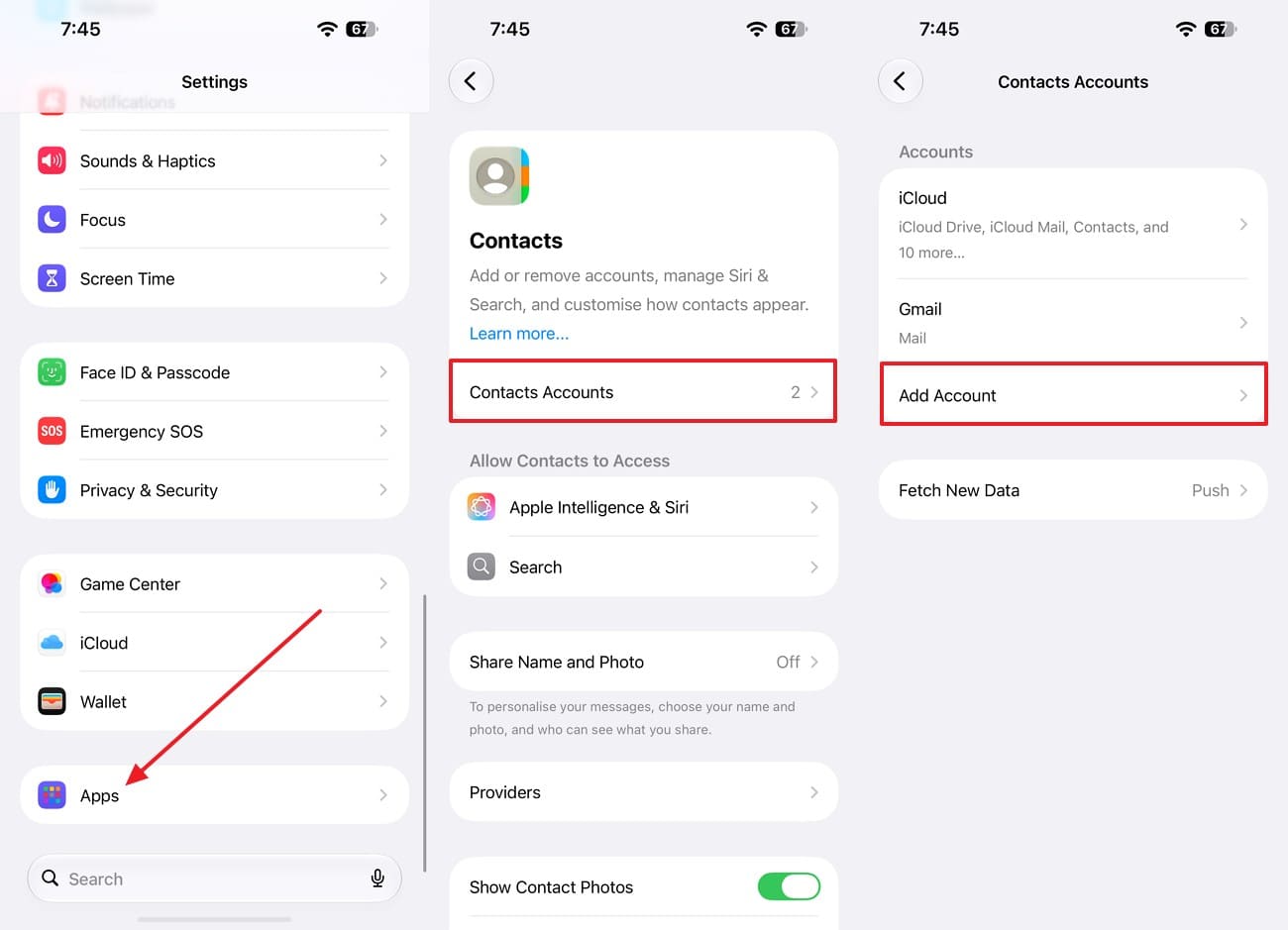
When iCloud is still empty, the contacts may belong to another account instead. To restore missing contacts on iPhone 18, check whether they are stored in Google, Microsoft Exchange, Yahoo, or another account that is not syncing with the new phone. Apple supports adding these accounts directly to the Contacts app. To restore their contact sync, follow these 2 instructions:
Step 1. In the “Apps” settings, choose the “Contacts” option and select the “Contacts Accounts > Add Accounts” option.
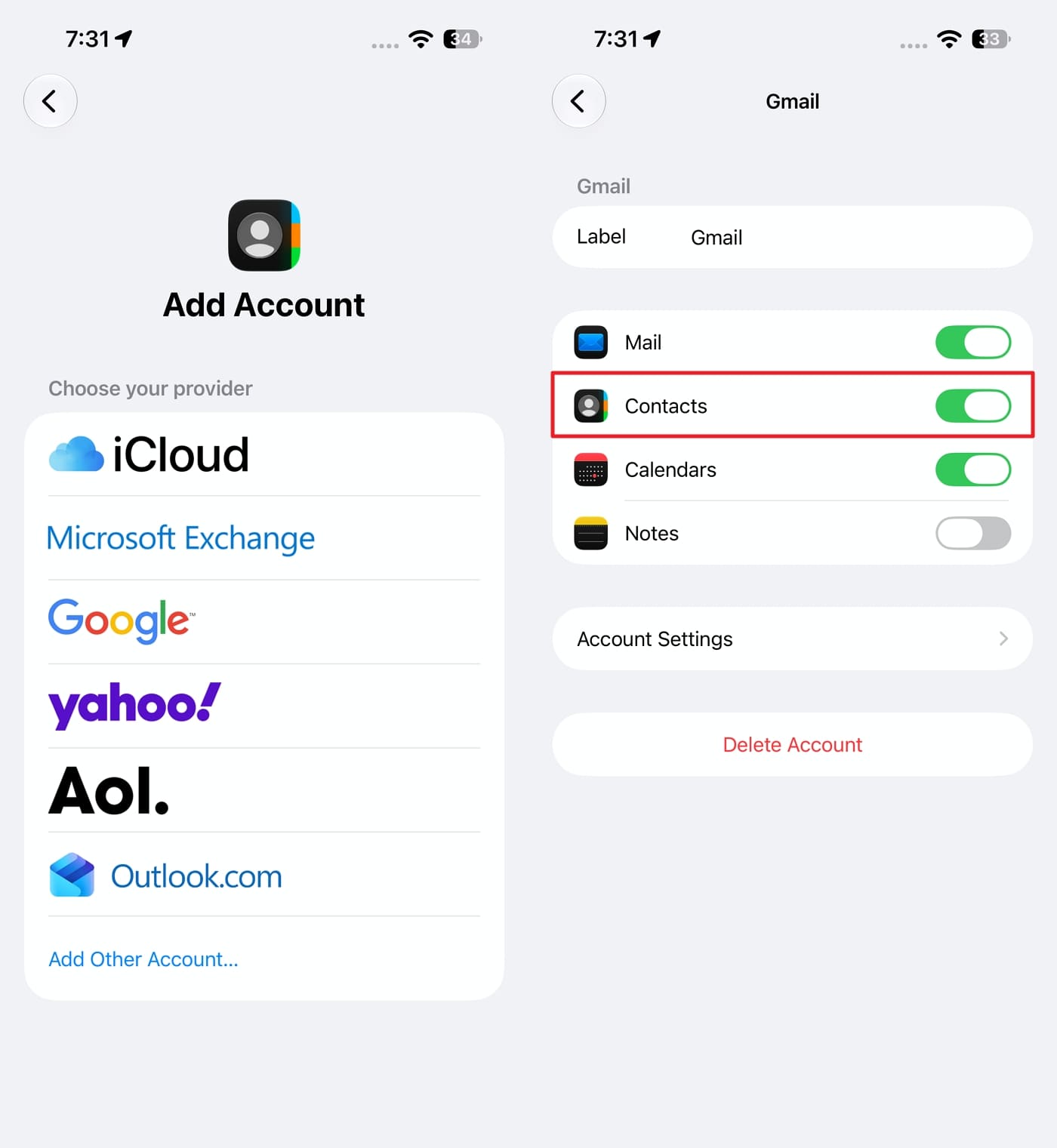
Step 2. Tap Google, Exchange, Yahoo, or another account that should contain the missing contacts. Sign in using your email address and password, and toggle on the "Contacts" option.

Part 3. How to Restore Deleted Contacts on iPhone 18 from iCloud
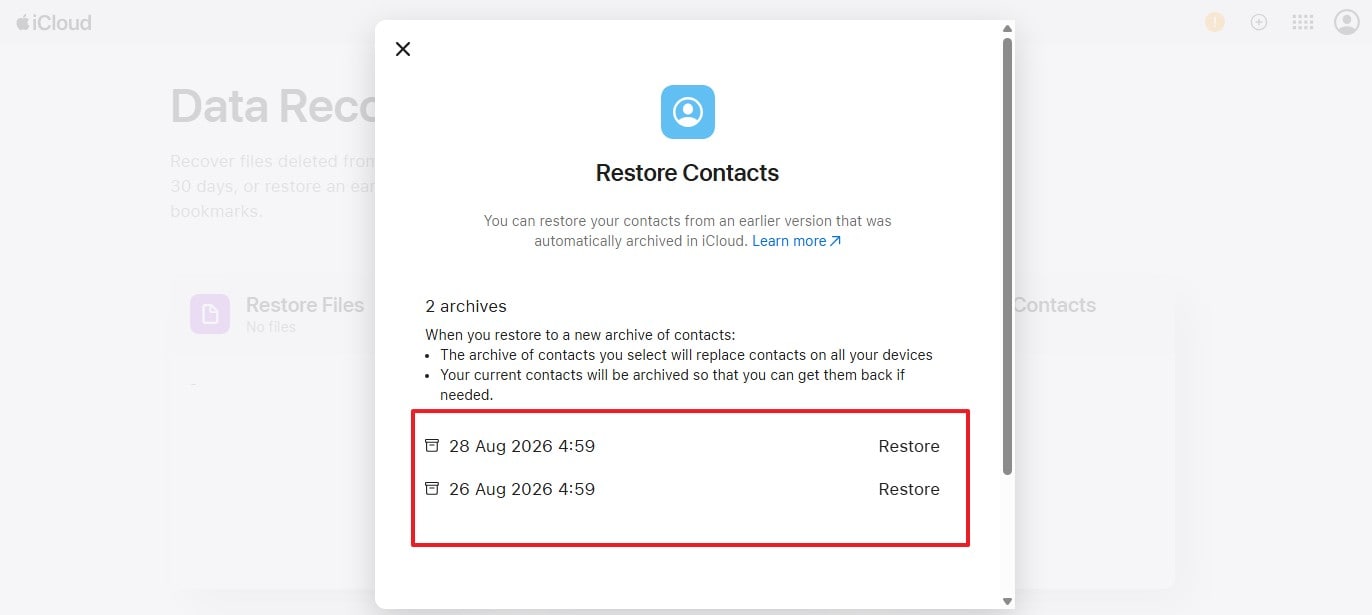
If the contacts were actually deleted from iCloud, turning sync back on will not bring them back. To learn how to recover deleted contacts on iPhone 18 in this case, you can restore an earlier version of your iCloud Contacts. Restoring an archive replaces the current iCloud contact list on devices that have iCloud Contacts turned on. Before the restore starts, iCloud saves the current version as another archive, so you can return to it later if needed.
Apple automatically archives iCloud contacts, so an older copy may still be available from before the deletion. You can access these archives through iCloud.com on a computer or tablet. To restore the required version, follow these steps:
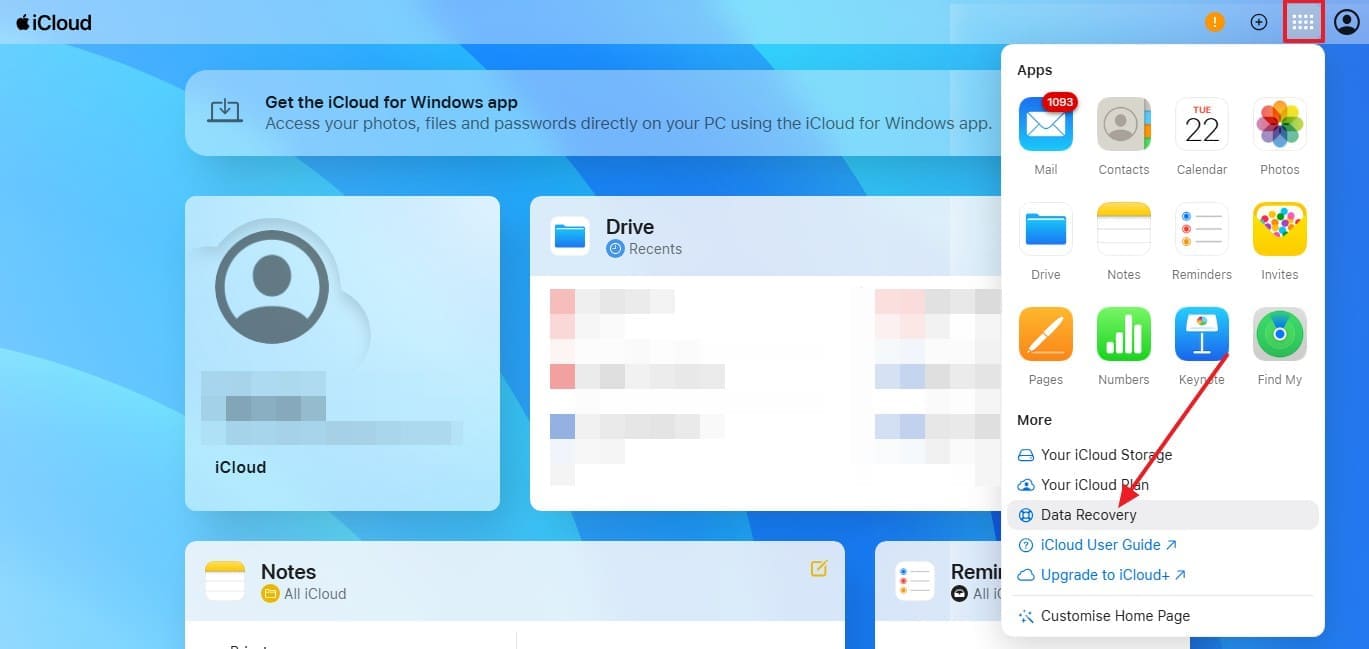
Step 1. Go to iCloud.com and sign in with your Apple Account. Select the “App Launcher” button, then choose “Data Recovery.”
Step 2. Click on “Restore Contacts,” and the available archives are listed by date and time. Choose a version from before the contacts were deleted and select the “Restore” option. Wait for the process to finish before editing any contacts, since changes made during the restore are not saved.
Part 4. How to Recover Deleted Contacts Directly From iPhone 18 with Dr.Fone – Data Recovery (iOS)
Let’s say iCloud, Google, Exchange, and older backups do not contain the missing contact. The next option is to scan the iPhone 18 itself. Dr.Fone - Data Recovery (iOS) is designed to recover deleted contacts on an iPhone 18 without a backup by scanning the connected device for data that may still be recoverable. Results depend on the device, iOS version, and available data, so recovery is not guaranteed.
Dr.Fone lists contacts among the 35+ data types supported across its iOS recovery tools, although availability varies by recovery mode, device, iOS version, and recovery source. After connecting the iPhone 18 to a Mac or PC, you can select the data types to scan and preview the results. The tool also lets you filter and identify deleted contacts before choosing what to recover.
 Recovers data after deletion, crashes, or device damage.
- Supports photos, messages, contacts, WhatsApp, and more.
- Supports all major iPhone, iPad, and iPod models.
- Preview and recover only what you need.

Guide to Recover Deleted iPhone 18 Contacts Using Dr.Fone
To learn how to recover deleted contacts on an iPhone 18, scan the device before using it extensively. New data may affect what a recovery tool can find. Follow these steps to start the recovery process immediately:
-
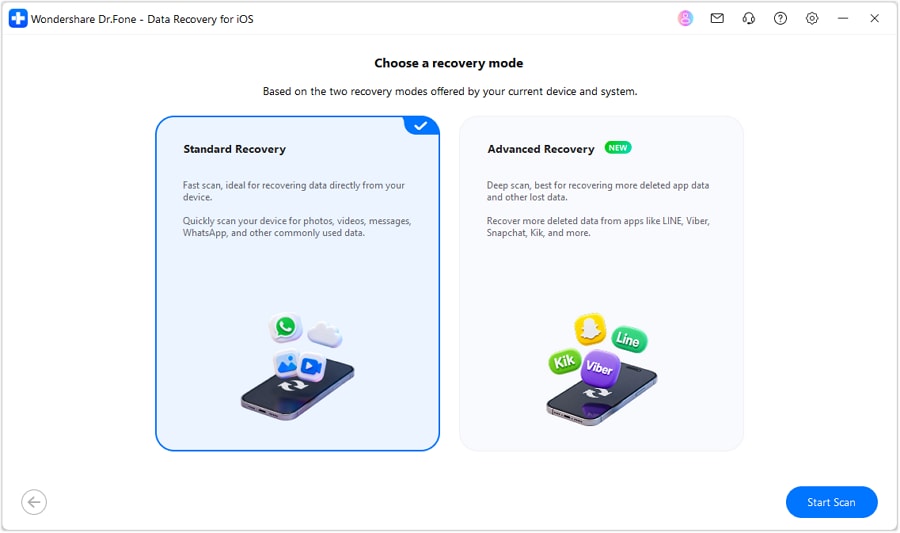
Step 1 Select Standard Recovery Mode
Start with “Recover Data from an iOS Device” in Dr.Fone - Data Recovery (iOS). Once the iPhone 18 is connected, enter “Standard Recovery” to prepare the device for scanning.
-
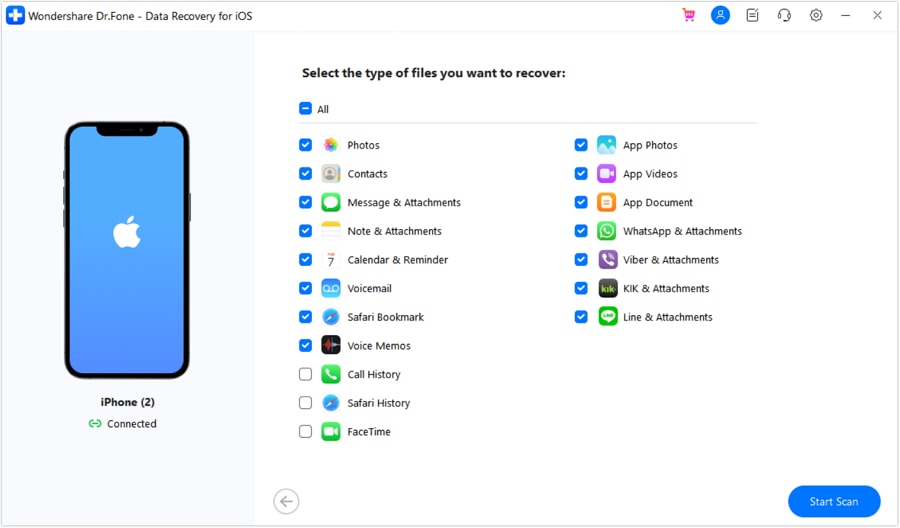
Step 2 Choose Contacts and Start Scan
There is no need to scan every supported data type. Mark “Contacts” on the selection screen and use “Start Scan” to search specifically for available contact data.
-
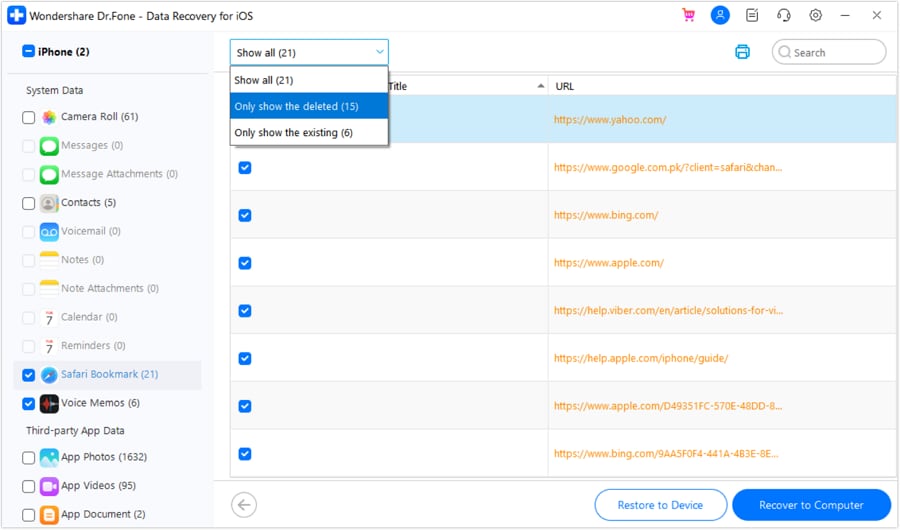
Step 3 Separate Deleted Contacts from the Results
Once the results appear, switch the filter to “Deleted Items.” Check the displayed names, phone numbers, and email addresses to identify the contacts you need. Select the required contacts, then choose “Restore to Device” if available or “Recover to Computer” to save them locally.




Part 5. Recover Deleted iPhone 18 Contacts from an Earlier Backup
If the earlier methods do not recover deleted contacts on iPhone 18, an older backup is worth checking. It may contain contacts stored on the device when the backup was created. Contacts already syncing with iCloud, Google, or Exchange are generally managed separately through those services.
Recover Contacts from an iCloud Backup
Apple says iCloud Backup stores information and settings that are not already synced to iCloud. Its standard restore method restores the entire backup. If the iPhone 18 has already been set up, you first need to factory reset it and then choose the iCloud backup during setup.
Dr.Fone - Data Recovery (iOS) offers another way to restore deleted contacts on iPhone 18 from an iCloud backup. Instead of restoring the entire device, it can download an available backup and let you preview supported data, including contacts. You can then select the required contacts and save them to your computer. To use this iCloud backup recovery method, follow these steps:
-
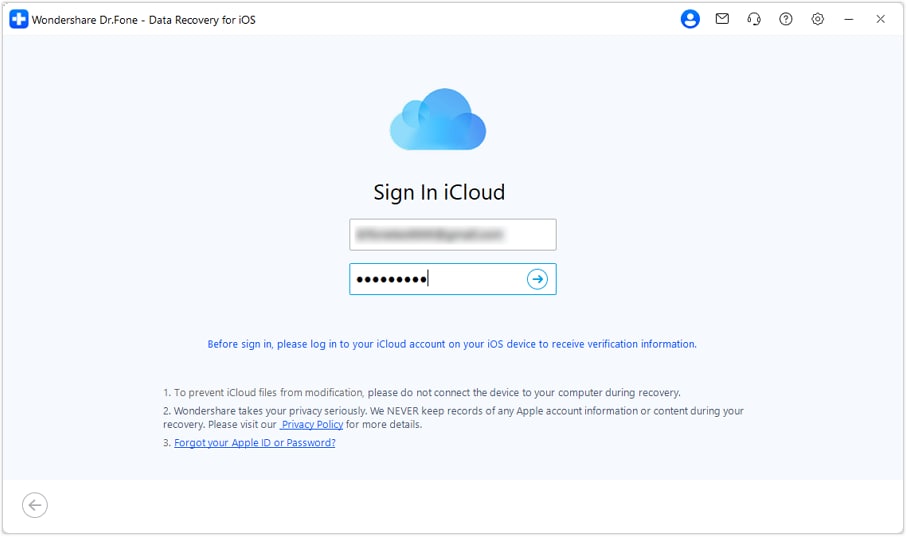
Step 1 Choose Recover Data from iCloud Backup
Launch Dr.Fone and go to “Toolbox > Data Recovery > iOS > Recover Data from iCloud Backup.” Log in with the Apple Account connected to your backups and complete two-factor authentication when required.
-
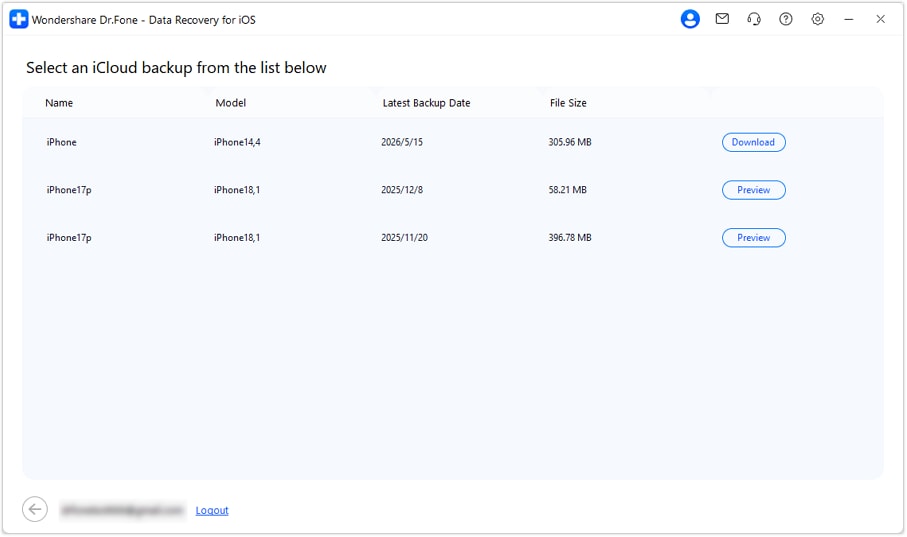
Step 2 Download the iCloud Backup
Your available iCloud backup information appears after verification. Compare the listed backups to find the one created before the contacts disappeared. Click “Download” beside the required backup to retrieve its contents.
-
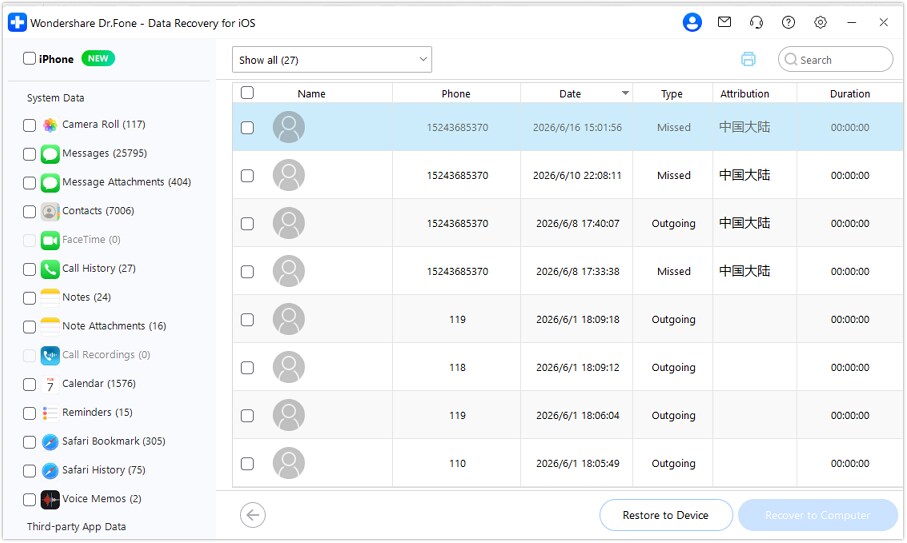
Step 3 Bring Back the Required Contacts
Let Dr.Fone process the downloaded backup, then open the “Contacts” category to inspect the available entries. Mark the contacts you need and choose the required export option to retrieve them.
Recover Contacts from Finder, Apple Devices, or iTunes Backup
As another option to recover deleted contacts on iPhone 18, check any computer backup made before the contacts disappeared. On current Macs, Finder handles local iPhone backups. For Windows, the Apple Devices app handles backups, while iTunes can still be used on systems without the app. Apple’s Restore Backup option restores the backup to the iPhone as a whole, so it is better suited to a full-device restore than recovering only a few contacts.
To retrieve selected contacts on iPhone 18, Dr.Fone - Data Recovery (iOS) also supports iTunes Recovery mode. The tool can scan a local iTunes backup and let you preview supported data before choosing what to recover. For more control over which contacts you retrieve, follow these steps:
-
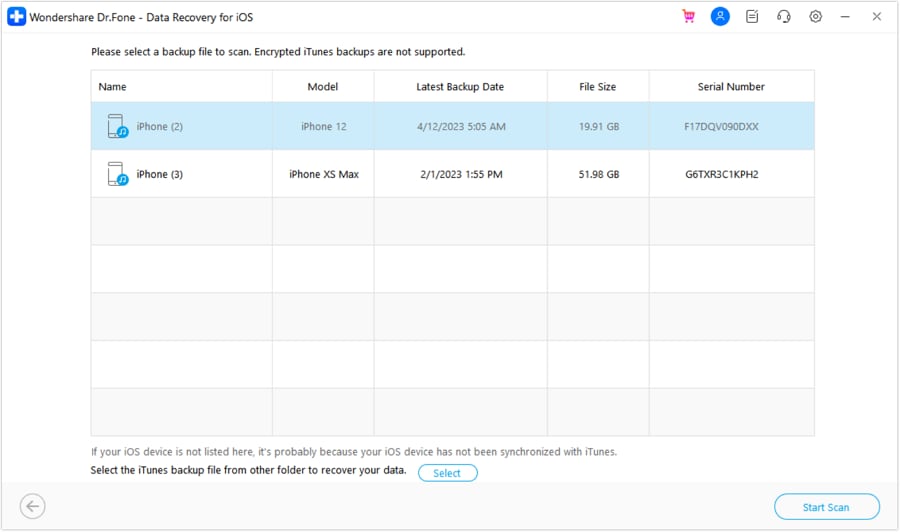
Step 1 Select iTunes & Other Backups Recovery
Launch Dr.Fone - Data Recovery (iOS), go to “Toolbox > Data Recovery > iOS,” and select “Recover Data from iTunes.” Dr.Fone then displays compatible local backups detected on the computer.
-
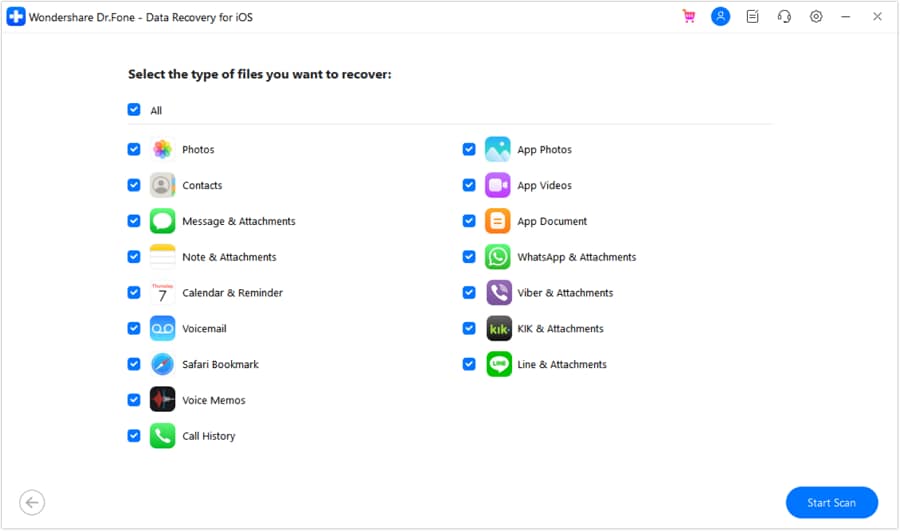
Step 2 Confirm the Backup and Scan Contacts
Choose the required backup from the detected list and click “Start Scan.” On the next screen, select “Contacts,” then click “Start Scan” again to scan that backup for contact data.
-
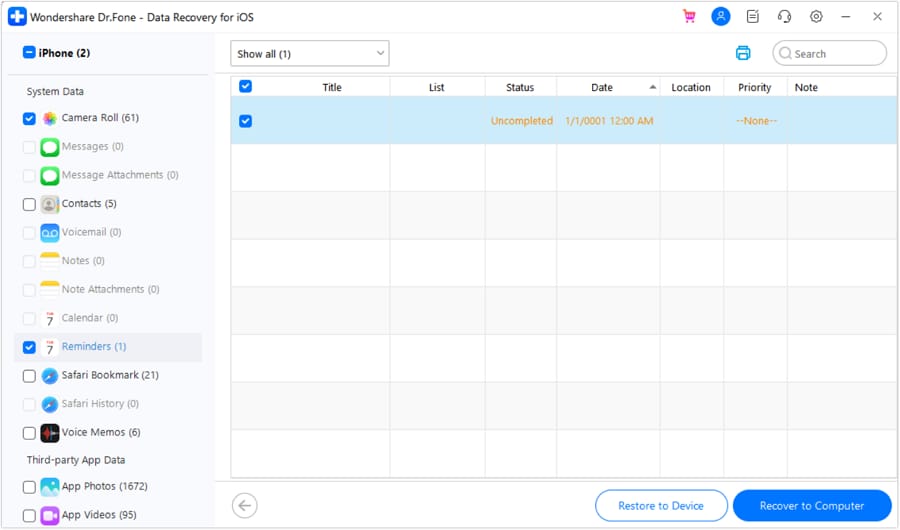
Step 3 Restore Contacts to Device or Computer
Review the available contacts after the scan and select the entries you want to retrieve. Choose “Recover to Computer” to save them locally. If “Restore to Device” is available, connect the iPhone 18 when Dr.Fone requests it.
Conclusion
The best way to recover deleted contacts on an iPhone 18 depends on where the contacts were originally stored. Start by checking iCloud, Google, Exchange, or another synced account. For contacts deleted from iCloud, restoring an earlier iCloud Contacts archive may provide the missing entries.
Older iCloud or computer backups offer another recovery option when they contain the missing contacts. If these methods do not help, Dr.Fone - Data Recovery (iOS) can scan the iPhone 18 for contact data that may still be recoverable or retrieve supported contact data from available backups.
Frequently Asked Questions
-
1. Can I recover deleted contacts on iPhone 18 without an iCloud backup?
Recovery is possible depending on where the contacts were stored. Resyncing Google, Exchange, Yahoo, or another connected account may restore them. Without a synced copy or usable backup, Dr.Fone - Data Recovery (iOS) can scan the iPhone 18 for contact data that may still be recoverable. -
2. Does restoring iCloud Contacts replace my current contact list?
Restoring an earlier iCloud Contacts archive replaces the current contacts on devices with iCloud Contacts enabled. Apple states that iCloud first archives your current contacts, allowing you to restore them later if needed. -
3. Can I recover only contacts from an old iPhone 18 backup?
Apple’s standard backup restore recovers the entire backup rather than individual contacts. Dr.Fone - Data Recovery (iOS) can preview and selectively recover contacts from supported local iTunes backups or available iCloud backups without restoring the complete backup.
 Add Wondershare Dr.Fone as a preferred source on Google




