Recover photos, messages, WhatsApp, and more — no backup
needed.
Recover photos, messages, WhatsApp, and more — no backup
needed.

 100% Security Verified | No Subscription Required | No Malware

 :
: 
 ChatGPT
 Perplexity
 Gemini
 Claude
 Grok
Grok
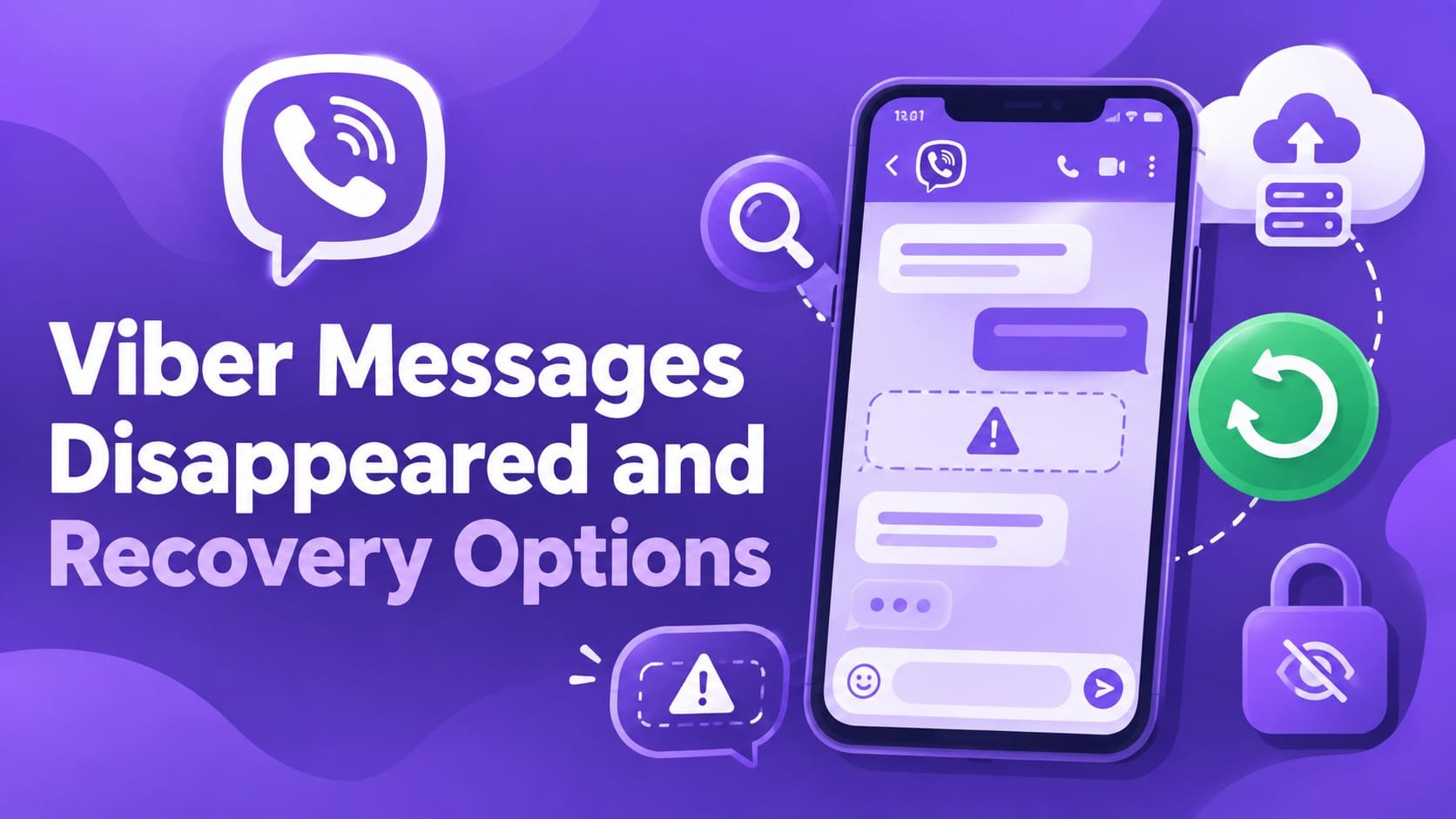
Viber messages can disappear after reinstalling the app, switching iPhones, or accidentally hiding a conversation. If your Viber chat history disappeared, the missing chats may still exist on your old iPhone or in an eligible iCloud backup. Checking these sources first can help determine the right recovery method.
If standard options cannot recover the chats, Dr.Fone - Data Recovery (iOS) can scan the original compatible iPhone that stored them. Advanced Recovery supports iPhone 16 series and earlier models running iOS 17.0–18.7.1 or iOS 26.0–26.0.1. This guide covers the possible causes, official recovery options, and device recovery methods.
In this article
- Part 1. Why Viber Messages Disappeared on iPhone
- Part 2. Viber Chat History Missing? Check These Places First
- Part 3. Restore Viber Messages from an Eligible Backup
- Part 4. Viber Messages Still Missing? Recover Them with Dr.Fone - Data Recovery (iOS)
- Part 5. Prevent Viber Chat History from Disappearing Again
Part 1. Why Viber Messages Disappeared on iPhone
If your Viber chat history disappeared, several issues could be responsible. The table below explains the possible causes, what each problem typically looks like, and what you should avoid doing first:
| Cause | What It Looks Like | Don't Do This First |
|---|---|---|
| Reinstalled Without Restoring | Chat history missing after reinstalling | Reinstall Viber again |
| Older Backup Was Restored | Recent chats missing, older chats remain | Restore the backup again |
| Moved to a New iPhone | Previous chat history is missing | Erase the old iPhone |
| The Chat Is Hidden | One conversation missing, others remain | Reset the Hidden Chat PIN |
| Hidden Chat PIN Was Reset | Hidden chats disappeared after PIN reset | Expect the chats to return |
| Disappearing Messages Expired | Timed messages disappeared automatically | Expect them to remain in chat |
| Sender Used Delete for Everyone | Specific sent messages disappeared | Assume your iPhone caused it |
Part 2. Viber Chat History Missing? Check These Places First
With your Viber chat history missing, avoid restoring a backup or reinstalling the app right away. The messages may still be hidden, linked to another account, stored on your old iPhone, or available in an existing backup. Check these places first so you don’t overwrite a copy you may still be able to recover.
Search for Hidden Viber Chats
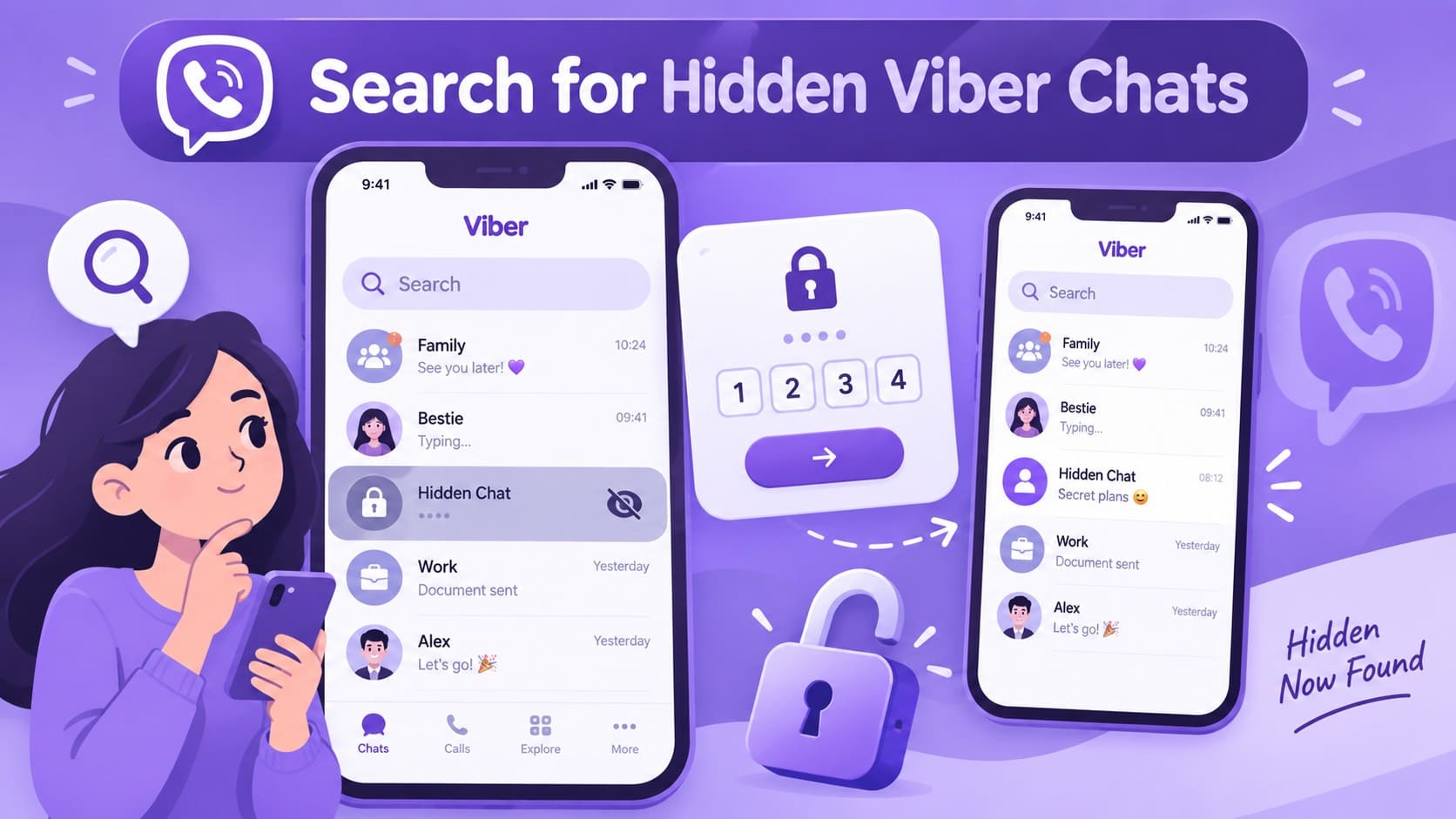
A missing conversation does not always mean it has been deleted. Start by checking Viber’s Hidden Chats, especially when your other conversations are still visible. Hidden chats disappear from the regular chat list but remain accessible with the 4-digit PIN created for them.
Open the Search bar and enter your Hidden Chats PIN to reveal the hidden conversations. You can also search for the contact or group name, select the missing chat, and enter the PIN to access it.
Check the Message Requests Inbox
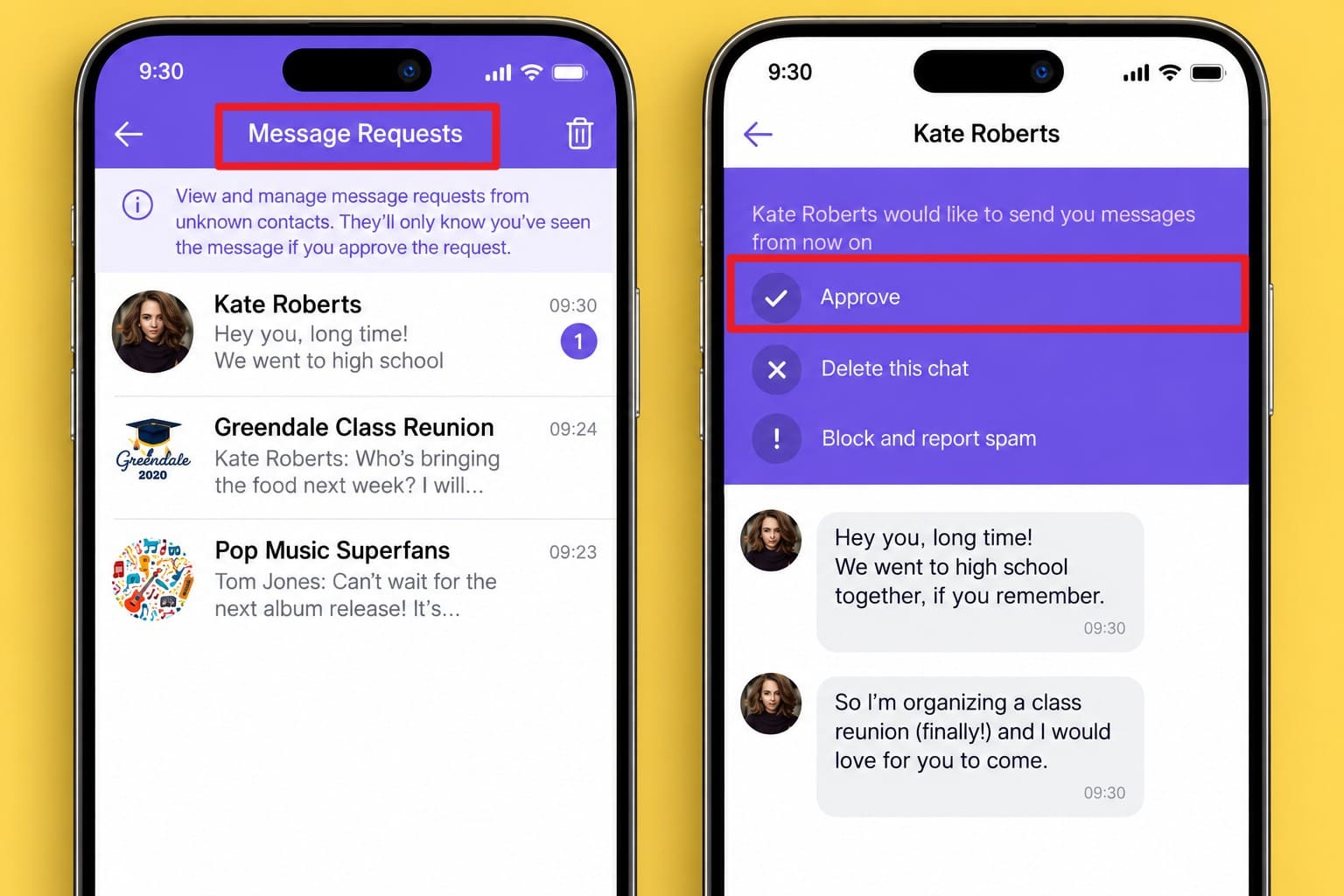
Some conversations may never reach your regular chat list because Viber places them in the Message Requests inbox. This can include messages from unknown members of a mutual Community and certain group or Community invitations from people outside your contacts. Check this inbox before assuming the conversation is missing, then approve any request you recognize.
Instructions. Go to the “Chats” screen and open the “Message Requests” inbox in your chat list. If you don’t see it, search for “Message Requests” using the Chats search bar. Open the inbox and check whether the missing sender or conversation appears there. Tap “Approve” if you recognize the sender. The conversation will move from Message Requests to your regular chat list.

Verify the Phone Number and iCloud Account Used with Viber
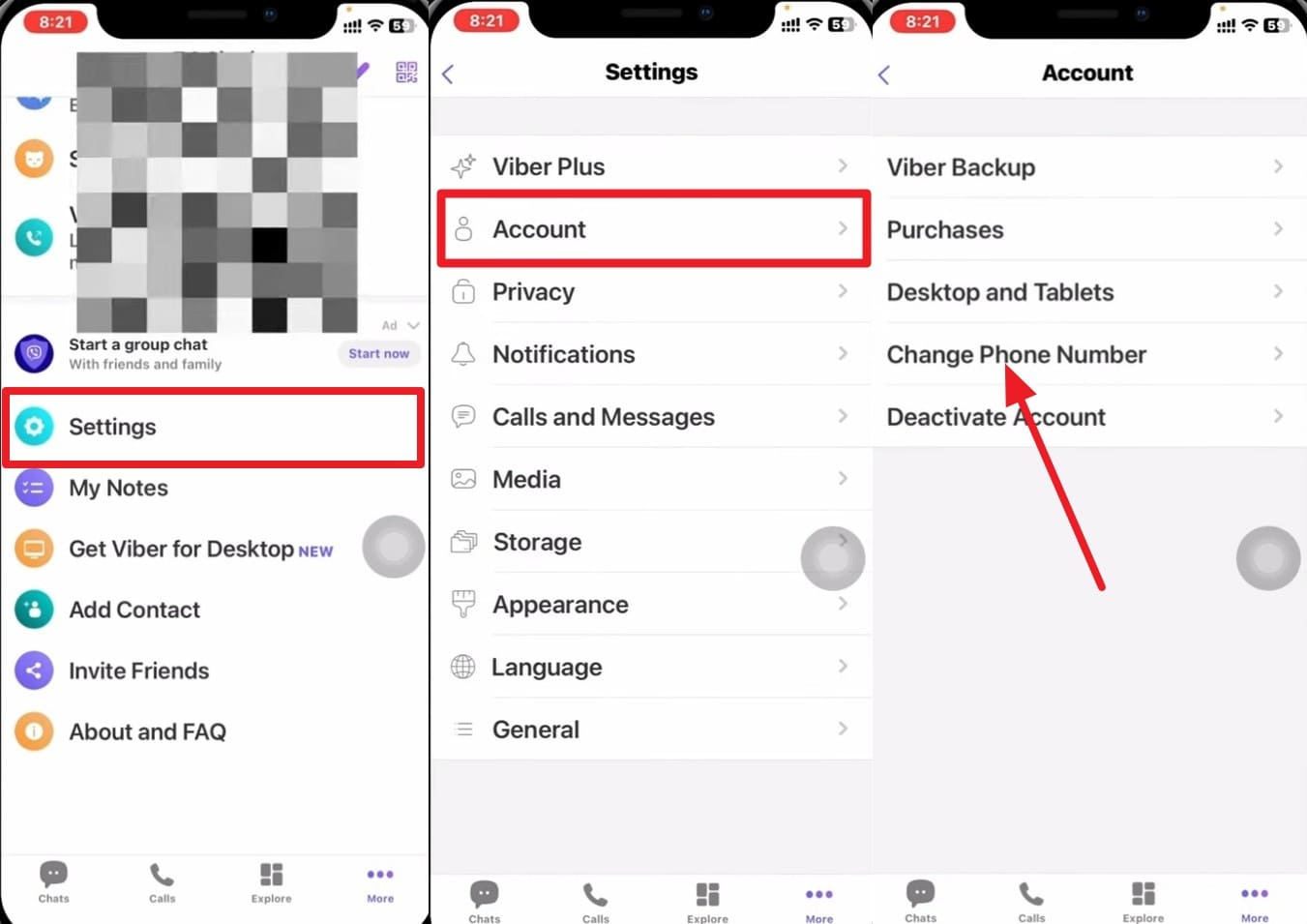
To recover Viber messages after reinstalling, first confirm that Viber is connected to the same phone number and Apple Account used for your previous chat history. Viber identifies your account through your phone number, while chat backups on iPhone are stored in iCloud. A mismatch can prevent Viber from finding the backup you want to restore. Follow these steps to verify both:
Step 1. On Viber, go to “More > Settings > Account > Change Phone Number” and make sure Viber is associated with the number used for your previous account. Compare that number with the one you used when the missing Viber chats were still available.
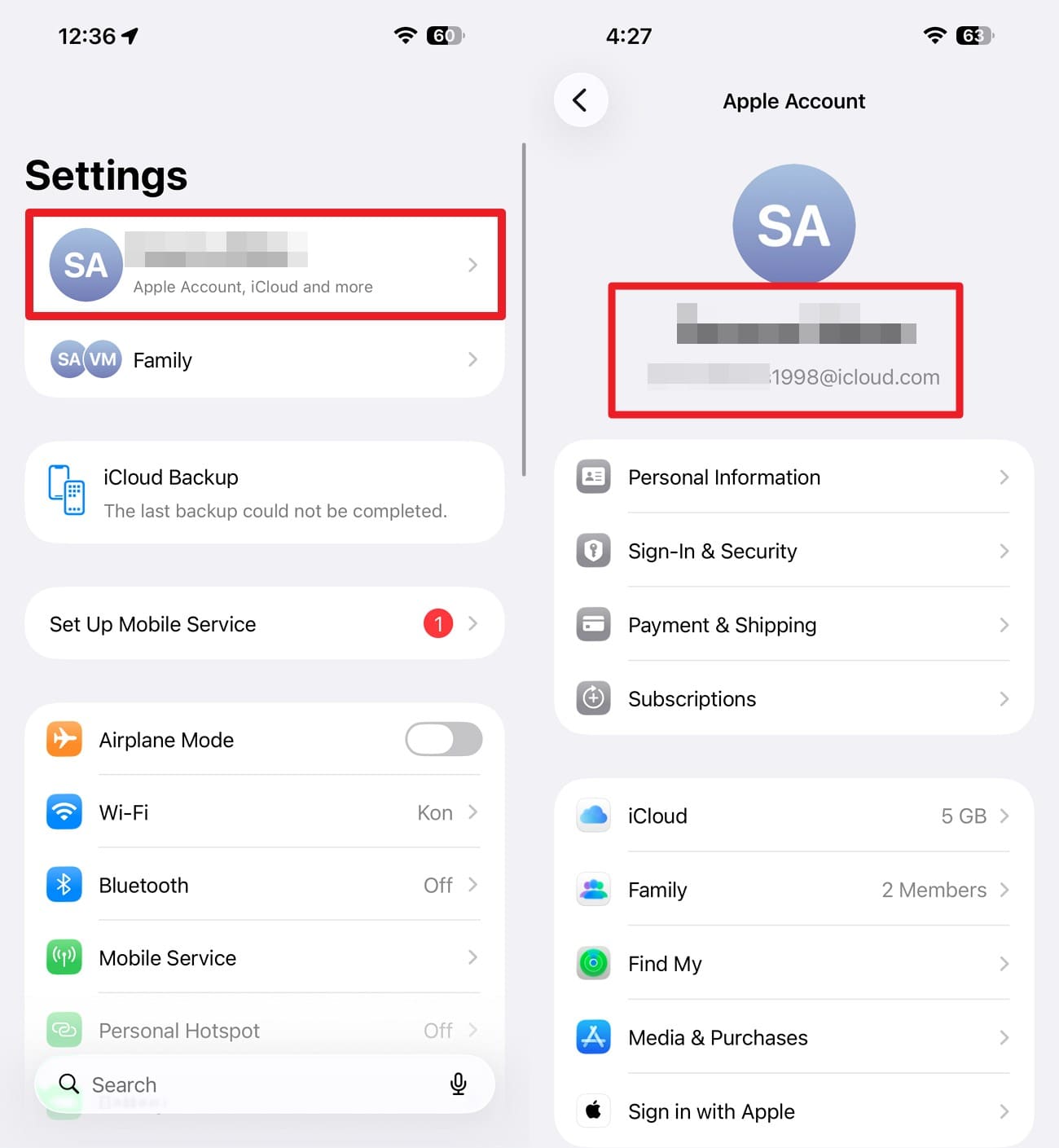
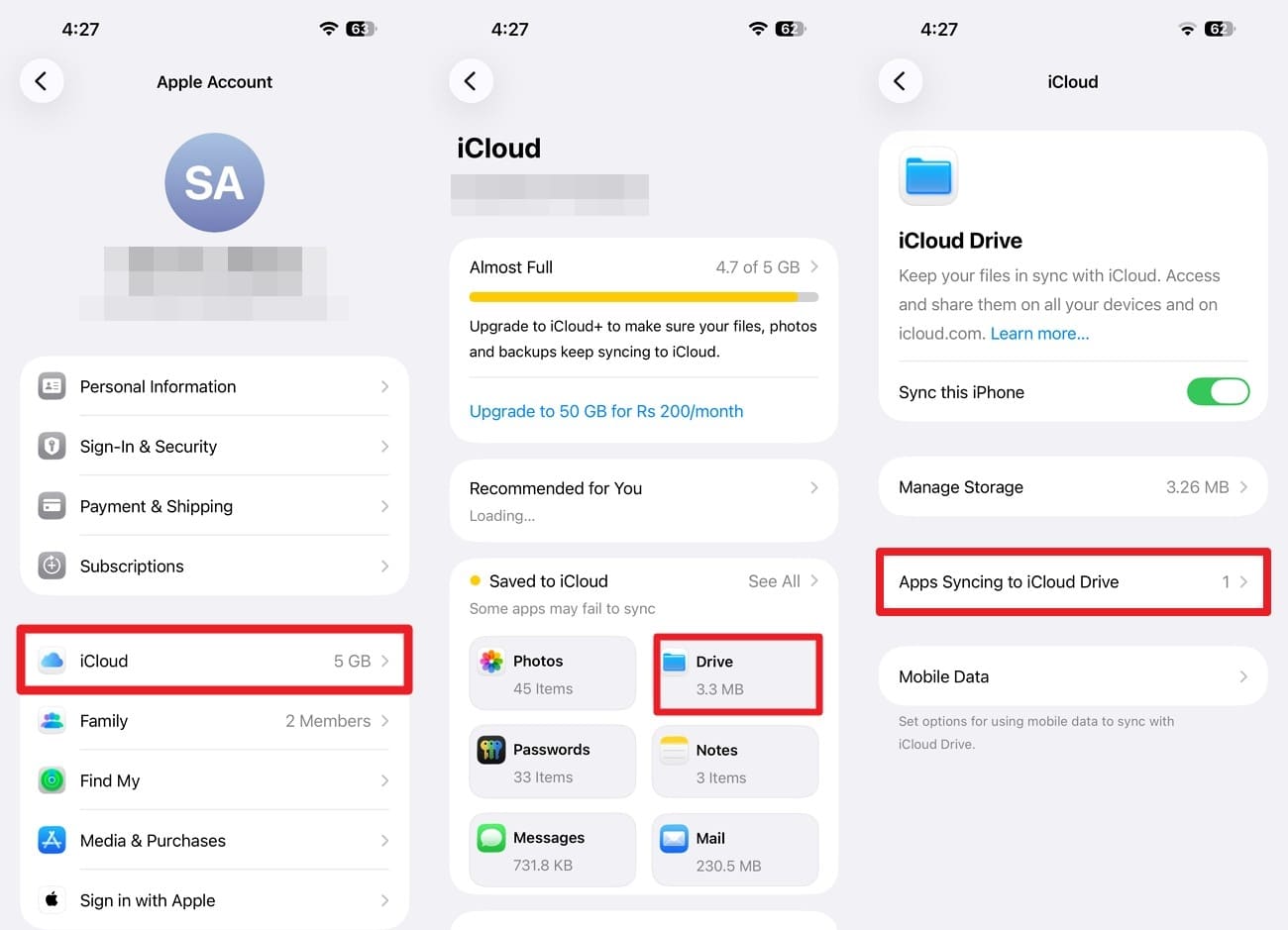
Step 2. Open iPhone “Settings > [Your Name] > iCloud.” View the email address listed under your name. Confirm that you’re signed in to the Apple Account previously used for your Viber backup.
Step 3. Tap on “iCloud > iCloud Drive > App Syncing to iCloud Drive” and ensure the toggle switch next to Viber is turned on.
Transfer Viber Chat History from the Old iPhone
If the old iPhone still contains your missing conversations, Viber provides two ways to address the Viber chat history missing issue. Try direct Wi-Fi transfer first because it moves available history between compatible devices without an iCloud backup. Use a fresh iCloud backup when direct transfer is unavailable or unsuitable.
Method 1. Transfer Viber Chat History Directly Over Wi-Fi
Viber’s direct transfer moves available chat history from the old iPhone to the new one without requiring an iCloud backup. Before starting the transfer, check the requirements below and keep both devices ready throughout the process.
Requirements
- Both phones must use the same platform, such as iPhone to iPhone.
- Both devices must run Viber 25.0 or later.
- Enable Wi-Fi and Bluetooth on both phones.
- Keep both devices nearby until the transfer finishes.
Instructions. Activate Viber on the new iPhone using the same account and select “Get Started” when prompted on both devices. Scan the QR code with the new iPhone, keep both phones nearby, and wait for the Viber chat history transfer to complete.
Method 2. Create a Fresh Viber iCloud Backup
If direct Wi-Fi transfer is unavailable or unsuitable, create a fresh Viber backup while the missing chats are still available on the old iPhone. The backup saves the available chat history to iCloud for restoration on the new iPhone. Follow these steps to create the Viber backup and prepare it for restoration:
Step 1. On Viber, choose “More > Settings > Account > Viber Backup” and tap “Back Up Now.”
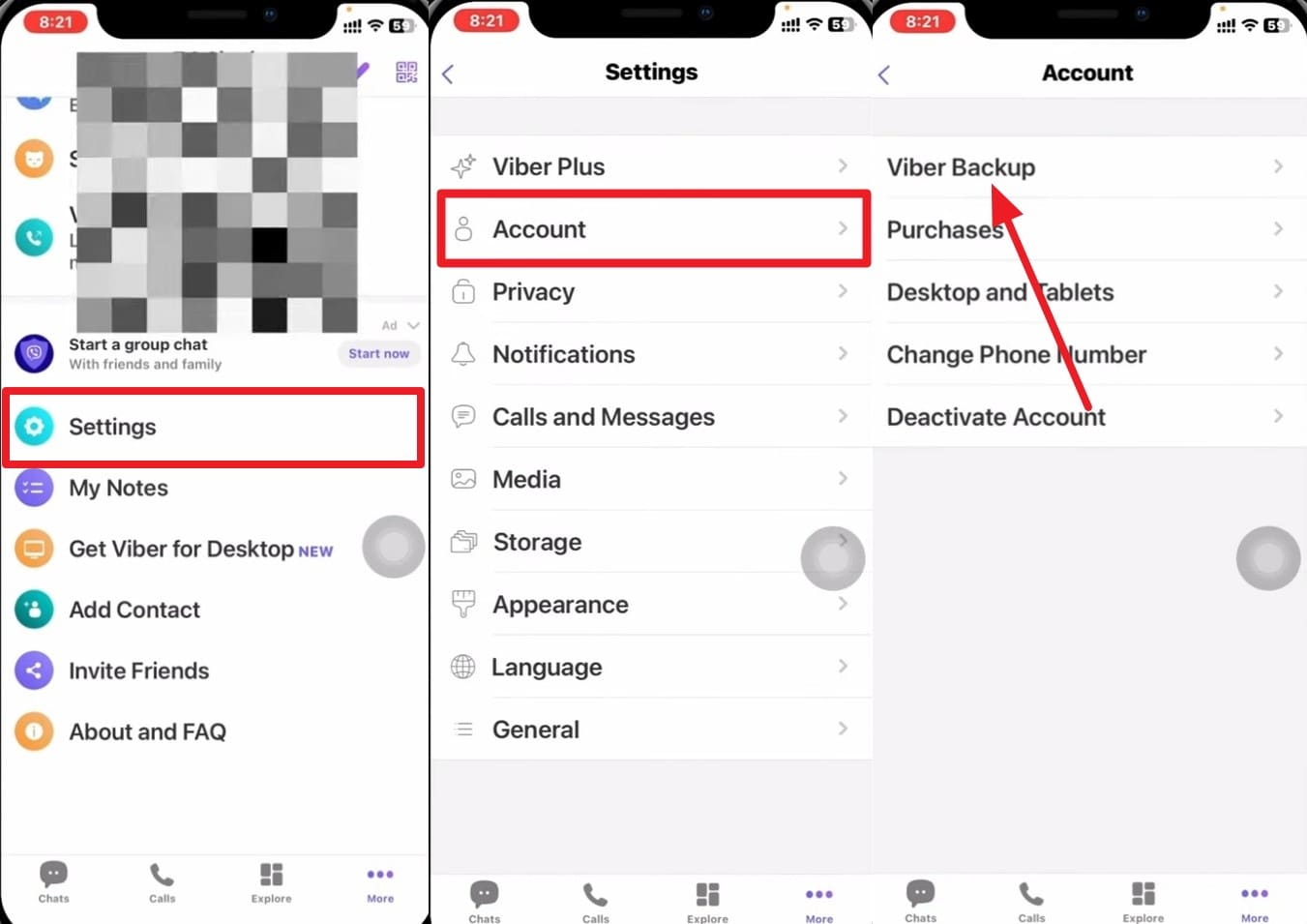
Step 2. After the backup finishes, activate Viber on the new iPhone with the phone number linked to your account, then restore the chat history when prompted. Part 3 will guide you through this.
Check Whether an Available Viber Backup Contains the Missing Messages
When your Viber chat history disappeared, checking the backup date can help determine whether it contains the missing messages. The backup must have been created after those messages were received and before they disappeared. Otherwise, restoring it will only return your chat history to the state saved at that time.
Open the Viber Backup screen and check the Last Backup date and time. Compare it with when the missing messages were still available to determine whether that backup is worth restoring.
Part 3. Restore Viber Messages from an Eligible Backup
Once you have confirmed that a suitable Viber backup is available, you can use it to recover Viber messages after reinstalling. Make sure Viber can access the same iCloud account associated with the backup and that you are using the correct phone number. Follow these steps to restore your Viber chat history:
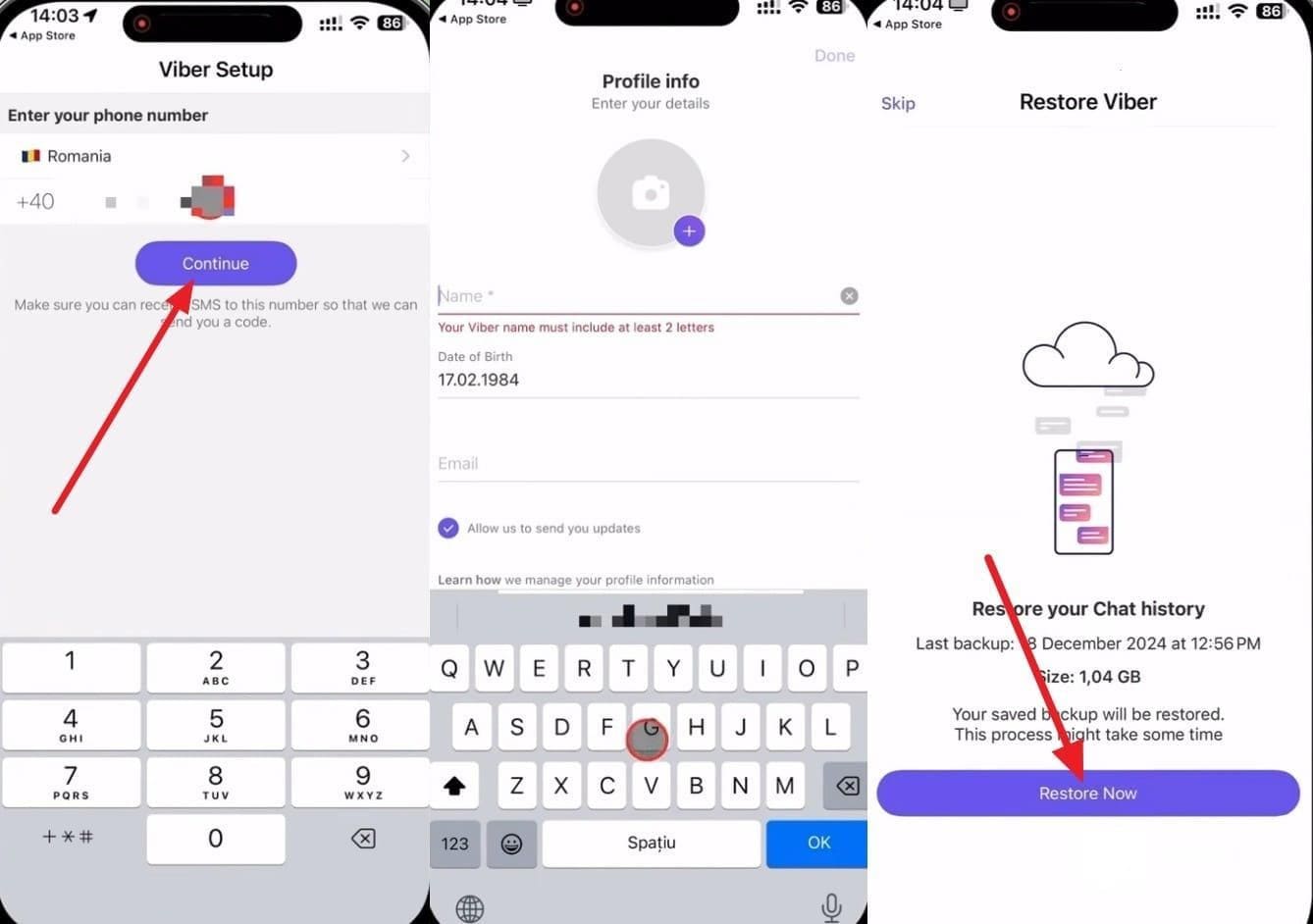
Instructions. Activate Viber with the phone number connected to your Viber account. Press “Continue” and add the profile information. After that, tap on “Allow” and select the “Restore Now” button.
Important Things to Know
- Viber does not support transferring chat history between Android and iOS, so an Android backup cannot be restored to an iPhone.
- You can also restore a Viber backup in “Settings > Account > Viber Backup > Restore > Restore Now.”
Part 4. Viber Messages Still Missing? Recover Them with Dr.Fone - Data Recovery (iOS)
Missing Viber chats become harder to recover when direct Wi-Fi transfer is unavailable, and no eligible iCloud backup contains them. In this situation, Dr.Fone - Data Recovery (iOS) can scan the source iPhone that previously stored the missing Viber data. This can help when you need to recover Viber messages after uninstalling or reinstalling the app.
It supports iPhone 16 series and earlier models running iOS 17.0–18.7.1 or iOS 26.0–26.0.1. The feature scans for recoverable Viber conversations and attachments and lets you preview available data before recovery. It also supports chat history and attachments from LINE, Kik, Snapchat, and Gmail. However, recovery depends on what remains available on the original supported iPhone and cannot be guaranteed.
 Recovers data after deletion, crashes, or device damage.
- Supports photos, messages, contacts, WhatsApp, and more.
- Supports all major iPhone, iPad, and iPod models.
- Preview and recover only what you need.

Guide to Recover Missing Viber Messages on iPhone
When Viber shows no backup found, Social Media Recovery can scan your iPhone for Viber data that may still be recoverable. To avoid unnecessary device activity during recovery, keep the iPhone connected to your computer throughout the scan. Follow these 3 steps to scan, preview, and recover the available Viber messages and attachments:
Step 1. Connect the iPhone and Choose Advanced Recovery
Open “Data Recovery” and select “iOS,” followed by “Recover Data from iOS Device.” Choose “Advanced Recovery” and click “Start Scan” to check the iPhone for recoverable Viber data.

Step 2. Select Viber for Recovery
Find “Viber” under the social media section and select its checkbox. Click “Start Scan” and complete the Apple ID verification when prompted to continue scanning for recoverable Viber data.

Step 3. Preview and Recover Viber Data
Follow the on-screen instructions to trust the “Dr.Fone DataLink” app and scan the original supported iPhone that stored the missing Viber data. Preview the recoverable Viber conversations and attachments, select what you need, and choose the available recovery option to save them.




Part 5. Prevent Viber Chat History from Disappearing Again
Taking a few precautions can help avoid Viber chat history missing issues and make recovery easier if something goes wrong. Viber provides backup options on iPhone, but how you manage them also matters. Follow these practices to better protect your Viber chat history:
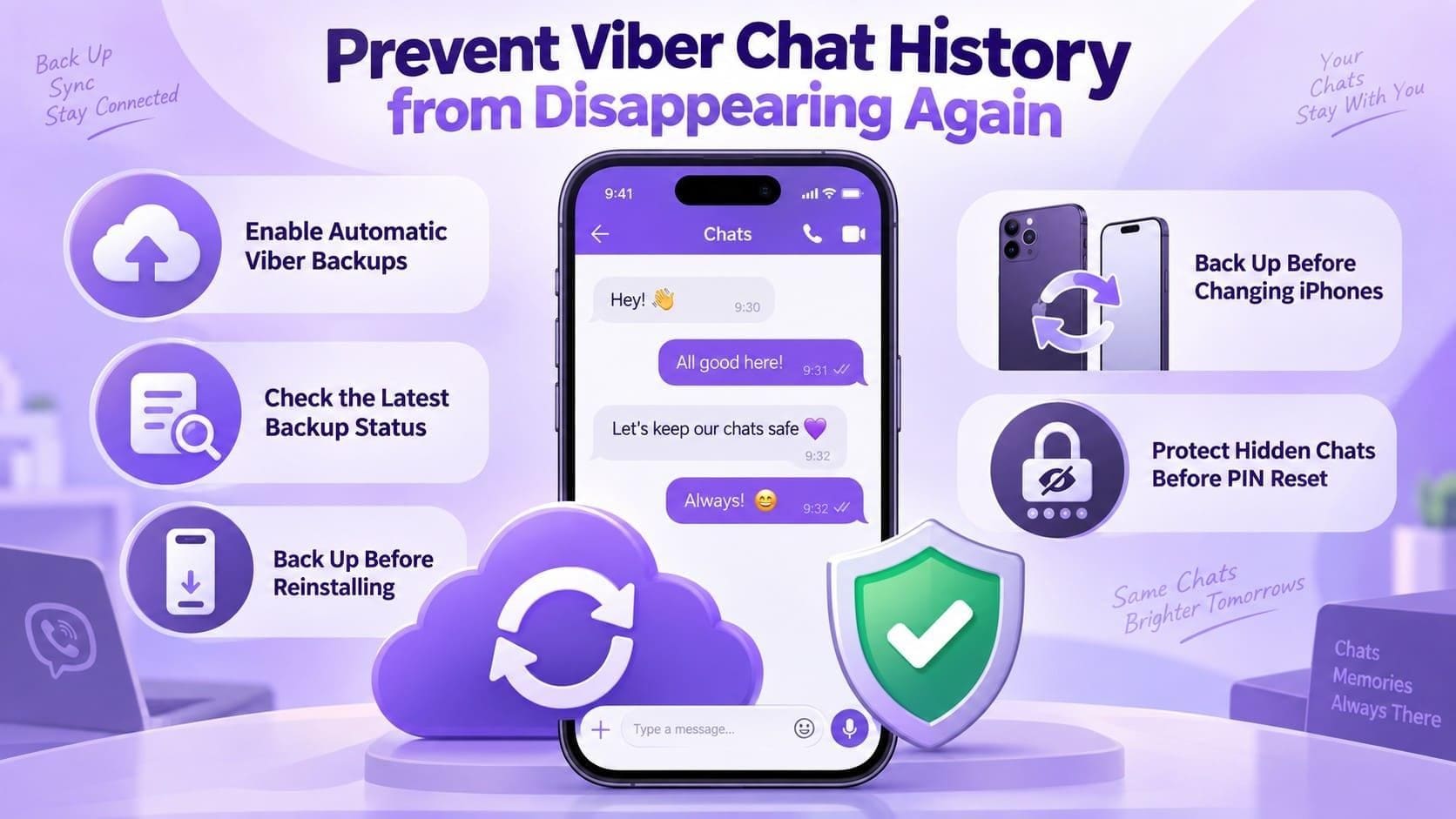
- Enable Automatic Viber Backups: Set Viber to back up your chat history automatically so you do not have to create every backup manually. Go to “More > Settings > Account > Viber Backup > Auto Backup” and choose Daily, Weekly, or Monthly. Viber recommends daily backups for the most up-to-date copy.
- Check Your Backup Status Regularly: Open Viber Backup periodically to confirm that automatic backups are still enabled and check when the latest backup was created. This can help you identify backup problems early instead of discovering a Viber no backup found issue when you need to restore your chats.
- Back Up Before Reinstalling Viber: Create a manual backup before uninstalling or reinstalling the app. Viber recommends backing up your chat history before uninstalling because reinstalling Viber cannot restore conversations that were never included in a backup.
- Avoid Resetting the Hidden Chats PIN: Do not reset your PIN simply because a hidden conversation appears missing. Resetting the Hidden Chats PIN permanently deletes the chat history, including messages and media, from all Hidden Chats. Try locating the conversation and entering your existing PIN first.
- Prepare Before Switching iPhones: Keep Viber updated on both phones, and leave the old iPhone unchanged until you've checked the chat history on the new device. When supported, use Viber’s direct phone-to-phone transfer. A recent iCloud backup still gives you another recovery option if direct transfer isn't available.
Conclusion
When Viber messages disappeared, start by checking Hidden Chats, Message Requests, the phone number, Apple Account, and the old iPhone. If the missing history still exists on the old iPhone, use Viber’s direct transfer when the devices meet the requirements. However, if that route is unavailable, restore an eligible iCloud backup.
When neither option contains the missing chats, Dr.Fone - Data Recovery (iOS) can scan the original supported iPhone for recoverable Viber data, subject to its device and iOS compatibility limits.
FAQ
-
1. Can hidden Viber chats look like they have disappeared?
Yes. Hidden chats disappear from the regular chat list, which can make them seem deleted. Enter your four-digit Hidden Chats PIN in the Viber search bar to access them again. -
2. What happens to newer Viber messages when I restore an older backup?
Restoring an older backup returns your Viber chat history to the state saved at that time. Messages received after the backup was created will not be included, so save any important newer chats or media before restoring. -
3. Can I transfer Viber history if the messages still exist on my old iPhone?
Yes. If both iPhones meet Viber’s direct-transfer requirements, try the phone-to-phone Wi-Fi transfer first. Keep Wi-Fi and Bluetooth enabled and leave both devices nearby until the transfer finishes. If direct transfer is unavailable, create a Viber iCloud backup on the old iPhone and restore it on the new one. -
4. Can I recover Viber chat history if no usable backup contains the missing messages?
You can use Dr.Fone - Data Recovery (iOS) to scan the original iPhone that stored the missing Viber data. It supports iPhone 16 series and earlier models running iOS 17.0–18.7.1 or iOS 26.0–26.0.1. However, recovery is subject to the Viber data remaining recoverable on the device.
 Add Wondershare Dr.Fone as a preferred source on Google