 Recover photos, messages, WhatsApp, and more — no backup
needed.


 100% Security Verified | No Subscription Required | No Malware


 :

 ChatGPT
 Perplexity
 Gemini
 Claude
 Grok
Tidying a crowded WhatsApp chat list can go wrong in seconds. You meant to remove an old conversation, but the neighborhood group with an event address, reminder photos and a helpful video is now empty or missing. If you need to recover deleted WhatsApp messages on your Google Pixel 10 without a backup, first separate a hidden chat from deleted content, then look for the records you actually need.
For an eligible device configuration, Dr.Fone - Data Recovery (Android) turns that search into a guided Windows-only Advanced Recovery workflow. You can scan WhatsApp app data, inspect available conversations and media, and save selected results to your PC. The preview helps you work toward a useful outcome, whether that is the missing discussion or just the instructions and files it contained.
In this article
Before you start
Verify the Pixel 10 Android and build combination
Record the current Android version, build number and device identity from Settings under About phone and Android version details. The supplied Pixel 10 Root record labels Android 15, lists kernels 6.6 / 6.6.118 and build CP2A.260705.006, but flags inconsistent Android labels for the same CP2A build across the source table. Treat the build-to-Android mapping as unverified, not as confirmation of your phone's operating system. Public Advanced Recovery documentation covers Android 9-13; ask Dr.Fone support to confirm your complete configuration and app version for the applicable additional route.
Preserve the current app before attempting recovery
Prepare a Windows PC, a reliable USB data cable and a folder for the recovered output. Keep WhatsApp installed and avoid clearing its storage or reinstalling it while investigating deleted content. Do not unlock the bootloader, reset the Pixel or flash a different build to match the reference. The supplied Root record does not establish root-free access, a lossless Root process or universal newer-Android support.
Note what changed and what you want to recover
Write down whether the conversation disappeared, its messages were cleared or only an attachment is missing. Keep a contact or group name and any remembered phrase ready for preview. This guide concerns personal WhatsApp and a PC recovery copy, not WhatsApp Business or direct restoration into the app. Being signed into a Google account does not by itself establish that you have a usable WhatsApp chat backup.
Check whether the Pixel 10 chat is hidden or its messages are deleted
After chat-list cleanup, the fastest first step is to identify the state of the conversation. This avoids treating an archived thread as a deleted-data problem.
Step 1 Search the group and inspect Archived
Open personal WhatsApp and search the group or contact name. Check Archived for a conversation that no longer appears in the main list. If the messages are still inside the thread, you can read the retained content without running a deleted-message scan.
Step 2 Open the thread and check the missing content
If a conversation opens, look for the actual exchange and try opening the relevant photo, video or document. A visible group name does not mean its previous messages remain. If the messages or files are gone, note the missing types and continue to Dr.Fone's WhatsApp scan.
- Archiving changes where a retained chat appears; it does not recover deleted messages.
- This article uses the no-backup device-scan route. It does not substitute a backup restore for a backup you do not have.
After WhatsApp cleanup on Pixel 10: identify the right next step
| What you see | Likely recovery task | Practical next step |
|---|---|---|
| The thread is in Archived and its messages open | Access retained data rather than recover deleted data. | Read and keep the useful information already present. |
| The group remains, but the old exchange is missing | Look for available deleted WhatsApp message records. | Inspect the conversation results from an eligible Advanced Recovery scan. |
| Text remains, but a photo or video no longer opens | Look for the specific missing media item. | Review the corresponding photo or video category, not only the chat text. |
| Loss followed a reset or app reinstallation | Assess a changed data state before another operation. | Describe exactly what changed to support and preserve the current installation. |
Common problems and fixes
The Pixel's Android version differs from the reference label
Use the version and build actually displayed on your phone. Give those values to Dr.Fone support with the model and WhatsApp version; do not relabel the device as Android 15 based on CP2A.260705.006 or change its software to fit the table.
A general phone-file scan did not show the deleted discussion
For a confirmed eligible configuration, choose Advanced Recovery and select WhatsApp app data. Review the conversation and attachment results from that focused scan rather than expecting a general photo result to contain the missing chat.
The group appears in the results, but only some useful content is present
Open the found conversation and check the available photo, video, audio and other attachment categories. Select useful records that are present. A partial conversation result does not imply the rest of the history or each associated file is available.
How to use Dr.Fone - Data Recovery (Android)
Dr.Fone - Data Recovery (Android) helps you move beyond an empty WhatsApp thread and look for the missing content on an eligible Pixel 10. Its Windows-only Advanced Recovery workflow scans selected WhatsApp app data without depending on an existing backup, displays found conversations and attachments for review, and saves your chosen records to a PC. That is particularly useful after an accidental chat cleanup, when a few messages, a reminder photo or a shared clip may be the information you most want back.
- Focus on the deleted-chat task: scan WhatsApp app data instead of treating a phone-wide file list as the conversation history.
- Check both words and shared files: inspect available conversation, photo, video, audio and attachment results.
- Make the result manageable: preview and select the useful records before saving a PC copy.
 Scan Android phones and tablets directly.
- Preview and recover only what you want.
- Supports WhatsApp, photos, videos, contacts, and more.
- Works with 6000+ Android devices.

Follow the official Advanced Recovery workflow
Step 1 Open the Android Advanced Recovery route
Launch Dr.Fone on Windows and navigate to Toolbox > Data Recovery. Select Android > Recover Android Data, choose Advanced Recovery and click Start Scan. Connect your eligible Pixel 10 by USB when requested and follow the on-screen device-detection prompts.

Step 2 Choose WhatsApp as the scan target
Select personal WhatsApp and click Start Scan. The guide requires WhatsApp, WhatsApp Business and the other data categories to be selected separately rather than scanned together.

Step 3 Maintain the connection while scanning
Keep the Pixel 10 connected until scanning finishes. If you need to stop, click Cancel before unplugging the cable. Follow the product's on-screen restart instructions if the phone becomes temporarily unresponsive afterward.

Step 4 Review the missing conversation and its attachments
Open the available WhatsApp conversation results and inspect the relevant group or contact. Use search and filters where available, then browse photo, video, audio and other attachment categories. Select the records that address the missing messages or files you identified earlier.
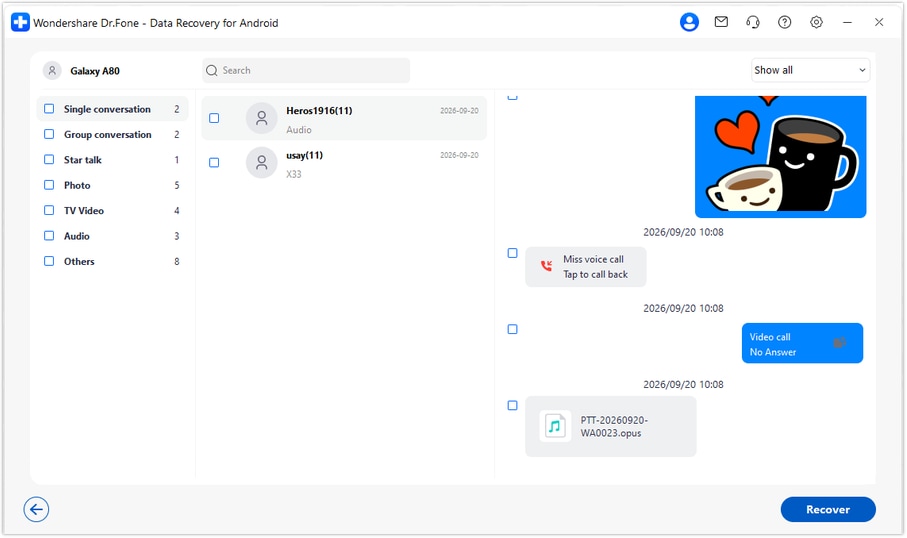
Step 5 Recover the selected Pixel 10 records to your PC
Click Recover, choose a computer folder through the save prompts and complete recovery. Open the saved output to review what you selected. Advanced Recovery saves these records to the PC rather than reinserting them into WhatsApp on the Pixel.




Conclusion
If a WhatsApp cleanup removed a conversation you still need, Dr.Fone - Data Recovery (Android) gives you a focused path to look for message text, inspect shared media and save useful results to a PC. Download Dr.Fone for Windows, confirm your Pixel 10 configuration and start the guided WhatsApp recovery workflow with a clear list of the records you want back.
FAQ
1. Can I recover deleted WhatsApp messages on Google Pixel 10 without a backup?
Dr.Fone - Data Recovery (Android) offers a no-backup device-scan route for eligible configurations. After confirming your actual Android version and build, use Advanced Recovery on Windows to scan WhatsApp, preview available records and save selected results to a PC.2. Does CP2A.260705.006 confirm my Pixel 10 runs a supported Android version?
No. The supplied record's build-to-Android mapping is flagged for verification. Read the actual version on your device and confirm the complete configuration with Dr.Fone support. The public Advanced Recovery range is Android 9-13; the additional Root reference alone is not blanket support for a newer release.3. My WhatsApp group is still there but empty. Should I only check Archived?
No. Archived is useful when a retained conversation has moved out of the main list. If the group remains but the messages were deleted, inspect the available conversation results from the supported recovery scan instead.4. Can I recover deleted WhatsApp photos and videos separately from the chat text?
You can inspect the scan's photo and video categories and select the available files you want to save. Message text and media may have different results, so check both rather than assuming one found item means the entire exchange is recoverable.5. Does having a Google account mean I already have a WhatsApp backup?
No. Account sign-in alone does not establish a usable WhatsApp chat backup. The workflow here is a supported device scan without a backup, and the recovered records are saved to your PC rather than restored through a cloud backup.
 Add Wondershare Dr.Fone as a preferred source on Google





