 Recover photos, messages, WhatsApp, and more — no backup
needed.


 100% Security Verified | No Subscription Required | No Malware


 :

 ChatGPT
 Perplexity
 Gemini
 Claude
 Grok
Your customer changed an installation plan in WhatsApp Business: a different access time, a revised diagram and an extra task agreed in the chat. After accidentally deleting that thread on your OnePlus 13, you still have the original job sheet but not the amendments. Working from the old instructions could mean a wasted visit or a dispute about what was agreed.
To recover deleted WhatsApp Business messages on OnePlus 13 without a backup, focus on the Business app data that may still be available, rather than reinstalling the app and hoping a backup appears. Dr.Fone - Data Recovery (Android) gives eligible devices a Windows recovery route with previews and selective saving to PC, helping you inspect the missing instructions and associated photos or attachments before deciding what to keep.
In this article
Before you start
Check the specific OnePlus 13 record and your software
The supplied device reference is OnePlus 13 with Android 15 and kernel 6.6.89; no model code or build is supplied. Record your phone's actual model information, Android version, kernel and full build for a Dr.Fone support check, including WhatsApp Business eligibility and required access. Advanced Recovery is Windows-only and the public guide covers Android 9-13. The Android 15 Root reference is configuration-specific, not proof for every OnePlus 13 firmware or another OnePlus model.
Keep the installed Business data in place
Avoid reinstalling WhatsApp Business, clearing its storage or running phone cleanup while preparing recovery. Use a Windows PC and a stable USB data cable. Do not re-register the account, unlock the bootloader, flash firmware or reset the phone to pursue a scan. If access requirements are unclear, have support confirm them rather than attempting an unverified Root process.
Make a short list of the missing amendments
Write down the customer number, job location or identifier, the approximate discussion date and the files you need. Separate the original instructions from the later changes so you can recognize relevant preview results. Choose a restricted PC destination for customer data; Advanced Recovery saves selected records there rather than rebuilding the conversation inside the app.
Locate surviving job instructions before scanning deleted Business data
You need to keep a customer job moving and may have an existing copy of some instructions, even though the Business thread is missing.
Step 1 Confirm the correct app and customer number
Open WhatsApp Business, not personal WhatsApp, and verify that you are checking the intended business account. Search by the customer's number and a distinctive job reference, since a changed display name can make the right thread easy to overlook. Read any matching retained messages before treating them as missing.
Step 2 Compare the job file with any separately saved revision
Check files you already saved or shared with an authorized colleague. A diagram or job sheet can preserve useful details, but compare its version and date with what you know about the customer's change request; an original document is not evidence that no later amendment existed.
Step 3 Request the specific missing change if a participant still has it
If appropriate, ask the customer or authorized colleague to resend the revised diagram or confirm the new access time and task scope. Identify the missing detail explicitly rather than asking them to reconstruct the entire job from memory.
- Existing messages and files are retained copies. A resend is replacement information, not recovery of deleted records from the OnePlus 13.
- These checks require no backup, but they may not recover the original exchange. Continue to the Business device scan for an attempt to find deleted app data.
How to interpret recovered job messages and attachments
| Available result | What to check | Practical use |
|---|---|---|
| Customer change-request messages | The task description, timing and any displayed surrounding context | Identify which instruction differs from the original job sheet. |
| A revised diagram, photo or other attachment | Its content and the matching conversation if available | Preserve the visual instruction without assuming the customer approved every detail. |
| An acknowledgement without the attached revision | Exactly what the available text refers to | Keep the message and ask for the missing file before acting on an incomplete plan. |
| Only an older file or a participant's resend | Whether this is the version you actually need | Use it as surviving or replacement information, not a recovered original chat. |
Common problems and fixes
The scan results do not match the customer's current display name
Use the number, job reference or a recognizable phrase with search and filters where available. Inspect matching Business conversations and their displayed context rather than rejecting a result solely because the name differs. Select only records you can reasonably associate with the intended customer.
The change request is present but its diagram is missing
Review the available Business media and attachment categories separately from conversation text. If the file is absent, save the useful message and request the diagram from a participant who still has it. Text recovery and attachment recovery can have different outcomes.
Advanced Recovery offers no usable Business scan for this OnePlus 13
Check that you are running the Windows workflow, then contact Dr.Fone support with the exact phone software and Business app details. Ask specifically about the OnePlus 13 Android 15/kernel 6.6.89 reference and your full build. Do not use a record for OnePlus 15 or a mixed-name device entry as evidence for your phone.
How to use Dr.Fone - Data Recovery (Android)
Dr.Fone - Data Recovery (Android) helps you search for the customer instructions that an ordinary saved job sheet may not contain. Its Windows-only Advanced Recovery workflow can scan WhatsApp Business on an eligible OnePlus 13 without relying on a backup, show the available conversation and media results, and recover selected findings to PC. Reviewing text and attachments together helps you distinguish an original instruction from a later change before you make the next job decision.
- Business-specific selection targets the customer messaging app rather than mixing it with personal WhatsApp or unrelated categories.
- Available search and preview tools help you inspect a customer number, job discussion and supporting attachment before selecting records.
- Selective PC saving keeps the useful findings available outside the phone for comparison with the existing job paperwork.
 Scan Android phones and tablets directly.
- Preview and recover only what you want.
- Supports WhatsApp, photos, videos, contacts, and more.
- Works with 6000+ Android devices.

Follow the official Advanced Recovery workflow
Step 1 Start Advanced Recovery for the OnePlus 13
On Windows, launch Dr.Fone and open Toolbox > Data Recovery. Choose Android > Recover Android Data, select Advanced Recovery and click Start Scan. When prompted, connect the eligible OnePlus 13 by USB and follow the device recognition and authorization instructions.

Step 2 Run a separate WhatsApp Business scan
Select WhatsApp Business, then click Start Scan. Keep personal WhatsApp and the other categories out of this selection; WhatsApp Business must be scanned separately in the official workflow.

Step 3 Allow the Business data scan to finish
Keep the OnePlus 13 connected while scanning progresses. To stop the scan, click Cancel before removing the cable. If the phone is temporarily unresponsive after scanning or recovery, follow the product's on-screen restart instructions.

Step 4 Review the job discussion and available revisions
Choose the WhatsApp Business results and inspect the available conversation and media categories. Use the offered search or filters to find relevant job details, preview the messages and files, and select the records that help document the customer's instructions.
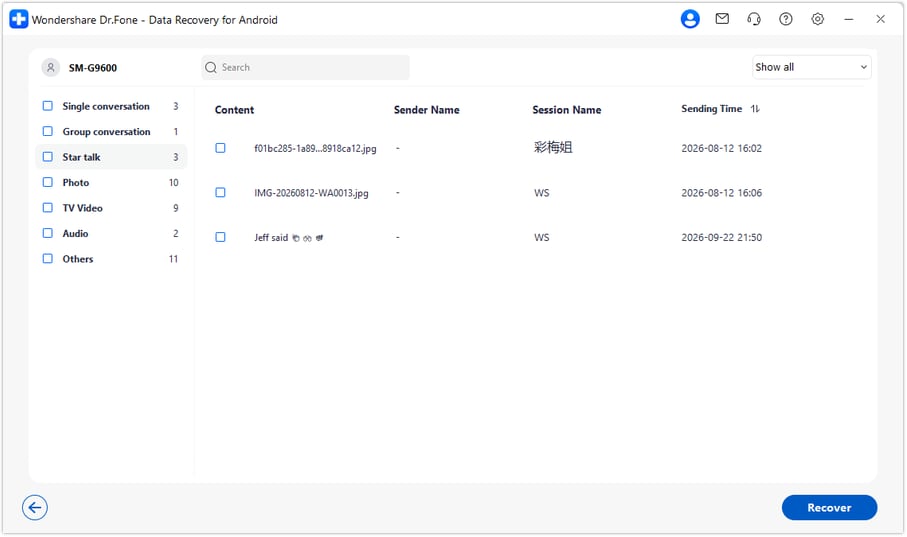
Step 5 Recover the selected instructions to a PC folder
Click Recover, choose a computer folder as prompted and complete the save. Open the saved output to check the selected content. The recovered copy stays on the PC; this process does not import or sync the records into WhatsApp Business on the OnePlus 13.




Conclusion
A deleted Business thread can leave important customer changes outside your job paperwork. For an eligible OnePlus 13, Dr.Fone - Data Recovery (Android) offers a focused way to scan for those messages, inspect available diagrams and photos, and save selected findings to PC. Download Dr.Fone for Windows and begin the guided Business recovery process to put the available instructions back within reach.
FAQ
1. How can I recover deleted WhatsApp Business messages on OnePlus 13 without a backup?
After confirming your exact device and app eligibility, use Dr.Fone - Data Recovery (Android) on Windows. Choose Advanced Recovery and select WhatsApp Business separately, scan the connected phone, then preview and save available records to PC. This route does not require an existing backup, but it can recover only what the scan finds.2. Should I select personal WhatsApp if my customer used WhatsApp Business?
Select the app that stored the conversation on your own OnePlus 13. For the WhatsApp Business data covered here, choose WhatsApp Business alone. The other participant's app does not change your local recovery target, and personal WhatsApp results are not a substitute for a Business scan.3. Can I recover deleted WhatsApp Business photos and job documents together?
You can review available Business conversations and related media or attachments in the results, then select useful findings for PC recovery. Check whether each file belongs to the job you need. Finding an instruction message does not guarantee its diagram or photo will also be recoverable.4. Is OnePlus 13 with Android 15 confirmed for every build?
No. The supplied record lists OnePlus 13, Android 15 and kernel 6.6.89, but gives no model code or build. It is a Root configuration reference, not universal Advanced Recovery or Business app confirmation. The public guide covers Android 9-13, so have Dr.Fone support check your full configuration and access requirements.5. Does recovering an order discussion also recover the order system?
No. A recovered message may contain a customer's requested changes or an attached job document, but this workflow does not restore an order-management database, CRM, catalog or all business records. The output is selected available chat data saved to PC, not an account or app restoration.
 Add Wondershare Dr.Fone as a preferred source on Google





