 Recover photos, messages, WhatsApp, and more — no backup
needed.


 100% Security Verified | No Subscription Required | No Malware


 :

 ChatGPT
 Perplexity
 Gemini
 Claude
 Grok
The chat you just deleted may contain tomorrow's meeting point, a friend's travel photos or a document you cannot easily request again. When there is no usable backup, recovering deleted WhatsApp messages on your Samsung Galaxy Z Flip 6 means looking for the app data itself, rather than reinstalling WhatsApp and hoping an old copy appears.
Dr.Fone - Data Recovery (Android) provides that next step on supported configurations. Its Advanced Recovery workflow lets you inspect WhatsApp conversations and shared media, then keep the useful results on a Windows PC. You can concentrate on the message, photo or attachment you actually need instead of treating the whole phone as one large recovery job.
In this article
Before you start
Identify the exact Z Flip 6 software configuration
Open Settings > About phone and Software information to record the model, Android version, build and kernel. The supplied Root reference lists SM-F7410, kernel 6.1.145, and builds F7410ZCS4DZF2 / F7410ZCS4DZG3, but does not state Android. These identifiers are reference entries, not proof that every combination or regional Z Flip 6 is supported. The public Advanced Recovery guide covers Android 9-13; ask Dr.Fone support to confirm your complete configuration, particularly for a newer Android version.
Prepare Windows and preserve the current app data
Use a Windows PC, a USB data cable and a folder for the recovered output. Keep WhatsApp installed, and avoid clearing its storage or resetting the phone. Do not follow a generic Root, bootloader-unlock or flashing tutorial as a recovery shortcut; the applicable access requirements need confirmation for your device.
Pick the information that matters most
Note the contact or group, the approximate date and whether you need text, a photo, a video or another attachment. Open the full WhatsApp app to check what is missing, rather than relying on a cover-screen notification. The folding design does not create a separate scan method: the recovery source is the supported phone's app data.
Check whether the travel or meetup chat is still in WhatsApp
A conversation disappeared from the main list, but you are not sure whether it was deleted or archived.
Step 1 Search for a distinctive detail
In WhatsApp, search for the contact or group name, or a remembered place name from the conversation. Open any matching result and check whether it contains the missing exchange.
Step 2 Inspect Archived before scanning deleted data
Open Archived and look for the same conversation. If the messages are there, you can read the retained information immediately. If the chat was truly deleted, move to the Advanced Recovery procedure below.
- Finding an archived conversation retrieves access to retained messages; it is not deleted-message recovery.
- A backup restore requires a suitable existing backup. It is not the no-backup method used here, and reinstalling the app is not a preparation step.
Find the useful part of a missing Z Flip 6 conversation
| What you lost | Where to look | What a useful result provides |
|---|---|---|
| An address or meeting instruction | The matching WhatsApp conversation in the scan preview | The available text you need to read again. |
| A trip photo or shared video | WhatsApp photo and video attachment results | A selectable media copy, even if you do not need the entire conversation. |
| An itinerary or other shared document | Available attachment categories | The relevant file to save with your other trip records. |
| A chat that was only archived | Archived inside WhatsApp | Immediate access to the existing conversation without a deleted-data scan. |
Common problems and fixes
Only a notification is visible, not the conversation you expected
Check the full WhatsApp app and its search and Archived areas first. A notification alone does not establish whether the chat is deleted. Use the recovery scan for genuinely missing records, not as a way to change cover-screen behavior.
Advanced Recovery is missing for the connected Z Flip 6
Confirm that you are using Windows, then provide Dr.Fone support with the actual SM-F7410 or other model code, Android version, build and kernel from your phone. Do not change firmware to imitate a reference entry.
The preview finds a shared picture but not the instruction beside it
Review the conversation and attachment results separately. Save the useful photo if available, then check the conversation preview for the text. One recovered item does not mean every item in the original exchange was found.
How to use Dr.Fone - Data Recovery (Android)
Dr.Fone - Data Recovery (Android) helps you turn a deleted WhatsApp conversation into a focused search for the details worth keeping. On a supported Galaxy Z Flip 6, its Windows-only Advanced Recovery mode scans WhatsApp app data without requiring an existing backup, displays available conversations and attachments, and saves your chosen results to a PC. Previewing first helps you identify a meeting detail or shared file before selecting what to recover.
- A WhatsApp-specific scan keeps the search centered on chat data rather than only ordinary camera photos.
- Conversation and attachment previews let you check the available message text, pictures, videos and other files.
- Selective PC recovery gives you a separate copy of the useful records instead of saving every result.
 Scan Android phones and tablets directly.
- Preview and recover only what you want.
- Supports WhatsApp, photos, videos, contacts, and more.
- Works with 6000+ Android devices.

Follow the official Advanced Recovery workflow
Step 1 Open Advanced Recovery and connect the Z Flip 6
Launch Dr.Fone on Windows and go to Toolbox > Data Recovery. Choose Android > Recover Android Data, select Advanced Recovery and click Start Scan. Connect your supported Z Flip 6 with a USB cable when prompted, then follow the on-screen instructions until it is detected.

Step 2 Select personal WhatsApp
Choose WhatsApp and click Start Scan. Select it separately from WhatsApp Business and the other data categories; the official workflow does not scan all of these selections together.

Step 3 Keep the phone connected during the scan
Allow Advanced Recovery to scan the selected app data while the USB connection remains stable. To stop, click Cancel before disconnecting. If the phone is temporarily unresponsive after scanning or recovery, follow the restart instructions displayed by the product.

Step 4 Review the conversation and its available attachments
Open the WhatsApp results and select a conversation to inspect its contents. Use search or filters where available, and review the photo, video, audio and other attachment categories. Select the records that match the contact or information you noted earlier.
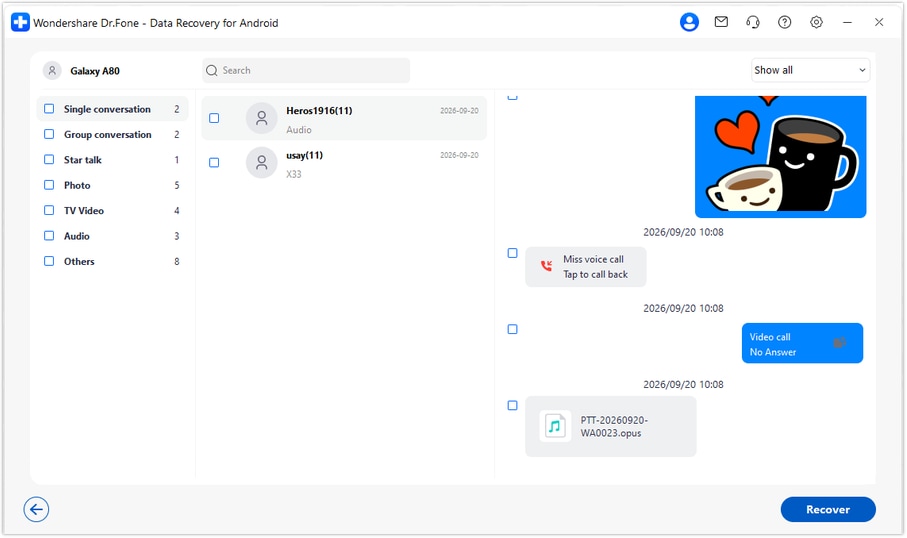
Step 5 Save the selected records to your computer
Click Recover and follow the prompts to choose a folder on your PC. Complete the save and open the output to review the selected messages and media. These are computer copies, not messages inserted back into WhatsApp on the Z Flip 6.




Conclusion
For a supported Galaxy Z Flip 6, Dr.Fone - Data Recovery (Android) offers a practical way to look beyond a missing backup: scan WhatsApp data, preview the conversation and attachments, and save the useful records to your PC. Download Dr.Fone for Windows and begin the guided recovery workflow to look for the message, memory or travel detail you want back.
FAQ
1. Can I recover deleted WhatsApp messages on Galaxy Z Flip 6 without a backup?
Dr.Fone - Data Recovery (Android) offers a no-backup device scan for supported configurations. After confirming your exact model and software, use Advanced Recovery on Windows to scan WhatsApp and save available selected results to a PC. The scan determines which records are recoverable.2. Does the Z Flip 6 cover screen need a different recovery tool?
No separate cover-screen recovery procedure is established here. Check the full WhatsApp app to identify the missing information, then use the supported device's WhatsApp recovery workflow. The folding form factor does not create an additional source of deleted chat history.3. Can I recover deleted WhatsApp photos and videos as well as messages?
Yes, supported Advanced Recovery scans provide WhatsApp conversation and attachment views. Review the photos, videos and other media actually found, and select the ones you want. Message text and media may have different availability.4. Does the SM-F7410 reference mean every Android version is supported?
No. The supplied Root reference does not specify Android and does not establish support for all builds or regional variants. The public Advanced Recovery guide lists Android 9-13. Confirm the software currently installed on your phone with Dr.Fone support rather than inferring it from a kernel or model name.5. Will the recovered chat reappear inside WhatsApp?
No. This Advanced Recovery workflow saves selected available data to a Windows PC. It does not import the saved records into the phone's WhatsApp conversation list.
 Add Wondershare Dr.Fone as a preferred source on Google





