 Recover photos, messages, WhatsApp, and more — no backup
needed.


 100% Security Verified | No Subscription Required | No Malware


 :

 ChatGPT
 Perplexity
 Gemini
 Claude
 Grok
You have settled into your Xiaomi 15, cleared a travel-planning conversation and suddenly need the host's directions and the video showing the entrance. The cloud backup you expected is not usable. If those messages were on this phone before deletion, a device scan is a more relevant next step than another guide asking you to restore a backup you do not have.
Dr.Fone - Data Recovery (Android) offers that route on supported configurations: inspect WhatsApp conversations and shared media found on the device, then keep the records you select on a PC. This guide focuses on recovering deleted WhatsApp messages on Xiaomi 15, with preparation for the supplied Global configuration and a short check to avoid looking for old-phone-only history on the wrong handset.
In this article
Before you start
Confirm the Xiaomi 15 Global reference against your phone
The supplied Root record is Xiaomi 15 (Global), Android 15, kernel 6.6.77. It contains no model code or full build. Note your exact model, region, Android version and installed build from settings, and confirm the applicable route with Dr.Fone support. Public Advanced Recovery guidance covers Android 9-13; this additional reference is not blanket Android 15 support or evidence for non-Global variants, Xiaomi 15 Pro or Ultra.
Keep the phone that held the deleted conversation intact
Use a Windows computer and a USB data cable for this Windows-only workflow. Avoid uninstalling WhatsApp, clearing its storage or resetting either handset while checking your options. Root access requirements must be confirmed for the exact configuration; do not use an unverified root, bootloader-unlock or flashing tutorial. No universal root-free or lossless procedure is established by the reference.
Prepare the details that identify the travel exchange
Write down the host or group name, the dates, a distinctive address word and whether you need text directions, a location photo, a video or another attachment. Choose a private PC destination folder. These details help you select relevant scan results instead of assuming every travel-related file belongs to the deleted chat.
Check where the WhatsApp conversation actually existed
You recently changed phones and are unsure whether the missing history was ever present on the Xiaomi 15.
Step 1 Confirm the personal WhatsApp account you are viewing
Open the installed personal WhatsApp app and check its profile phone number in settings. Compare it with the account used for the travel conversation. Do not log out, register a number again or change accounts merely to test recovery.
Step 2 Separate deletion on this phone from history that never arrived
Recall whether you read the missing exchange on the Xiaomi 15 before deleting it. If an old handset already offers an accessible retained copy, read that copy without resetting or re-registering it. If it is inaccessible, preserve it rather than attempting an improvised migration.
Step 3 Choose the relevant next action
For a conversation actually deleted from the Xiaomi 15, proceed to the supported device scan below. If the messages only existed on an older phone, do not assume scanning the new handset will reconstruct them. Keep that device's situation separate and check its own recovery eligibility.
- Reading an existing account or old-device copy is a retained-data check, not restoration of deleted messages.
- Neither restoring a backup nor moving history between handsets is presented as a no-backup deleted-data recovery method.
Pick the recovery target before scanning
| What happened to the travel chat | Relevant action | Expected kind of result |
|---|---|---|
| You read it on the Xiaomi 15, then deleted it | Scan personal WhatsApp on the supported Xiaomi 15 | Available deleted-data results for preview and PC saving. |
| It is still readable in an already accessible retained copy | Read the existing directions or media | Retained information, not recovered deleted records. |
| It only existed on the old phone and never appeared on the Xiaomi 15 | Preserve the old phone and assess it separately | No basis to promise that the new phone contains recoverable history. |
| The video is found but the written directions are not | Review text and attachment results independently | A useful media result does not imply the complete exchange was found. |
Common problems and fixes
The scan shows current chats, but not the older travel conversation
Confirm that the target exchange actually existed on this Xiaomi 15 and that you selected personal WhatsApp rather than WhatsApp Business. Use available search or filters to inspect the relevant conversation. If the history never arrived from an older phone, repeated scans of the new one cannot be treated as a transfer method.
You need both an entrance video and the message explaining it
Inspect the video category and the host's conversation separately. Preview the actual available content before selecting it. Keep a useful video if found, but do not assume its presence confirms that the associated directions or every other attachment survived.
Your Android 15 phone is detected, but the recovery route is blocked
Keep the product's exact message and provide support with the Global or regional identity, full build and app version. The supplied Global Android 15/kernel 6.6.77 record is narrower than all Xiaomi 15 devices. Confirm eligibility and access requirements without downgrading or changing firmware.
How to use Dr.Fone - Data Recovery (Android)
Dr.Fone - Data Recovery (Android) helps you turn a deleted WhatsApp travel exchange into a focused search for usable information on a supported Xiaomi 15. Its Windows-only Advanced Recovery mode scans selected WhatsApp app data without depending on a backup, lets you review the available conversations and media, and saves your chosen results to a PC. That means you can look for the host's instructions and related files in one guided process instead of searching only for gallery images.
- A separate personal WhatsApp scan targets the application that held the directions and travel discussion.
- Conversation and attachment previews help you identify useful text, photos, videos or audio among the actual scan results.
- Selective recovery keeps the records you need on a PC rather than requiring you to save unrelated conversations.
 Scan Android phones and tablets directly.
- Preview and recover only what you want.
- Supports WhatsApp, photos, videos, contacts, and more.
- Works with 6000+ Android devices.

Follow the official Advanced Recovery workflow
Step 1 Choose Advanced Recovery for the connected Xiaomi 15
Launch Dr.Fone on Windows and navigate to Toolbox > Data Recovery. Select Android > Recover Android Data, choose Advanced Recovery and click Start Scan. Connect the supported Xiaomi 15 by USB when requested and follow the on-screen instructions until detection is complete.

Step 2 Scan personal WhatsApp separately
Select WhatsApp and click Start Scan. Keep WhatsApp Business and the other app or browsing-data categories out of this selection; personal WhatsApp requires its own scan.

Step 3 Let the scan finish with the cable connected
Maintain the phone's USB connection while Advanced Recovery scans. To interrupt the operation, use Cancel before disconnecting. Follow the product's restart instructions if the phone becomes temporarily unresponsive after scanning or recovery.

Step 4 Preview the travel conversation and media results
Open the WhatsApp results and look for the host or travel group. Use available search and filters, then review the photos, videos, audio and other attachment categories. Select the records that contain the directions or files you actually need.
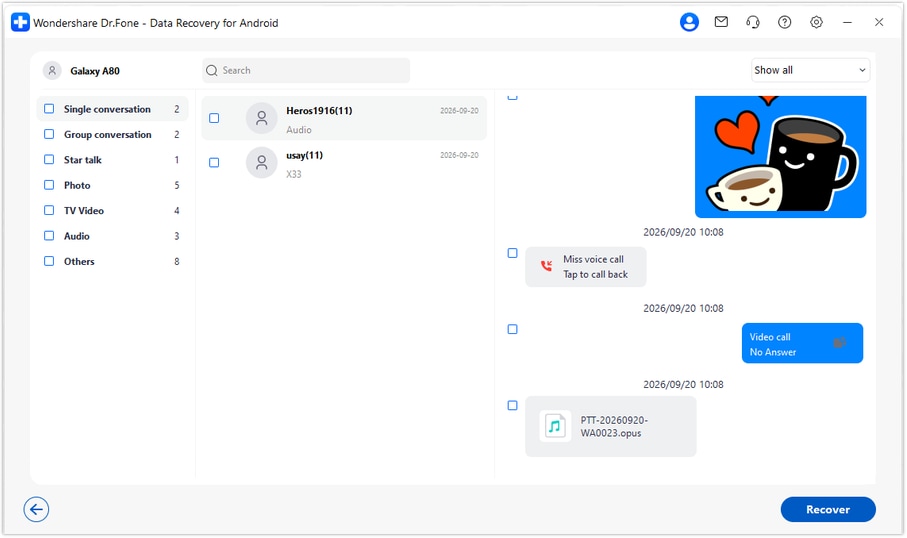
Step 5 Keep the selected results on your Windows PC
Click Recover and follow the prompts to choose a computer folder and save the selected records. Check the output there. Advanced Recovery does not import these records into WhatsApp, merge them with current chats or transfer them between phones.




Conclusion
For a supported Xiaomi 15 configuration, Dr.Fone - Data Recovery (Android) provides a useful route when deleted WhatsApp messages and shared travel files have no usable backup. Its app-focused scan, clear preview and selective PC saving let you concentrate on the instructions and media you need. Download Dr.Fone for Windows and begin the guided recovery process with your compatible Xiaomi 15.
FAQ
1. Can I recover deleted WhatsApp messages on Xiaomi 15 without a backup?
A supported Xiaomi 15 can use Dr.Fone - Data Recovery (Android)'s Windows Advanced Recovery route to scan WhatsApp without an existing backup. Review the available conversations and attachments, then save selected results to the PC. The result depends on the configuration and the data found.2. Is the Xiaomi 15 Global Android 15 record proof of support for every Xiaomi 15?
No. The supplied reference names Xiaomi 15 (Global), Android 15 and kernel 6.6.77, without a model code or full build. It does not establish support for all regional firmware or other Xiaomi 15 variants. Confirm your exact configuration and applicable access route.3. Will scanning my new Xiaomi 15 recover chats that never transferred from my old phone?
Not on that assumption alone. A scan of the Xiaomi 15 is not a phone-transfer operation and cannot be promised to find history that never existed on it. Preserve the old handset and assess its own situation separately if it was the only device that held those messages.4. Can I recover deleted WhatsApp photos and videos from the travel chat?
Inspect the available photo and video attachment results as well as the conversation. Select media that the scan actually finds. A found photo or clip can be useful even when the accompanying text is not available, but it does not recreate the missing messages.5. Where are the recovered WhatsApp records stored?
The selected available records are saved to the folder you choose on the Windows PC. They remain a separate computer copy rather than being synced or written back into WhatsApp on the Xiaomi 15.
 Add Wondershare Dr.Fone as a preferred source on Google





