 Recover photos, messages, WhatsApp, and more — no backup
needed.


 100% Security Verified | No Subscription Required | No Malware


 :

 ChatGPT
 Perplexity
 Gemini
 Claude
 Grok
A family-event conversation can hold more than messages: the meeting point, a shared video and the only copy you remember of a group photo. Accidentally deleting that chat on a Pixel 9 Pro XL can leave you unsure whether the information, the media or both are gone. Without a usable backup, a restore tutorial is not the answer to every part of that problem.
To recover deleted WhatsApp messages on your Google Pixel 9 Pro XL, Dr.Fone - Data Recovery (Android) offers eligible configurations a WhatsApp-focused scan with previews of available conversations and attachments. You can choose the useful results and keep them on a PC. First check whether any shared files were already saved elsewhere, then use the Windows recovery workflow to look for missing app records.
In this article
Before you start
Confirm the XL model and its current software
Check Settings > About phone and record the full device name, Android version and build, plus the installed WhatsApp version. Confirm Pixel 9 Pro XL rather than borrowing a Pixel 9 Pro or Pixel 9 reference. The supplied XL Root record lists Android 15, kernel 6.1.157 and CP2A.260705.006, with no model code. The table associates that same build with differing Android labels, so the mapping is unverified. Public Advanced Recovery guidance covers Android 9-13; ask Dr.Fone support to confirm any additional configuration-specific route.
Prepare a stable Windows connection without altering the phone
Have a Windows PC, a working USB data cable and a destination folder ready. Leave WhatsApp installed and avoid clearing its app storage, resetting the phone or changing firmware during recovery preparation. Root access requirements and the data implications of the newer Root process are not established in the supplied records. Do not follow a generic unlock or rooting guide to make the phone fit a reference entry.
Decide whether you need the conversation, the files or both
List the contact or group and the specific photo, video, audio or document you want back. A media copy already saved on the phone may solve the file-loss problem without solving the deleted-message problem. Advanced Recovery also treats the records actually found as the recovery scope; it saves selected results to a PC and does not rebuild the conversation inside WhatsApp.
Look for retained WhatsApp media before scanning the Pixel 9 Pro XL
You mainly need a shared photo, video or document, and you may have saved a copy before deleting the chat.
Step 1 Inspect the apps and locations where you normally save files
Use your photo app or file browser to look for a copy you previously downloaded or saved. Check the actual image, clip or document, not only a similar-looking thumbnail or filename. Do not assume every WhatsApp attachment was saved outside the app.
Step 2 Check the conversation's status in WhatsApp
Search the contact or group in personal WhatsApp and look in Archived. If the conversation is still present, inspect whether the wanted message and attachment remain there. An archived chat is retained data; a chat containing only newer messages may still be missing the older exchange.
Step 3 Keep any usable copy, then target the remaining gap
If a saved video is all you needed, verify that it opens. If you also need the accompanying messages, or the media is missing too, continue to the eligible Dr.Fone scan. Finding one independent file is not proof that the deleted conversation has been recovered.
- These checks locate existing copies; they do not scan deleted WhatsApp data.
- The recovery procedure below is a device scan, not a Google Drive restore and not a requirement to have backed up the chat.
A saved file is not the same as a recovered WhatsApp conversation
| Result | What you can use | What still needs checking |
|---|---|---|
| A photo already exists in your photo app | That retained photo copy | Whether the missing message or the rest of the media is available. |
| The whole chat is in Archived | Messages and attachments still present in that chat | Whether the specific older exchange was actually retained. |
| The scan finds conversations but not the wanted video | Selected conversation records shown in the preview | Video availability; a message entry does not guarantee its attachment. |
| The scan finds the wanted video or document | The selected available attachment saved to the PC | The saved file itself and any separate message text you also require. |
Common problems and fixes
A shared photo is visible, but the chat around it is missing
Treat the photo as a useful separate copy. In Dr.Fone, review the WhatsApp conversation results as well as the attachment categories and select any relevant message records found. Do not label the full chat recovered solely because a matching photo exists.
The scan offers many media results, but only a few belong to your event
Use the available search or filters to narrow the results, then inspect the previews. Select the specific items you recognize and review message results separately for the meeting details. Saving every result is not necessary to retrieve the information you need.
You can connect the XL, but the recovery option or WhatsApp scan is unavailable
Keep the exact displayed notice and ask Dr.Fone support about your Pixel 9 Pro XL configuration, including Android, full build and app version. A common CP2A build string or a similar Pixel model does not resolve compatibility. Do not change Android versions as a recovery experiment.
How to use Dr.Fone - Data Recovery (Android)
Dr.Fone - Data Recovery (Android) brings the conversation and the available shared media into a single review process for supported Pixel 9 Pro XL configurations. Its Windows-only Advanced Recovery workflow looks for WhatsApp app data without a backup, then lets you inspect conversations and attachment categories before saving selected results to a PC. That is useful when recovering a family-event video alone is not enough and you also need the written meeting details.
- A focused WhatsApp scan searches supported app data rather than assuming a photo-library check can recover deleted chat text.
- Separate conversation and media previews let you assess messages, photos, videos and other available attachments on their own merits.
- Selective saving helps you collect the few useful event records instead of retaining unrelated results.
 Scan Android phones and tablets directly.
- Preview and recover only what you want.
- Supports WhatsApp, photos, videos, contacts, and more.
- Works with 6000+ Android devices.

Follow the official Advanced Recovery workflow
Step 1 Start the Windows Advanced Recovery workflow
Open Dr.Fone and go to Toolbox > Data Recovery. Choose Android > Recover Android Data, select Advanced Recovery and click Start Scan. Connect the supported Pixel 9 Pro XL with a USB cable when prompted and follow the device-detection instructions.

Step 2 Choose WhatsApp on its own
Select personal WhatsApp and click Start Scan. Do not combine WhatsApp, WhatsApp Business and the other data categories in one selection; the guide requires separate scans for these choices.

Step 3 Allow the app-data scan to complete
Keep the phone connected as Advanced Recovery scans. To interrupt the process, choose Cancel before unplugging the cable. Follow any displayed restart instructions if the phone is temporarily unresponsive after scanning or recovery.

Step 4 Review the family conversation and media categories
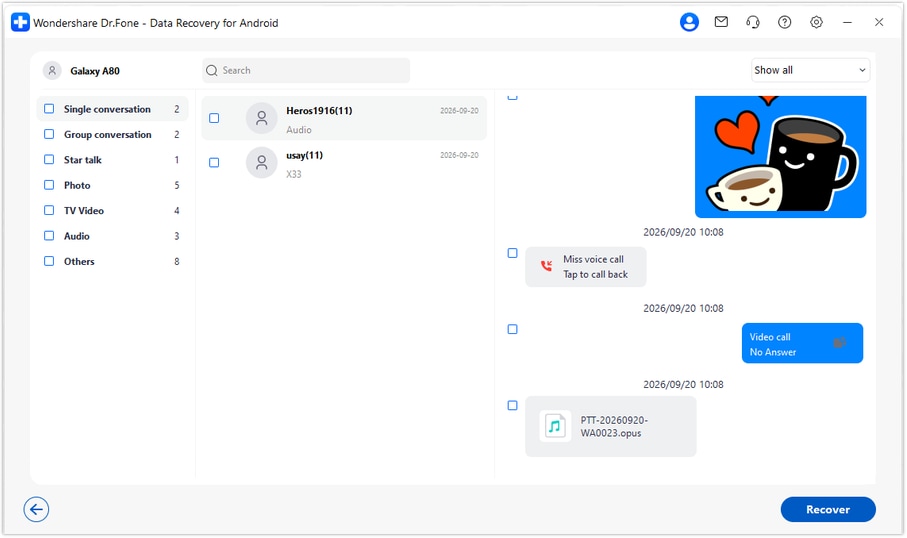
Choose the WhatsApp results and open available conversations. Search or filter where those controls are offered, and inspect photo, video, audio and other attachment categories. Select the actual messages and files you recognize as useful.
Step 5 Recover the chosen records to a computer folder
Click Recover, choose the PC destination using the save prompts and complete recovery. Open the saved output and check the selected records. This saves a separate computer copy; it does not import the chat or attachments into WhatsApp on the XL.




Conclusion
A deleted WhatsApp conversation does not have to leave you sorting through unrelated photos or relying on a backup you do not have. For an eligible Pixel 9 Pro XL configuration, Dr.Fone - Data Recovery (Android) helps you look for missing chat details, preview shared media and save the selected records together on your PC. Confirm compatibility, download Dr.Fone for Windows and begin the guided WhatsApp recovery process.
FAQ
1. Can I recover deleted WhatsApp messages on Google Pixel 9 Pro XL without Google Drive?
Dr.Fone - Data Recovery (Android) has a device-scan workflow that does not require a Google Drive backup. It is conditional on support for your exact XL configuration. On Windows, scan WhatsApp through Advanced Recovery, preview the available records and save selected results to your PC.2. Does finding a WhatsApp photo in my photo app restore the deleted chat?
No. It means a separate photo copy is still present. That may be enough if you only need the image, but recovering deleted message text requires its own available result. Check conversations and attachment categories separately.3. Does the Pixel 9 Pro support record cover the Pixel 9 Pro XL too?
Do not transfer eligibility between models. The XL has its own supplied reference, and its CP2A.260705.006-to-Android mapping is still unresolved. The Android 15 label in that row is not a verified compatibility result, and the public Advanced Recovery range remains Android 9-13.4. Can I recover just the WhatsApp videos or documents I need?
You can select relevant items that appear in the available attachment results and recover them to the PC. You do not need to save every result. The preview determines what is available; it does not promise that every deleted attachment will be found.5. Will the recovered WhatsApp media return to the original conversation?
No. This Advanced Recovery workflow writes the selected results to a folder on your PC, not to the phone's live WhatsApp database. Open that folder to review the saved messages and media.
 Add Wondershare Dr.Fone as a preferred source on Google





