 Recover photos, messages, WhatsApp, and more — no backup
needed.


 100% Security Verified | No Subscription Required | No Malware


 :

 ChatGPT
 Perplexity
 Gemini
 Claude
 Grok
Months of WhatsApp history may still be visible, yet the one exchange you need is gone: a collection time, an address or the document that confirmed the plan. If you deleted those messages on a Galaxy S25+ without a usable backup, a photo-only search will not necessarily bring back the words. Dr.Fone - Data Recovery (Android) gives supported configurations a focused app-data recovery route.
The aim is to recover deleted WhatsApp messages on Samsung Galaxy S25+ that actually help you, not to promise a perfect reconstruction of every conversation. With the Windows Advanced Recovery workflow, you can inspect the found discussion and media, identify useful pieces, and save selected results to a PC.
In this article
Before you start
Confirm the S25+'s current recovery eligibility
Record the model, Android version, build and kernel in Settings under About phone and Software information. The supplied S25+ Root reference identifies SM-S9360, build S9360ZCSCCZG1 and kernel 6.6.98. It does not specify Android or establish support for other regional models. Do not infer the OS from the phone's generation, kernel or build. The public Advanced Recovery guide covers Android 9-13; ask Dr.Fone support to confirm the additional route for your complete installed configuration and app version before scanning.
Keep the data source unchanged while preparing Windows
Use a Windows PC and a reliable USB data cable; Advanced Recovery is Windows-only. Keep WhatsApp installed and avoid clearing its storage, resetting the S25+ or changing firmware. The supplied reference does not explain the Root mechanism or its data risks, so do not improvise bootloader-unlock or rooting steps. Follow the confirmed connection and access instructions for your device.
Define a useful recovery result
Note the contact, approximate exchange date and the detail you need, plus any associated photo, video, audio or document. A useful message or attachment can help even if the whole history is not found. Only available scan results can be selected; Advanced Recovery saves them to a PC rather than filling gaps in the phone's WhatsApp timeline.
Check the missing exchange before scanning your Galaxy S25+
Avoid mistaking a difficult-to-find message for deleted data, especially when the rest of the conversation remains.
Step 1 Search for a distinctive part of the exchange
In WhatsApp, search for the contact or group and a term you remember, such as a place or document name. Inspect the matching messages to see whether the required detail is still accessible. A long visible conversation can be missing only the particular messages you need.
Step 2 Check Archived only if the entire conversation is missing
If you cannot find the chat at all, inspect Archived. Opening a retained chat can resolve a hidden-conversation problem, but it does not reverse deleted messages within a chat. Continue to the supported Dr.Fone scan for the records that are genuinely absent.
- Search and Archived locate retained messages; they are not methods for recovering deleted history.
- A backup restore requires an existing usable backup. This guide instead follows the device-scan route for users without one.
How to use different WhatsApp scan outcomes on Galaxy S25+
| What the preview shows | Useful next action | What it means |
|---|---|---|
| The specific exchange you needed | Select the relevant message records | Save the found information without selecting every conversation. |
| A useful photo, video or document but incomplete text | Review and select the available attachment | A file can meet part of the recovery goal independently of the discussion. |
| Message text but not the associated media | Keep useful text and inspect the media categories separately | One result type does not establish that the matching attachment is available. |
| No matching records | Check the app category and target details, then discuss the case with support | Neither this preview nor the device reference proves the missing items can be recovered. |
Common problems and fixes
A general media scan does not show the missing reply
For a supported configuration, use Advanced Recovery's WhatsApp category and inspect conversation results. Message content is the target here, so finding an unrelated photo is not evidence that the required reply has been located.
You found part of the exchange but not the full timeline
Select the useful available records and inspect the relevant attachment categories as well. Use search and filters where offered to check other matching results. Partial records should be treated as partial; do not assume PC saving will reconstruct messages that were not found.
Your phone is an S25+ but its model or software differs from the reference
Give support the actual regional model, Android version and build. SM-S9360 is a specific reference, not a series-wide support statement. Do not downgrade, flash or reset the phone to imitate its listed build.
How to use Dr.Fone - Data Recovery (Android)
Dr.Fone - Data Recovery (Android) helps you search for a particular deleted WhatsApp exchange on a supported Galaxy S25+ instead of relying on a gallery-only recovery attempt. Its Windows-only Advanced Recovery mode scans selected WhatsApp app data, presents the available conversation and attachment results for preview, and saves your chosen items to a PC without requiring an existing backup. That lets you prioritize a useful reply, a shared file or several related records according to what the scan actually finds.
- Focus the scan on personal WhatsApp app data rather than unrelated phone files.
- Review conversations and media separately to identify both useful messages and supporting attachments.
- Choose the found records that meet your goal and save a separate recovery copy to a PC.
 Scan Android phones and tablets directly.
- Preview and recover only what you want.
- Supports WhatsApp, photos, videos, contacts, and more.
- Works with 6000+ Android devices.

Follow the official Advanced Recovery workflow
Step 1 Enter Advanced Recovery and connect the Galaxy S25+
Launch Dr.Fone on Windows and open Toolbox > Data Recovery. Choose Android > Recover Android Data, select Advanced Recovery and click Start Scan. Connect the supported S25+ by USB when prompted and follow the instructions until it is detected.

Step 2 Choose WhatsApp for the deleted exchange
Select personal WhatsApp and click Start Scan. Keep this selection separate from WhatsApp Business and the other categories, which the official guide does not allow you to scan together.

Step 3 Keep the device connected as scanning progresses
Allow the scan to run with the USB cable connected. If you need to stop, click Cancel before disconnecting. Follow the product's on-screen restart guidance if the phone becomes temporarily unresponsive after scanning or recovery.

Step 4 Locate useful messages and associated media in the preview
Open the WhatsApp conversation view and inspect the available records. Use search and filters where available, then review the photos, videos, audio and other attachment categories. Select the found items that contain the exchange or files you need.
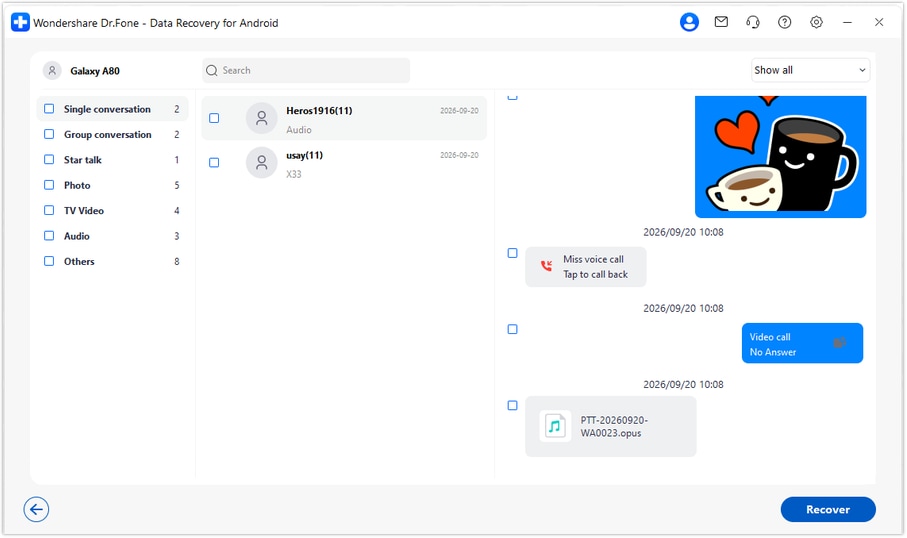
Step 5 Recover the selected records to your computer
Click Recover, choose a folder on the PC and complete the saving prompts. Open the output to review the selected message and attachment records. This saves a separate PC copy rather than filling the missing messages into WhatsApp on the S25+.




Conclusion
You do not need to keep every scan result for recovery to be useful: the right reply, photo or document may be the record you were missing. On a supported Galaxy S25+, Dr.Fone - Data Recovery (Android) combines a targeted WhatsApp scan, preview for locating useful information, and selective saving to a PC. Download Dr.Fone for Windows and start a focused search for the messages and attachments that matter to your next step.
FAQ
1. How can I recover deleted WhatsApp messages on Samsung Galaxy S25+ without a backup?
Use Dr.Fone - Data Recovery (Android) on Windows after confirming the S25+'s complete configuration is supported. In Advanced Recovery, connect the phone, select WhatsApp, scan, preview the available results and save your selection to a PC.2. Can I recover a few deleted messages without recovering every chat?
You can make a selective recovery from the available results rather than choosing every conversation. Inspect the relevant message records and select the wanted items using the options shown by the product.3. Can kernel 6.6.98 tell me which Android versions are supported?
No. The supplied SM-S9360 reference lists that kernel and a build but leaves Android unspecified. Check the installed Android version on the phone and confirm the applicable recovery route; a kernel value does not establish OS compatibility.4. Can Dr.Fone recover WhatsApp photos and videos when only part of the chat is found?
Review photo and video results independently of the message view. If the required media is available, you can select and save it even when the complete conversation is not. The reverse can also occur: useful text may be present without its attachment.5. Will the PC output rebuild the missing parts of my WhatsApp timeline?
No. Advanced Recovery saves selected available records to a PC. It does not generate messages that were not found or insert the recovered copy into the phone's WhatsApp history.
 Add Wondershare Dr.Fone as a preferred source on Google





