 Recover photos, messages, WhatsApp, and more — no backup
needed.


 100% Security Verified | No Subscription Required | No Malware


 :

 ChatGPT
 Perplexity
 Gemini
 Claude
 Grok
You are sorting out an older Pixel 6 before moving on to another phone when you discover that a WhatsApp conversation containing repair instructions and years of shared files was deleted. There is no usable backup, and the newer phone does not contain the exchange either. Before resetting or trading in the Pixel, establish what data you still have on the original device.
Dr.Fone - Data Recovery (Android) offers supported Pixel 6 users a way to scan for deleted WhatsApp app data and retain selected available results on a PC. It can help you look for the messages, photos, videos and attachments that matter without turning recovery into a backup or phone-transfer procedure. This guide starts with the source-device check, then walks through the Windows scan.
In this article
Before you start
Use the Pixel 6 that held the missing chat
Identify the handset on which the conversation was stored and deleted. Keep that phone available with WhatsApp installed; a newer phone with an incomplete history is not a substitute for scanning the original source. This guide does not establish recovery after a factory reset or phone erasure.
Read the current Android version, even on an older model
In Settings > About phone, record the exact Pixel 6 model, Android version and build. Do not infer the installed system from the phone's age or use Pixel 6 Pro/6a records. Public Advanced Recovery guidance covers Android 9-13. The supplied Pixel 6 Root entry lists Android 14, CP2A.260705.006 and kernel 6.1.157, but the build-to-Android mapping is unverified because the source table uses that build with different Android versions. Confirm this phone's complete configuration with Dr.Fone support.
Keep recovery separate from disposal or migration
Pause any plan to erase the Pixel, clear WhatsApp storage or uninstall the app. Do not change firmware, unlock the bootloader or attempt an unverified Root process for this recovery. Prepare a Windows PC, USB data cable and output folder, and follow the applicable product access prompts. Advanced Recovery is Windows-only and saves to PC rather than to either phone's WhatsApp.
Locate the missing records before scanning the source Pixel 6
You have both an older Pixel 6 and another phone, and need to distinguish a deleted source chat from a history that simply is not present on the other handset.
Step 1 Write down where you last read the conversation
Identify the device and personal WhatsApp account that held the exchange. Note the contact or group and a distinctive detail from the missing messages. Do not assume the newer handset contains the original data just because it has the same contact names.
Step 2 Check any conversation still accessible on the Pixel
If WhatsApp remains accessible on the original phone, search for the contact or group and inspect the relevant thread, including Archived if the entire thread is missing. Read any retained information before deciding which genuinely deleted items to look for.
Step 3 Make a targeted recovery list
List the missing instructions and the photos, videos or documents you want alongside them. Use this list when comparing the scan's conversation and attachment results; a long history does not mean you need to save every returned item.
- Locating an existing chat is not deleted-message recovery, and a history missing from another phone does not prove that the original data was deleted.
- The main workflow below scans the supported connected device. It is not a migration, account reactivation or backup-restoration procedure.
Which device or result answers your Pixel 6 recovery need?
| Situation | Next useful action | Expected boundary |
|---|---|---|
| The chat is absent only from another phone | Check the original Pixel 6 before making changes | This may be a missing-history issue, not deletion from the source. |
| The chat was deleted on the original Pixel | Scan that supported device's WhatsApp data | Only records actually found in the scan are available for recovery. |
| You only found an old photo copy | Keep it and inspect conversation results separately | A standalone photo does not reconstruct the instructions around it. |
| You want records before retiring the phone | Save selected available results to a PC | PC output is a separate copy, not a transfer into a new phone's WhatsApp. |
Common problems and fixes
You connected the new handset but cannot find the old exchange
Recheck the source-device list. If the records were held and deleted on the Pixel 6, use that phone for the supported scan. Do not repeatedly scan a different device expecting it to supply a conversation that was never present there.
The older Pixel runs newer Android software than the guide's public range
Treat the current version and build as the deciding details, not the model's release generation. Ask support to confirm the applicable configuration-specific route; do not downgrade or flash the phone to match an older range.
The result list is large and several old documents look similar
Use available conversation previews and search or filters to narrow the results. Compare visible content with the repair instructions or files on your list, then save the relevant selection and inspect the PC output before considering the task finished.
How to use Dr.Fone - Data Recovery (Android)
Dr.Fone - Data Recovery (Android) helps you make a focused recovery attempt on the source Pixel 6 before you put the handset aside. For supported configurations, its Windows-only Advanced Recovery mode searches WhatsApp app data without a backup, lets you identify useful conversation and attachment results, and saves selected records to a PC for access outside the old phone.
- A WhatsApp-specific scan targets the missing app records rather than treating a collection of old gallery files as a complete chat history.
- Previews help you recognize the instructions or correspondence that matter within a long results list.
- Selective PC saving keeps available messages and shared files together in your recovery task without requiring migration to another handset.
 Scan Android phones and tablets directly.
- Preview and recover only what you want.
- Supports WhatsApp, photos, videos, contacts, and more.
- Works with 6000+ Android devices.

Follow the official Advanced Recovery workflow
Step 1 Choose Advanced Recovery for the source phone
Launch Dr.Fone on Windows and open Toolbox > Data Recovery. Choose Android > Recover Android Data, select Advanced Recovery and click Start Scan. Connect the supported Pixel 6 over USB when requested and follow the device-detection prompts.

Step 2 Start a separate WhatsApp scan
Select personal WhatsApp and click Start Scan. Do not combine it with WhatsApp Business or the other app-data categories; the official guide requires a separate selection.

Step 3 Wait with the source Pixel connected
Keep the USB connection stable while scanning runs. Use Cancel before disconnecting if you need to stop. If the Pixel is temporarily unresponsive afterward, follow the product's on-screen restart instructions.

Step 4 Identify the old messages and shared files
Review WhatsApp conversation results from the sidebar, using search and filters where available. Inspect photos, videos, audio and other attachment categories as well. Select the records that correspond to your missing information.
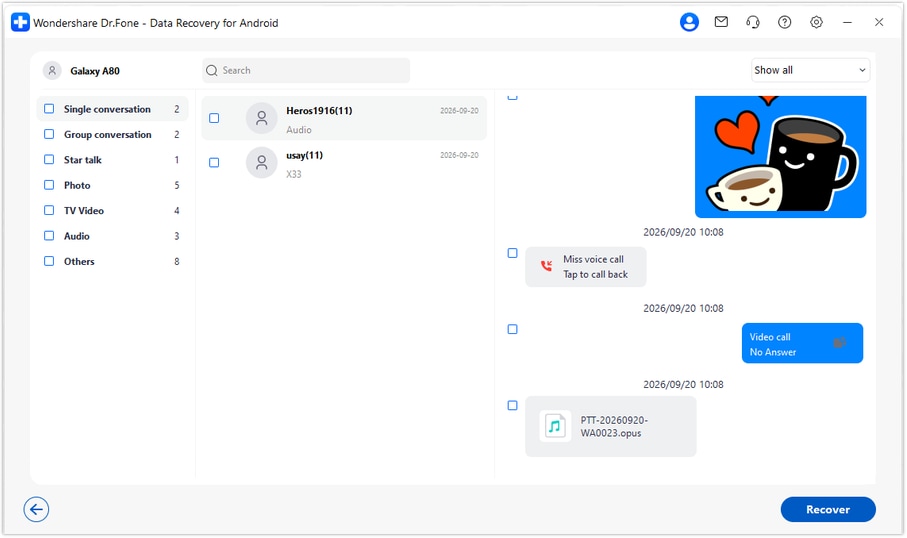
Step 5 Recover the chosen records to a PC folder
Click Recover, choose the destination on your computer and complete the save prompts. Open the saved output to check your selection. The recovered copy remains on the PC; it is not inserted into WhatsApp on the Pixel or transferred into WhatsApp on another phone.




Conclusion
Before retiring a Pixel 6 that held important WhatsApp records, give the missing conversation a focused recovery attempt. Dr.Fone - Data Recovery (Android) lets supported users scan app data, preview relevant messages and media, and save selected results outside the phone. Download Dr.Fone for Windows and connect your compatible source Pixel 6 to start preserving the information you want to keep.
FAQ
1. Can I recover deleted WhatsApp messages on Google Pixel 6 without a backup?
Dr.Fone - Data Recovery (Android) provides a no-backup device scan for supported configurations. Use the original phone, choose Advanced Recovery and WhatsApp on Windows, and save selected records found in the preview to a PC.2. Does Pixel 6's age mean it is still running Android 12 or 13?
No. Google provides software updates for the Pixel 6, so check the version actually installed. The supplied Android 14 Root entry is not blanket support, and its CP2A mapping remains unverified.3. Can scanning my new phone retrieve a conversation deleted on the old Pixel?
Do not assume so. This workflow scans the connected supported device. If the old Pixel held the missing records, identify and preserve that source rather than treating a scan of a different phone as equivalent.4. Can I keep recovered WhatsApp photos and videos without moving the whole chat?
Select the available items you need from the attachment results and recover them to your PC. You can also review conversation results for the surrounding text; neither action imports a complete history into another phone.5. Will the same procedure recover everything after a factory reset?
This guide does not establish recovery from an erased or factory-reset Pixel. Avoid erasing the source while investigating the loss, and obtain case-specific guidance rather than assuming deleted-chat scanning also covers a reset.
 Add Wondershare Dr.Fone as a preferred source on Google





