 Recover photos, messages, WhatsApp, and more — no backup
needed.


 100% Security Verified | No Subscription Required | No Malware


 :

 ChatGPT
 Perplexity
 Gemini
 Claude
 Grok
A project group can hold far more than casual messages: the final meeting time, an agreed change, a marked-up photo and the document everyone is working from. If you delete that conversation on your Galaxy Z Fold 7, losing the context can be as frustrating as losing the files. A backup may not be available, but you still need a clear way to look for the discussion.
To recover deleted WhatsApp messages on Samsung Galaxy Z Fold 7 without a backup, Dr.Fone - Data Recovery (Android) offers supported users a WhatsApp-focused scan with previews of available conversations and attachments. The aim is to identify the records that matter and save them to your PC. This guide also helps you choose the correct WhatsApp app before scanning, so a work-related conversation does not send you down the wrong recovery route.
In this article
Before you start
Identify your Fold 7 variant and current software
Record the model number in Settings > About phone, then the Android version, build and kernel in Software information. The supplied Fold 7 Root reference includes SM-F9660, SM-F966B and SM-F966U, with kernel 6.6.98, but does not state Android. Its model and build lists are references, not permission to mix identifiers into supported combinations. The public Advanced Recovery guide covers Android 9-13. Confirm your complete configuration and app version with Dr.Fone support, particularly outside that public range.
Confirm which app contained the project discussion
This article follows personal WhatsApp. A group used for work can still belong to that app; its subject does not make it WhatsApp Business. If the missing conversation was actually in WhatsApp Business, it needs that app's separate scan selection rather than the personal WhatsApp results view used here.
Prepare a stable Windows connection without altering the phone
Use a Windows computer, a USB data cable and a destination folder for the records. Keep the original app and its storage intact. Do not clear WhatsApp data, reset the Fold 7, unlock its bootloader or flash firmware to try to recover a chat. Follow only the supported access instructions shown by the product; a folding screen is not evidence of a separate Root procedure.
Locate the project chat before treating it as deleted
You remember a project name or participant but cannot find the conversation in your usual chat list.
Step 1 Open the app that held the discussion
Check personal WhatsApp for the contact or group involved. If you use both WhatsApp apps, establish where the messages originally lived instead of assuming every work discussion belongs to WhatsApp Business.
Step 2 Search the group name and check Archived
Search for the project or a participant, then inspect Archived for the missing thread. A retained chat can be read immediately. If you locate the group but the required messages have been cleared, finding the group alone has not recovered the missing content.
- These checks locate existing conversations; the deleted-data scan is the separate product procedure below.
- No Google Drive backup is required for that device-scan route. Restoring a nonexistent backup is not a solution to this scenario.
Recover the project information, not just a collection of files
| What the group contained | Review in the scan | What you can keep |
|---|---|---|
| A deadline or approved change | Available WhatsApp conversation contents | Selected message records that preserve the wording you need. |
| A marked-up reference photo | Photo attachments as well as the related conversation | The available image and any relevant message results. |
| A demonstration video or spoken explanation | Video and audio categories | Selected media that helps explain the decision. |
| A shared document | Available attachment results | A PC copy of the useful file, without saving every unrelated attachment. |
Common problems and fixes
The chat was about work, but the expected results are missing
Confirm the source app. Personal WhatsApp and WhatsApp Business are separate scan selections, not interchangeable labels for the same conversation. Review the correct app's results before concluding that a project thread is absent.
A Fold 6 guide appears to support a similar device
Use your Fold 7 identifiers when checking eligibility. The SM-F9660, SM-F966B and SM-F966U references do not derive support from earlier Fold generations, and the unspecified Android field must not be filled from a launch specification.
A document is found, but you still need the agreement around it
Return to conversation results and inspect the relevant discussion, using search and filters where available. Select useful message records separately from the attachment. The presence of a file does not establish that the surrounding exchange was also found.
How to use Dr.Fone - Data Recovery (Android)
Dr.Fone - Data Recovery (Android) gives a missing project conversation a structured recovery path on a supported Galaxy Z Fold 7. Its Windows-only Advanced Recovery mode focuses on selected WhatsApp app data, lets you review conversation contents and attachment categories, and saves the items you choose to a PC. Instead of collecting every file and hoping the answer is inside, you can look for both the discussion and the material shared with it.
- App-specific scanning helps keep personal WhatsApp project records separate from other app data.
- Message and attachment previews let you evaluate the wording of a discussion as well as the files that accompanied it.
- Selective saving gives you a manageable PC copy of the project records you actually need.
 Scan Android phones and tablets directly.
- Preview and recover only what you want.
- Supports WhatsApp, photos, videos, contacts, and more.
- Works with 6000+ Android devices.

Follow the official Advanced Recovery workflow
Step 1 Start the Windows Advanced Recovery workflow
Launch Dr.Fone, open Toolbox > Data Recovery and choose Android > Recover Android Data. Select Advanced Recovery and click Start Scan. When prompted, connect the supported Galaxy Z Fold 7 with a USB cable and follow the displayed instructions until it is detected.

Step 2 Scan the personal WhatsApp app
Select WhatsApp and click Start Scan. Keep this selection separate from WhatsApp Business and the other categories, which cannot all be scanned together. For this guide, choose the personal WhatsApp app that contained the project group.

Step 3 Let the app-data scan complete
Keep the phone connected while Advanced Recovery scans. To interrupt the process, click Cancel before removing the USB cable. If the device is temporarily unresponsive after scanning or recovery, use the restart instructions shown on screen.

Step 4 Review the conversation and its shared material
Choose the WhatsApp results view and open available conversations. Use search and filters where offered to narrow the results, then examine photos, videos, audio and other attachment categories. Select the useful message records and files found for your project.
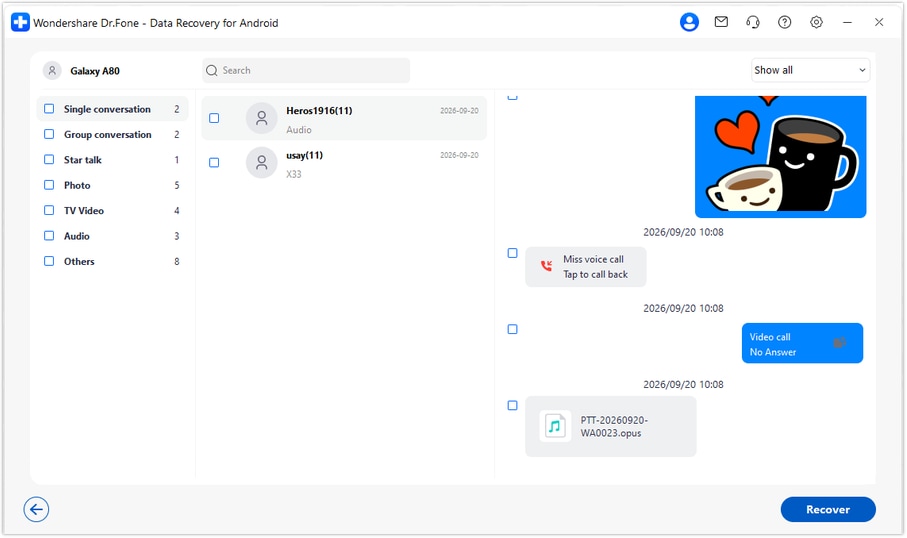
Step 5 Recover the project records to your PC
Click Recover and follow the prompts to choose a computer folder and save your selection. Open the saved output to review the records. This workflow stores the recovered copy on the PC; it does not place the group history back into WhatsApp on the Fold 7.




Conclusion
The most useful recovery result is the information that helps you move forward: the agreed wording, the right reference image or the document your group shared. Dr.Fone - Data Recovery (Android) helps supported Galaxy Z Fold 7 users look for those WhatsApp records, preview what is available and save a focused selection to PC. Download Dr.Fone for Windows and begin the guided recovery workflow for your compatible configuration.
FAQ
1. How do I recover deleted WhatsApp messages on Galaxy Z Fold 7 without a backup?
After confirming device and software support, use Dr.Fone - Data Recovery (Android) on Windows. Select Advanced Recovery, connect the Fold 7, scan WhatsApp separately, preview the records found and save the items you need to your PC. The scan does not require an existing cloud backup.2. Should I choose WhatsApp Business because the missing group was used for work?
No. Choose the app that actually held the messages. A project group inside personal WhatsApp needs the WhatsApp selection. WhatsApp Business has its own separate scan and results view.3. Does the Fold 7 use a special recovery mode because it folds?
The supplied evidence does not establish a fold-specific scan or Root mechanism. This guide uses the official Windows Advanced Recovery steps. Eligibility depends on the exact model, software and app configuration, not the phone's folding shape.4. Can I recover deleted WhatsApp attachments without saving every conversation?
You can review available photo, video, audio and other attachment results and select the useful items. You do not have to save every result. Only items actually found by the scan are available for this recovery.5. Will PC recovery restore the project group on my Fold 7?
No. Advanced Recovery saves the selected results to a folder on your Windows computer. That provides a separate copy to review, rather than rebuilding the group history inside WhatsApp.
 Add Wondershare Dr.Fone as a preferred source on Google





