 Recover photos, messages, WhatsApp, and more — no backup
needed.


 100% Security Verified | No Subscription Required | No Malware


 :

 ChatGPT
 Perplexity
 Gemini
 Claude
 Grok
A deleted WhatsApp exchange can take a project off course when it contained the final correction, an annotated photo or a voice note explaining which document to use. You may still have an older file on your computer, but not the discussion that identifies the right version. If you need to recover deleted WhatsApp messages on a Google Pixel 10 Pro without a backup, focus on the instruction and its related attachment as separate recovery targets.
Dr.Fone - Data Recovery (Android) gives eligible users a practical way to do that. Its Windows-only Advanced Recovery workflow scans WhatsApp app data, displays the available conversations and attachment categories, and lets you save selected records to a PC. Instead of collecting every file, you can review the useful exchange and the images, video, audio or documents that help make sense of it.
In this article
Before you start
Confirm the Pixel 10 Pro's actual software configuration
Record the device identity, Android version and full build from About phone and Android version details in Settings. The supplied Pixel 10 Pro Root reference labels Android 15, lists kernels 6.6 / 6.6.118 and build CP2A.260705.006, and provides no model code. The source also flags inconsistent Android labels for this build across its records, so the build-to-Android pairing remains unverified. Public Advanced Recovery guidance covers Android 9-13. Have Dr.Fone support confirm your exact configuration and app version for the applicable additional route before scanning.
Preserve the phone and existing project files
Prepare a Windows PC, a reliable USB data cable and a separate output folder so recovered records do not get mixed with older project copies. Keep WhatsApp installed; do not clear its storage, reinstall it, reset the phone or change firmware as a recovery experiment. The additional Root reference does not establish a universal access procedure, a no-Root guarantee or a lossless process. Follow the product's supported instructions for your confirmed configuration.
Keep personal WhatsApp and WhatsApp Business distinct
A work-related discussion may still have taken place in personal WhatsApp. Confirm which app held this exchange before choosing the scan; this article uses the personal WhatsApp category. Note the contact or group, a remembered phrase, and whether the priority is an instruction, document, photo, video or audio item. Recovered records are saved to a PC, not inserted back into the original WhatsApp thread.
Check for an existing project file before deleted-attachment recovery
When the loss involves a revision or a shared document, a file you previously saved may still be useful even if the WhatsApp discussion is gone.
Step 1 Inspect copies you already saved
Check an existing Downloads or project folder on the phone or computer where you previously saved the attachment. Open the candidate file and inspect its contents. A familiar name or thumbnail alone is not enough to establish that it is the revision you need.
Step 2 Look for the instruction in any retained conversation
Search the contact or project group in WhatsApp, including Archived if the thread is absent from the main list. If the exchange remains, read the surrounding messages to identify the relevant file. If the instruction or attachment was deleted, add that specific target to the Dr.Fone preview checklist.
- A previously downloaded file is a surviving copy, not recovery of a deleted WhatsApp message.
- An archived chat is retained app data. For genuinely deleted records, the eligible device scan below is the no-backup recovery route.
Pixel 10 Pro: recover the WhatsApp records needed to resume a project
| What you need back | What to inspect | Why it helps |
|---|---|---|
| The instruction or decision | Available WhatsApp conversation content | Recover the found wording that explains the task or requested change. |
| An annotated photo or reference image | The photo attachment results | Inspect the actual available image instead of choosing by a thumbnail alone. |
| A demonstration video or spoken explanation | Video or audio results, as appropriate | Look for the shared explanation in its own media category. |
| A document associated with a revision | Available document attachments and any relevant conversation | Check the content against your existing copy before relying on it as the needed version. |
Common problems and fixes
A recovered filename looks right, but the revision is uncertain
Open the saved file and compare its content with the project requirement and any available message context. Do not infer the final version from a similar name alone. Keep the recovered copy separate from existing work until you have identified it.
The instructions were in an audio item rather than text
Inspect the available WhatsApp audio category in addition to the conversation view. A text search is not a substitute for reviewing the relevant audio result. Select and save the useful item if it is available.
Advanced Recovery is unavailable for this Pixel 10 Pro
Confirm that the workflow is running on Windows, then check the full device configuration with Dr.Fone support. Supply the actual Android version, build and app version; the CP2A reference alone does not resolve eligibility for this phone.
How to use Dr.Fone - Data Recovery (Android)
Dr.Fone - Data Recovery (Android) helps you look for both a deleted project discussion and the files that give it practical value. On an eligible Pixel 10 Pro, its Windows-only Advanced Recovery mode scans selected WhatsApp app data without requiring an existing backup, lets you review found conversations and attachments, and saves your chosen results to a PC. Preview and selective recovery make it easier to concentrate on the instruction, image, clip or document you need to get back to work.
- Recover with a purpose: target personal WhatsApp app data rather than sorting unrelated phone files.
- Inspect multiple parts of the exchange: review available messages, photos, videos, audio and other attachments.
- Keep a useful working copy: select relevant found records and save them to a dedicated PC folder for review alongside existing files.
 Scan Android phones and tablets directly.
- Preview and recover only what you want.
- Supports WhatsApp, photos, videos, contacts, and more.
- Works with 6000+ Android devices.

Follow the official Advanced Recovery workflow
Step 1 Connect the Pixel 10 Pro through Advanced Recovery
Launch Dr.Fone on Windows and open Toolbox > Data Recovery. Choose Android > Recover Android Data, select Advanced Recovery and click Start Scan. When prompted, connect the eligible Pixel 10 Pro with a USB data cable and follow the device-recognition instructions.

Step 2 Select the WhatsApp app that held the exchange
For the personal WhatsApp workflow in this article, select WhatsApp and click Start Scan. The guide requires WhatsApp, WhatsApp Business and the other categories to be scanned separately, not selected together.

Step 3 Let the selected app-data scan finish
Keep the Pixel 10 Pro connected while Dr.Fone scans. If you need to stop, click Cancel before removing the USB cable. If the device is temporarily unresponsive after scanning or recovery, use the restart instructions shown by the product.

Step 4 Preview project messages and the corresponding files
Open the available WhatsApp conversation results and inspect the relevant discussion. Use any offered search and filters, then review the photo, video, audio and other attachment categories. Select the found message and files that fit your project-recovery checklist.
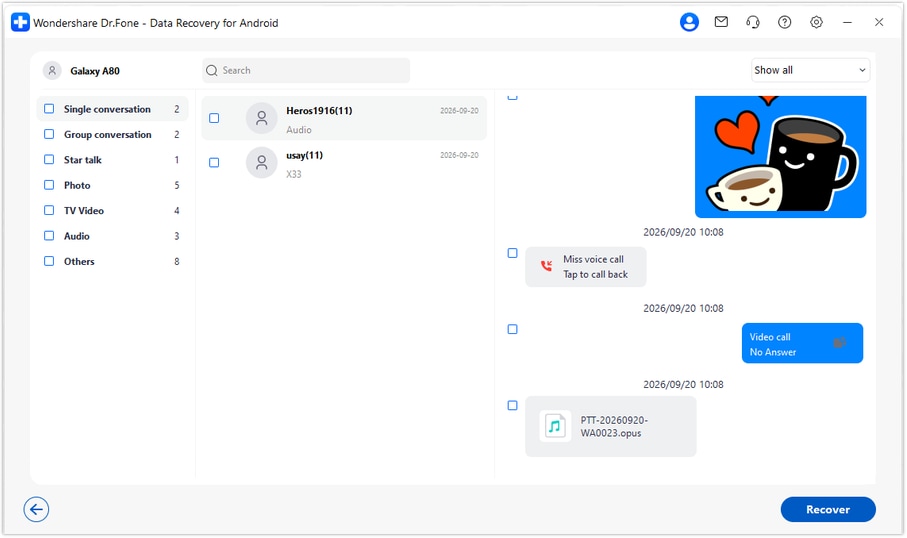
Step 5 Save the selected records to a PC folder
Click Recover and follow the prompts to choose your computer destination. Save the selected output and open it to review the useful messages and attachments. These records are recovered to the PC, not written into the Pixel's WhatsApp conversation.




Conclusion
When a deleted WhatsApp exchange held the detail that kept a project moving, Dr.Fone - Data Recovery (Android) helps you look for the conversation, inspect its available attachments and save a focused PC copy. Download Dr.Fone for Windows, confirm your Pixel 10 Pro configuration and start the guided scan to find the messages and files that can help you resume the task.
FAQ
1. How do I recover deleted WhatsApp messages on Pixel 10 Pro without a backup?
For a confirmed eligible configuration, use Dr.Fone - Data Recovery (Android) and choose Advanced Recovery on Windows. Connect the Pixel 10 Pro, scan personal WhatsApp, preview the available conversation and attachment results, and save selected records to your PC.2. Can Dr.Fone recover a document and the message explaining it?
Inspect both the conversation results and the relevant attachment category. If the records are available, select them for PC recovery. A found document does not establish that its accompanying message was also found, so check the two targets separately.3. Can I recover deleted WhatsApp photos, videos and audio on Pixel 10 Pro?
On an eligible device, Advanced Recovery provides WhatsApp media categories for reviewing the items found. Preview the relevant photos, videos or audio and select what you need. The scan results determine which items are available.4. Does the Android 15 label in the Root reference confirm compatibility?
No. The supplied Pixel 10 Pro record's build-to-Android pairing is flagged for verification. Check the actual version and build on the phone and confirm the full configuration with Dr.Fone support. The public Advanced Recovery guide covers Android 9-13, not every newer release.5. Should I choose WhatsApp Business because the conversation was about work?
Choose the app that actually held the conversation. Work discussed in personal WhatsApp still belongs to the personal WhatsApp scan. WhatsApp Business uses a separate selection and results view.6. Will the recovered file automatically be the final project revision?
No. Review the file's contents and any available message context before treating it as the required revision. Recovery saves the records found; it does not decide which project version you intended to use.
 Add Wondershare Dr.Fone as a preferred source on Google





