 Recover photos, messages, WhatsApp, and more — no backup
needed.


 100% Security Verified | No Subscription Required | No Malware


 :

 ChatGPT
 Perplexity
 Gemini
 Claude
 Grok
A relative shared a birthday video with a message explaining who was in the clip. Later, the notification is gone and the conversation seems to have disappeared from your Motorola Razr 60 Ultra. If the chat was truly deleted and there is no usable backup, getting the clip resent may solve only half the problem: you may still want the original exchange.
Dr.Fone - Data Recovery (Android) offers supported configurations a Windows workflow to look for deleted WhatsApp messages and media without an existing backup. Review what the scan finds, identify the conversation or files you recognize, and save the selected records to your computer.
In this article
Before you start
Check the exact Razr 60 Ultra software
The supplied device reference names Moto Razr 60 Ultra and lists kernel 6.6.118, but gives no Android version, model code or build. Check the actual identifiers in settings; do not borrow them from a similarly named Razr, a launch specification or the kernel number. Public Advanced Recovery guidance covers Android 9-13. Confirm the full device and WhatsApp configuration where eligibility is unclear, particularly outside that range.
Prepare Windows and a stable USB connection
Advanced Recovery is Windows-only. Have a USB data cable and a destination folder on the PC ready. Position the phone so you can read connection prompts without pulling the cable. Opening or closing the hinge is not a separate scanning mechanism, and an outer-screen notification is not a second store of recoverable chat history.
Preserve the current app before attempting recovery
Keep WhatsApp installed and avoid clearing its storage or factory-resetting the phone. The Root reference is configuration-specific, not proof of support for every regional firmware or a guaranteed lossless access procedure. Do not unlock the bootloader, flash firmware or follow an unverified Root tutorial as a recovery step.
Decide whether you need the clip, the conversation or both
Note the relative's name and the missing message or attachment. A newly resent video supplies a copy of the content, not the original deleted exchange. Advanced Recovery saves selected available results to a PC rather than placing them back in WhatsApp.
Check the full chat and request an available content copy
The loss may be only a dismissed notification, or another participant still has the particular photo or video you urgently need.
Step 1 Open WhatsApp rather than relying on a notification
Open the app and search for the contact or a remembered phrase. Inspect the conversation itself. Dismissing a notification or no longer seeing its preview is not evidence that the underlying chat was deleted.
Step 2 Check Archived if the conversation is out of sight
Look in WhatsApp's Archived area and read the conversation if it remains there. If the original messages and media are accessible, you have located retained content and do not need a deleted-data scan for those items.
Step 3 Ask for the specific file if it is still missing
Ask the relative to resend the birthday clip or photo if they still have it. Check the received copy to see whether it answers your immediate need. Continue to the recovery workflow if you also want to look for the deleted conversation or other attachments.
- A notification check, archived conversation and participant resend are useful content checks, not recovery of a genuinely deleted original message record.
- The device-scan route below does not depend on a cloud backup.
Choose a route for the missing family exchange
| Route | Useful result | Important distinction |
|---|---|---|
| Open the full chat or Archived | Messages and media still present in WhatsApp | Finds retained content; it does not restore deleted records. |
| Ask the participant to resend a clip | A new copy of the shared content | Does not recreate the original conversation or its message context. |
| Preview Advanced Recovery conversations | Available WhatsApp message results found on the supported phone | Check the exchange before selecting records to save. |
| Preview photo, video and other attachments | Available media and files you can select for PC recovery | The clip and the original explanatory message may have different results. |
Common problems and fixes
The outer-screen notification vanished, but you have not checked the app
Open WhatsApp and search the conversation before starting recovery. Notification visibility alone does not determine whether the chat was deleted. If the original content is readable in the app, use that existing record.
A relative resent the clip, but you still need the old explanation
Treat the new clip as a replacement content copy. Inspect the available conversation results from the WhatsApp scan for the missing text, using search and filters where offered. Do not assume the resend restored the original exchange.
The phone becomes temporarily unresponsive after scanning
Follow the restart instructions displayed by Dr.Fone, as described in the official guide. If you need to stop an active scan, click Cancel before disconnecting. Do not use a factory reset to resolve this recovery-session symptom.
How to use Dr.Fone - Data Recovery (Android)
Dr.Fone - Data Recovery (Android) gives you a focused way to look for the original conversation as well as a shared family clip on a supported Motorola Razr 60 Ultra. Its Windows-only Advanced Recovery mode scans personal WhatsApp without relying on an existing backup, displays available messages and attachment categories, and saves your chosen results to a PC. Preview lets you decide which records are useful before selecting them.
- Personal WhatsApp scanning keeps the search on the app that held the missing family exchange.
- Conversation and attachment views help you review both the explanatory text and any photos, videos or audio found.
- Selective PC recovery gives you a separate copy of the available records you identify, rather than saving every result.
 Scan Android phones and tablets directly.
- Preview and recover only what you want.
- Supports WhatsApp, photos, videos, contacts, and more.
- Works with 6000+ Android devices.

Follow the official Advanced Recovery workflow
Step 1 Open Advanced Recovery and connect the Razr 60 Ultra
Launch Dr.Fone on Windows. Open Toolbox > Data Recovery, select Android > Recover Android Data, choose Advanced Recovery and click Start Scan. Connect the supported Motorola Razr 60 Ultra by USB when prompted and follow the instructions until it is detected.

Step 2 Select personal WhatsApp for its own scan
Choose WhatsApp and click Start Scan. The guide requires personal WhatsApp to be scanned separately from WhatsApp Business and the other categories, so do not select them together.

Step 3 Keep the phone connected as scanning proceeds
Allow Advanced Recovery to scan with the cable connected. If you need to stop, click Cancel before unplugging. Follow the on-screen restart directions if the phone is temporarily unresponsive after scanning or recovery.

Step 4 Preview the original exchange and shared media found
Open the WhatsApp results and review the relevant conversation. Use search and filters where available, then inspect photo, video, audio and other attachment categories. Select the found records that match the message or family clip you want to keep.
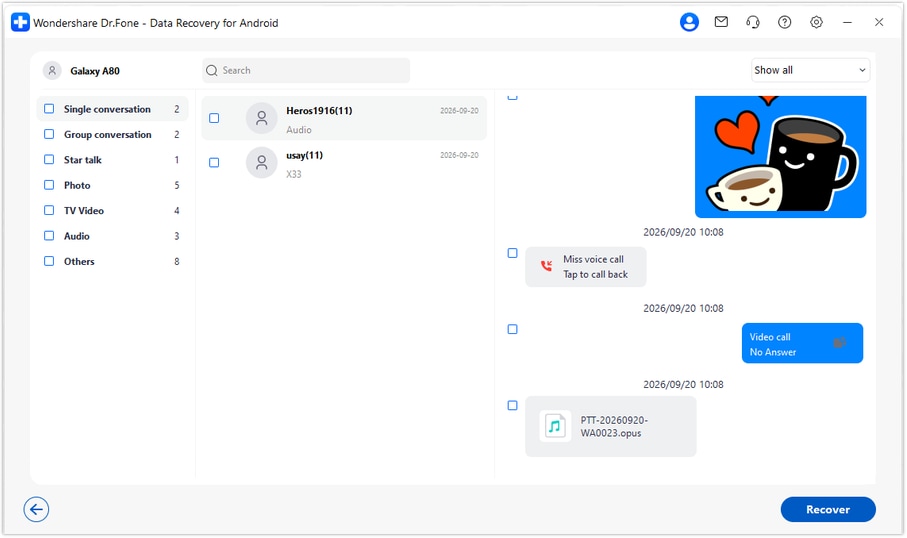
Step 5 Recover the selected items to the computer
Click Recover and follow the prompts to choose a PC folder and save your selection. Review the saved output there. This is a computer copy, not an import or synchronization back into WhatsApp on the Razr.




Conclusion
A resent clip can bring back the content, while a focused recovery search can look for the original conversation you also want to keep. For supported Motorola Razr 60 Ultra configurations, Dr.Fone - Data Recovery (Android) combines a no-backup WhatsApp scan, conversation and media previews, and selective saving to your PC. Download Dr.Fone for Windows and start the guided workflow to look for the messages and memories that matter.
FAQ
1. Can I recover deleted WhatsApp messages on Motorola Razr 60 Ultra without a backup?
Dr.Fone - Data Recovery (Android) offers a device-scan route on supported configurations. Choose Advanced Recovery on Windows, scan personal WhatsApp separately and save selected available results to your PC. Recovery depends on the records found, not on having an existing Google Drive backup.2. Can a missing outer-screen notification tell me that a WhatsApp message was deleted?
No. Open the full WhatsApp conversation and check its actual contents. A dismissed or no-longer-visible notification is not a reliable indication that the underlying message has been deleted.3. Does the folding design change the WhatsApp recovery procedure?
The guide uses one connected supported Android device and the selected app data. It does not describe separate hinge-based or inner/outer-screen scans. Position the phone so you can follow prompts and keep the USB connection stable.4. Can I recover deleted WhatsApp videos, photos and other attachments too?
Review the available photo, video, audio and other relevant categories in the WhatsApp results. Save the items the scan finds. The attachment and its original accompanying message can have different recovery results.5. Does kernel 6.6.118 establish support for my Razr firmware?
No. The supplied Moto Razr 60 Ultra reference leaves Android, model code and build unspecified. Check those details on your phone and confirm the exact configuration rather than borrowing software details from another Razr model.6. Will the original WhatsApp thread return after I save the results?
No. Advanced Recovery saves selected records to your Windows PC. It does not write them into the original WhatsApp thread or synchronize the recovered copy to the phone.
 Add Wondershare Dr.Fone as a preferred source on Google





