 Recover photos, messages, WhatsApp, and more — no backup
needed.


 100% Security Verified | No Subscription Required | No Malware


 :

 ChatGPT
 Perplexity
 Gemini
 Claude
 Grok
The conversation you deleted may contain something you need today: an appointment location, a voice message with directions or a document sent only through WhatsApp. When there is no backup, repeating a restore tutorial does not solve the immediate problem. To recover deleted WhatsApp messages on your OnePlus 15, start with a clear target and a recovery workflow that looks for the app data itself.
Dr.Fone - Data Recovery (Android) gives supported OnePlus 15 configurations a guided scan, a preview of the records found and control over what to save. Its Windows Advanced Recovery workflow is particularly useful when you want to retrieve a relevant exchange and its attachments without collecting every result. Here is how to prepare, check for a surviving copy and make a focused recovery selection.
In this article
Before you start
Confirm the exact OnePlus 15 configuration before scanning
Record the current model code, Android version, build and kernel from the device's software information. The supplied OnePlus 15 Root reference lists A16 and kernel 6.12.23 but provides no regional model code or build. Public Advanced Recovery guidance covers Android 9-13. This additional reference is not confirmation for all Android 16 devices, all OnePlus 15 firmware or the distinct OnePlus 15T; ask Dr.Fone support to confirm your complete current configuration and WhatsApp eligibility.
Prepare Windows and preserve the existing app
Use a Windows PC, a reliable USB data cable and a folder for the selected recovery output. Leave the existing WhatsApp installation intact and avoid clearing storage, reinstalling or resetting the phone as an experiment. The supplied Root record does not explain the access mechanism or guarantee a lossless procedure; do not unlock the bootloader, flash firmware or improvise Root instructions to make recovery available.
Prioritize the result you need first
Write down the contact or group, the useful detail and the file type you need. A short list such as 'appointment text, directions audio, attached document' helps you review results with purpose. Advanced Recovery saves chosen available records to a PC, not directly into WhatsApp, and only data found by the scan can be recovered.
Look for a surviving copy of the urgent WhatsApp detail
You need one practical piece of information immediately, while still planning to scan for the broader deleted exchange.
Step 1 Rule out an archived conversation
Search WhatsApp for the contact or group and inspect Archived. If the exchange is still present, read the specific instruction or open the attachment you need. A missing position in the main chat list does not by itself establish deletion.
Step 2 Request a specific item if a participant still has it
For a time-sensitive location, document or voice message, ask the relevant participant to resend their surviving copy if appropriate. This can supply that item without a backup. If it is unavailable or you need more of the deleted history, continue with the supported device scan.
- A resent item supplies a new copy of information; it does not restore the original deleted thread.
- The Dr.Fone route below searches eligible WhatsApp device data without relying on an existing Google Drive backup.
OnePlus 15 WhatsApp recovery: choose the result that solves your need
| Your priority | First useful result to inspect | Selection goal |
|---|---|---|
| An appointment time or location | Available conversation messages | Save the found instruction with enough surrounding text to understand it |
| Spoken directions or a personal voice message | Available audio attachments | Identify and keep the relevant audio item |
| A deleted WhatsApp photo or video | Available photo and video categories | Preview and choose the recognizable image or clip |
| A document plus the exchange that explains it | The relevant attachment and conversation results | Select both if available rather than assuming one restores the other |
Common problems and fixes
You cannot find an Advanced Recovery option for this phone
Confirm that you are using the Windows workflow and provide Dr.Fone support with the exact current model, Android version, build, kernel and app details. Product availability depends on the configuration. A reference containing A16 is not a reason to bypass an unavailable option or alter firmware.
The scan is taking longer than you expected
Keep the phone connected and follow the progress shown in the product; scan time varies with the device and data. There is no verified fixed duration for this OnePlus 15 workflow. If you must stop, use Cancel before disconnecting.
There are many useful-looking results but the urgent item is still unclear
Start with the category matching your priority list, then inspect the conversation or actual attachment content. Use search and filters where available and select relevant results after preview. A familiar name alone does not identify the right document or exchange.
How to use Dr.Fone - Data Recovery (Android)
Dr.Fone - Data Recovery (Android) helps you turn a deleted WhatsApp exchange into a focused search for useful information. On a supported OnePlus 15, its Windows-only Advanced Recovery mode scans WhatsApp app data without a backup, gives you conversation and attachment results to inspect, and saves your chosen records to a PC. You can prioritize the instruction, audio, photo or document that matters now while also keeping other relevant available messages.
- An app-specific recovery scan gives you a route beyond searching the ordinary chat list.
- Preview across conversations and attachment categories helps you identify the information you actually need.
- Selective PC recovery lets you keep the relevant available exchange and files without saving every result.
 Scan Android phones and tablets directly.
- Preview and recover only what you want.
- Supports WhatsApp, photos, videos, contacts, and more.
- Works with 6000+ Android devices.

Follow the official Advanced Recovery workflow
Step 1 Enter Advanced Recovery and connect OnePlus 15
Open Dr.Fone on Windows and choose Toolbox > Data Recovery. Select Android > Recover Android Data, choose Advanced Recovery and click Start Scan. Connect your supported OnePlus 15 by USB when requested and follow the displayed detection instructions.

Step 2 Scan the personal WhatsApp category
Choose WhatsApp and click Start Scan. WhatsApp, WhatsApp Business and the other categories cannot be selected together, so keep this personal WhatsApp task separate.

Step 3 Let the selected app data scan complete
Keep the USB connection stable while Advanced Recovery scans. Click Cancel before disconnecting if you need to stop. If the phone is temporarily unresponsive after scanning or recovery, use the product's on-screen restart guidance.

Step 4 Preview your priority messages and attachments
Open available WhatsApp conversations and the photo, video, audio or other attachment categories. Use search and filters where available to locate the relevant content. Select the found records that match the details and files you want to keep.
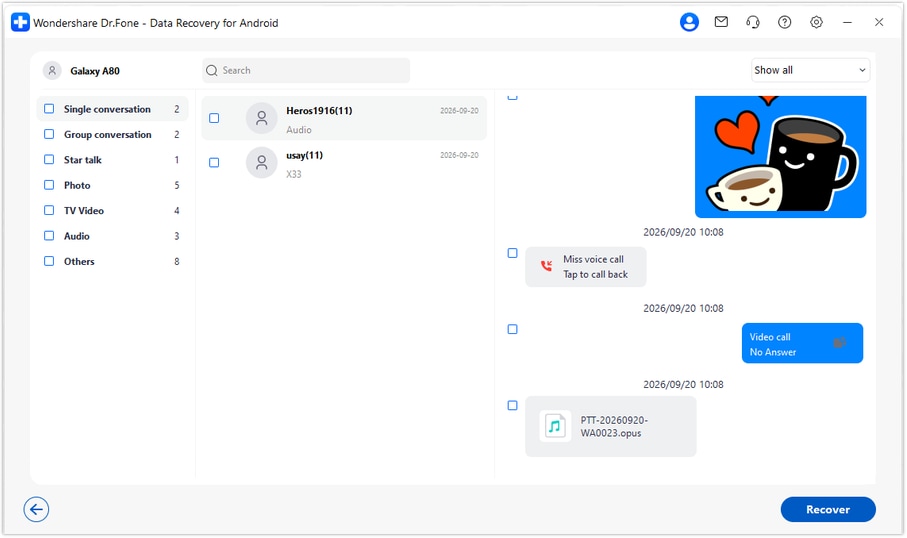
Step 5 Save the selected WhatsApp results to your PC
Click Recover and follow the prompts to choose a computer folder. Finish saving and review the selected output on the PC. This mode does not insert recovered messages or attachments into the WhatsApp app on the phone.




Conclusion
For an eligible OnePlus 15, Dr.Fone - Data Recovery (Android) makes WhatsApp recovery more focused: scan for available app records, preview the messages and attachments that fit your needs, and keep selected results on your PC. Download Dr.Fone for Windows and start the guided workflow to look for the important information you want back.
FAQ
1. Can I recover deleted WhatsApp messages on OnePlus 15 without a backup?
Dr.Fone - Data Recovery (Android) provides a no-backup scan route for supported configurations. After eligibility is confirmed, use Advanced Recovery on Windows to scan WhatsApp, preview available messages and attachments, and save your selection to a PC. Finding particular deleted records depends on the scan results.2. Does the OnePlus 15 reference establish general Android 16 recovery support?
No. It lists OnePlus 15 with A16 and kernel 6.12.23 but does not identify a build or regional model code. Public Advanced Recovery guidance remains Android 9-13. Confirm your full current configuration and applicable access requirements rather than extending this additional record to every Android 16 device.3. Is the OnePlus 15T reference interchangeable with OnePlus 15?
No. They are separate device records, and the supplied 15T entry lists a different kernel. Use the OnePlus 15 configuration as the starting reference and provide your phone's actual software identifiers for confirmation.4. Can I recover deleted WhatsApp audio, photos, videos and attachments?
Inspect the corresponding available categories in the WhatsApp results and preview the items you need. You can select a found file independently of other results. A recovered attachment does not mean every message in its original conversation was found.5. How long does OnePlus 15 WhatsApp recovery take?
There is no verified fixed duration for this configuration. Scanning varies with the phone and amount of data, so use the progress shown by the product rather than a promised time estimate. Keep the device connected, or click Cancel before disconnecting if you need to stop.6. Can I put the recovered messages directly back into WhatsApp?
Not with this Advanced Recovery workflow. It saves selected available records to a PC folder so you can access a separate copy; it does not rebuild the original chat inside WhatsApp.
 Add Wondershare Dr.Fone as a preferred source on Google





