 Recover photos, messages, WhatsApp, and more — no backup
needed.


 100% Security Verified | No Subscription Required | No Malware


 :

 ChatGPT
 Perplexity
 Gemini
 Claude
 Grok
A group trip is nearly organized: the address is in a WhatsApp message, the meeting point is in a photo and the booking details are in a shared document. Then you delete the conversation on your Pixel Fold while tidying the chat list. Opening the larger screen does not bring those records back, and there is no backup to restore.
Dr.Fone - Data Recovery (Android) offers supported Pixel Fold configurations a targeted way to look for deleted WhatsApp messages and attachments. Its Windows recovery workflow lets you inspect the available results and save the useful records to your PC. First make sure the conversation is truly missing, then use the five steps below to look for what remains recoverable.
In this article
Before you start
Identify the original Pixel Fold and its current build
This guide is for Google Pixel Fold, not Pixel 9 Pro Fold or another Pro Fold model. Record the model, Android version and full build in Settings > About phone, plus the WhatsApp version. The supplied Pixel Fold Root reference lists Android 14, kernel 6.1.157 and build CP2A.260605.012, without a model code; its Build-to-Android mapping needs verification. The public Advanced Recovery guide covers Android 9-13. Confirm the full device and app configuration with Dr.Fone support before using any additional Root-based route.
Set up a stable scan rather than changing phone software
Prepare a Windows computer and a USB data cable, and place the Fold where the connector can stay secure. Follow the product's on-screen access instructions only for an eligible configuration. Do not unlock the bootloader, flash firmware, factory-reset the phone or clear WhatsApp storage to make a recovery option appear.
List the trip details you need to preserve
Note the group or contact, approximate exchange date and the missing message, image, video or document. Keep WhatsApp installed. Advanced Recovery saves selected results to your computer, so choose a PC destination you can easily find afterward.
Check the conversation itself, not just the current Fold layout
A discussion seems absent after changing the screen layout or returning from an attachment, and you want to distinguish navigation from deletion.
Step 1 Return to WhatsApp's conversation list
Close the attachment or current conversation view and return to the chat list using the app's navigation. App layouts can differ, so use the conversation name rather than the presence of a particular pane as your reference.
Step 2 Search the group and inspect Archived
Search for the trip group, a participant or a phrase from the missing exchange. Check Archived as well. If the discussion opens, read the retained messages and identify any particular item that is still absent.
Step 3 Separate a missing attachment from a deleted discussion
If the chat is present, inspect its media and document entries for the specific booking file or meeting-point image. If the relevant records were deleted, use the device-scan process below rather than repeatedly changing displays.
- The inner and outer displays are views on the same phone, not separate backups of your WhatsApp history.
- Finding an existing conversation or attachment is a retained-data check. It does not recover genuinely deleted messages, and no backup restore is presented here.
Build a useful recovery set for a missing Pixel Fold trip chat
| Missing trip information | Where to look | Useful result |
|---|---|---|
| The entire group seems absent | Chat search and Archived before scanning | Find retained messages if the issue was navigation or archiving |
| A meeting address or agreement | Available WhatsApp conversation results | Select the message text found for a separate PC copy |
| A meeting-point photo or shared video | The matching WhatsApp attachment category | Preview and save the media available to the scan |
| A booking document or audio instruction | Other attachment and audio results | Keep the relevant file without needing every group message |
Common problems and fixes
The instructions mention a different Pixel Pro Fold
Check the device name in About phone and use the exact original Pixel Fold configuration for eligibility checks. A similarly named foldable or a shared firmware prefix does not establish support for this phone.
The chat is visible, but a shared file is still missing
Identify the attachment you need, then review the corresponding attachment results in Dr.Fone if scanning is available for your device. Message visibility and file availability are separate questions; an existing chat does not guarantee that its deleted media can be recovered.
You need to move the Fold or change its position while scanning
Keep the cable securely connected and avoid putting strain on the USB port. If you must disconnect, use Cancel first. Follow the product's displayed restart instructions if the phone becomes temporarily unresponsive after the scan or recovery.
How to use Dr.Fone - Data Recovery (Android)
Dr.Fone - Data Recovery (Android) brings the scattered parts of a missing trip conversation into one practical review process: available messages, shared photos, videos and attachments. On a supported Pixel Fold, its Windows-only Advanced Recovery mode scans personal WhatsApp data without relying on a backup, lets you preview what was found and saves your chosen records to a PC. You can prioritize the address and booking information you need rather than sorting unrelated phone files.
- A WhatsApp-specific scan offers a focused route for deleted app records rather than treating a screen-layout change as recovery.
- Conversation and attachment previews let you check the actual information before selecting it.
- Selective PC saving helps you preserve useful travel messages and files without requiring the whole discussion to be available.
 Scan Android phones and tablets directly.
- Preview and recover only what you want.
- Supports WhatsApp, photos, videos, contacts, and more.
- Works with 6000+ Android devices.

Follow the official Advanced Recovery workflow
Step 1 Connect the supported Pixel Fold to Advanced Recovery
On Windows, launch Dr.Fone and open Toolbox > Data Recovery > Android > Recover Android Data. Choose Advanced Recovery and click Start Scan. Connect the Pixel Fold by USB when prompted and follow the device-detection instructions on screen.

Step 2 Start a separate personal WhatsApp scan
Choose WhatsApp, then click Start Scan. Do not combine it with WhatsApp Business or the other categories; the official workflow requires those selections to run separately.

Step 3 Leave the Fold connected while scanning
Keep the USB connection in place as Dr.Fone scans. To stop, click Cancel before removing the cable. If the phone is temporarily unresponsive after scanning or recovery, restart it using the instructions displayed by the product.

Step 4 Preview the trip conversation and attachments
Select the WhatsApp results from the sidebar and open the available conversations. Search or filter where those controls are available, then review photo, video, audio and other attachment categories. Select the records that contain the information you want to keep.
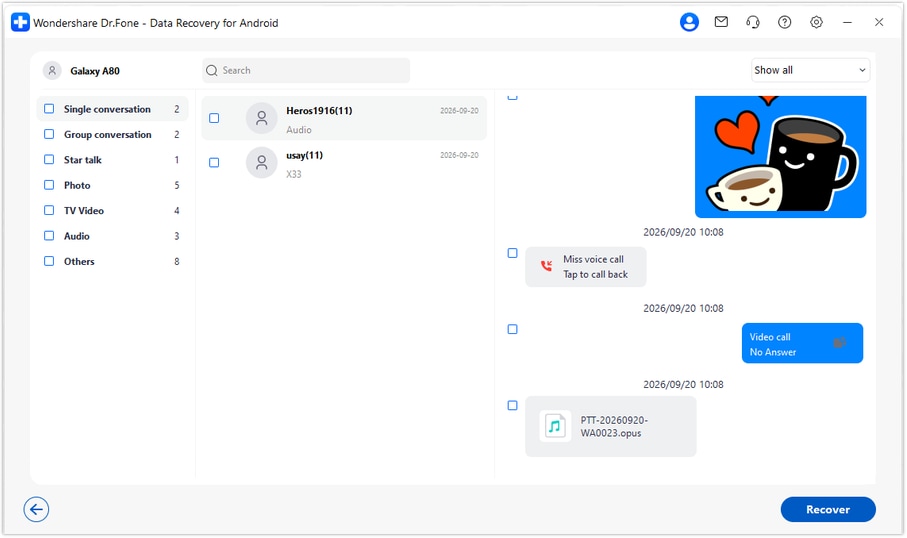
Step 5 Save the chosen records to a computer folder
Click Recover and follow the prompts to choose the PC destination. Open the saved output and check the messages and files selected. This workflow saves a computer copy, not a restored chat inside WhatsApp on the Fold.




Conclusion
For a compatible Google Pixel Fold, Dr.Fone - Data Recovery (Android) is a useful next step when a deleted WhatsApp conversation held the plans and files you still need. Preview available messages, locate relevant attachments and save a selective copy to your PC without an existing backup. Download Dr.Fone for Windows and start the guided recovery workflow for your supported configuration.
FAQ
1. Can I recover deleted WhatsApp messages on Google Pixel Fold without a backup?
Dr.Fone - Data Recovery (Android) offers a device-scan route for supported configurations. After checking exact eligibility, use Windows Advanced Recovery to scan personal WhatsApp, preview available records and save selected results to your PC.2. Can unfolding my Pixel Fold bring a deleted WhatsApp chat back?
No. A different display layout can change how you navigate existing chats, but the inner and outer displays are not separate chat backups. Search and check Archived to rule out a retained conversation before treating it as deleted.3. Does this Pixel Fold guide apply to Pixel 9 Pro Fold?
No. They are distinct device models. The supplied Pixel Fold reference cannot establish support for Pixel 9 Pro Fold or another Pro Fold configuration; check that exact device separately.4. Is the listed Android 14 Pixel Fold build confirmed for Advanced Recovery?
The supplied Root entry is a configuration reference, not a verified test. Its Build-to-Android mapping and current app eligibility need confirmation. The public Advanced Recovery guide documents Android 9-13, so ask Dr.Fone support about the full configuration rather than assuming general Android 14 support.5. Can I save deleted WhatsApp videos and documents without rebuilding the chat?
Yes, you can select available attachment results for saving to PC on an eligible configuration. The scan must first find the items. Advanced Recovery does not rebuild or synchronize the original conversation inside WhatsApp.
 Add Wondershare Dr.Fone as a preferred source on Google





