 Recover photos, messages, WhatsApp, and more — no backup
needed.


 100% Security Verified | No Subscription Required | No Malware


 :

 ChatGPT
 Perplexity
 Gemini
 Claude
 Grok
You sent a customer several product-sample photos, and their WhatsApp Business reply identified the color and packaging they wanted. After deleting the thread on your OPPO Find X8 Pro, you can still see similar images on the phone, but you cannot tell which sample the customer approved. Sending the wrong variant is a costly way to discover that a photo and an approval are not the same record.
If you need to recover deleted WhatsApp Business chats on OPPO Find X8 Pro without a backup, Dr.Fone - Data Recovery (Android) can help eligible devices look for available app data and preview the findings. Its Windows recovery workflow lets you inspect customer messages and related photos or attachments, then save selected results to PC so you can review the evidence before preparing the order.
In this article
Before you start
Check the exact OPPO Find X8 Pro configuration
The supplied Root reference lists OPPO Find X8 Pro with Android 15 and kernel 6.6.118. Model code and build are not provided. Check your actual device and software details and confirm the complete firmware, access requirements and WhatsApp Business eligibility with Dr.Fone support. Advanced Recovery is Windows-only and its public guide covers Android 9-13; this Android 15 reference is not general support for all regional firmware or other Find X8 models.
Protect the existing customer data
Keep WhatsApp Business and its storage intact, and avoid unnecessary photography, downloads or cleanup while preparing recovery. Use a Windows PC, a reliable USB data cable and a private destination folder. Do not reset the device, change firmware, unlock its bootloader or attempt unconfirmed Root instructions; the reference does not establish a lossless access procedure.
Separate the missing photo from the missing approval
Note which customer, product variant and approximate discussion date you need. List whether the gap is the image, the customer's reply or both, and keep any surviving file unchanged. Only scan data you are authorized to access. The workflow saves selected available results to PC and does not restore a Business account or refill the app conversation.
Check surviving sample photos before recovering deleted Business chats
A customer conversation is gone, but some product images or attachments may already have been saved outside WhatsApp Business.
Step 1 Look for the specific image in existing photos and files
Review your phone's photo library and files you previously downloaded or saved for the customer. Use the approximate date and visible product details to identify candidates. Do not assume a camera original or a similar sample image is the file the customer selected.
Step 2 Check for surviving customer context
Search WhatsApp Business for the customer number, product reference or a recognizable phrase. If relevant messages still exist, compare them with the saved image. Record which details are actually present instead of inferring a selection from the photo alone.
- A photo already in the library is a surviving file, not a recovered deletion. It cannot by itself recreate the deleted customer reply.
- If the missing message or attachment is not retained and there is no usable backup, continue to the Business device scan below.
Can the available result identify the customer's approved sample?
| What is available | What you can establish | What to do next |
|---|---|---|
| A sample photo already saved in the gallery | The appearance of that sample, not the customer's selection | Look for the matching message or request confirmation. |
| A customer approval message found in the Business scan | The wording and context visible in the recovered result | Check whether its referenced image or product variant can also be identified. |
| A Business attachment found without its accompanying reply | The available file contents only | Save the useful file to PC and keep the approval marked as unconfirmed. |
| Both the relevant messages and sample image found | The available text and visual details for comparison | Save the selected records and review their context before preparing the order. |
Common problems and fixes
Several sample images look almost identical in the results
Inspect the available image details and the matching Business conversation where present. Compare distinguishing color, label or packaging details rather than selecting on thumbnail similarity alone. If the customer's intended variant remains ambiguous, obtain confirmation instead of treating a close match as proof.
A saved photo exists, but the customer's approval does not appear
Review the Business conversation results separately from media and use search or filters where offered. If the approval is not found, keep the photo as a useful surviving or recovered file, depending on its source. Ask the customer to confirm the choice; that new confirmation replaces missing information rather than recovering the original reply.
The Business scan cannot start on the Find X8 Pro
Use the Windows workflow and ask Dr.Fone support to check your exact Android build, kernel, model information and Business app version. The supplied Find X8 Pro Android 15/kernel 6.6.118 reference does not establish all firmware or app eligibility. Do not substitute Find X8 Ultra or a mixed-name reference, or change firmware to try to match the table.
The selected sample file is not usable in the preview or saved output
Inspect the preview and open the saved output before relying on it for fulfillment. An absent, incomplete or unreadable item is not confirmed recovered content. Preserve any usable related records and request a replacement image if the needed detail cannot be established.
How to use Dr.Fone - Data Recovery (Android)
Dr.Fone - Data Recovery (Android) helps you look for both sides of a missing sample approval: the customer message and the supporting image. Its Windows-only Advanced Recovery mode scans WhatsApp Business on an eligible OPPO Find X8 Pro without an existing backup, presents available conversations and media for inspection, and saves your chosen findings to PC. That gives you a practical way to review useful customer details rather than making an order decision from an isolated photo.
- A dedicated WhatsApp Business selection targets the app holding the customer exchange, without mixing personal WhatsApp into the scan.
- Available conversation and media previews let you inspect message wording and visual product details before choosing records.
- Selective PC recovery preserves the useful results for review alongside your existing sample files.
 Scan Android phones and tablets directly.
- Preview and recover only what you want.
- Supports WhatsApp, photos, videos, contacts, and more.
- Works with 6000+ Android devices.

Follow the official Advanced Recovery workflow
Step 1 Choose Advanced Recovery for the Find X8 Pro
Launch Dr.Fone on Windows and navigate to Toolbox > Data Recovery. Select Android > Recover Android Data, choose Advanced Recovery and click Start Scan. Connect the eligible OPPO Find X8 Pro by USB when prompted and follow the on-screen device detection and authorization instructions.

Step 2 Choose WhatsApp Business as the separate scan target
Select WhatsApp Business and click Start Scan. Do not select personal WhatsApp or other categories together with it; the Business data must be scanned separately.

Step 3 Keep the OPPO connected while scanning
Wait with the USB cable connected as Advanced Recovery scans. If you need to end the scan, click Cancel before unplugging. Follow the product's displayed restart instructions if the phone becomes temporarily unresponsive after scanning or recovery.

Step 4 Preview the sample discussion and available photos
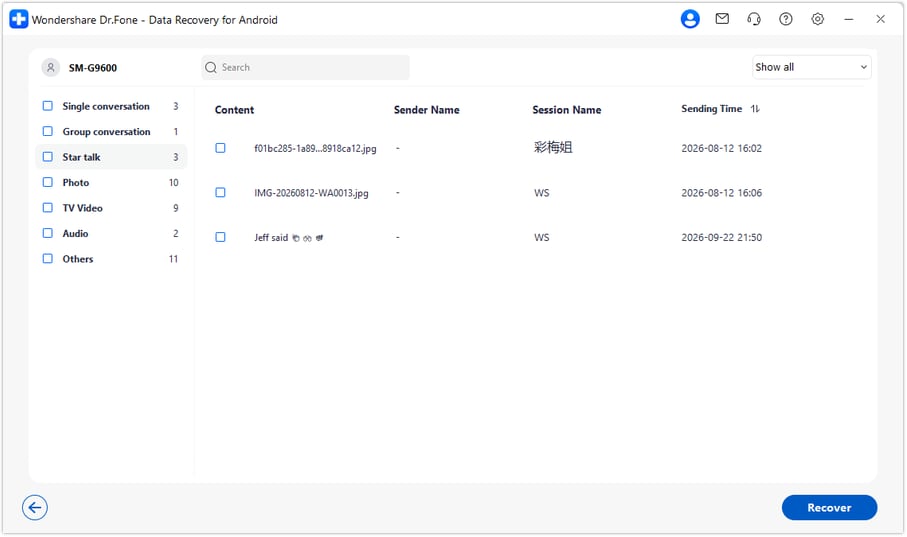
Review the WhatsApp Business conversation and media results. Use the available search or filters to locate the customer or product discussion, inspect any relevant messages and attachments, then select the records you want to save.
Step 5 Save selected customer records to the PC
Click Recover and follow the prompts to choose a computer folder. Complete the save and open the output to review the selected findings. Advanced Recovery saves to PC; it does not place the recovered records back into WhatsApp Business or synchronize them to the phone.




Conclusion
For an eligible OPPO Find X8 Pro, Dr.Fone - Data Recovery (Android) offers a focused route to scan for deleted customer messages, inspect sample photos and attachments, and keep selected findings on your PC. Download Dr.Fone for Windows and start the WhatsApp Business recovery workflow to review the available customer details with the supporting files in reach.
FAQ
1. Can I recover deleted WhatsApp Business messages on OPPO Find X8 Pro without a backup?
You can attempt a device scan with Dr.Fone - Data Recovery (Android) if your exact Find X8 Pro configuration and Business app are eligible. Use Advanced Recovery on Windows, select WhatsApp Business alone, then preview and save available results to PC. A backup is not needed for this route, but recovery depends on what the scan finds.2. Can I recover deleted WhatsApp Business photos as well as messages?
Inspect the available Business conversations and media or attachment categories after scanning. You can select photos and associated records that are found, but a photo and its accompanying message may have different recovery outcomes. Review both before treating the file as evidence of a customer's chosen variant.3. Does finding the image in my photo library restore the deleted chat?
No. An image already saved outside WhatsApp Business is a surviving copy. It can preserve visual details but does not restore a deleted message, the surrounding conversation or the customer's approval. The Business scan is a separate attempt to find that app data.4. Does Android 15 with kernel 6.6.118 confirm support for every Find X8 Pro?
No. Those values come from the supplied OPPO Find X8 Pro Root reference, which has no model code or build. The public Advanced Recovery guide covers Android 9-13. Have Dr.Fone support check your full firmware, access requirements and Business app eligibility; do not extend the reference to every region or to another Find X8 model.5. Will the recovered sample discussion return to my Business app or catalog?
No. Selected findings are saved to a Windows PC rather than imported into WhatsApp Business. The scope is chat messages and related files, not a product catalog, merchant order database, CRM, complete customer list or whole-account recovery.
 Add Wondershare Dr.Fone as a preferred source on Google





