 Recover photos, messages, WhatsApp, and more — no backup
needed.


 100% Security Verified | No Subscription Required | No Malware


 :

 ChatGPT
 Perplexity
 Gemini
 Claude
 Grok
Moving-house arrangements often live in WhatsApp: a collection time, photos of the room and a document sent by the person handing over the keys. Delete that exchange on your Google Pixel 11 Pro Fold and having used WhatsApp on another screen does not necessarily mean you have a usable backup of it.
Dr.Fone - Data Recovery (Android) gives users with compatible configurations a way to look for available deleted conversations and attachments on the phone, preview what was found and save selected records to a Windows PC. Before starting, identify where the missing exchange actually lived. That keeps the recovery focused on the right device and avoids confusing a retained file elsewhere with a restored chat.
In this article
Before you start
Check the Fold-specific record, including the C3 ending
Record the full Pixel 11 Pro Fold device name and the installed Android and build information under Settings > About phone > Android version. The supplied Fold Root reference lists Android 16, build CD1A.260618.001.C3 and kernel text 6.12 / 6.12.69; it provides no model code. Treat these as unverified reference labels, not a confirmed OS/build mapping or support result. The public Advanced Recovery guide covers Android 9-13. Have Dr.Fone support confirm the precise Fold, firmware and app configuration. Do not substitute the C2 build listed for other Pixel 11 models.
Identify the phone and app that held the missing data
Confirm that the relevant personal WhatsApp data was stored on this phone before deletion. If your setup uses only a linked or companion session, ask support about that exact arrangement rather than assuming it behaves like a primary-phone installation. Use WhatsApp's separate selection, not WhatsApp Business, for the personal-app workflow below.
Keep the current installation intact and prepare PC output
Prepare a Windows computer, a USB data cable and a folder for the messages and moving documents you need. Do not reinstall WhatsApp, clear storage, reset the phone or change device/account linking as a recovery experiment. Root/access mechanics and possible wiping require exact-configuration confirmation; avoid bootloader-unlock and flashing tutorials. Advanced Recovery saves selected available results to the PC, not back into WhatsApp or across linked devices.
Find out whether the information is deleted or simply elsewhere
You used more than one device or previously saved a moving document and are unsure which copy is missing.
Step 1 Check the conversation on the intended phone
Open personal WhatsApp on the Pixel 11 Pro Fold and confirm you are looking at the intended account. Search the contact or a remembered phrase, then inspect Archived. A retained exchange may still contain the collection time or instructions.
Step 2 Inspect copies you already saved outside WhatsApp
If you previously saved a room photo or moving document on a computer or another location, open that existing copy and check its contents. Keep it as a separate useful file; do not assume that another device or account contains an independent backup of the deleted conversation.
- Finding an archived exchange or a deliberately saved file retrieves retained information; it does not recover deleted app data.
- This article's recovery route scans an eligible phone configuration. It does not claim that linked-device sessions or cloud backups can be scanned through the same procedure.
Know which WhatsApp copy you are trying to retrieve
| Where the information might be | What to do | Recovery boundary |
|---|---|---|
| An archived conversation on the Fold | Read the retained messages and identify anything still missing | No deleted-message recovery is needed for items that remain. |
| A photo or document previously saved to a computer | Open and verify that existing file | It may solve the file need but does not restore the surrounding chat. |
| Deleted local WhatsApp data on an eligible Fold configuration | Use Dr.Fone Advanced Recovery and preview the scan | Only the available selected results are saved to the PC. |
| A linked or companion-device session | Have the exact installation arrangement checked | Do not infer scan eligibility or a usable backup from the session alone. |
Common problems and fixes
The computer detects the Fold, but support information mentions a different Pixel 11 build
Provide the full Pixel 11 Pro Fold name and build ending to Dr.Fone support. The supplied Fold entry ends in C3, not C2. Detection and a similar-looking build do not establish that the exact device and app configuration can use Advanced Recovery.
The missing chat may have belonged to another account or installation
Check the account and app that held it before scanning. Do not relink devices, migrate accounts or reinstall the app simply to search for it. If this phone held only a companion session, confirm that arrangement's recovery scope before proceeding.
A moving document was saved successfully, but the chat list has not changed
Open the destination folder on your PC to review the selected output. Advanced Recovery creates a computer copy; it does not merge the document or messages into WhatsApp or synchronize recovered history to another device.
How to use Dr.Fone - Data Recovery (Android)
Dr.Fone - Data Recovery (Android) helps you move from uncertainty about a missing exchange to a focused scan on a confirmed compatible Pixel 11 Pro Fold. Its Windows-only Advanced Recovery mode examines selected WhatsApp app data and shows available conversations and attachment categories before you choose what to save. You can look for the collection instructions, shared photos, video clips or documents you need and keep useful results together on a PC without relying on an existing backup.
- A personal WhatsApp-focused scan targets the app data involved in the loss rather than assuming another device holds a backup.
- Conversation and attachment previews help distinguish a useful moving instruction from an unrelated image or file.
- Selective PC recovery gives you a separate copy of the records found without treating it as a live-chat restore.
 Scan Android phones and tablets directly.
- Preview and recover only what you want.
- Supports WhatsApp, photos, videos, contacts, and more.
- Works with 6000+ Android devices.

Follow the official Advanced Recovery workflow
Step 1 Choose Advanced Recovery and connect the supported Fold
Open Dr.Fone on Windows and go to Toolbox > Data Recovery. Choose Android > Recover Android Data, select Advanced Recovery and click Start Scan. Connect the supported Pixel 11 Pro Fold with a USB cable when prompted and follow the on-screen instructions until the phone is detected.

Step 2 Select personal WhatsApp for its own scan
Choose WhatsApp and click Start Scan. Keep this selection separate from WhatsApp Business and the other data categories; the official workflow does not select them all at the same time.

Step 3 Keep the phone connected as app data is scanned
Allow Advanced Recovery to scan with the USB connection maintained. If you need to stop, click Cancel before disconnecting. If the phone is temporarily unresponsive after scanning or recovery, follow the product's displayed restart instructions.

Step 4 Preview the conversation and available moving files
Select the WhatsApp results and open the relevant conversation to review its contents. Use search or filters where offered, then browse the photo, video, audio and other attachment categories. Choose the records you can identify as useful to the missing exchange.
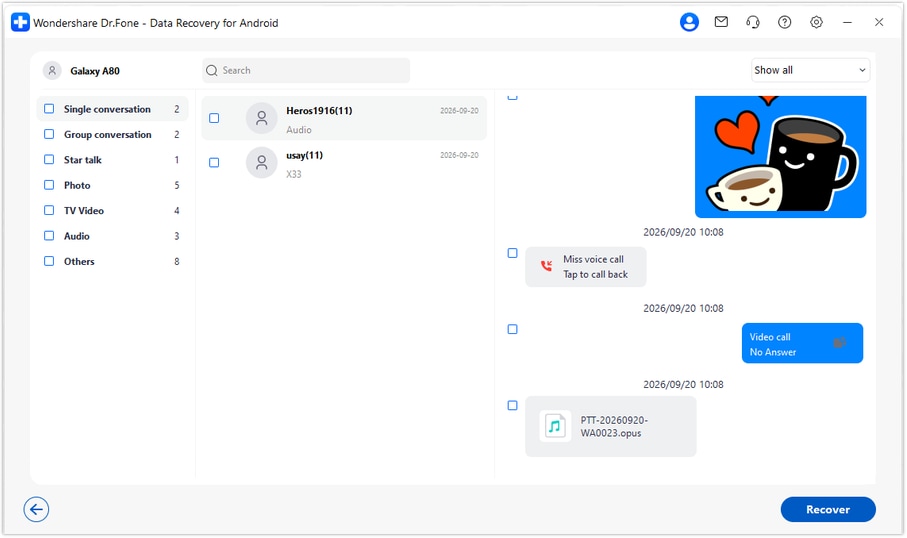
Step 5 Recover the selected records to the Windows PC
Click Recover and follow the prompts to choose a computer folder and save your selection. Open the saved output to check the messages and files. The destination is your PC, not WhatsApp on the Fold or a linked device.




Conclusion
For a confirmed compatible Google Pixel 11 Pro Fold, Dr.Fone - Data Recovery (Android) is a practical recovery choice when an important WhatsApp exchange has no usable backup. Its focused scan, preview of conversations and attachments, and selective PC saving help you keep useful instructions and files accessible. Download Dr.Fone for Windows and begin the guided recovery workflow for the exact phone setup you have confirmed.
FAQ
1. Can I recover deleted WhatsApp messages on Google Pixel 11 Pro Fold without a backup?
Dr.Fone - Data Recovery (Android) offers a device-scan route for supported configurations without requiring an existing backup. Confirm your Fold-specific installation and software first, then scan WhatsApp through Advanced Recovery on Windows, preview available records and save selected results to the PC.2. Does a WhatsApp session on another device count as a backup?
Do not assume it does. An already retained message or file elsewhere may help you retrieve information, but a device session alone does not establish an independent restorable backup. This guide does not claim recovery support for every linked or companion installation.3. Is the Pixel 11 Pro Fold C3 reference interchangeable with a Pro or Pro XL C2 entry?
No. Keep the full Fold name and CD1A.260618.001.C3 reference distinct. Its supplied Android 16 label and other identifiers still need configuration-specific confirmation; the public guide documents Android 9-13, not blanket support for every Pixel 11 variant.4. Can the scan find deleted WhatsApp photos, videos and moving documents?
On an eligible configuration, review the available WhatsApp conversation and attachment categories for the missing items. Select photos, videos, audio or other files that the scan finds. An available attachment does not guarantee that its surrounding conversation is also recoverable.5. Will PC recovery synchronize the deleted messages back to my devices?
No. Advanced Recovery saves the selected available results in the computer folder you choose. It does not write recovered history into WhatsApp or synchronize it across devices.
 Add Wondershare Dr.Fone as a preferred source on Google





