 Recover photos, messages, WhatsApp, and more — no backup
needed.


 100% Security Verified | No Subscription Required | No Malware


 :

 ChatGPT
 Perplexity
 Gemini
 Claude
 Grok
A sewing project was explained across several WhatsApp messages: a pattern photo, a short demonstration video and a later correction to the measurements. After deleting part of the chat, the surviving picture no longer tells you which version to follow. If you need to recover deleted WhatsApp messages on iQOO Neo11 without a backup, the goal is useful context, not just another copy of a familiar image.
Dr.Fone - Data Recovery (Android) helps supported users look for conversation text and related media in a focused device scan. Preview lets you compare the available instructions, photos and attachments before choosing what to save to a PC. Use the preparation and result checklist below to keep missing details separate from assumptions.
In this article
Before you start
Check the Neo11's own configuration
Record the full model name, installed Android version, build and WhatsApp version from the phone's settings and app information. The supplied iQOO Neo11 Root record lists kernel 6.6.89 without Android, model code or build. Do not borrow those details from a Neo10 model or infer them from the kernel. The public Advanced Recovery guide covers Android 9-13; confirm any additional device-specific route with Dr.Fone support.
Prepare a Windows destination and preserve WhatsApp
Advanced Recovery is Windows-only. Have a Windows PC, USB data cable and output folder ready. Keep the existing app installation and avoid further message clearing or app-storage deletion. The reference does not establish a universal Root mechanism or its data effects; confirm access requirements rather than unlocking, flashing or resetting the phone as a recovery experiment.
Check which part of the instructions is missing
Search the existing WhatsApp conversation for a distinctive project word or measurement, and check Archived if the entire chat is absent from the main list. Read any messages that remain. These are retained-data checks, not deleted-message recovery, but they help you identify whether you need the original pattern, the later correction or both.
Separate a useful copy from a complete reconstruction
List the sender, project and approximate exchange date, then identify the text, photos, videos and attachments that would answer your question. A scan may find only some of these items. Selected findings are saved to the PC, not merged into WhatsApp or automatically assembled into a complete set of instructions.
Review recovered WhatsApp instructions without filling gaps by guesswork
| What you need to understand | Relevant available result | How to use it |
|---|---|---|
| The original design or pattern | Photo or document attachment | Check the content before assuming it includes later changes. |
| The corrected measurement or instruction | Conversation text | Look for the actual correction rather than deriving it from the picture. |
| A demonstrated technique | Video attachment | Review the found clip alongside any relevant messages. |
| The relationship between the pieces | Conversation and attachment previews together | Keep useful findings and identify missing context; do not assume all steps were recovered. |
Common problems and fixes
You found the pattern image but not the later correction
Inspect the conversation results separately and use search or filters where available to look for the distinctive project wording. Save the useful image, but do not assume its measurements reflect a correction that is not present.
The selected findings do not explain the complete sequence
Review the available messages and attachments together, then note which instruction remains missing. Do not treat file selection or the order of saved files as proof of the original project sequence. Ask the sender to clarify a gap if you need to act on the instructions.
The phone's installed Android is not specified in the reference
Use the version actually displayed on the Neo11 and give support the complete model, build, kernel and app details. A shared kernel with an older Neo model does not resolve eligibility, and there is no need to change firmware to resemble that model.
How to use Dr.Fone - Data Recovery (Android)
Dr.Fone - Data Recovery (Android) gives you a structured way to look for the missing context on a supported iQOO Neo11. Its Windows-only Advanced Recovery mode scans personal WhatsApp without depending on a backup, displays available conversations and attachment categories, and saves your chosen findings to a PC. Comparing message text with media helps you identify a useful correction or explanation instead of collecting images without knowing what they mean.
- Review found conversation text for the instruction or revision missing from an otherwise familiar exchange.
- Inspect available photos, videos and documents alongside the message results.
- Save selected useful records to a PC so you can review what was found without selecting every unrelated item.
 Scan Android phones and tablets directly.
- Preview and recover only what you want.
- Supports WhatsApp, photos, videos, contacts, and more.
- Works with 6000+ Android devices.

Follow the official Advanced Recovery workflow
Step 1 Open Advanced Recovery for the iQOO Neo11
Launch Dr.Fone on Windows and go to Toolbox > Data Recovery. Choose Android > Recover Android Data, select Advanced Recovery and click Start Scan. Connect the supported Neo11 with a USB cable when prompted and follow the device-recognition instructions.

Step 2 Choose personal WhatsApp as a separate category
Select WhatsApp and click Start Scan. Do not combine it with WhatsApp Business or the other categories; the official guide requires those selections to be scanned separately.

Step 3 Maintain the phone connection through scanning
Keep the Neo11 connected while the scan runs. Click Cancel before unplugging if you need to stop. If the device is temporarily unresponsive after scanning or recovery, follow the restart instructions displayed by the product.

Step 4 Compare the available instructions and media
Browse the WhatsApp conversation results and use search or filter options where offered. Review the relevant exchange and inspect the photo, video, audio and other attachment categories. Select the found messages and files that supply the information you need.
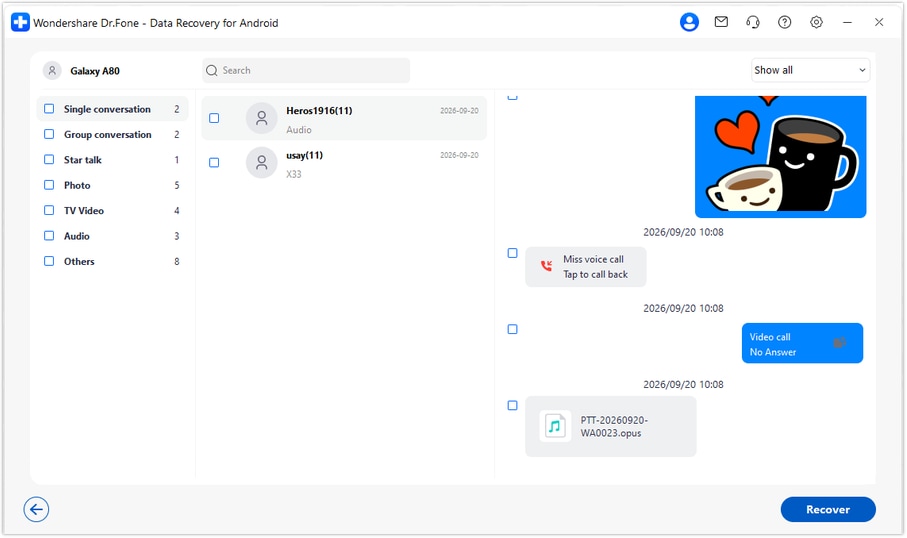
Step 5 Recover the selected findings to your PC
Click Recover and follow the prompts to choose a computer folder and save your selection. Open the output to inspect the available records. This workflow creates a PC copy rather than restoring the messages or files directly to WhatsApp on the Neo11.




Conclusion
A useful WhatsApp recovery can bring back the explanation as well as the image. For a supported iQOO Neo11, Dr.Fone - Data Recovery (Android) combines a focused app-data scan, conversation-and-attachment previews, and selective saving to a PC without relying on a backup. Download Dr.Fone for Windows and start looking for the messages, revisions and media that make your missing exchange useful again.
FAQ
1. How can I recover deleted WhatsApp messages on iQOO Neo11 without a backup?
Use Dr.Fone - Data Recovery (Android) on Windows with a supported configuration. Open Advanced Recovery, connect the phone, select personal WhatsApp separately, scan and preview the findings, then save selected records to the PC. This route does not rely on a pre-existing Google Drive backup.2. Can I recover a deleted correction even if the original photo survives?
Look for the correction in the available WhatsApp conversation results. The surviving photo is a separate item and does not establish that the deleted text is recoverable. If the scan finds the correction, select it along with any useful media.3. Will the scan automatically reconstruct every step of the instructions?
No. Preview the actual conversation and attachment findings to see what is available. The workflow saves selected records, not a guaranteed complete sequence, and the order of saved files should not be used to fill missing context.4. Can I recover deleted WhatsApp photos, videos and documents on Neo11?
Inspect those attachment categories in the personal WhatsApp scan results. When the relevant item is found, select it for PC saving. A video, photo or document may be useful even if some related messages are absent.5. Does the Neo11 reference identify its supported Android version?
No. It lists kernel 6.6.89 but leaves Android, model code and build unknown. The public Advanced Recovery guide covers Android 9-13; confirm your actual configuration and any additional Root/access route rather than borrowing software details from another Neo model.6. Can I import the saved instructions into the original WhatsApp chat?
This Advanced Recovery workflow saves selected results to a folder on your Windows PC. It does not import, merge or synchronize them into the original WhatsApp conversation.
 Add Wondershare Dr.Fone as a preferred source on Google





