 Recover photos, messages, WhatsApp, and more — no backup
needed.


 100% Security Verified | No Subscription Required | No Malware


 :

 ChatGPT
 Perplexity
 Gemini
 Claude
 Grok
You are preparing to replace your Pixel 7 and delete an old WhatsApp thread, only to remember that it contains a payment agreement and photos you never saved separately. The new phone does not have those deleted records, and there is no usable backup. Before wiping the Pixel for a trade-in, focus the recovery effort on the device that actually held the conversation.
Dr.Fone - Data Recovery (Android) provides eligible Pixel 7 users with a no-backup scan for available WhatsApp messages and attachments. You can preview the results and save the useful records to a Windows PC before retiring the phone. The aim here is a separate copy of the information you need, not a transfer or a promise to rebuild chat history on another device.
In this article
Before you start
Keep the original Pixel 7 available and unchanged
Do not factory-reset the Pixel for a trade-in, clear WhatsApp storage or uninstall the app while you are trying to retrieve its deleted records. Avoid further account migration or setup changes as a recovery experiment. If the phone has already been reset, do not assume that scanning a replacement phone can retrieve records that existed only on the Pixel.
Verify the current Pixel 7 configuration
Find the model, Android version and full build under Settings > About phone, and note the WhatsApp version. The supplied Pixel 7 Root reference lists Android 14, kernels 6.1.124 / 6.1.157 and builds BP2A.250705.008 / CP2A.260705.006, without a model code. Those lists do not establish every possible pairing; the Build-to-Android mapping needs verification. The public Advanced Recovery guide covers Android 9-13. Have Dr.Fone support confirm the current configuration rather than using the phone's age or a past Android version as proof of support.
Use confirmed access instructions, not a downgrade
Do not flash an older Android version, unlock the bootloader or follow a generic Root tutorial to fit a support range. The supplied record does not confirm the Root procedure or its possible data effects. Proceed only through the supported route and the product's displayed instructions.
Prepare a Windows recovery folder
Use a Windows computer and a reliable USB data cable. Note the relevant contact, date range and whether you need text, photos, videos, audio or documents. Choose a destination folder on the PC; Advanced Recovery saves selected results there, not to the replacement phone or WhatsApp.
Check the original Pixel 7 before treating the conversation as deleted
You are changing phones and need to distinguish a conversation still on the old device from records that were actually deleted there.
Step 1 Identify which device held the missing exchange
Establish whether the conversation was used on the Pixel 7 before it disappeared or whether you only noticed its absence on the replacement phone. Missing history on a new setup alone does not establish that the old phone's messages were deleted.
Step 2 Search the existing WhatsApp view on the Pixel
If WhatsApp is still accessible on the Pixel, search for the contact or group and inspect Archived. Read any retained discussion and identify the exact messages you still need. Do not reinstall the app or change account registration just to perform this check.
Step 3 Check separately saved attachments
Look for a local photo, video or document that you previously saved on the Pixel, and open it to confirm it is the useful item. Keep the distinction between an existing file and the deleted message that originally accompanied it.
Step 4 Move to a source-device scan for genuinely missing records
If the records were deleted on the Pixel, use the supported device-scan route below on that phone after eligibility confirmation. A blank WhatsApp installation on a different device is not the same recovery source.
- Reading retained chats, finding Archived content and locating saved files do not recover genuinely deleted messages.
- No Google Drive restore or device migration is presented as a method that works without a backup.
What a missing chat means when you are replacing a Pixel 7
| What you observe | Best next check | Result to expect |
|---|---|---|
| The new phone lacks a chat that may remain on the Pixel | Inspect retained WhatsApp records on the original phone if accessible | Determine whether this is missing new-device history rather than deletion |
| The chat is archived on the Pixel | Open it in Archived | Read the messages that are still present |
| The chat was deleted on the Pixel and there is no backup | Scan the eligible original Pixel with Dr.Fone Advanced Recovery | Preview available results and save selected records to PC |
| You only need a previously saved attachment | Open the local photo, video or document | Keep an existing file without reconstructing the conversation |
| Selected scan results have been saved | Review the chosen computer folder | Access a PC copy, not automatically populated chats on either phone |
Common problems and fixes
You connected the new phone, but the missing conversation belonged to the Pixel
Use the original source device for the eligibility check and scan. The replacement phone's available app data does not establish what is recoverable from the Pixel 7. Do not wipe the original phone while sorting out the source.
Your current Android version differs from an old Pixel support example
Record the current Android version and full build, and confirm those details with Dr.Fone support. Compatibility must match the phone as it is now, not a version it once ran. Do not downgrade or flash it as a deleted-data recovery step.
You have the payment text but not the related photos
Review photo, video and other attachment results separately from conversations. Select the useful message records found while checking media independently. Availability of text does not establish that the related files remain recoverable.
How to use Dr.Fone - Data Recovery (Android)
Dr.Fone - Data Recovery (Android) gives you a focused recovery option before you retire a supported Pixel 7. Its Windows-only Advanced Recovery mode scans personal WhatsApp app data without an existing backup, lets you inspect the available conversations and attachments, and saves your chosen results to a PC. You can look for the payment exchange and shared media you need to keep, with a separate computer copy as the outcome rather than another phone setup to manage.
- A source-device WhatsApp scan looks for available app records on the phone that held the conversation.
- Preview helps you identify the useful agreement, photo, video or attachment before making a selection.
- Selective PC recovery preserves the available records you choose independently of your replacement phone's WhatsApp setup.
 Scan Android phones and tablets directly.
- Preview and recover only what you want.
- Supports WhatsApp, photos, videos, contacts, and more.
- Works with 6000+ Android devices.

Follow the official Advanced Recovery workflow
Step 1 Connect the supported original Pixel 7
Launch Dr.Fone on Windows and navigate to Toolbox > Data Recovery > Android > Recover Android Data. Select Advanced Recovery and click Start Scan. Connect the eligible Pixel 7 by USB when prompted and complete the on-screen device-detection instructions.

Step 2 Select the personal WhatsApp category
Choose WhatsApp and click Start Scan. Scan it separately from WhatsApp Business and the other categories, following the official guide's selection requirement.

Step 3 Keep the source phone connected
Wait while the scan progresses with the USB cable connected. If you need to interrupt it, click Cancel before unplugging. If the Pixel becomes temporarily unresponsive after scanning or recovery, restart it as instructed by the product.

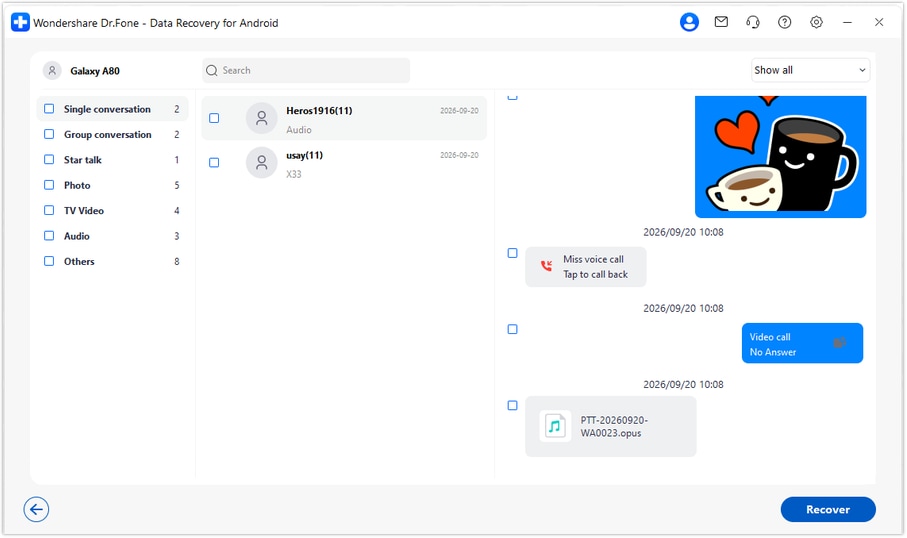
Step 4 Review the missing exchange and media
Open the WhatsApp results in the sidebar and preview available conversations. Use search or filters where available to narrow your review, then inspect photo, video, audio and other attachment categories. Select the messages and files you want to preserve.
Step 5 Recover the selected records to the PC
Click Recover and choose a computer folder through the save prompts. Open the saved output and check the selected records. This is a separate PC copy; it does not import history into WhatsApp on the Pixel 7 or a replacement phone.




Conclusion
Before retiring a compatible Pixel 7, use Dr.Fone - Data Recovery (Android) to look for the WhatsApp information worth keeping. A targeted no-backup scan, conversation and media previews, and selective saving to PC make it easier to focus on the useful records. Download Dr.Fone for Windows and begin the guided recovery workflow with your supported original phone.
FAQ
1. Can I recover deleted WhatsApp messages on Google Pixel 7 without a backup?
Dr.Fone - Data Recovery (Android) provides a device-scan route for supported Pixel 7 configurations. Confirm your current Android build and app eligibility, then scan personal WhatsApp with Advanced Recovery on Windows and save available selected records to a PC.2. Should I scan the old Pixel 7 or my replacement phone?
Use the device that held the deleted records as the source for eligibility and recovery checks. A replacement phone with a new WhatsApp setup is not a substitute for the original Pixel's app data.3. Can I assume support because my Pixel 7 previously ran Android 13?
No. Check its current software configuration. The public Advanced Recovery guide covers Android 9-13, while the supplied Android 14 Root entry needs separate mapping and eligibility confirmation. A past OS version or device family name is not proof of present compatibility.4. Can this workflow recover deleted WhatsApp photos and videos?
On an eligible source configuration, review the photo and video attachment results as well as messages. You can save the available items you select to your PC. Missing text and missing media may have different recovery results.5. Will the recovered messages appear on my new phone?
No. Advanced Recovery saves selected records to your Windows computer. This workflow does not transfer or import them into WhatsApp on either phone.
 Add Wondershare Dr.Fone as a preferred source on Google





