 Recover photos, messages, WhatsApp, and more — no backup
needed.


 100% Security Verified | No Subscription Required | No Malware


 :

 ChatGPT
 Perplexity
 Gemini
 Claude
 Grok
You still remember receiving the quotation in WhatsApp, but the chat containing the revised amount and your confirmation is gone. Even if a downloaded document survives, it may not answer which version you agreed to. When you need to recover deleted WhatsApp messages on iQOO Neo10 Pro without a backup, identify the missing decision as well as the missing file.
Dr.Fone - Data Recovery (Android) gives supported configurations a way to scan WhatsApp app data, preview available conversations and attachments, and save selected results to a PC. You can look for the confirmation text, the shared document and any photo or video explaining the work in one guided recovery workflow.
In this article
Before you start
Confirm Neo10 Pro identity and installed software
Record the full model name, Android version, build and WhatsApp version from your device. The supplied iQOO Neo10 Pro Root reference lists kernel 6.6.89; Android, model code and build are not supplied. Keep this identity separate from iQOO Neo10 Pro Plus. The public Advanced Recovery guide covers Android 9-13, while any additional Root/configuration route needs its own confirmation with Dr.Fone support.
Prepare Windows without changing the phone's firmware
Use a Windows PC, USB data cable and a destination folder suitable for private documents. Advanced Recovery is Windows-only. Preserve the existing WhatsApp installation and avoid clearing app storage, resetting or reinstalling as an experiment. Root/access requirements and data risks are not established by the reference alone; do not unlock or flash the device to match it.
List the document and the message separately
Note the contact, approximate exchange date, filename if known, and the text or amount you need to check. A recovered document and a recovered confirmation answer different questions. This workflow saves selected findings to the PC rather than placing them back in WhatsApp.
Check for an existing document copy on the Neo10 Pro
You may have saved the quotation, instructions or other shared document outside WhatsApp before deleting the chat.
Step 1 Search accessible files by a useful name
In the phone's file manager or the document app you used, look for a filename or distinctive term you remember. Check the files you deliberately downloaded or saved; do not assume there is a separate copy just because a document once appeared in WhatsApp.
Step 2 Open the candidate and check its contents
Verify the amount, version or relevant instructions inside the file and preserve any useful accessible copy. Then decide whether you still need the WhatsApp messages showing the revision or confirmation. Include those missing records in the scan below.
- This check locates a surviving file; it does not recover the deleted chat or prove which version was accepted.
- A familiar filename alone is not enough to identify the right document. Review the content before relying on it.
Recover the file, the agreement or both
| Information needed | Useful result | What remains to verify |
|---|---|---|
| The contents of the shared quotation | A surviving downloaded file or available document attachment result | Open it and check the version and amount. |
| The message accepting or revising it | Available WhatsApp conversation text | Read the surrounding found discussion rather than inferring agreement from the file. |
| A photo of the item or a video explaining the work | Available WhatsApp photo or video results | Confirm it matches the same subject before saving. |
| A useful record of the exchange | Selected conversation and attachment findings saved to PC | Review any gaps; saving available items is not a guarantee of a complete exchange. |
Common problems and fixes
The document is available, but the confirmation message is not
Save the useful document and inspect WhatsApp conversation results separately. The file's availability does not establish that the acceptance or revision text is also recoverable. Keep that distinction clear when reviewing the information.
Several document results look like different versions
Preview the available content and compare it with the amount or change you noted. Where the product offers search or filtering, use it to narrow the results. After saving, open the selected files on the PC to check what each actually contains.
You selected WhatsApp Business but lost the exchange in personal WhatsApp
Use the personal WhatsApp category for this article's recovery task. The guide requires WhatsApp and WhatsApp Business to be scanned separately; the fact that the discussion concerned work does not change which app held it.
How to use Dr.Fone - Data Recovery (Android)
Dr.Fone - Data Recovery (Android) helps you look beyond a surviving document for the WhatsApp discussion that explains it. Its Windows-only Advanced Recovery workflow scans personal WhatsApp on a supported iQOO Neo10 Pro without relying on a backup, lets you review conversation and attachment findings, and saves selected results to a PC. This is useful when the missing value lies in both the file and the messages about its final version.
- Review found conversation text for the revision, instruction or confirmation you need.
- Inspect available documents alongside photos, videos and other WhatsApp attachments.
- Keep a focused PC selection of useful findings rather than saving unrelated conversations.
 Scan Android phones and tablets directly.
- Preview and recover only what you want.
- Supports WhatsApp, photos, videos, contacts, and more.
- Works with 6000+ Android devices.

Follow the official Advanced Recovery workflow
Step 1 Choose Advanced Recovery for the Neo10 Pro
Launch Dr.Fone on Windows and open Toolbox > Data Recovery. Select Android > Recover Android Data, choose Advanced Recovery and click Start Scan. Connect the supported Neo10 Pro by USB when prompted and complete the displayed device-detection instructions.

Step 2 Scan the personal WhatsApp category separately
Select WhatsApp and click Start Scan. Do not select WhatsApp Business or other categories together with it; the official workflow handles these categories separately.

Step 3 Maintain the connection during app-data scanning
Leave the phone connected as Advanced Recovery scans. If you must interrupt the process, click Cancel before removing the cable. Follow the product's restart instructions if the phone becomes temporarily unresponsive after scanning or recovery.

Step 4 Preview the confirmation and the shared files
Browse available WhatsApp conversations and use search or filters where offered. Review the contact's discussion, then inspect the relevant document, photo, video and audio attachment categories. Select the found records that answer your recovery goal.
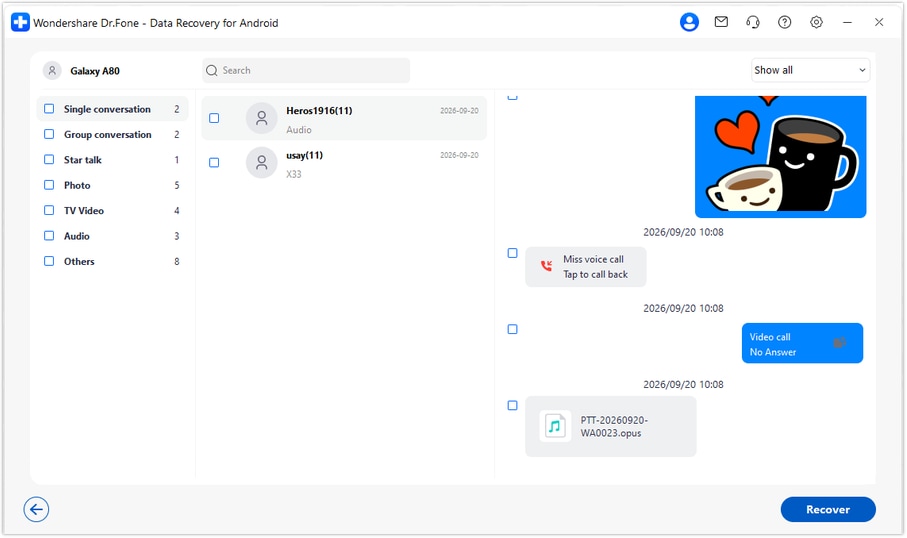
Step 5 Save selected conversation and document findings to PC
Click Recover, choose a computer folder and complete the save prompts. Open the saved output and check the selected content. The recovery destination is the PC; these records are not imported back into WhatsApp on the Neo10 Pro.




Conclusion
The right document is more useful when you can also find the conversation explaining it. Dr.Fone - Data Recovery (Android) offers supported iQOO Neo10 Pro users a focused WhatsApp scan, previews of conversations and attachments, and selective saving to a PC without a backup. Download Dr.Fone for Windows and start looking for the messages, files and supporting media you need.
FAQ
1. How do I recover deleted WhatsApp messages on iQOO Neo10 Pro without a backup?
On an eligible configuration, use Dr.Fone - Data Recovery (Android) on Windows. Choose Advanced Recovery, connect the phone, select personal WhatsApp separately, scan and preview the findings, then save selected results to the PC. Recovery depends on the records found, not on an existing cloud backup.2. Can I recover a WhatsApp document and the message confirming it?
Look for both in the scan results: inspect the document attachment and the conversation text separately. If both are found, select the useful results for saving. Neither result guarantees the other is available.3. Does a work-related chat need the WhatsApp Business scan?
Choose the app that actually held the exchange. A work discussion in personal WhatsApp needs the personal WhatsApp selection. WhatsApp Business is a separate category and cannot be selected at the same time for this scan.4. Can the Neo10 Pro Plus reference confirm support for my Neo10 Pro?
No. Keep the two device identities separate. The supplied Neo10 Pro record lists kernel 6.6.89 without Android, model code or build, so your actual configuration and applicable access requirements still need confirmation.5. Can I also save deleted WhatsApp photos and videos?
Inspect the available photo and video attachment results from the WhatsApp scan. If the required item is present, select it for PC saving along with any useful messages or documents. The workflow does not place the saved files back inside the original chat.
 Add Wondershare Dr.Fone as a preferred source on Google





