 Recover photos, messages, WhatsApp, and more — no backup
needed.


 100% Security Verified | No Subscription Required | No Malware


 :

 ChatGPT
 Perplexity
 Gemini
 Claude
 Grok
Clearing a busy WhatsApp group can also remove the updated meeting point, a shared timetable and the receipt you were supposed to keep. When you need the exact exchange rather than today's newest messages, having no usable backup makes the loss harder to resolve. This guide explains how to recover available deleted WhatsApp messages on ASUS Zenfone 11 Ultra and how to obtain a specific surviving item when another participant still has it.
Dr.Fone - Data Recovery (Android) gives a supported phone configuration a way to scan WhatsApp data without relying on a backup. Its preview helps you identify useful conversation records and attachments, then save selected results to a PC. Start by deciding whether you need one practical detail or the broader discussion; that keeps the recovery focused.
In this article
Before you start
Confirm the exact Zenfone 11 Ultra configuration
Record ASUS Zenfone 11 Ultra's model number, current Android version, build and personal WhatsApp version from device settings and app information. The supplied reference lists kernel 6.1.162 but no Android version, model code or build. Do not fill these gaps from launch specifications or another Zenfone. The public Advanced Recovery guide covers Android 9-13; any additional Root eligibility must be checked with Dr.Fone support for your complete setup rather than assumed for newer Android or every regional firmware.
Preserve the current WhatsApp data
Do not clear app storage, uninstall WhatsApp or reset the phone while preparing a scan. Avoid bootloader unlocking, flashing and unverified Root instructions: the reference does not establish the access mechanism or guarantee a lossless procedure. Follow the product's confirmed requirements for your exact device and app.
Identify the group and prepare a PC copy
Note the group name, the participants involved, the approximate date and whether you need text, photos, videos, voice messages or a document. Prepare a Windows PC, USB data cable and output folder. Advanced Recovery is Windows-only and saves selected found records to the PC, not into the group or the phone's WhatsApp history.
Ask for one surviving group item when that solves the immediate problem
You urgently need a timetable, location detail or shared receipt, and a participant still has that particular item.
Step 1 Specify the item instead of requesting the whole private discussion
Contact a participant you are authorized to ask. Describe the missing item, who shared it and the approximate date. Ask for the specific document, image or text if they still have a copy and are comfortable sharing it.
Step 2 Check the resent information against your actual need
Open the received item and confirm that it is the relevant version, especially if the meeting point or schedule changed. Keep the useful copy. If you also need the surrounding deleted exchange, continue with the supported device scan below.
- A resent item is a new copy obtained from another participant. It does not reconstruct the original conversation or prove that your deleted local records have been recovered.
- If the group is merely absent from the main chat list, search WhatsApp and check Archived first. Existing group membership alone is not a deleted-history recovery method.
Choose a useful outcome for the missing Zenfone group discussion
| Your immediate need | Relevant route | Result to expect |
|---|---|---|
| One current venue detail or timetable | A participant resends their surviving copy | Useful information, but not the original deleted message record |
| A conversation hidden from the main chat list | Search WhatsApp and inspect Archived | Access to messages that were retained rather than recovered after deletion |
| The wording of a deleted agreement or discussion | Advanced Recovery conversation results on an eligible setup | Available found messages selected for PC saving |
| A deleted receipt image, clip or other attachment | The available WhatsApp attachment results | A selected found file, even if the whole exchange is not available |
Common problems and fixes
The group still exists, but its older messages are missing
First confirm that you have opened the intended group rather than another similarly named discussion. Then inspect available conversation results for the missing exchange and check attachments separately. Remaining in the group does not by itself recreate the deleted local history.
A participant resends a timetable, but you need the version discussed earlier
Describe the older item or date as precisely as possible and check whether that copy still exists. In the scan preview, inspect the available content rather than assuming any matching filename is the required version. Keep a useful current copy separate from the historical record you are trying to find.
The scan shows no relevant personal WhatsApp results
Verify that you selected personal WhatsApp, not WhatsApp Business or unrelated device-data categories. If that selection was correct, review the offered conversation and media views. Tell support whether the loss followed chat deletion, app removal or a reset; repeating an unchanged scan is not evidence that missing data will appear.
The phone's current Android version is outside the public guide range
Have Dr.Fone support confirm the actual model, build, app and access route before proceeding. The kernel-only Zenfone reference does not establish support for that Android release. Do not downgrade or flash the phone to imitate a listed configuration.
How to use Dr.Fone - Data Recovery (Android)
Dr.Fone - Data Recovery (Android) helps when you need more of a deleted WhatsApp group discussion than a participant can resend. On a supported ASUS Zenfone 11 Ultra, its Windows-only Advanced Recovery mode scans selected WhatsApp data without an existing backup, lets you preview conversation and attachment results, and saves the items you choose to a PC. You can look for the actual exchange, receipt or instruction instead of relying only on a newly supplied fragment.
- A dedicated personal WhatsApp scan targets the app data involved in the loss rather than an unrelated collection of phone files.
- Conversation and attachment previews let you identify the found agreement, image, video or document before selecting it.
- Selective PC recovery keeps the useful records from a busy group without requiring you to save every result.
 Scan Android phones and tablets directly.
- Preview and recover only what you want.
- Supports WhatsApp, photos, videos, contacts, and more.
- Works with 6000+ Android devices.

Follow the official Advanced Recovery workflow
Step 1 Connect the supported Zenfone 11 Ultra through Advanced Recovery
Open Dr.Fone on Windows and choose Toolbox > Data Recovery. Select Android > Recover Android Data, then Advanced Recovery and Start Scan. Connect the phone with a USB data cable when prompted and complete the displayed detection instructions.

Step 2 Scan personal WhatsApp as a separate category
Select WhatsApp and click Start Scan. Do not combine personal WhatsApp with WhatsApp Business or the other app and data categories; the official workflow requires separate selections.

Step 3 Keep the phone connected until scanning finishes
Leave the USB connection in place while Advanced Recovery scans. If you must stop, use Cancel before disconnecting. Follow the product's displayed restart guidance if the phone becomes temporarily unresponsive after scanning or recovery.

Step 4 Inspect the group conversation and shared-item results
Choose the WhatsApp results and review available conversation contents. Use search and filters where offered to narrow the results, then inspect photos, videos, audio and other attachment categories. Select the found records that match the discussion or item you need.
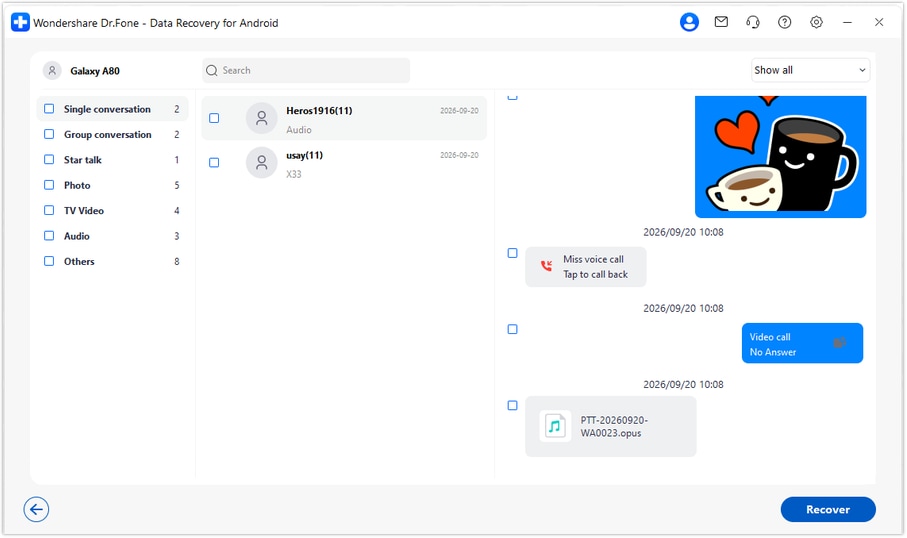
Step 5 Recover the selected records to your computer
Click Recover and follow the prompts to choose a PC destination folder. Complete the save operation and inspect the saved output. The recovered copy stays on the computer; this mode does not rebuild the group history inside WhatsApp.




Conclusion
For a supported ASUS Zenfone 11 Ultra, Dr.Fone - Data Recovery (Android) gives you a focused way to look beyond a resent fragment: scan WhatsApp app data, preview found group messages and attachments, and keep selected results on your PC. Download Dr.Fone for Windows and start the guided workflow with your confirmed configuration to look for the discussion and shared items you want back.
FAQ
1. How do I recover deleted WhatsApp messages on ASUS Zenfone 11 Ultra without a backup?
Confirm your configuration, then open Dr.Fone - Data Recovery (Android) on Windows and choose Advanced Recovery. Connect the phone, select personal WhatsApp separately, scan and preview the available results. Save the selected messages and attachments to your PC without relying on an existing Google Drive backup.2. Does remaining in a WhatsApp group restore messages I deleted?
No. Being a group member is not a procedure for recovering deleted local history. Search and Archived can reveal retained messages, and a participant may resend an item they still have. For deleted records on a supported phone, the device scan offers a separate recovery route.3. Can I recover deleted WhatsApp photos, videos and receipt attachments?
Review the supported attachment categories in the scan results as well as conversations. If the required image, clip, audio or document is found, select it for PC saving. A found attachment does not mean every message in the group is recoverable.4. Is Zenfone 11 Ultra support determined by the kernel number?
No. The supplied reference lists kernel 6.1.162, with Android, model code and build unspecified. The public guide covers Android 9-13, and the additional Root reference is not universal support for newer firmware. Confirm the full device, software and app setup with Dr.Fone support.5. Does this scan include WhatsApp Business or put results back into the group?
No. This article uses a separate personal WhatsApp scan; WhatsApp Business is a different selection. Advanced Recovery saves selected found records to the Windows PC and does not import or synchronize them into the group conversation.
 Add Wondershare Dr.Fone as a preferred source on Google





