 Recover photos, messages, WhatsApp, and more — no backup
needed.


 100% Security Verified | No Subscription Required | No Malware


 :

 ChatGPT
 Perplexity
 Gemini
 Claude
 Grok
The hotel address was in a WhatsApp conversation, along with a booking photo and the message explaining where to collect the keys. After deleting the thread on your Redmi Note 15 Pro+, you may still have the trip dates but none of the details that make them useful. When there is no usable backup, a restore tutorial alone cannot retrieve those records.
Dr.Fone - Data Recovery (Android) offers a device-based way to look for deleted WhatsApp messages on a supported Redmi Note 15 Pro+. You can inspect the conversations and shared media found, identify the address or booking attachment you need, and save a separate copy to a Windows PC. First rule out a misplaced conversation, then use the five-step recovery workflow below.
In this article
Before you start
Check the complete Redmi Note 15 Pro+ configuration
Open the phone's Settings and find its device and software information. Record the full model name, model code, Android version and build shown there. The supplied Root reference names Redmi Note 15 Pro+ with Kernel 6.1.118, but gives no Android version, model code or build. A kernel number does not establish an Android version. The public Advanced Recovery guide covers Android 9-13; ask Dr.Fone support to confirm your exact configuration and installed WhatsApp version, especially outside that public range.
Protect the phone while preparing Windows
Have a Windows PC, a USB data cable and a private destination folder ready. Leave WhatsApp installed and avoid clearing its storage or resetting the phone. Follow only the supported access instructions provided for your configuration. The supplied Root record does not establish a lossless process or its data risks; do not unlock the bootloader, flash firmware or follow an unrelated rooting tutorial as a recovery shortcut.
Identify the missing travel information
Note the contact, approximate conversation date and whether you need the written instructions, a photo, a video or an attachment. This small checklist helps you recognize useful results instead of selecting every recovered item. Selected output is saved to your PC, not restored to the WhatsApp conversation on the phone.
Check whether the travel conversation is still in WhatsApp
A whole thread seems missing, but you are not certain whether it was deleted or moved out of the main chat list.
Step 1 Search the contact and a distinctive booking phrase
In WhatsApp, search for the contact or group name. If you remember a hotel name or a phrase from the booking discussion, search for that too and open a matching result to check the actual messages.
Step 2 Look in Archived before treating the thread as deleted
Open the Archived area and inspect any matching conversation. If the address and attachments are present, you can read the retained content there. If the conversation or the specific messages are genuinely deleted, continue to the device scan.
- Finding an archived conversation is a retained-data check, not recovery of deleted messages.
- A booking image already saved elsewhere may provide part of the information, but it does not recreate the missing WhatsApp discussion.
Match the missing booking information to the result you need
| Missing item | What to inspect | What a useful result provides |
|---|---|---|
| Check-in address or collection instructions | Available WhatsApp conversation text | The written details rather than just a picture of the booking. |
| Booking confirmation photo | WhatsApp photo results and any existing saved copy | A readable image; an existing copy is not evidence that the chat was recovered. |
| A shared room or route video | Available WhatsApp video attachments | The specific clip if found, independently of whether every message survives. |
| A ticket or other document | Available attachment results | A separate saved record you can open on the PC. |
Common problems and fixes
Dr.Fone recognizes the phone but does not offer Advanced Recovery
Confirm that you are using Windows, then provide support with the full Redmi Note 15 Pro+ identity, Android version, build and WhatsApp version. Kernel 6.1.118 in the reference is not sufficient to establish support for your firmware. Resolve eligibility without changing the phone's firmware to force the option to appear.
The booking photo appears, but the address message does not
Inspect the conversation results separately from photos and attachments, using search or filters where available. A recovered image may still help with the booking, but it does not demonstrate recovery of the missing text. Save the useful results that are actually available.
How to use Dr.Fone - Data Recovery (Android)
Dr.Fone - Data Recovery (Android) helps you search for the details lost with a WhatsApp thread rather than depending on a backup you do not have. On a supported Redmi Note 15 Pro+ configuration, its Windows-only Advanced Recovery workflow scans personal WhatsApp, presents available conversations and media for preview, and saves your chosen results to a PC. That lets you prioritize a readable booking message, photo or ticket instead of collecting unrelated phone files.
- Focused WhatsApp recovery gives deleted app data another place to be searched when a retained-chat check is not enough.
- Conversation and media previews help distinguish the instructions you need from similar photos or old attachments.
- Selective PC saving keeps the useful records accessible outside the phone without importing them into your current chats.
 Scan Android phones and tablets directly.
- Preview and recover only what you want.
- Supports WhatsApp, photos, videos, contacts, and more.
- Works with 6000+ Android devices.

Follow the official Advanced Recovery workflow
Step 1 Open Advanced Recovery and connect the Redmi
On Windows, launch Dr.Fone and open Toolbox > Data Recovery. Select Android > Recover Android Data, choose Advanced Recovery and click Start Scan. Connect your supported Redmi Note 15 Pro+ with a USB cable when prompted and follow the device-detection instructions.

Step 2 Select personal WhatsApp
Choose WhatsApp and click Start Scan. Scan it separately from WhatsApp Business and the other categories; the official workflow does not allow those selections to run together.

Step 3 Keep the phone connected during the scan
Let the scan progress with the USB connection in place. If you need to stop, click Cancel before removing the cable. If the phone is temporarily unresponsive afterward, use the restart instructions displayed by the product.

Step 4 Preview the conversation and booking attachments
Open the available WhatsApp results and select relevant conversations to read their contents. Use search or filters where available and inspect photos, videos, audio and other attachment categories. Select the records that match the booking details you want to keep.
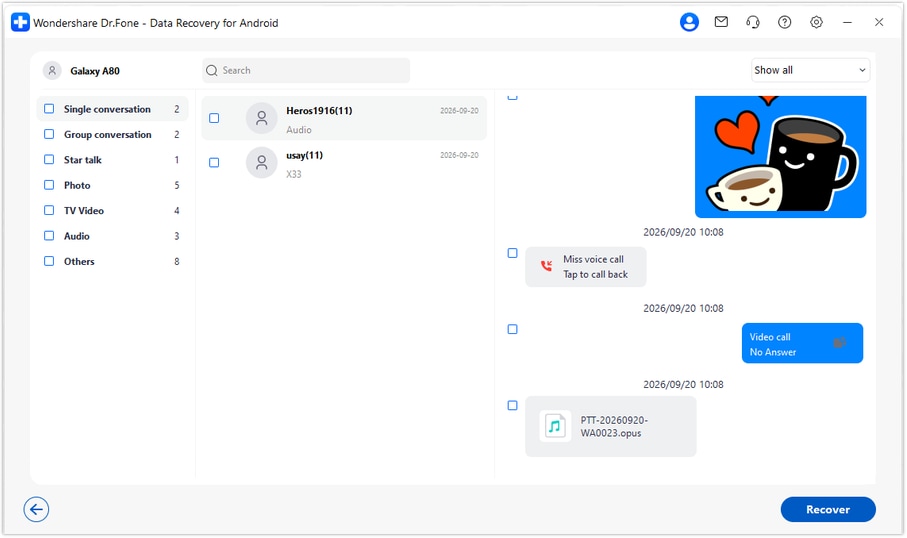
Step 5 Save the selected records to your computer
Click Recover, choose a folder on your PC and follow the save prompts. Open the saved output to check the messages and attachments you selected. This creates a PC copy rather than putting the conversation back into WhatsApp.




Conclusion
For a lost booking conversation on a supported Redmi Note 15 Pro+, Dr.Fone - Data Recovery (Android) gives you a practical way to search deleted WhatsApp data, preview important text and shared media, and keep selected records on your PC. Download Dr.Fone for Windows and start the guided workflow to look for the travel details you need.
FAQ
1. Can I recover deleted WhatsApp messages on Redmi Note 15 Pro+ without a backup?
Dr.Fone - Data Recovery (Android) provides a no-backup device-scan route for supported configurations. Use Advanced Recovery on Windows, scan WhatsApp separately, preview the results and save the available records you need to your PC. Recovery depends on what the scan finds.2. Does Kernel 6.1.118 mean my Redmi Note 15 Pro+ is supported?
Not by itself. That kernel appears in the supplied Root reference, but Android, model code and build are unspecified. Compare your phone's full software information with the route confirmed by Dr.Fone support; the public Advanced Recovery range is Android 9-13, not every newer firmware.3. Can I look for deleted WhatsApp photos and videos as well as messages?
Yes, on a supported configuration the WhatsApp results include conversation and attachment views for available data. Inspect the photo and video categories as well as message text, because each may yield different results.4. Will the recovered booking conversation appear again in WhatsApp?
No. This Advanced Recovery workflow saves selected output to your Windows PC. You can review that separate copy, but it does not restore or synchronize the thread into WhatsApp.
 Add Wondershare Dr.Fone as a preferred source on Google





