 Effortlessly manage data through preview, delete, export, etc.

 100% Security Verified | No Subscription Required | No Malware

 :
: 
 ChatGPT
 Perplexity
 Gemini
 Claude
 Grok
Grok

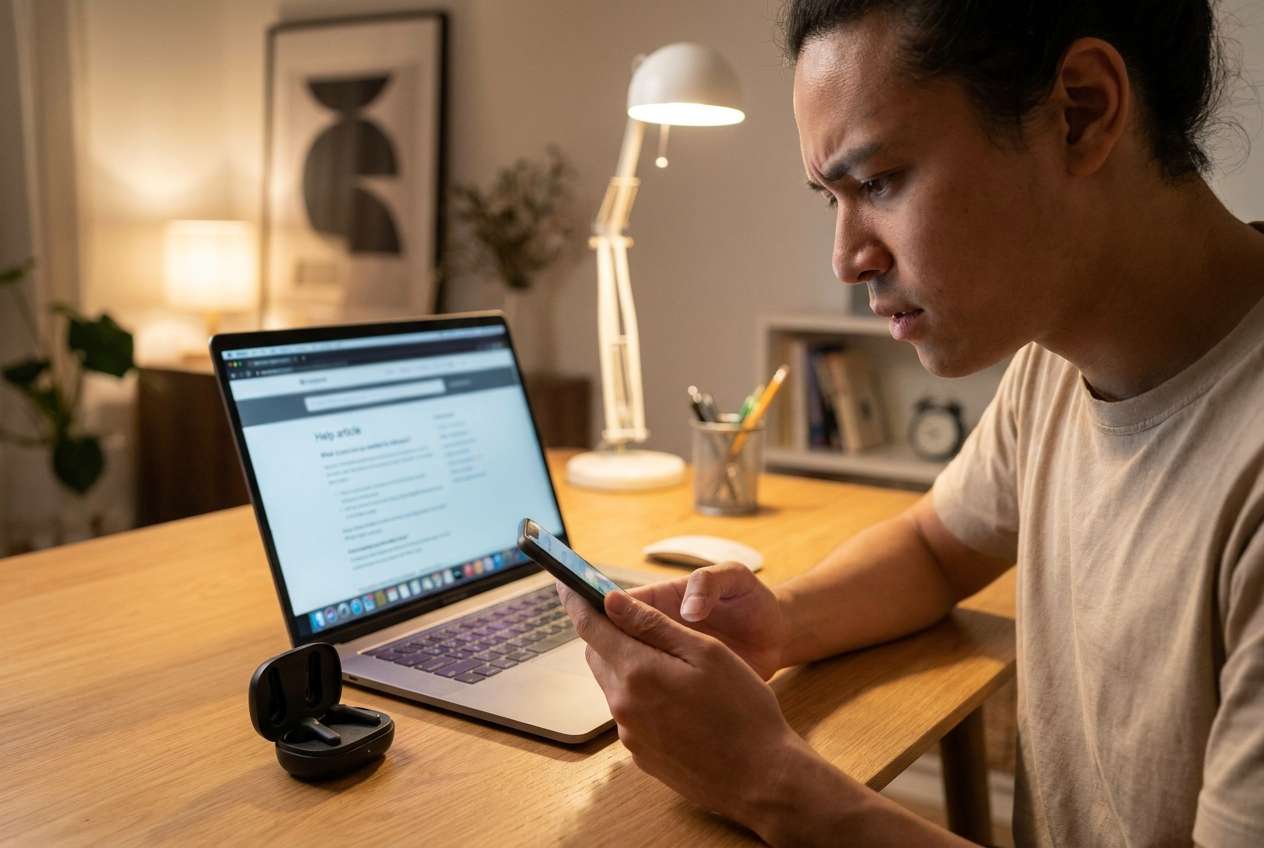
My earbuds pair to my laptop but won’t stay connected to my phone after an update. Bluetooth toggling doesn’t help, and I can’t tell if the issue is the phone or the earbuds.
Reddit user, r/Android
Bluetooth can fail in frustratingly vague ways: earbuds won’t pair, the car won’t connect, or audio keeps cutting out. This often shows up right after a change—like tapping Install Now on an update, restarting, or switching to a new accessory—then nothing seems to improve even after several minutes.
AI (like ChatGPT or Gemini) can help you sort symptoms into likely causes, decide whether the problem points more to the phone or the accessory, and suggest low-risk checks in the right order.
AI can’t “see” your device state, and trial-and-error can accidentally reset networks, break working pairings, or hide the real cause. Use AI for diagnosis and decision-making, then use the right tool for execution and documentation.
In this article
- How to tell if a Bluetooth issue is from the phone or the accessory
- What “phone vs accessory” usually looks like
- Common triggers
- Why it’s hard to be sure
- Before you prompt the AI
- Using AI prompts to diagnose Bluetooth pairing problems safely
- When to stop testing Bluetooth and avoid data or privacy risks
- Mirror Android screen to PC to capture Bluetooth evidence
- Recommended tool for documenting Bluetooth tests
1. Use symptom patterns and cross-tests to separate “phone” vs “accessory” vs “environment.”
If one accessory fails only with one phone (but works elsewhere), it often points to phone-side pairing data/OS behavior or a compatibility issue; if the accessory fails across multiple phones, it’s more likely accessory-side.
2. Prompt AI to rank causes and recommend lowest-risk checks first (before resets).
Good prompts should force ranking, call out risky steps (pairing wipes/network resets), and suggest high-signal checks like “another phone / another accessory / another location.”
3. Document what you see during pairing so you can reproduce and compare results.
Capturing timestamps, exact error text, and the precise failure point (discover/pair/connect/audio) reduces guesswork and helps you stop “random fixes” sooner.
Part 1. How to tell if a Bluetooth issue is from the phone or the accessory
A “phone vs accessory” Bluetooth problem usually means the connection fails only in certain combinations: one headset won’t pair with your phone, but it works on another device—or your phone pairs with some accessories but not one specific item.
Common triggers include an OS update, a restart, enabling battery saver, switching audio codecs, or pairing the accessory to another device first. This can happen on an iPhone 14 or iPhone 13, but the same pattern applies across Android devices too.
The uncertainty is the hard part: the phone looks fine, the accessory looks fine, and Bluetooth toggling doesn’t clarify whether it’s a compatibility issue, corrupted pairing data, interference, or an accessory firmware problem.
1-1. Before You Prompt the AI
Collect a few facts so the AI can narrow causes instead of guessing:
- Phone brand/model and OS version
- Accessory type (earbuds, speaker, car, smartwatch) and model
- What changed right before it started (update, restart, new device, travel, new app)
- Exact failure mode (can’t find, can’t pair, pairs then disconnects, no audio, choppy audio)
- Whether it works with another phone and whether your phone works with another accessory
Part 2. Using AI prompts to diagnose Bluetooth pairing problems safely
2-1. Level 1: Basic Prompt
My Bluetooth issue: I can’t reliably connect [accessory model] to [phone model + OS]. It started after [what changed]. Symptoms: [can’t find / can’t pair / disconnects / no audio / choppy]. It [does/doesn’t] work with another phone, and my phone [does/doesn’t] work with other Bluetooth devices. Based on this, is it more likely my phone or the accessory, and what are the lowest-risk checks first?
2-2. Level 2: Advanced Prompt
Act like a diagnostic assistant.
Goal: determine whether the Bluetooth problem is more likely phone-side or accessory-side without risky resets.
My details:
- Phone: [model/OS]
- Accessory: [type/model]
- Trigger event: [update/restart/new pairing/etc.]
- Failure mode: [exact behavior + any error text]
- Cross-tests: [works with other phone? / phone works with other accessory?]
Task:
1) List the top 5 plausible causes and rank them with brief reasoning.
2) For each cause, suggest 1–2 checks ordered lowest risk → higher risk.
3) Call out steps that might remove saved pairings, change audio routing, or impact privacy (e.g., sharing logs), so I can avoid them.
2-3. Level 3: Evidence Prompt
Help me triage whether this Bluetooth problem is caused by my phone or the accessory using evidence-based checks.
Evidence fields:
- Phone model: (e.g., Samsung Galaxy S23) / (e.g., iPhone 13 Pro)
- OS version: (e.g., Android 14 / iOS 17.x)
- Accessory model: (e.g., AirPods Pro 2 / Bose QC)
- Accessory battery level and charge status:
- What I did right before the issue: (e.g., installed an OS update, restarted, switched devices)
- Symptom category: (can’t discover / pairing fails / connects then drops / no audio / stutter)
- Distance and environment: (car, gym, office Wi‑Fi, crowded area)
- Cross-test results: (accessory works on another phone? phone works with another accessory?)
- Any messages: (e.g., “Pairing rejected”, “Couldn’t connect”)
What I want from you:
1) A decision tree that separates phone-side, accessory-side, and environment/interference causes.
2) The minimum set of checks that best distinguishes those categories.
3) What evidence would most strongly confirm each category.
2-4. Prompt Refinement
If the AI answer feels generic, force it to ask and rank more precisely:
What 3 missing questions would most change your conclusion (phone vs accessory), and why?
Rank causes again, but separate them into phone software, phone hardware, accessory firmware/hardware, and interference.
Which single cross-test gives the highest confidence here: another phone, another accessory, or another environment? Tell me exactly how to run it.
What specific evidence should I capture (screens, timestamps, error text) that would confirm your #1 cause?
List steps that are reversible vs destructive (removes pairings, resets network settings), and recommend where to stop.
2-5. AI Output vs Reality
AI can propose likely causes, but your device behavior determines what’s true.
| What AI can do well | What still depends on real testing |
|---|---|
| Interpret symptom patterns (discover vs pair vs audio) | Whether your accessory radio/firmware is failing |
| Suggest high-signal cross-tests | Whether your phone’s Bluetooth stack is corrupted |
| Rank likely causes from your evidence | Local interference unique to your environment |
| Warn about risky steps (resets, privacy) | Capturing accurate on-screen evidence and reproducing the issue |
Use the AI output to choose the smallest, safest tests—then validate with controlled cross-checks (another phone, another accessory, another location) before escalating.
Part 3. When to stop testing Bluetooth and avoid data or privacy risks
Stop “trying random fixes” when the next step is likely to erase information or create new variables.
- You’re about to do Network Settings Reset / Reset All Settings without having done basic cross-tests first.
- Bluetooth failure is paired with overheating, fast battery drain, or crashes, suggesting deeper system instability.
- The accessory shows signs of hardware trouble (won’t charge, won’t enter pairing mode, indicator behavior is abnormal).
- You’re considering sharing logs, device IDs, or screenshots with personal data without a clear need.
Once you’ve narrowed the likely side (phone vs accessory), the next move is execution: capture consistent evidence, reproduce the failure reliably, and apply only the changes you actually intend.
Part 4. Mirror Android screen to PC to capture Bluetooth evidence with Dr.Fone
If you’re stuck determining whether the problem is your phone or the accessory, mirroring your Android screen to a PC can help you execute the AI’s checklist more cleanly: you can navigate Bluetooth menus precisely, capture what the phone shows during pairing, and keep a record of the exact steps and outcomes. Dr.Fone Basic - Screen Mirroring is relevant at this stage because it supports Mirror Android Screen to PC, making it easier to document symptoms and repeat cross-tests consistently (especially when the phone UI is laggy or the pairing flow is time-sensitive). You can follow the mirrored flow while comparing the AI’s ranked causes against what actually happens on-screen.
-
Step 1 Start Android screen mirroring
Open Dr.Fone Basic and initiate Android-to-PC mirroring so you can view Bluetooth settings clearly while you test, avoiding rushed taps during pairing.

-
Step 2 Reproduce the pairing attempt
With the screen mirrored, go to Bluetooth settings and retry pairing while noting the exact failure point (discover, pair, connect, audio).

-
Step 3 Capture consistent evidence
Record screenshots or a short screen recording of messages and device states, being careful not to expose sensitive notifications on-screen.

-
Step 4 Run one controlled cross-test
Repeat the same steps with one variable changed (different room, different phone, or different accessory) to isolate phone vs accessory.


Part 5. Recommended tool for documenting Bluetooth tests
When you’re running AI-guided checks, the biggest gains come from consistency: repeating the same pairing steps, capturing the same screens, and changing only one variable at a time. Dr.Fone Basic can support this workflow by keeping your Android screen visible on a PC while you collect evidence and validate whether the issue is phone-side, accessory-side, or interference-related.
 Easily manage data through preview, delete, export, etc.
- Transfer all data between devices.
- Robust backup solutions for reliable data protection.
- Mirror screens to PC for meetings, teaching, and control.

- Use mirroring to slow down fast pairing flows and avoid mis-taps that create new variables.
- Capture clear evidence (error messages, timestamps, device state) to confirm or rule out the AI’s top-ranked causes.
- Repeat cross-tests (another accessory / another phone / another location) with the same on-screen path for cleaner comparisons.




Conclusion
Use AI to translate your symptoms into a ranked “phone vs accessory vs interference” hypothesis and a low-risk test plan, then hand off to practical execution—like mirroring an Android screen to a PC with Dr.Fone—to reproduce the issue consistently and capture clear evidence for the next decision.
FAQ
-
How can I quickly tell if Bluetooth is failing because of my phone?
If your phone fails with multiple different accessories in the same environment, that points more to a phone-side issue than a single accessory fault. -
How can I quickly tell if Bluetooth is failing because of the accessory?
If the accessory fails to pair with multiple phones (or can’t enter pairing mode reliably), the accessory is the more likely cause. -
What’s the safest first step before resetting network settings?
Do a cross-test: try the accessory with another phone, and try your phone with another accessory—this often avoids unnecessary resets. -
Why does Bluetooth break right after a system update?
Updates can change Bluetooth drivers, permissions, codecs, or background behavior; symptoms often appear as pairing loops, disconnects, or audio routing issues. -
How does mirroring my Android screen to PC help with Bluetooth troubleshooting?
It helps you document exactly what the phone shows during discovery/pairing and repeat tests consistently, which improves diagnosis without guessing.
 Add Wondershare Dr.Fone as a preferred source on Google





