 Effortlessly manage data through preview, delete, export, etc.

 100% Security Verified | No Subscription Required | No Malware

 :
: 
 ChatGPT
 Perplexity
 Gemini
 Claude
 Grok
Grok

After updating iOS, my iPhone is stuck on the Apple logo and won’t finish booting. It’s been like this for a while and I’m worried about losing my data if I do the wrong step.
Apple Support Community user
Your iPhone can get stuck on the Apple logo right after an iOS update—often right after you tap Install Now and the phone restarts. On models like iPhone 13 or iPhone 14, it may look like it’s “booting,” but nothing changes after several minutes.
AI tools (like ChatGPT or Gemini) can help you describe the symptoms precisely, narrow down likely causes, and decide what not to try first—so you reduce the risk of data loss and wasted time. The goal is to diagnose first, then choose the lowest-risk next step.
In this article
- Why iPhone stuck on Apple logo after iOS update happens (and what it means)
- What “stuck on the logo” usually means
- Common triggers during an update
- Behavior over time: hang vs loop vs progress bar
- What to collect before prompting AI
- Using AI prompts to diagnose Apple logo loop after update safely
- AI output vs reality: what you still must verify on the device
- When to stop iPhone boot loop troubleshooting to avoid data loss
- iPhone update stuck on Apple logo: resolve it safely with Dr.Fone
Part 1. Why iPhone stuck on Apple logo after iOS update happens and what it means
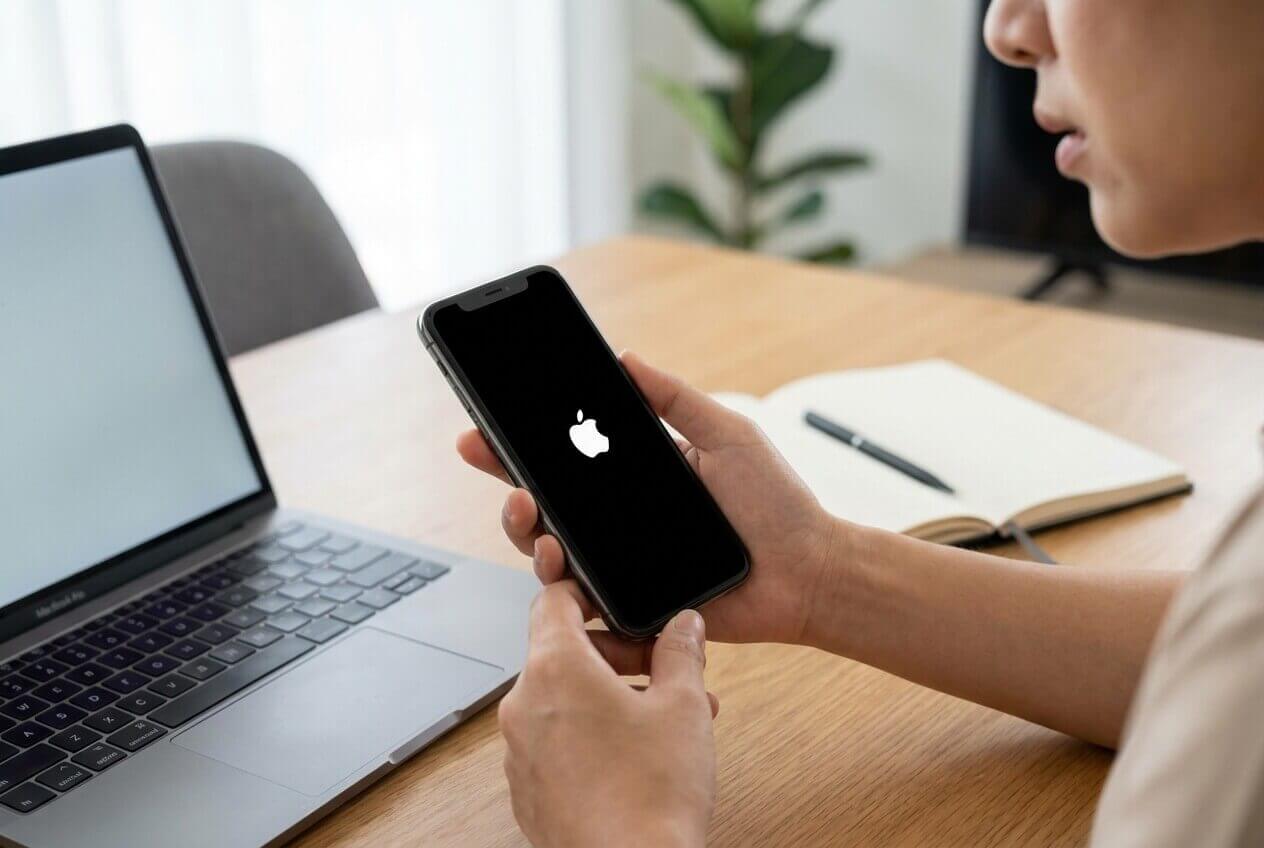
When an iPhone is stuck on the Apple logo after an update, it usually means the boot process can’t finish. It could be a temporary hang, a corrupted update stage, low storage during install, a battery/port/cable interruption, or a deeper iOS system issue.
Common triggers include updating with limited free space, updating while battery is low, or the phone rebooting mid-install. If you updated overnight and now only see the Apple logo, it can be unclear whether it’s still “finishing” or truly stuck.
The key detail is behavior over time: does it stay static on the logo, repeatedly reboot to the logo, or briefly show a progress bar and then revert?
Before You Prompt the AI
Collect a few basics first so the AI can narrow causes quickly:
- iPhone model and iOS version (if known)
- What you did right before it happened (tapped Install Now, restarted, restored, etc.)
- How long it’s been on the logo
- Whether it loops (restarts repeatedly) or stays fixed
- Whether a progress bar appears
- Recent storage status, battery level, overheating, or drops/water exposure
Part 2. Using AI prompts to diagnose Apple logo loop after update safely
Level 1: Basic Prompt
My iPhone is stuck on the Apple logo right after an iOS update. Ask me the minimum questions needed to tell whether this is a temporary update hang, a boot loop, or an iOS system issue, and then suggest the safest next step that avoids data loss.
Level 2: Advanced Prompt
You are diagnosing an iPhone that’s stuck on the Apple logo after an iOS update.
1) List the top 5 likely causes and rank them by probability.
2) For each cause, list 2–3 observations that would confirm/deny it.
3) Provide a low-risk step sequence (data-preserving first), and label any step that could increase data-loss risk.
4) Stop and ask me for missing info before recommending any destructive action.
Level 3: Evidence Prompt
Help me triage an iPhone stuck on the Apple logo after an update using evidence, not guesses.
Device:
- iPhone model: (e.g., iPhone 13 Pro)
- Approx iOS version/update type: (e.g., iOS 17.x minor update)
- Storage before update: (e.g., ~1–3 GB free / unknown)
- Battery/charging state during update: (e.g., plugged in / not plugged in)
What happened:
- Trigger action: (e.g., tapped Install Now, phone restarted)
- Time on Apple logo: (e.g., 20 minutes / 2 hours)
- Screen behavior: (static Apple logo / reboots to logo / logo + progress bar)
- Heat: (cool / warm / hot)
Connection tests (if attempted):
- Computer detected in Finder/iTunes: (yes/no/unknown)
- Any error code shown: (exact text/code)
Goal & constraints:
- Priority: (keep data / fastest restore acceptable)
- What I’m avoiding: (factory reset / paid repair / etc.)
Now:
1) Categorize the situation (hang vs loop vs recovery/restore state).
2) Give the most likely cause in each category.
3) Propose the safest next action and what result should happen if it worked.
Prompt Refinement
Use these follow-ups to force clearer, safer AI guidance:
What are the missing questions you still need from me to decide between a hang, boot loop, and recovery mode?
Separate causes into software update issue vs storage-related vs hardware-related, then rank within each group.
What single observation would most strongly confirm your #1 cause, and how do I check it without wiping data?
List stop conditions: what exact signs mean I should stop trying DIY steps to avoid making it worse?
If Finder/iTunes detects the device, how does that change your ranking and recommended next step?
AI Output vs Reality: what you still must verify on the device
AI can reason from patterns, but your device still needs the right tool and the right action at the end. Use AI to decide what to try first, then verify the real-world signals on the iPhone and your computer.
| What AI can infer | What you must verify on the device |
|---|---|
| Whether symptoms match a hang vs boot loop | Actual behavior over time (static vs repeated reboot) |
| Whether storage/battery/interruption is plausible | Battery/charging, heat, and any progress bar changes |
| Which next steps are lowest risk | Whether the iPhone is detected by Finder/iTunes |
| When escalation is safer than guessing | Whether attempts are repeating with no change |
AI helps you choose a safer direction; execution still depends on what the iPhone and your computer can actually detect and complete.
Part 3. When to stop iPhone boot loop troubleshooting and avoid data loss
If the Apple logo state persists, the risk usually comes from repeating random actions without new evidence.
- The iPhone repeatedly reboots to the Apple logo for 30+ minutes with no change in pattern.
- The device gets unusually hot or won’t hold charge while stuck on the logo.
- Finder/iTunes shows repeated failures or error codes, and retries don’t change anything.
- You’re about to attempt a step that explicitly erases data (restore/factory reset) but you haven’t confirmed safer options.
Once you’ve used AI to narrow the likely category (hang vs loop vs recovery state), it’s usually time to switch from “guessing” to a controlled system-level approach for execution.
Part 4. iPhone update stuck on Apple logo: resolve it safely with Dr.Fone
After you’ve identified that this is likely an iOS system startup issue (hang/loop after update), you need an execution step designed for iOS system recovery rather than repeated trial-and-error. Dr.Fone - System Repair (iOS) is relevant at this stage because it’s purpose-built to run a guided iOS system repair workflow on a computer, helping you move from diagnosis to a structured attempt to get the device booting normally again, while prioritizing lower-risk options first.
 Fix iOS issues, no data loss.
- One-click repair for all iOS problems.
- Solve recovery mode, Apple logo, black screen, etc.
- Upgrade or downgrade iOS without iTunes

If your priority is preserving data, choose the mode/options that aim to keep data intact before considering anything that may erase it.
-
Step 1 Install and open System Repair (iOS)
Download and launch the tool on your computer, and avoid disconnecting cables mid-process to reduce interruption risk.

-
Step 2 Connect the iPhone with a stable cable
Plug the iPhone into the computer using a reliable cable/port and keep the device connected directly (avoid flaky hubs if possible).

-
Step 3 Select “Repair iOS Issues”
Choose the repair option intended for iOS startup problems and select the data-preserving path first if offered.

-
Step 4 Follow the on-screen steps to enter the required device state
Complete the guided steps to place the iPhone into the needed mode (only proceed if you understand whether a mode could affect data).

-
Step 5 Run the repair workflow and re-check boot behavior
Start the process and, when it finishes, confirm whether the phone boots past the Apple logo and stays stable through a full restart.




Conclusion
Use AI to classify the Apple-logo issue (hang vs boot loop vs recovery-related), identify the most likely causes, and choose the lowest-risk next action; then move to a structured system-level approach like Dr.Fone - System Repair (iOS) when you need a controlled execution step rather than more guesswork.
FAQ
-
How long should I wait on the Apple logo after an update before doing anything?
If it’s been more than about 15–30 minutes with no progress change (and especially if it reboots repeatedly), treat it as likely stuck rather than “still updating.” -
Is an Apple logo loop the same as recovery mode?
Not always. A loop is repeated restarts to the logo; recovery mode typically shows a cable/computer icon and is often detectable by Finder/iTunes as a recovery device. -
Will forcing a restart erase my data?
A forced restart normally doesn’t erase data, but repeating it many times without changing conditions can waste time and may not address a corrupted update state. -
What if Finder/iTunes doesn’t detect my iPhone at all?
That points to a connection issue, a device state that isn’t entered correctly, or a deeper hardware/system problem; confirm cable/port and then consider a structured system repair approach. -
What’s the safest goal if I care about my photos and messages?
Prioritize steps that aim to preserve data (diagnose first, avoid restore/factory reset) and only escalate to erase-all options if you’ve accepted the tradeoff.
 Add Wondershare Dr.Fone as a preferred source on Google





