 Effortlessly manage data through preview, delete, export, etc.

 100% Security Verified | No Subscription Required | No Malware

 :
: 
 ChatGPT
 Perplexity
 Gemini
 Claude
 Grok
Grok

I tried to delete a bunch of old screenshots to free up space, but I’m worried I’ll delete something important—or that iCloud will remove it everywhere.
Reddit user, r/iphone
Cleaning up old screenshots on an iPhone sounds simple, but skipping a verification step can lead to deleting important images or removing them from other devices via iCloud. AI can help you plan a safe workflow: how to identify screenshots, decide what to keep, confirm backup status, and define a “point of no return” before anything is permanently removed.
In this article
- Part 1. Plan a safe screenshot cleanup workflow
- Why screenshots are risky to bulk-delete
- iCloud Photos sync considerations
- The irreversible step to avoid too early
- What AI can and can’t do
- Part 2. What the AI needs to know
- Part 3. Using AI prompts to build a safer workflow
- Part 4. AI plan vs. real device constraints
- Part 5. When to stop planning and start execution
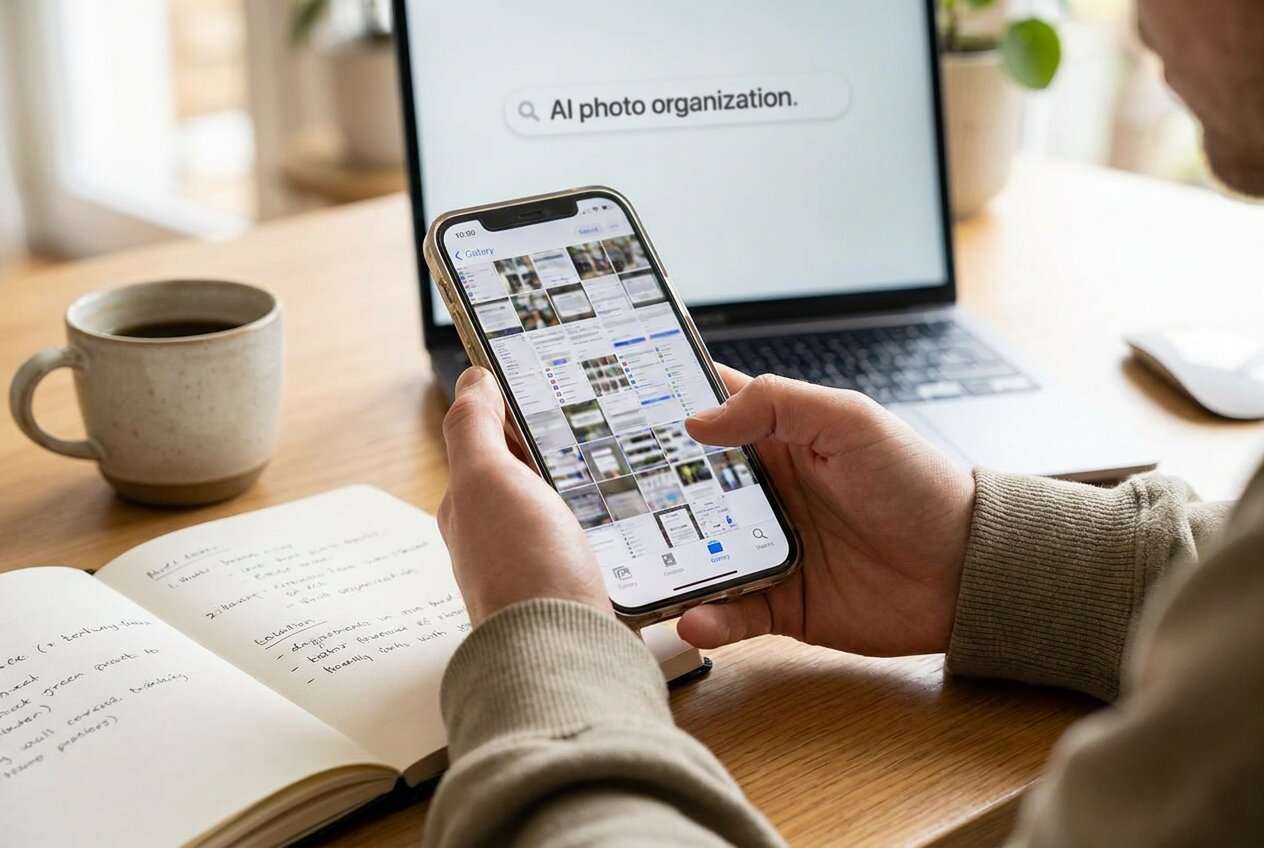
Part 1. Plan a safe screenshot cleanup workflow
You may have hundreds (or thousands) of screenshots mixed with receipts, boarding passes, password recovery codes, order confirmations, and random app screens. You want them gone, but you’re not fully sure which ones are still important.
The uncertainty usually isn’t “how do I delete a photo,” but “what’s the safest sequence?”—especially if you use iCloud Photos, share an Apple ID with family, or sync Photos to a Mac/iPad.
The point of no return is emptying “Recently Deleted” (or letting it auto-expire after a major purge) because that’s when recovery becomes difficult or impossible, particularly if the same deletions have synced across devices.

Part 2. What the AI needs to know
Share the details below so the AI can design a cleanup plan that’s safe for your setup.
- iPhone model and iOS version (e.g., iPhone 13, iOS 17.5)
- Are you using iCloud Photos? (on/off)
- Do you also use Photos on Mac/iPad with the same Apple ID? (yes/no)
- Approx. number of screenshots and your time budget (e.g., 2,000 screenshots, 30 minutes)
- Your backup situation (iCloud backup, computer backup, neither, not sure)
- Your risk tolerance (e.g., “I must not lose anything important” vs “I’m okay losing most screenshots”)
- Whether you need to keep any categories (receipts, codes, chats, work items)
- Your preferred end state (e.g., “keep last 90 days,” “keep only favorited,” “archive then delete”)
Part 3. Using AI prompts to build a safer workflow
Use the prompts below to make the workflow explicit before you touch deletion or storage settings.
3-1. Level 1: Basic Prompt
I want to clean up old screenshots on my iPhone safely. Create a short plan that helps me identify what to keep, what to delete, and what to verify before I remove anything. Include the one step I should treat as irreversible.
3-2. Level 2: Advanced Prompt
Design a structured workflow to clean up old iPhone screenshots with minimal risk.
Split it into Preparation, Execution, and Verification, and clearly label critical steps vs optional steps.
Include iCloud Photos considerations, and define a “stop point” before any permanent deletion.
3-3. Level 3: Evidence Prompt
Build me a safety-first cleanup plan for old screenshots on my iPhone using this context: iPhone (iPhone 14), iOS (17.4), iCloud Photos (ON), other devices (MacBook Photos ON), screenshots volume (~3,500), time budget (45 minutes), risk tolerance (high).
List checks before, during, and after cleanup, including: how to confirm screenshots are correctly identified, how to avoid deleting non-screenshots by mistake, how to confirm backups/safe copies exist, and what to verify before emptying Recently Deleted.
Also include a quick “keep list” rule example (e.g., “keep anything with codes, receipts, or dates within last 30 days”).
3-4. Prompt Refinement
If the first answer is too generic, use one (or more) follow-up prompts below.
Make the plan output a single checklist with three gates: Gate 1: Safe to start, Gate 2: Safe to delete, Gate 3: Safe to finalize—and list pass/fail criteria for each gate.
Ask me 10 yes/no questions first, then generate the workflow based on my answers; keep the final workflow under 20 lines.
Include a sampling method: tell me how to spot-check a subset (e.g., “review 50 random screenshots from different months”) to validate my keep/delete rules before bulk actions.
Create two variants: one for “iCloud Photos ON across devices” and one for “iCloud Photos OFF,” and highlight what changes in the irreversible step.
Part 4. AI plan vs. real device constraints
| Planning item | What AI can do | Real constraint | What to verify before proceeding |
|---|---|---|---|
| Identify safe keep/delete rules | Propose decision rules and categories | AI can’t see your images or context | Manually confirm examples of “keep” items (codes/receipts/work) |
| Prevent accidental cross-device deletion | Warn about iCloud Photos sync behavior | Deletions may sync immediately | Confirm iCloud Photos status on all devices you care about |
| Reduce irreversible loss | Define “stop points” and gates | “Recently Deleted” can still be emptied | Ensure backup/safe copy exists before finalizing deletion |
| Quality control after cleanup | Provide verification checklist | AI can’t confirm results | Spot-check Photos, Albums, and “Recently Deleted” status |
AI improves planning, sequencing, and risk control—but it cannot execute actions inside your Photos library or validate what’s actually on your device.
Part 5. When to stop planning and start execution
- You have confirmed whether iCloud Photos is ON and understand that deletions may sync to other devices.
- You have a clear keep rule (what must not be deleted) and you tested it on a small sample.
- You have a defined irreversible moment (emptying “Recently Deleted”) and you are not approaching it yet.
- You can state exactly how you’ll verify success (what you’ll check immediately after deletion).
If all four are true, you’re no longer guessing—you’re ready to execute carefully.
Clean up old screenshots on iPhone: Execute the workflow safely with Dr.Fone
Execution is where most mistakes happen: the wrong selection, the wrong device scope, or finalizing deletion before you confirm you have what you need. Use Dr.Fone Basic - Data Manager as the execution layer only after your keep/delete rules and verification gates are finalized.
 Easily manage data through preview, delete, export, etc.
- Transfer all data between devices.
- Robust backup solutions for reliable data protection.
- Mirror screens to PC for meetings, teaching, and control.

-
Step 1 Secure a recoverable copy first
Use Dr.Fone to create a backup/export of the photos you intend to keep (or a full Photos backup if your plan requires maximum safety). Dr.Fone can execute backup/export, but it can’t decide what’s important—your keep rules must be finalized beforehand.

-
Step 2 Load your iPhone content and scope the cleanup
Navigate to the area where you can review iPhone data and narrow your scope to what you actually plan to remove (for example: screenshots only, a date range, or reviewed selections). Avoid broad deletion scopes unless your sampling check already proved your rules are correct.

-
Step 3 Remove screenshot clutter according to your rules
Carry out the planned cleanup on your iPhone using your pre-defined criteria. Double-check the selection before you apply any delete action, especially when iCloud Photos is enabled and deletions may sync across devices.

-
Step 4 Verify, then finalize only if everything checks out
Verify your keep-list items still exist on-device and (if relevant) across synced devices; only then decide whether to clear “Recently Deleted.” Emptying “Recently Deleted” is the high-risk, often irreversible moment—do not do it until your verification checklist is fully passed.





Conclusion
Use AI to design a cautious, gated plan with clear verification and a defined point of no return; then use Dr.Fone to execute the backup and cleanup steps on the real device without improvising mid-process.
FAQ
-
Will deleting screenshots on my iPhone delete them on my iPad/Mac too?
If iCloud Photos is enabled on all devices with the same Apple ID, deletions typically sync across those devices. Confirm iCloud Photos status before cleanup.
-
What’s the biggest irreversible moment in this workflow?
Emptying “Recently Deleted” (or waiting for it to auto-delete after a purge) is the moment recovery becomes hard or impossible. Treat it as a final gate.
-
How do I avoid deleting non-screenshot photos by mistake?
Use a rule-based approach (type + date range + sampling). Spot-check a subset across multiple months before doing any broad deletion.
-
Should I back up before I delete screenshots?
If your risk tolerance is high (you can’t afford loss), yes—back up/export what you need before deletion, especially if iCloud sync could propagate mistakes.
-
How do I know the cleanup worked without overchecking everything?
Verify a small set of “must keep” items, confirm the screenshot count drop matches expectations, and check “Recently Deleted” before finalizing.
 Add Wondershare Dr.Fone as a preferred source on Google





