 Effortlessly manage data through preview, delete, export, etc.

 100% Security Verified | No Subscription Required | No Malware

 :
: 
 ChatGPT
 Perplexity
 Gemini
 Claude
 Grok
Grok

I’m about to factory reset my phone, but I’m scared my WhatsApp backup isn’t actually restorable. I don’t want to find out after the reset that my chats and media are gone.
Forum user
Resetting your phone without a verified WhatsApp backup can permanently erase chats, media, and key account records if one step is missed or assumed.
AI can help you map the safest sequence, decide what “verified” should mean for your device, and reduce avoidable mistakes like trusting an outdated backup timestamp.
AI cannot check your phone, open WhatsApp, confirm cloud status, or restore data—execution requires real device actions and a dedicated tool where needed.
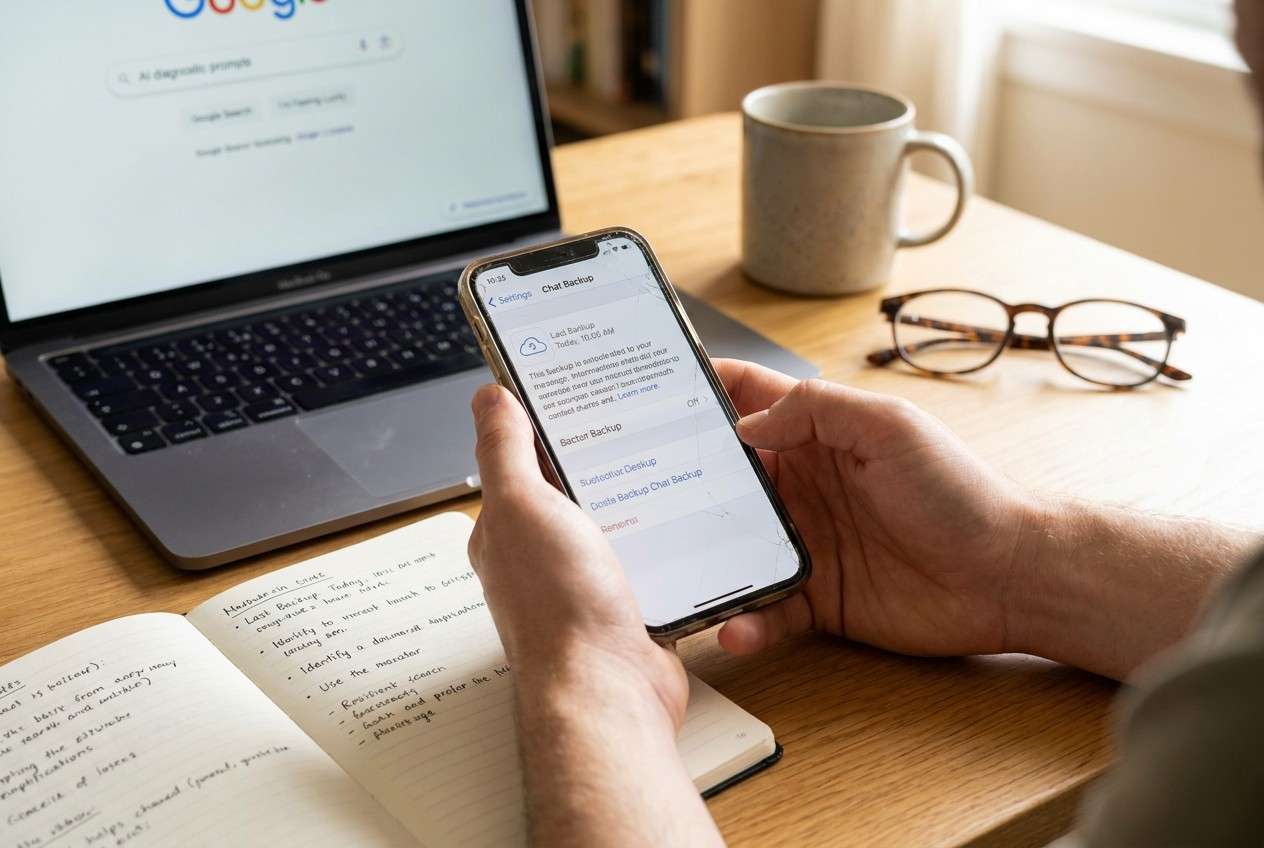
In this article
- How to plan without missing critical steps
- Why “verified” is the real problem
- Sequence confusion and verification gates
- The point-of-no-return moment
- What a usable backup should prove
- What the AI needs to know
- AI prompts to build a safer workflow
- When to stop planning and start execution
- Execute the workflow safely with Dr.Fone
Part 1. How to Plan verify whatsapp backup before resetting phone Without Missing Critical Steps
You’re about to factory reset a phone (selling it, fixing system issues, or migrating to a new device) and you want to be sure WhatsApp data will come back after the reset. The uncertainty is usually not “how to back up,” but “how do I know the backup is actually usable?”
Even after getting an AI answer, people get stuck on sequence: whether to verify inside WhatsApp first, check cloud storage next, test-restore on another device, or export critical chats before doing anything irreversible.
The point-of-no-return moment is the factory reset itself: once you wipe the phone (or erase app data / remove the account / overwrite local storage), you may lose the only copy that could have been used to create or validate a working backup.
Part 2. What the AI Needs to Know
Share your setup so the plan can be ordered and verified correctly:
- Phone OS and model (Android, iPhone; e.g., “Samsung S22 Android 14” / “iPhone 13 iOS 17”)
- WhatsApp type (standard WhatsApp vs WhatsApp Business)
- Backup target you rely on (Google Drive, iCloud, local-only, unsure)
- Your WhatsApp identifier (phone number country, dual-SIM, recent number change)
- End goal (factory reset same phone, move to new phone, sell phone, repair)
- Whether you can temporarily use a second device for a test restore
- Your risk tolerance (must preserve everything vs “mostly recent chats is fine”)
- Constraints (limited time, limited storage, weak Wi‑Fi, no access to old SIM, etc.)
- Any warning signs (backup stuck, restore previously failed, account lock, OS issues)
Part 3. Using AI Prompts to Build a Safer verify whatsapp backup before resetting phone Workflow
Use the prompts below to force a clear sequence with verification gates before you hit the irreversible reset.
3-1. Level 1: Basic Prompt
I’m about to reset my phone and I need to verify my WhatsApp backup is actually restorable.
Create a short, ordered checklist of what to confirm before I reset, and what evidence counts as “verified.”
Include the point where I must stop if any check fails.
3-2. Level 2: Advanced Prompt
Design a workflow to verify my WhatsApp backup before a factory reset.
Split it into Preparation / Execution / Verification, and label steps as Critical vs Optional.
Also include a “Do not proceed” gate before the irreversible reset, plus common failure points (wrong account, outdated backup, missing media).
3-3. Level 3: Evidence Prompt
Here’s my context: I’m on (Android 14, Samsung S22), WhatsApp (standard), backup target (Google Drive), and I’m resetting the same phone to fix issues, then restoring.
My last backup inside WhatsApp shows (Yesterday 11:30 PM), and my Google account is (Gmail A), but my phone has another account signed in (Gmail B).
Storage is tight (2 GB free), Wi‑Fi is stable, and I cannot risk losing chats.
Create a verification-first plan with:
- Checks before (account matching, backup freshness, storage, encryption/PIN considerations)
- Checks during (what to watch while creating/refreshing backup; what must be visible/confirmed)
- Checks after (how to confirm restore completeness: message count spot-check, media sampling, date range)
Also list the minimum acceptable evidence to proceed (e.g., “backup timestamp within X hours,” “correct cloud account confirmed,” “test restore completed if possible”).
3-4. Prompt Refinement
Turn this into a one-page runbook with explicit “Inputs / Actions / Expected evidence / Stop conditions” for each step.
Add a decision tree for “I don’t see the backup in cloud,” “backup is old,” “restore previously failed,” and “I’m changing phone numbers.”
Give me two verification tiers: “Fast verification (15 minutes)” vs “High confidence verification (includes test restore).”
List the top 10 ways people think they have a backup but don’t, and for each, the exact check that disproves it.
3-5. AI Plan vs. Real Device Constraints
| AI can help with | But AI cannot do | What you must verify on-device | What to log as evidence |
|---|---|---|---|
| Build a step order with stop-gates | Confirm your WhatsApp backup exists | Backup timestamp, target account, and size | Screenshots/notes of timestamps and accounts |
| Identify risks (wrong account, old backup) | Access iCloud/Drive or WhatsApp settings | Correct Apple ID/Google account matches WhatsApp backup | Account email/ID + backup screen details |
| Define “verified” criteria | Perform a restore test | Restore actually completes and chats/media appear | Restore success + spot-check results |
| Create a rollback-minded plan | Prevent mistakes during reset | That you haven’t triggered the irreversible reset early | “Go/No-go” decision recorded |
AI improves planning, but it cannot execute checks, create backups, or confirm restore results—those require real device actions and tools.
Part 4. When to Stop Planning verify whatsapp backup before resetting phone and Start Execution
- You can state, in one sentence, where the backup is (Google Drive/iCloud/local) and which account owns it.
- You have a pass/fail definition for “backup is recent enough” (e.g., within the last 24 hours) and “restore is complete enough.”
- You have identified the irreversible moment (factory reset / erase all content) and placed a hard stop gate immediately before it.
- You have a short evidence list you will capture (timestamps, account IDs, storage status, test-restore result if applicable).
Once those are true, planning is no longer the bottleneck—the risk shifts to careful execution and verification.
Part 5. Verify whatsapp backup before resetting phone: Execute the Workflow Safely with Dr.Fone
Execution now matters because this is where irreversible actions can happen; you want the reset to be the last step, not a premature gamble. If you need hands-on backup/restore help during this phase, Dr.Fone Basic - Data Manager can support the on-device work while you capture “go/no-go” evidence.
 Easily manage data through preview, delete, export, etc.
- Transfer all data between devices.
- Robust backup solutions for reliable data protection.
- Mirror screens to PC for meetings, teaching, and control.

-
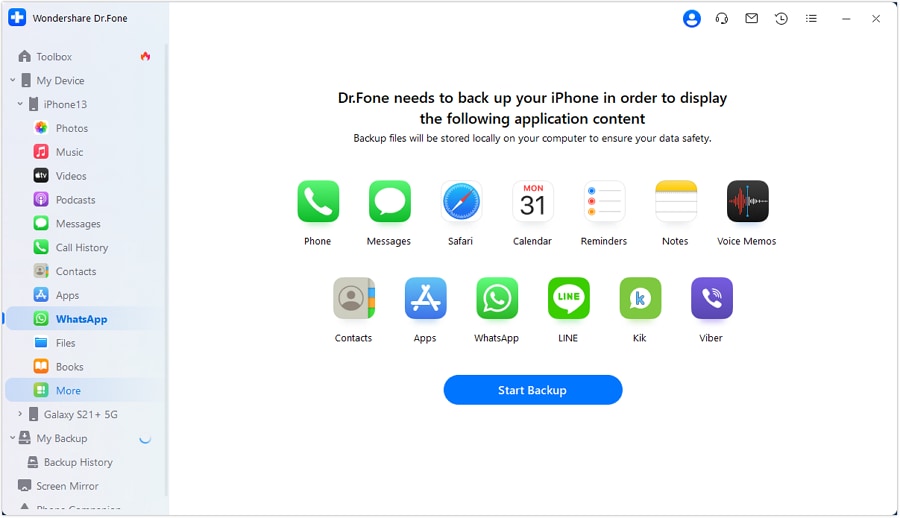
Step 1 Confirm backup evidence before any wipe
Action: Run the appropriate WhatsApp data backup/transfer steps for your device scenario, then capture your “go/no-go” evidence (correct account, backup completion, and freshness) before proceeding.
Limitation: AI cannot see your backup status or confirm completion—only you can verify the evidence on the device and in the relevant cloud/account context.
-
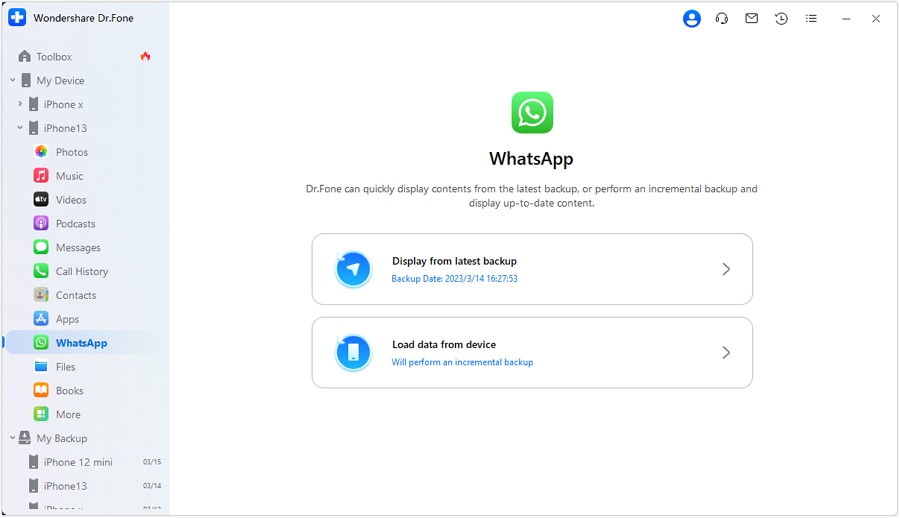
Step 2 Refresh the backup and watch for failure signals
Action: If needed, create/refresh the backup (for example, to address an outdated timestamp), and make sure the process visibly progresses and completes without errors.
Limitation: AI can suggest what to look for, but you must confirm what’s actually shown on-screen and whether the right account/target is being used.
-
Step 3 Hold a hard “Do not proceed” gate before the reset
Action: Only after verification is complete and your go/no-go gate passes, proceed with the factory reset (this is the point of no return) and keep your accounts/credentials available for restore.
Limitation: AI cannot undo a reset or recover data that was never successfully backed up.

-
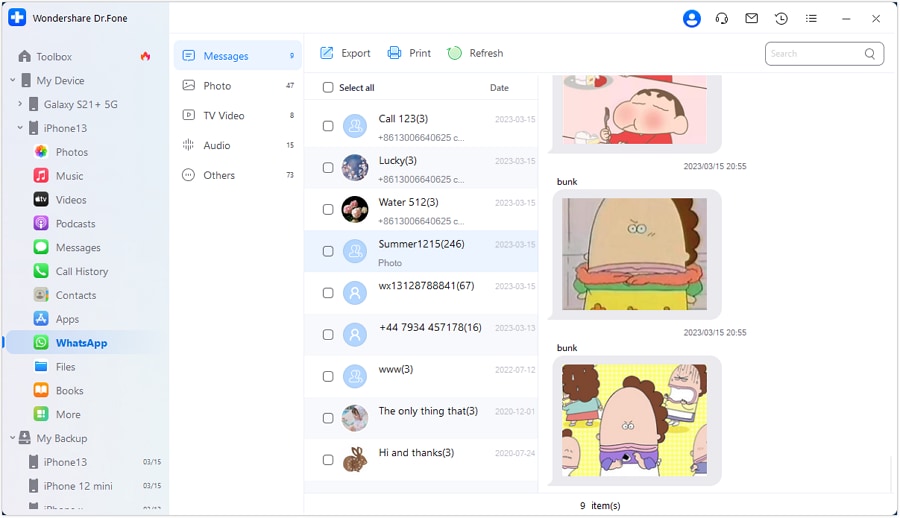
Step 4 Restore and perform post-restore checks
Action: Restore WhatsApp data as needed, then verify completeness with quick spot-checks (recent messages, older threads, media samples, key chats).
Limitation: AI can suggest what to check, but cannot validate your restored content or guarantee completeness without your on-device confirmation.




Conclusion
Use AI to define the safest sequence, set stop-gates, and decide what evidence counts as “verified,” then use Dr.Fone to carry out the backup/restore execution—because planning reduces risk, but only real tools and on-device checks make the reset safe.
FAQ
-
What does “verified WhatsApp backup” actually mean?
It means you have evidence that a backup exists in the correct location/account and that it can be restored (best proof is a successful restore test; minimum proof is a fresh backup tied to the right account with consistent indicators). -
Is checking the “Last backup” time inside WhatsApp enough?
Not always. It’s necessary but not sufficient because account mismatch, failed cloud sync, storage limits, or encryption settings can still prevent a successful restore. -
What’s the biggest risk moment in this workflow?
Factory reset (or erasing WhatsApp/app data) before you’ve passed a clear verification gate. After that, recovery may be impossible. -
Should I do a test restore before resetting?
If you can, yes—testing on a secondary device (or a controlled restore scenario) is the highest-confidence verification. If you can’t, tighten your evidence requirements (fresh timestamp, correct account, no errors, adequate storage). -
Can AI tell me whether my backup is on iCloud/Google Drive?
No. AI can only tell you where to look and what evidence to capture; you must confirm on the device and in the correct account.
 Add Wondershare Dr.Fone as a preferred source on Google





