 Effortlessly manage data through preview, delete, export, etc.

 100% Security Verified | No Subscription Required | No Malware

 :
: 
 ChatGPT
 Perplexity
 Gemini
 Claude
 Grok
Grok

My Android screen is shattered and sometimes totally black. The phone still seems alive, but I can’t tap “Allow” or even unlock reliably—how can I back up my data without making it worse?
Reddit user, r/Android
A severely cracked Android display can turn “I’ll back it up later” into an urgent situation—especially when the screen won’t register touch or stays black after a drop. This often happens right after you try to unlock the phone, connect it to a PC, or restart it, and nothing seems to change after several minutes.
AI (like ChatGPT or Gemini) can help you describe the symptoms clearly, narrow the likely causes (display-only damage vs. deeper hardware issues), and choose low-risk next steps based on what you can still access (USB, notifications, lock screen, PC detection).
AI can’t verify what your phone is actually doing internally, and trial-and-error can increase risk (lockouts, overwriting data, battery drain, or making the device less detectable). Use AI for diagnosis and decision-making—then use a purpose-built tool for execution.
In this article
- Part 1. Why a cracked Android screen blocks backups and what it means
- Loss of reliable input/output
- Common PC detection symptoms
- Display-only damage vs broader failure
- Before you prompt the AI
- Part 2. Using AI prompts to diagnose broken-screen Android data access safely
- Part 3. When to stop DIY attempts on a broken Android screen to avoid data loss
- Part 4. Backup data from severely cracked android display with Dr.Fone
- Part 5. FAQs
Part 1. Why a cracked Android screen blocks backups and what it means
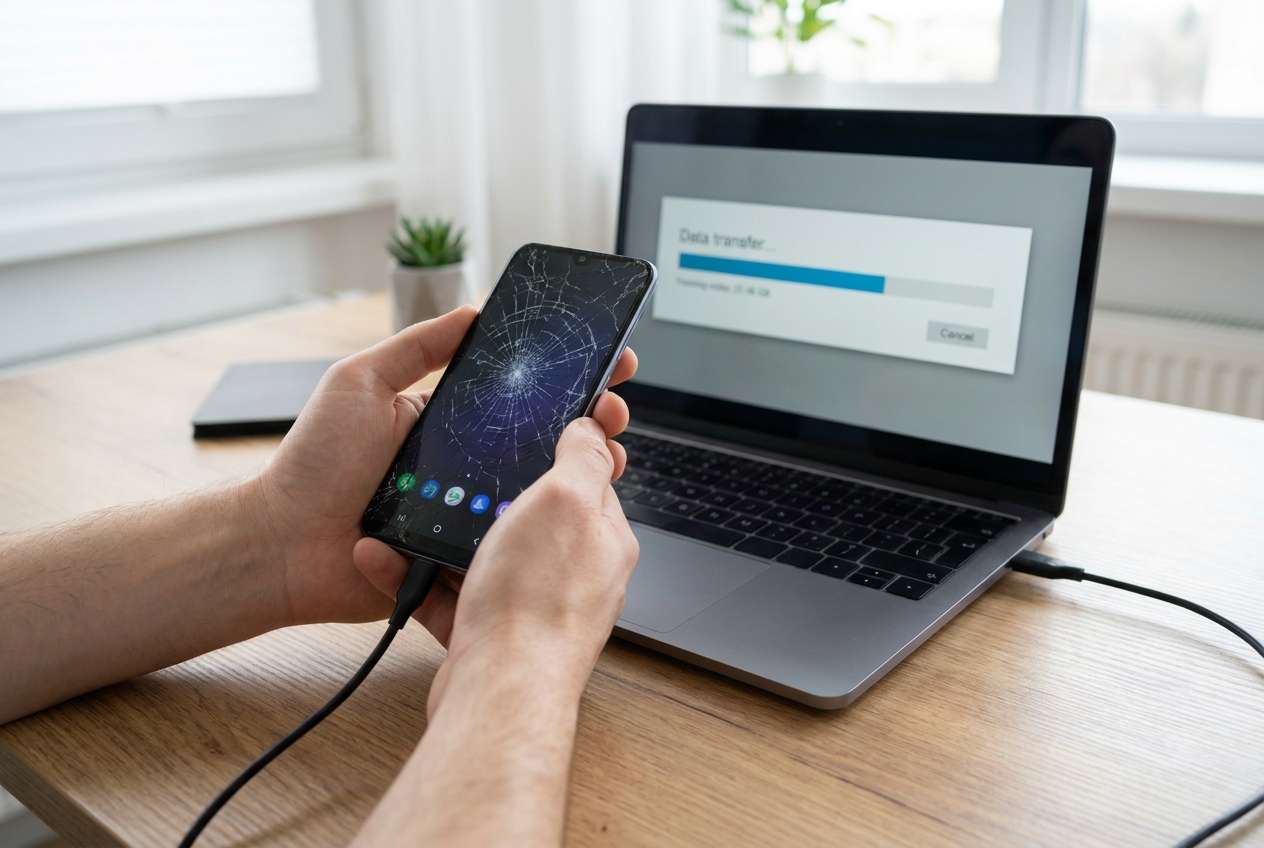
If your Android phone (for example, a Samsung Galaxy S23 or Google Pixel 7) has a severely cracked display, the biggest backup blocker is usually loss of reliable input/output: you can’t see prompts, tap “Allow,” enter a PIN, or enable transfer mode—even if the phone is still running.
This often starts after a physical impact, then escalates when you plug into a computer and the device only charges, or the PC sees an “unknown device.” In many cases the phone is powered on, but you can’t confirm it because the screen is unreadable.
The key uncertainty is whether this is display-only damage (good news for data access) or broader failure (battery, mainboard, storage, or USB port), which changes what’s safe to try next.
1-1. Before You Prompt the AI
Gather the minimum facts so the AI can sort likely causes without guessing:
- Phone brand/model and Android version (if known)
- What still works (vibration, sounds, charging, notifications, fingerprint)
- Whether a PC detects anything via USB (device name, driver prompt, MTP option)
- Lock type (PIN/pattern/password) and whether you remember it
- Whether USB debugging was previously enabled (if you know)
- Recent events (drop, water exposure, forced restart, battery fully drained)
Part 2. Using AI prompts to diagnose broken-screen Android data access safely
2-1. Level 1: Basic Prompt
My Android phone screen is severely cracked and I can’t use touch reliably. I need to back up my data without making things worse. Ask me the key questions to determine whether this is display-only damage or a deeper hardware problem, and suggest the safest next steps in order.
2-2. Level 2: Advanced Prompt
Act as a mobile triage assistant. Based on the symptoms I provide, rank the most likely causes of “can’t back up data due to cracked screen” from most to least likely. For each cause, list: (1) what evidence would confirm it, (2) what NOT to do because of data-loss or lockout risk, and (3) the lowest-risk next action I can try. Keep advice non-destructive and avoid factory resets.
2-3. Level 3: Evidence Prompt
Help me diagnose the safest way to access/backup data from an Android phone with a severely cracked display. Use the evidence below, then output: likely scenario, risk level, what I should try first/second/third, and what to avoid.
Evidence
- Phone model: (e.g., Samsung Galaxy S23)
- Android version: (e.g., Android 14 / unknown)
- Damage type: (cracked glass only / black screen / flickering / no touch)
- Phone powers on?: (yes/no/unclear)
- Signs of life: (vibration, sounds, alarms, notification LED)
- Charging behavior: (normal/slow/overheats/only charges at angle)
- USB port condition: (loose/works/unknown)
- PC detection: (shows device name / “unknown USB device” / nothing)
- Unlock method: (PIN/pattern/password) and whether I know it
- Fingerprint/face unlock works?: (yes/no)
- USB debugging previously enabled?: (yes/no/unknown)
- Google account sync status: (on/off/unknown)
- SD card used?: (yes/no)
- What I tried already: (restarts, different cable/port, adapters, etc.)
- Top priority data: (photos, WhatsApp, contacts, notes, etc.)
Constraints
- Avoid actions that may overwrite data or trigger lockouts.
- Prefer steps that preserve evidence and minimize attempts.
2-4. Prompt Refinement
If the AI response feels generic, force it to become specific with targeted follow-ups:
What 5 questions would most change your recommendation, and why are they decisive?
Separate this into categories: display-only failure, USB/port failure, power/battery failure, storage/mainboard failure—then place my case into one category with confidence level.
Rank the top 3 causes again, but this time cite exactly which symptom supports each cause.
What single piece of evidence should I check next (that doesn’t require screen touch), and how do I check it safely?
List ‘avoid’ actions specific to my lock type and situation (PIN vs pattern), including how many failed attempts becomes risky.
2-5. AI Output vs Reality
AI can propose a likely path, but it can’t confirm device state, encryption conditions, or what the computer truly “sees” without real tool feedback.
| What AI can tell you | What you still must verify on-device/with tools |
|---|---|
| Whether symptoms fit display-only vs deeper hardware damage | Whether the phone is actually booted and stable |
| Which steps are lowest-risk first | Whether USB data mode prompts were accepted |
| What evidence would confirm each cause | Whether the PC can enumerate the device correctly |
| Which actions increase lockout/data-loss risk | Whether extraction is possible under your lock/encryption setup |
AI narrows decisions and reduces risky trial-and-error; execution still depends on what the phone, OS security, and connection allow in reality.
Part 3. When to stop DIY attempts on a broken Android screen to avoid data loss
Stop “trying random things” when the cost of one more attempt is higher than the benefit of guessing.
- You see overheating, swelling, burning smell, or the phone repeatedly disconnects while charging (hardware risk).
- You don’t remember the lock code and you’re close to a lockout timer or wipe policy (security risk).
- The phone is intermittently detected by PC and then vanishes after restarts/cable changes (stability risk).
- You’re considering factory reset, “cleaning” apps, or flashing firmware just to regain access (overwrite risk).
Once you’ve used AI to pin down the most likely scenario and safest approach, hand off the actual extraction to a tool designed for broken-device data workflows.
Part 4. Backup data from severely cracked android display with Dr.Fone - Data Recovery (Android)
When your screen is too damaged to reliably approve prompts or navigate settings, the practical next step is to use a dedicated workflow built for Recover Data From Broken Android Device in Dr.Fone - Data Recovery (Android). At this point, AI has helped you choose the safest direction; Dr.Fone is relevant because it focuses on executing the data-access process in a structured way instead of relying on repeated manual attempts on a compromised screen.
 Scan Android phones and tablets directly.
- Preview and recover only what you want.
- Supports WhatsApp, photos, videos, contacts, and more.
- Works with 6000+ Android devices.

-
Step 1 Stabilize the device connection
Charge the phone to a safe level and use a stable USB cable/port to reduce disconnects that can interrupt data access.

-
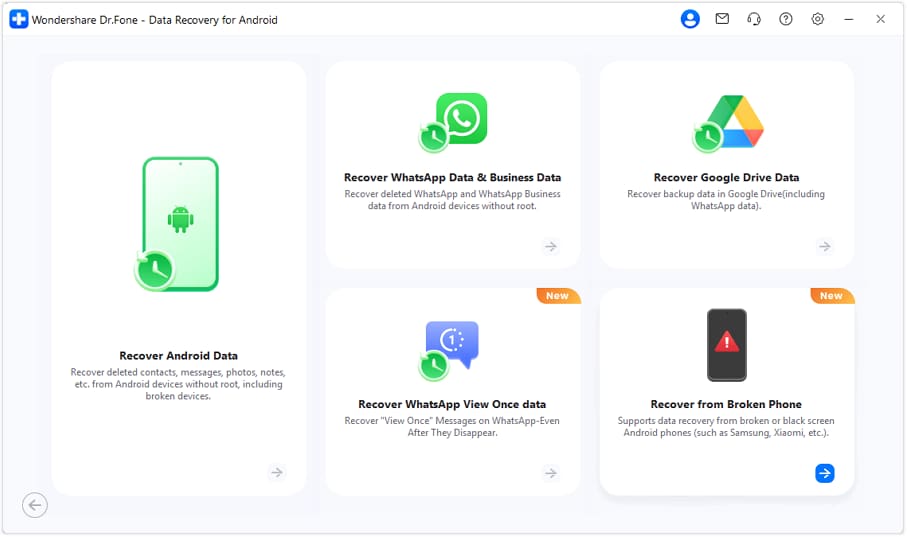
Step 2 Open the broken-device recovery path
Launch Dr.Fone - Data Recovery (Android) and select the option intended for broken-screen scenarios so you don’t waste attempts on touch-dependent steps.

-
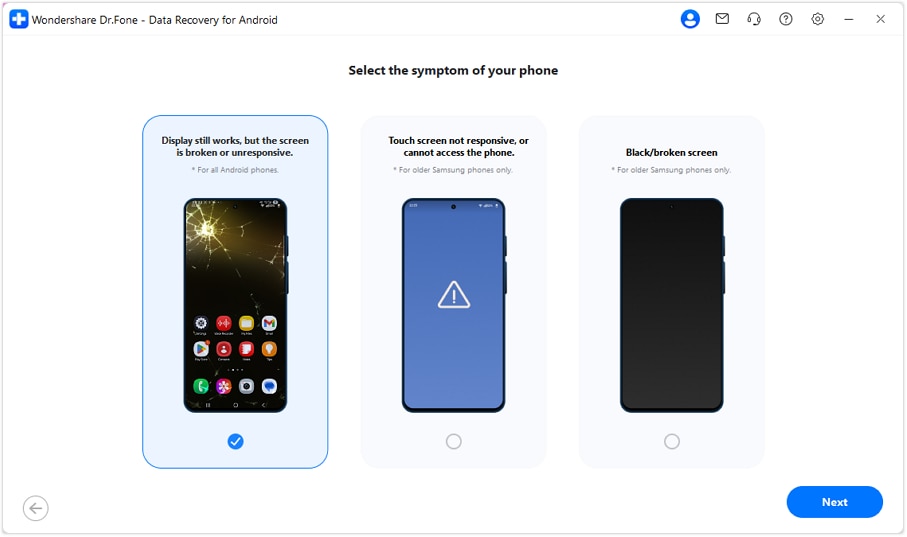
Step 3 Confirm device details carefully
Enter/select the correct brand/model details as prompted, because incorrect selection can lead to wrong connection steps and extra retries.
-
Step 4 Scan and preview recoverable data
Proceed to scanning/preview only when the connection is stable, and prioritize the data types you need first to reduce time on a failing device.
-
Step 5 Export the recovered files to your computer
Save outputs to the computer (not back to the phone) to avoid overwriting anything on the damaged device.




Conclusion
Use AI to translate your symptoms into a clear diagnosis, rank the most likely causes, and choose the lowest-risk next step without guessing; then switch to Dr.Fone - Data Recovery (Android) to carry out the actual broken-device data retrieval in a more controlled way.
FAQ
-
Can I back up data if the touchscreen doesn’t work at all?
Sometimes, yes—if the phone still powers on and can be detected reliably; the limiting factors are lock/encryption and whether the connection method can proceed without on-screen approvals. -
Does USB debugging need to be enabled beforehand?
In many cases it helps, but not every approach depends on it; your safest path depends on whether the device is locked, how it’s detected by a PC, and what access is possible without touch input. -
What if my phone only charges and never shows up for file transfer?
That points to cable/port issues, USB mode prompts you can’t confirm, driver problems, or deeper hardware failure; reduce retries, test one known-good cable/port, and avoid repeated forced restarts. -
Will repeated unlock attempts make things worse?
Yes—failed PIN/pattern attempts can trigger time delays or wipe policies on some setups; keep attempts minimal and avoid guessing if you’re uncertain. -
What data should I prioritize first from a broken phone?
Start with irreplaceable items and time-sensitive app data (photos/videos, messages/WhatsApp where applicable, notes, contacts), because device stability can degrade during extended sessions.
 Add Wondershare Dr.Fone as a preferred source on Google





