 Effortlessly manage data through preview, delete, export, etc.

 100% Security Verified | No Subscription Required | No Malware

 :
: 
 ChatGPT
 Perplexity
 Gemini
 Claude
 Grok
Grok

I want to move to a new phone, but I need to keep the old one working for a while—I'm worried I'll break 2FA or messages if I switch things too early.
Forum user
Migrating while keeping both phones in active use is convenient, but it’s easy to miss a dependency (2FA, cloud sync, SIM/eSIM, iMessage/RCS, authenticator apps) and end up locked out or with partial data. AI can help turn a vague goal into a sequenced workflow with checkpoints and “do/don’t yet” boundaries—but it can’t see your devices or confirm what actually copied, so execution still requires real device checks and tools.
In this article
- How to plan using old and new phones together during migration
- Common dependencies that cause lockouts
- Why generic sync advice is risky
- Identify the “point of no return” actions
- Define what “success” looks like
- What the AI needs to know
- Using AI prompts to build a safer workflow
- AI plan vs. real device constraints (and when to stop planning)
- Execute the workflow safely with Dr.Fone
Part 1. How to Plan Using Old and New Phones Together During Migration Without Missing Critical Steps
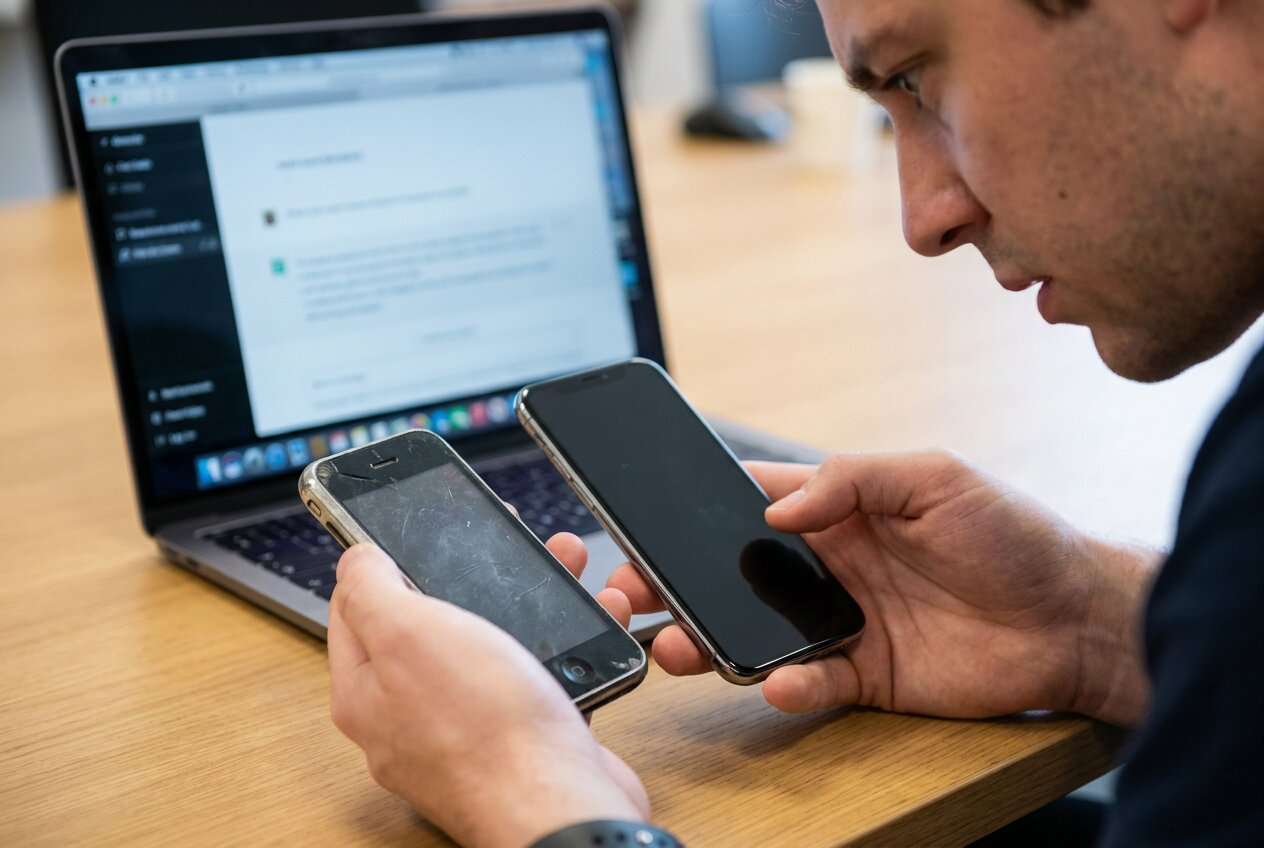
You’re moving to a new phone but want the old phone to remain usable for days or weeks (work apps, banking, travel, a backup camera, or as a fallback if the new phone fails). You also want messages, photos, and app access to stay consistent across both devices.
The uncertainty usually starts after you get generic advice like “just sign into your accounts and let it sync.” That doesn’t tell you what to verify first, which services will conflict, or how to avoid breaking sign-ins when two devices share the same number and accounts.
There’s also a point of no return: factory resetting the old phone, deleting authenticator app data, or deactivating a primary message routing setting (like iMessage/RCS changes) before verification can permanently block access or cause missing message history.
Part 2. What the AI Needs to Know
Share your setup so the AI can build a checklist and a safe sequence.
- Old phone brand/model + OS version (e.g., iPhone 12 iOS 17.5, Galaxy S21 Android 14)
- New phone brand/model + OS version
- Transfer path (iPhone→iPhone, Android→Android, Android→iPhone, iPhone→Android)
- What must stay usable on the old phone (calls/SMS, WhatsApp, banking apps, work MDM, authenticator, photos)
- Your messaging stack (iMessage, RCS, WhatsApp, Signal, Telegram) and what history must carry over
- SIM situation (physical SIM, eSIM, dual SIM, carrier restrictions)
- 2FA/authenticator method (app-based, SMS, hardware key) and where it currently lives
- Cloud accounts in use (Apple ID/iCloud, Google, Microsoft, Samsung) and storage status
- Data size + urgency (e.g., 200GB photos, need new phone ready by tonight)
- Any constraints (no PC/Mac available, limited Wi‑Fi, corporate device policies)
Part 3. Using AI Prompts to Build a Safer “Use Old and New Phones Together” Workflow
Use these prompts to force a clear plan with verification gates before you touch anything irreversible.
3-1. Level 1: Basic Prompt
Draft a step-by-step plan to migrate from my old phone to my new phone while keeping both phones usable for two weeks.
Include a short checklist of what to verify before I move my SIM/eSIM or change messaging settings.
Do not give execution instructions—planning and verification only.
3-2. Level 2: Advanced Prompt
Build a structured workflow for using my old and new phones together during migration, split into Preparation, Execution, and Verification phases.
Mark each step as Critical or Optional, and add “STOP and verify” checkpoints before any irreversible actions like factory reset, deleting authenticator data, or changing primary message routing.
3-3. Level 3: Evidence Prompt
Here’s my context: old phone (iPhone 12, iOS 17.5), new phone (iPhone 15, iOS 17.5), messages (iMessage + SMS), 2FA (Authenticator app + SMS), key apps (banking, WhatsApp, work email), SIM type (eSIM), timeline (3 days), data size (120GB photos).
Create a migration plan that keeps both phones usable for 14 days.
Include:
- Checks before migration (storage, backups, account state, 2FA readiness)
- Checks during migration (what to confirm copied, how to detect partial sync)
- Checks after migration (sign-in tests, message routing tests, app-by-app validation)
Also list the top 10 failure modes (e.g., missing 2FA codes, message split, photo library mismatch) and the specific verification step that prevents each.
3-4. Prompt Refinement (Follow-up Prompts)
Put the workflow into a table with columns: Step, Critical/Optional, Evidence to confirm, If it fails.
Separate “keep both phones usable” into categories: Calls/SMS, Messaging apps, 2FA, Photos, Work/MDM, and tell me the verification for each.
Identify every account or service that may treat the second phone as a security risk, and add a safe sign-in order to reduce lockouts.
Add explicit “Do not do yet” items until verification is complete, especially for SIM/eSIM move, authenticator migration, and factory reset.
Give me a minimal plan for “new phone ready today” and a safer plan for “two-week overlap,” and explain what risk increases in the minimal plan.
Part 4. AI Plan vs. Real Device Constraints (and When to Stop Planning)
4-1. AI Plan vs. Real Device Constraints
| AI planning output | Real-world constraint you must account for |
|---|---|
| “All data is synced” checklist | Sync can be partial (paused, storage full, power-saving), so you need spot-checks on both devices |
| “Move SIM/eSIM when ready” step | Carriers may require re-activation steps; switching too early can break SMS-based 2FA and message delivery |
| “Apps will re-download” assumption | Some apps require device re-approval, enterprise compliance, or cooldown periods after a new login |
| “Messages should appear” expectation | iMessage/RCS/third-party apps can split history across devices; routing settings and backups vary by app |
AI improves planning and risk control, but it cannot confirm what copied, what routed correctly, or what your carrier/account will actually accept—those require real-device checks during execution.
4-2. When to Stop Planning and Start Execution
- You have a written list of critical data (messages, photos, 2FA, key apps) and what “success” looks like for each.
- You defined verification evidence (specific spot-checks) rather than relying on “it looks fine.”
- You identified the irreversible actions (factory reset, deleting authenticator data, changing message routing, SIM/eSIM move) and placed them after verification gates.
- You have a rollback/fallback idea (keep old phone intact, keep accounts accessible, don’t remove old device from account lists yet).
Once those are true, planning stops being helpful and starts delaying the checks that only real devices can answer.
Part 5. Use Old and New Phones Together During Migration: Execute the Workflow Safely with Dr.Fone
Execution matters now because the only way to reduce uncertainty is to transfer, compare, and validate on-device—without crossing the point of no return too early. For the execution phase, Dr.Fone - Phone Transfer can help you carry out the transfer plan you designed with AI.
-
Step 1 Create a safety baseline (before any switching)
Action: Perform a device backup and/or prepare a phone-to-phone transfer so you have a recoverable baseline before changes.
Limitation: The tool can’t decide what you should include—your AI plan must define what’s critical and what evidence you’ll verify.

-
Step 2 Transfer the selected data while keeping the old phone intact
Action: Execute the planned data transfer (target the categories you marked critical first), keeping the old phone unchanged as your fallback.
Limitation: A transfer completing doesn’t prove usability—app logins, 2FA approvals, and message routing still require manual verification on both phones.

-
Step 3 Verify what copied and detect partial sync
Action: Run your evidence-based checklist (spot-check photos across dates, search messages for keywords, confirm the highest-risk apps can sign in, and validate 2FA works).
Limitation: Cloud and app sync can look “mostly right” while still being incomplete—verification needs deliberate spot-checks on both devices.

-
Step 4 Only after verification, complete irreversible changes
Action: After your verification checklist passes, finalize any remaining transfers, then proceed with irreversible steps (e.g., SIM/eSIM switch, message routing changes, reset/wipe old phone) only when you’re confident.
Limitation: If you factory reset or delete authenticator data before verification, recovery may depend on providers/carriers and can be unrecoverable.

Recommended Tool: Dr.Fone Phone Transfer
If you already have an AI-generated checklist and “STOP and verify” gates, using a dedicated transfer tool can reduce manual effort and help you move data categories in a controlled way—while keeping the old phone intact until you confirm everything is stable.
 Move data between iOS to Android and vice versa.
- Transfer contacts, SMS, photos, videos, music, and more types.
- Available with all phones with Android and iOS versions.
- Simple, click-through process.

To stay safe during a two-device overlap period, prioritize transferring and validating the categories you marked as critical (messages, photos, authentication methods, and the highest-risk apps) before you move SIM/eSIM or change any primary message routing settings.




Conclusion
Use AI to design the sequence, risk gates, and verification evidence for running old and new phones together during migration; then use Dr.Fone to execute transfers/backups once the plan is clear—especially before you cross any irreversible step.
FAQ
-
How do I keep both phones usable without causing account lockouts?
Plan a sign-in order and verification gates, especially for banking/work apps and 2FA. Keep the old phone signed in until the new phone is proven stable. -
What’s the riskiest “point of no return” step?
Factory resetting the old phone or deleting authenticator app data before confirming 2FA works on the new phone and recovery methods are accessible. -
How do I verify migration success beyond “everything looks there”?
Use evidence-based checks: open a few recent photos across dates, search messages for keywords, place test calls, receive an SMS code, and log into the highest-risk apps. -
When should I move my SIM/eSIM?
Only after you confirm the new phone can sign into critical accounts and you’ve tested SMS/voice reliability—otherwise you can break SMS-based 2FA at the worst time. -
Can AI tell me whether my specific messages/apps will transfer correctly?
No. AI can flag typical failure modes and propose checks, but only real execution and on-device validation can confirm the outcome.
 Add Wondershare Dr.Fone as a preferred source on Google





