 Effortlessly manage data through preview, delete, export, etc.

 100% Security Verified | No Subscription Required | No Malware

 :
: 
 ChatGPT
 Perplexity
 Gemini
 Claude
 Grok
Grok

I factory reset my phone and only then realized my authenticator app wasn’t migrated. Suddenly I couldn’t get into email or work accounts, and recovery took forever.
Reddit user, r/techsupport
Resetting a phone is easy to start and painful to undo—especially if your authenticator apps aren’t transferable and you lose access to accounts. Missing one small step (like capturing backup codes) can create a lockout that takes days to recover from.
AI helps by turning a messy, app-by-app situation into a clear checklist: what to gather, what to verify, what order to follow, and what “stop points” to respect before you do anything irreversible.
AI can’t see your phone, can’t confirm which tokens are synced, and can’t perform the reset or backups. You still need real tools and in-app settings to execute the plan safely.
In this article
- How to plan without missing critical steps
- Clarify why you’re resetting (troubleshooting vs sell/trade-in)
- Inventory every authenticator app and token dependency
- Identify the “point of no return” moments
- Set verification gates before you wipe anything
- What the AI needs to know
- Using AI prompts to build a safer workflow
- When to stop planning and start execution
- Execute the workflow safely with Dr.Fone
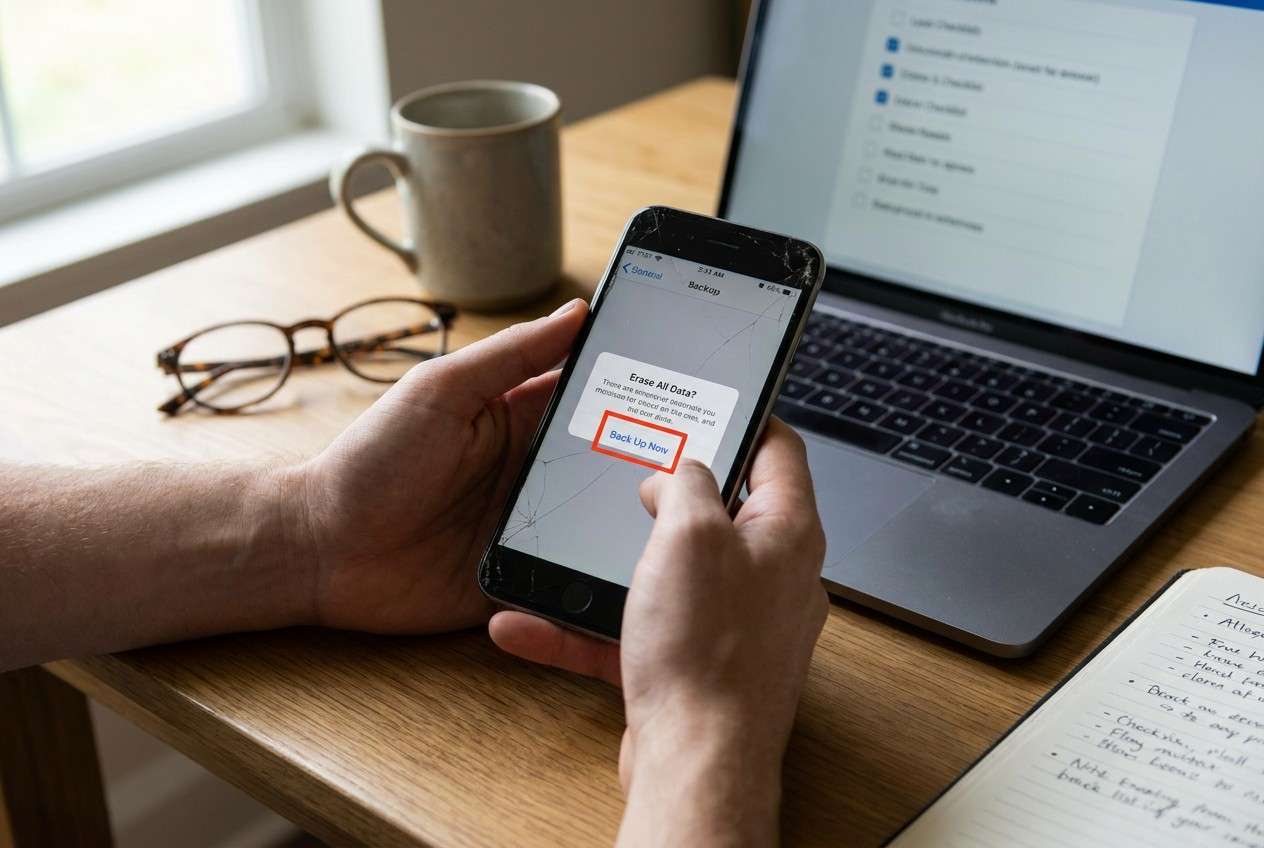
Part 1. How to Plan prepare authenticator apps before resetting phone Without Missing Critical Steps
You’re about to factory reset your phone to fix issues, trade it in, or start fresh. You use one or more authenticator apps (Google Authenticator, Microsoft Authenticator, Authy, 1Password, etc.), and you’re not sure which accounts rely on them—or whether they’ll survive the reset.
Even after an AI answer, the uncertainty usually remains: which authenticator supports cloud sync, which requires manual export, which services demand backup codes, and what order avoids getting locked out mid-process.
The point of no return is the factory reset (or wiping the device for trade-in). Do not reach that moment until you’ve verified you can generate working codes on a second device or have confirmed recovery paths for every critical account.
Part 2. What the AI Needs to Know
Share only what’s necessary so the plan can be specific and verifiable.
- Phone OS and model (iPhone/Android; make/model)
- Reason for reset (troubleshooting vs selling/trade-in vs clean start)
- Authenticator apps you use (names + whether you’re signed in)
- Whether you have a second device available (spare phone/tablet/computer)
- Your account “critical list” (email, Apple ID/Google, banking, work SSO, password manager, crypto, social)
- Current access level (are you logged into primary email and password manager right now?)
- Whether you have backup codes anywhere (printed, password manager, notes)
- Any SIM/eSIM changes planned (new phone, number change, carrier swap)
- Your tolerance for risk/downtime (e.g., “can’t be locked out of work Monday”)
Part 3. Using AI Prompts to Build a Safer prepare authenticator apps before resetting phone Workflow
Use the prompts below to make AI produce a sequence you can actually follow—with verification gates before you reset anything.
3-1. Level 1: Basic Prompt
I’m going to reset my phone and I rely on authenticator apps for 2FA. Plan a safe workflow to avoid getting locked out, including what to check before the reset and what to verify after.
3-2. Level 2: Advanced Prompt
Build me a step-by-step workflow to prepare my authenticator apps before resetting my phone.
Separate it into Preparation, Execution, and Verification, and clearly label which steps are critical vs optional, with a “do not proceed” checkpoint before the factory reset.
3-3. Level 3: Evidence Prompt
Here’s my situation: I’m on (Android 14, Pixel 7), I use (Google Authenticator + Microsoft Authenticator), and I’m resetting because (system issues). I have (an iPad as a second device) and my critical accounts are (Gmail, bank, work SSO, password manager).
Create a workflow with checks before/during/after, including:
- How to inventory which accounts use authenticator codes (example: “email, payroll, VPN”)
- How to confirm authenticator migration worked before reset (example: “generate 2 valid codes on the second device”)
- What recovery fallbacks to capture (example: “download 10 backup codes per account and store in password manager”)
- A final “point of no return” gate that I must pass before I factory reset
3-4. Prompt Refinement
Output the workflow as a table with columns: Step, Where it happens (app/service/device), Proof to collect, Stop/Go rule.
Ask me only the minimum questions needed to eliminate ambiguity, then produce the final sequence (no generic advice).
Create a “critical accounts first” order and explain why each goes where it does (email first, password manager early, work SSO before noncritical).
Add a failure plan: if migration fails for one account, list the recovery options and who to contact (self-serve vs support), before continuing.
3-5. AI Plan vs. Real Device Constraints
| AI can help you plan | What only real devices/tools can do |
|---|---|
| Map dependencies (which accounts depend on which authenticator) | Confirm you can actually log in and generate valid codes on your device |
| Create verification gates before reset | Perform exports/transfers inside authenticator apps (where supported) |
| Identify irreversible moments and stop points | Run the factory reset and complete on-device setup |
| Draft a recovery checklist (backup codes, admin contacts) | Create/restore backups and validate data is present after setup |
AI improves the sequence and the safety checks, but it cannot execute authenticator transfers, capture codes, or confirm success on your hardware.
Part 4. When to Stop Planning prepare authenticator apps before resetting phone and Start Execution
- You have a written inventory of every critical account that uses authenticator codes (or you’ve confirmed it doesn’t).
- You have at least two independent recovery paths for critical access (e.g., backup codes + recovery email, or second device codes + account recovery).
- You have completed a live verification that codes work on the target setup (second device/app sync) before wiping anything.
- You have a defined rollback window (time and conditions under which you will stop and not reset today).
If any bullet above is not true, planning is incomplete—and execution should wait.
Part 5. Prepare authenticator apps before resetting phone: Execute the Workflow Safely with Dr.Fone
Execution matters now because you’re moving from “I think I’m safe” to “I can prove I’m safe,” and then only afterward to the irreversible reset.
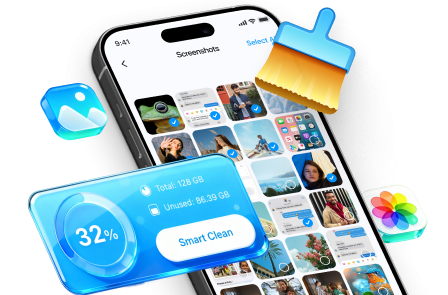
 Erase all data on iOS & Android
- Military-grade wiping to fully protect your privacy.
- Generate verified erasure reports better for device resale.
- Selectively erase private data and remove junk & large files.

-
Step 1 Lock in account-access proof (before any wipe)
On a second device (or after confirming your authenticator’s sync/migration), test-login to each critical account and confirm you can pass 2FA. Save backup codes and recovery details in a secure, off-device location.

-
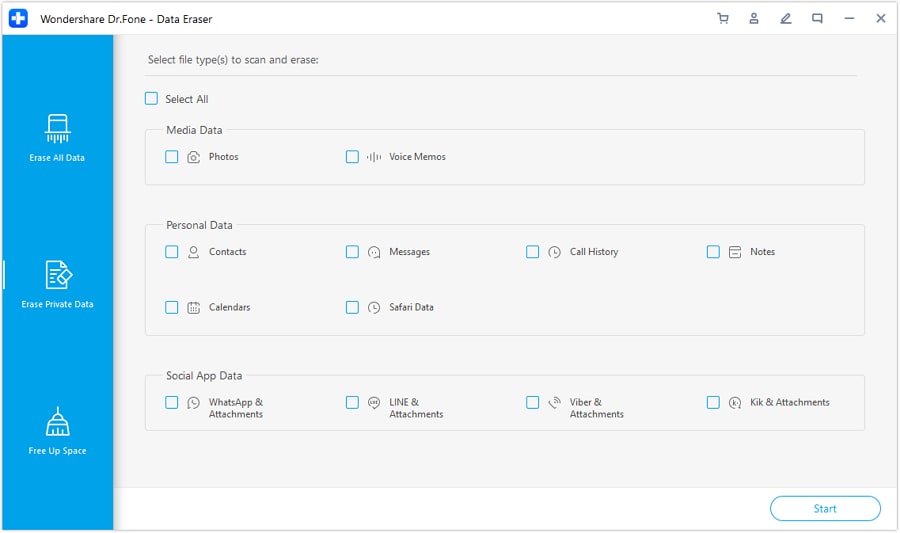
Step 2 Choose what to erase (and what must be stored elsewhere)
Before you reset or sell the phone, decide what personal data must be removed. Ensure your recovery materials (backup codes, recovery contacts, and any setup guidance you captured) are stored off-device.
-
Step 3 Select private data types carefully
Select the categories of private data you want to erase. Double-check you are not relying on this phone as the only place where recovery info exists.
-
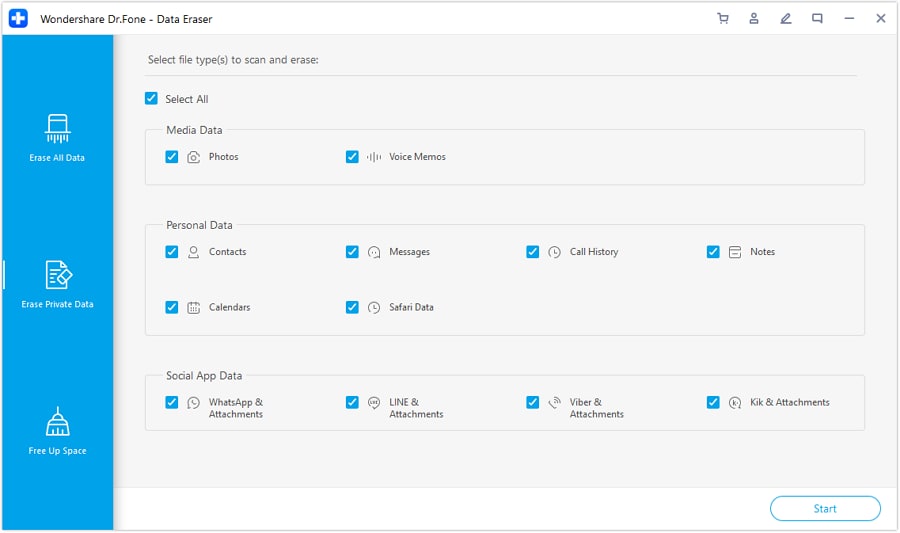
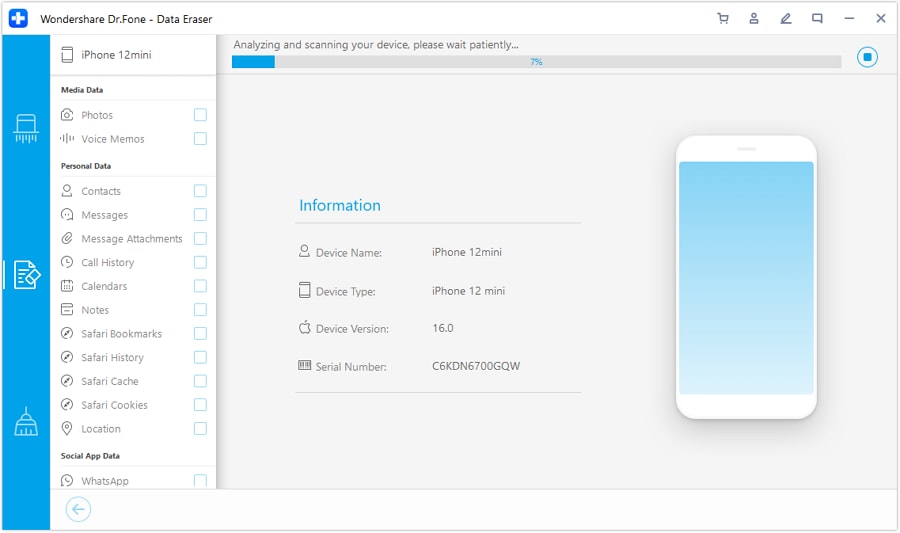
Step 4 Run analysis, then proceed only after passing your “stop gate”
After the tool assesses what will be erased, pause and confirm your authenticator access plan is still valid. Only then proceed with irreversible actions such as wiping/resetting, and immediately re-verify access post-setup in priority order (email → password manager → work SSO → banking).




Conclusion
Use AI to design a strict, verifiable sequence with stop points before the reset, then rely on real tools and in-app controls for execution—because planning prevents lockouts, but only real-device verification confirms you’re safe to wipe the phone.
FAQ
-
What’s the biggest risk when resetting a phone with authenticator apps?
Losing the only device that can generate valid 2FA codes and getting locked out of email, work, banking, or your password manager. -
What is the “point of no return” I should avoid until I’m ready?
Factory reset (or wiping the device for trade-in). Also risky: deleting the authenticator app or signing out before confirming migration works. -
How do I verify I’m safe before resetting?
Prove you can complete a real login for each critical account using the post-reset plan (second device, synced authenticator, or backup codes), not just that you “think” it should work. -
Can AI tell me whether my authenticator is syncing correctly?
No. AI can only propose checks; you must confirm on-device by testing logins/codes. -
Should I reset first and fix 2FA later?
Only if you’re comfortable with potential downtime and account recovery steps. For most people, verifying 2FA access first is the safer path.
 Add Wondershare Dr.Fone as a preferred source on Google





