 Effortlessly manage data through preview, delete, export, etc.

 100% Security Verified | No Subscription Required | No Malware

 :
: 
 ChatGPT
 Perplexity
 Gemini
 Claude
 Grok
Grok

I hit “Install Now,” my iPhone restarted, and now it only shows the cable + computer recovery screen. I don’t know if it’s still updating or if I’m stuck.
Apple Support Community user
Your iPhone shows a recovery screen (computer/cable icon), and you’re not sure what it’s trying to tell you. This often happens on models like iPhone 13 or iPhone 14 right after tapping Install Now for an iOS update or after a restart.
AI can help you interpret the symptom, narrow down likely causes, and choose low-risk next steps based on what you saw right before the screen appeared (update, storage full, cable issues, repeated restarts). You can use tools like ChatGPT or Gemini to turn scattered details into a clearer diagnosis plan.
AI can’t verify hardware, see your phone’s logs, or safely “try everything” for you. Trial-and-error can increase risk of data loss or extend downtime, so the goal is to diagnose first, then use a dedicated tool to carry out the chosen action.
In this article
- Why the iPhone recovery screen appears and what it indicates
- What the recovery screen usually means
- Common trigger scenarios
- Why context matters
- Before you prompt the AI
- Using AI prompts to diagnose iPhone recovery screen safely
- AI output vs reality: what you can verify
- When to stop troubleshooting to avoid data loss
- Resolve it safely with Dr.Fone (execution steps)

Part 1. Why iPhone recovery screen meaning appears and what it indicates
The iPhone recovery screen usually means the device has entered a state where it expects a computer connection to continue startup, update, or restore. It’s commonly triggered when iOS can’t boot normally or an update process can’t complete.
In practice, it can indicate something relatively simple (a failed update handshake, unstable cable/port, temporary system hang) or something more persistent (corrupted system components, repeated boot failures). The same screen can appear in multiple scenarios, so context matters.
If you’ve waited several minutes and nothing changes, it’s understandable to wonder whether the phone is still updating or stuck—especially if it loops back to the same recovery screen after each restart attempt.
1-1. Before You Prompt the AI
Gather the minimum facts first so the AI can narrow causes instead of guessing:
- iPhone model and iOS version (if known)
- What happened right before the screen (update, restore attempt, low battery, drop, storage full)
- Whether the phone was connected to a Mac/PC, and what it displayed there (Finder/iTunes messages)
- Any loop behavior (restarts, flashing Apple logo, returns to recovery screen)
- Cable/port details (official cable, USB hub vs direct port)
Part 2. Using AI prompts to diagnose iPhone recovery screen safely
2-1. Level 1: Basic Prompt
My iPhone is showing the recovery screen (computer/cable icon). What does this usually mean, and what are the safest first checks to figure out whether it’s a failed update, connection issue, or a system boot problem?
2-2. Level 2: Advanced Prompt
Act like a cautious phone support triage assistant. Based on the info I provide, list the top 5 most likely causes of the iPhone recovery screen, ranked, and for each one give:
1) why it fits, 2) what evidence would confirm it, 3) the lowest-risk next step, and 4) what actions to avoid to reduce data-loss risk.
Also tell me which step should be attempted first and why.
2-3. Level 3: Evidence Prompt
Diagnose my iPhone recovery screen issue using only the evidence below. Ask any missing questions first, then rank likely causes and suggest low-risk next steps.
Device info
- iPhone model: (e.g., iPhone 13 Pro)
- Storage status before issue: (e.g., almost full / unknown)
- Battery level when it happened: (e.g., 20% / charging)
Trigger event
- What I did right before: (e.g., tapped Install Now, restarted, attempted restore)
- Any prior warnings: (e.g., low storage, update failed, accessory not supported)
Current behavior
- Screen shown: (e.g., cable + computer icon)
- Loop pattern: (e.g., always returns to recovery screen after reboot)
- Time waited: (e.g., 10–30 minutes with no change)
Computer connection
- Mac/Windows + version: (e.g., macOS Sonoma / Windows 11)
- Finder/iTunes message: (paste exact text if possible)
- Cable/port: (e.g., Apple cable, direct USB port, no hub)
Constraints
- Data priority: (e.g., must avoid data loss if possible)
- What I already tried: (e.g., force restart, different cable)
Output format: 1) missing questions 2) ranked causes 3) safest next steps 4) stop signals
2-4. Prompt Refinement
If the AI’s answer feels too generic, use targeted follow-ups:
What 2–3 questions would change your ranking the most, and why?
Separate causes into categories: connection, update process, iOS system corruption, hardware—then rank within each category.
Based on my details, what is the single most important piece of evidence I should collect next (exact Finder/iTunes text, loop timing, etc.)?
For each step you suggested, label it low / medium / high risk for data loss and explain the risk briefly.
If the phone can’t be trusted to boot, what minimal-change actions can verify whether it’s just a connection issue?
Part 3. AI output vs reality: what you can verify
AI helps you choose a path; it can’t confirm the device state the way a real connection attempt can.
| What AI suggests | What you can verify in real life |
|---|---|
| “It’s probably a failed update” | Finder/iTunes shows an Update option and completes without errors |
| “It might be a cable/port problem” | A different known-good cable/port changes detection or error behavior |
| “It could be system corruption” | Recovery screen persists across attempts and update repeatedly fails |
| “It may be hardware-related” | Repeated failures across computers/cables plus other symptoms (overheating, no charge) |
AI can narrow likely causes and reduce blind trial-and-error, but the “execution gap” remains: you still need a reliable method to enter/exit recovery mode and apply the chosen system action without improvising steps.
Part 4. When to stop troubleshooting iPhone recovery screen to avoid data loss
Stop experimenting and switch to a more controlled approach if you notice any of these:
- You see repeated recovery loops after multiple attempts, with no change in behavior.
- Finder/iTunes repeatedly throws errors during update attempts (especially if the error code stays consistent).
- The phone won’t stay powered, overheats, or shows charging instability while in the recovery state.
- You’re about to try escalating steps that could trigger a restore when you need to preserve data.
Once you’ve used AI to identify the most likely path, the next step is executing it predictably—especially for entering/exiting recovery mode and attempting a system-level fix without random retries.
Part 5. What does iPhone recovery screen mean: resolve it safely with Dr.Fone
When your diagnosis points to a recovery-mode loop or a stuck recovery screen, Dr.Fone - System Repair (iOS) becomes relevant because it provides a structured way to run the specific action you’ve chosen—such as Enter/Exit Recovery Mode—without relying on inconsistent button timing or repeating risky guesses. This is most helpful after AI has helped you narrow whether you should first attempt a recovery-mode exit, then proceed to a system repair flow if the screen returns.
 Fix iOS issues, no data loss.
- One-click repair for all iOS problems.
- Solve recovery mode, Apple logo, black screen, etc.
- Upgrade or downgrade iOS without iTunes

5-1. Steps (Dr.Fone - System Repair (iOS))
-
Step 1 Open System Repair (iOS)
Launch Dr.Fone and choose System Repair so you’re working inside a dedicated iOS system workflow rather than ad-hoc retries.

-
Step 2 Connect the iPhone directly
Plug your iPhone into the computer with a reliable cable and a direct USB port (avoid hubs if detection is unstable).

-
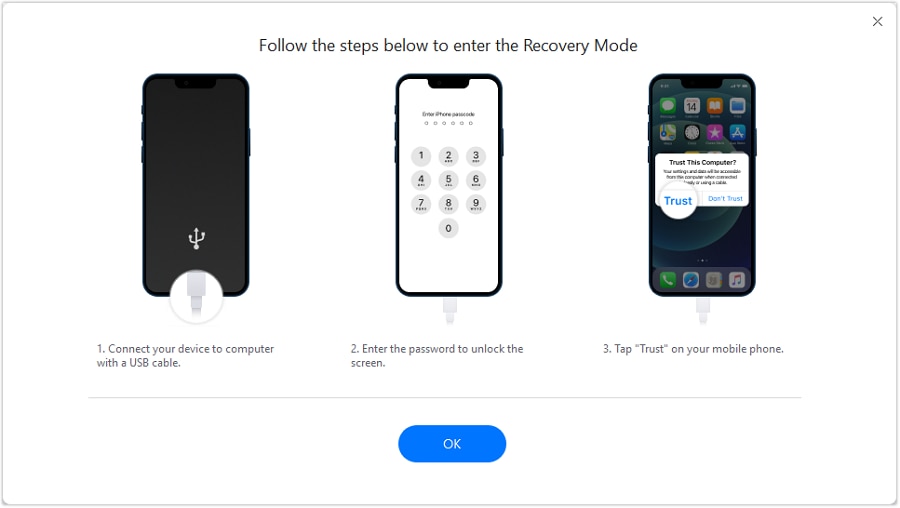
Step 3 Use Enter/Exit Recovery Mode
Run the Enter/Exit Recovery Mode function to attempt a controlled exit from the recovery screen before escalating to deeper changes.

-
Step 4 Proceed to iOS System Repair if the screen returns
If the iPhone goes back to the recovery screen, follow the System Repair path in Dr.Fone and select the mode that aligns with your data-priority decision from the AI triage.
-
Step 5 Recheck the loop and confirm stability
After completion, verify the device boots normally and remains stable through a restart before reinstalling updates or restoring backups.




Conclusion
AI is useful here to interpret the recovery screen, rank likely causes, and choose a low-risk next step based on your exact context; then a focused execution tool like Dr.Fone - System Repair (iOS) helps you carry out that decision consistently (such as exiting recovery mode and, if needed, proceeding with a structured iOS system repair flow).
FAQ
-
What does the iPhone recovery screen mean in plain terms?
It means the iPhone can’t complete normal startup and is prompting a computer connection so it can attempt an update/restore-style startup process. -
Is iPhone Recovery Mode the same as DFU mode?
No. Recovery Mode shows a visible recovery screen; DFU mode is a deeper state that typically shows a black screen and is used for lower-level restores. -
Why does my iPhone keep returning to the recovery screen after reboot?
Common reasons include an incomplete iOS update, repeated failure to apply system files, or persistent system corruption that prevents normal boot. -
Should I choose “Update” or “Restore” when my computer detects recovery mode?
“Update” is typically the lower-risk first attempt because it tries to reinstall iOS without erasing data; “Restore” usually wipes the device. -
Can I exit the recovery screen without guessing button timing?
Yes—using a controlled enter/exit recovery mode function can reduce trial-and-error compared with repeated manual attempts.
 Add Wondershare Dr.Fone as a preferred source on Google





