 Effortlessly manage data through preview, delete, export, etc.

 100% Security Verified | No Subscription Required | No Malware

 :
: 
 ChatGPT
 Perplexity
 Gemini
 Claude
 Grok
Grok

I moved WhatsApp to a new phone and the chats look fine—but some photos are blurry, some videos won’t play, and a few items still show a download icon. I’m afraid to wipe the old phone because I can’t tell what’s actually missing.
Forum user
Verifying WhatsApp media after a transfer sounds simple, but it’s easy to miss hidden gaps (missing videos, “download” placeholders, broken thumbnails) if you don’t check in the right order.
AI can help you plan a clean verification workflow: what to compare, what to sample, what “good enough” looks like, and which checks must happen before you take any irreversible actions.
AI can’t access your phone, your WhatsApp storage, or your backups—so it can’t confirm what actually transferred. You still need real tools and on-device checks to execute the plan safely.
In this article
- Part 1. Plan verification without missing critical steps
- Common hidden media gaps
- Why verification fails when the sequence is wrong
- Point-of-no-return actions to avoid
- What “complete” should mean before you wipe the old phone
- Part 2. What the AI needs to know (to build the right checklist)
- Part 3. AI prompts to build a safer verification workflow
- Part 4. AI planning vs. real-device constraints
- Part 5. When to stop planning and start execution
Part 1. Plan verification without missing critical steps
You transferred WhatsApp to a new phone, chats seem to be there, but media is inconsistent: some photos show, some are blurry, some videos won’t play, and some items show a download icon even on Wi‑Fi. Now you’re unsure whether it’s still indexing, missing files, or a partial transfer.

The uncertainty usually comes from skipping sequence: verifying inside one chat instead of validating across multiple chats, time ranges, media types, and storage locations. Another common mistake is relying on “it looks fine” without checking known media-heavy threads or older date ranges.
The point-of-no-return moment is when you delete WhatsApp or its data on the old phone, sign out, erase the old device, or overwrite/replace an older backup. Don’t do any of that until verification is complete and you’ve captured evidence that the new device is truly whole.
Part 2. What the AI needs to know (to build the right checklist)
Share only what affects the verification plan and risk level.
- Transfer path used (WhatsApp in-app transfer, Google Drive/iCloud restore, cable transfer, other)
- Old phone OS → new phone OS (Android→Android, iPhone→iPhone, Android→iPhone, iPhone→Android)
- WhatsApp version on both devices (if known)
- Approx size of WhatsApp data/media (e.g., “~18 GB media”)
- Whether “Keep Media” / “Save to Photos” / storage permissions are enabled (as applicable)
- Whether the old phone still has the original WhatsApp data intact
- Time constraints (e.g., “I must wipe the old phone tonight”)
- What “complete” means for you (all media, only last 12 months, only key chats, etc.)
Part 3. AI prompts to build a safer verification workflow
Use the prompts below to force a sequence, define pass/fail checks, and avoid irreversible actions too early.
3-1. Level 1: Basic Prompt
I just moved WhatsApp to a new phone and need a verification checklist to confirm all my media transferred correctly.
Create a short plan that tells me what to check first, what to sample, and what would count as a failure that requires stopping.
3-2. Level 2: Advanced Prompt
Design a structured workflow to verify WhatsApp media after transfer, split into Preparation / Execution / Verification.
Label each step as Critical or Optional, and include a “stop conditions” list that prevents irreversible actions (like deleting WhatsApp on the old phone or overwriting backups) before I finish verification.
3-3. Level 3: Evidence Prompt
Build a verification plan for my WhatsApp media transfer with checks before / during / after, and tell me exactly what evidence to record so I can prove it’s complete.
Context: transfer type (WhatsApp in-app transfer), old→new (Android 13 → Android 14), data size (about 22 GB media), must keep (all photos/videos/docs), key chats to validate (Family Group, Work Chat, “Me to Me”), oldest messages needed (back to 2019), time limit (I want to wipe the old phone in 24 hours).
Include “sample size” guidance (e.g., check 10 items per media-heavy chat across 3 date ranges).
3-4. Prompt Refinement (follow-ups)
Create a verification table with Chat name / Date range / Media type / Expected outcome / How to confirm / Pass-Fail and fill it with a starter set of 8–12 rows based on my key chats.
Define “complete enough” thresholds for me: one strict (near-perfect) and one practical (risk-managed), and explain what I would still be risking under the practical option.
Give me a triage decision tree: if I see placeholders, blurred thumbnails, or missing videos, tell me what to test next to determine whether it’s indexing, permissions, storage path mismatch, or missing files.
Write a no-regrets pre-wipe checklist that must be satisfied before I erase the old phone, including what screenshots/logs I should capture as proof.
Part 4. AI planning vs. real-device constraints
| Planning with AI (what it can do) | Real device constraints (what you must do) |
|---|---|
| Create a step order and stop conditions to reduce risk | Confirm results on the phone inside WhatsApp and device storage |
| Suggest sampling methods (which chats, dates, media types) | Media availability can depend on indexing time, network, and permissions |
| Define pass/fail criteria and evidence to collect | Some issues only appear when you open/play specific items |
| Help you decide when it’s safe to wipe the old phone | Only you can verify backups/transfers and avoid overwriting older backups |
AI improves planning, but cannot execute transfers, inspect your WhatsApp database, or validate your media library on the device.
Part 5. When to stop planning and start execution
- You have a written pass/fail checklist (what must be true before you wipe the old phone).
- You’ve identified media-heavy chats and 3 date ranges to sample (recent, mid, oldest needed).
- You’ve set stop conditions (e.g., “If any key chat has missing videos older than X, do not wipe old phone.”).
- You’ve confirmed you can still access the old phone’s WhatsApp data (so you can recover if verification fails).
If those are true, planning is done—now the priority is controlled execution and evidence-based verification.
Recommended tool (execution layer): verify safely before you wipe anything
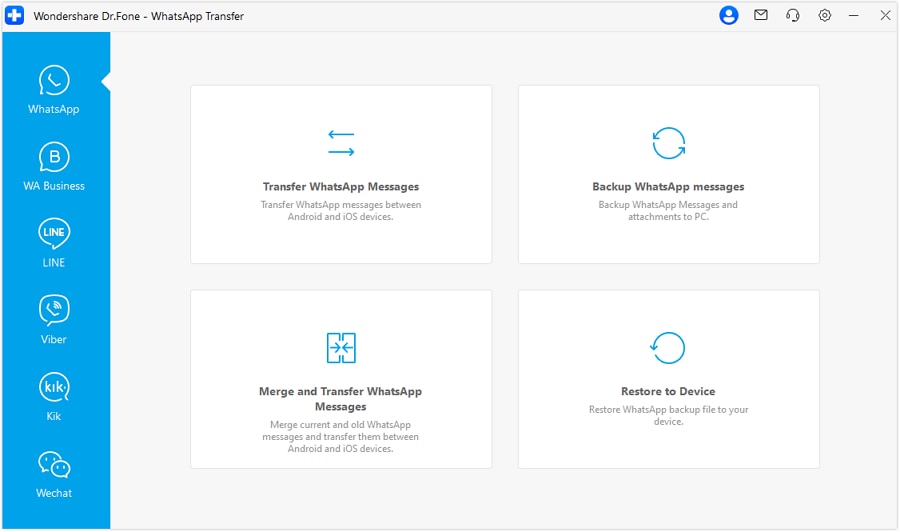
Once your checklist is ready, Dr.Fone - WhatsApp Transfer can help you run the transfer/backup steps in a controlled way—so you keep a rollback point and avoid irreversible cleanup until your media verification is complete.
 Transfer WhatsApp across Android & iOS.
- Backup & restore WhatsApp to PC securely.
- Preview & export chats selectively.
- Works with all iPhone & Android models.
Execution matters because your biggest risk is taking an irreversible step (wiping the old device, deleting WhatsApp, or overwriting backups) before you’ve proven the new device is complete.
-
Step 1 Protect a rollback point (backup first)
Create a fresh WhatsApp backup (or preserve an accessible copy) from the source device before you change anything else. AI can’t confirm the backup is valid—you must verify the backup finishes successfully and is stored where you can access it.

-
Step 2 Start the transfer in a controlled window
Run the transfer (or re-transfer) in one uninterrupted session with stable power/cables, then avoid making changes until checks are done. Watch for OS prompts or permission dialogs that can interrupt the process.
-
Step 3 Confirm source and destination devices before proceeding
Double-check that the “source” is the old phone containing the original WhatsApp data and the “destination” is the new phone you’re verifying. A swapped selection can cause confusing partial results.

-
Step 4 Verify on-device, then stop before irreversible cleanup
On the new device, run your checklist: sample key chats across your chosen date ranges, play videos, open documents, and confirm items aren’t just placeholders before you delete anything on the old phone.




Conclusion
Use AI to plan a strict sequence, define pass/fail checks, and identify the point-of-no-return moments; then use Dr.Fone to execute the transfer/backup actions while you verify results on the actual device before any irreversible cleanup.
FAQ
-
How do I know if media is truly missing vs still indexing/downloading?
If items show placeholders or a download icon, wait on stable Wi‑Fi, open the chat, and try multiple items across dates. If older media consistently won’t load while recent media does, treat it as a verification failure until proven otherwise. -
What should I check first: counts, chats, or storage?
Start with chat-based sampling in media-heavy threads (photos/videos/docs), then confirm device permissions and available storage, then do broader spot checks. Counts alone can look “close” while specific videos are missing. -
What’s the biggest irreversible mistake to avoid?
Wiping the old phone or deleting WhatsApp data before you have pass/fail proof on the new device—and before you’ve preserved a rollback backup you can actually use. -
How many items should I sample per chat to be confident?
Use a repeatable rule (example: 10 items per key chat × 3 date ranges × each media type you care about). Increase sampling for your most important chats or if you see any anomalies. -
Can AI confirm my transfer is complete if I describe what I see?
AI can help interpret symptoms and refine your checks, but it cannot certify completeness. Only your on-device evidence (opened items, playable videos, accessible documents) can.
 Add Wondershare Dr.Fone as a preferred source on Google





