 Effortlessly manage data through preview, delete, export, etc.

 100% Security Verified | No Subscription Required | No Malware

 :
: 
 ChatGPT
 Perplexity
 Gemini
 Claude
 Grok
Grok

I restored a backup, tapped restart, and now my Android just sits on the logo screen. It’s been minutes and nothing changes—no lock screen, no setup, just the boot logo.
Reddit user, r/AndroidQuestions
A backup restore should end with your Android loading normally, but sometimes it reboots and stays stuck on the brand logo or a pulsing boot screen. This often happens right after you tap Restore, Install, or confirm a restart, and then nothing changes even after several minutes.
AI (like ChatGPT or Gemini) can help you describe symptoms precisely, narrow down the most likely causes (bootloop vs. encryption vs. app/data conflict), and pick the lowest-risk next step based on what you can still access (Recovery mode, Safe mode, fastboot, etc.).
AI can’t see your phone’s real state, and trial-and-error can increase risk (extra reboots, wiping data, FRP lockouts). Use AI to decide what to try—not to guess blindly.
In this article
- Using AI prompts to diagnose safely
- Before You Prompt the AI
- Level 1: Basic Prompt
- Level 2: Advanced Prompt
- Level 3: Evidence Prompt
- Why Android gets stuck on the logo after a restore
- Prompt refinement: follow-ups that reduce guessing
- AI output vs. reality: what to verify on the device
- When to stop troubleshooting and avoid risks
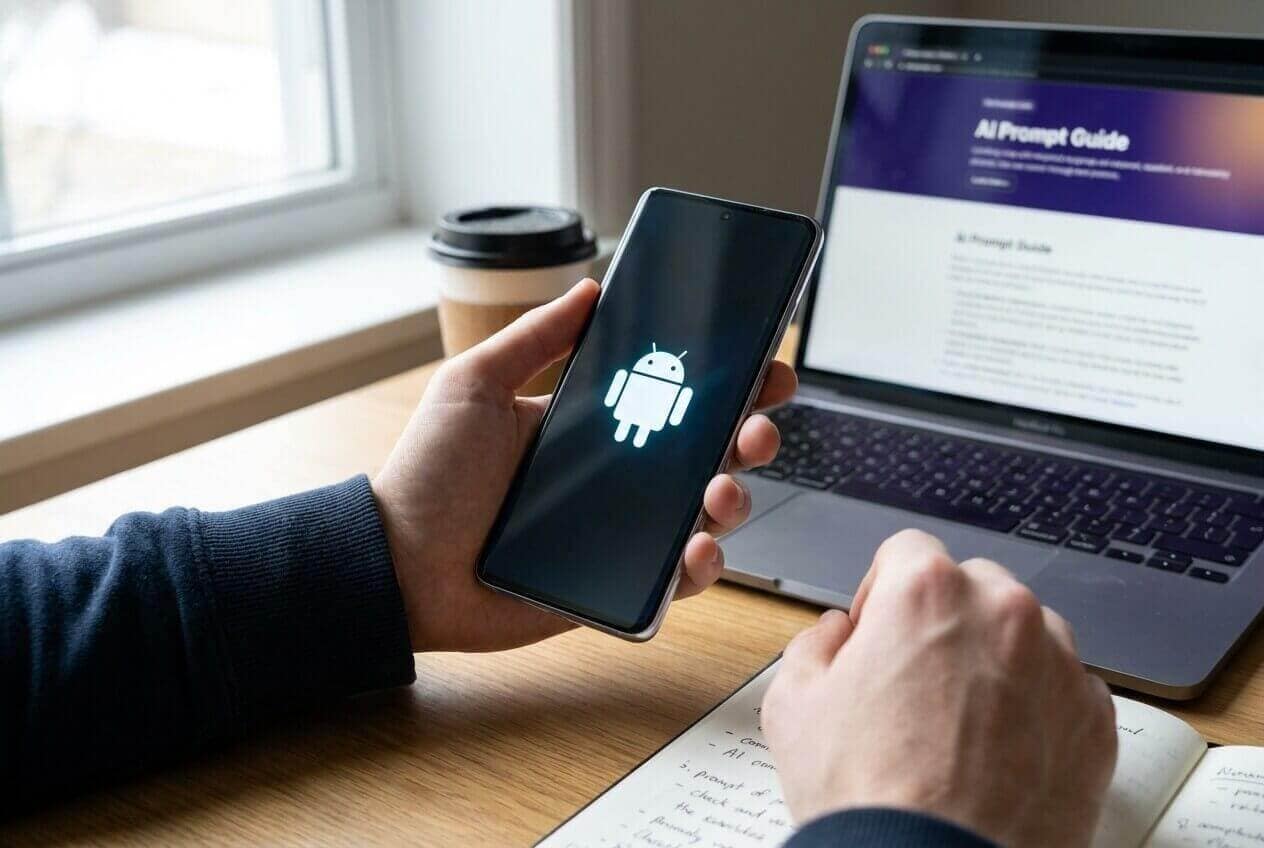
Using AI prompts to diagnose safely
The goal of AI-assisted troubleshooting here is triage: identify whether this looks like a normal long first boot, a repeating bootloop, a firmware/update mismatch, or an encryption/lock/verification block—then choose the lowest-risk check you can do next based on what modes you can access.
Before You Prompt the AI
Collect a few facts first so the AI can separate “normal long boot” from “bootloop risk”:
- Phone brand/model and Android version (if known)
- What you restored from (Google backup, OEM tool, third-party app, PC backup)
- What changed right before the issue (restore finished, forced reboot, update prompt)
- How long it stays on the logo before restarting (if it restarts)
- Whether you can access Recovery mode / Safe mode / fastboot
- Whether a PC detects it (ADB/fastboot/normal device connection)
Level 1: Basic Prompt
My Android phone is stuck on the logo after a backup restore. Ask me the minimum questions needed to tell whether this is a normal long first boot, a bootloop, or a lock/encryption/verification issue. Then suggest the lowest-risk next step I should try first.
Level 2: Advanced Prompt
Diagnose my “Android stuck on logo after restore” issue.
Task: List the top 5 likely causes and rank them by probability.
Constraints: Avoid any step that risks data loss unless you label it clearly as high-risk.
Output format:
1) What symptom patterns confirm/deny each cause
2) One lowest-risk test per cause (no wiping)
3) A decision tree for what I should do next based on outcomes
I will answer your questions if needed.
Level 3: Evidence Prompt
Act as a careful mobile triage assistant. Use my evidence to narrow causes of “stuck on logo after backup restore,” and recommend low-risk checks first.
Device info
- Brand/model: (e.g., Samsung Galaxy S22 / Pixel 7)
- Approx Android version: (e.g., Android 12/13/14)
- Storage free space before restore (estimate): (e.g., ~10 GB)
What I did
- Backup source: (Google backup / Samsung Smart Switch / OEM tool / 3rd-party)
- Restore scope: (apps only / apps + settings / full device)
- Trigger moment: (e.g., after tapping Restore / after “Restart now”)
Current behavior
- Screen shows: (brand logo / Android logo / “Powered by Android” / warning text)
- Time on logo: (e.g., 30+ minutes)
- Reboots by itself?: (yes/no; every X minutes)
- Battery/charging status: (plugged in? warm?)
Access & detection
- Can I enter Recovery mode?: (yes/no)
- Can I enter Safe mode?: (yes/no/unknown)
- Can a computer detect it?: (normal USB / fastboot / nothing)
Goal & limits
- Goal: (keep data / willing to reset)
- I will not do factory reset unless it’s the last resort.
Now: 1) separate possibilities into categories (restore-data conflict vs firmware/update mismatch vs encryption/lock verification vs hardware), 2) tell me which category best fits, and 3) give the safest next step with exact checks to confirm I’m not making it worse.
Why Android gets stuck on the logo after a restore
When an Android phone gets stuck on the logo after a restore, it usually means the device can’t complete the boot sequence after applying restored settings/data. Common triggers include restoring system settings across Android versions, a corrupted app cache/data bundle, or a mismatch between security/encryption state and restored credentials.
In some cases the phone isn’t “frozen”—it’s looping between early boot stages, or it’s waiting for a required unlock step that never becomes visible. If you recently switched devices and restored a large backup, it can be unclear whether the phone is still working or stuck.
The key is to identify what you can still access: can you enter Recovery mode, can the phone be detected by a computer, and did the restore come from the same phone/Android version or a different one?
Prompt refinement: follow-ups that reduce guessing
Use these follow-ups to force clearer triage and reduce guessing:
What 3 questions would change your diagnosis the most, and why?
Rank the causes again assuming: (A) it reboots every 2–3 minutes, (B) it never reboots—just stays on the logo.
Separate your advice into no-risk, low-risk, high-risk (data loss possible) steps.
What single piece of evidence would confirm an encryption/credential problem vs a bootloop?
If I can reach Recovery mode, what should I check there that does not wipe data?
If a PC detects fastboot but not ADB, what does that imply about where it fails in the boot process?
AI output vs. reality: what to verify on the device
Use this table to translate AI suggestions into practical checks you can do in real life:
| AI says | What to verify in real life |
|---|---|
| “It might still be finishing first boot.” | Has it been under ~30–60 minutes, on a charger, without rebooting repeatedly? |
| “It’s a bootloop caused by restored app data.” | Does it restart on a predictable cycle, and can Safe mode work (if supported)? |
| “It’s a firmware/update mismatch.” | Did you restore across major Android versions or recently interrupt an update/restart? |
| “It’s a lock/encryption/verification block.” | Do you see any prompt after boot attempts (PIN, pattern, Google verification) or does it fail before UI loads? |
AI can help you decide which scenario best matches your evidence, but it can’t perform on-device actions or guarantee the cause—execution still depends on what modes your phone can enter and what you’re willing to risk.
When to stop troubleshooting and avoid risks
Stop and switch to a more controlled approach when the pattern suggests repeated failure or rising lockout risk:
- The phone reboots repeatedly (bootloop) for more than ~15–20 minutes with no change.
- It gets hot, drains unusually fast, or behaves inconsistently while stuck on the logo.
- You’re locked out by PIN/pattern/FRP prompts and don’t have the required credentials.
- Any next step you’re considering involves factory reset / wipe data but your data isn’t backed up elsewhere.
Once AI has helped you narrow the most likely category (restore conflict vs. update mismatch vs. lock/verification), hand off the execution to a tool that matches that category—especially if the blockage is access-related rather than purely boot-related.
Android phone stuck on logo after backup restore: resolve access blocks safely with Dr.Fone
If your AI triage suggests the restore led into a credential or verification roadblock (for example, the phone can’t complete setup without a screen unlock you can’t pass), it’s time to shift from diagnosis to execution. In those cases, Dr.Fone - Screen Unlock (Android) can be relevant because it’s designed for carrying out device-side steps to remove certain Android screen locks so you can regain access and continue setup, instead of cycling through risky trial attempts.
 Unlock Android phone in seconds.
- Remove PIN, pattern, password, fingerprint.
- Bypass Google FRP lock easily.
- Works on all Android brands & models.
- No tech skills required – user-friendly.

Before using any execution tool, confirm the pattern is truly access-related (PIN/pattern/password/FRP-like verification) rather than a generic slow boot, so you avoid unnecessary actions.
-
Step 1 Open Dr.Fone and enter Screen Unlock
On your computer, launch Dr.Fone and choose Screen Unlock to start the guided flow.

-
Step 2 Select the Android unlock option for your scenario
Choose the Android screen unlock path that matches your device and situation so the workflow stays aligned with what the phone is actually asking for.

-
Step 3 Enter the “Unlock Android Screen” flow
Proceed to the function used to remove supported screen locks, and follow the on-screen instructions carefully.

-
Step 4 Connect the phone and select the correct brand/model
Connect via USB and keep the phone charged. When prompted, select the correct brand/model so the workflow matches your device. Avoid disconnecting mid-process to reduce interruption risks.

-
Step 5 Re-check boot/setup after access is restored
Once you can pass the lock/setup stage, restart normally and confirm whether the restore completes. If it still loops, return to AI triage and focus on boot-category next steps.




Conclusion
Use AI to convert “stuck on logo” into a clear, evidence-based diagnosis and to choose the least risky next check; once the issue is narrowed to an access/lock barrier after restore, hand off the execution to Dr.Fone - Screen Unlock (Android) to carry out the necessary on-device steps in a guided way.
FAQ
-
Why is my Android stuck on the logo after restoring a backup?
Usually because restored apps/settings conflict with the current system build, storage/caches are stressed, or a required credential/verification step blocks setup completion.
-
How long should I wait on the logo screen after a restore?
If it’s not rebooting and the phone is on a charger, waiting up to ~30–60 minutes can be reasonable for a large restore; repeated reboots are a stronger sign of a bootloop.
-
Does a stuck logo always mean hardware failure?
No. Many cases are software-state problems (restore conflicts, update mismatch, encryption/credential prompts) rather than hardware.
-
What evidence best distinguishes bootloop vs. lock/verification problems?
Bootloops usually show timed restarts and never reach the lock screen; lock/verification issues tend to reach a prompt (or fail immediately after a prompt) and recur consistently at that point.
-
When is Dr.Fone – Screen Unlock (Android) the right execution tool?
When your diagnosis points to being blocked by screen lock or setup verification after the restore, and you need a controlled way to carry out the unlock steps to regain access.
 Add Wondershare Dr.Fone as a preferred source on Google





