 Effortlessly manage data through preview, delete, export, etc.

 100% Security Verified | No Subscription Required | No Malware

 :
: 
 ChatGPT
 Perplexity
 Gemini
 Claude
 Grok
Grok

I used a cable to move everything to my new Android, but later I realized some chats were missing media and my photos were duplicated in weird folders. I wish I had a real verification checklist before I reset the old phone.
Forum user
Moving data from one Android phone to another sounds simple, but missing one step can cause silent losses (chats without media, photos without folders, apps without logins) or messy duplicates.
AI helps most before you touch the devices: it can map the safest sequence, highlight “must-check” prerequisites, and define what “success” looks like for your exact mix of data and apps.
AI cannot access your phones, confirm what actually transferred, or run the transfer itself—so once the plan is solid, you need real device tools to execute and verify.
In this article
- Part 1. Plan an Android-to-Android transfer (cable/desktop) without missing steps
- Why generic advice fails
- Identify your “point of no return”
- Prefer verification-first sequencing
- Set a clear success baseline
- Part 2. What the AI needs to know
- Part 3. Use AI prompts to build a safer workflow
- Part 4. AI plan vs. real device constraints
- Part 5. When to stop planning and start execution
Part 1. How to plan Android-to-Android transfer with cable or desktop without missing critical steps
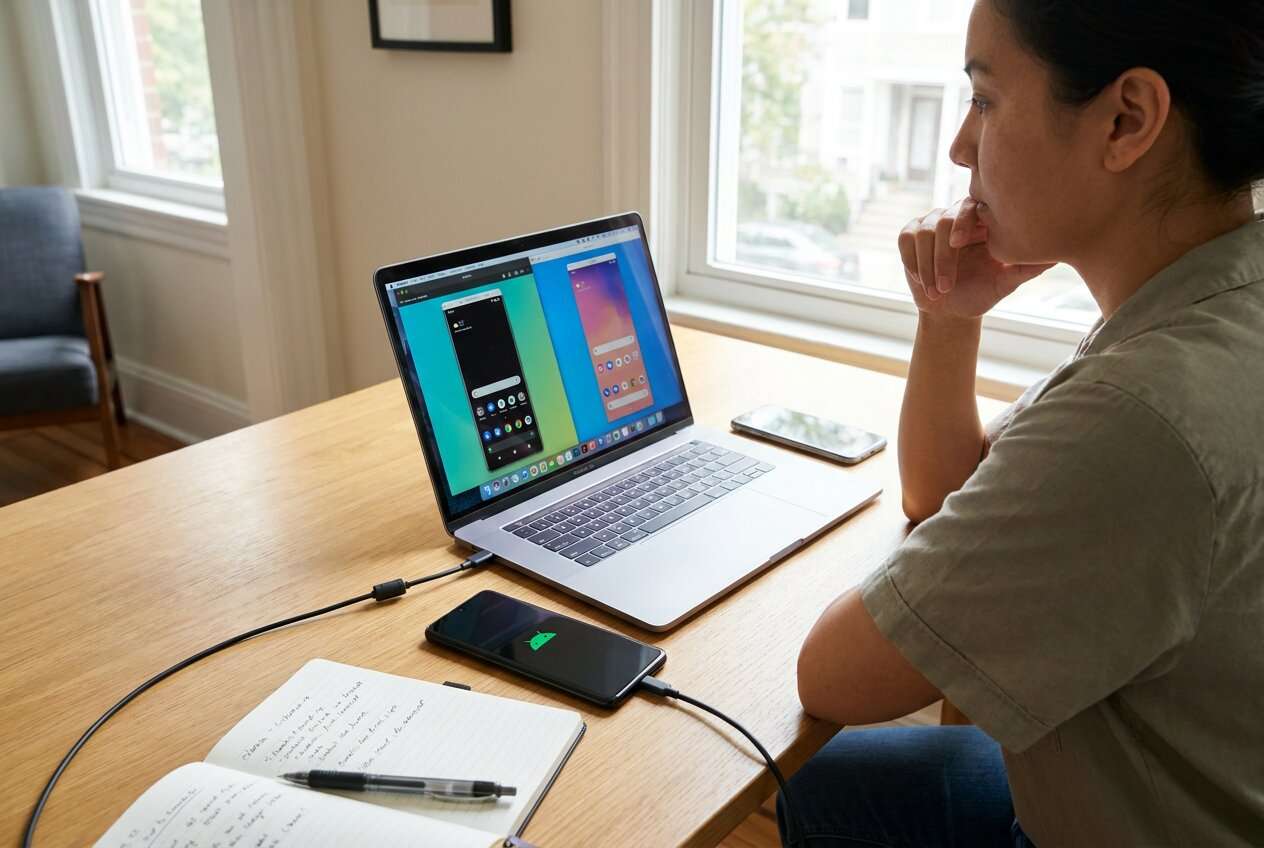
You’re upgrading to a new Android phone and want to transfer everything via a cable or a desktop connection because it feels faster and more reliable than Wi‑Fi. You also want to avoid re-downloading, re-organizing photos, and re-setting up accounts.
The uncertainty usually starts after you ask AI “How do I transfer?” and get a generic list—without a clear order, without device-specific checks (USB mode, encryption, storage), and without a definition of what to verify before moving on.
Your point of no return is typically a cleanup step: factory resetting, deleting data on the old phone, wiping a chat app, or disabling an account to “start fresh.” That irreversible moment should not happen until post-transfer verification is complete.
Part 2. What the AI needs to know
Share the details below so the workflow can be planned around your constraints and risks.
- Old phone brand/model (e.g., Samsung Galaxy S21) and Android version (if known)
- New phone brand/model (e.g., Pixel 8) and Android version (if known)
- Transfer method preference: direct cable phone‑to‑phone, or via desktop connection
- Cable situation: USB‑C to USB‑C, USB‑A to USB‑C, adapter availability
- Approx. data size and types: photos/videos, documents, downloads, music, app data
- High‑risk items: WhatsApp/Telegram chats, 2FA apps, work profiles/MDM, secure folder, encrypted files
- Storage constraints on the new phone (free space estimate)
- Whether the old phone is still stable (battery, ports, screen, random reboots)
- Your acceptable downtime (minutes vs hours) and whether you must keep the old phone usable during transfer
- Any constraints: cannot use cloud, limited PC access, corporate device policies
Part 3. Using AI prompts to build a safer Android-to-Android transfer workflow
Use the prompts below to make AI produce a sequence you can actually follow, with checks that prevent rework.
3-1. Level 1: Basic prompt
I’m transferring from one Android phone to another using a cable or a desktop connection. Create a simple checklist in the safest order, including what to verify before I move to the next step. Don’t give tool-specific clicks—focus on planning and risk checks.
3-2. Level 2: Advanced prompt
Build a structured workflow for Android‑to‑Android transfer via cable or desktop with these sections: Preparation, Execution, Verification.
Mark each step as Critical or Optional, and include “stop conditions” (what would make me pause and fix something before proceeding).
3-3. Level 3: Evidence prompt
Here’s my context: old phone (Samsung Galaxy S21, ~110 GB used), new phone (Pixel 8, ~180 GB free), cable (USB‑C to USB‑C), must transfer (photos/videos, Downloads, contacts, SMS, WhatsApp with media), nice-to-have (app list/order).
Create a plan with checks before/during/after transfer, including: required phone settings (USB mode, screen lock), minimum battery targets (e.g., 60%+), space buffer (e.g., 15–20% free), and a verification script (spot-check counts like photos ~18,000; WhatsApp media folder size ~22 GB).
Also list common failure signs and what to do if they appear.
3-4. Prompt refinement follow-ups
Convert your plan into a table with columns: Step, Critical/Optional, What could go wrong, How to detect it, What to do next.
Give me a “definition of done” checklist for each data type (photos, videos, contacts, SMS, WhatsApp) with at least 3 concrete verification actions per type.
Add a “no‑return actions” section and explicitly tell me what I must verify before I do any of them (reset, delete, uninstall, wipe).
Rewrite the workflow for my constraint: I must keep the old phone usable for two days after transfer; minimize disruption and avoid removing accounts until final confirmation.
Provide a troubleshooting decision tree for: transfer stops mid-way, new phone shows fewer photos, WhatsApp opens but chat media is missing, or storage becomes full.
Part 4. AI plan vs. real device constraints
| What AI can plan well | What AI cannot guarantee | What you must verify on-device | What can break the plan |
|---|---|---|---|
| Step order, risk points, checklists | Actual transfer completion and integrity | Counts, folder presence, app sign-ins, message/media accessibility | Bad cable/port, power saving, USB mode, storage limits, device encryption |
| Data categories and priority | Access to protected app sandboxes | Chat apps’ internal restore status | App-specific backup rules, OS restrictions |
| Stop conditions and rollback ideas | Real-time error codes or device prompts | Whether “all files” were included | Permissions, locked screens, unstable device |
| Verification scripts | Hardware reliability | Random spot checks vs full comparison | Overheating, battery drop, PC driver issues |
AI improves planning, but cannot execute transfers or confirm outcomes; you still need to run the workflow on real hardware and verify results with device checks.
Part 5. When to stop planning Android-to-Android transfer (cable/desktop) and start execution
- You have a single, ordered checklist with Critical steps clearly separated from Optional ones.
- You know your no‑return actions and the exact verification required before doing any of them.
- You’ve confirmed feasibility: cable/desktop access, enough free space, and time window for a full run plus verification.
- You have a defined “success baseline” (what must match: counts, folders, app restores, sign-ins).
Once these are true, planning has done its job and the risk shifts to execution quality and verification discipline.
Android to Android transfer with cable or desktop: execute the workflow safely with Dr.Fone
Execution now matters because most losses happen during hurried transfers: wrong USB mode, interrupted connection, skipped app-specific restores, or wiping the old phone too early. If you want a dedicated tool to run the transfer after you’ve planned and defined verification, Dr.Fone - Phone Transfer can help you perform an Android-to-Android transfer via cable or desktop connection.
 Move data between iOS to Android and vice versa.
- Transfer contacts, SMS, photos, videos, music, and more types.
- Available with all phones with Android and iOS versions.
- Simple, click-through process.

-
Step 1 Prepare devices and proof targets
Charge both phones, ensure stable cables/ports, free sufficient storage on the new phone, and write down your verification targets (counts/folders/apps that must appear). Keep screens unlocked so permission prompts don’t stall the process.

Limitation: AI can’t see your battery levels, storage, USB prompts, or whether the devices are actually stable.
-
Step 2 Connect both Android phones and set the transfer path
Connect the old and new Android phones via cable/desktop as planned, and make sure the source (old phone) and destination (new phone) are set correctly before you proceed.

Limitation: AI can’t operate Dr.Fone, respond to device permission dialogs, or prevent interruptions (sleep mode, cable bumps, driver issues).
-
Step 3 Choose what to transfer (no cleanup yet)
Select the data types you intend to move (based on your plan) and start the transfer. Avoid any “no-return actions” during this run.

Limitation: AI can’t confirm whether protected app data (like some chat app internals) is fully included, so your post-checks still matter.
-
Step 4 Verify outcomes before any irreversible action
Check the transferred data against your baseline (spot-check photos/videos across dates, confirm contacts/SMS totals, open key apps, and validate chat/media availability). Only after verification should you consider cleanup like factory reset or deleting old data.

Limitation: AI can suggest what to verify, but you must confirm the actual content and app-level restores on the devices.




Conclusion
Use AI to design a cautious, verifiable workflow—then rely on real tools for the actual device-to-device execution. AI plans the sequence and checks; Dr.Fone performs the transfer you’ve already validated as safe to run.
FAQ
-
What’s the biggest risk in Android-to-Android transfer by cable/desktop?
Doing a wipe/reset or deleting data before verification, and assuming “transfer completed” equals “everything is usable,” especially for chat apps and app logins. -
How do I verify photos and videos without checking every file?
Use a baseline: compare total counts, check multiple date ranges (oldest/newest/middle), verify a few large videos play, and confirm folders/albums you care about exist. -
Why do chat apps (like WhatsApp) need special verification?
Chats and media can depend on app-specific restore steps; you might see messages but not media, or the app opens but the restore didn’t complete properly. -
When should I factory reset my old phone?
Only after you’ve completed post-transfer verification and you’re confident you can operate normally on the new phone for at least a short real-world period (calls, messages, key apps, and important files). -
Can AI tell me whether my transfer succeeded?
No. AI can define what success looks like and what to check, but it cannot access your phones, view your files, or confirm app restore states.
 Add Wondershare Dr.Fone as a preferred source on Google





