 Effortlessly manage data through preview, delete, export, etc.

 100% Security Verified | No Subscription Required | No Malware

 :
: 
 ChatGPT
 Perplexity
 Gemini
 Claude
 Grok
Grok

I thought I was doing a “clean” setup on my new tablet, but after wiping the old one I realized I missed a 2FA dependency and a folder I actually needed.
Forum user
Setting up a new tablet “clean” can go wrong fast if you skip a dependency (like 2FA, passwords, or a needed file) and only discover it after you’ve wiped or traded in the old device.
AI is useful here because it can turn your goal (“minimal apps, only essential files”) into a sequenced plan with decision points, verification checks, and a short list of must-haves vs nice-to-haves.
AI still can’t touch your devices, move your data, or confirm what actually transferred; you’ll need real tools to execute once the plan is locked.
In this article
- Part 1. How to plan a minimal setup without missing critical steps
- Define “minimal” and what counts as clutter
- Use sequence (accounts → 2FA → apps → files), not a loose list
- Set verification evidence for each stage
- Protect the point of no return (reset/trade-in)
- Part 2. What the AI needs to know
- Part 3. Using AI prompts to build a safer workflow
- Part 4. When to stop planning and start execution
- Part 5. Execute the workflow safely with Dr.Fone
Part 1. How to plan set up new tablet with minimal apps and files without missing critical steps
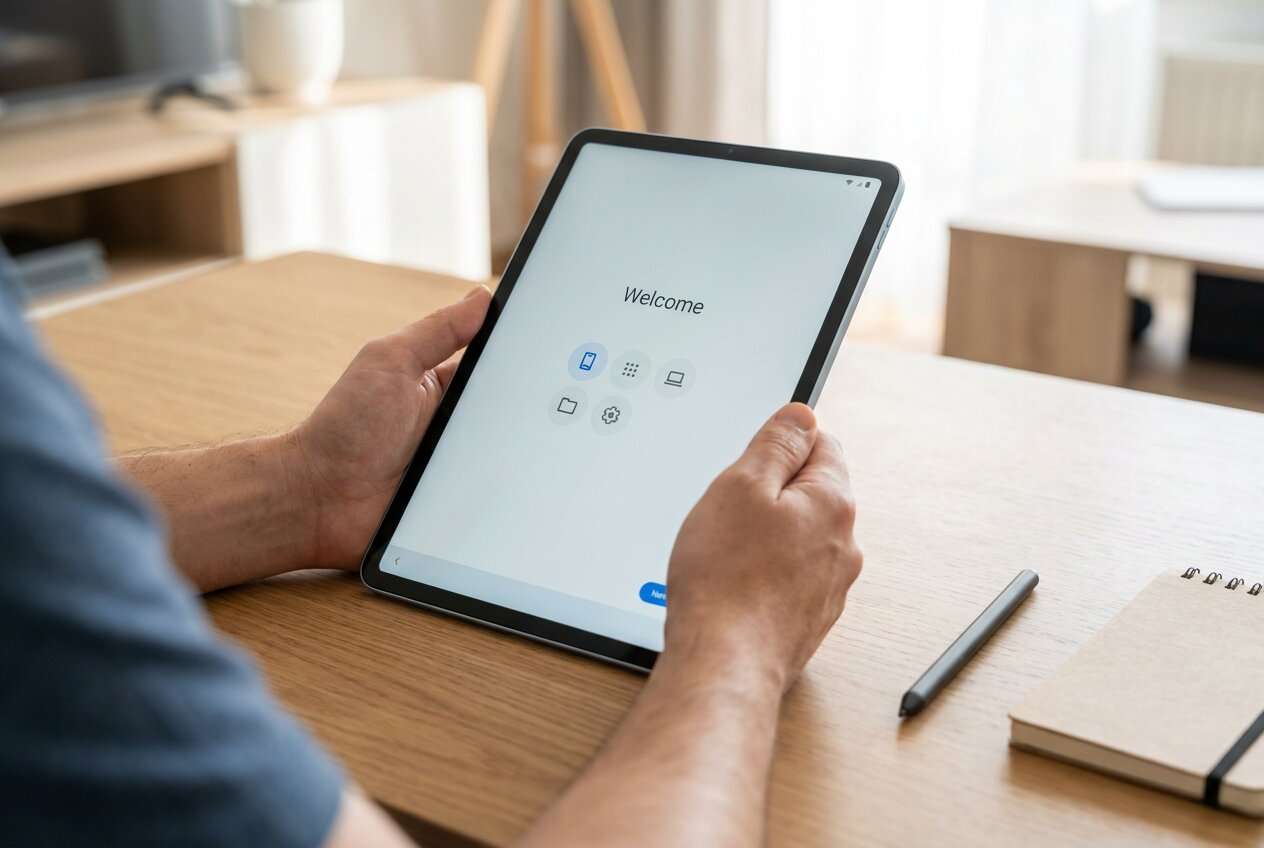
You want a tablet that stays lightweight: only core apps, only the files you truly need, and none of the clutter that creeps in during “full” migrations.
The uncertainty usually starts after you ask for advice and get a list—but not a sequence. The order matters (accounts → 2FA → app installs → files), and the checks matter (what “done” looks like for each step).
There’s also a point of no return: signing out and factory resetting the old tablet (or handing it over for trade-in) before you’ve verified access to accounts, authenticator codes, and the specific files you meant to keep.
Part 2. What the AI needs to know
Share the minimum details below so the AI can produce a clean, verifiable workflow instead of generic tips.
- Tablet ecosystem and OS version (Android tablet / iPadOS, versions if known)
- Old device status (still working / broken / partially accessible)
- Your “minimal” definition (e.g., “max 12 apps”, “no social apps”, “work-only”)
- Must-have accounts (Google/Apple ID, email, password manager, cloud storage)
- 2FA method in use (authenticator app, SMS, hardware key)
- File scope (photos, PDFs, notes, downloads, work docs) and target storage (on-device vs cloud)
- App scope (banking, messaging, reading, office) and any must-keep app data (chats, notes)
- Connectivity constraints (slow Wi‑Fi, limited data) and time window (e.g., “need ready by tonight”)
- Privacy constraints (no cloud for some files, shared Apple ID, family tablet)
- Old tablet end state (keep as backup / sell / trade-in / recycle)
Part 3. Using AI prompts to build a safer set up new tablet with minimal apps and files workflow
Use the prompts below to make the AI produce a checklist-style plan with gates, not a loose list.
3-1. Level 1: Basic prompt
I’m setting up a new tablet and want a minimal set of apps and only essential files. Create a step-by-step plan with clear verification checks after each stage. Do not include execution instructions—focus on planning and what to confirm before moving on.
3-2. Level 2: Advanced prompt
Build a structured workflow to set up my new tablet with minimal apps and files.
Include Preparation / Execution / Verification phases, and label items as Critical vs Optional.
Add “stop points” where I should pause to confirm access to accounts, 2FA, and key files before doing anything irreversible.
3-3. Level 3: Evidence prompt
Create a minimal-migration plan for a new tablet with verification gates.
Context
- Ecosystem: (Android tablet, Android 14)
- Old device: (Android tablet still works; will be traded in)
- Minimal goal: (10–15 apps max; no games/social)
- Must-have accounts: (Google, Gmail, Microsoft 365, Dropbox)
- 2FA: (Google Authenticator + SMS fallback)
- Files to keep: (30 PDFs in “Work”, 200 photos, 12 scanned receipts)
- Privacy: (receipts must stay local, not cloud)
- Deadline: (ready in 3 hours)
What I want from you
- A sequenced plan with checks before / during / after each phase
- A “critical inventory list” (accounts, apps, files) I can confirm in writing
- A verification checklist that proves readiness before trade-in (point of no return)
- Common failure modes (e.g., missing 2FA codes, missing local-only folders) and how to prevent them
3-4. Prompt refinement (follow-up prompts)
Convert the workflow into a single-page checklist with three columns: Action, Evidence to collect, Pass/Fail criteria.
Identify the top 5 ways minimal setups accidentally become full migrations, and add guardrails to prevent each one.
Create a file-selection rule (e.g., “only items touched in last 90 days”) and map it to the folders I should review first.
Add a 2FA continuity gate: list exactly what I must verify on the new tablet before I sign out or reset the old one.
Draft a minimal app roster based on my use-cases, and include a “why it’s needed” line for each app so I can remove weak candidates.
3-5. AI plan vs. real device constraints
| Planning with AI (what it’s good at) | Real-device constraints (what AI can’t do) |
|---|---|
| Turns goals into a sequenced workflow with decision points | Can’t detect what’s actually on your tablet or what transferred |
| Builds verification checks and “evidence” you should confirm | Can’t log in, approve 2FA prompts, or resolve account lockouts |
| Helps you define a minimal app/file inventory and guardrails | Can’t move files, install apps, or confirm app data integrity |
| Identifies irreversible moments and what must be verified first | Can’t perform backups, restores, or device resets |
AI improves planning, but it cannot execute changes on your tablet; you still need device actions and tooling to carry out the plan and confirm results.
Part 4. When to stop planning set up new tablet with minimal apps and files and start execution
- You have a written minimal inventory: exact apps + exact folders/files to keep (not “most things”).
- You have defined verification evidence (what you will check) for accounts, 2FA, and files.
- You have identified the point of no return (trade-in/factory reset) and the checks required before it.
- You’ve chosen the transfer approach (minimal/manual vs selective restore) and agreed not to expand scope midstream.
Once those are true, planning stops being helpful and starts delaying the only thing that matters: validated results.
Part 5. Set up new tablet with minimal apps and files: execute the workflow safely with Dr.Fone
Execution now matters because a “minimal” setup succeeds only if the real device state matches your plan—especially before any irreversible cleanup on the old tablet. To move only what you’ve selected and keep the old tablet untouched until verification passes, you can use Dr.Fone - Phone Transfer.
 Move data between iOS to Android and vice versa.
- Transfer contacts, SMS, photos, videos, music, and more types.
- Available with all phones with Android and iOS versions.
- Simple, click-through process.

-
Step 1 Prepare the run (keep the old tablet untouched)

Action: Create a controlled execution run that matches your inventory (only the apps/files you chose) and keep the old tablet untouched until verification passes.
Limitation: AI can’t confirm what the tool will detect on your specific devices or what permissions you’ll need to grant.
-
Step 2 Choose the correct device-to-device path

Action: Confirm source/target devices and the direction of transfer to avoid moving the wrong content to the new tablet.
Limitation: AI can’t validate your device selection or see what is actually stored locally vs in cloud apps.
-
Step 3 Transfer only the selected items

Action: Transfer the chosen files (and only those files) and any required device-to-device data needed for your minimal setup.
Limitation: AI can’t see whether an app’s internal data is transferable; you must verify inside each critical app after transfer.
-
Step 4 Verify before any irreversible step

Action: Use your verification checklist to confirm logins, 2FA continuity, and file presence on the new tablet before you sign out, factory reset, or trade in the old device.
Limitation: AI can’t validate account access or confirm your files are complete; only your checks on the device can clear the “safe to reset” gate.




Conclusion
Use AI to design a minimal, gated workflow with clear evidence checks and an explicit point of no return; then use Dr.Fone to execute the transfer and rely on real on-device verification before any irreversible cleanup.
FAQ
-
How do I prevent a “minimal setup” from turning into a full migration?
Define a hard cap (apps count + file folders) and require a reason for every addition; if it doesn’t pass your rule, it doesn’t move. -
What’s the biggest hidden risk before factory resetting the old tablet?
Losing access to accounts due to missing 2FA/authenticator continuity or not having your password manager working on the new tablet. -
What should I verify first on the new tablet?
Account access (Apple ID/Google), email, password manager, and 2FA method—because those unlock everything else and are hardest to fix later. -
How do I verify files without checking one-by-one?
Use folder-level counts and spot checks (e.g., confirm expected number of PDFs in “Work”, open 3 random files, confirm timestamps/versions). -
When should I do the irreversible step (reset/trade-in)?
Only after your verification gates pass: you can log in again from scratch, 2FA works, and every critical file group is present and opens correctly.
 Add Wondershare Dr.Fone as a preferred source on Google





