 Effortlessly manage data through preview, delete, export, etc.

 100% Security Verified | No Subscription Required | No Malware

 :
: 
 ChatGPT
 Perplexity
 Gemini
 Claude
 Grok
Grok

I factory reset my old tablet for my kid, and then realized I forgot to sign out and back up a few things. Now I’m worried about account locks and what data might still be recoverable.
Forum user
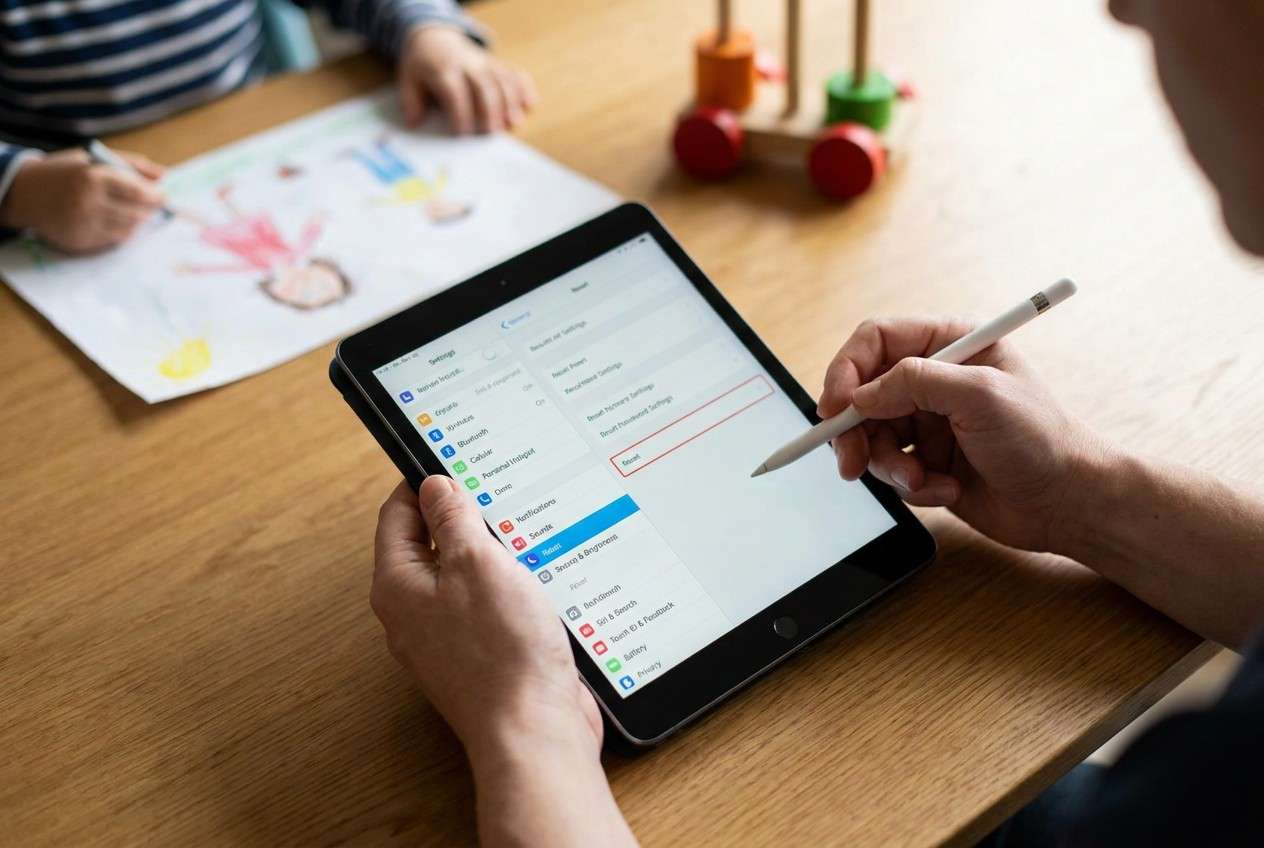
Preparing a tablet for a child sounds simple, but missing one step can expose private data, break app access, or lock the device to your account after a reset.
AI helps you plan the sequence, identify what must be verified, and reduce avoidable mistakes—especially around accounts, backups, and “what gets wiped.”
AI can’t touch your tablet, confirm what’s on-screen, or perform a reset; execution still requires real device actions and reliable tools to back up and erase data.
In this article
- How to plan the reset without missing critical steps
- Level 1: Basic prompt
- Level 2: Advanced prompt
- Level 3: Evidence prompt
- Prompt refinement follow-ups
- What the AI needs to know
- Using AI prompts to build a safer workflow
- When to stop planning and start execution
- Execute the workflow safely with Dr.Fone
Part 1. How to Plan prepare tablet reset before giving it to a child Without Missing Critical Steps
You’re handing down a tablet and want it to be “clean,” safe, and ready for a child—without losing anything you still need or accidentally leaving your accounts behind.
You may already know “factory reset” is involved, but the uncertainty is the order: back up first, sign out first, remove work/school management first, or reset first.
The point of no return is the wipe itself: once you erase or factory reset (especially if you choose an irreversible erase), you cannot recover data you didn’t back up and you may trigger activation/FRP locks if accounts weren’t handled correctly.
Part 2. What the AI Needs to Know
Share the details below so the plan matches your exact tablet and risk level.
- Tablet type and model (iPad / Android tablet; e.g., “iPad 9th gen” or “Samsung Galaxy Tab A8”)
- Who owns/manages it (personal / family-shared / work/school-managed/MDM)
- Current OS version (if known)
- What must be kept (photos, messages, notes, app data, game progress, files)
- What must be removed (accounts, payment methods, email, cloud sync, profiles)
- Child’s age range and the safety goal (basic access, school-only, stricter restrictions)
- Whether you have passwords/2FA for the accounts currently on the tablet
- Whether you want a standard reset or an irreversible wipe (higher privacy, higher risk)
- Any known issues (broken screen, forgotten passcode, battery instability)
Part 3. Using AI Prompts to Build a Safer prepare tablet reset before giving it to a child Workflow
Use the prompts below to make the AI produce a checklist you can verify before you touch the tablet.
3-1. Level 1: Basic Prompt
I’m preparing a tablet for a child and want a safe plan that avoids data loss and account lockouts. Please give me a short step-by-step workflow with the key checks before I erase/reset anything. Keep it planning-only—no device actions yet.
3-2. Level 2: Advanced Prompt
Build a structured workflow to prepare a tablet reset before giving it to a child, split into Preparation / Execution / Verification.
Mark each step as Critical vs Optional, and include “stop points” where I must confirm items (backup completed, accounts removed, management disabled) before proceeding to the next phase.
3-3. Level 3: Evidence Prompt
Here’s my situation: (Android tablet, e.g., “Galaxy Tab A8”), used by me for (photos + email + school apps), child is (8), and I want (strict app controls + no access to my accounts).
Create a plan with checks before, during, and after reset/erase, including:
- what to verify about accounts (Google/Apple ID), device management (work/school/MDM), and payment methods
- what data must be backed up (e.g., “2,000 photos,” “Notes app,” “game progress”) and how I can confirm the backup is actually usable
- the irreversible moment(s) I should not reach until verification is complete (e.g., “starting an irreversible erase” or “confirming factory reset”)
- a final validation list to confirm the child cannot access my data and I can still recover what I need later
3-4. Prompt Refinement
Put the workflow into a table with columns: Step, Goal, Evidence to check, If it fails, Stop/Go decision.
List the top 5 ways a reset goes wrong on my device type, and add a prevention check for each one.
Create two variants: Privacy-max (assume I’m worried about data recovery) vs Convenience-max (fast handoff), and show the tradeoffs.
Ask me only the minimum questions needed to finalize the plan, then output a single final checklist with no alternatives.
3-5. AI Plan vs. Real Device Constraints
| AI planning strengths | Real-world constraints |
|---|---|
| AI can sequence steps and highlight risks | It can’t see your screen or confirm settings are actually toggled |
| AI can suggest verification evidence | It can’t prove your backup is complete or restorable |
| AI can warn about lockouts (Apple ID/Google FRP) | It can’t remove accounts or complete sign-outs for you |
| AI can define “done” criteria for child-ready state | It can’t perform the erase/reset or enforce parental controls |
AI improves planning and reduces missed steps, but it cannot execute device actions; you still need real tools and on-device confirmation to carry out the workflow safely.
Part 4. When to Stop Planning prepare tablet reset before giving it to a child and Start Execution
- You can state exactly what must be preserved (and where it will live) and what must be permanently removed.
- You have confirmed you can sign out/unlink required accounts (and you have passwords/2FA ready).
- You have a clear verification checklist for backup integrity (not just “backup started”).
- You have identified the irreversible moment (erase/reset) and defined the final “child-ready” validation steps.
Once those are true, the remaining risk is mostly execution accuracy rather than planning completeness.
Part 5. Prepare tablet reset before giving it to a child: Execute the Workflow Safely with Dr.Fone
Execution now matters because this is where most irreversible mistakes happen (wiping before verifying backups, or leaving account ties that trigger lockouts). If you need a more privacy-focused erase option, Dr.Fone - Data Eraser can help you wipe data more thoroughly than a standard reset.
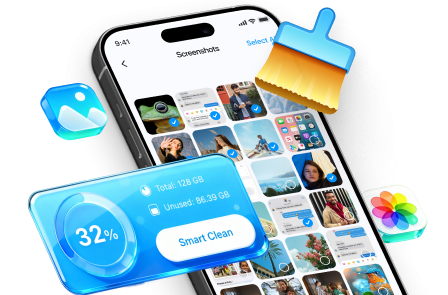
 Erase all data on iOS & Android
- Military-grade wiping to fully protect your privacy.
- Generate verified erasure reports better for device resale.
- Selectively erase private data and remove junk & large files.
-
Step 1 Open the Data Eraser tool on your computer
Launch Dr.Fone and locate the data erasing feature so you can proceed in a controlled, tool-guided flow (instead of rushing through on-device menus).

-
Step 2 Start the erase flow only after your “go” checks pass
Before you begin any erase/reset, confirm your backup is usable and that required accounts/management links have been handled to avoid activation/FRP lock issues.
-
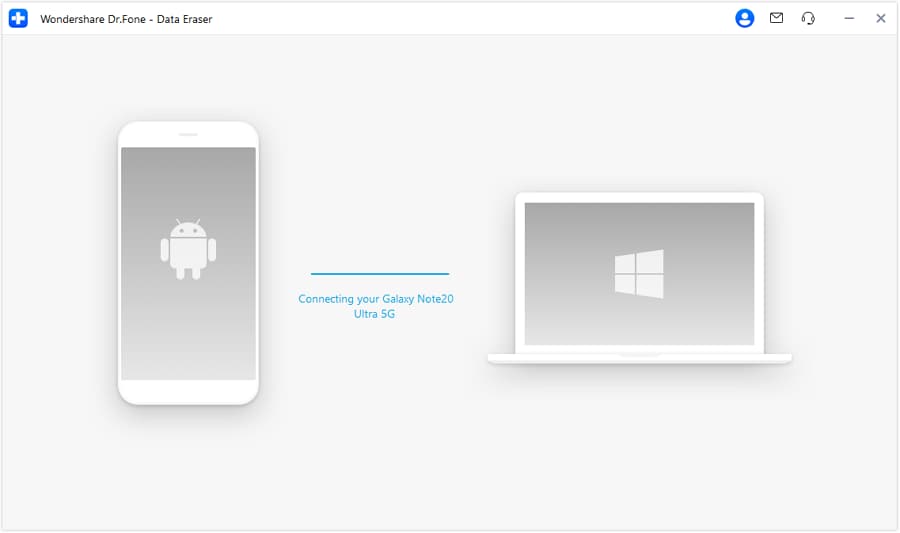
Step 3 Follow the tool prompts to proceed through the erase process
Continue only if the plan’s verification evidence is satisfied (for example, you can open the backup output and spot-check key items).
-
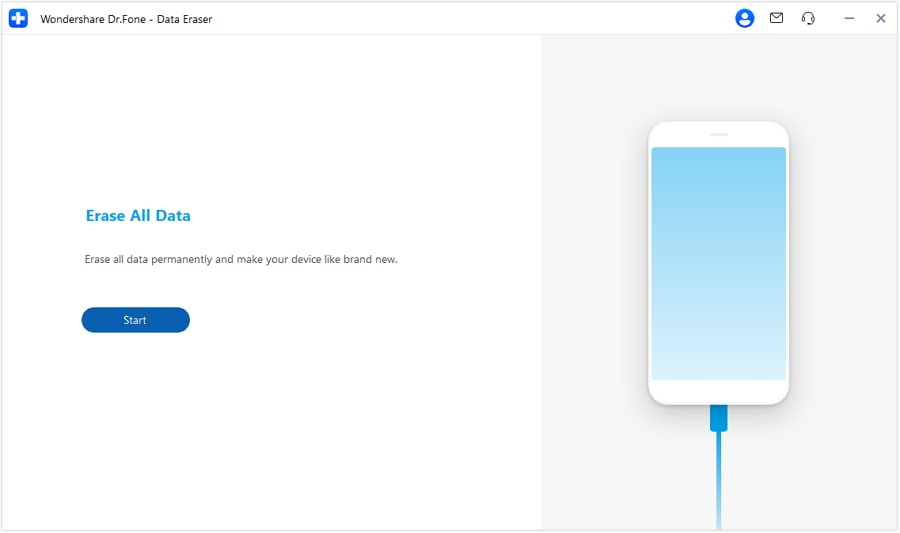
Step 4 Confirm the erase action at the irreversible moment
This is the point of no return. Once you confirm an irreversible erase, recovery may be impossible if something wasn’t backed up.

Create a verified backup (before any wipe).
Use Dr.Fone’s backup capability to capture the data you intend to keep, then verify you can view/access the backup output on your computer before proceeding.
Limitation: AI can’t confirm what was included or whether the backup is actually complete—only you can verify the evidence.
Perform the erase/reset only after your “go” checks pass.
Use Dr.Fone’s data erasure option (when you need stronger privacy) or proceed with the tablet’s reset flow only after confirming accounts/locks and backup verification are complete.
Limitation: Once an erase is confirmed, recovery may be impossible; AI cannot reverse it or retrieve data that wasn’t backed up.
Post-reset validation for a child-ready device.
Complete initial setup and confirm your accounts, email, photos, and payment methods are not present, then set up the child-appropriate restrictions using the tablet’s built-in family/parental control settings.
Limitation: AI can suggest what to check, but it can’t enforce restrictions or confirm the child cannot bypass settings on your specific OS version.




Conclusion
AI is best used to plan and verify the workflow (what to back up, what to remove, when to stop), while real tools and on-device actions handle the execution—especially at the irreversible erase/reset moment.
FAQ
-
What’s the biggest risk when resetting a tablet for a child?
Erasing before verifying a usable backup, and triggering activation/FRP locks because accounts weren’t properly removed/unlinked. -
How do I know my backup is “good,” not just “completed”?
You should be able to open the backup result and confirm key items (sample photos/files/notes) are present and readable, not just that a progress bar finished. -
When is the “point of no return”?
When you confirm an erase/reset—especially an irreversible erase—because you may not be able to recover anything you missed. -
Should I remove accounts before or after reset?
Plan to remove/unlink accounts before reset when possible to reduce lockout risk; the exact steps depend on iPad vs Android and whether the device is managed. -
What can AI do here if it can’t touch my device?
It can produce a clear sequence, define verification evidence, and help you avoid common failure points—but you still must execute and confirm results yourself.
 Add Wondershare Dr.Fone as a preferred source on Google





