 Effortlessly manage data through preview, delete, export, etc.

 100% Security Verified | No Subscription Required | No Malware

 :
: 
 ChatGPT
 Perplexity
 Gemini
 Claude
 Grok
Grok

My phone overheated while charging, and now the screen keeps flickering—brightness pulses, touch misses taps, and sometimes it goes black for a second. Cooling it down didn’t fix it. How do I figure out what’s going on without making it worse?
Reddit user, r/AndroidQuestions
A phone that starts flickering after an overheating episode can feel unpredictable: brightness pulses, the image stutters, touch may misread, and sometimes the screen goes black and returns. This often shows up right after you unplug the charger, tap Restart, or the device cools down—yet nothing seems to stabilize even after several minutes.
AI (like ChatGPT or Gemini) can help you sort symptoms into likely causes, spot patterns (heat vs. charging vs. software), and choose low-risk next checks without guessing randomly.
AI can’t confirm hardware damage or perform actions on your device, and repeated trial-and-error (forced reboots, aggressive apps, frequent charging tests) can worsen instability or lead to lockouts—so it’s best to move methodically.
In this article
- Why phone screen flickers after overheating episode happens
- Common causes after a heat spike
- Why timing (charging vs unplugged) matters
- Residual heat vs lasting damage
- What to collect before asking AI
- Using AI prompts to diagnose Android screen flickering after overheating
- When to stop troubleshooting a flickering phone screen
- When flicker blocks input: focus on access first
- Regain access safely with Dr.Fone
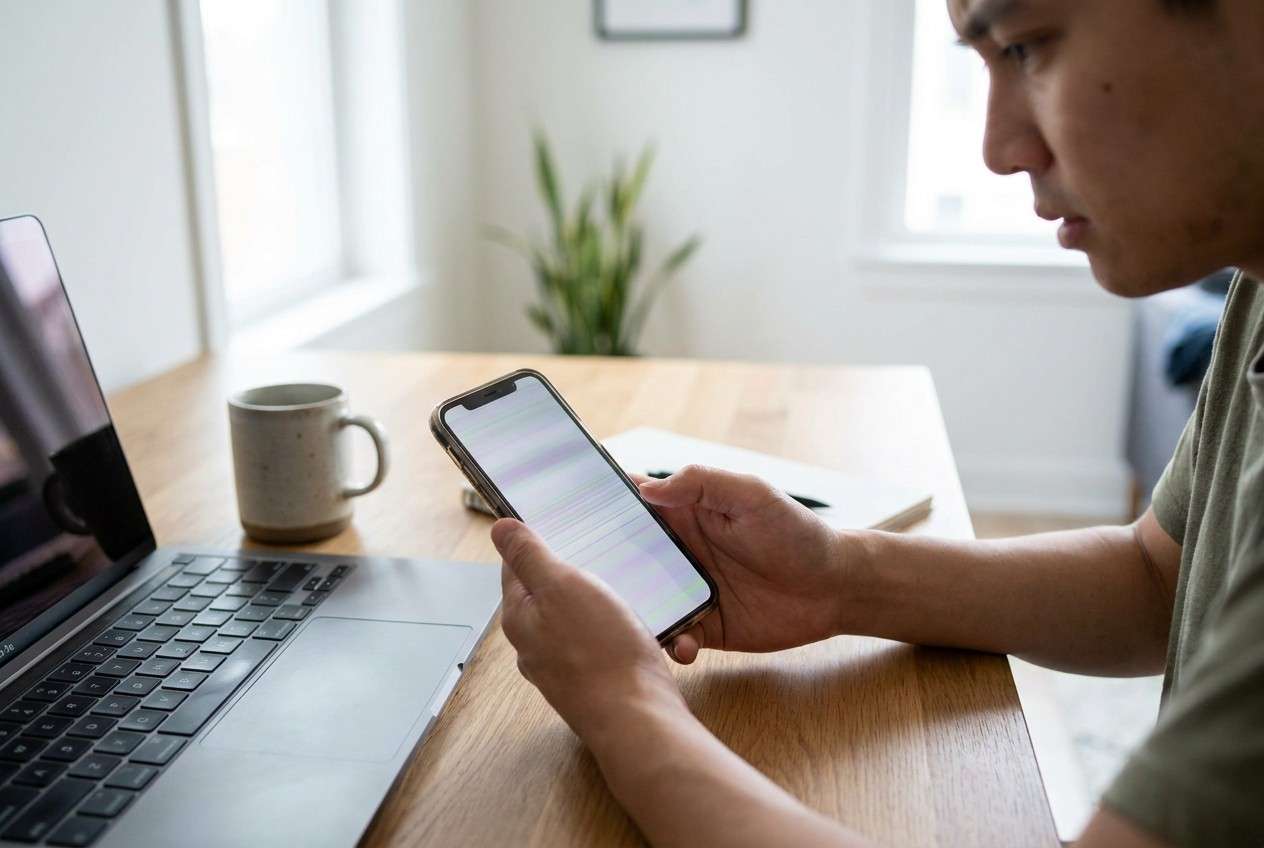
Part 1. Why phone screen flickers after overheating episode happens
After a heat spike, flickering can come from temporary protection behavior (thermal throttling, dimming), display signal instability (connector or panel sensitivity to heat), or power/charging irregularities (charger/cable/port). The timing matters: flicker that starts only while charging points in a different direction than the flicker that continues when unplugged.
If you were just gaming, navigating in the sun, or fast-charging, your phone may have cooled down but still be dealing with residual heat effects. People sometimes compare it to what they’ve seen on an iPhone 13 or iPhone 14 after heavy use—but on Android, the triggers and settings paths differ by brand.
Uncertainty is common: you may not know whether it’s “still recovering” from heat, whether a recent update changed display behavior, or whether the panel has been stressed—especially if the phone is now hard to unlock because the touch layer keeps missing inputs.
1-1. Before You Prompt the AI
Gather a few specifics first so the AI can narrow causes faster:
- Phone brand/model and Android version
- When it started (during charging, right after restart, after cooling)
- What “flicker” looks like (brightness pulsing, horizontal lines, full-screen flashing)
- Whether it happens in Safe Mode, Recovery, or only on the lock screen
- Any recent changes (update, new charger, screen protector, drop, moisture)
Part 2. Using AI prompts to diagnose Android screen flickering after overheating
2-1. Level 1: Basic Prompt
My Android phone screen started flickering after it overheated. Ask me the minimum questions needed to narrow the likely causes, then list the top 3 causes with the safest next step for each.
2-2. Level 2: Advanced Prompt
Act as a phone triage assistant. Based on my answers, rank possible causes of post-overheating screen flicker from most to least likely, and label each as **low / medium / high risk** if I keep troubleshooting. Prioritize checks that avoid data loss and avoid steps that could worsen hardware damage. Start by asking up to 8 targeted questions.
2-3. Level 3: Evidence Prompt
Help me diagnose screen flicker after an overheating episode using evidence.
**Device:** (e.g., Samsung Galaxy S22)
**Android version:** (e.g., Android 14)
**When overheating happened:** (e.g., fast charging in a hot car)
**Trigger right before flicker:** (e.g., tapped Restart / unplugged charger)
**Flicker pattern:** (e.g., brightness pulses every 2–3 seconds / green tint / horizontal lines)
**Charging link:** (only while charging / also unplugged)
**Touch behavior:** (normal / ghost touches / doesn’t register)
**Screen condition:** (cracks, recent drop, moisture exposure)
**Brightness/refresh settings:** (auto-brightness on/off, high refresh on/off)
**Does it happen in Safe Mode or Recovery:** (yes/no/not tested)
**Any lockout/access issue:** (PIN/pattern hard to enter because screen flickers)
**Goal:** (stabilize screen, regain access, back up data)
Now:
1) list the most likely categories (software, power/charging, heat damage, display connection/panel),
2) rank them with reasoning,
3) give 5 lowest-risk checks in order,
4) tell me which observations would change your ranking the most.
2-4. Prompt Refinement
Use these follow-ups to make the AI’s answer more actionable:
What are the **missing questions** you still need to ask to decide between software vs. hardware?
Separate your causes into **charging-related** vs. **not charging-related** and re-rank them.
Identify the **single most diagnostic observation** I can test in 2 minutes without changing settings.
If the flicker is **only on the lock screen**, what does that suggest compared to flicker everywhere?
Which findings would indicate I should **stop troubleshooting immediately** to avoid data loss or lockout?
2-5. AI Output vs Reality
AI can help you think clearly, but it can’t verify physical faults or perform device actions.
| AI suggests | What you can confirm safely |
|---|---|
| “It’s probably software/display settings” | Check whether flicker appears in Safe Mode or during boot screens |
| “It’s likely charging/power instability” | Compare behavior while unplugged vs. different charger/cable/outlet |
| “Heat may have stressed the display assembly” | Look for persistent lines/tint/black flashes even after cooling fully |
| “Touch issues are secondary to flicker” | Test whether touch fails in specific areas or only when flashing occurs |
AI closes the reasoning gap; execution still depends on what your phone allows you to do—especially if flicker prevents entering a PIN or navigating settings.
Part 3. When to stop troubleshooting a flickering phone screen
Stop and switch to a safer plan if you see any of these signals:
- The screen goes black intermittently or shows persistent lines/tint even when cool and unplugged
- The phone becomes hot again quickly during basic tasks or charging
- Touch becomes unreliable enough that you risk lockouts (wrong PIN attempts, accidental taps)
- You notice swelling, burning smell, or battery deformation (treat as a safety issue)
Once you’ve used AI to narrow the likely cause and you’re hitting access limits (can’t enter PIN reliably, can’t reach backup options), it’s time to hand off execution to a dedicated tool that focuses on device access workflows.
Part 4. When flicker blocks input: focus on access first
If your screen flicker is making it difficult to enter your PIN/pattern or interact consistently with the lock screen, the immediate priority is often access recovery—so you can secure data and proceed with calmer next steps.
At that point, avoid repeated on-device retries that can increase instability or trigger security delays. Instead, treat the situation as an access workflow problem first (get in safely, back up what matters), then return to diagnosis and long-term stabilization.
Part 5. Phone screen flickers after overheating episode: regain access safely with Dr.Fone
If flicker prevents reliable lock-screen input, Dr.Fone - Screen Unlock (Android) can be used as a practical execution step after AI has helped you decide you’re dealing with an access barrier (not just a minor setting). The goal is to follow a guided unlock workflow rather than making repeated taps on an unstable display.
 Unlock Android phone in seconds.
- Remove PIN, pattern, password, fingerprint.
- Bypass Google FRP lock easily.
- Works on all Android brands & models.
- No tech skills required – user-friendly.

-
Step 1 Confirm your goal (access vs. display diagnosis)
Decide whether you mainly need to unlock the device to secure data, because continued tapping on a flickering screen can increase lockout risk.

-
Step 2 Install and open Dr.Fone on a computer
Launch Dr.Fone and choose Screen Unlock (Android) so you’re following a purpose-built access flow rather than ad-hoc retries.

-
Step 3 Connect the phone and follow the on-screen device selection
Use a stable USB connection and select the correct brand/model prompts carefully to avoid unnecessary retries when the phone is unstable.

-
Step 4 Complete the unlock workflow as guided
Proceed exactly as Dr.Fone instructs, and avoid extra reboots or charger swaps mid-process if overheating was involved.

-
Step 5 After access, stabilize your next moves
Once you’re back in, prioritize backing up essentials and reducing heat load (no fast charging or heavy apps) while you decide whether hardware service is needed.




Conclusion
AI helps you classify the flicker pattern, rank likely causes, and choose low-risk checks; when the real blocker becomes lock-screen input on an unstable display, handing execution to Dr.Fone - Screen Unlock (Android) is a practical way to complete the access step cleanly and move forward.
FAQ
-
Q1. Why does my phone screen flicker only after it overheats?
Heat can temporarily affect power delivery, display timing, or protective dimming behavior; if it persists when cool, it can also indicate stressed display hardware.
-
Q2. How can I tell if flickering is caused by charging vs. the screen itself?
Check whether flicker happens only while plugged in; if it stops unplugged (and with a different charger/cable), charging power instability becomes more likely.
-
Q3. Should I keep restarting my phone until the flicker stops?
Repeated restarts can increase instability and may risk lockouts if touch input misfires; it’s better to test a small number of safe observations and then stop.
-
Q4. If the screen flickers, can that cause me to get locked out?
Yes—mis-taps and failed PIN/pattern entries can trigger time delays or lockouts, especially if the display flashes or touch registers incorrectly.
-
Q5. When is Dr.Fone – Screen Unlock (Android) relevant for a flickering screen?
When flicker prevents reliable lock-screen input and your priority is regaining access so you can back up data or proceed with next steps without repeated attempts on the device.
 Add Wondershare Dr.Fone as a preferred source on Google





