 Effortlessly manage data through preview, delete, export, etc.

 100% Security Verified | No Subscription Required | No Malware

 :
: 
 ChatGPT
 Perplexity
 Gemini
 Claude
 Grok
Grok

I started moving my data from iPhone to Android, it got stuck partway through, and now I can’t tell what actually transferred—I'm worried re-running it will create duplicates or overwrite newer stuff.
Reddit user, r/Android
An iPhone-to-Android transfer that’s incomplete or stuck can leave you with missing chats, duplicate photos, or a half-migrated account state if you skip a step.
AI is useful here for turning a messy situation into a clean sequence: what to check first, what to pause, what to document, and what not to do yet.
AI can’t see your devices, confirm what copied successfully, or run transfer tools—so execution needs real software once the plan and verification gates are clear.
In this article
- How to Plan an Incomplete or Stuck iPhone-to-Android Transfer
- Why sequencing matters
- What data is most at risk
- Irreversible actions to avoid early
- What to capture before retrying
- What the AI Needs to Know
- Using AI Prompts to Build a Safer Workflow
- When to Stop Planning and Start Execution
- Execute the Workflow Safely with Dr.Fone
Part 1. How to Plan iphone to android transfer incomplete or stuck Without Missing Critical Steps
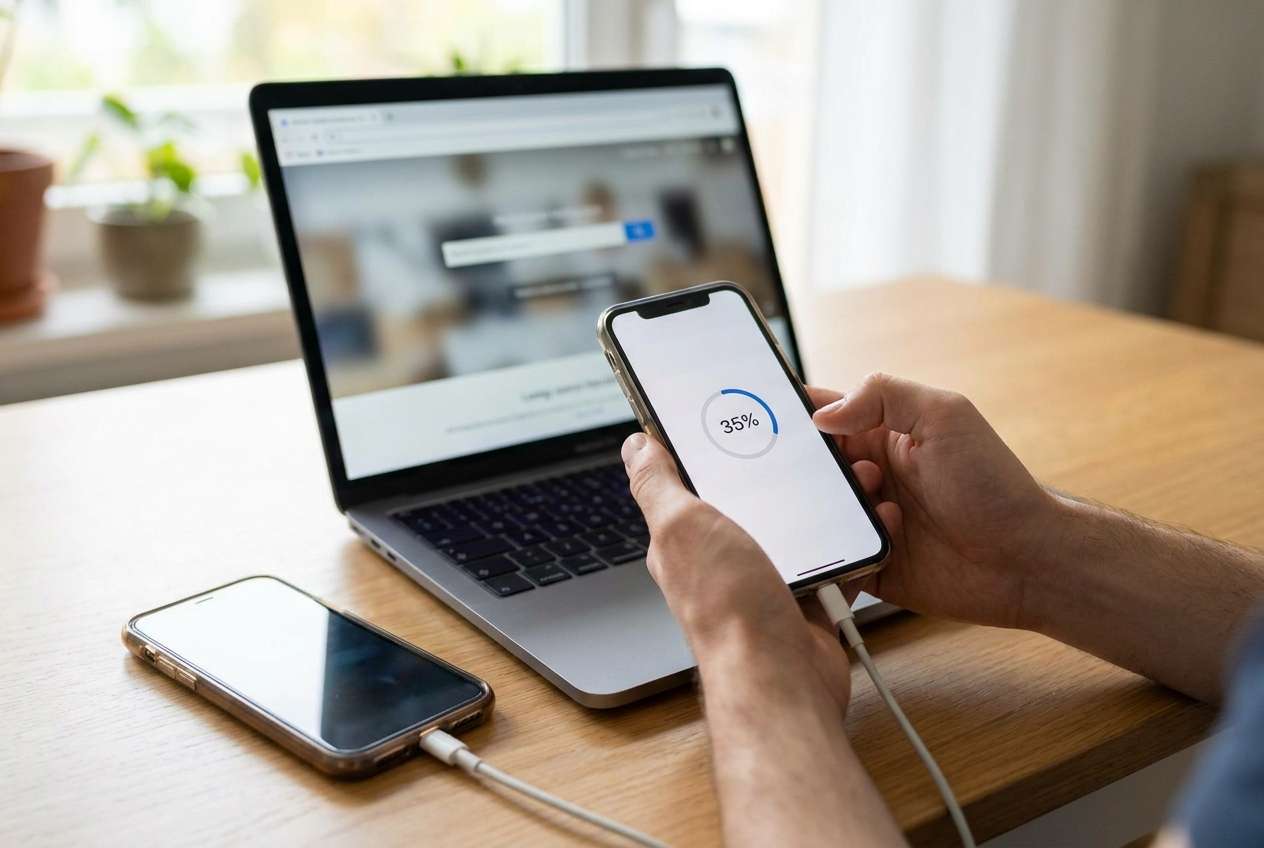
You started a transfer and it stalled—maybe the progress bar froze, the cable disconnected, Wi‑Fi changed, or the target Android filled up. Now you’re unsure whether to retry, resume, or start over.
AI answers often say “restart both phones and try again,” but that misses sequencing: what evidence to collect first, what data types are at risk (photos vs. messages vs. app data), and which retry path avoids duplicates or overwriting newer data.
The point of no return is typically initiating a “replace/overwrite” transfer, erasing the Android, or restoring the iPhone from an older backup—any of these can permanently bury the most recent data if you haven’t verified what’s already on each device.
Part 2. What the AI Needs to Know
Share the facts below so the workflow can be planned with correct risk checks and stop/go gates.
- iPhone model + iOS version
- Android model + Android version
- Transfer method attempted (cable, Wi‑Fi, switch app, PC tool) and where it got stuck (e.g., “stuck at 32% on photos”)
- Data types you attempted to move (contacts, photos, messages, WhatsApp, files, apps)
- Estimated dataset size (e.g., photos count, total GB)
- Available free storage on Android (and iPhone, if relevant)
- Whether anything new was created after the attempt (new photos, new messages, new WhatsApp chats)
- Whether the Android already had important data before the attempt (and if it must be preserved)
- Any errors shown (exact wording/screenshots if possible)
- Your tolerance for duplicates vs. tolerance for missing data (which is worse for you)
Part 3. Using AI Prompts to Build a Safer iphone to android transfer incomplete or stuck Workflow
Use the prompts below to make the workflow explicit before you touch anything that could overwrite data.
3-1. Level 1: Basic Prompt
I started an iPhone-to-Android transfer and it’s incomplete/stuck.
Ask me the minimum questions needed, then give me a step-by-step plan to recover and complete the transfer while minimizing duplicates and avoiding data loss.
Include a clear “stop” point before any action that could overwrite data.
3-2. Level 2: Advanced Prompt
Build me a structured workflow for an iPhone-to-Android transfer that is incomplete or stuck.
Split the plan into Preparation, Execution, and Verification, and label each step as Critical or Optional.
Add decision gates for: “safe to retry,” “safe to resume,” “must restart from scratch,” and “do not proceed until verified,” and specify what evidence I should collect at each gate.
3-3. Level 3: Evidence Prompt
Here’s my situation: iPhone (iPhone 13, iOS 17.5), Android (Pixel 7, Android 14).
Transfer was attempted by cable and froze at 32% during photos; Android has 18 GB free; iPhone has ~210 GB photos; WhatsApp is active on iPhone and new messages arrived after the attempt.
Create a workflow with checks before, during, and after execution.
Include: storage math, network/power requirements, how to prevent duplicates, and how to confirm completeness for each data type (contacts/photos/messages/files).
Before any “overwrite/replace” action, give me a verification checklist and a rollback plan (e.g., what to back up first, what to screenshot, what to export).
3-4. Prompt Refinement
List the exact decision tree you’ll use (retry vs resume vs restart) and the minimum evidence needed to choose each branch.
Separate verification into device-level (counts, storage used, visible items) and account-level (Google/Apple sync status), and tell me what to check in each.
Define “complete” for my transfer in measurable terms (e.g., photo count range, contacts count match, WhatsApp chat presence), and specify acceptable variance.
Identify the top 5 irreversible actions in my situation and put a hard STOP gate before them, with required checks to pass the gate.
Produce a one-page “run sheet” I can follow during execution: prerequisites, do/don’t, timestamps to record, and what to do if the transfer stalls again.
3-5. AI Plan vs. Real Device Constraints
| AI planning can provide | Device reality that AI can’t do |
|---|---|
| A safe sequence, decision gates, and checklists | Read your actual device state (storage, errors, data counts) |
| Risk flags (overwrite, duplicates, partial copies) | Prevent a cable drop, OS prompt, or background app interruption |
| Verification ideas (counts, spot-checking, sampling) | Perform the transfer or validate files at the filesystem level |
| A rollback-minded workflow | Create and manage real backups/transfers on your hardware |
AI improves planning, but it cannot execute transfers, access your phones, or confirm results without your observations and a real execution tool.
Part 4. When to Stop Planning iphone to android transfer incomplete or stuck and Start Execution
- You can clearly state which data sets are in scope (e.g., contacts + photos + WhatsApp) and which are out of scope.
- You have a written stop/go rule for any overwrite/replace/erase option, and you’re not guessing.
- You’ve confirmed storage and power requirements are sufficient to finish without another stall.
- You have a verification checklist that tells you what “done” means and how you’ll detect missing items or duplicates.
If those are true, further planning usually adds less value than a controlled, verified execution attempt.
Part 5. Iphone to android transfer incomplete or stuck: Execute the Workflow Safely with Dr.Fone
Execution is where stalls, overwrites, and duplicates actually happen—so this is the moment to follow the plan, capture evidence, and avoid irreversible choices until verification gates are passed. To run a controlled transfer, you can use Dr.Fone - Phone Transfer as the execution tool after your decision gates are clearly defined.
 Move data between iOS to Android and vice versa.
- Transfer contacts, SMS, photos, videos, music, and more types.
- Available with all phones with Android and iOS versions.
- Simple, click-through process.

-
Step 1 Stabilize and preserve what exists
Confirm both devices are charged and stable (avoid low-power interruptions). Verify you have enough free storage to finish, and pause sync/auto-cleanup behaviors that could change counts during verification.

Limitation: AI can’t confirm your real storage, background processes, or whether your data is still changing while you work.
-
Step 2 Run the transfer in Dr.Fone (only after the plan is locked)
Open Phone Transfer, set the transfer direction (iOS to Android), then proceed only with the retry/resume/restart approach your plan selected. Do not choose any overwrite/erase option unless your verification gate explicitly allows it.

Limitation: AI cannot operate Dr.Fone for you or see which on-screen options you selected.
-
Step 3 Choose data types intentionally
Select only the categories you intend to move (for example: contacts, photos, messages, files). If your workflow warns about duplicates in one category, transfer safer categories first and verify before adding riskier sets.

-
Step 4 Verify completion before any “clean up”
Validate results against your checklist (counts, storage used, spot-check samples, and key items like recent photos and the most recent chats). Only after verification should you decide whether to re-run specific categories or remove duplicates.

Limitation: AI can suggest what to verify, but you must perform the checks and judge whether the transfer meets your “complete” criteria.




Conclusion
Use AI to design a guarded workflow with decision gates and verification checks, then use Dr.Fone to execute the transfer once you’re confident you won’t trigger an irreversible overwrite before you can confirm what’s complete.
FAQ
-
If my transfer is stuck, should I immediately retry?
Not until you capture what’s already changed (what copied, what didn’t) and confirm whether a retry will duplicate data or overwrite newer items. -
What’s the biggest point-of-no-return mistake?
Choosing an option that replaces/overwrites destination data (or erases the Android) before you’ve verified what the Android already contains and what the iPhone still holds. -
How do I verify without checking every single photo/message?
Use measurable checks (counts, storage used) plus sampling (recent items, oldest items, a few random months/albums/chats) and compare against your “complete” definition. -
Why do duplicates happen after a second attempt?
Many transfers can’t perfectly detect what already copied—especially if items were modified, re-synced, or partially transferred—so a second run may import again unless your workflow prevents it. -
When should I stop and make a backup first?
If you’re considering any overwrite/erase action, if you can’t tell what already transferred, or if new data has appeared since the failed attempt (new chats/photos) that you can’t afford to lose.
 Add Wondershare Dr.Fone as a preferred source on Google





