 Effortlessly manage data through preview, delete, export, etc.

 100% Security Verified | No Subscription Required | No Malware

 :
: 
 ChatGPT
 Perplexity
 Gemini
 Claude
 Grok
Grok

I switched to a new Samsung and used Smart Switch, but now my text message threads are incomplete or empty. I can’t tell if it’s still syncing or if the transfer failed.
Reddit user, r/samsung
SMS sometimes appear “missing” right after moving to a new Samsung phone (for example, a Galaxy S23 to a Galaxy S24) after you tapped Transfer in Smart Switch or finished signing into your Google/Samsung account. You open Messages and the threads are incomplete, out of order, or totally empty—and it’s unclear whether the phone is still syncing or if something failed.
AI (like ChatGPT or Gemini) can help you triage symptoms, narrow the likely causes (sync vs. transfer vs. app mismatch), and choose low-risk next steps based on what you can still access.
AI can’t see your phone’s real state, and repeated “try this” changes (resetting apps, redoing transfers, clearing data) can create new risks like overwriting newer messages or locking you out of the old device.
In this article
- Part 1. Why SMS are missing after switching to a new Samsung phone
- What usually causes the “missing” look
- Smart Switch vs app mismatch
- When the old phone is inaccessible
- Before you prompt the AI
- Part 2. Using AI prompts to diagnose missing SMS on Samsung after phone switch
- Part 3. When to stop troubleshooting missing text messages after Samsung migration
- Part 4. SMS missing after switching to new Samsung phone: resolve it safely with Dr.Fone
- Conclusion
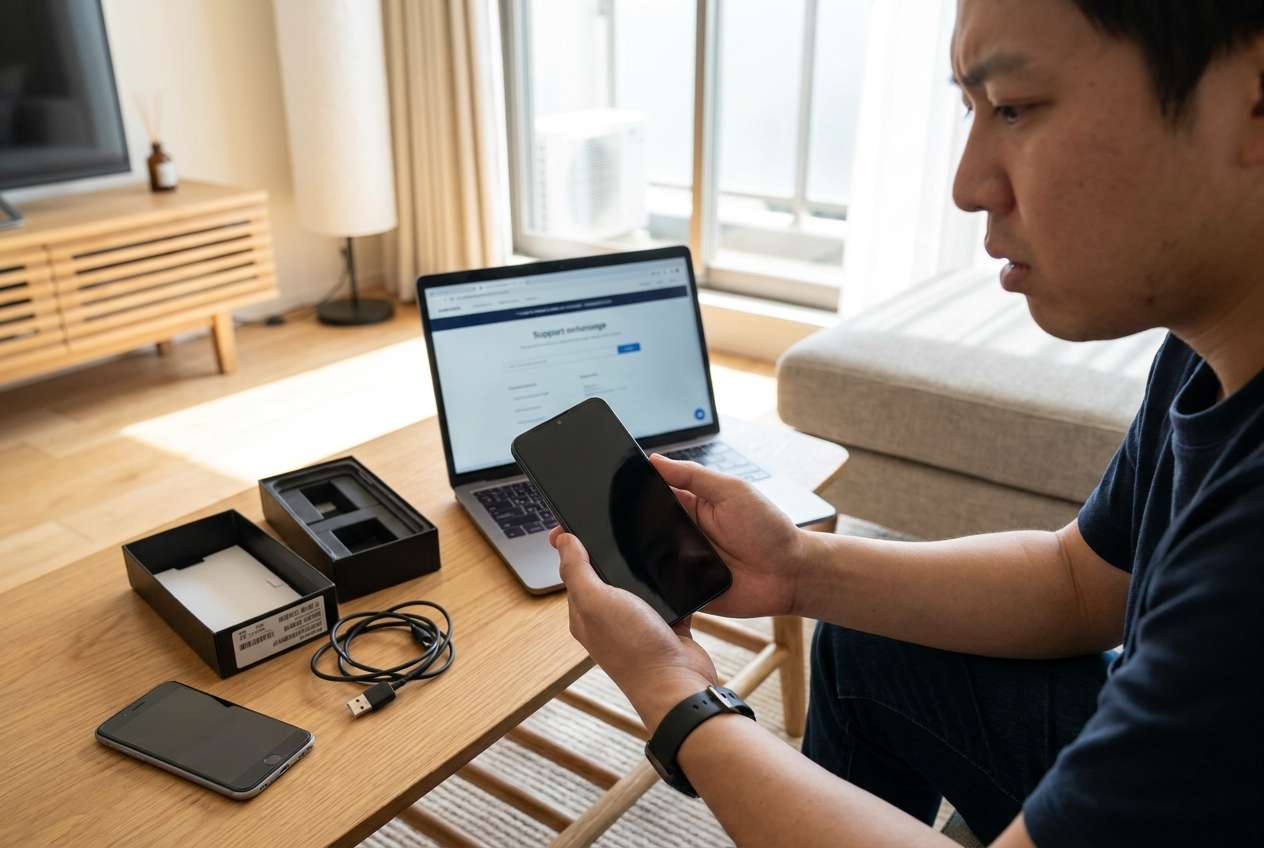
Part 1. Why SMS are missing after switching to a new Samsung phone
When SMS don’t show up on the new Samsung, it usually means one of three things: the messages never transferred, they’re in a different app/profile, or they’re stuck behind access to the old phone (locked screen, dead display, broken PIN flow) where the “source” data still lives.
A common trigger is finishing Smart Switch quickly, changing your default messaging app (Samsung Messages ↔ Google Messages), or enabling RCS/Chat features immediately after setup. The result can look like “everything is gone,” even though some data is simply not imported or not displayed yet.
If your old phone is locked and you can’t get back in to confirm what’s on it, you may be unable to verify whether the SMS exist locally, are synced anywhere, or need another controlled transfer.
1-1. Before You Prompt the AI
Collect a few facts first so the AI can narrow causes without guesswork:
- Old phone model + new phone model (e.g., Galaxy S21 → Galaxy S24)
- What you used to move data (Smart Switch cable/Wi‑Fi, Google restore, carrier tool)
- Messaging app on old phone vs new phone (Samsung Messages or Google Messages)
- Whether you still have the old phone and can unlock it
- Approx. what’s missing (all SMS vs only some threads vs only recent)
- Any recent changes (new SIM, new number, eSIM, factory reset, app switch)
Part 2. Using AI prompts to diagnose missing SMS on Samsung after phone switch
2-1. Level 1: Basic Prompt
My SMS are missing after switching to a new Samsung phone. Ask me the minimum questions needed to determine whether this is a transfer issue, an app/account mismatch, or access to the old phone issue, and then give me the safest next steps that won’t overwrite messages.
2-2. Level 2: Advanced Prompt
Act as a phone data triage assistant. My goal is to understand why SMS are missing on my new Samsung after migration and choose low-risk steps.
1) List the top 5 likely causes and **rank** them by probability.
2) For each cause, list what evidence would confirm/deny it.
3) Flag steps that are **high risk** (could overwrite, delete, or lock me out).
4) Give a short plan with “do now / do later” actions.
2-3. Level 3: Evidence Prompt
Diagnose my “SMS missing after switching to new Samsung” issue using the details below. Then rank likely causes, explain why, and propose the least risky next steps.
**Device info**
- Old phone: (e.g., Galaxy S21)
- New phone: (e.g., Galaxy S24)
- Android versions (if known):
- Messaging app before: (Samsung Messages / Google Messages / other)
- Messaging app now: (Samsung Messages / Google Messages / other)
**Migration details**
- Transfer method: (Smart Switch cable / Smart Switch Wi‑Fi / Google restore / carrier transfer)
- Did you choose “Messages/SMS” during transfer? (Yes/No/Not sure)
- Did you interrupt the transfer or change apps mid-setup?
**What’s missing**
- Missing scope: (all SMS / only some contacts / only recent days)
- Are MMS/group messages missing too?
- Do any threads appear but without older history?
**Access & constraints**
- Can you unlock the old phone right now? (Yes/No)
- Is the old screen usable? (Yes/No)
- Any PIN/Pattern issues or lockouts?
- Any SIM change or number change?
**Safety requirements**
- I want to avoid: (factory reset, clearing app data, overwriting newer messages, account lockouts)
- Time sensitivity (optional):
2-4. Prompt Refinement
If the AI response is too generic, use these follow-ups to force clearer decision-making:
“What are the **missing questions** you still need from me to decide between transfer failure vs wrong app vs sync delay?”
“Separate causes into categories: **transfer**, **messaging app configuration**, **account/profile**, **SIM/number**, **device access**—then rank within each category.”
“List the **single best piece of evidence** to check first, and exactly where I would see it on a Samsung phone.”
“Identify which actions could **overwrite** message history on the new phone and which are read-only checks.”
“If my old phone is locked/unusable, what are the **lowest-risk** options that don’t require wiping the new device?”
2-5. AI Output vs Reality
Use AI output as a hypothesis, then validate with what you can actually observe:
| What AI may suggest | What you should verify on your device |
|---|---|
| “It’s still syncing—wait longer.” | Whether your SMS count changes, threads repopulate, or transfer logs show completion. |
| “You’re using a different messaging app.” | Which app is set as default SMS and whether the other app shows the threads. |
| “Smart Switch didn’t copy messages.” | Whether Messages/SMS was selected and whether the old phone still has the SMS locally. |
| “Restore from Google should bring them back.” | Whether your backup included SMS and whether restoring now could overwrite newer data. |
AI can help you compare possibilities and plan safe checks, but it can’t confirm what’s on your specific devices or perform the actions—especially when the old phone is inaccessible due to a locked screen.
Part 3. When to stop troubleshooting missing text messages after Samsung migration
If you keep toggling apps, clearing storage, or re-running transfers, you can accidentally create duplicates, overwrite newer threads, or lose the best chance to confirm what still exists on the old device.
Stop and reassess if:
- You can’t unlock the old Samsung (PIN/pattern/lockout) and you need it to confirm the SMS are still there.
- You’re about to clear Messages app data, reset network settings repeatedly, or factory reset without a verified backup.
- The new phone now has new incoming texts, and a re-transfer could overwrite or confuse timelines.
- You’re seeing security prompts (account lock, FRP warnings) or escalating lockout timers on the old device.
Once you’ve used AI to narrow the most likely cause, the next step is choosing a practical execution path—especially if the blocker is simply access to the old phone where the SMS source data may still reside.
Part 4. SMS missing after switching to new Samsung phone: resolve it safely with Dr.Fone
If your diagnosis points to “the SMS are likely still on the old phone, but I can’t get in,” the most direct next step is restoring access so you can re-check Messages, confirm what exists, and complete a controlled transfer or backup. Dr.Fone - Screen Unlock (Android) is relevant at this stage because it’s designed to help you unlock access on supported devices so you can proceed with your chosen data-check workflow without guessing from the new phone alone.
 Unlock Android phone in seconds.
- Remove PIN, pattern, password, fingerprint.
- Bypass Google FRP lock easily.
- Works on all Android brands & models.
- No tech skills required – user-friendly.

-
Step 1 Confirm your goal is device access
Decide whether you mainly need to unlock the old phone to verify SMS, re-enable transfer options, or confirm which messaging app contains the history.

-
Step 2 Install Dr.Fone and open Screen Unlock (Android)
On your computer, launch Dr.Fone and choose Unlock Android Screen, keeping the phone connected steadily to avoid interruptions during the process.

-
Step 3 Select the correct device information
Follow the on-screen prompts to choose the right brand/model path, since using the wrong option can cause delays or unsuccessful attempts.

-
Step 4 Complete the guided unlock flow carefully
Proceed through the guided steps without retrying multiple times rapidly, because repeated failures can trigger longer lockouts on some devices.

-
Step 5 Re-check SMS sources and re-run a controlled transfer
Once you can access the old phone, verify where the SMS actually live (default app, SIM vs device storage) before redoing any transfer so you don’t overwrite newer messages on the new device.




Conclusion
AI can help you turn “SMS missing after switching to a new Samsung” into a shortlist of likely causes and the safest checks to run, but it can’t validate your phone’s real state or perform access steps. If your triage points to the old device being the bottleneck, using an execution tool like Dr.Fone’s Android screen unlock can help you regain access so you can verify the SMS source and proceed with a controlled, low-risk transfer plan.
FAQ
-
Why are my texts missing after Smart Switch on Samsung?
Often the Messages/SMS option wasn’t included, the transfer didn’t finish, or you switched messaging apps during setup so threads appear in a different app. -
Do SMS sync to a Samsung account automatically?
Not always; SMS handling depends on your messaging app, device settings, and what you restored during setup. -
Why do some threads show but older messages are gone?
That can happen if only part of the history transferred, if MMS/group history didn’t import, or if the app is displaying a different storage/source than before. -
Should I clear cache or storage for the Messages app to fix missing SMS?
Cache clearing is usually lower risk than clearing storage, but clearing storage can remove local message data—avoid it unless you’ve confirmed backups and understand the impact. -
What if my old Samsung is locked and I can’t check whether the SMS are still there?
At that point, your best next step is restoring access to the old phone first, because it’s the most reliable way to confirm whether the SMS still exist locally and what transfer path makes sense.
 Add Wondershare Dr.Fone as a preferred source on Google





